Is it possible to create a painting pallet that I could mix paint on and then use on my painting? I’m trying to emulate the way I used to paint using acrylic paint on canvas.
Hi @Jackamus
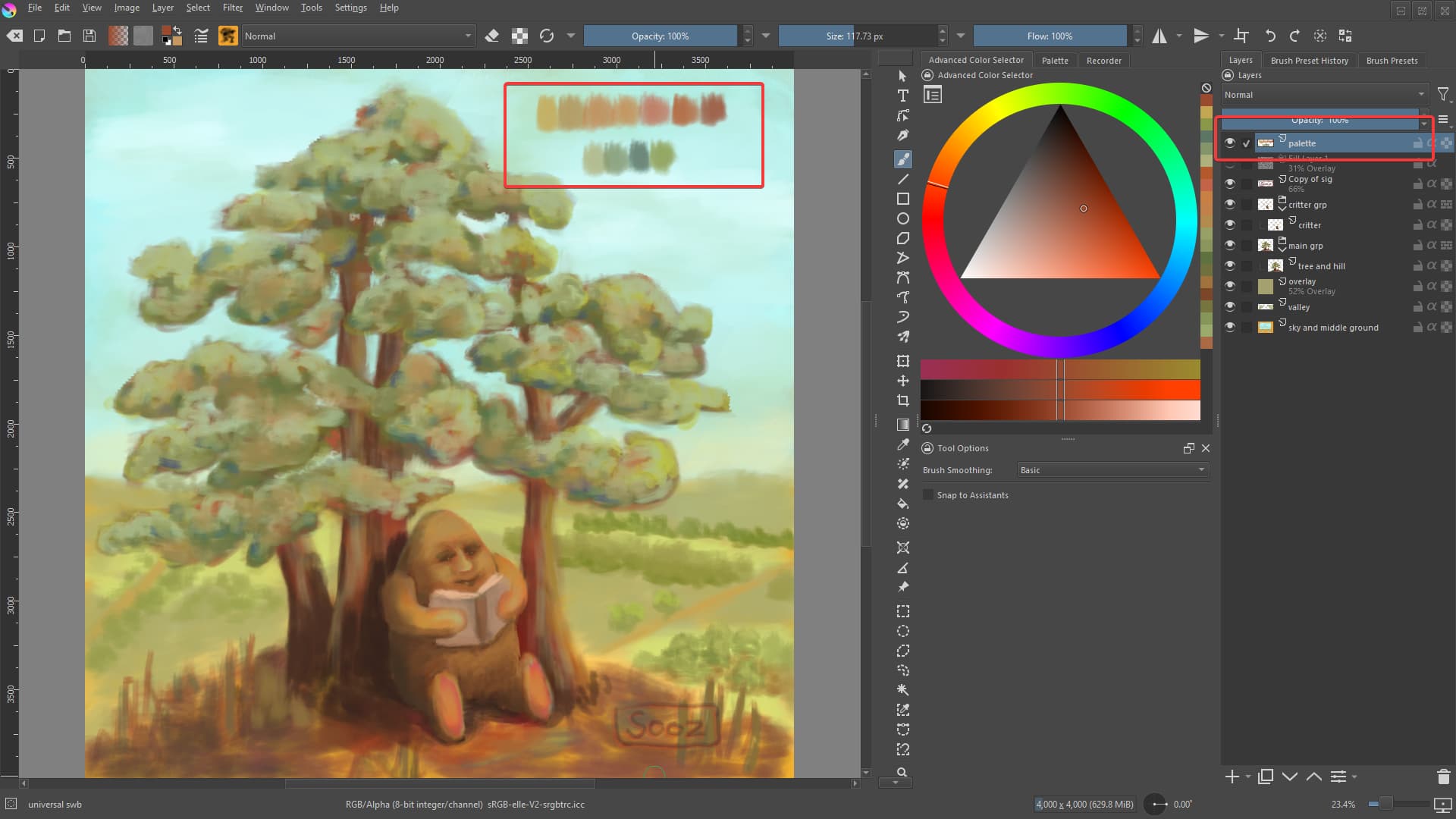
I don’t know if there is a plugin for this, but here’s what I do. I create an extra layer at the top of the layer stack that I name “palette.”
On that layer, I create my colours (usually off to the side where it doesn’t have much impact on my work). Using the colour sampler, I grab colours as I need them. There’s no need to change layers at all while doing this so it’s very quick and simple.
1 Like
Hi Sooz, Thanks for your advice. Can you attache a screenshot showing me what you mean?
You can also make the canvas larger than the final intended size and make a ‘border/marker rectangle’ to show the final intended size in the centre.
Then you can have the area around the marked centre as a ‘local palette’ that you can mix and blend paints on then sample from.
When finished, you can make a copy of the .kra file and Crop out the pallet area or select the border/marker rectangle layer and do Image → Trim to Curent Layer.
Or, you can judge it all by eye and make the palette off to one side then do the final Crop manually by eye.
OK I think I understand that and it sounds just what I want.
My next question is: once you have created your pallet on the border, can you then select a brush and pick-up the paint from the pallet and paint it onto your canvas?
You ‘pick up’ a colour with the colour picker tool that can be selected from the Toolbox, it looks like an eye dropper.
The easy way is to press and hold the Ctrl key to give you a temporary switch to a colour picker then you can click on the canvas to select (‘pick up’) a colour to be the current colour.
Before you do that, select the colour picker on the Toolbox and make sure that its tool options, in the Tool Options docker are set to ‘Sample All Visible Layers’ and ‘Update Colour’ enabled.
If you have ‘Add to Palette’ enabled then it will try to add the selected colour to an existing selected palette which may or may not be a desirable action.
Then the Ctrl activated colour picker will behave according to those settings from that point on.
1 Like
Thanks Ahab I’ll give it a go.
1 Like
Let us know if you have any problems and also if it all seems to be suitable for you.
Hi @Jackamus
I was just painting and realized I never responded to your request. Here’s something I’m working on right now. I’ve put red rectangles around the palette on my canvas and the corresponding layer that is housing the palette. Hope this is helpful.
2 Likes
Hi Sooz, Thanks for the image as it does explain a lot.
2 Likes
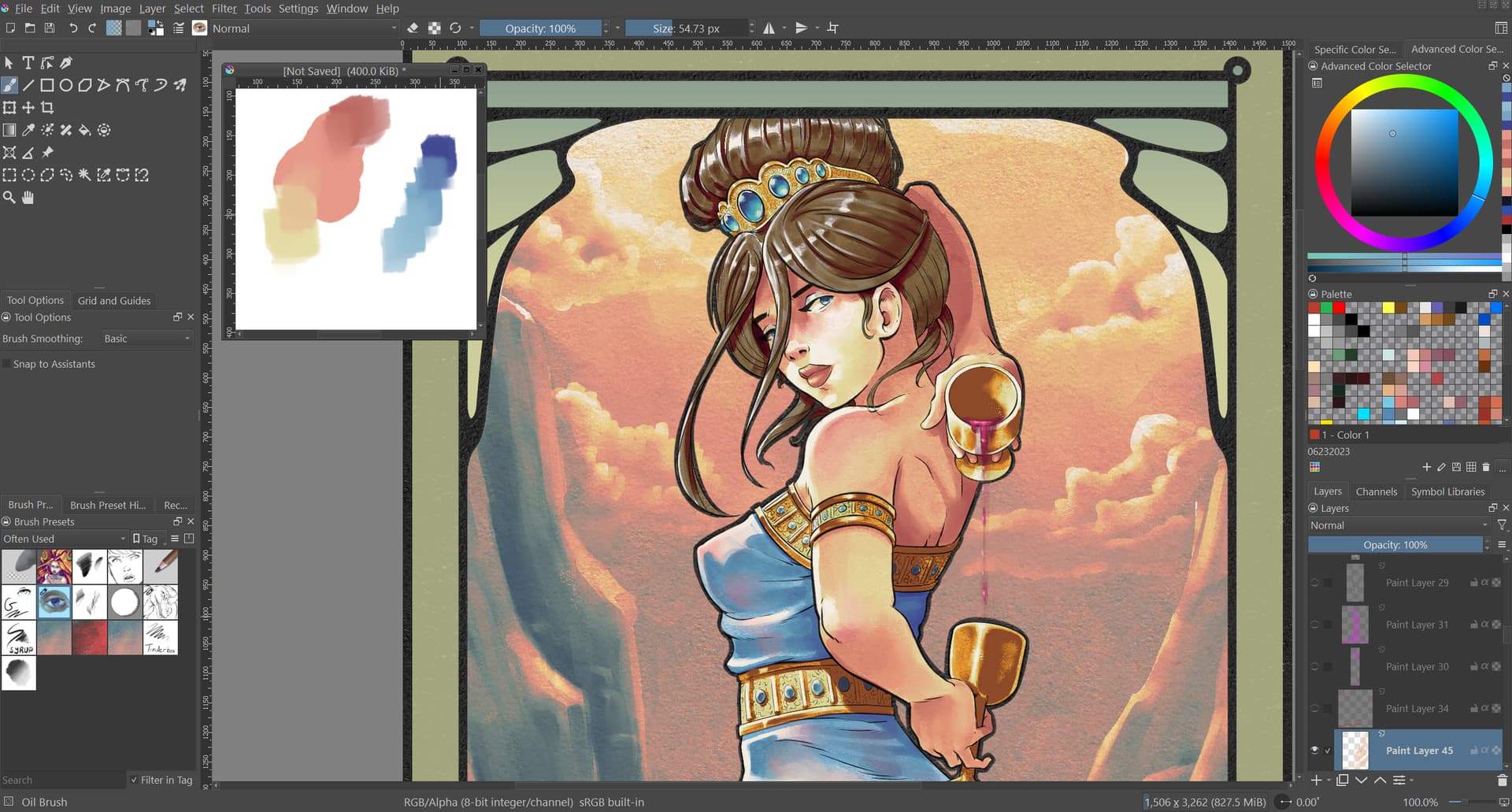
One other alternative would be using a second window. You’d need to set Krita to use subwindows for the canvas handling, rather than tabs (if you don’t already use them). This would allow you the flexibility to have two working projects opened at a time, while also allowing you to set one of them to always be on top of the others. In your case, the “always on top” canvas would be your mixing palette, while the other canvas could be fully expanded to the borders of your screen and be your working canvas (also fully functional in full screen mode). I’ve attached a screen shot of how this would work. For a more in-depth walk through of how set this up, please refer to this thread: Reference Images
The only drawback to this is that it requires each screen to be refocused upon, when you plan to add or grab a color from it. I’ll leave it to you to decide if that’s more of a hinderance than help.
Admins please note: All artwork visible in the screen shot below is my own.
2 Likes
This topic was automatically closed 30 days after the last reply. New replies are no longer allowed.