Firstly, I’d like to mention that I’m a huge advocate of FOSS and am super impressed at how much Krita is capable of for what it is. From a distance, it has always felt to me like it was the Blender of 2D art and animation, but I never got truly get into it since I was used to Clip Studio Paint and its workflow. But now, due to “certain reasons” I got the push I needed to make the jump and am pretty glad I took the day to tinker around.
It was because of the differences I noticed in how Krita handled certain tools/features (and lack thereof) that gave me the idea to make this post. I am curious as to what the community has to say about this.
I apologize beforehand if some features that I’m proposing/requesting already exists, be it vanilla or through 3rd party plugins. This is just something I’m tossing out there from my personal workflow and through my micro-journey transitioning across the two softwares.
So here’s the philosophy:
Only canvas is visible (UI-less experience): We all know that it’s good practice to look at the entire illustration rather than spending too long on minute details that won’t even be noticeable in the final overall piece. As someone who uses a Kamvas 12, being able to go “truly” fullscreen in Krita was a boon to say the least, as it was not something I was able to take advantage of in CSP.
Bare necessities only: Naturally, since important dockers such as layers and toolbox aren’t visible, this philosophy might lean more towards the sketches/doodles rather than extravagant pieces. But I will later write about feature requests that might help expand upon this.
Frequent actions must not require more than 2 clicks (God bless the popup palette!): By far, the popup palette has possibly been the most useful tool in Krita I’ve encountered. This single tool made the transition much easier. I love hotkeys as much as the next person, but sometimes some combinations are way too awkward to use frequently with one hand. Luckily the popup palette solves most of the issues.
PC? I’m practically drawing on an iPad! (Keyboard-less experience): The main idea here is to reduce the number of devices we’re dependent on as much as possible. This might not be an issue to people with clean and spacious setups, but for people in cramped areas where it’s not possible to ergonomically place relevant devices, it might help if they’re able to draw seamlessly by only having to rely on their graphic tablet.
This means limiting yourselves to 4 to 10 buttons depending on the model of your tablet. Not much of an issue if you have at least 6 (3 reserved for Shift, Ctrl and Alt) but any less might be challenging.
This also ties into the point of not needing more than 2 clicks, since most tablets don’t allow more than two buttons pressed at the same time (at least mine doesn’t).
Altogether, these points can act as decent restrictions to be more creative, while at the same time help to clear clutter/choice paralysis for newer users/artists. However, the fact of the matter is that there is definitely some fundamental features/tools lacking to make this feasible for large/advanced projects.
Here are some that I have noticed:
Expanded Popup Palette: I’m pretty sure I’m not the first nor only one to think that it’d be great if the palette could do more. But I’m trying to keep the list as small as I can:
Drop-down (drop-side?) button that opens up a floating layers dock: This is probably the second biggest thing I’m going to ask for. Everything else are smaller additions. This button would be a toggle, meaning users can choose to display this ‘dock’ permanently every time they right-click, or not.
Selection and Free transform button: I honestly didn’t understand why these buttons weren’t included from the get-go. These two functions are frequently used enough that they’re kind of required.
Fit to canvas + Fit to canvas width buttons: Self explanatory. The original goal is to be able to view the entire piece using your entire screen. So if you’re drawing a 4K image on a 1080p monitor, that 100% zoom alone won’t help much.
Customizable button “zones” (biggest addition): I love how the brush ring auto adjusts depending on how many you have (upto 30). It would also be cool if there was, like, a rectangular ‘zone’ (similar to the brushes ring/circle) that could contain any number of tools/functions.
Let’s say you’re a comic artist, so you use the text tool a lot, so you add it in. Or maybe you’re a vector artist, so you need the shapes and curves toolset ready at your fingertips.
Or, if you’re both, it would be EVEN better if you could create a “toolset” or “action-set” similar to brush tags so that rectangular zone could be swapped on the fly.
This is ‘kind of’ similar to CSP’s ability to allow you to customize its ‘toolbox docker’ however you please regardless of rhyme or reason. Besides, Krita already has workspaces, so the whacky customizability wouldn’t ruin anything.
I understand the programming challenges that might come since tools and actions are basically limitless, but we can start with the buttons in the toolbox docker and work up from there maybe?
Windows Alt command override: I can’t assign Alt-F, Alt-E, Alt-V or any other letter that is underlined in the menu-bar because of Windows’ default Alt commands. CSP overrides this so it’s not an issue there, but this problem in Krita vastly decreased my customizability options.
A small workaround is to go into fullscreen/canvas-only mode, so the windows commands aren’t registered, but that feels like a band-aid. Idk how it’s like on mac.
“Hold” key to move layer/selection: Krita already has the straight-line mode “hold” key which is V. CSP has hold functionalities for every single brush iirc, but that’s not the point. As artists, we constantly adjust our art until we gradually approach the vision we like, so the main feature from CSP I’d like is the hold key for moving/dragging the current layer/selection.
In CSP, if you hold the Ctrl key and drag the LMB the entire current layer is translated across the canvas. In fact, if you happen to Ctrl+LMB a different part of the canvas which ink that’s on a different layer, then that layer gets selected and translated. As soon as you release LMB, that layer gets deselected and returns to your ‘current’ layer. It’s super convenient when I don’t want to bother with the free transform and just want to move stuff around.
The same thing applies to selection. Make a selection in the current layer. Ctrl+LMB drag it, and that selection gets dragged around.
Thank you @Solution-Beast, I was able to add this function!
Selection popup menu: This is another feature I’d like from CSP. If you make a selection, a thin bar appears at the bottom of the selection bounds such as Deselect, Crop, Invert Selection, Expand Selection, Shrink Selection, Delete Selection, Delete Outside Selection, Copy and Paste, Cut and Paste, Fill, Tone etc.
This is an existing feature in Selection Action Bar thread. Please vote there as well if you wish to see it implemented~!
Please feel free to drop your two cents on this idea. I personally have never tried such an approach, but thought it’d be cool if it were.
Do you think I’m asking for too much? Or would you add more? Very curious to know what you all think!
PS: Oh cool, the md editor for the forum is like Obsidian. Me likey.
PPS: Please also fix the OBS white screen issue. I do speedpaint videos and the only workaround is to do a display capture and always have krita in fullscreen mode, which is unideal. Idk if this is a laptop-only issue but I have no other leads. (I’m aware of timelapses, but that’s not what I’m looking for)
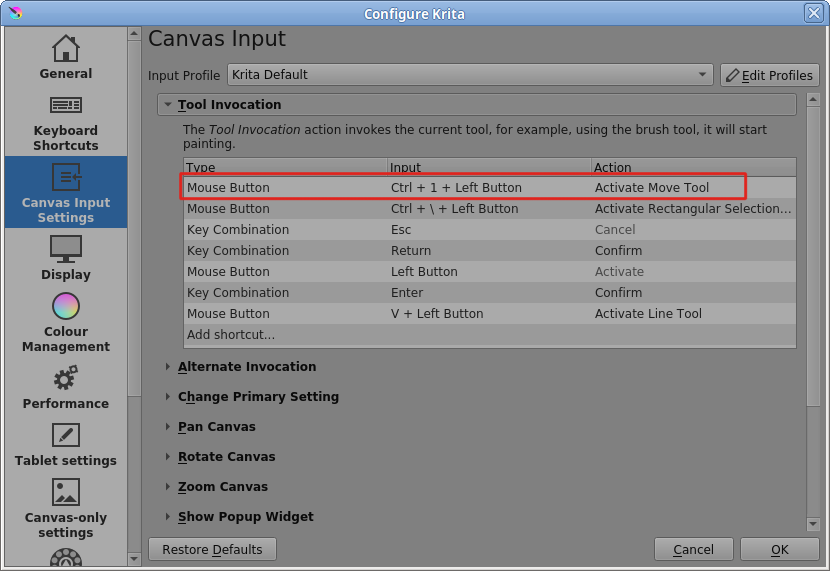
Ctrl (on its own) is normally used as the on-canvas colour picker (in the Alternate Invocation group) but you can delete that one and then use the Ctrl key for Activate Move Tool.
The main problem is finding some combination that isn’t used by another Canvas Input Settings action or by a Keyboard Shortcut.
You may be able to find other adjustments and customisations that help you to make it behave more in a way you’d like.
There is also a feature request for assigning keyboard shortcuts for dockers. But I think having a button would be helful to people with touch devices too.
I think there was some talk on IRC about this may be @Deif_Lou or @halla can shed some light.
One thing I would like to note is that may be you can reword the title to denote the major request for example I think your request is to add enhancements to popup palette to enable keyboard less interaction. So having the word popup palette in the title would make it easy for searching
Thank you @Solution-Beast! I had to click ‘Add shortcut’ for it.
On a side note, I noticed ‘Primary Mode’ and ‘Secondary Mode’ in Alternate Invocation. What’s that?
Sure thing.
I also added one more feature at the end ‘Selection popup menu’. That would also be a neat addition.
This is already requested and voted for in this feature request - Selection Action Bar . Please add in your vote to that topic.
We suggest the users to keep one request per thread so that some of the good ideas don’t get sidelined and get unnoticed. Besides the vote is for one request so it would be bad to club two three feature request into one topic which would get votes.
I doubt this is Krita issue since krita doesn’t do anything specific in this regard. it only uses gpu to show content on the canvas and for navigation may be that has problems here with OBS. In any case this issue has a thread here . Want to record, OBS show only white There is a solution marked in that thread. if you need I can open that thread for you to comment.
@angrymidget4728 do not forget to put votes for this feature request you can vote your own request too. I voted it and currently it is only one vote
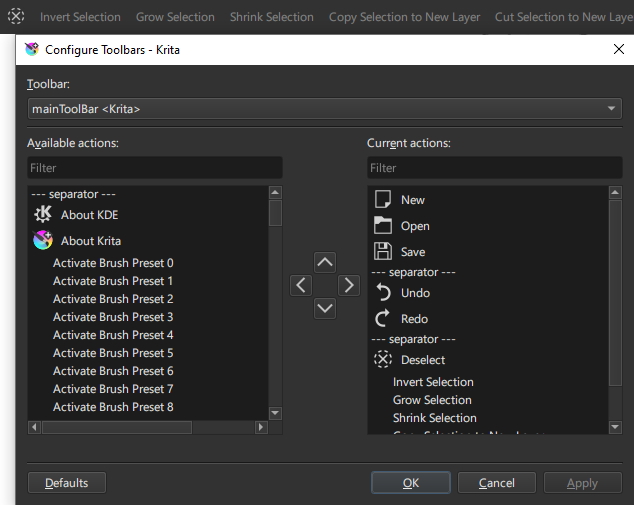
@raghukamath Also, I wasn’t sure if I should add this to a new thread, but I was trying to build a workaround for the ‘Selection Action Bar’ by adding the actions to the toolbar, but I noticed a good chunk of them don’t have icons/thumbnails so they take up a lot of space.
Is there a way to add custom icons for existing commands?
I think there was some thread about hacking this, I’ll search for it.
Meanwhile as a yet another workaround I will suggest you also check out the command bar. press Ctrl + Enter to summon a search bar with which you can search for actions and layers etc. I know this is a bit lengthy but it helps in some scenario.
I think more than improving the pop up palette making it able to be customizable through python would be better idea. Like you have extensions, dockers and then you would have popup palette or something similar. It would allow much more different workflows to exist and not be fixed to only the current one that I think is not practical to be used.
With regards to window recording Krita in OBS, I’m able to get it working by using “Game Capture” instead of “Window Capture” and making sure both applications are using the same GPU. Though Krita’s dialog windows aren’t recorded.
Re: Alternate Invocation; Some tools have alternate modes. For example the Colorize Mask Tool uses the Primary and Secondary Mode actions for toggling the key stroke and mask visibility.
Re: toolbar action icons, there was a thread related to that here: Inconsistent custom Icon / text for Toolbar Actions . It may be possible to add some icons from the existing icon set by editing .action files. The best thing would be to work with the developers to add icons to actions that lack them so that everyone can use them.
Finally, with regards to keyboard-less workflow and minimizing UI, that’s something Android users may also be interested in. There’s probably a few threads floating around discussing mobile-friendly UI, which might be worth checking out.
Quick update. I’ve tried setting Ctrl+LMB for move tool and works fine in brush mode. But I noticed it applies even when I’m in Free Transform mode which is a problem. By default, using Ctrl in free transform mode rotates the object in 3D space. But when I have this setting on, the program shifts to the move tool, making Free Transform useless.
A much bigger problem is that it also makes undo transform useless since I as soon as hit Ctrl for Ctrl+Z, it swaps out of free transform and into move tool; and since I’m not in free transform mode anymore, I can’t undo transform.
I then tried setting move to Shift+LMB, but automatically means the translation is fixed to horizontal and vertical movement only.
I then tried setting it to Alt+LMB, and the problem is… strange. It’s like I’m in “fine transform” mode. Like, I could move my mouse halfway across the screen but the object only moved 1/10th of the way.
Way to reproduce problem:
Set Tool Invocation ‘Activate Move Tool’ to Alt+LMB
(Optional, depending on your move tool settings) Have some kind of marks on your current layer
Keep cursor on the marking for the move tool to latch onto the current layer
Alt+LMB the marking
Basically, can’t use any Ctrl combination because of undo override. Can’t use any Shift combination because of axes locking. And can’t use Alt due to ‘fine movement’. It’s driving me nuts!
Hmm, a bit of a roundabout way, but I can see how this could be useful in certain scenarios. My main intention was to not rely on my keyboard as much as possible. So if I have to type on it anyway, would be more effective to set keyboard shortcuts for those actions. Currently I’m getting by by using Huion’s Quick Menu function but that’s limited to 6, so I’ll only get to put in bare minimum.
This is an interesting video I found about CSP and custom icons for different tools. Might be something to consider for future updates.
I’ve just tried setting both OBS and Krita to my Nvidia GPU and running Game Capture on ‘Capture specific window’ but it doesn’t display anything at all now (yeah, not even white this time).
One thing I forgot to mention with my setup is that Krita doesn’t show up until I interact with it in some way, like zooming the canvas, probably because it’s trying to pick it up based on GPU activity.
If that doesn’t help, I’d recommend checking OBS’s documentation for troubleshooting, since screen recording is highly dependent on system setup.
Hello folks. It has been a while I would like to announce that this problem is fixed. The solution? Reinstalling Windows 10 : D (and also latest version of OBS Studio)
So here’s the thing. It’s not ‘completely’ fixed. There seems to be some kind of compatibility issue between Win10 and Krita when it comes to window-sharing.
I faced problems in two aspects: OBS and Discord.
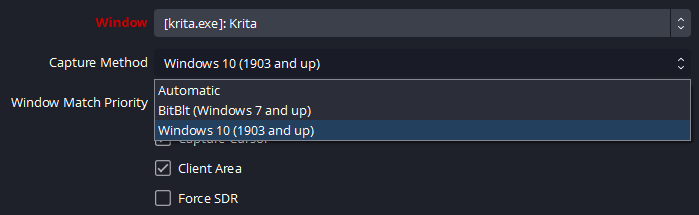
When I did a clean windows install and latest OBS, I got a new Capture Method option labeled ‘Windows 10’. This fixed the issue.
Sadly, such a thing does not exist in Discord. When I share my Krita window, it constantly glitches out as if it’s always struggling to figure out what capture method to use. (More specifically, it shows things normally, but then it freezes. Then when I drag the window from maximized to floating window, it shows normally… but then it doesn’t again. And then I maximize it, it works, and then it freezes, but then unfreezes, but then it freezes again.)
Any idea how to force a Capture Method for window sharing? Idek what to google to find it.
I want to request this but found this thread. I mainly use android and this feature would be great. I noticed there is ‘show docker’ option in toolbar. It would be nice to have this option for individual docker, so user can choose which docker to show via toolbar.
Create multiple workspaces that only shows one docker and name them something like ‘layer only’, ‘color selector only’ ‘brush only’, ‘no docker’ etc
I have a galaxy tab and I’ve set the Air Actions shortcut “swipe right” to open the Workspace menu and I can easily toggle between individual dockers, even in canvas only mode