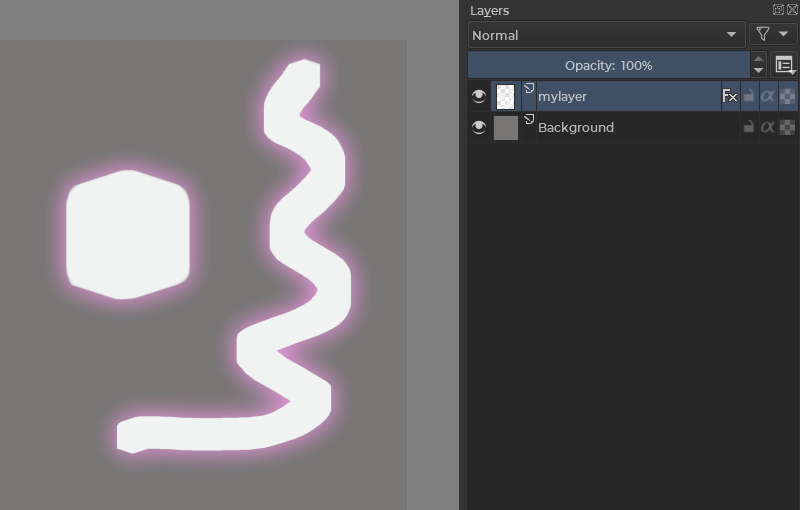
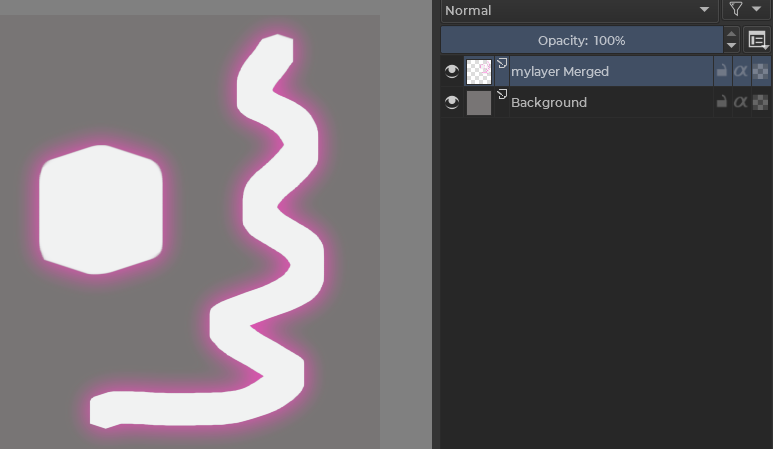
Hi, is there a way to permanently apply the fx (layer styles) to a layer like for the transparency mask for exemple when flattening with the mask?
When i merge or flatten a layer with fx, it change the visual of the layer, i think it’s due to the blending mode that is changed…
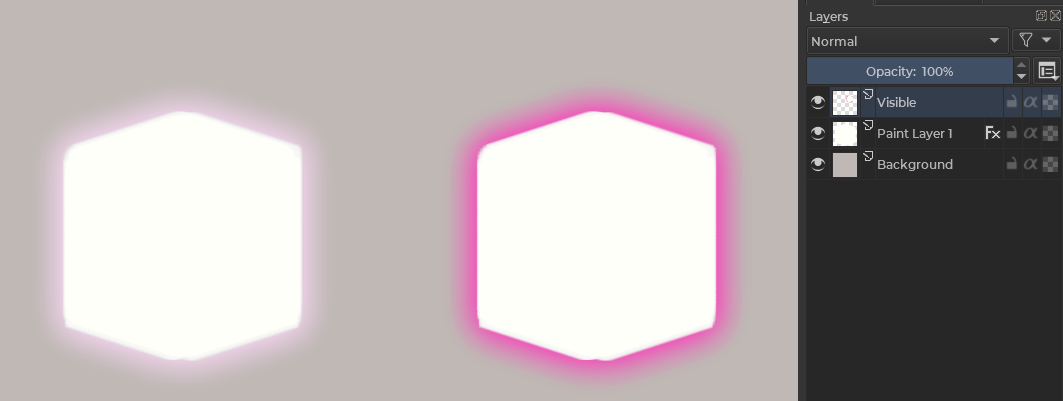
exemple :
I think it is similar to when you merge a layer with a blending mode . Due to the blend mode it will show different colour with respect to the colour of the pixels beneath it and when that layer is merged with other layer or flattened it will lose the blend mode. I don’t think there is any other way to solve this. There is new from visible, but then it will also make the resulting layer opaque
thanks @raghukamath that’s what i was thinking too. i’ve tried using new from visible, it seems to work for the global rendering but if i only display my layer, the result is opaque yes
If you have a layer with “normal” blending mode and FX with e.g. “Add” blending mode, you could create a copy of the layer with the FX, flatten the copy, take the FX off the other copy you now have, and use that as a mask for the flattened FX layer. Then change the blending mode of the flattened, matted layer to “Add”. It should be the same when you place it under a copy of the original layer that has no FX applied. I think!
This behaviour is totally understandable because your layer is in blend mode normal but the FX your using if default are on another blend mode. So when you flatten them they all start using the same mode of the layer hence the new look.
The copy image that will do the subtraction to the other night need to be subtracted a couple of pixels on the edges because of anti alias artefacts I feel krita messes that up a bit.
I guess that you can make a copy of what you see instead of flattening. And paste it on top of everything. What is it called again? Copy merged? Copy visible? Can’t remember.
Then you needn’t worry about funny side effects from the flattening.
yes it’s understandable, that was my guess from the first message, i jsut wanted to be sure if there was not a magical function that apply the effect to the paint layer
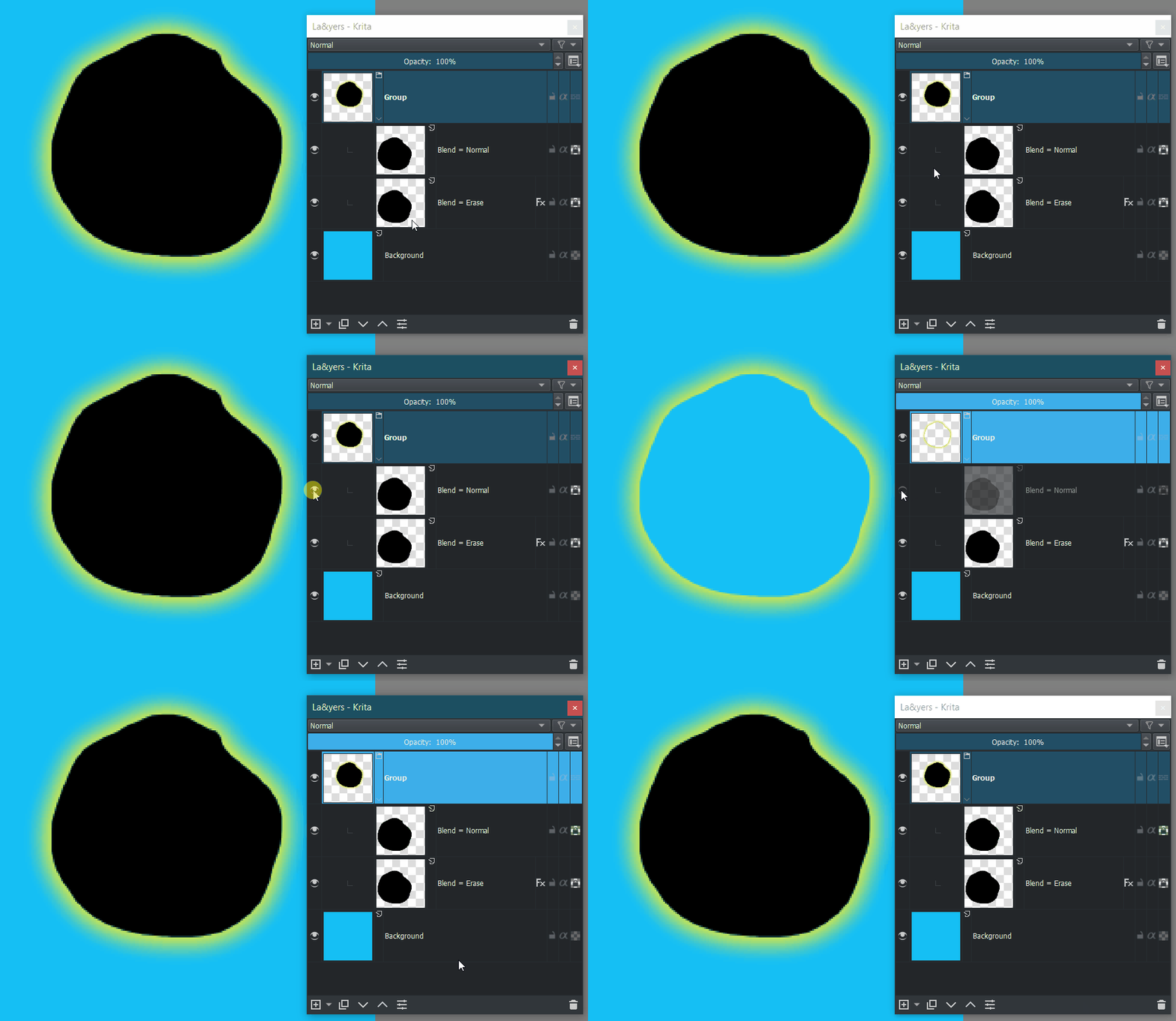
Well instead of making post tricks with layers that I think that can cause artifacts you can do:
create a group with the layer inside.
duplicate or clone the layer.
place the FX on the duplicate and set it to the eraser mode.
So you isolate the FX and when you do “Flatten Layer” you receive only the FX isolated and you can adjust your blend mode as needed as used on the FX itself when it was live.
This is an awesome truck. The only issue in this setup is that the blend mode of the fx is not affecting by the color of the background. Since it is outside of the group.
Very interesting stuff @EyeOdin ! It seems that the FX isn’t affected by the erase mode, i.e. it stays while the original disappears. Also, the blend mode of the style doesn’t seem to have any effect, it’s always normal - is that correct?
The original layer can be placed outside the group - only the clone/duplicate with the FX needs to be in there. By putting the original below the group, one could even use effects like inner glow or overlays etc.
Setting the blend mode on the group instead of the style also has the advantage that more modes are available. Nice!