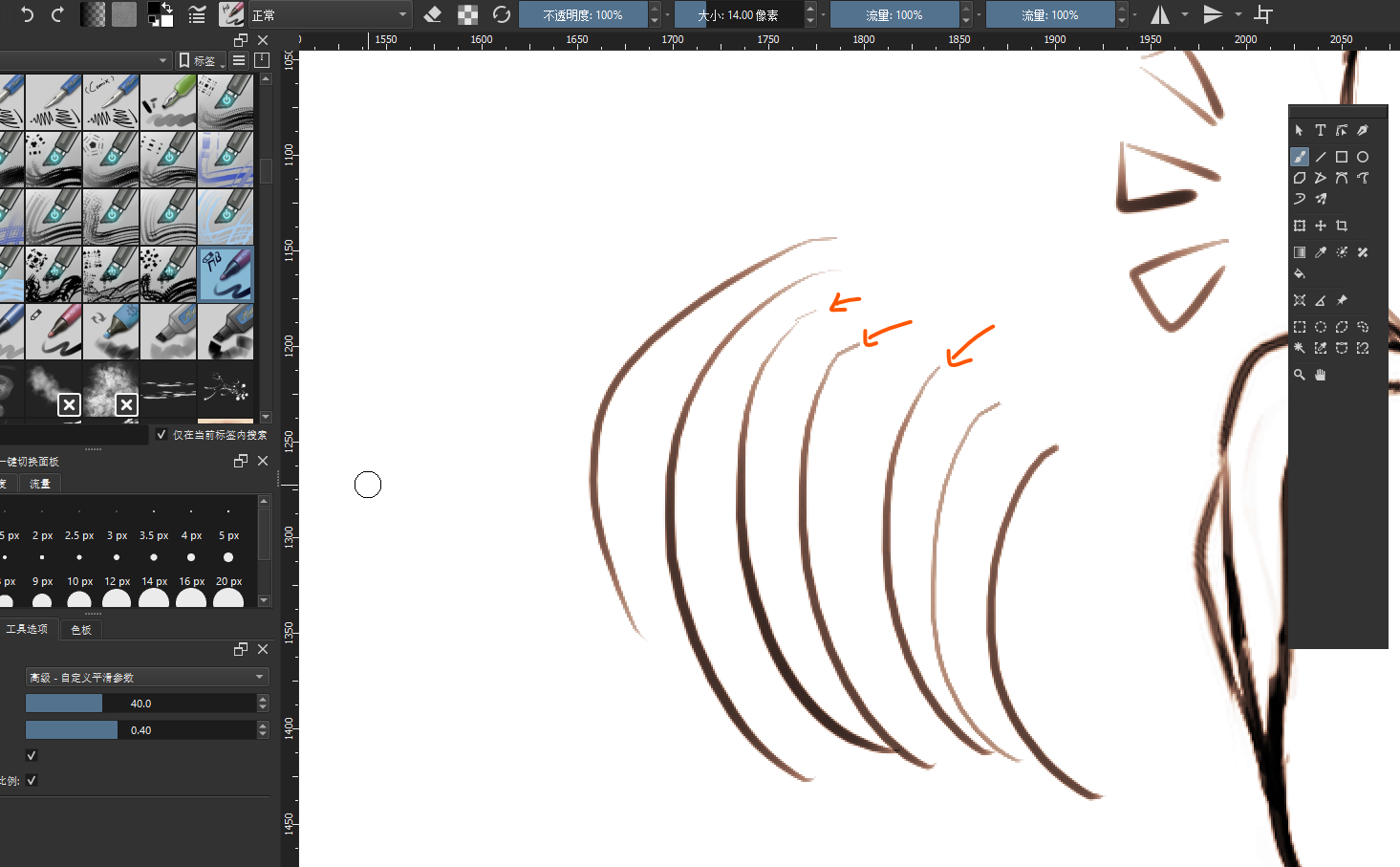
Whenever I draw a line, the end of the line will appear as shown in the picture. No matter how I set it up, I can’t find a solution. What is the cause of this problem, and how can I solve it? The version i uses is krita5.0 beta 2.0
Hello,
I have a lot of similar line segmentation issues on MacOS but none on Linux / Windows. If you are using a mac I would suggest you try with the same hardware/software on a different OS.
Unlucky for me,I’m users Windows 10 
There might still be some setup around windows ink but I’m really not sure. Didn’t use windows for a few years…
The straight segment at the start of a curve has been seen before.
One thing to try, as suggested by @MangaTengu is to swap between Wintab and Windows Ink in the krita settings and also to match the krita settings in your tablet setup/config utility.
Which graphics tablet are you using?
Some graphics tablets are Windows Ink only.
In Settings → Configure Krita → Tablet settings, you can choose between Wintab and Windows Ink.
Make sure that the tablet itself has Windows Ink disabled if you have krita set to Wintab (and make sure that Windows Ink is enabled in the tablet if krita is set to Windows Ink).
Try it with Wintab first because using Windows Ink means that you then have to check the various Windows Ink settings at the Windows system level.
Also, if your tablet setup utility has the ability to create separate profiles for separate applications, you should create a profile for krita and then select and use that profiule when making any changes to the tablet setup.
Always press OK (or whatever it’s called) then close the tablet setup utility before using the stylus in krita.
I’m uses wacom tablet,and i’m try the way as you tell me,but it still not usesful
I’ve just tried this with my Wacom Intuos Draw tablet on a Windows 10 system.
I also get the straight line segment at the start of a curve when using krita and also when using GIMP.
In the Wacom setup utility, for Wintab and Windows Ink, I’ve tried adjusting various sliders and found that they had no effect on it.
It’s only noticeable if I do a very quickly drawn curve, which I don’t normally do, so it’s probably a timing thing in the Wacom driver.
It may be that you make fast confident strokes and so this is noticeable for you.
Also, it may be that you have an old and slow computer, as I do.
Someone else may know of a way to reduce or remove the problem but I have no further ideas.
Ok,I think i kinda know why…Sorry that it took you some time .
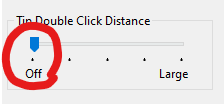
You could try to set the Tip Double Click Distance to “off” in the Wacom Tablet Properties, that worked for me on one of my laptops
Ooo, if you think you know, maybe you can share what you think in case someone gets the same problem in the future? 
Thank you,it still have a little bit of straight line in front,but it much better than i used before. 
@Rakurri I tried varying the double-click distance and it had no effect on the amount of straight line segment.
The straight line on mine was always very small and only noticeable if I did very quickly drawn curves. Hence my assumption that it’s a timing/delay problem.
It may be that the longer straight line seen by others has a different cause and can be fixed by tablet settings adjustments.
However, I did try it with a Wacom tablet and Windows 10 so it’s a mystery as to why I don’t have the longer line problem.
@AhabGreybeard Before i turn off the Tip Double Click Distance,it always has a line in front even i use the normal speed to draw the line.At the time, I thought it was the distance of the view that affected the loading of the brush.