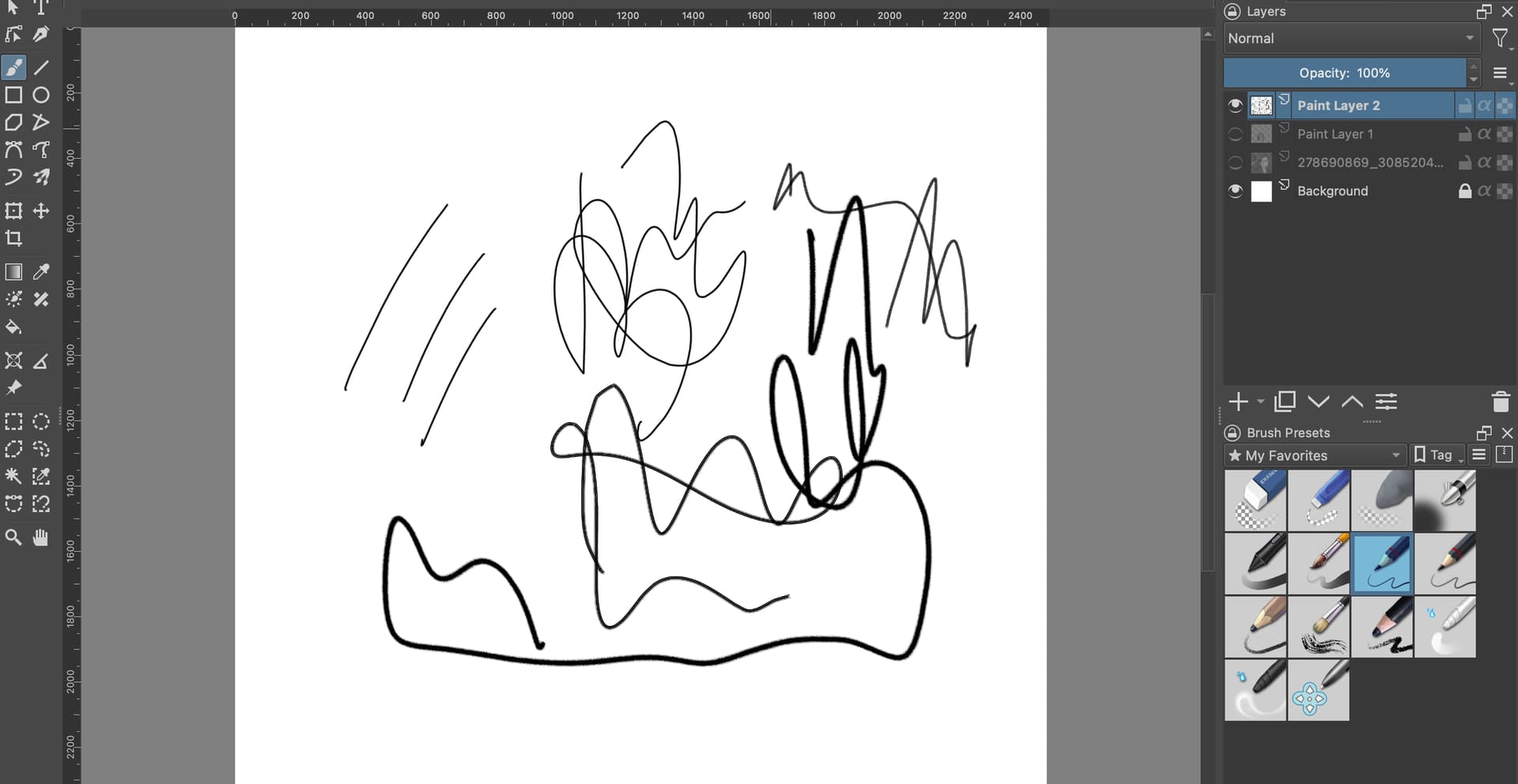
I am using KRITA 5.0.2 I was working on a pencil sketch and suddenly the strokes started appearing totally black as if there was something that changed. I tried to reset the tool, and change the pressure gradient but nothing is helping. I am using Mac OS 12.6, the latest XP Pen tablet driver(I thought updating pencil driver might help but it didn’t). Can any help me identify the issue? I am attaching the strokes along with the
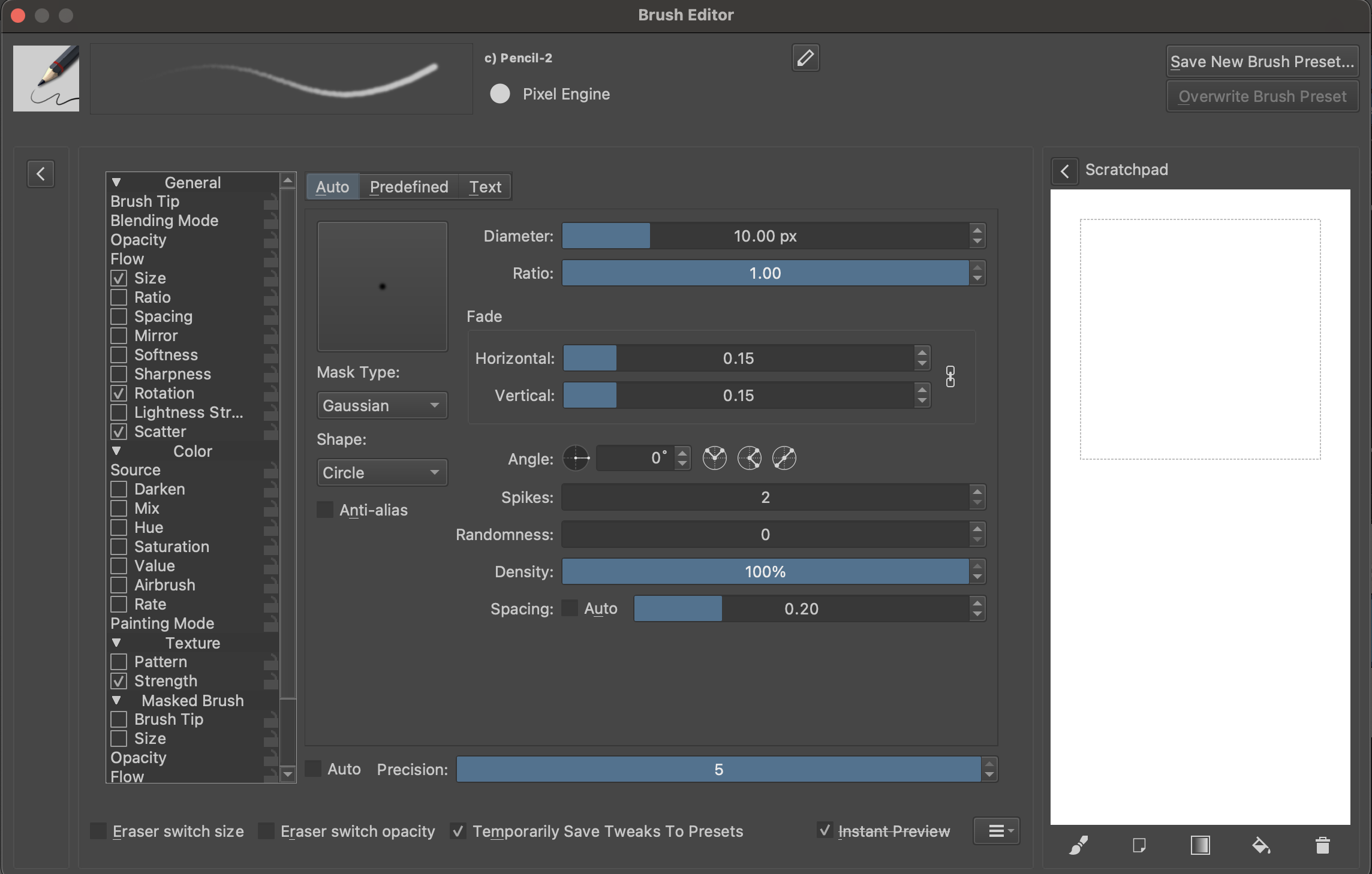
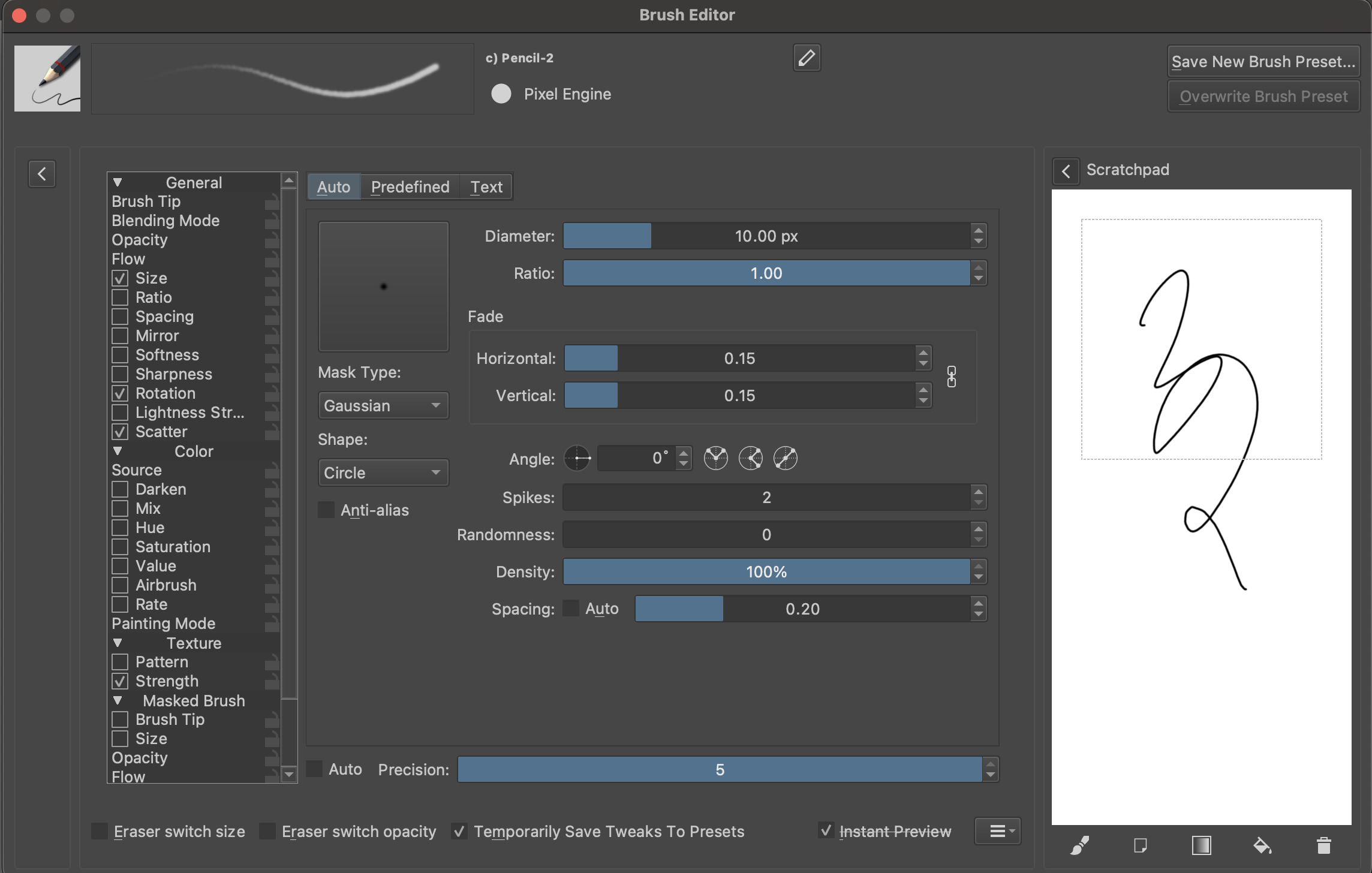
Pencil-2 uses an Auto tip that is circular and it doesn’t have a Pattern on it so I wouldn’t expect it to have any kind of texture on it.
It does have Size variation and Strength variation with Pressure so it gives a smaller and less opaque stroke at low pressure along with a small amount of dab visibility texture.
Strangely, it has Rotation with Drawing Angle but that wouldn’t affect an Auto circular brushtip.
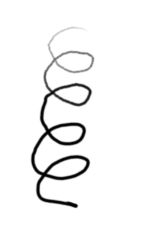
Here’s what I get from it with increasing pressure:
Do you see pressure working on other brush presets such as Basic-2 Opacity and Basic-5 Size?
I would like to suggest you the sketching bundle “SK-V1-Bundle” by @RamonM, it currently seems to be the best thing out there for sketching. It is presented in the post linked below and can also be downloaded for free through it.
See if you can achieve strokes according to your imagination with it. It’s so much pencil, as only pencil can be. (my opinion)

Michelist
Add/Edit: I forgot to mention, if your strokes don’t look like pencil strokes with this then something doesn’t fit.
When the pencil goes totally black, it means your device doesn’t sent pressure sensitivity info to Krita. Krita, assume then the stroke is 100% pressure as a fallback.
I would probably blames XP-Pen mac driver. To be sure of that, go to Settings, Tablet Settings, and find the button Open Tablet Tester. Draw with your stylus on the area with a grid. You’ll see on right the pressure variation (eg. P=38.5%). If it is P=100% all the time, then it means the driver of your tablet sends that to Krita. If it has pressure variation here, and the pencil preset is still black, then something is wrong with how Krita reads the preset.
Yes, by design and a fun story here: It comes from a very old time where it was a cheap trick to slow down the brush rendering (when Krita didn’t had stabilizer). This little ‘lag-by-design’ of that time was adding an extra smoothing for me. I made this brush probably before 2011. Not sure it is necessary anymore, but it is still very difficult and dangerous to update the default bundle. Maybe I’ll have the energy and time for a full refactor for Krita 6.0  .
.
How do you get to a blank canvas
 Hello Hannah and welcome to the forum!
Please ask your question in a new topic to be created by you for this purpose in the General Questions section, it is not usual here to hijack topics of others to ask off-topic questions.
You just have to click on Create new topic to ask your question, also specifying the operating system and version of Krita. →
The button to start the new topic is in the upper area of that page I linked to.
Michelist
Thank you for the response. I got the issue now. I am getting P=100% all the time
Stylus move X=135.41 Y=157.08 B=1 P=100.0% (DRAW)
Stylus move X=135.89 Y=157.20 B=1 P=100.0% (DRAW)
Stylus move X=136.34 Y=157.28 B=1 P=100.0% (DRAW)
Stylus move X=136.74 Y=157.32 B=1 P=100.0% (DRAW)
Stylus release X=138.04 Y=157.28 B=0 P=100.0%
Now I need to figure out why the pressure is 100% all the time. It was working fine a few days back. I am almost done with the sketch and this happens at the end. I feel really frustrated now.
Is there a way to see if the pressure sensitivity is disabled somewhere? Because if I check it on the Tablet driver it shows me the pressure sensitivity properly. Maybe some issue with KRITA in reading the pressure. I swear it was working fine few days back and I was able to draw almost all of the sketch. Just the finishing part is left.
You didn’t by any chance unnoticed disable the use of pen pressure? So, if you have the icon for switching the use of pen pressure in your toolbar, unfortunately you only posted an incomplete screenshot of your Krita window, without the toolbars and without the status bar, in which we could have seen it. It looks like the tip of a stylus, and you can toggle use of pen pressure with it.
Michelist
@Michelist The Pen Pressure enable/disable toggle icon only affects the internal use of the pressure signal. It doesn’t affect the detection of the pressure signal in the Tablet Tester.
@Abhinav_Prakash Is there a reason why you’re using version 5.0.2?
The current formal release is version 5.1.1.
@AhabGreybeard: Oh, yes, that’s right, thanks for bringing that back to my mind. Somehow I tried to explain myself that way the pen pressure disappearing during image creation, but then the cause had to be another.
Michelist
Ok so I installed the latest version 5.1.1 and tried it again. I am still getting pressure sensitivity as 100%. Earlier I was thinking there might be some issue with my tablet generating the pressure values but I checked it in the driver. It is generating the correct values. There seems to be some issue in KRITA reading the pressure values.
Stylus move X=125.28 Y=148.93 B=1 P=100.0% S=0.1 (DRAW)
Stylus move X=125.44 Y=148.68 B=1 P=100.0% S=0.1 (DRAW)
Stylus move X=124.88 Y=150.35 B=1 P=100.0% S=0.1 (DRAW)
Stylus move X=124.43 Y=151.25 B=1 P=100.0% S=0.1 (DRAW)
Stylus move X=123.26 Y=154.01 B=1 P=100.0% S=0.2 (DRAW)
Stylus move X=122.04 Y=156.62 B=1 P=100.0% S=0.2 (DRAW)
Stylus move X=121.03 Y=158.29 B=1 P=100.0% S=0.3 (DRAW)
Stylus move X=120.54 Y=158.94 B=1 P=100.0% S=0.2 (DRAW)
Stylus move X=119.73 Y=159.55 B=1 P=100.0% S=0.2 (DRAW)
Stylus release X=118.88 Y=159.51 B=0 P=100.0% S=0.2
Eraser taken away
Hello,
The more challenging part is that you’re on a MAC, no many people here familiar with it. So these will be only guesses from my part:
Have you look at the Security and Privacy in System Preferences? Maybe the tablet driver or Krita itself need some permission to access the pen pressure.
Does you tablet driver has an option to make a profile specific to Krita? Maybe we can figure it out something by doing this.
I checked Security and Privacy in System Preferences and there was an Accessibility option disabled for KRITA. I enabled and restarted my laptop. But still, it is not taking pressure values. It was working fine a few days back but suddenly this is happening which is making me confused as it should work but it is not working.
How does a Mac update? Is an automatic process or you have to do it manually? Do you know if any update happened before the pen stop working?
I would recommend:
- Uninstalling the Tablet Driver
- Restarting
- Installing the latest driver version
- Then restarting again
- Test Krita
Also, just a side note. Krita (or any other program) doesn’t ‘pull’ or request the pen/tablet information when ‘drawing’. The program listen to what the OS sends.
The OS send an input signal (mouse click) → Krita listen to this input and identify it as a mouse click.
In your case the OS is sending an input of type: Tablet + Pen → Krita listen and recognizes as a Tablet + Pen (As seeing in the tablet tester. Krita report a pen moving and drawing)
The problem is the Pressure signal. Either the driver is passing the pressure wrong into Krita, or globally.
If the pressure problem is global you could test other programs. It work without issues then?
So at this point maybe a driver reinstall could solve the problem.
Cheers.
Thank you for the response. I just checked it on other apps and it seems like a global problem with my tablet. I have contacted the tablet support team. Also, mac updates never happen automatically. They always give a notification for that. I tried all the above options. Let’s see if I can get it fixed from the tablet driver/OS end with the help of the support team.
This issue is resolved now. The problem was with the latest driver of the tablet. It is not compatible properly with MacBook. I am working with the old driver now and it’s working fine now.