As Tiar already mentioned what you do with a wrap around mode is to help create a seamless tile for a pattern. You have to actually use the tile on a canvas that is bigger than the tile (otherwise there is no room to wrap stuff around).
Here is a quick guide I just made, hope you will understand.
Creating a singe Tile
First I start with a empty canvas, just a background layer and a transparent layer I will paint the pattern on.
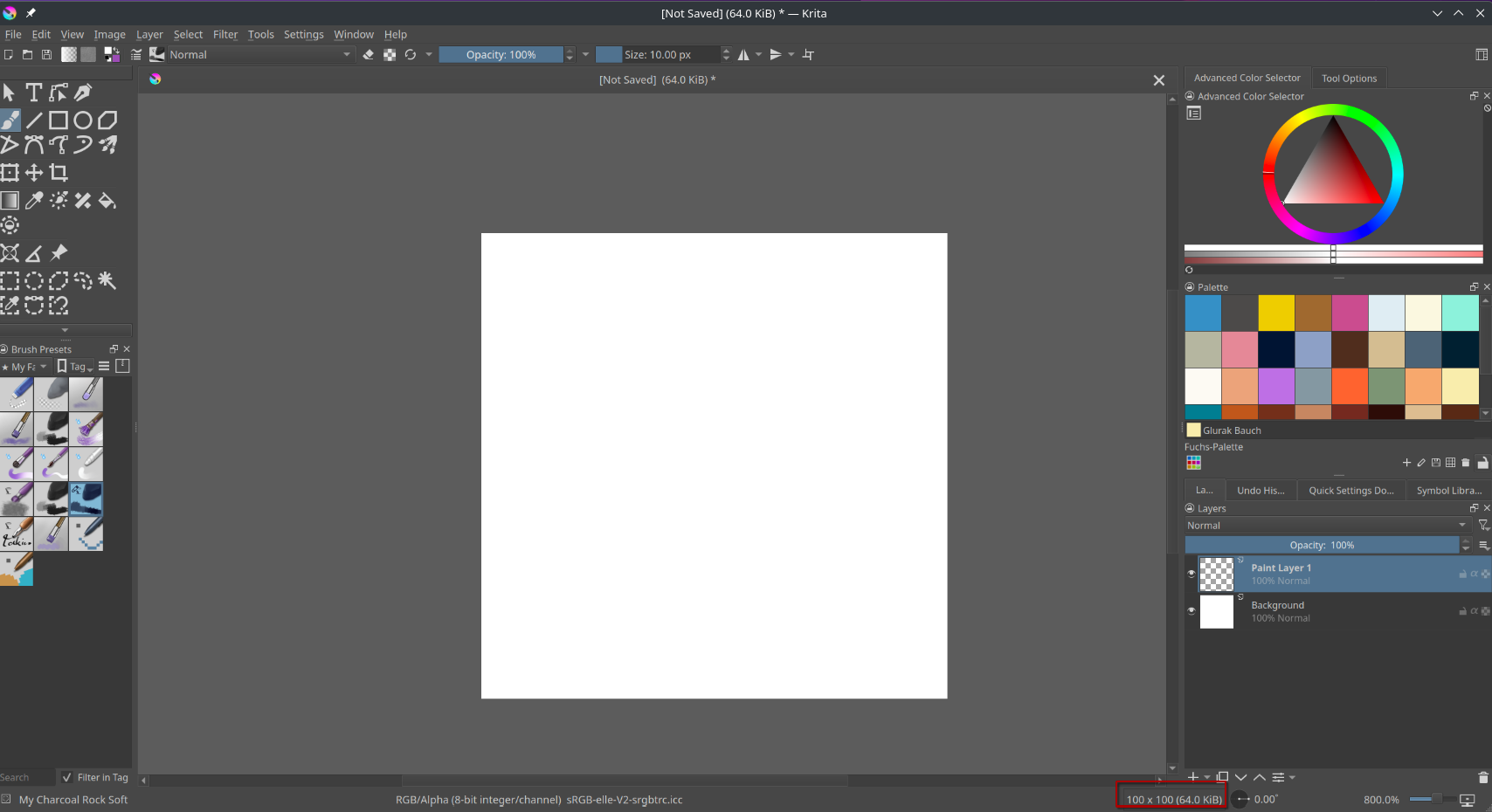
Notice at the bottom it is only 100 x 100 pixels large, which is quite small you may think but remember we are just making one single tile of a repeating pattern.
Now I start with my pattern, I have wrap around mode off for now.
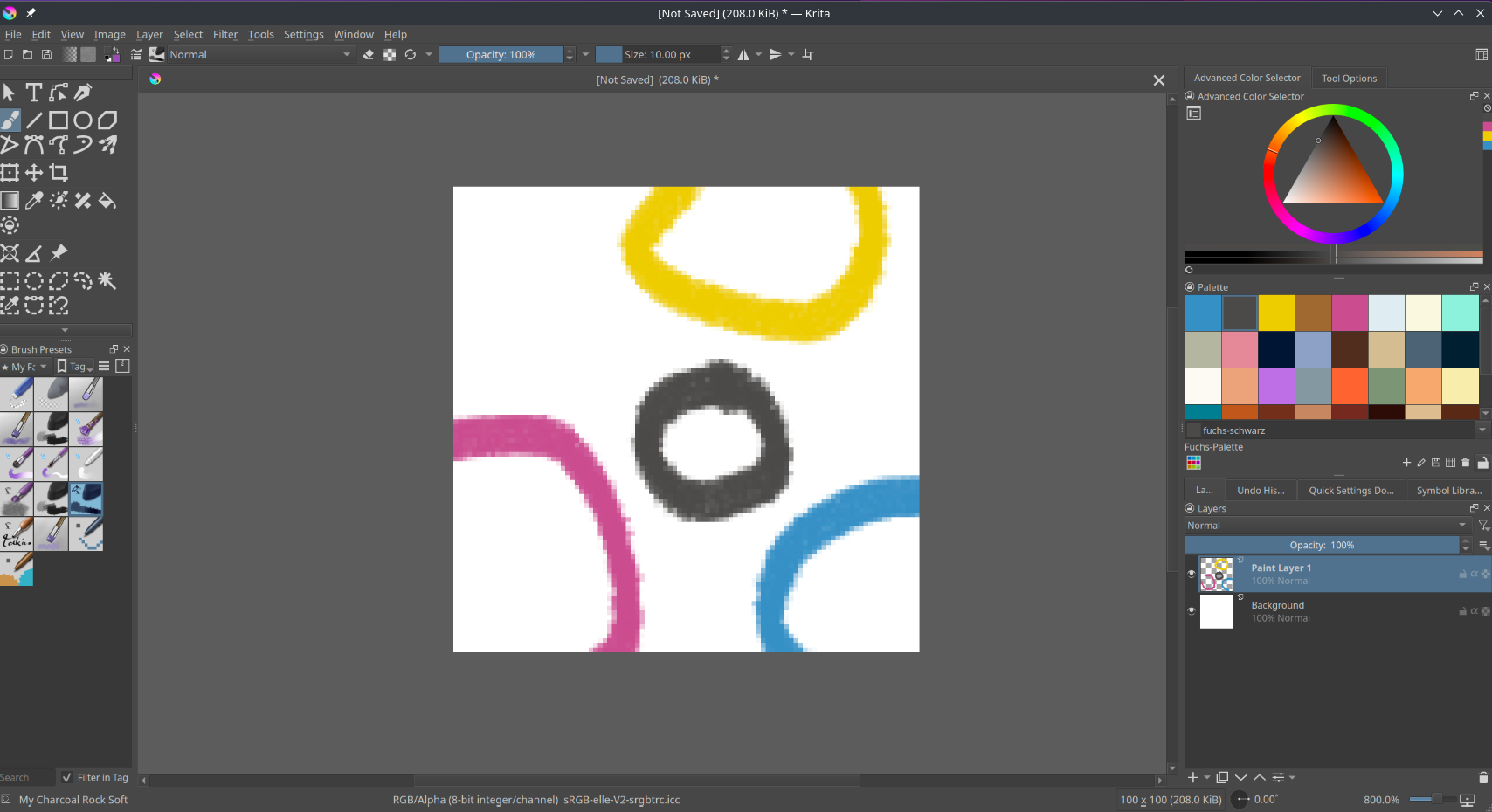
This is basically what I want, lets see how it looks when wrapped.
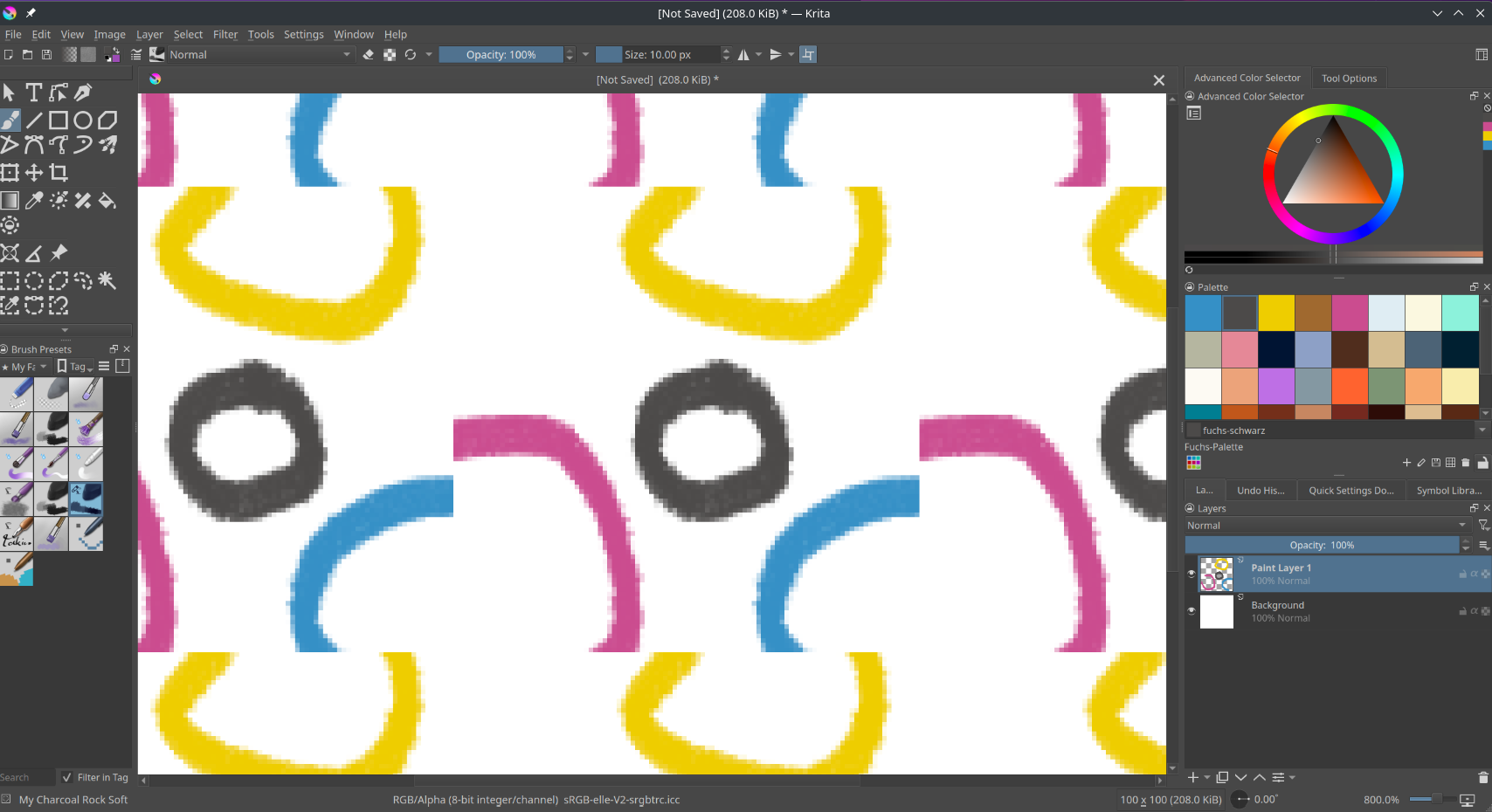
Uh that’s not very seamless isn’t it? That’s what you get from eyeballing and it’s where wrap around mode comes in handy.
I deleted some of the lines and redrew them with wrap around mode enabled.
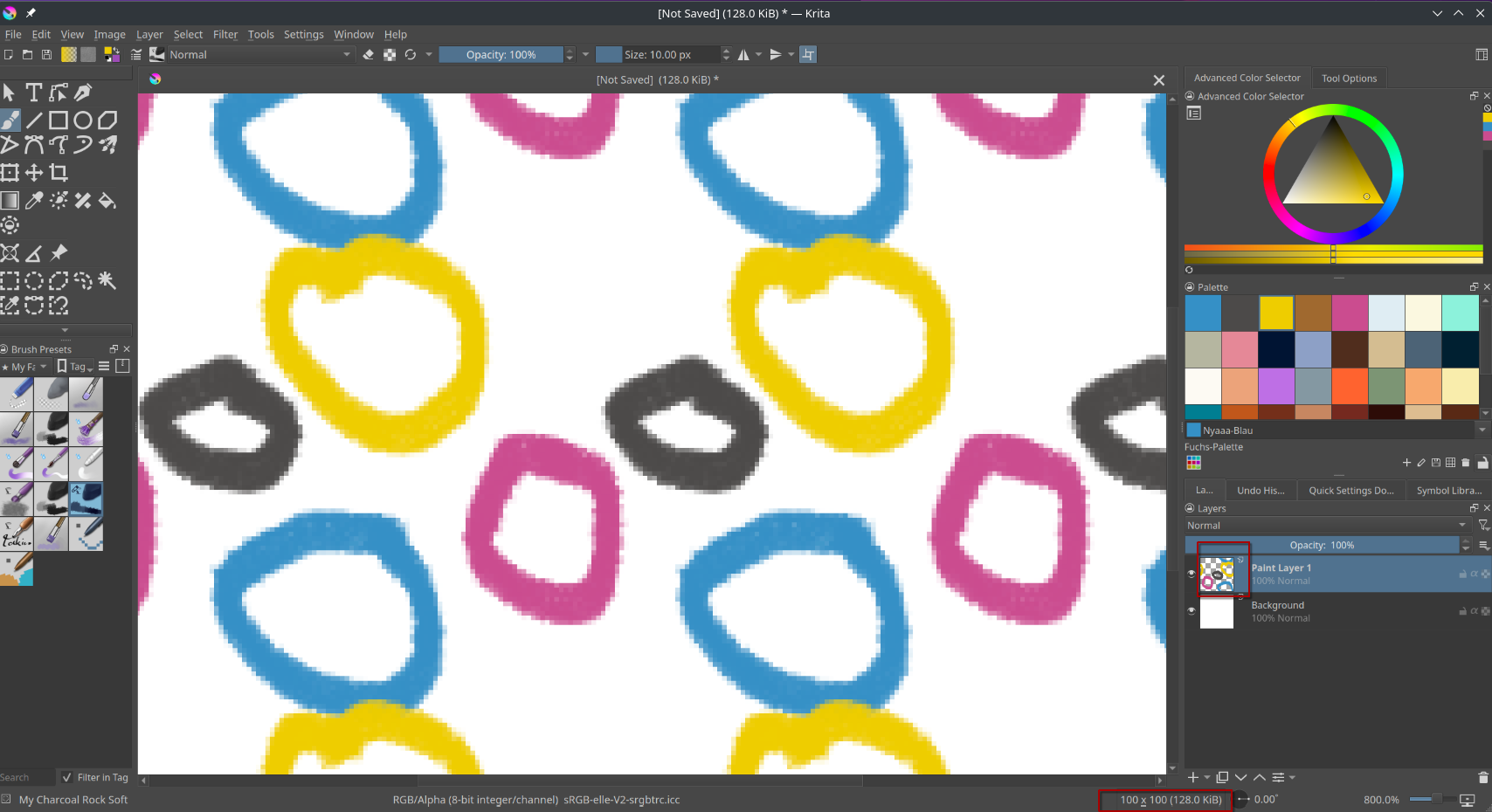
That’s more like it. See how in the bottom it says that the document is still just 100 x 100 pixels? Yes, we are still only editing the one tile we started with. Wrap around mode only gives us a preview, a visual aid to help us create tiles.
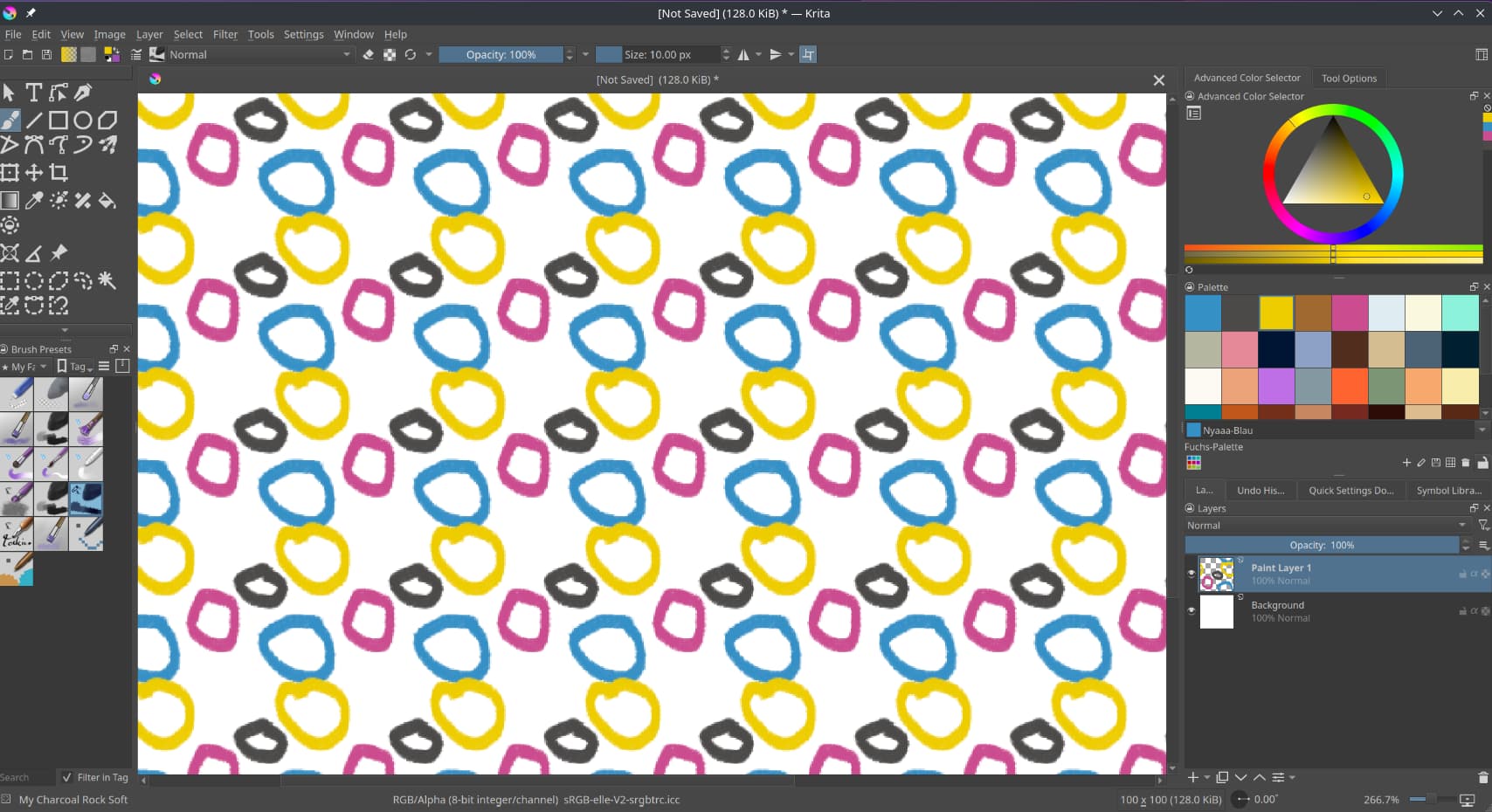
Yeah I think I’m pretty satisfied with it, this is how it looks when zoomed out a bit.
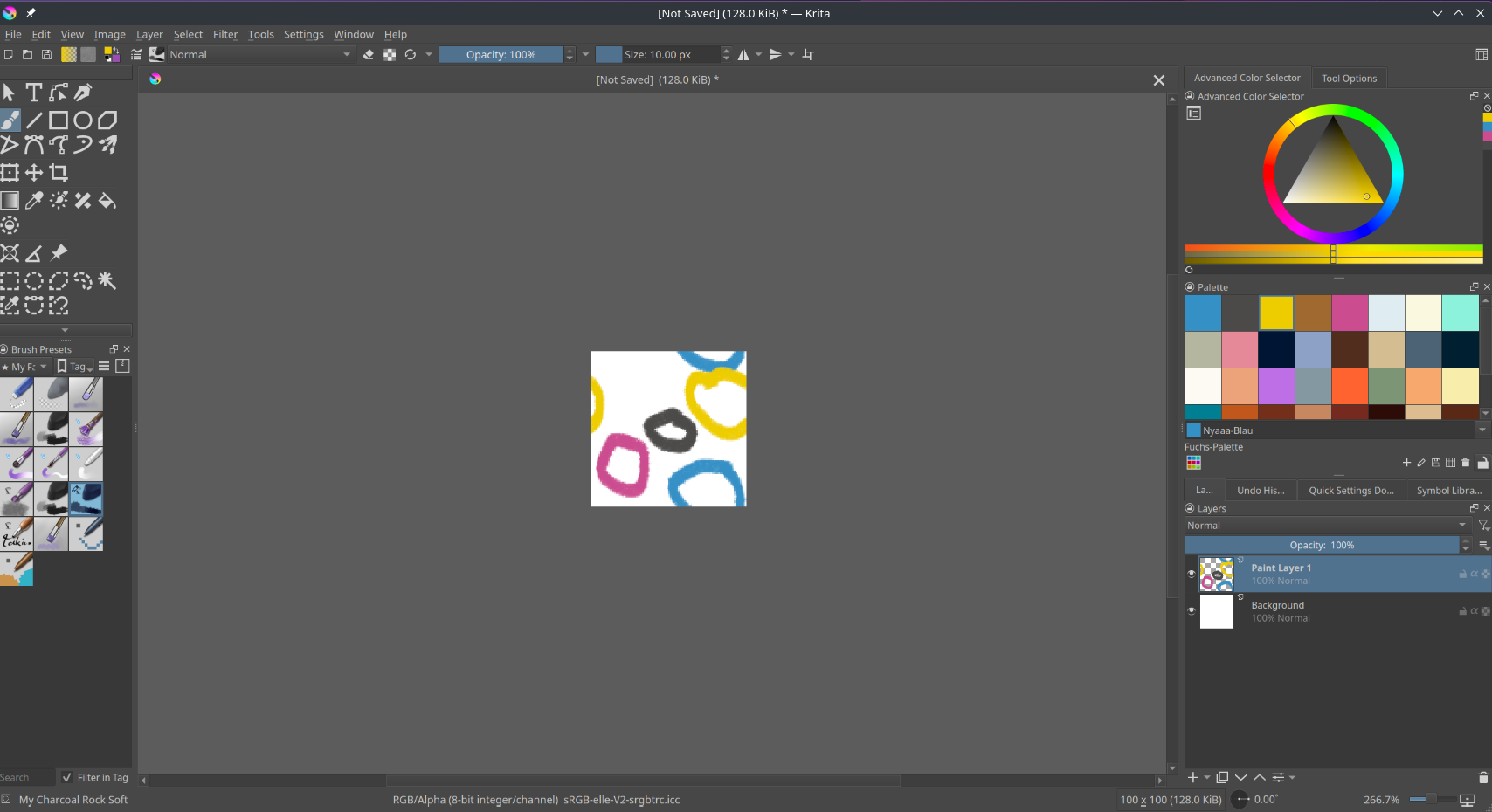
This is how it looks when wrap around mode is turned off again, that is our tile. It’s small and doesn’t wrap, but it’s everything we need.
Save the Tile for later
Now we actually want to use the tile for something (a pattern of course). For this we first save the tile we just made as a file. I simply named it pattern tile.png you can name it how you want but remember where you saved it, for later. I recommend exporting it in PNG format in any case.
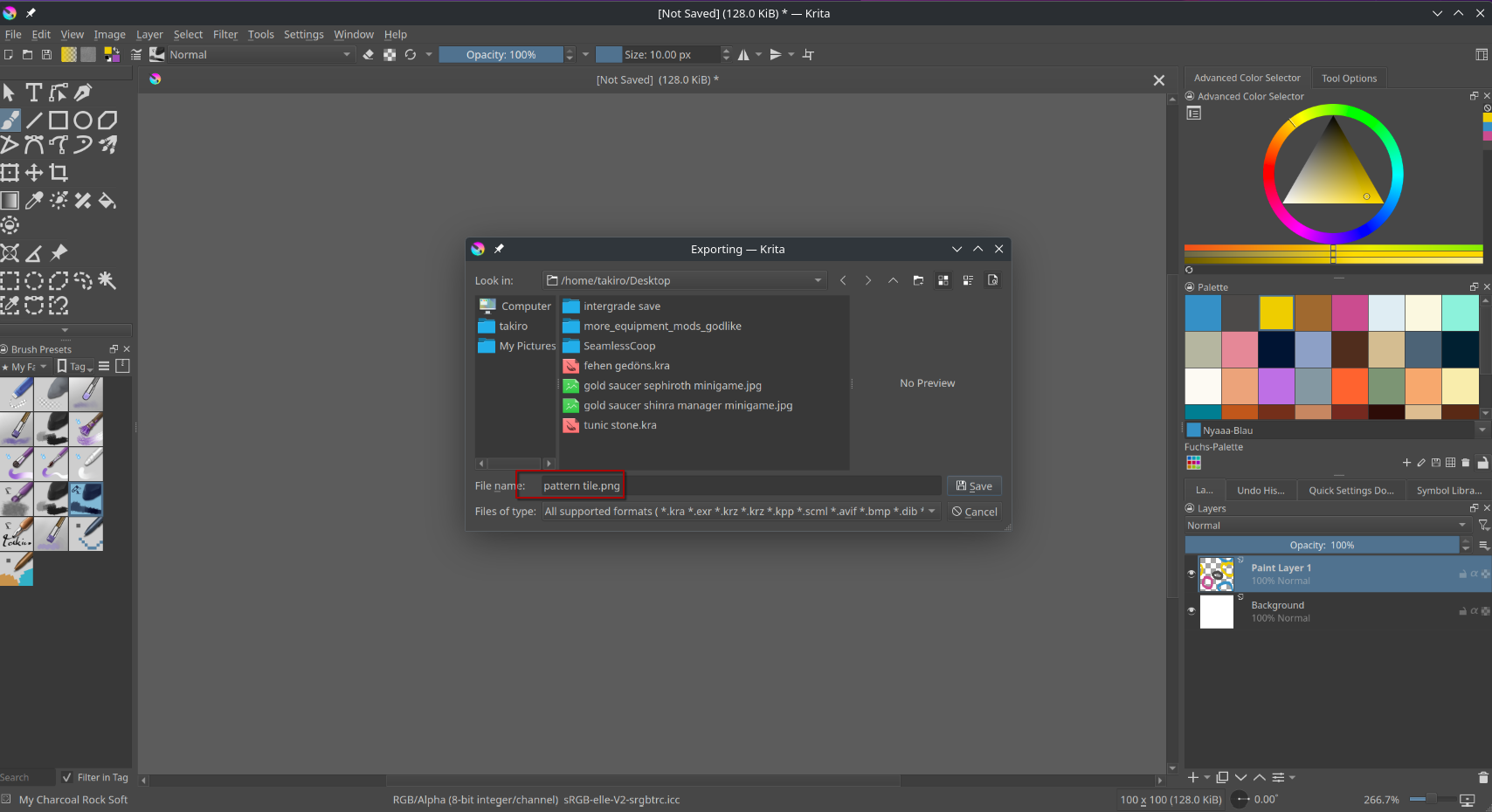
I saved it to my desktop, where it will be easy to find.
Using the Tile to create a Pattern
Now, create a new file. It’s important that is bigger than the single tile we just created. I made the new file 2000 x 2000 pixels large, this means it should fit our tile 400 times, giving it a nice pattern.
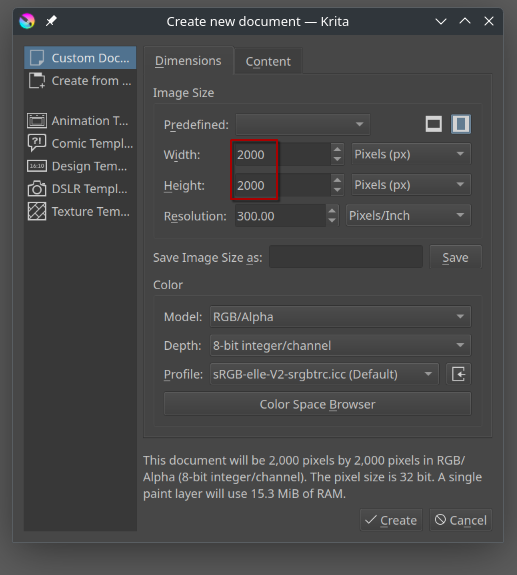
Importing the Tile
With the new File open, we need to tell Krita to import our tile so we can use it. This is done with the button next to the gradient and foreground color button. Press it, it opens a pattern popup.
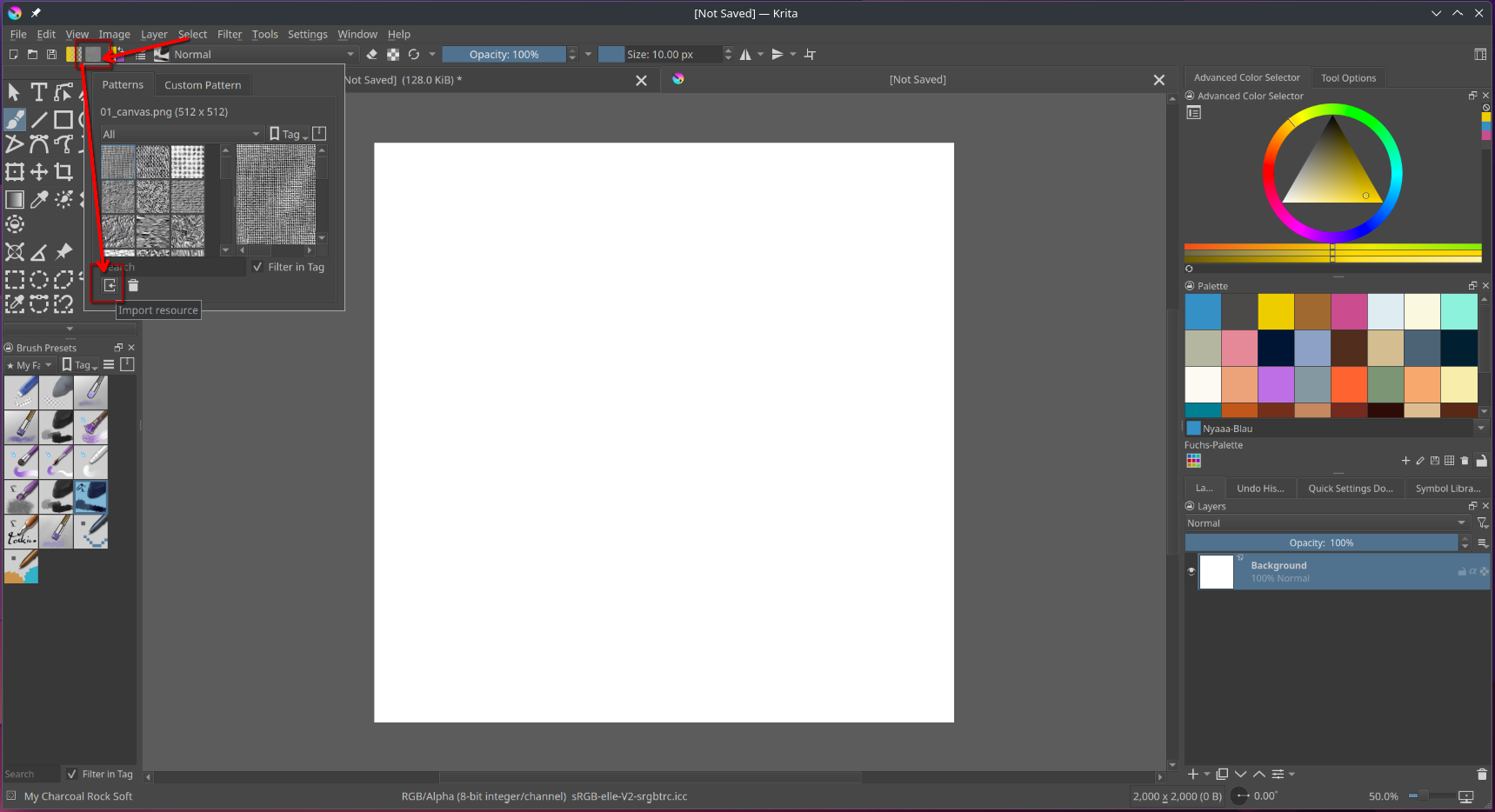
In the pattern popup press the little button that looks like a door or something. This let’s you import a file for a pattern. And what file do we want? Correct, the tile we created in the prevous file, the pattern tile.png in my case.
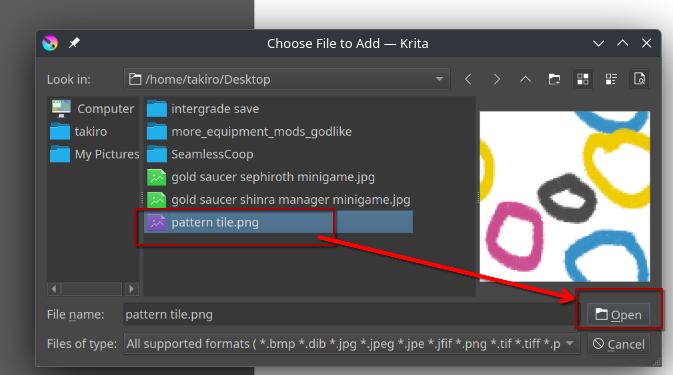
Select it from the file browser and press open. After that it should be selectable as a pattern, from the very same popup we used before.
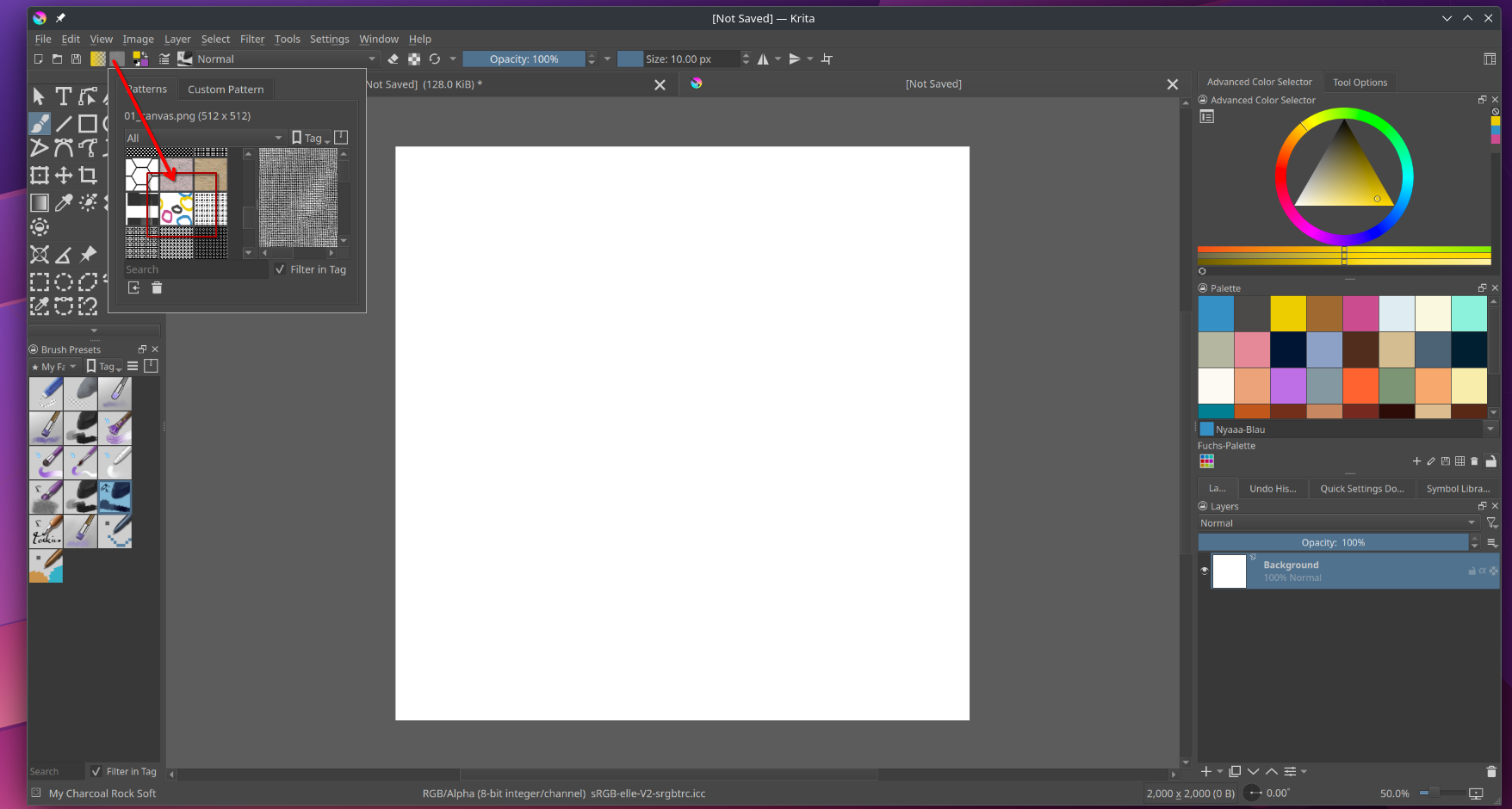
Using the Tile for a Pattern
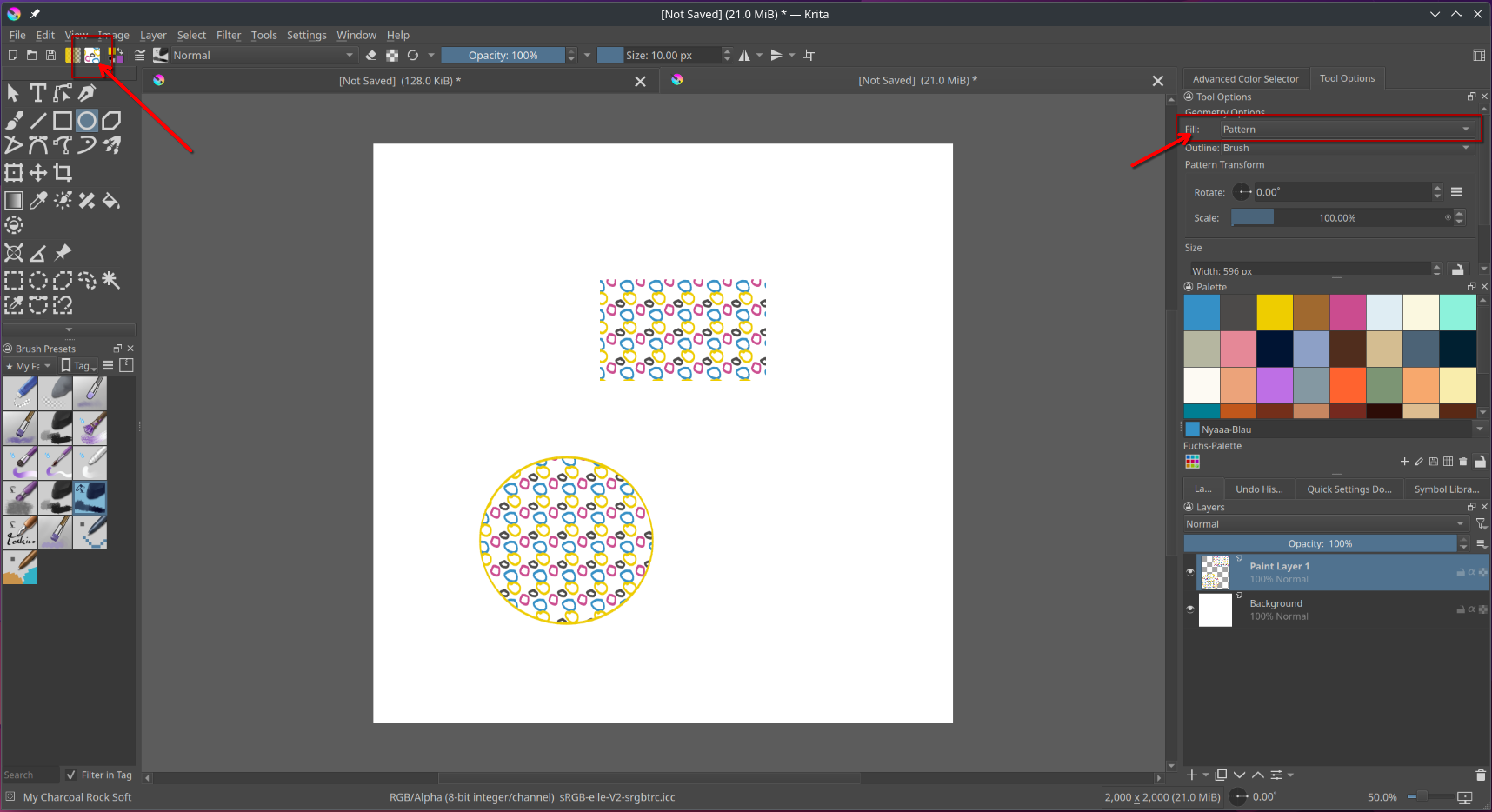
Now to actually use it. Patterns can be used in many locations, I only show two of them for this example.
First as part of a fill layer. A fill layer is a special kind of layer that is very efficient and uses less memory even with big canvases. It’s basically made for patterns.
You can add a fill layer from the layers docker by pressing the plus button and selecting fill layer from the drop down.
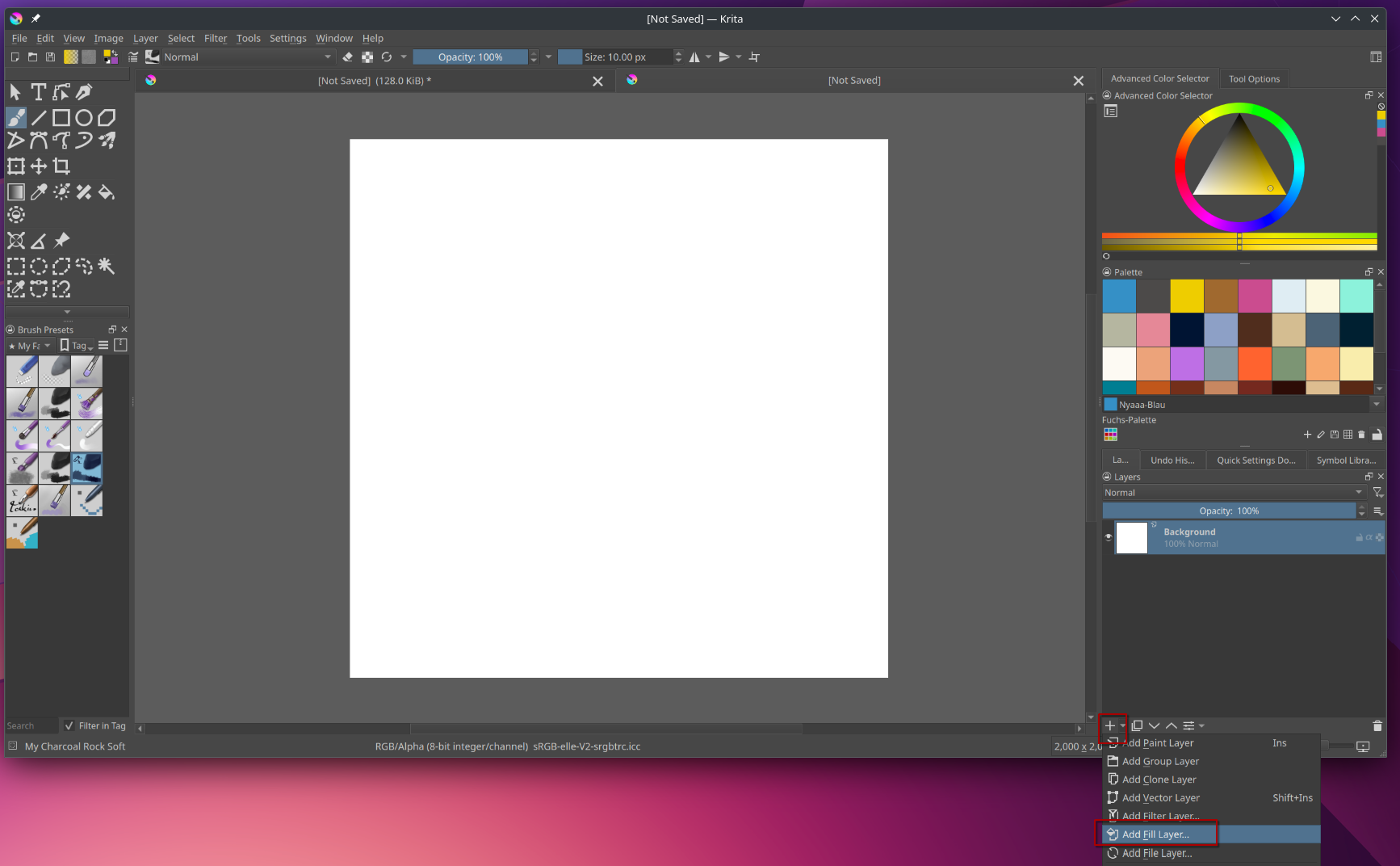
I marked it in red.
When pressed a popup will appear to ask you what you want it filled with. It is probably set to color by default (and if you have multiple monitors, for me it popped out on the wrong one so have a look out for that in case you cant find it)
Since we want a pattern choose pattern in the sidebar and then select the pattern we just added from the resources.
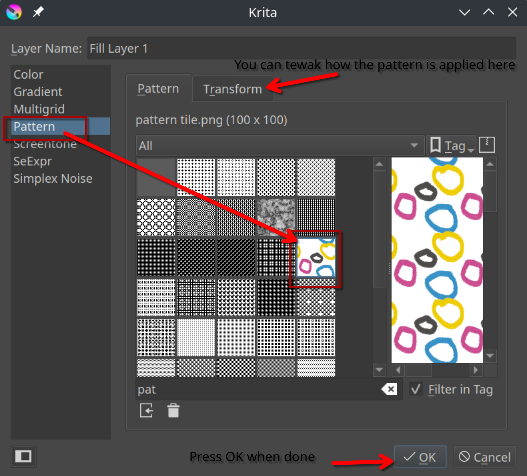
You can already see in the preview window how it’s wraping already. In the Transform you can tweak settings like scale (making the pattern bigger or smaller), rotation or offset. When you’re satisfied with the result, press OK.
Now the canvas should look somewhat like this:
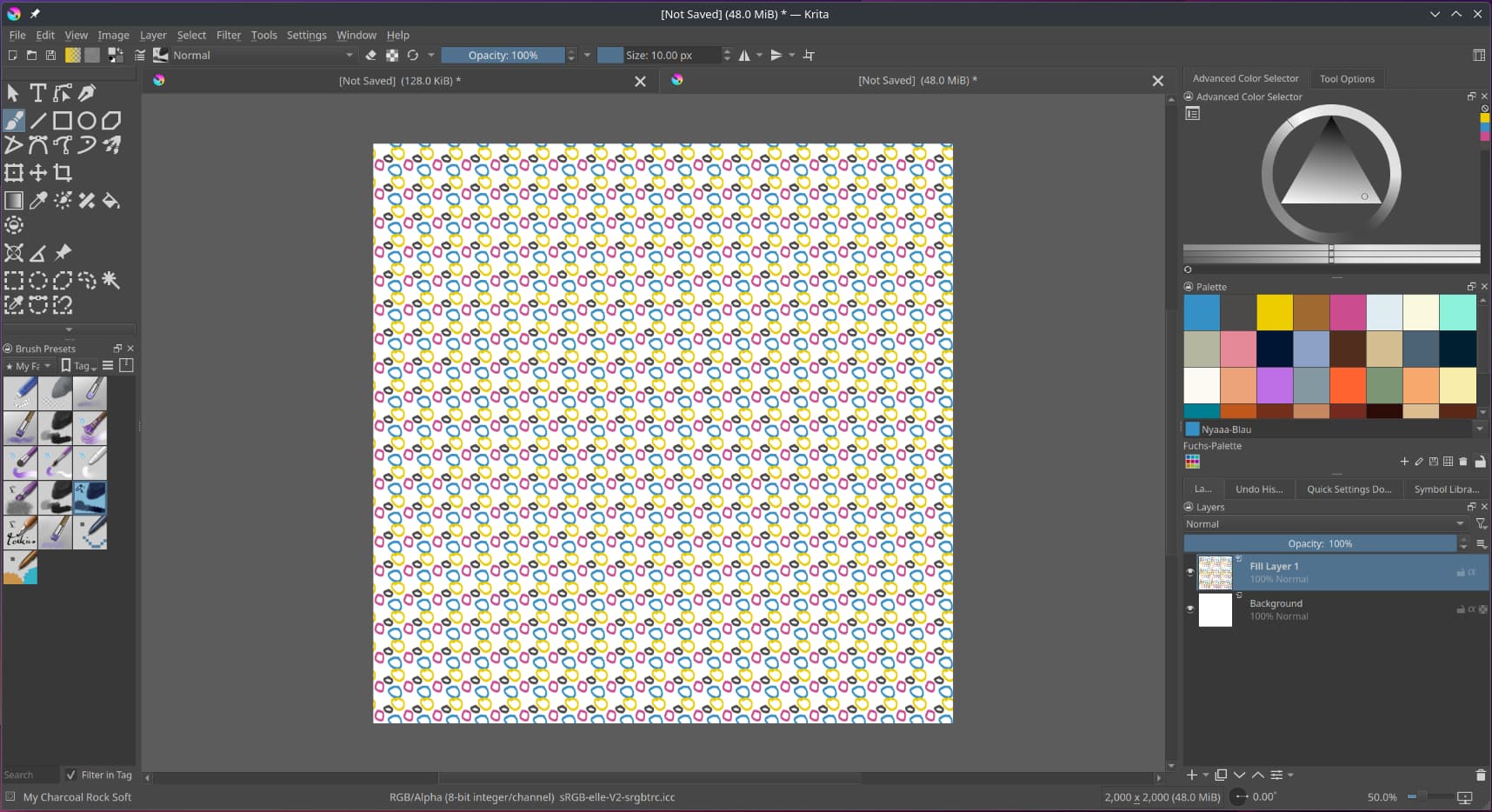
Now that’s more like it. You now can use your pattern in every project you want to. You can not only use it for fill layers but also for brushes or as fill for shapes. For this select the pattern from the pattern chooser and then select pattern as an option in the shape tool’s tool options.
And when you save/export it (I exported so don’t mind the “unsaved file”)
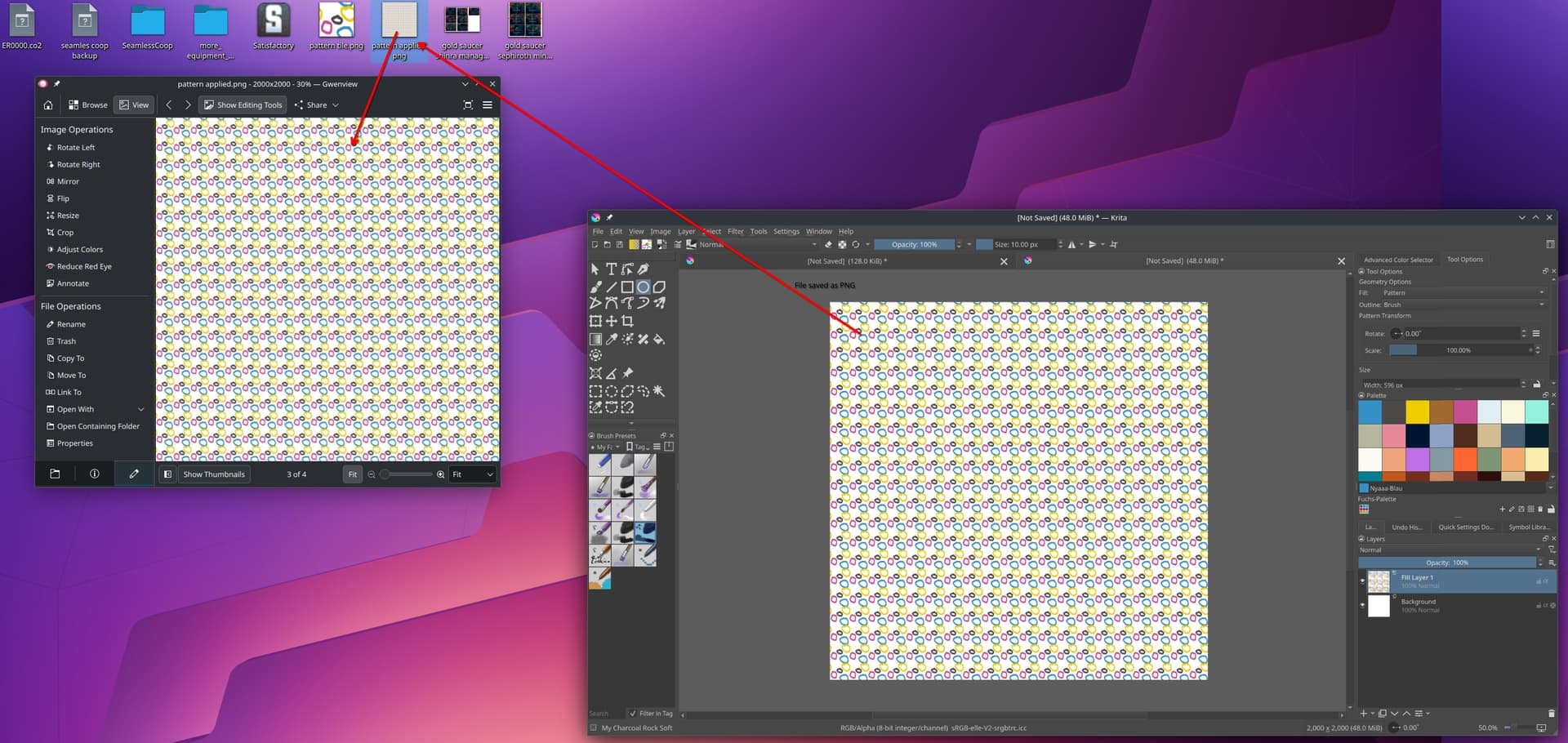

Voila! That’s how you use wrap around mode to create a tile that can be used for a pattern.
@tiar unfortunately a bug currently prevents the use of patterns as a fill in vector shapes on vector layers, it only works on raster layers in the current version.