I installed Krita 5.2.3 about a week ago on my friend’s PC and I saw lots of brushes and resources,
Yesterday I installed krita 5.2.3 on my PC and I noticed many resources and brushes are not there…
Please can someone help me understand how I can get them?
I’ve changed the category of your topic because Resources: Brushes and Bundles is intended for providing brushes and bundles, etc.
Which operating system version are you running?
Can you name any particular resource that is not there for you and where do you notice that it is not present?
Do Settings → Manage Resource Libraries and take a screenshot of the resulting window and upload it in a reply here.
That will help people to figure out what may be happening.
Also, provide a full screen screenshot of the entire application window when you first start it.
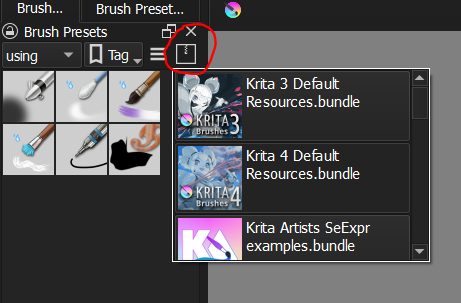
anyway thanks to the very kind guys who replied above I managed to understand that I hadn’t activated the resources (krita 3, krita 4, rgba and krita_artistis seExpr) in the brush bar,
but now maybe I’ve made a mistake,
Maybe I deleted the brush bar, is there any way to recover it?
thanks sorry again…
I’m a bit inexperienced and I get scared right away
The things you underlined in your first screenshot are not brushes, they are called painting assistants. They may affect how your brush moves, e.g. to create a line following the assistant’s guidelines.
Which operating system version do you use?
e.g. Windows 10. Windows 11, Linux, macOS, Android?
Your photos of the screen are reasonable quality but you should learn how to make screenshots. That will be very useful for you and for anybody trying to help you.
If you’re inexperienced then it will take time to get used to how things work but that will come with time and patience and some help from the people on this forum.
You should not be scared of your computer. Your computer should be scared of you. You will have that situation time goes by.
You have a misunderstanding of the resources of krita and how they get to be inside krita.
When first installed, krita only has the resources that you have seen on your photo of the Resources Libraries window.
Each of them has a rectangular outline so that means that each of them is activated and so they should be available in the Brush Presets docker and other places such as the Patterns docker.
The resources that you show in the other images are resources that are not provided as default in krita but can be downloaded and then imported into krita, using the Import button in the Manage Resources Libraries window.
They are usually provided as ‘bundles’ that are files with a .bundle extension, which contain a structured collection of resource items that can be easily imported into krita and appear in the resources library. Example:
Here, I’ve deactivated all of them except the usual Krita_4_Default resources and the Krita_Artists_SeExpr_examples resources. That stops them from appearing in the dockers and putting them all on display there.
You can also import individual brush presets and individual brush tips and patterns etc that people sometimes provide. You do that with Settings → Manage Resources.
So, you can make a start by downloading a .bundle file from somewhere and then Importing it to get familiar with this.
Some of the older resources are not provided as .bundle files and so are more complicated to import into krita.
Also, some are obtained from github which is not as simple as a direct download.
I suggest that you start with this one which is a simple .bundle file download from a Google Drive by a user here on the forum: Basic cloud brushes
Open that link and use the Google Drive download link then Download the .bundle file provided.
Note: The assistant tools are not brushes. You can find them when you select the Assistant Tool from the Toolbox then they will be available in the Tool Options docker.
If you hover your cursor over any tool in the Toolox then you will see a tooltip to tell you what it is.
I strongly recommend that you do not try them until you’ve spent more time doing basic painting with krita and become familiar with many other aspects of the User Interface.
I would like to introduce the Krita manual to you and your search for new exiting things, so I like to suggest that you familiarize yourself with Krita’s manual if possible. It is a highly informative and well-written resource that often answers a question faster than waiting for an answer here in the forum. It is also a good way to learn a lot of new things.
You can open the manual at any time from within Krita by pressing F1.
For example, this chapter will certainly be extremely helpful for you right now, as it explains Krita’s user interface and the naming of important things in Krita. And if you have questions about this or anything else, feel free to ask, that’s what forums are for.
And here is the preface (foreword?) where Krita’s vision is presented, maybe you like to know how the makers of Krita see Krita?
Lo strumento che cerchi é lo “strumento assistente”, questo é il suo simbolo.
In alto a destra di default hai le opzioni dello strumento selezionato. Selezionando strumento assistente e andando sulle opzioni degli strumenti hai la possibilitá di cambiare il tipo di assistente.
Se accidentalmente chiudi qualche pannello (chiamato docker), puoi andare in Finestra > Spazio di lavoro e selezionare default e torni al default.
Il manuale é abbastanza comprensivo e l’interfaccia puó essere customizzata a tuo piacere. Una volta che ti sei familiarizzato con Krita ti consiglio di sistemare i docker a tuo piacimento.
In case other help seekers may ask themselves what @Asbesto wrote to help @Ruben here:
As nice as it is to offer support in the native language of the OP, since this is a forum where other help seekers can profit from given advice and found solutions, it is good to add also the English translation. In the end, this is even requested in our FAQ, also the Code of Conduct asks for it under “Inclusive Language”.
@Ruben: If you want to know a way to make screenshots using Windows, in the post I link below ↓ you can find a description of one way doing it, Windows offers more ways.


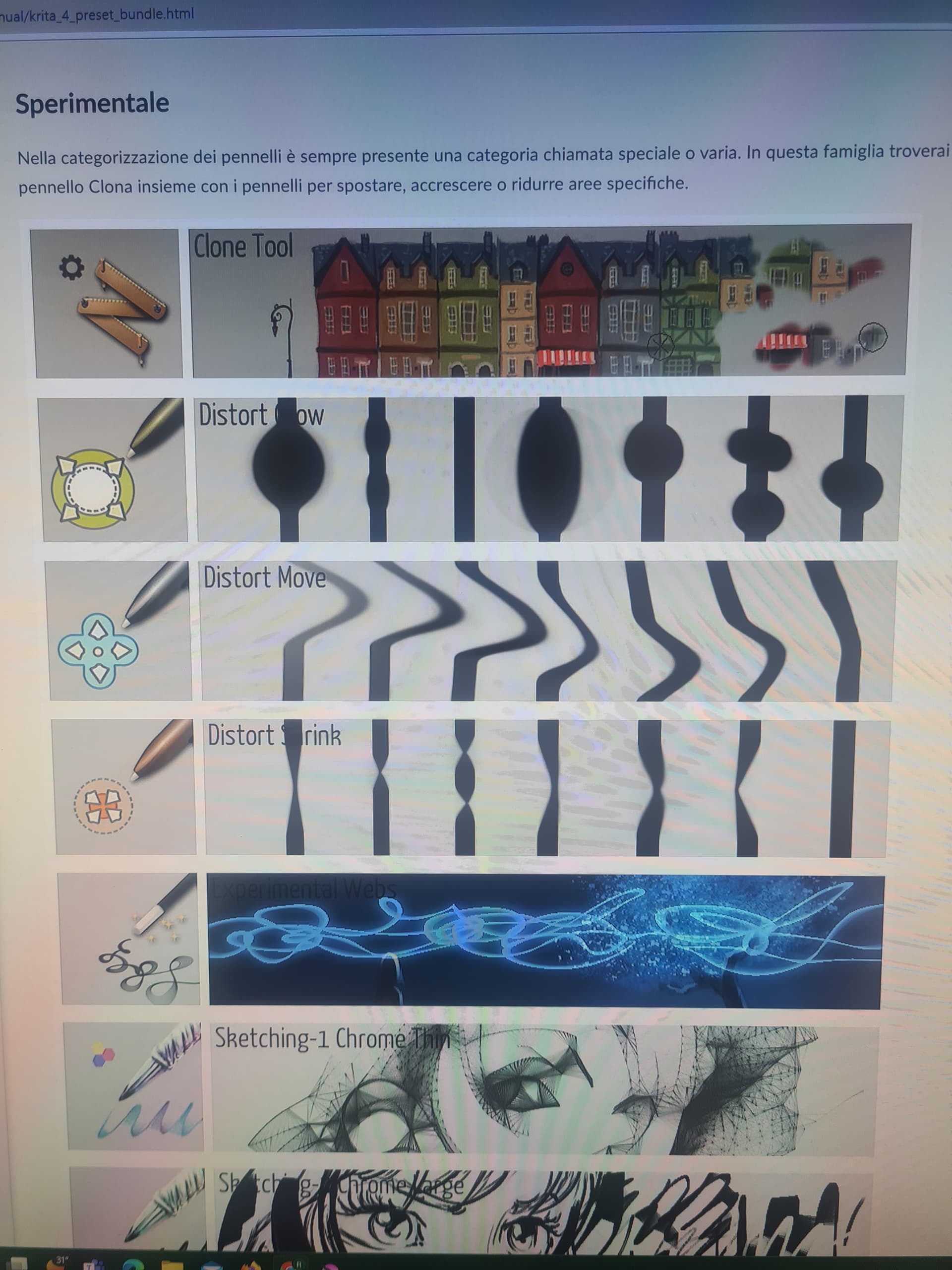


 I’ll immediately figure out how to take screenshots from a computer


 questo é il suo simbolo.
