Since the new update, I’m having trouble whenever I use the eraser. I use the button of my stylus to switch from brush to eraser mode, but whenever I press it, the software also starts moving the canvas around (like the pan tool). I already tried to change the short cut from E to Alt + E to Alt + Ctrl + E and nothing changed, I keep getting the same problem.
I use the space bar as a short cut to move the canvas around (I think it’s the standard short cut, I don’t know how to change it) so I don’t know why switching to eraser is causing this. Has anyone had the same problem? If so, does anyone know how to fix it?
One of the pen buttons is usually mapped to middle mouse button which invokes the pan tool, it sounds like a conflict of the tool shortcuts and canvas input shortcuts, when both have shortcuts mapped to the same key
Hi @Desgraca_dos_inferno - Welcome to the forum. Based on what @Takiro said, take a look in Settings > Configure Krita > Canvas Input Settings. Click on Pan Canvas. If there is a shortcut in there using a mouse button, delete it.
Which operating system and which tablet you’re using?
I suspect that your stylus button normally forces the stylus to identify itself as an Eraser and so it behaves as a secondary/alternative painting tip.
Altering the ‘E’ key mapping/functions will have no effect in this case.
(Unless you’d definitely mapped that button to the ‘E’ key before in order to give yourself an ‘eraser’ function.)
Your problem is almost identical to that of another user here:
It sounds like the change to the krita version has caused the tablet/stylus to alter its behaviour.
Depending on what type of graphics tablet you have, it may be easy to fix in the tablet config/setup utility or it may be not at all easy to fix.
I think the action proposed by @sooz would bypass/mask the canvas panning problem but not fix the tablet/stylus problem.
@Desgraca_dos_inferno It would be very useful to know more about the situation and your tablet/stylus settings but the most important thing is that it’s now working to your satisfaction.
The tablet I use is a Huion H420! What settings you refer to? The stylus has two buttons, one with Alt+E (I changed it again) and the other has the right button bind to it.
The tablet itself has three buttons, one with Ctrl+z, other with M and the last one is bind to the Space key.
If you need anymore information about other settings, I will be glad to tell you!
Thank you for that information.
So, you were using one of the buttons as ‘E’ to do ‘Set Eraser mode’ i.e. the Eraser brush blending mode, not to switch to an eraser tip?
Updating, i.e. changing, the version of krita has been seen to have effects on Huion tablets (and other tablet/stylus arrangements) before.
I think it made yours put out the ‘standard’ signals which are middle-click for pan (and also right-click for popup palette).
If your Huion setup/config utility has the ability to create operating profiles for different applications then you should delete any existing krita profile and make a new one for it.
That would help to stabilse it for use with krita.
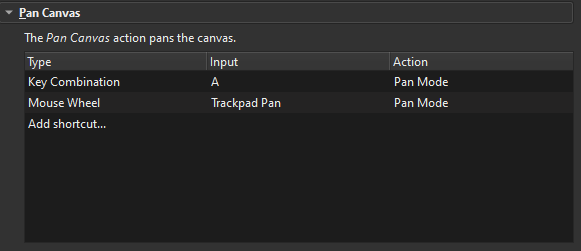
Okay so, the first problem was fixed, but now it created a whole other problem. The pan mode is completely broken, I tried resetting the previous configurations to see if it would work but nothing happened, the only way I can move the canvas is using the pan tool or changing the action to pan up, down, left or right, but the pan mode itself (where I can move the canvas around freely) doesn’t work at all. I tried uninstalling and reinstaling the program but the dafault configurations didn’t come back. I’m not sure what I should do now
Can you go into Settings > Configure Krita > Canvas Input (left menu) – look at Pan and tell us what the shortcuts are.
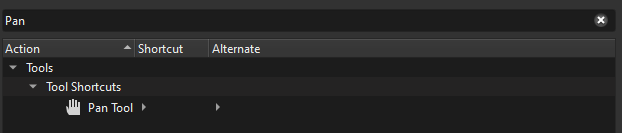
Then, still within Configure Krita, open Keyboard Shortcuts (left menu), type Pan in the searchbar, click on it to open the Pan shortcuts and tell us what the shortcuts are (if any).
These are the only shortcuts, I changed the first input to A to see if it would fix anything and even deleted the mouse shortcuts, but nothing really changed. I don’t know if it broke because of something I did or if it’s because of my device.
So when you set A for Pan in Canvas Input, what happened? BTW don’t bother reinstalling Krita. That won’t help with any settings as those files are retained by your system.
It did nothing honestly, with Space or A as the input, it continues broken. I use an old laptop so I can’t really record the screen, but what happens is like the program is trying to run the command, but it keeps glitching and nothing happens. Like, the cursor keeps flickering between the little circle that indicates you’re using a brush, and the hand icon of the pan tool, but whenever I try to drag the canvas, it goes back to the brush.
If I not mistaken the Pan Canvas Action that you set to the A key, only invoke the pan mode while being pressed. So when you keep the A key pressed the cursor keeps flickering?
If you want to reset the Canvas Input Settings to the default values, you need to Quit krita then delete the -\AppData\Roaming\krita\input folder and then restart krita.