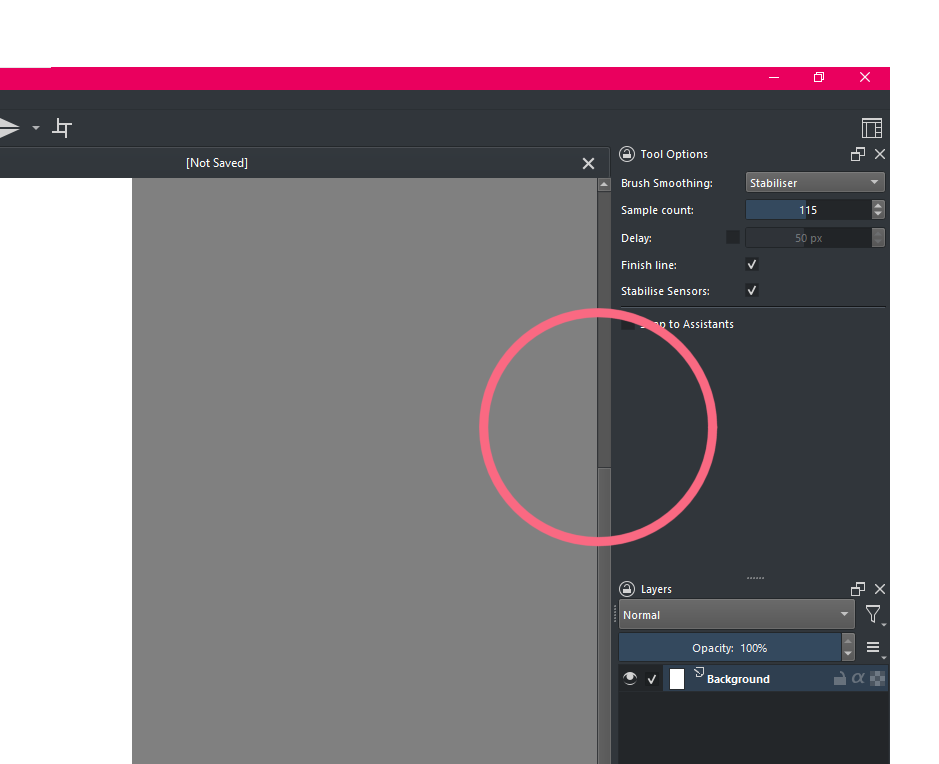
I use the Breeze High Contrast theme as it causes the least strain for my visual impairment; but find it really hard to locate the sliders on the scrollbars.
I’ve gone through the other darkmode themes and find they have the same issue.
Is there a way to make the slider a different colour (preferably the themes accent colour) whilst keeping the scrollbar itself the same grey? Or even just a way to increase the sliders brightness/contrast?
Apologies if this is already explained. Reading through the threads is very taxing on my eyes.
my eyesight isn’t the best (how ironic!) and it’s quite difficult to pick out the slider!
I’ve tried multiple themes and it’s almost universally awful.
Me too. It seems common in Open Source software to produce grey on grey which to me is practically invisible. Firefox is the same and I want to scream a lot!
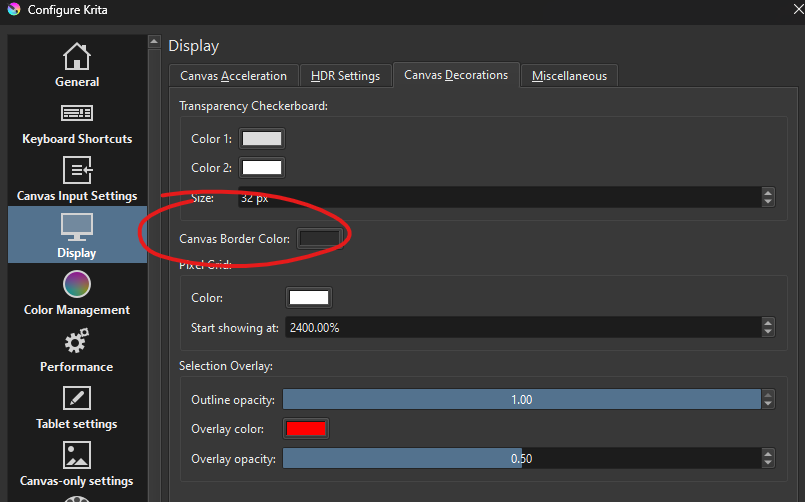
After thinking over it a bit more, it’s actually the contrast between between the scroll thumb and scroll track. This can probably be changed using a plugin or custom theme.
If I remember correctly @freyalupen once presented a solution to this, you had to re-run the associated script every session I believe, but there seems to be a way. Let’s see how the answer turns out and whether my old brain is still somewhat trustworthy, because I searched back till the end of March without finding it.
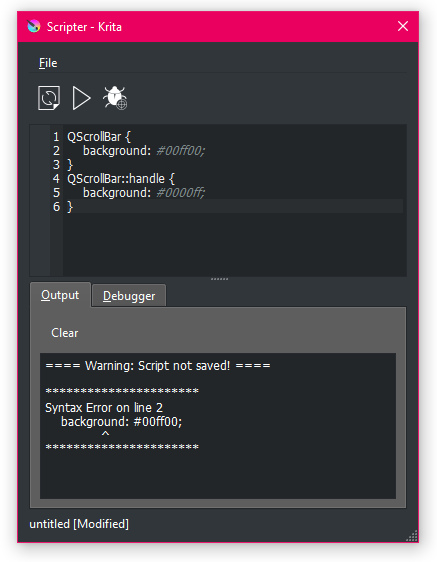
if i just enter the style sheet into the scripter it works, but the style sheet loader script doesn’t seem to be working. it accesses the text file, but doesn’t actually apply it?
I have absolutely no idea how any of this stuff works
Yeah… this area of Krita seems like a murky dark zone. For those with little or no programming background, it probably sounds like gibberish. Maybe this will help.
The Krita tool you will need first is called the Scripter. Look for it in the upper main menu option called Tools. The path is: Tools/Scripts/Scripter Here’s what my Scripter window looks like for reference:
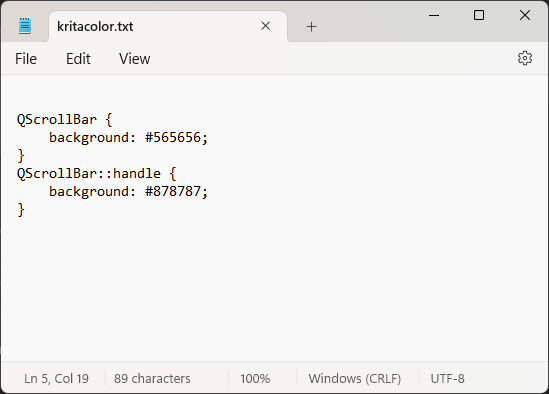
Copy the text/code string freyalupen shared above. That’s the exact code that you will be copying/pasting into the Scripter input window. With your mouse, select that entire string of characters starting with QScrollBar all the way down to the last } symbol. Right-click the highlighted area with your mouse and select copy. Or… just hover your mouse cursor over the gray box with the code. A little copy icon will appear in the upper right corner of the gray box. Just click on that.
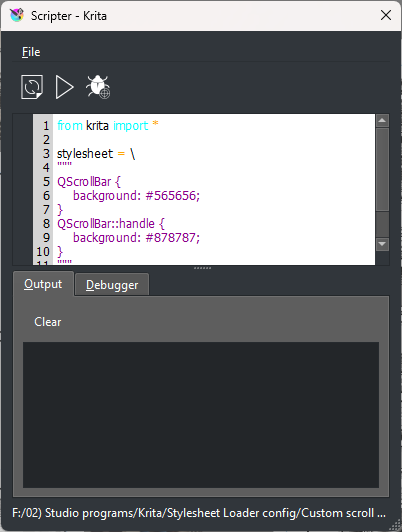
What I did next was to create a simple TXT file in a folder on my hard drive. You can create this simple TXT file with any word processor (I used WordPad in Windows). Paste the code you just copied and save it as a plain TXT file. Note the location of the file. You’ll need that information later.
Now… paste that string of code you copied into the Scripter input window. At this point, you should be able to click on that large right-arrow icon above the Scripter input window and immediately see the results of the change. Don’t worry if the color isn’t correct yet. You just want to confirm that you copied the code correctly and it’s doing what it’s supposed to. If you get an error message, you didn’t copy/paste the code correctly. Try again. If you can’t get past this point reach out here for help.
Assuming you got past item #4 safely (lol), then you have a couple more decisions/changes to make. The first decision are the colors. You either leave the colors the way they are or create your own custom colors. I chose to create custom colors. There are two color options to deal with. There is the background color of the scroll bars and the color of the scroll bar handles (the thing you drag up and down or left and right). Be advised this affects all docker scroll bars, not just the canvas screen area.
Here’s my suggestion for creating your own custom colors. It’s easy! What you’re after is the HEX code for the specific colors you want. I used the Advanced Color Selector to find colors. I chose colors that were complementary to the Krita color theme that I am using. But you can choose anything you want. So open the Advanced Color Selector and pick a color. That color will now appear as the foreground color in your foreground/background color selector (that little icon with the colored blocks and curved arrow). Click on the foreground box and the Select a Color window will open. Here you will see a field called Color name: with the corresponding HEX code (a 7 character alphanumeric string starting with the # character [otherwise known as the pound sign]). You can copy that string directly from the Selection window. So what I did is select colors and pasted those HEX values into the freyalupen code described earlier - one for the background and one for the handle. Then run the Scripter again and see the results. I did that a few times until I found the exact right color choices for my taste. When you’ve settled on the right color choices, paste those HEX codes into the TXT file that you created earlier (replacing the codes that were there earlier) and save it.
So… you could basically stop here and then every time you open Krita, you would open that Scripter window and select Run and get back your preferred color choices. Or… you could do one more step to make sure every time you open Krita, it incorporates those choices for you automatically! Just know that Krita forgets those Scripter settings when you shut it down. However, the code you entered into the Scripter window will remain there indefinitely (unless you remove it yourself).
Go to Tools/Scripts/Load Style Sheet. In the path window, select the TXT file you created earlier. Then enable the Load on startup option. Select Close. Then shut down Krita and restart it again. The colors you chose will be there every time you start Krita.
I hope this helps. If you have questions please respond and we’ll try to help. Cheers!
PS: I just realized something. There’s no need to pull up the Advanced Color Docker to choose your custom colors (as described in Item 5). You can do that by simply clicking on the foreground or background color (icon). The window that pops up has it’s own mini-advanced color selector. That just saves a step. If there are any other shortcuts let us know.
Also, the user interface “theme” I use is called Breeze High Contrast. The values indicated in the TXT file screenshot in Item 3 above are my preferred values that match up nicely with the Breeze High Contrast theme. Feel free to try those as a starting point.
I have pretty good eyesight and it’s still a problem for me too. This tendency to choose grey on grey user interface colors applies to a boatload of software. I used to run a recording studio. Interface color choices were often downright horrible. I understand that with hi-def monitors, brighter contrasty colors can easily be a problem. But it should be obvious when you’re testing programming choices. I don’t think programmers are really doing due diligence when they release their code. This simple color change made all the difference in the world to me. My enjoyment of Krita rose a lot for something so inconsequential. Well, maybe inconsequential is the wrong word. I use those scroll bars all the time. And I have other methods for navigating around the canvas area. I can use my stylus and an accessory keypad programmed with some of the navigation shortcuts.