JPEG export issue after upgrading to Krita 5.2.11 (pixelation in fine lines)

Hello, I recently upgraded to Krita 5.2.11 and noticed a problem with JPEG exports.

My workflow: I create seamless patterns intended for fabric printing.

In the past, exporting as JPEG (Quality: 100%, Subsampling: 1x1, ICC profile enabled) worked fine.

But since upgrading, the exported JPEG files look pixelated or broken in fine lines, even though PNG exports are perfectly clean.

This makes it difficult to use the JPEG files in professional printing, as they appear corrupted or blurred.

I checked:

Quality = 100%

Subsampling = 1x1,1x1,1x1 (highest)

ICC profile saving = On

Progressive = On

Still, the issue persists. PNG exports are fine, but JPEG exports are not usable anymore.

Is this a known issue in 5.2.11? Should I try reverting to 5.2.10, or is there any workaround?
Any advice would be greatly appreciated.

Thanks in advance!\
JPEG files will always look pixelated regardless of the quality because it’s compression algorithm is lossy. If it wasn’t before for you, it was pure coincidence. PNG however is lossless and will always have the pixels exactly the same even at maximum compression. It is the format of choice if precision and quality need to be consistent.

Thanks for the quick reply — I ran some controlled tests today, because this is specifically about seamless/tileable patterns where the canvas edges must match pixel-for-pixel.

What I tested

A) Export PNG in Krita → convert to JPG in Photopea
➜ Clean lines, no pixelation, and no seams when tiled. Left/right and top/bottom edges remain identical.

B) Export JPG directly from Krita (Quality 100, Subsampling = 1x1,1x1,1x1, ICC ON, Progressive ON)
➜ Pixelation in fine lines, and a visible seam exactly on the tile boundary. When tiled, there’s a 1–2 px break along the edges.

Why this matters
For fabric printing, the images must be perfectly seamless. After Krita’s JPG export, the opposing edges no longer match, so seams appear. The same artwork exported as PNG and converted to JPG elsewhere does not have this issue, suggesting it’s specific to Krita’s JPG export.

How to reproduce

Create a tileable image in Krita (use Wrap-Around preview Shift+W).

Export as JPG (Quality 100, Subsampling 1x1,1x1,1x1).

Re-open and tile side by side → seams appear at the borders.

Repeat with PNG → convert to JPG in Photopea → no seams.

Questions

Is Krita’s JPEG export doing something (e.g. preprocessing, rounding, hidden subsampling) that makes edges diverge?

Is this a known issue in the JPEG export pipeline?

Is there a workaround to guarantee edge equality for seamless/tileable textures?

I can provide a small test file set (KRA/PNG/Krita-JPG/Photopea-JPG) if that helps. Thanks for looking into it!

If you can provide some kind of test file set that shows this happening with version 5.2.11 but not with 5.2.10 then that would be useful in an attempt to understand the situation.

You can pack then all into a .zip file and give a download link to a file sharing sharing service.
Please make sure that the link does not require any kind of login requirement for downloading.

I’m wondering: Don’t the fabric printing agency/printers accept .png files?

1 Like

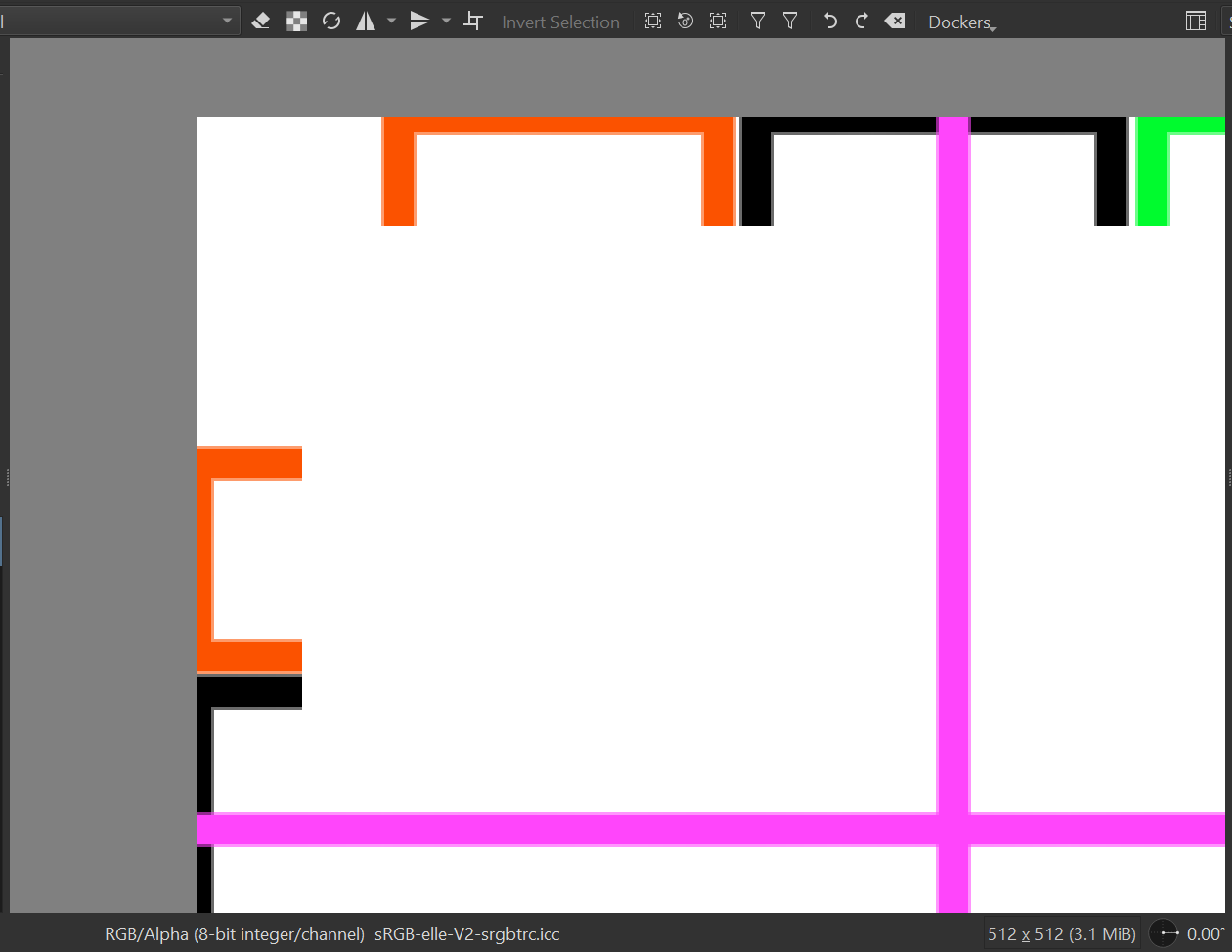
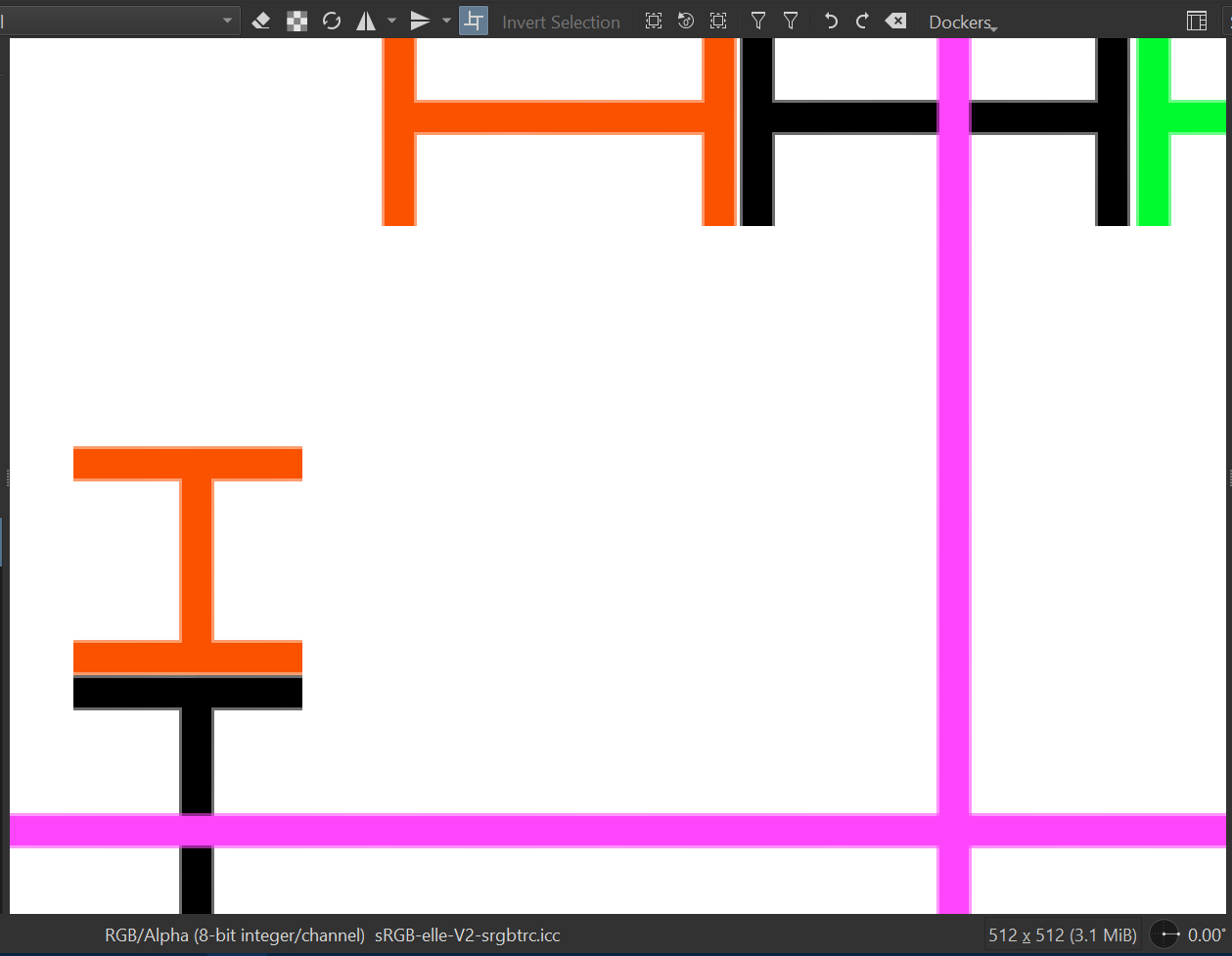
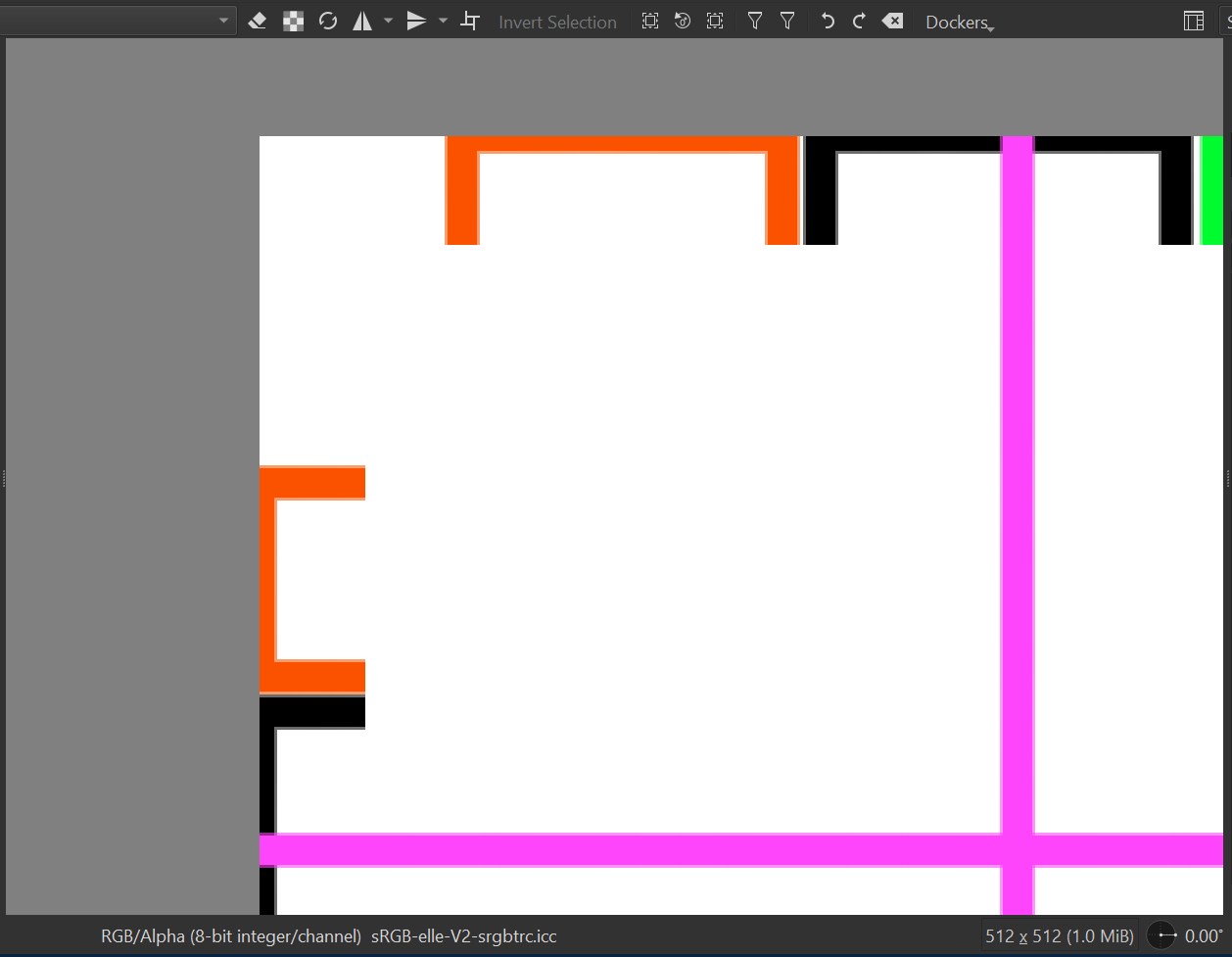
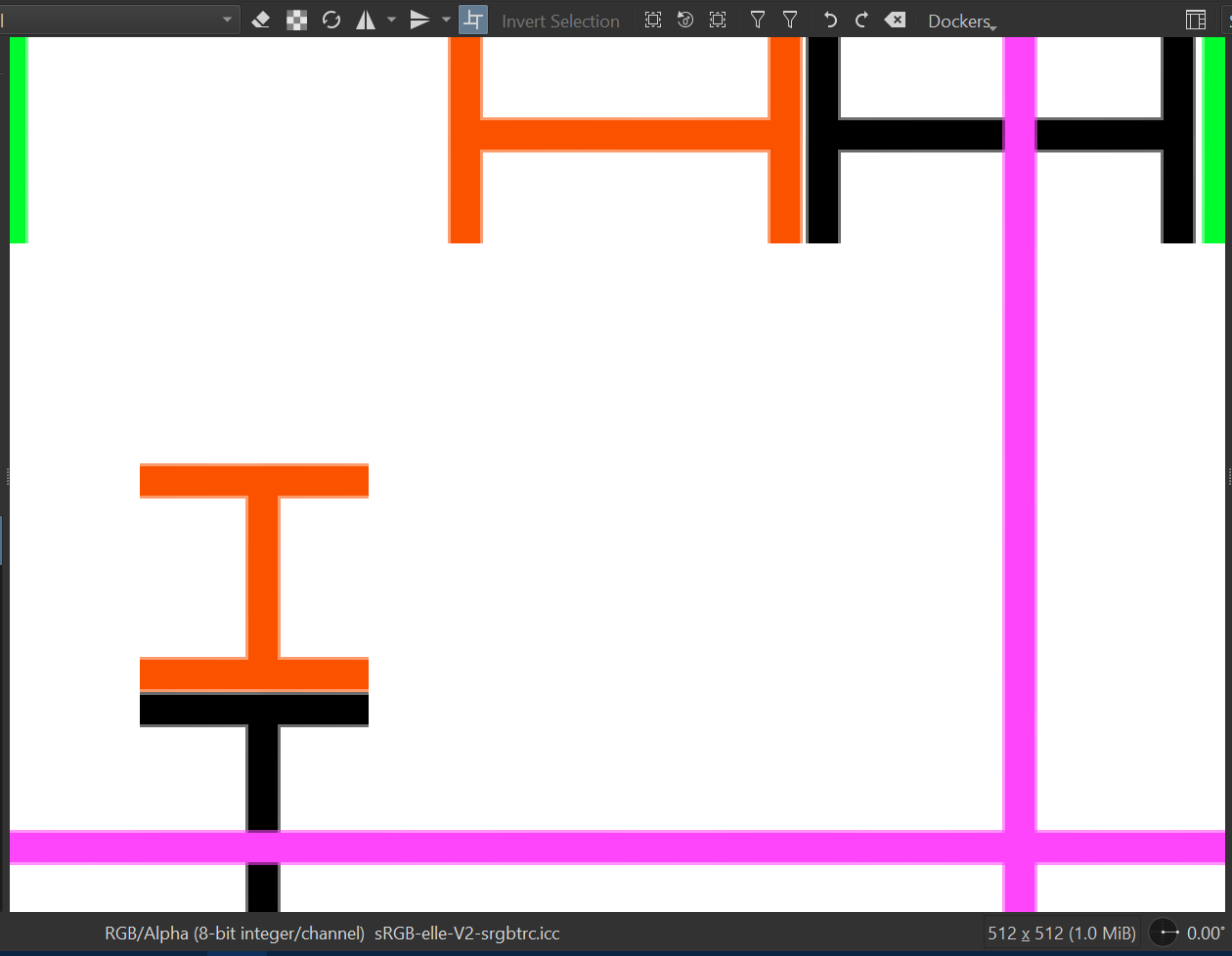
I just put together a file in Krita 5.2.11 to test this and, using the settings you mentioned, created a tile measuring 256 x 256 pixels, which I then merged into a seamless tile measuring 512 x 512 pixels. The line thickness is 1 pixel. For me and my declining eyesight, the result looks fine:

I wonder if there might be some other setting (i.e., not the export settings) in your Krita that differs from my settings, which is leading to the result you are seeing?

Michelist

1 Like

Exporting as a jpg, especially when dealing with an image that requires precision, is very risky. I’ve always had success building my patterns in Inkscape and exporting as a larger, high-resolution png file.

2 Likes

Oh my God
For some reason, all the previously approved jpg images are broken
Most of them can be seen only if you look very closely, so I think it was approved because it was confirmed that there was no problem when it was printed.

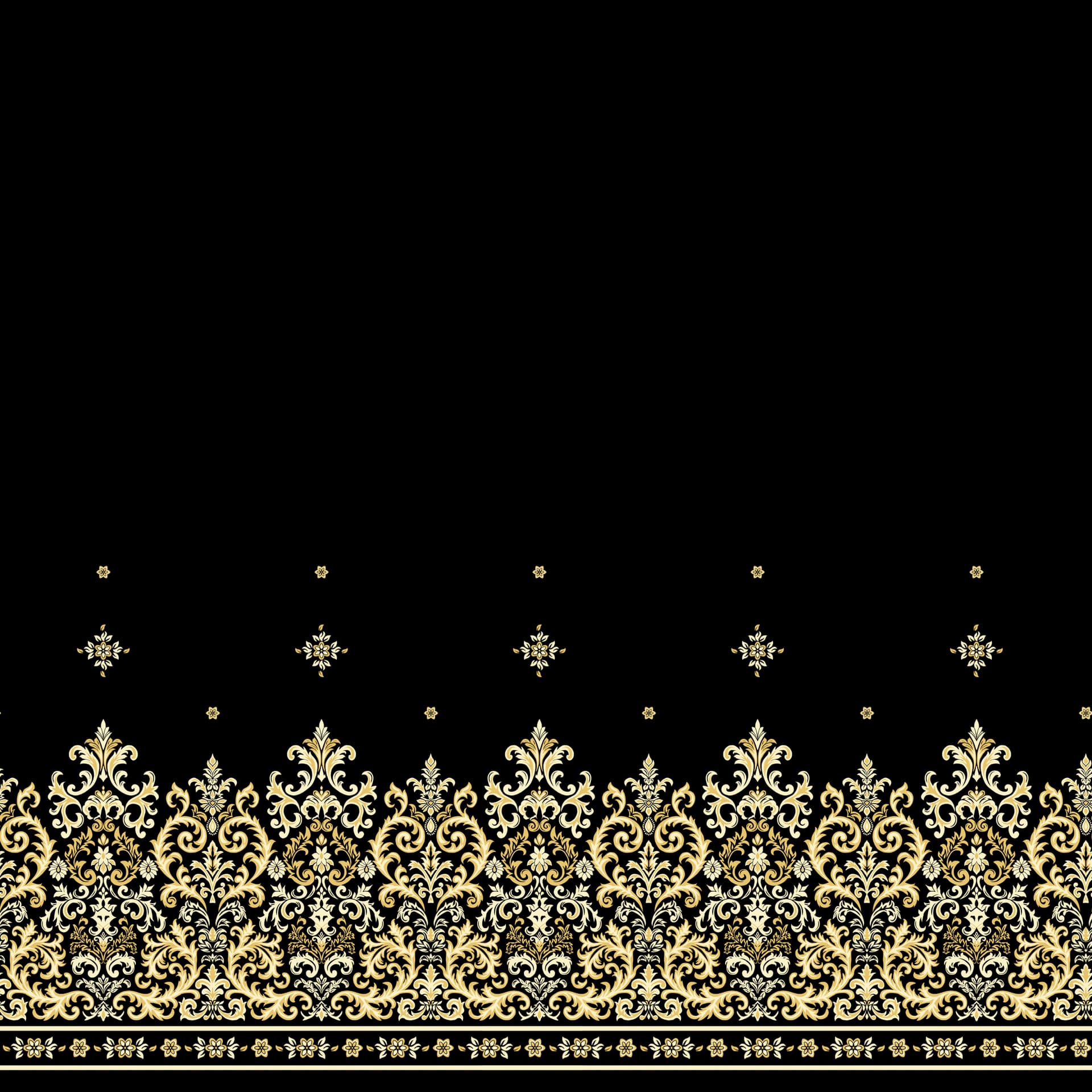
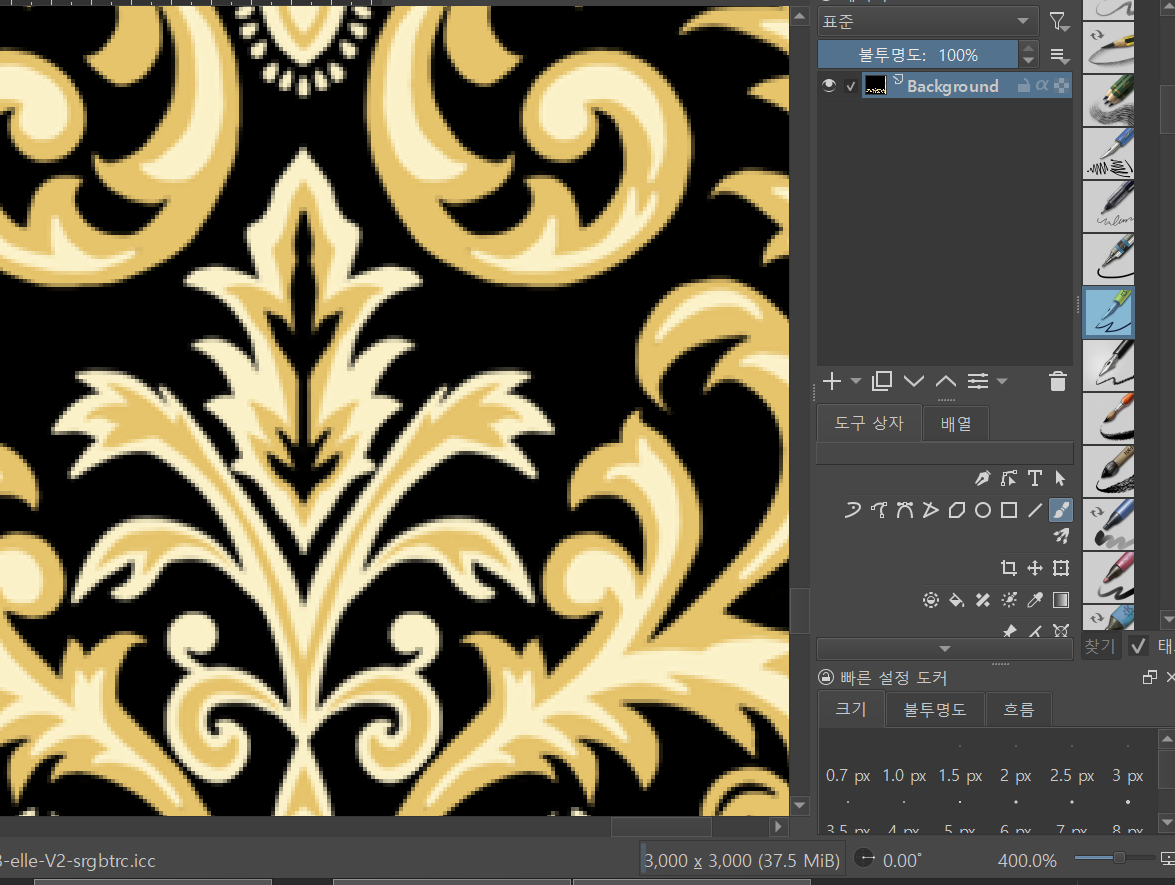
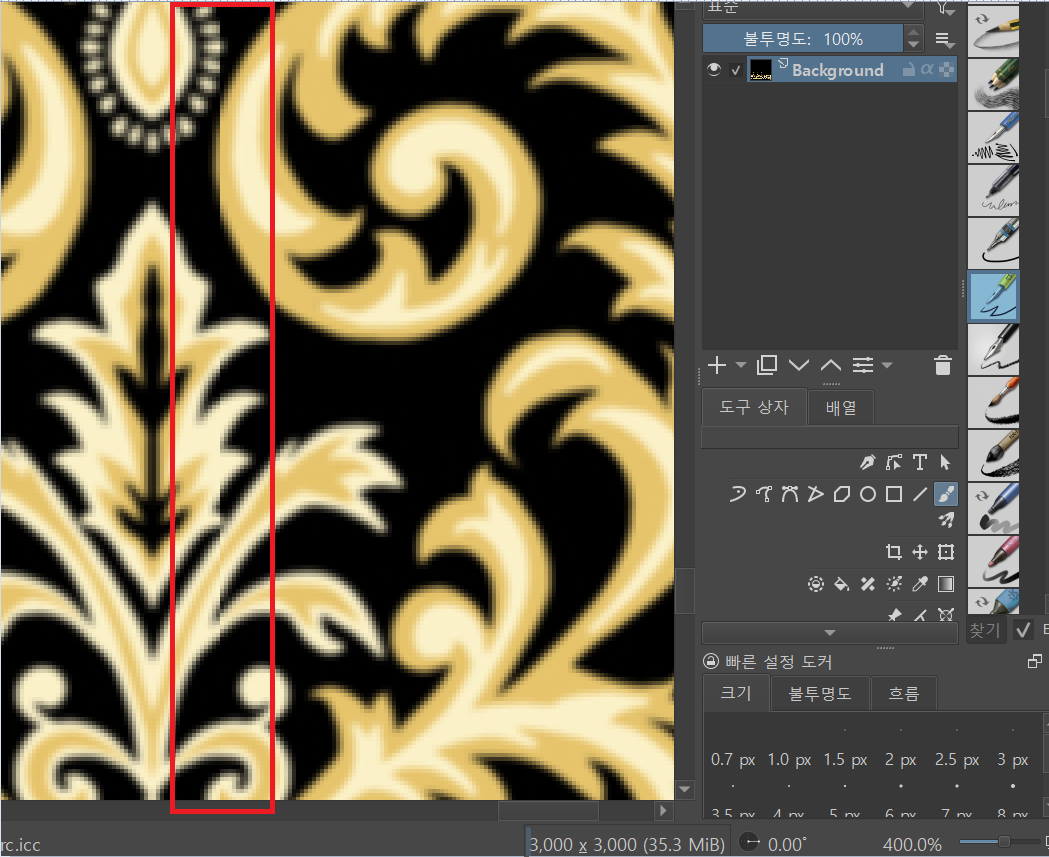
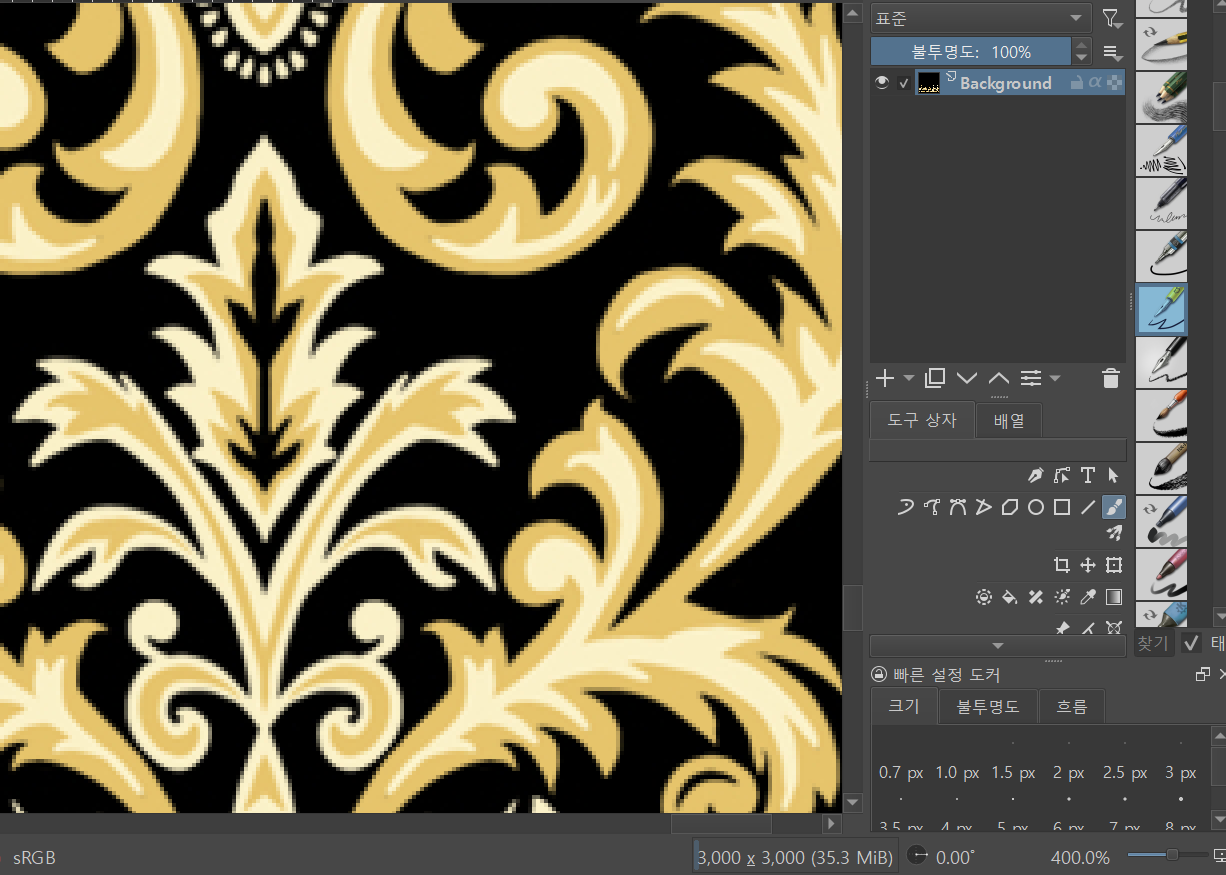
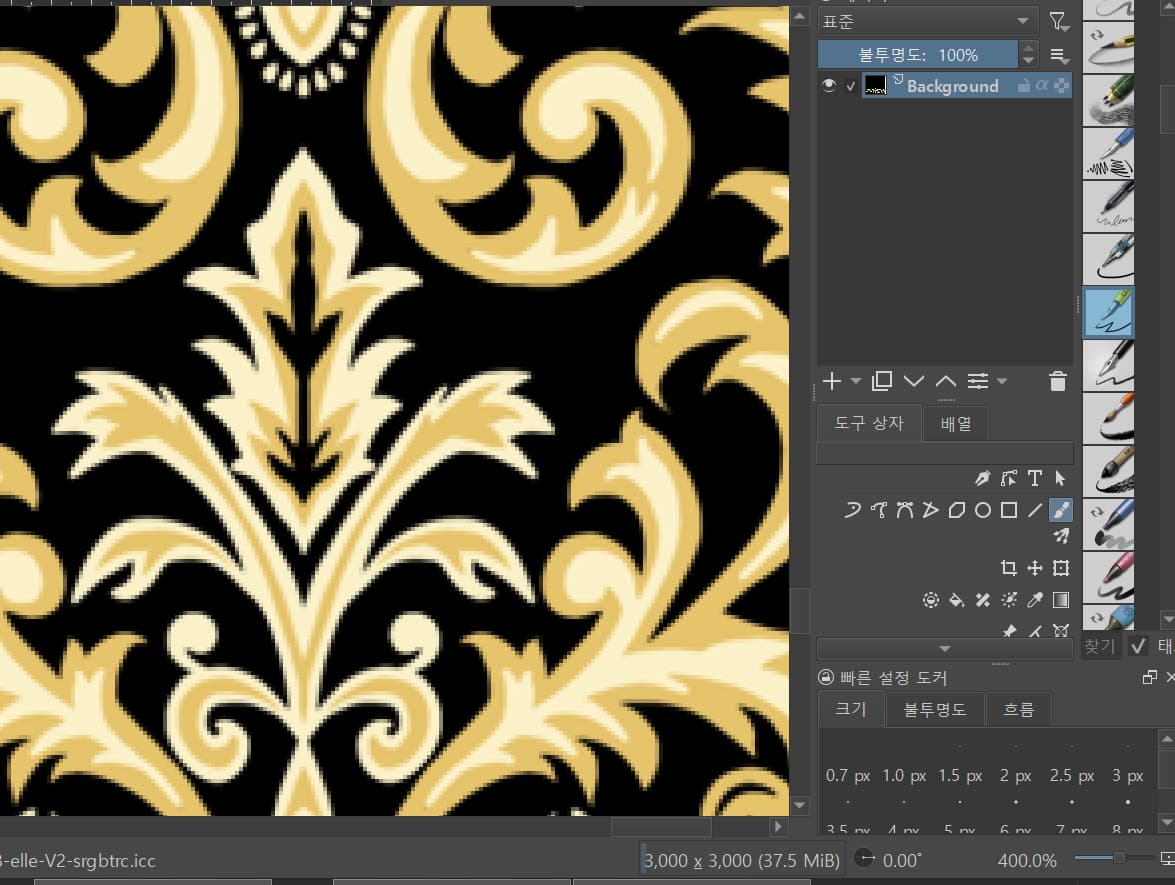
The following is a test example using a 3000 x 3000 px, 200 DPI pattern image:

  1. PNG Original (Full Image)

  1. PNG (Shift+W) in wraparound mode, 400% edge zoom

  2. JPG (Shift+W) in wraparound mode, 400% edge zoom

  3. Photopea JPG in wraparound mode with 400% edge zoom

As you can see, the PNG is clean, but the JPG exported from Krita doesn’t look natural when magnified.
If the same PNG is converted to JPG in the photopea, the joint is smoothly connected.

The fabric printing agency is only accepting jpg files. All the returned pattern images are now being converted on the free conversion site photopea. I want to continue using Krita in the future because I kept using Krita for drawing.

If this problem is solved, more comfortable work can be done.

Which OS do you use? Because instead of uploading my work to an external website, I would always prefer to do the conversion on my own machine, since you never can know who else may get their hands on your work when doing it external/online, even if the site offering the service may be clean, there can always be some bad guy listening and grabbing your work without you even noticing!.

If you use Windows, I can recommend using IrfanView for the conversion from PNG to JPEG/JPG, and if you have to convert lots of pictures at once, you can use its batch mode. It can also be used on Linux through WINE and probably on macOS too using WineBottler or other tools.

Another good tool for that conversion is XNView, and also XNView can do batch conversion, but it uses an own extra tool for this, XnConvert, and XnConvert is even more elaborate and mighty than the already elaborate batch converter offered by IrfanView. But XnConvert is not so easy to understand and handle as IrfanView is. Additionally, it offers native versions for each OS.

Michelist

1 Like

Thanks a lot for the recommendations! I’ll give IrfanView a try, and it’s really helpful to know about XnConvert too.

1 Like

This is worth a read

The compression method is usually lossy, meaning that some original image information is lost and cannot be restored, possibly affecting image quality.

Due to this fundamental property of JPG I cannot understand why a service that requires precision graphics would only accept JPG.

I don’t know if something actually changed in the ways that Krita handles JPG files, perhaps there was a change in the library it uses but relying on JPG to be precise was already a mistake from the start (not necessarily your fault if the service in question only allows JPG, which is weird). PNG (and some other formats) are always superior.

1 Like

There might be something wrong with your Krita install. It works fine for me on Windows (Krita 5.2.11).

Basic information for my test: If exporting to jpg at setting “100% quality” the result is nearly the same like with PNG.

There is no difference in wrapping a jpg or a png especially no “offset” like in your jpg wrap.

I used “file” → “Export” to get the png and jpg.

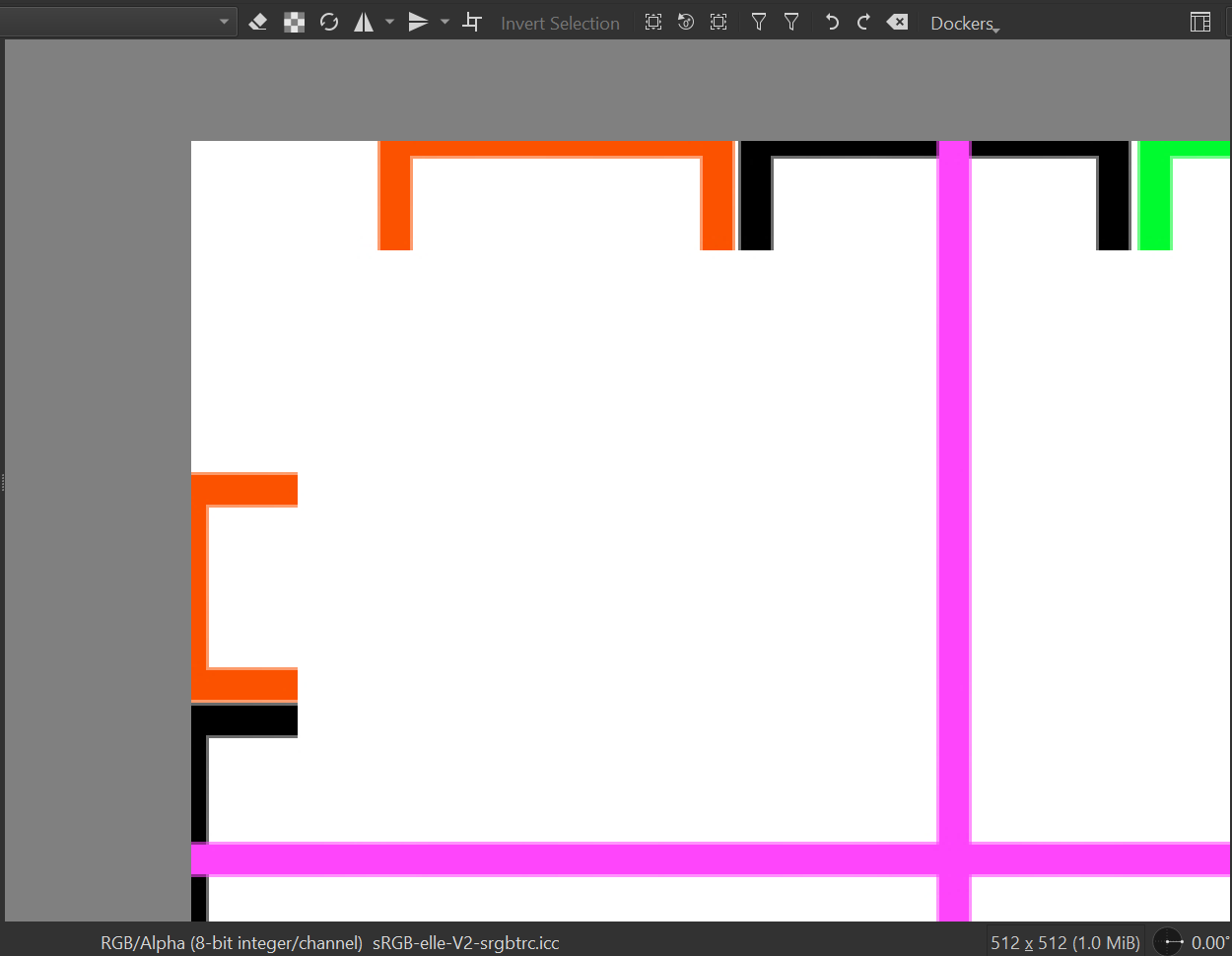
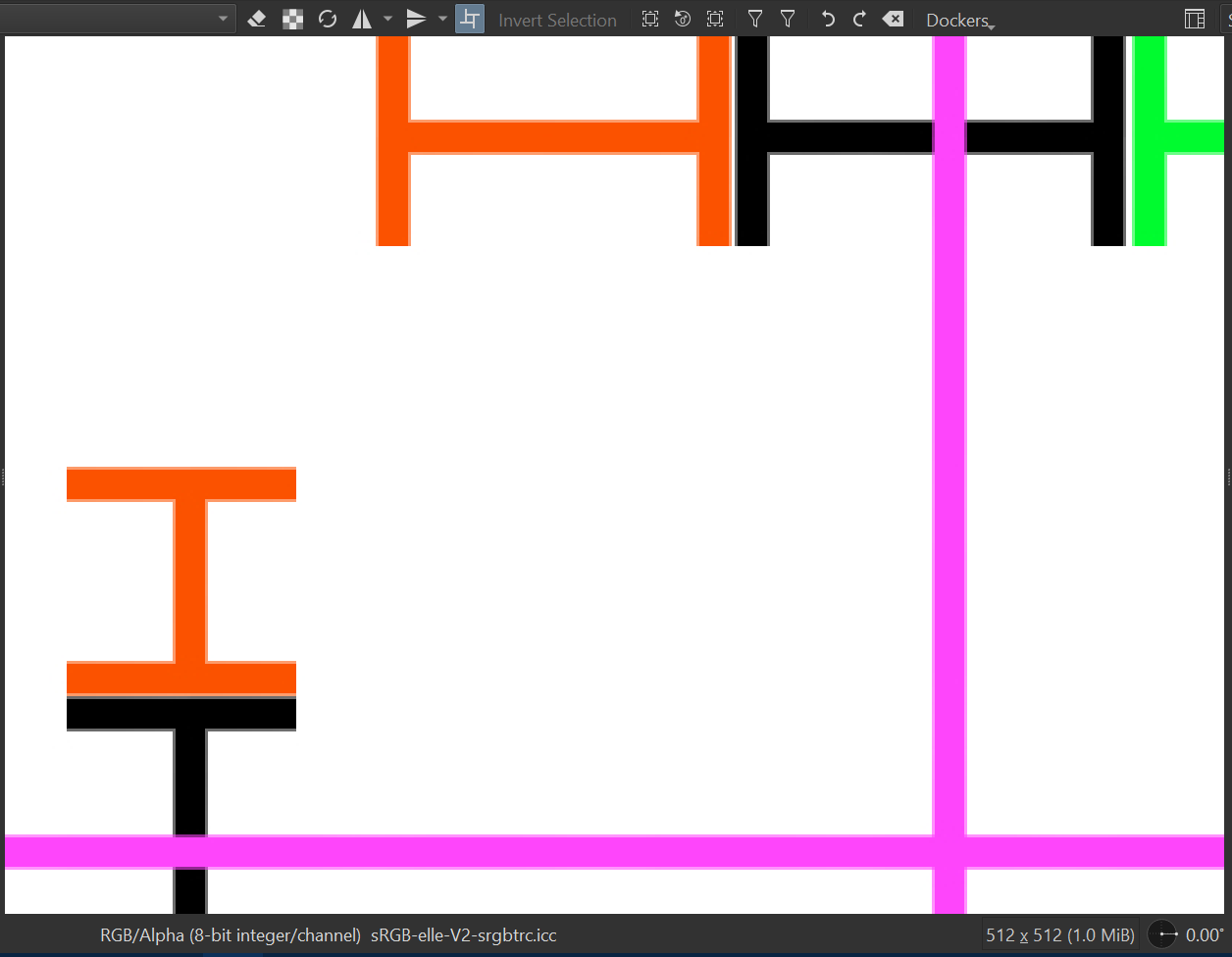
Original kra file 512 x 512 px:

Wrapped:

JPG exported from Krita → opened in Krita:

Wrapped:

PNG exported from Krita → opened in Krita:

Wrapped:

Maybe you can upload one of your KRA files for us to test.

Or reset your Krita to its default state and try again (it happens that its configuration gets messed up).

3 Likes

I installed Krita on another computer to check, and it seems that JPGs always show some artifacts, although not very severe. I think this might be unavoidable. I’ve also contacted the printing agency to ask about their quality inspection process.
I really appreciate your comments and the solutions you suggested. It’s been very helpful.

According to the technical specifications of the JPEG-Standard, yes it’s unavoidable. There seems to be a “lossless flag” mentioned in the specifications but apparently not many implementations actually make use of it, therefore most software does not support this mode, probably because it would work against the goal of having lightweight files.

Just another test (Krita 5.3 this time):

I have downloaded your png image from above:

https://krita-artists.org/uploads/default/original/3X/f/4/f4d2d1f9f5cb63458a1909ffe779ef87ddbedecc.png

Opened it in Krita and exported as jpg with 100% quality.

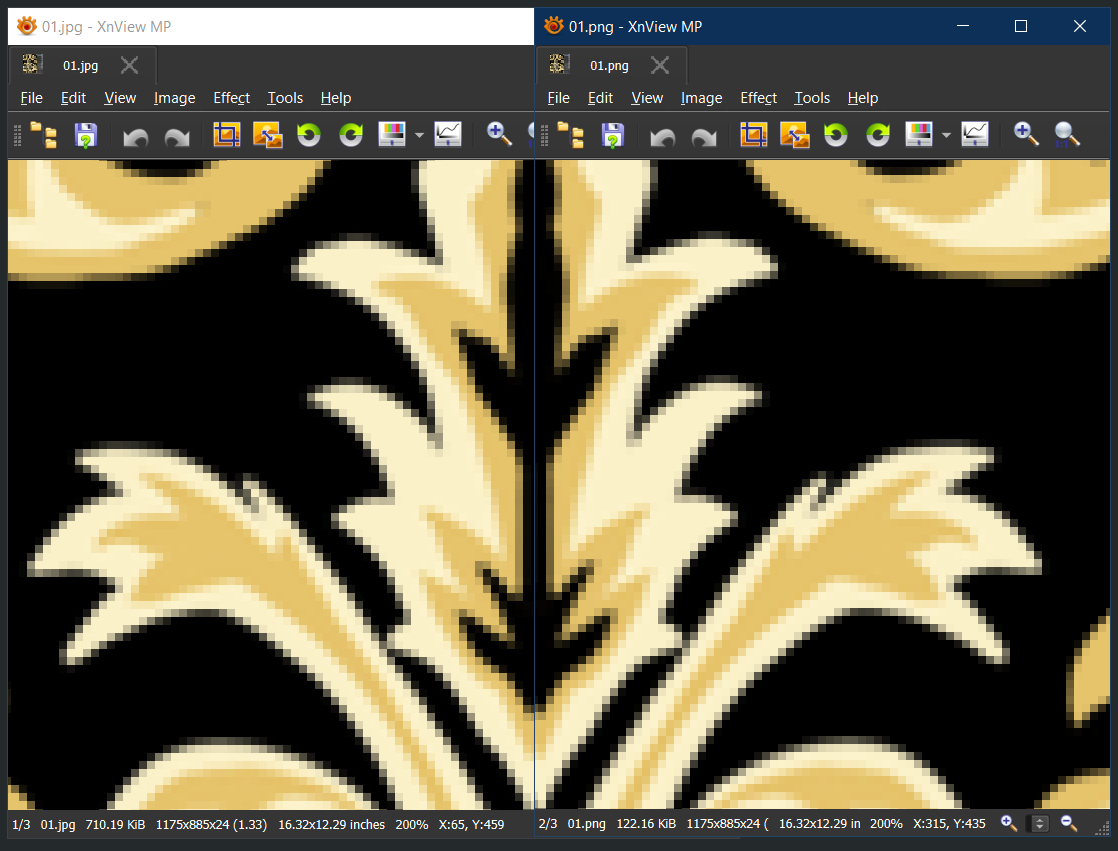
Then I opened both files in XnView at 200% zoom, put them side by side and made a screenshot.

Left is Krita’s exported jpg, right is your png I downloaded.

I can’t spot a quality issue with the jpg in this case.

The jpg:

The png:

1 Like

This topic was automatically closed 30 days after the last reply. New replies are no longer allowed.