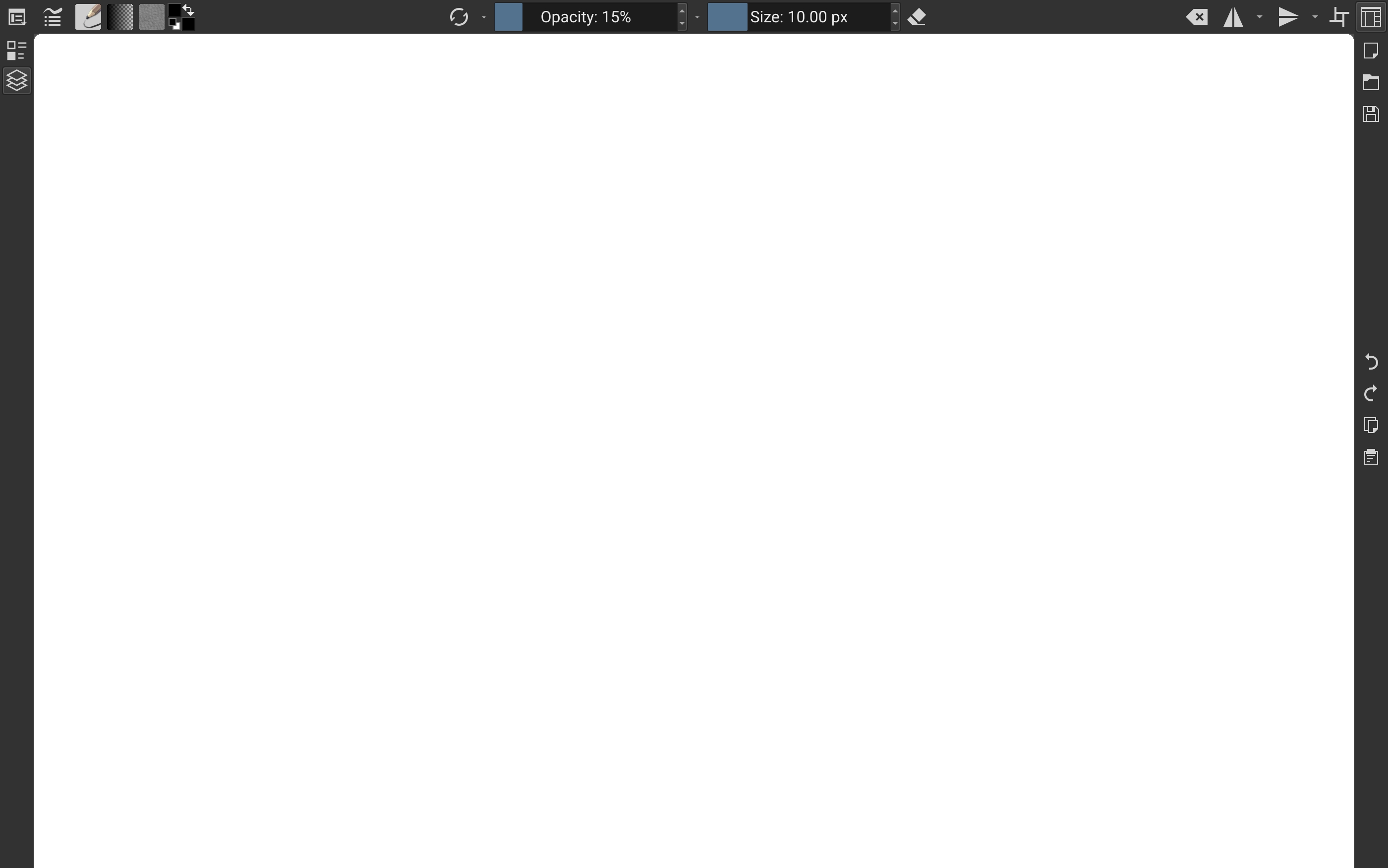
I started using Krita on android (Samsung Tab S9+) a little over a year now. I had some limited experience on a desktop and little by little made progress on getting a tablet-friendly workspace set up. I ran into a lot of issues that I feel 5.3 has really improved on. The brush sliders work great now. I love the selection actions popup. I’m also really excited about the new toolbar options.
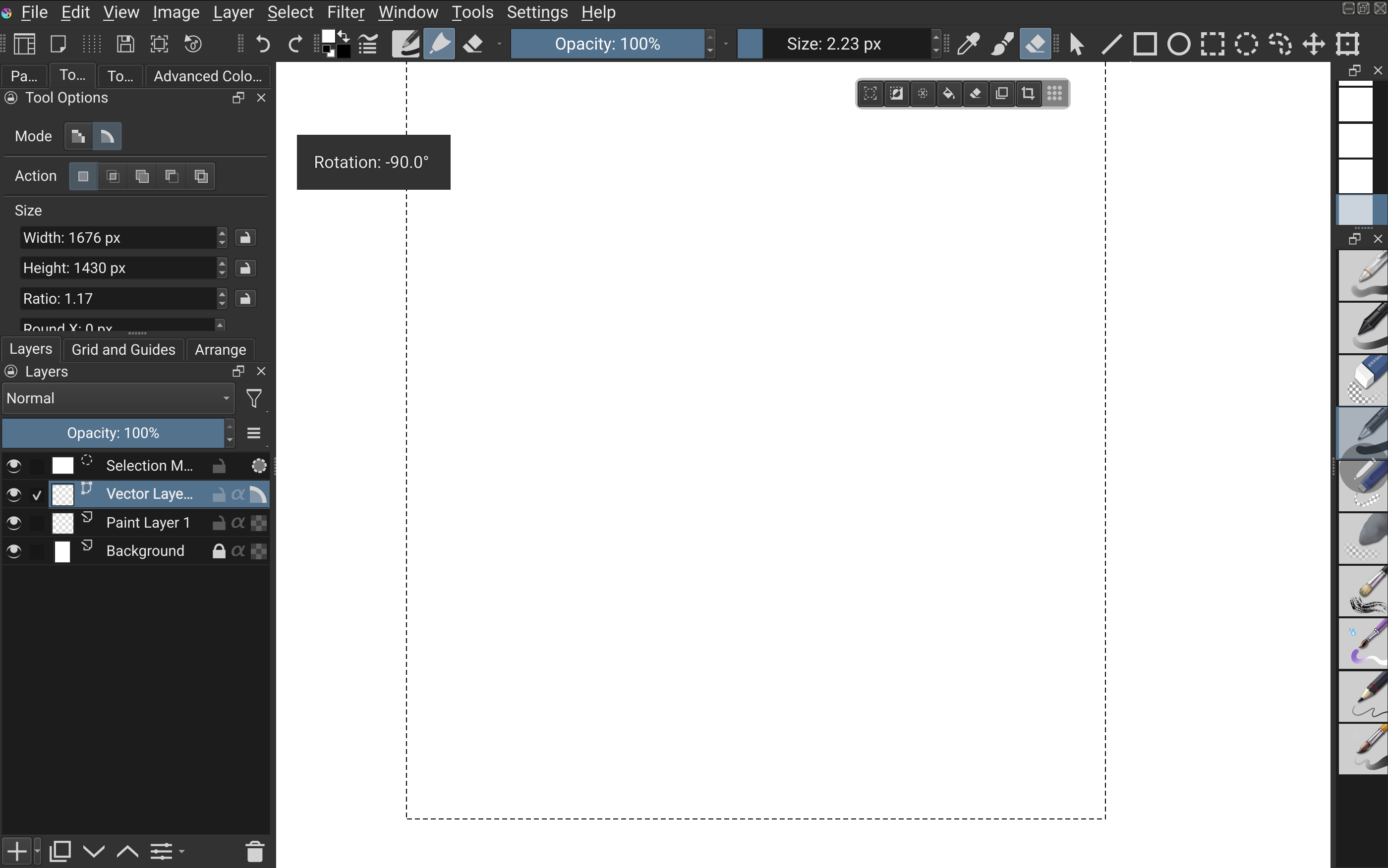
My workflow on android has been to leave the toolbars visible in canvas mode. I lock my tablet in landscape and rotate Krita’s canvas if I want to draw in portrait. This stops the top toolbar from getting condensed when I rotate my tablet.
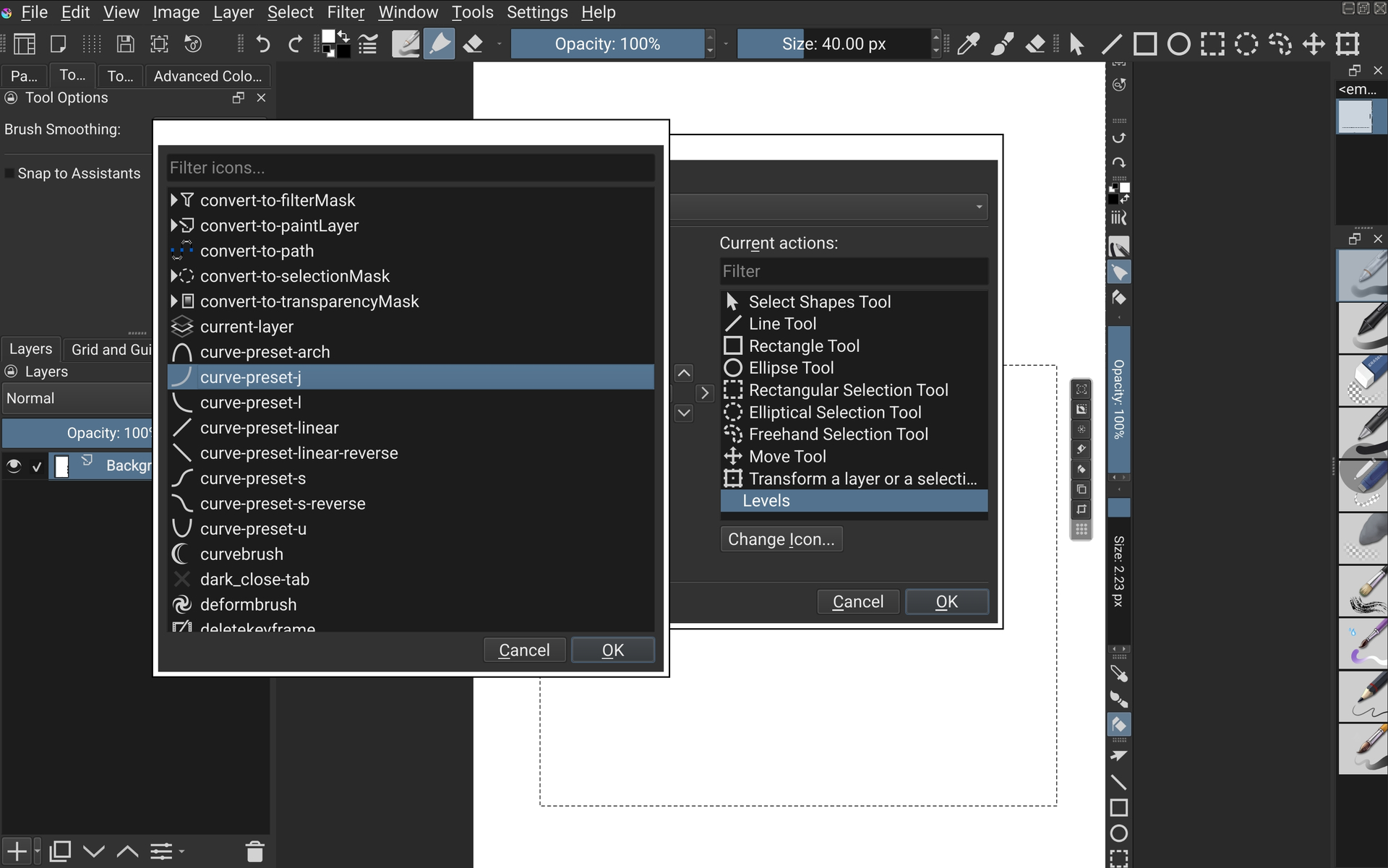
I wasn’t happy with the toolbox’s layout, so I made compromises with what tools and actions could squeeze onto a toolbar. Some of the actions don’t have default icons and take up too much space. 5.3 fixes this issue by allowing you to change or add an icon. 5.3 also added options to make custom toolbars. Right now I only see options for 2 custom toolbars which is really unfortunate, since I see this as an opportunity to make Krita really amazing on tablets. Hopefully they give options to add more and name them as well.
Actions on toolbars don’t change when you switch workspaces, but positon and visibility of the toolbar does. Ideally I would create different workspaces that show different toolbars. For example, I might want to create a workspace for more advanced painting that includes a toolbar with gradients and symmetry, but I might not want that toolbar to be visible in a more basic workspace. I might want one workspace to have only a topbar with the bare essential sketching tools, then introduce vertical “Vector Tools” or “Layers actions” sidebar in another workspace. Krita 5.2 only has 3 toolbar menus which made this almost impossible to organize. This seems much more manageable now that custom toolbars have been introduced.
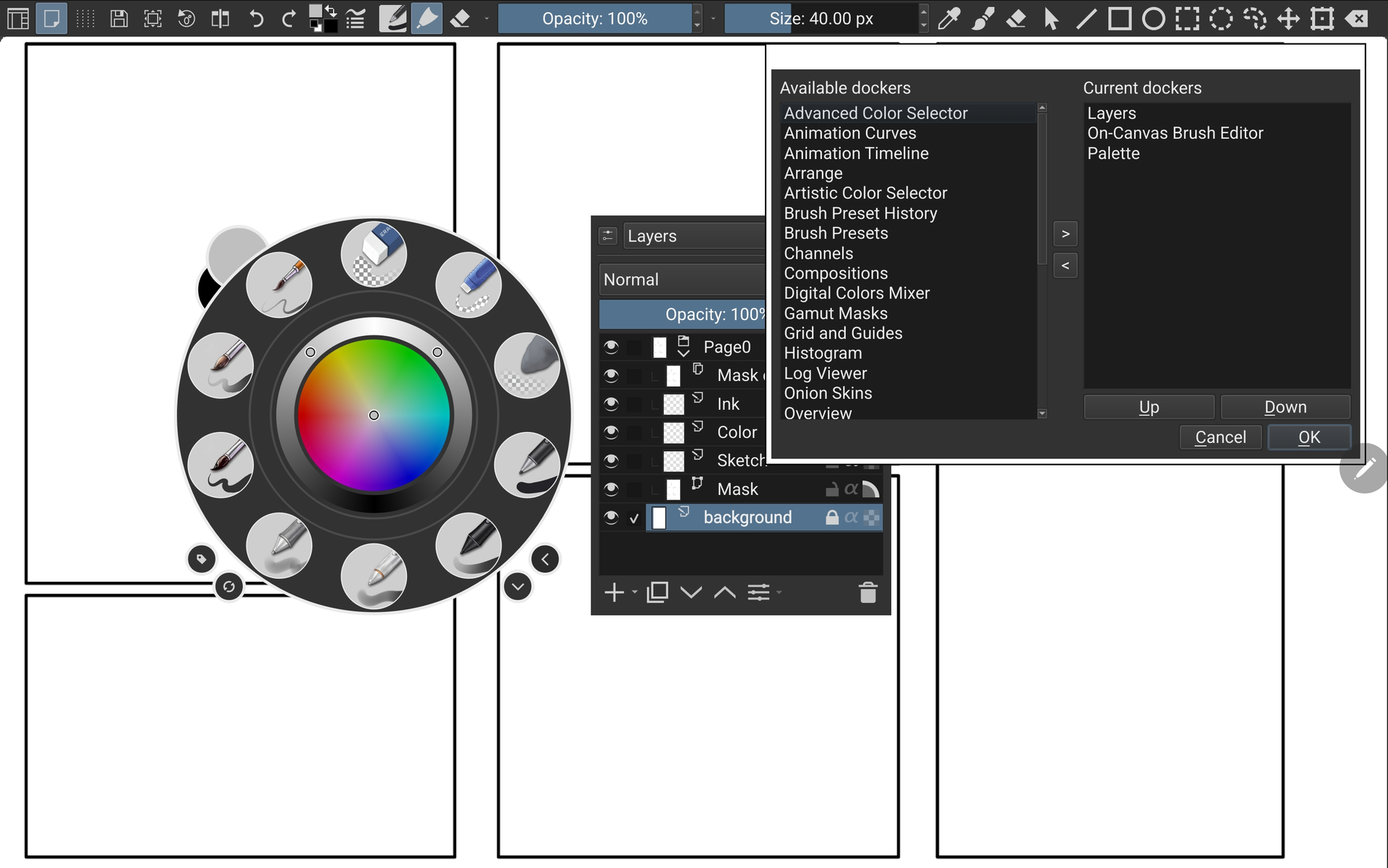
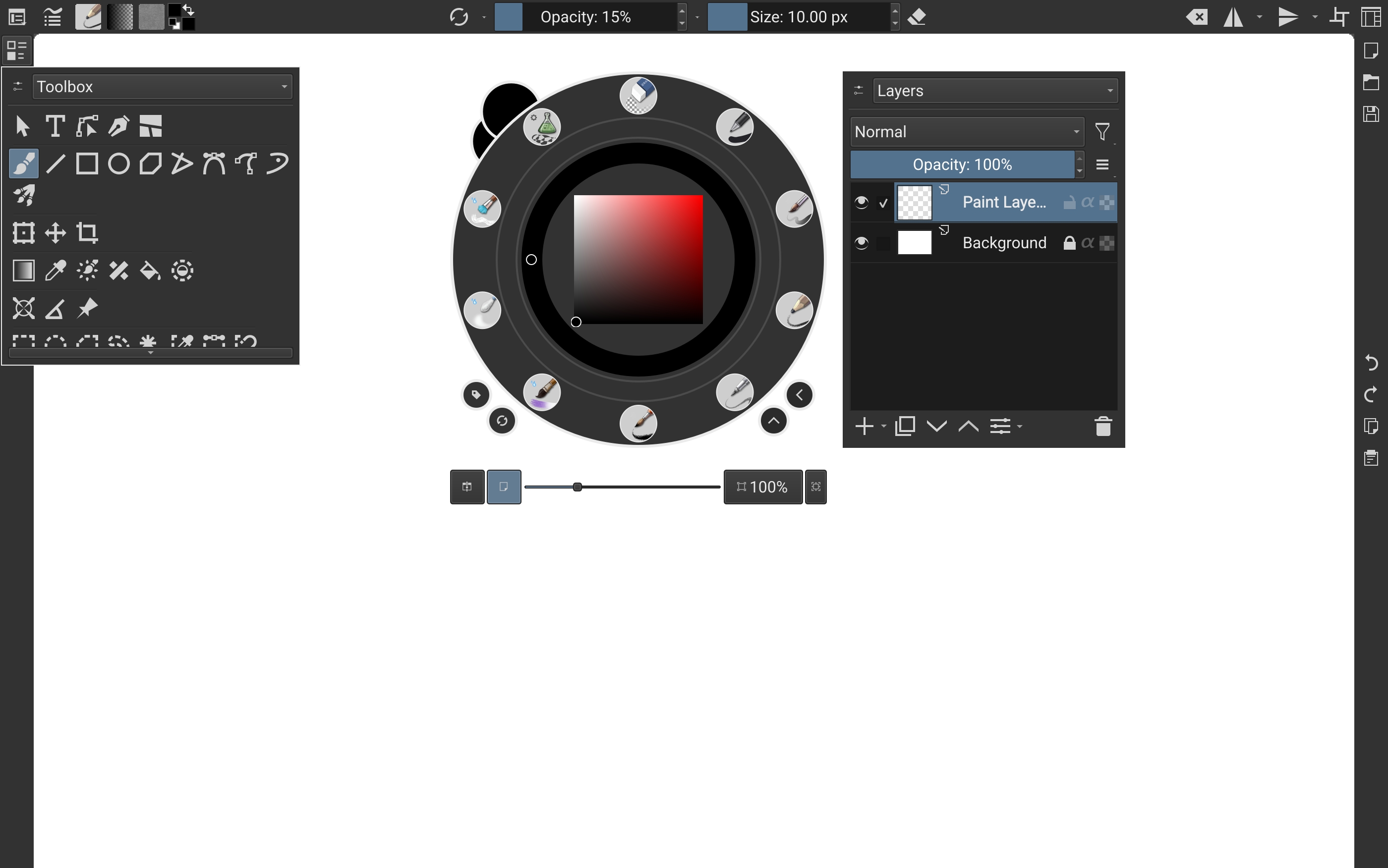
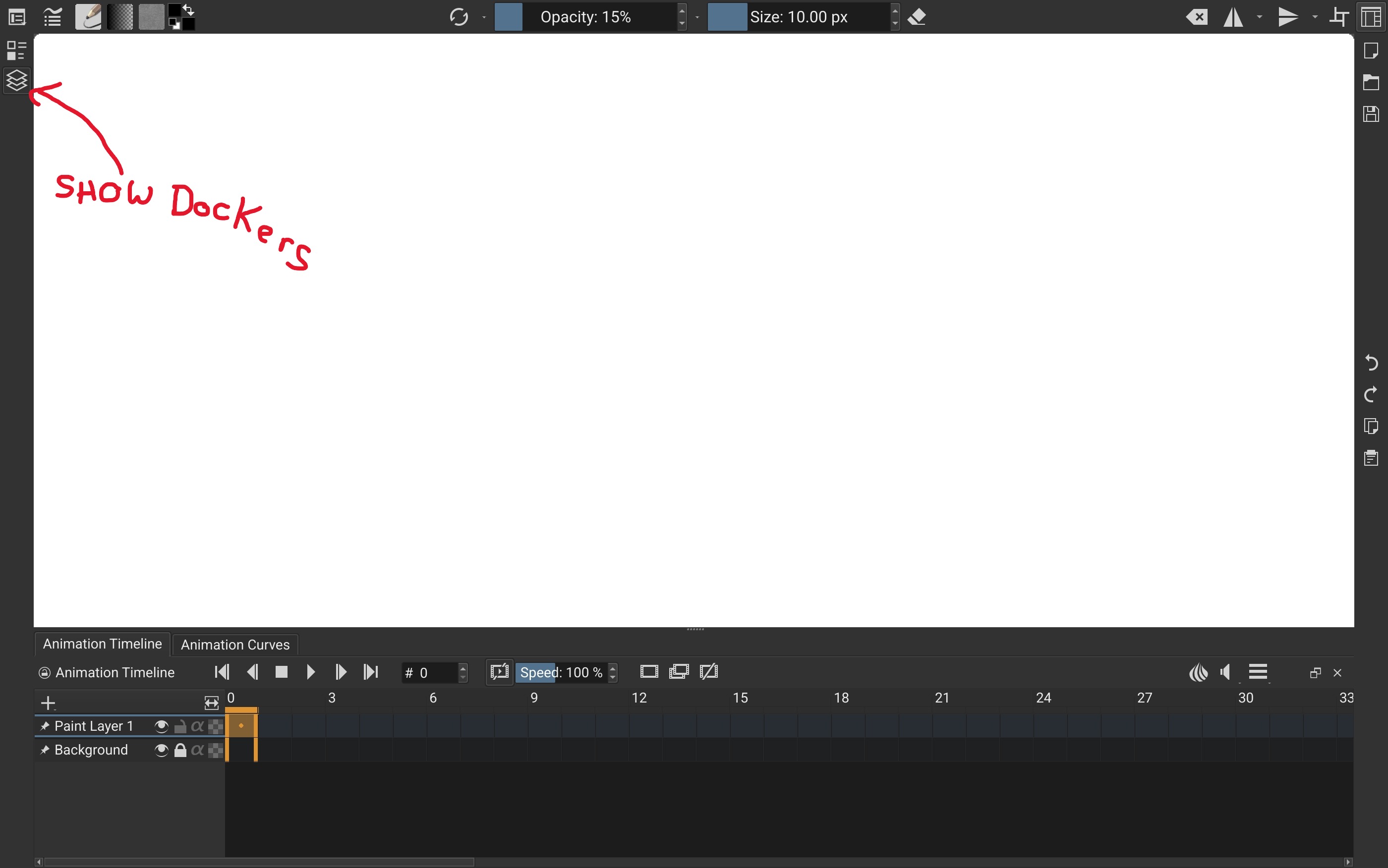
Edit: I learned after this making this post that layers and other dockers are now accessible in the Popup palette. So happy about this update
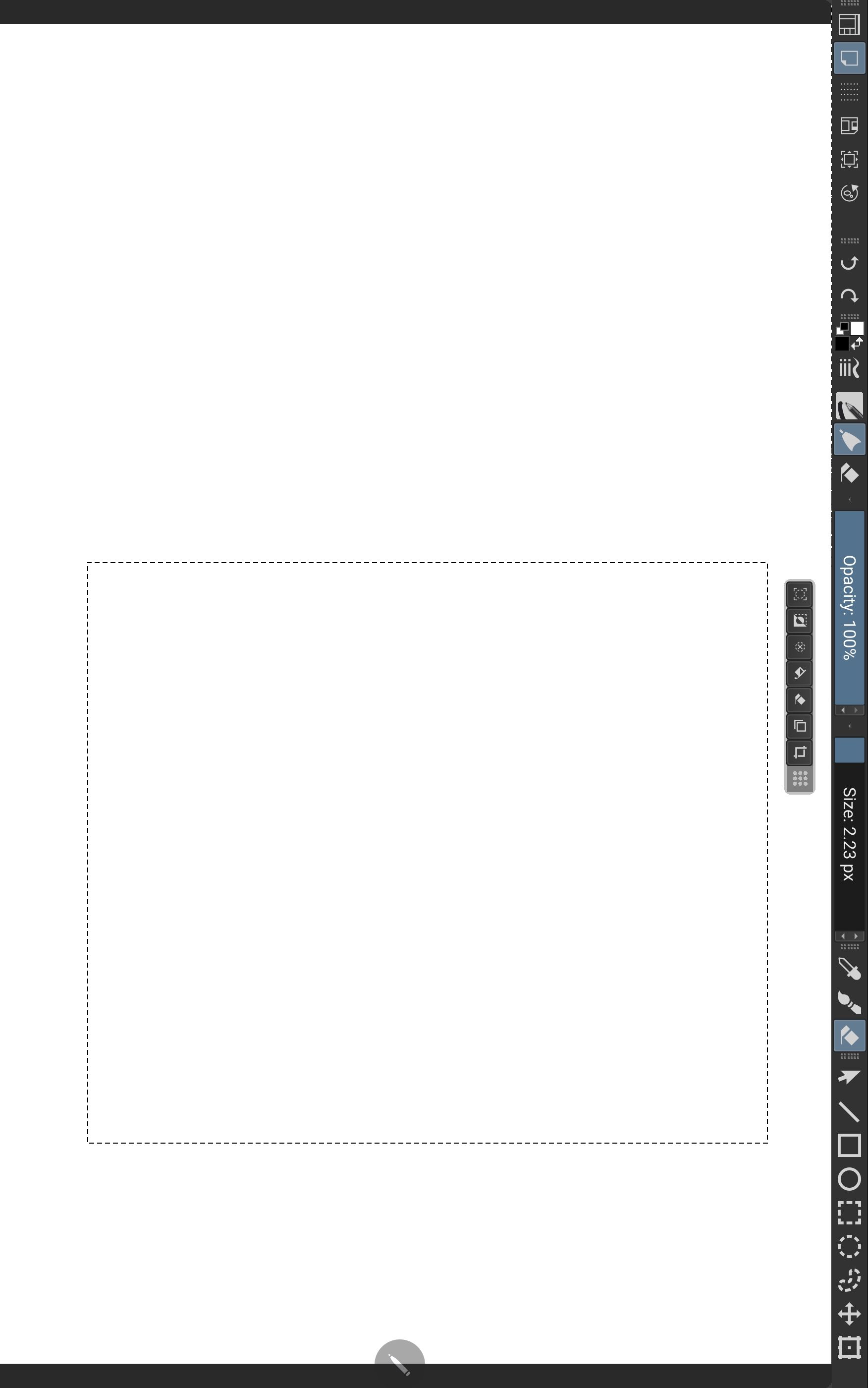
My brush sliders are upside down, but I prefer having the toolbar on the right side in portrait and on top in landscape. I normally turn my tablet to landscape when dealing with layers, or sometimes I don’t really mind that the layers menu is rotated in portrait.
Originally in 5.2 the top toolbar was a combination of 2 toolbars on workspace 1, then I had 1 extra toolbar on the right side on workspace 2. I haven’t gotten that far in Krita 5.3 yet. I might restructure it so workspace 3 has left and right toolbars, and 4 has toolbars on the bottom. There are some options in the toolbar that would be really good for a photo-editing workspace. A lot of actions that I would use for photos don’t have an toolbar icon, but now that’s an option
There’s also some buttons I don’t really need. I usually use tap to undo, redo,and switch to canvas mode. Hopefully I’ll have more to share as I get back into Krita. Adjusting toolbars and docker positions is still very buggy.
1: Workspaces; 2: Canvas Only; 3: Show grid; 4: Save; 5: Fit to View; 6: Reset rotation
12 is toggle pen pressure. Not sure how much I’ll keep using that in my work flow. It’s a quick way to fill in color or value without switching away from a textured brush. I also have used it with the shapes tool when I’m in a paint layer instead of a vector layer. In paint layers shapes will use the brush setting. Using the straight line tool will create a feathered tapered line if you were using a watercolor brush. Turning off pen pressure will give a simple straight line
Yeah this new update is huge for tablets, the best thing is that you can also put the docker box in the pallete also in a toolbar, this way you can have 2 separate docker box active, one in a toolbar and one on the pallete wich is amazing, the way i have it setup is in the pallete have my layers and brush presets, and in a toolbar have the toolbox and tool options as a popup, the only thing that would make it better is if krita allowed you to put multiple docker box in the toolbars, right now is limited to one, even if you try to set it up in different toolbars