(see following message for all screenshots)
Text “Gold” eXtra Dark Krita themes
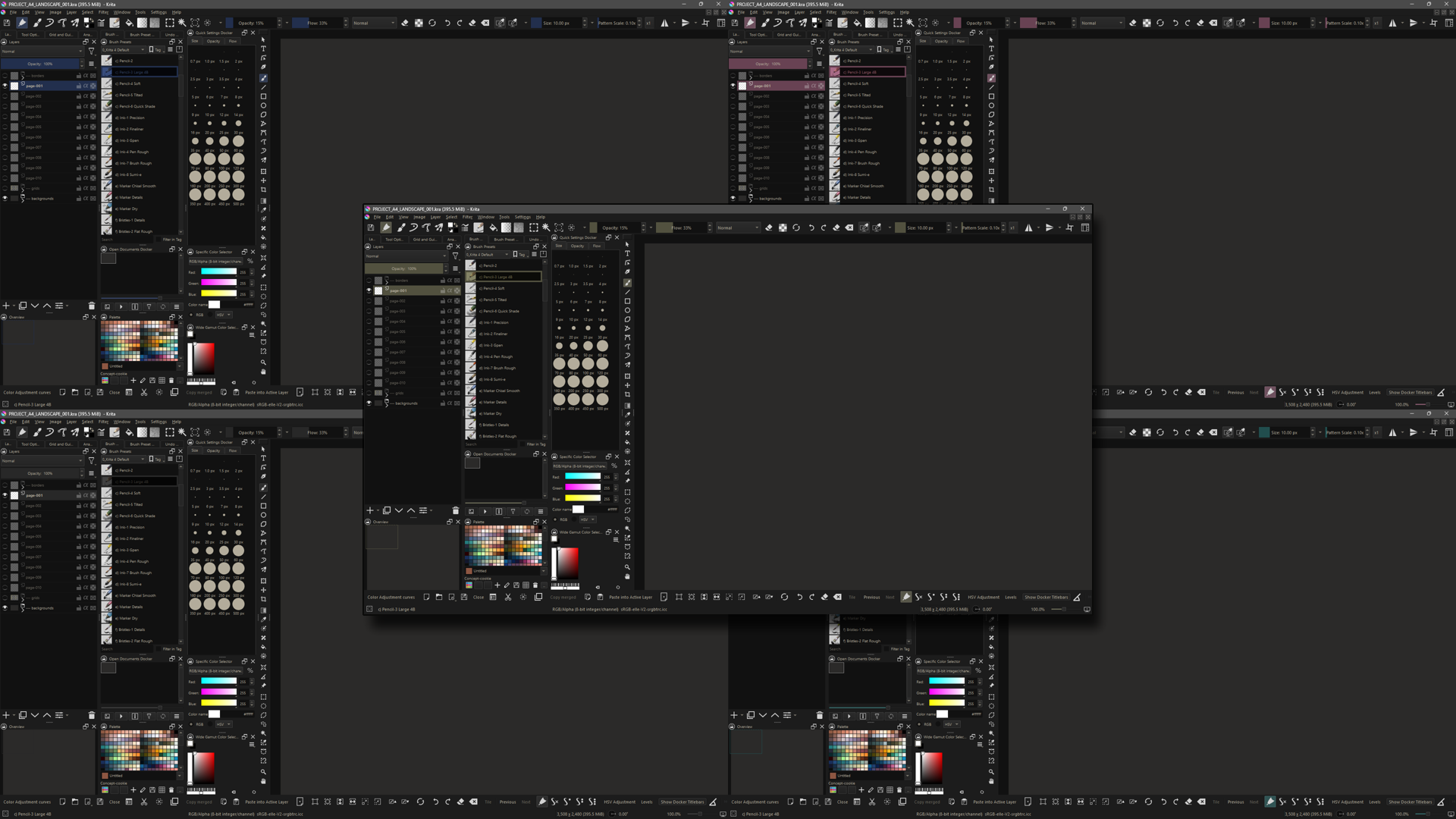
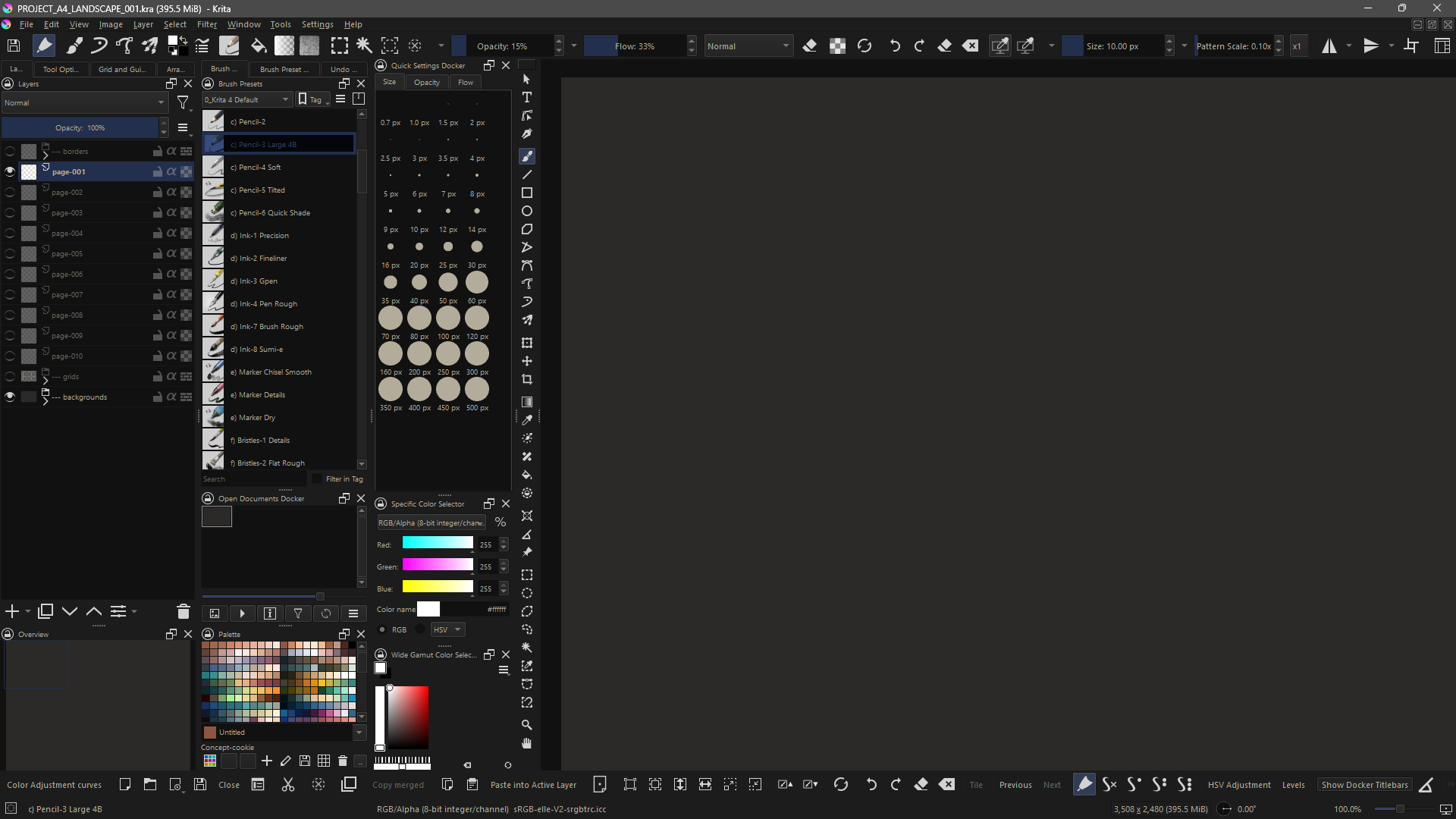
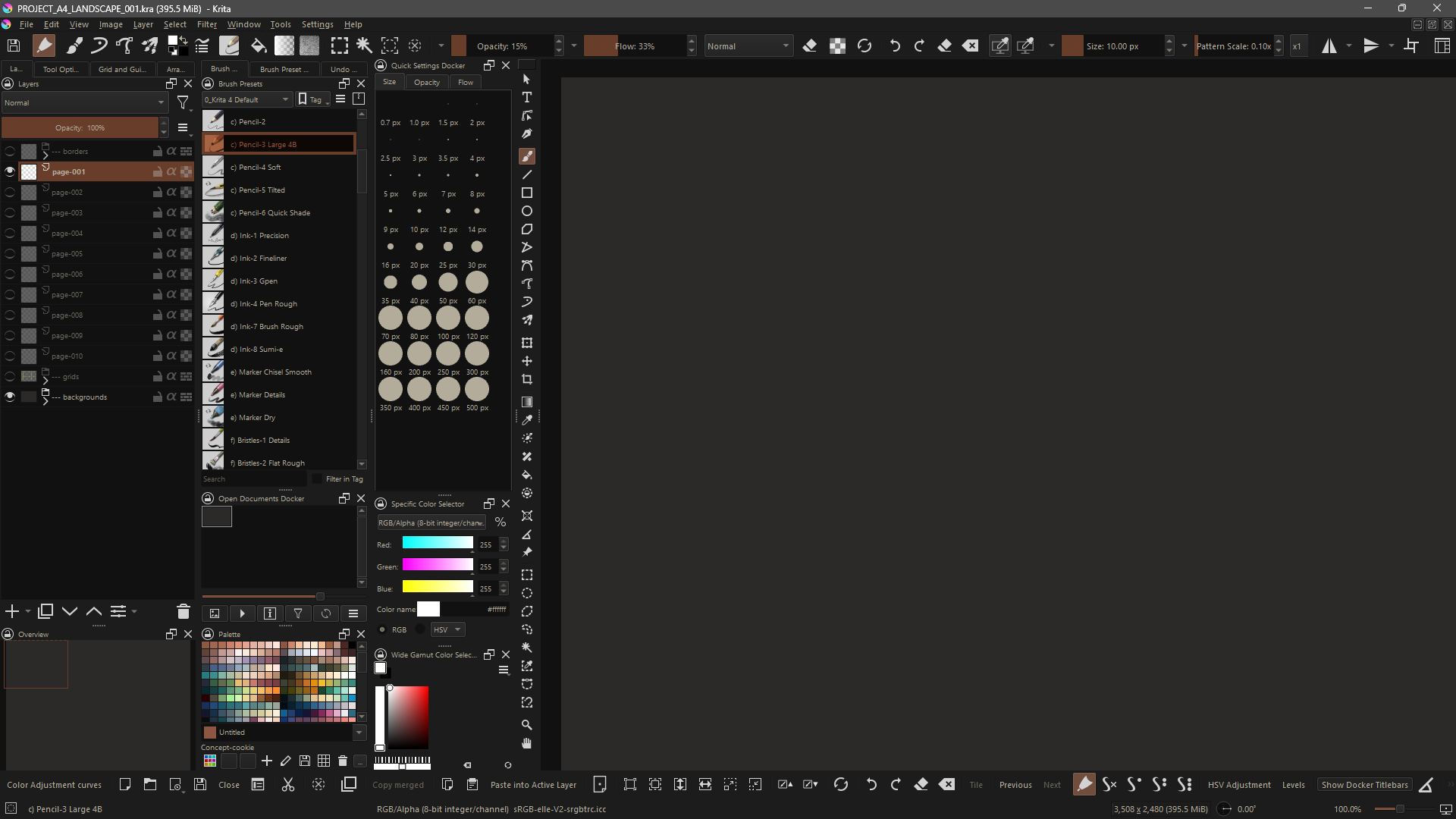
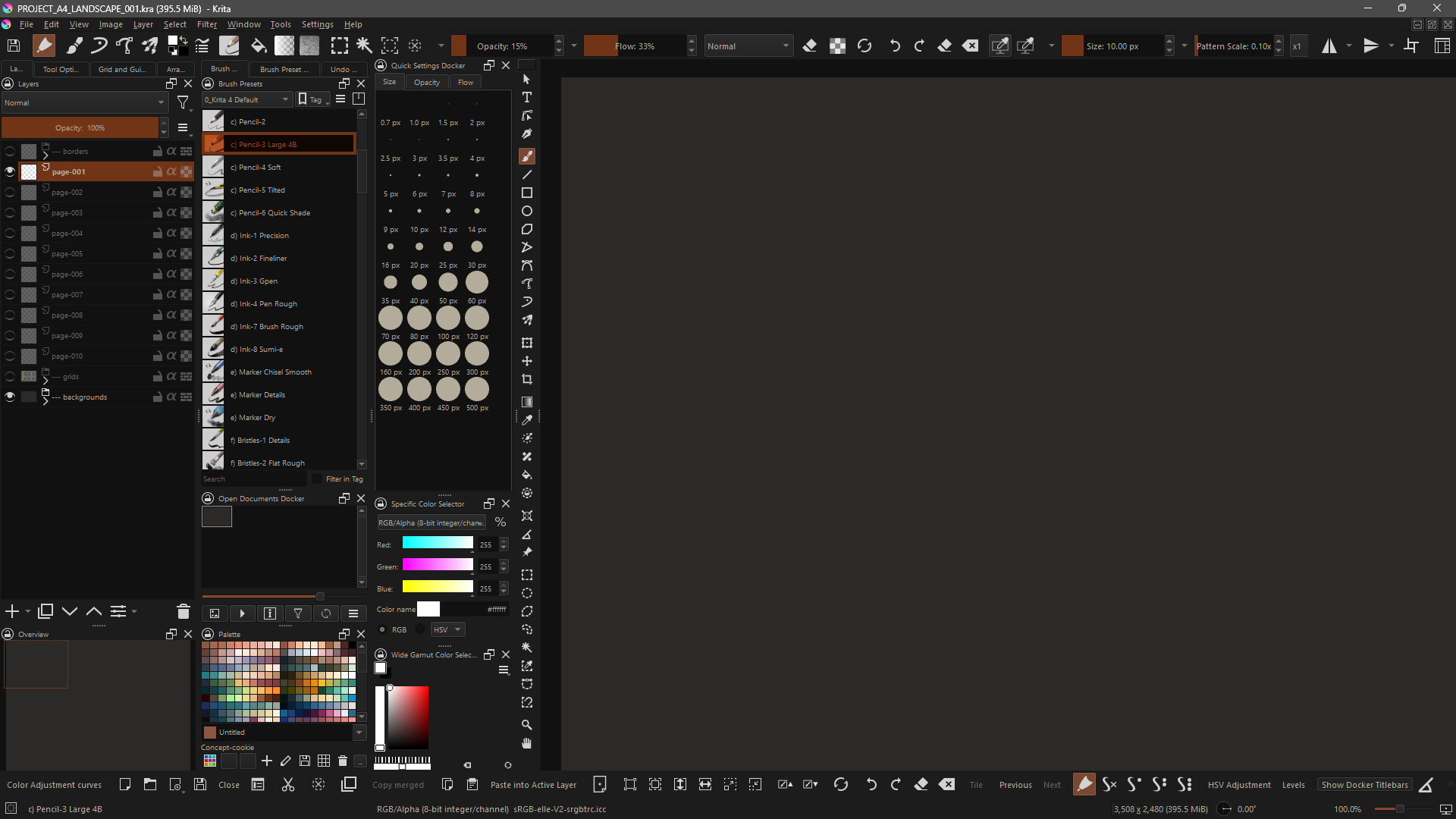
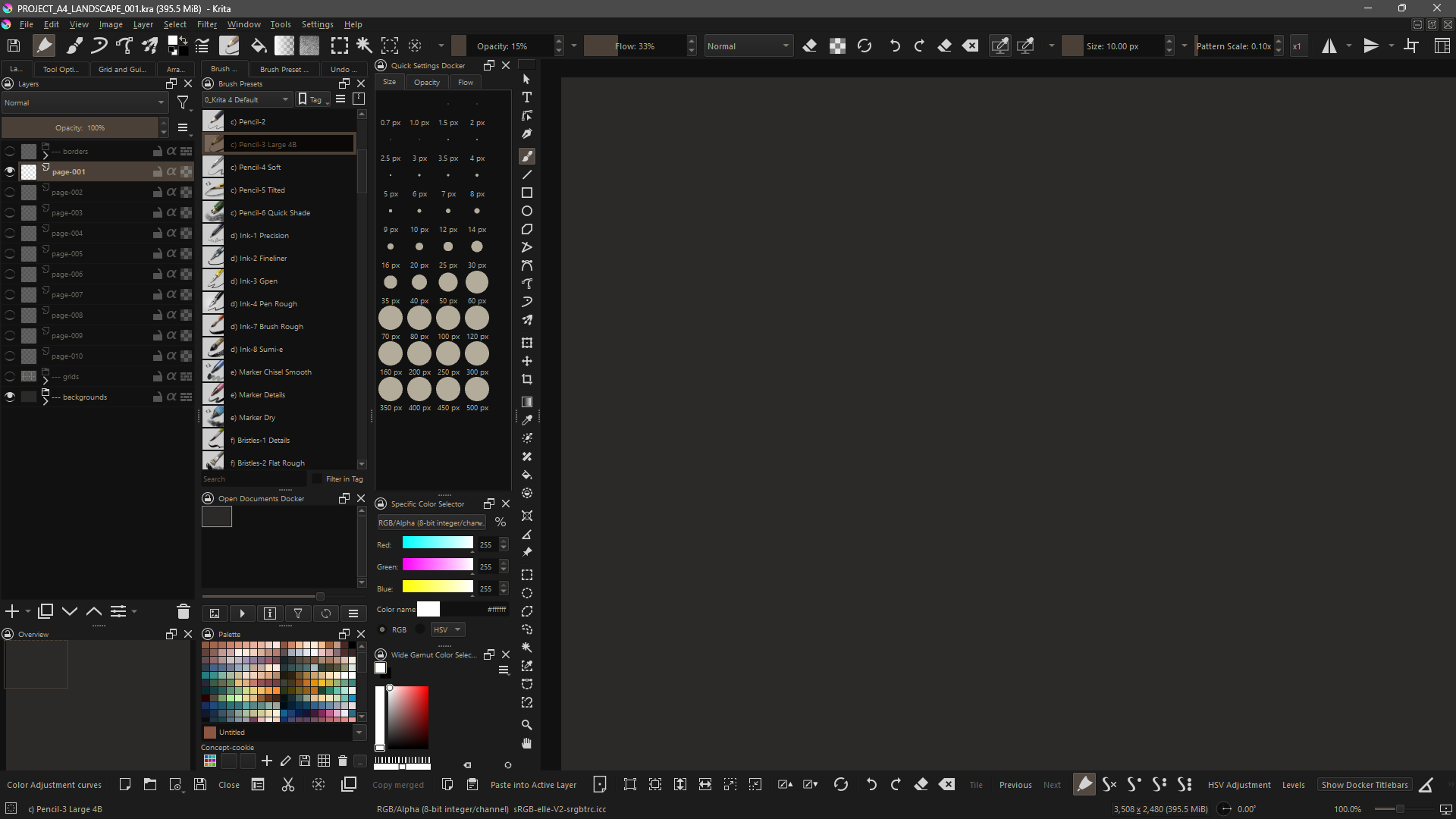
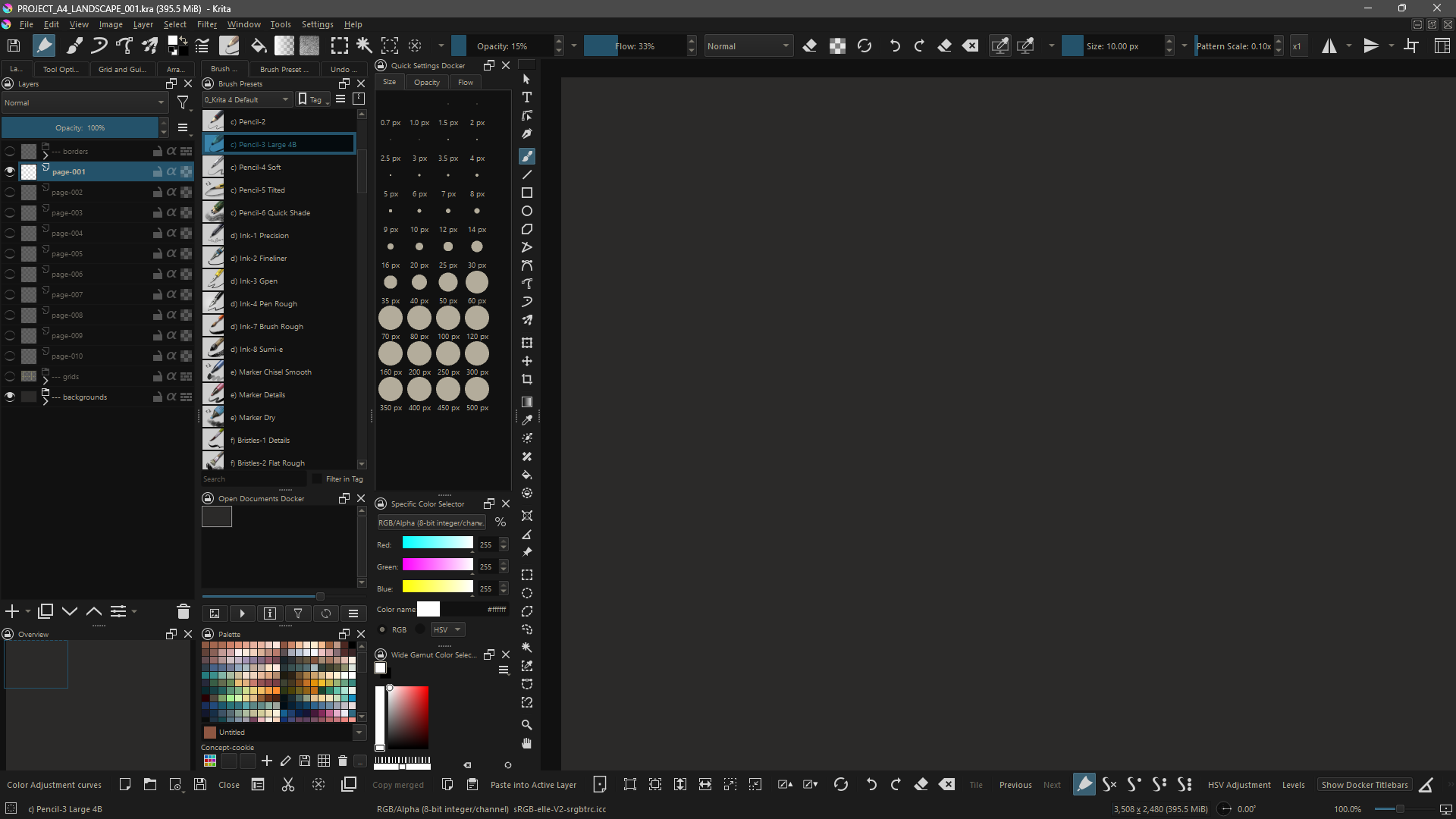
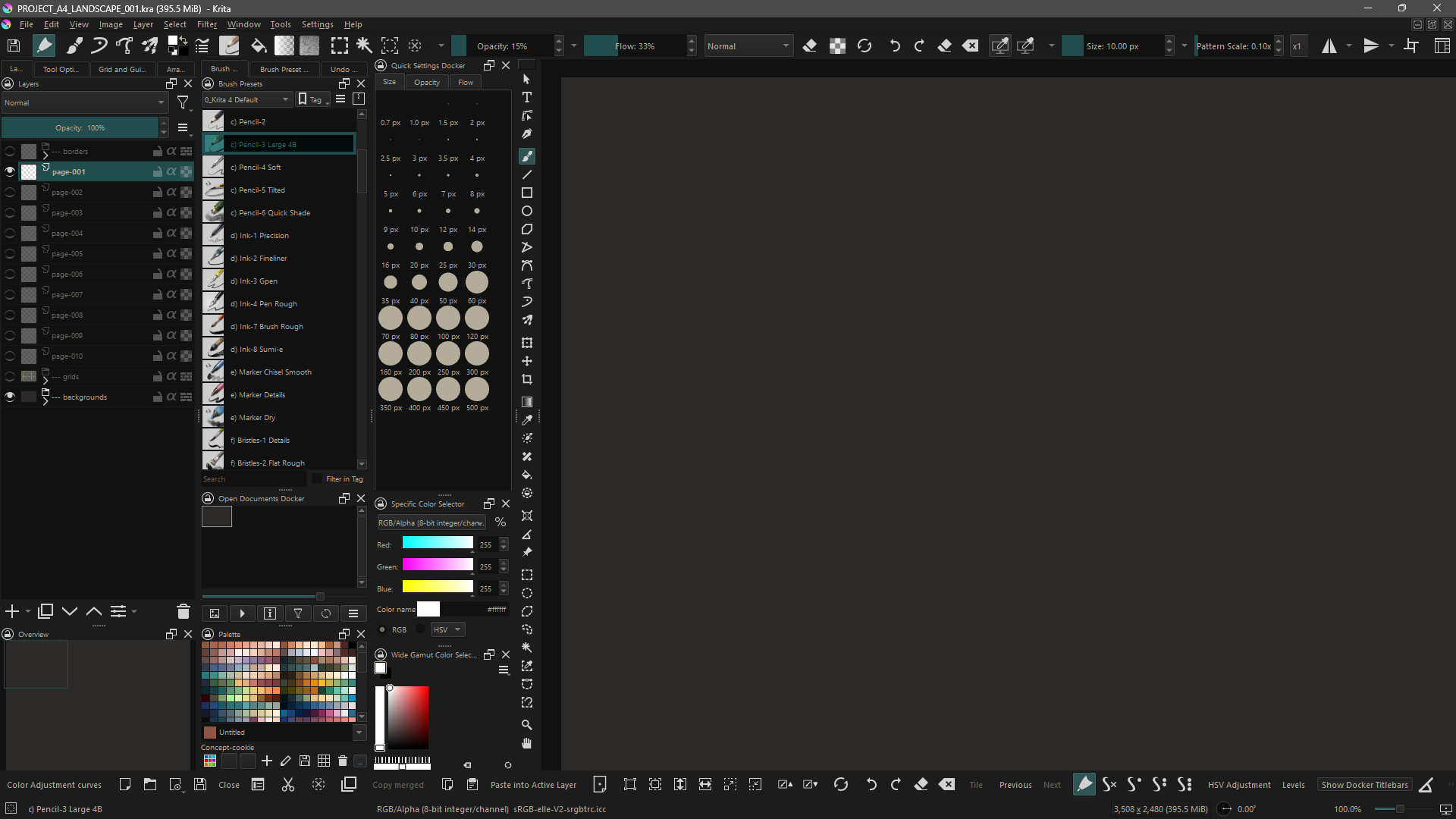
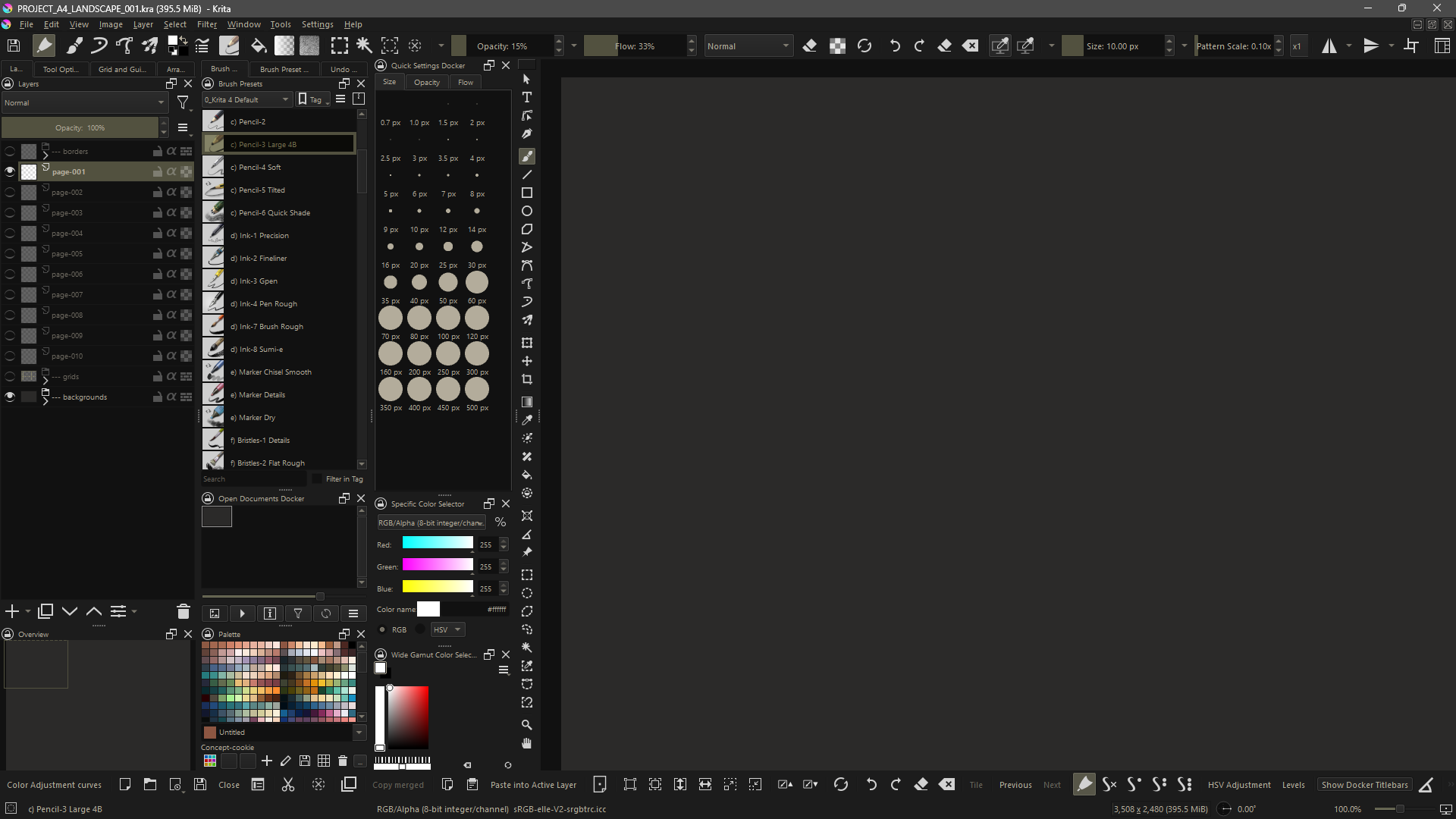
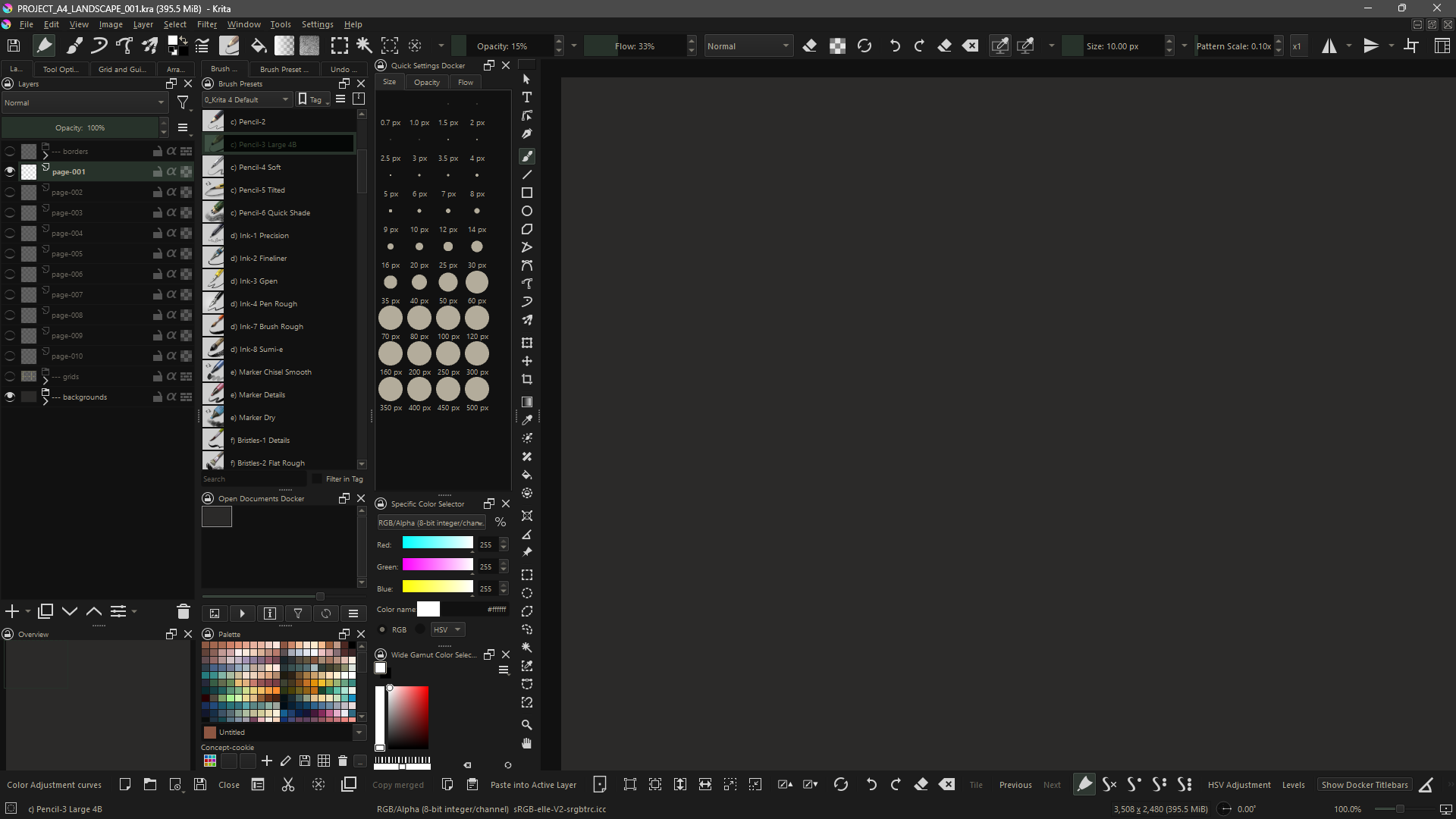
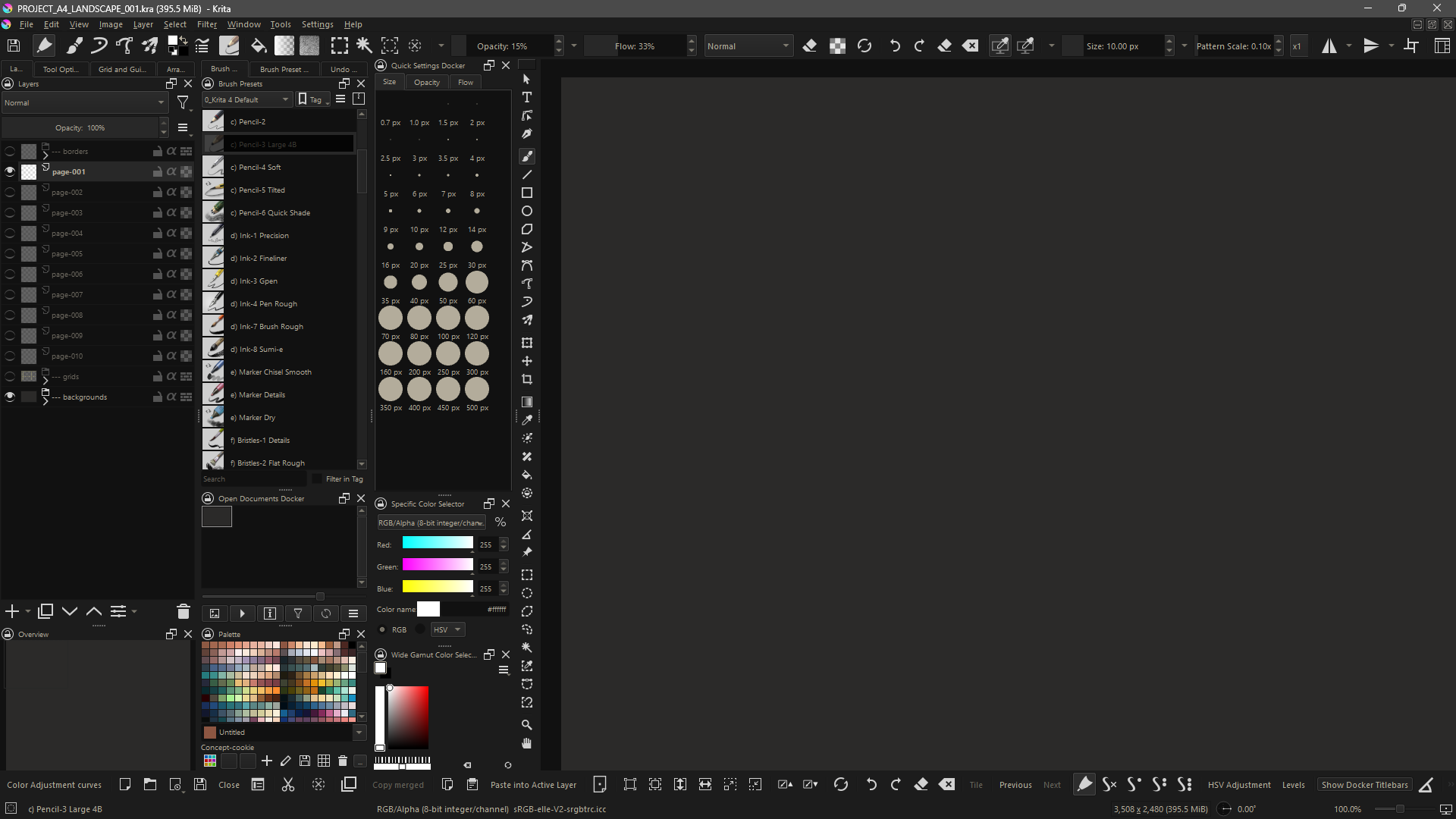
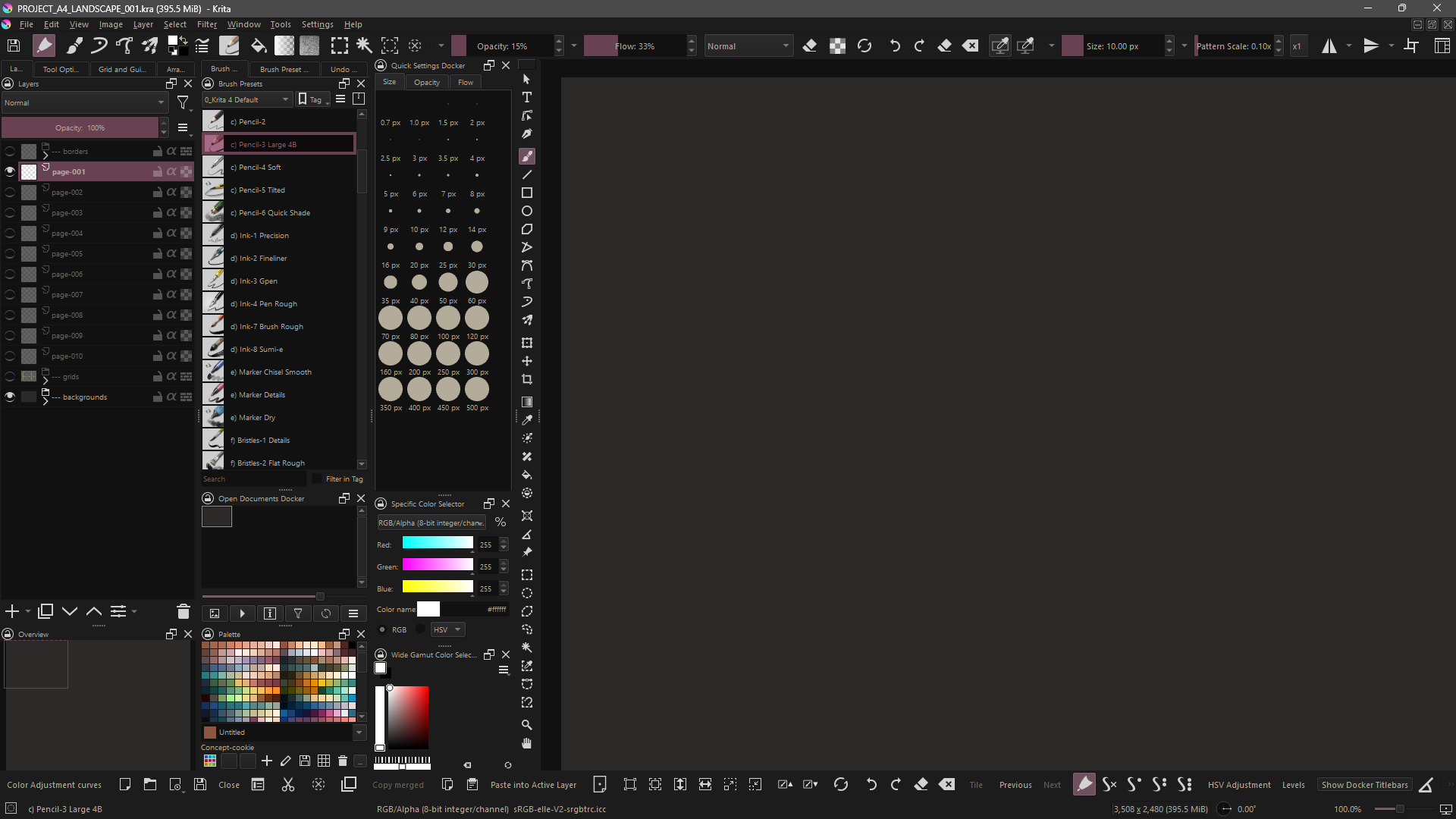
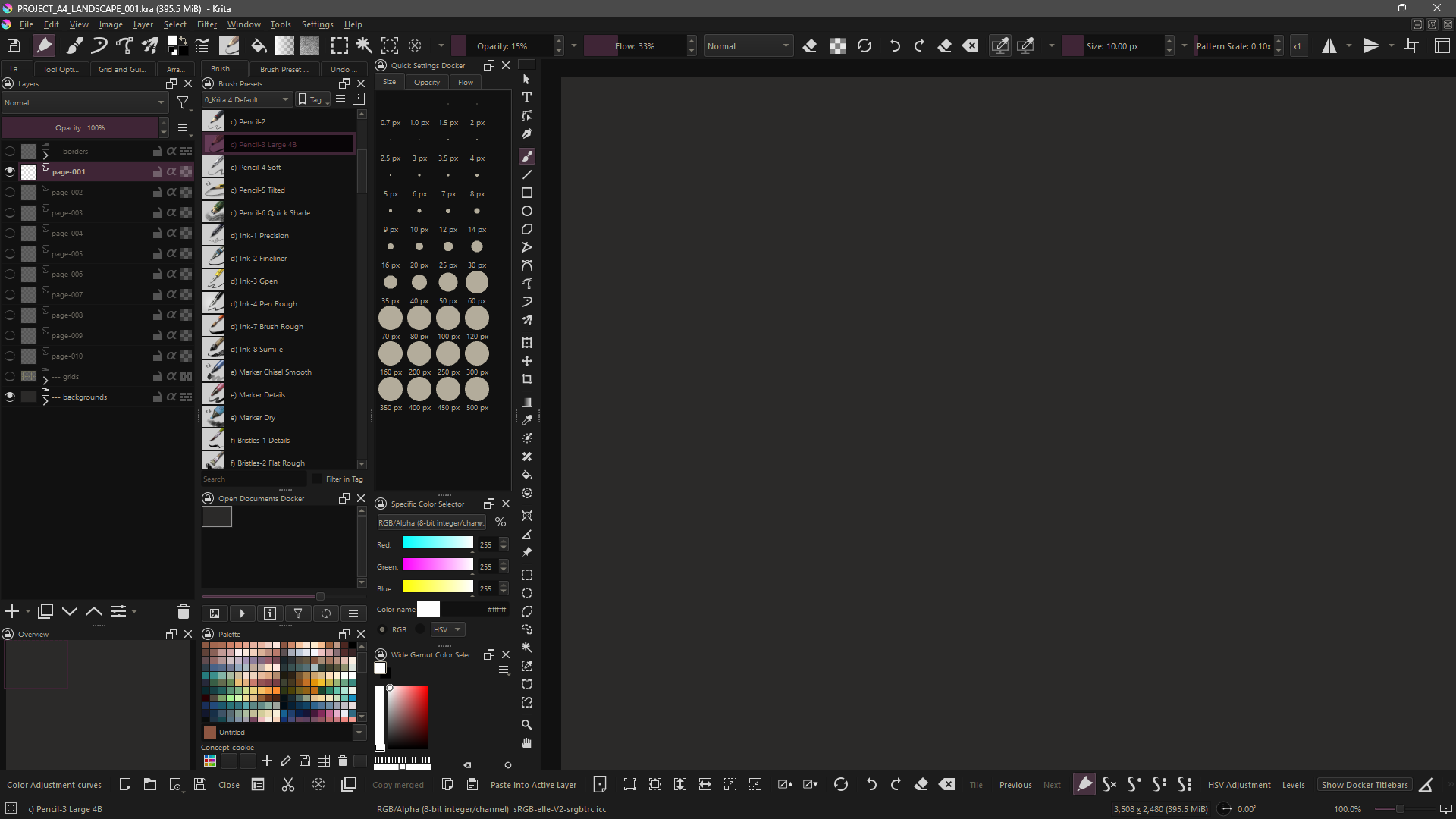
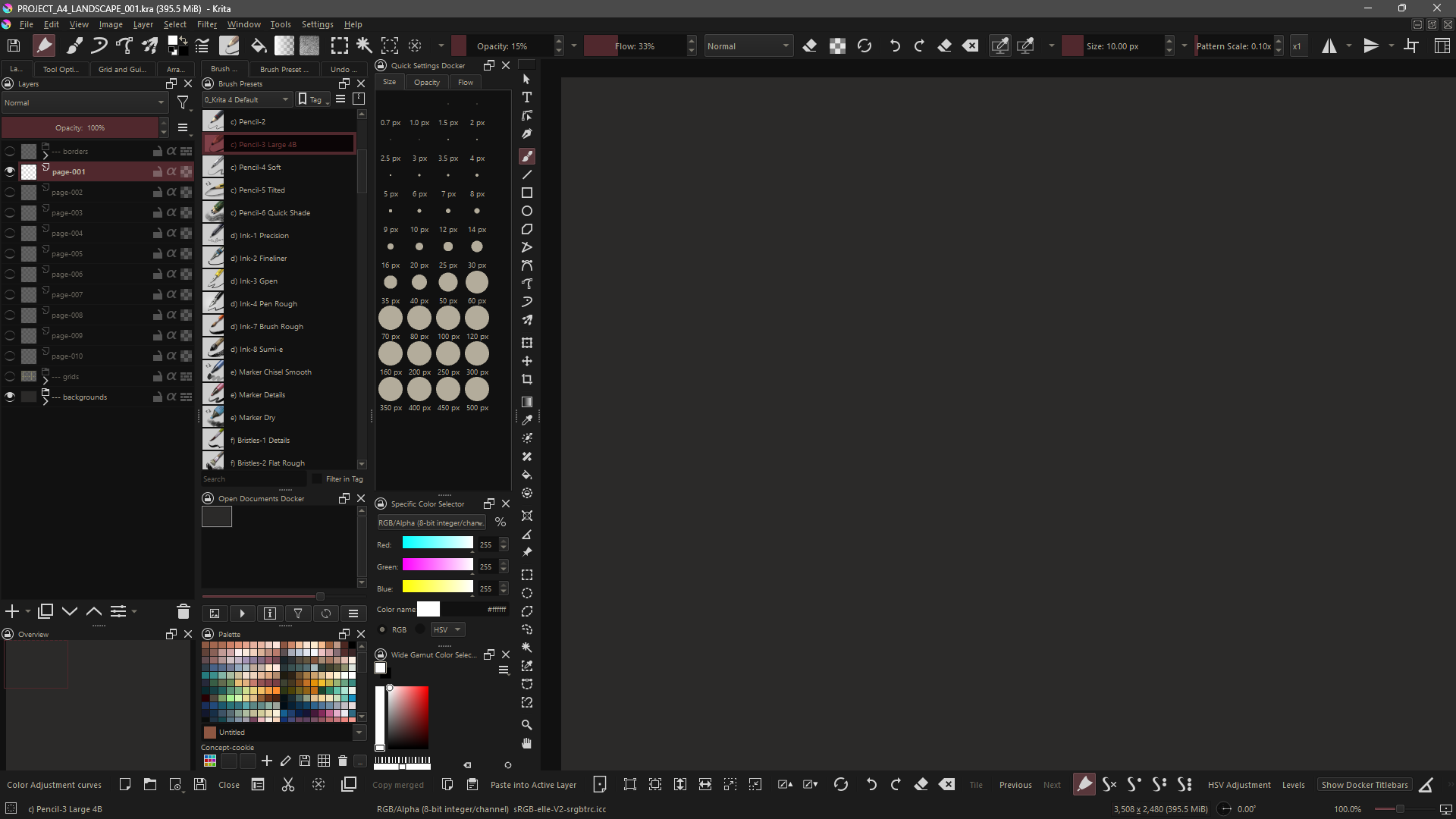
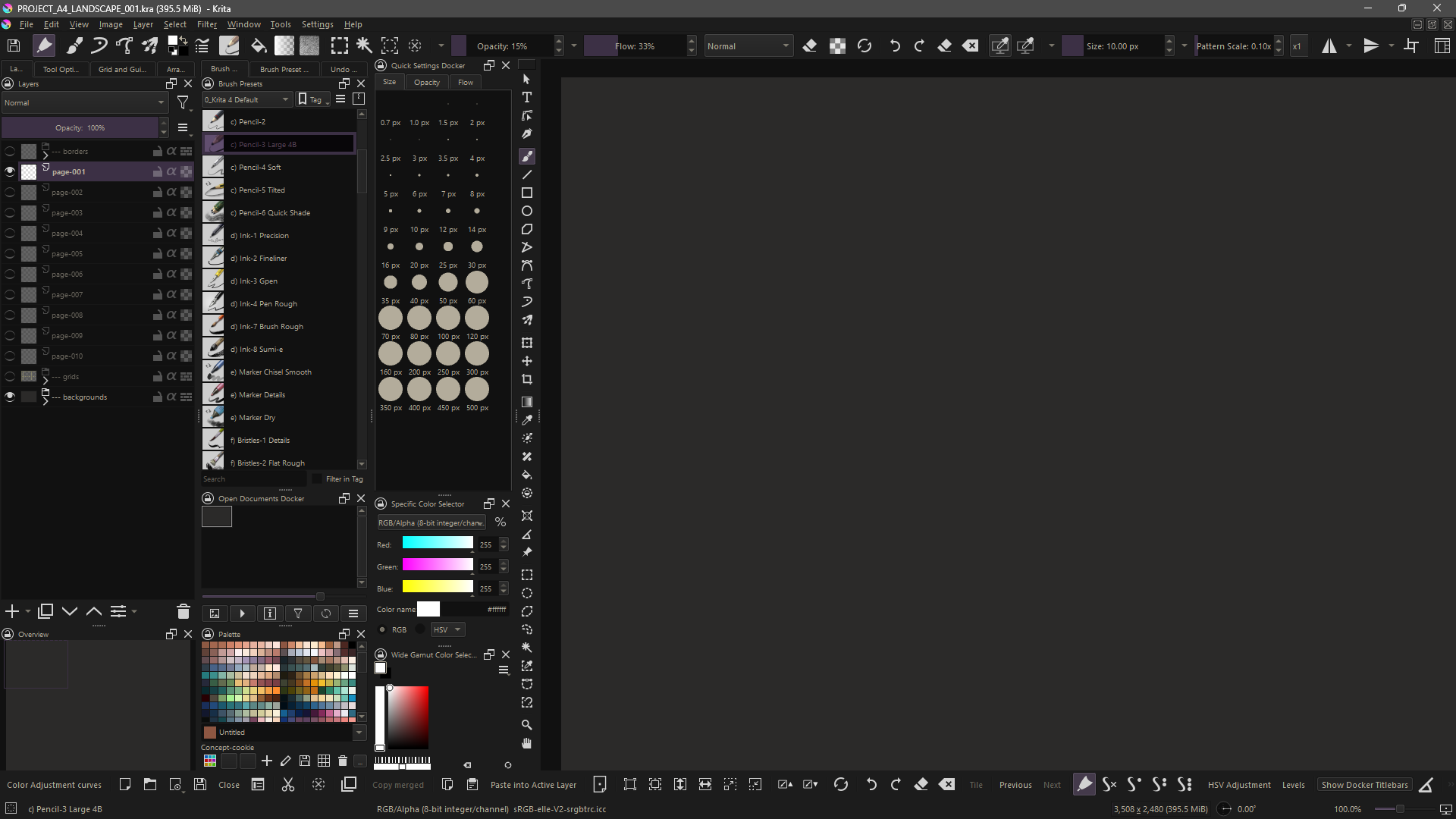
Krita theme pack consisting of 14 extra dark themes with little modified text color, that almost looks golden (from this TGold).
They don’t change much from one another, only in selection color. Hope you like them! 
Krita SK TGold XDark Theme Pack V1.00
Download: Proton Drive
IMPORTANT NOTE: These are color-scheme themes, in your Krita only colors will change using these themes. The screenshots were made with workspace/toolbars/dockers settings greatly modified in my Krita (some of them have been modified to better show how the theme colors will look with different elements).
Here my first Krita Theme Pack: Krita SK Tennis Theme Pack - [28 color themes] - FREE
Here my second Krita Theme Pack: Krita SK Pale Theme Pack - [7 color themes] - FREE
For those who want to complete Krita customization as the screenshots
Here the setup of Workspace/Toolbars: Krita SK Setups - [DOWNLOAD] - UPDATE V1.50 - [2025-07-23]
42 Likes
Thank you for sharing your themes with the community!

Michelist
1 Like
I love all these. It’s nice to have some more dark themes. Thank you so much for sharing! 
1 Like
how do i add this to my Krita?
i know there’s instructions in the thingy but my stupid tablet won’t open the text file. . .
KRITA SK TGOLD XDARK THEME PACK V1.00 - 2025-07-23
The new themes have to be copied in “color-schemes” folder of the main Krita resources folder to work, so:
- Open Krita and go to “Settings” >> “Manage Resources” >> “Open Resources Folder”
- Go into “color-schemes” folder
- Copy or drag and drop the already extracted themes files here
- You can delete the undesired new themes
- Close and reopen Krita to load the new themes
- Now you can select the new themes via “Settings” >> “Themes” menu
When you change the color theme some UI elements will be updated only at Krita next start.
This is especially noticeable when changing from light to dark themes or vice versa, or even if the themes have different color text.
But if you are using Android this may be a mission impossible thanks to those freaks at Google who don’t fix bugs, but disable the features that allow “experiencing” the bug, because it is much cheaper and far easier than to fix a bug in a way that the OS is secure after the fix and not cut in functionality.
Michelist
1 Like
you’re saying. . . i can’t use the theme. . . BECAUSE I’M ON ANDROID???
Google. . . this is Google’s fault. . . i hate Google
(to be perfectly clear, i hated Google before this but now i hate them more 
 )
)
If your Android is an older one, so up to Android 10, there is a good chance to import it into your Krita, but the newer Android and the cruder the manufacturers OS-Plug additionally put over it the smaller the chance.
Way one is the same as on every OS, open Krita’s resource folder out of Krita via Settings > Manage Resources... where you have to click the button Open Resource Folder which will then open the resource folder (theoretically), if that works for you, you have nearly won! Now you have to enter the folder color-schemes and copy the color scheme files you want to import into that folder.
Please try that first with the Android file manager, if that won’t work, you can go and download the free of charge file manager Total Commander (from Ch. Ghisler!) from the Play Store, that is a two pane file manager where you can put the files to copy in one pane and open the color-schemes-folder in the other, if you are lucky, then Android allows copying the files with Total Commander.
And there is a second way to reach your resource folder if it does not work directly out of Krita:
Alternatively, you can browse with your file manager/Total Commander to the path/folder that is shown to you in Krita, in the tab Resources that you will find via the menu Settings > Configure Krita > General, it is the tab at the right end.
Here you see where to find this as example on Windows, I’ve highlighted the path, you need to browse to the path that is shown in there in your Krita:
If you are able to reach that folder you have to do the same what I already wrote above, copy the unpacked color scheme files into the folder color-schemes.
Once the files are copied into the folder color-schemes, you must start/restart Krita two times and should find them then under Settings > Themes.
Michelist
2 Likes
THANK YOU THANK YOU THANK YOU SO MUCH
FINALLY
I DID IT
I HATE THIS JANKY TABLET BUT I GOT IT 
2 Likes