Hello @Lolsuo, and welcome to the forum!
Tablet, fine, and what is your operating system? Windows, macOS, Linux, Android, ChromeOS?
If you use Android, especially a recent version, you may have a huge problem, something that is unbelievable.
The problem with newer versions of this insane illness called Android may be to reach the folder where Krita stores its resources, because users reported recently, that they were unable to access this folder where Krita manages its resources.
The error description Android dropped for those users is:
“That user installed apps are no longer allowed to access this path”
However, this is a contradiction in terms, because if it were true, Krita would never have been able to create its resources in that folder, AND you couldn’t use the Brush Presets, Patterns, Gradients, etc., in that folder, but you can!? And if Krita specifies in “Settings” >> “Configure Krita” >> “General” in the “Resources” tab that it stores and organizes its resources there, then there must either be some magic at work, or apps installed by the user must have access to the directory after all.
So, and now how to usually install color schemes on every system:
First, you must find and enter Krita’s resource folder:
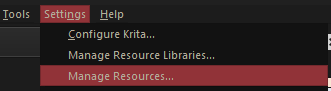
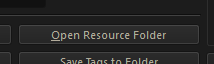
You can find and open Krita’s resource folder via the menu ‘‘Settings’’ → ‘‘Manage Resources…’’ where you have to click on the button Open Resource Folder, which will take you directly into Krita’s resource folder.
Or, alternatively, you browse with your file manager to the folder shown to you by Krita in the tab Resources that you will find in Krita via the menu ‘‘Settings’’ → ‘‘Configure Krita’’ → ‘‘General’’, the tab Resources is the tab at the right end. In that tab, Krita shows a path to which you must browse with your file manager, so you can remember, copy or write down this path to which you now have to browse. Using Windows Explorer, you can paste the copied path into its address bar and hit Enter, using macOS and Linux, this should work with some file managers too. Using Android, you must use its Files app and browse to that folder, clicking your way through the folders until you reach it.
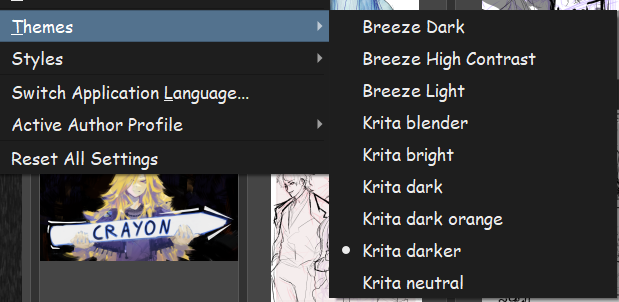
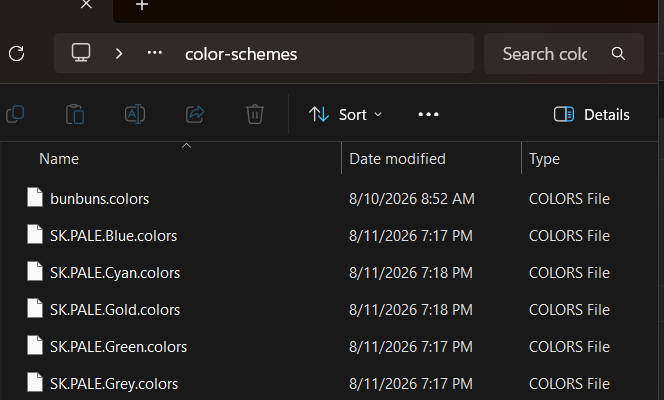
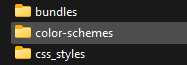
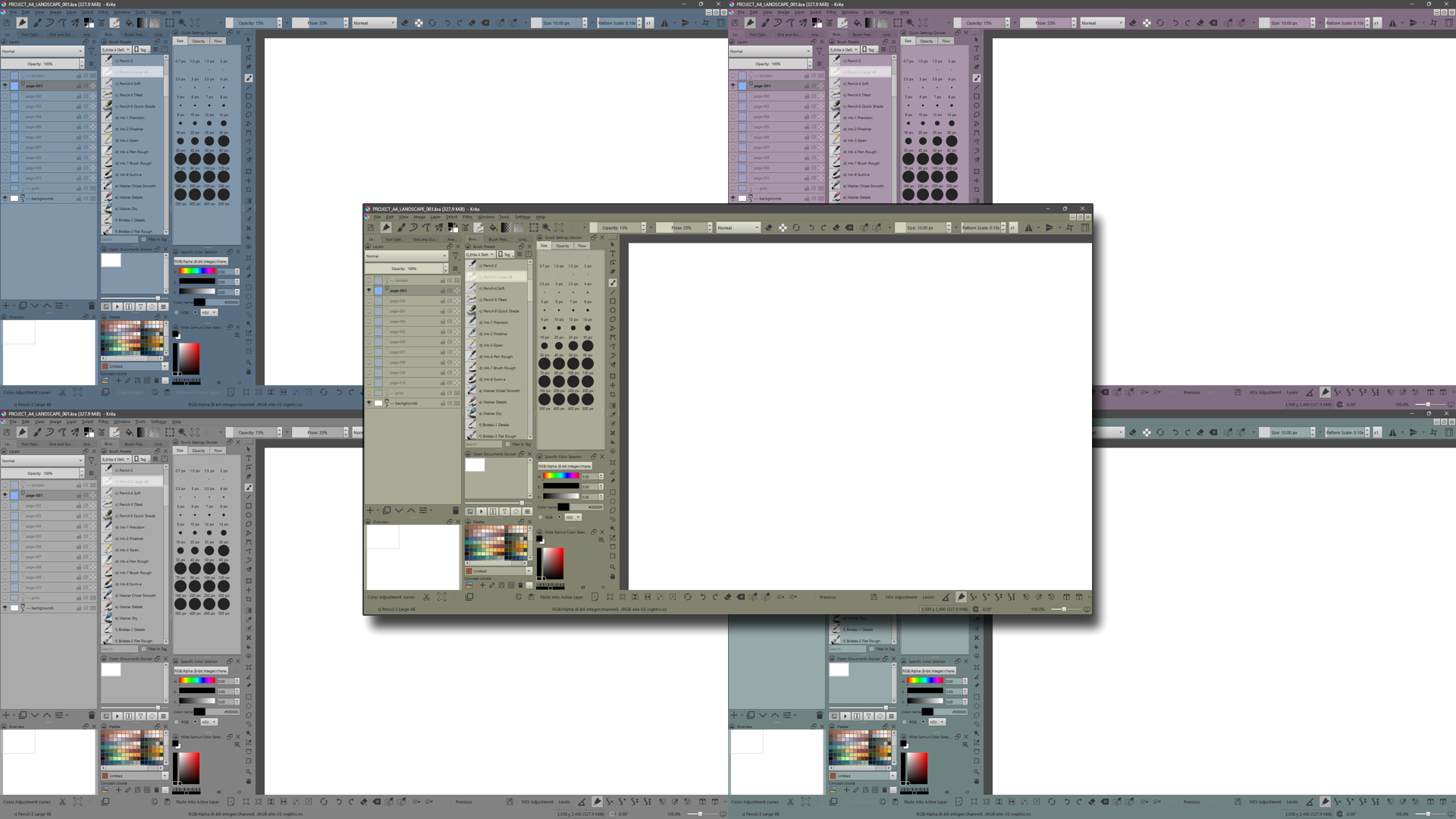
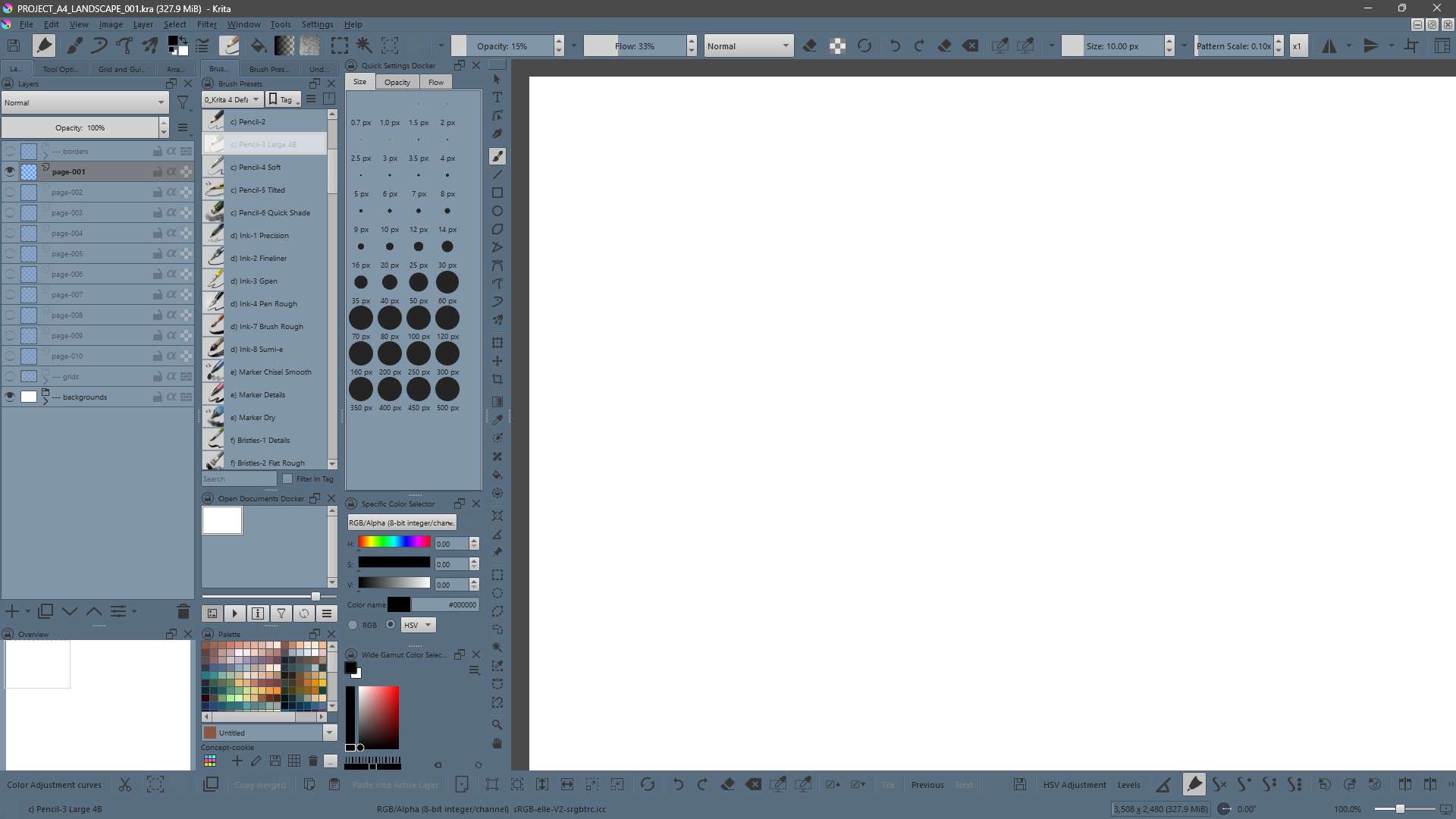
So, and now that you are in Krita’s resource folder, you must open the sub-folder named color-schemes and copy the color schemes you have downloaded into that folder and restart Krita two times. Usually, you will now be able to select them via the menu ‘‘Settings’’ >> ‘‘Themes’’.
BUT, you must first unpack them from the downloaded archive Krita SK Pale Theme Pack V1.00.zip!
I don’t know if the Android files app can open ZIP-Archives (try to double-click the archive), if not you need an archiving software that can unzip archives first.
Windows Explorer and most other file managers can open ZIP-Archives, and you find the seven color schemes in the archives sub-folder themes (in full → Krita SK Pale Theme Pack V1.00.zip\Krita SK Pale Theme Pack V1.00\themes\).
So, in the archives sub-folder themes you have to select and then grab the seven files and drag them from there into the folder color-schemes. Restart Krita twice, select the theme you like, be happy!
Michelist
Edit: Oops, I made a slip, wrote colors instead of color-schemes corrected it now, please excuse this.
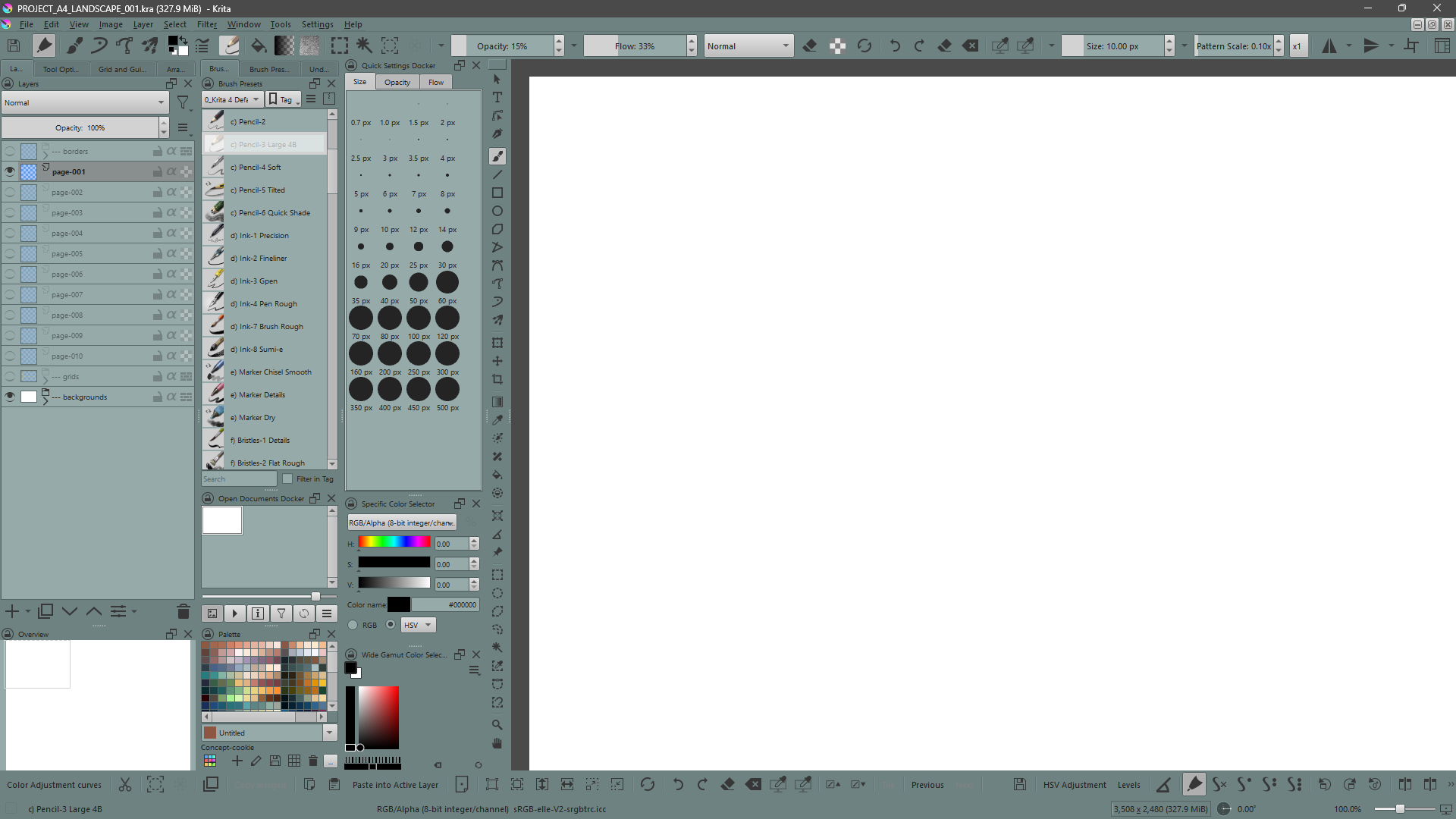
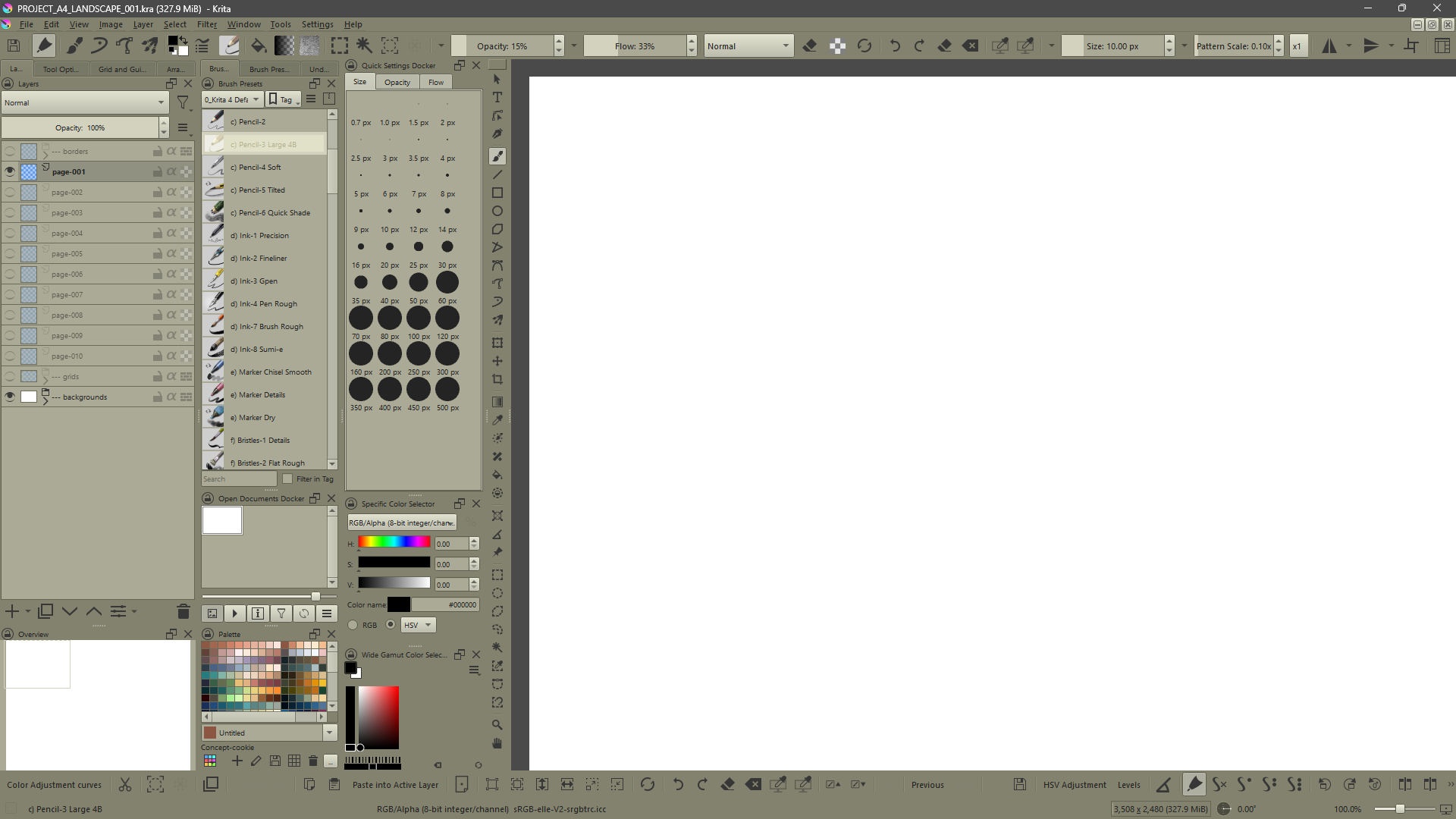
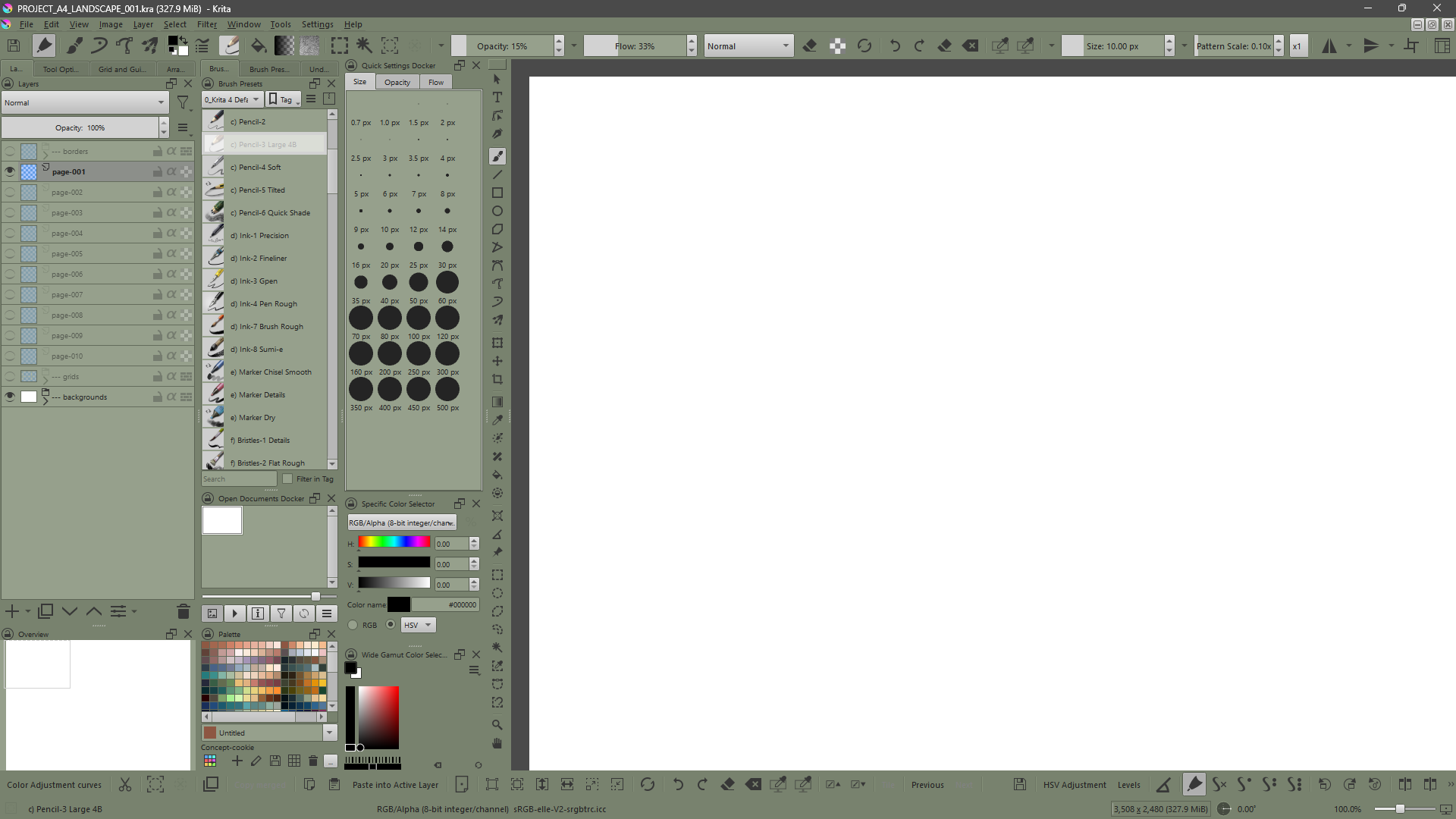
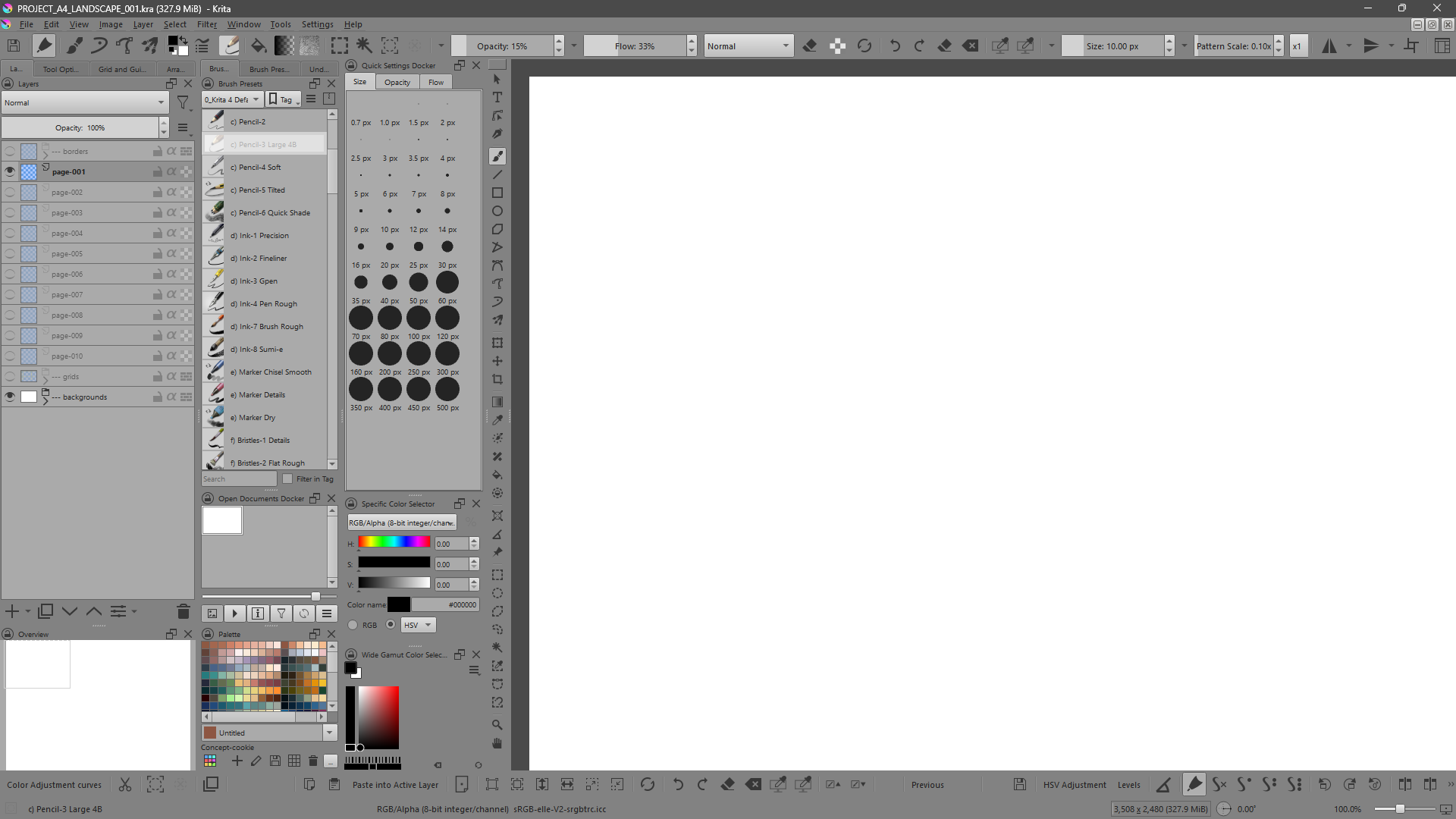
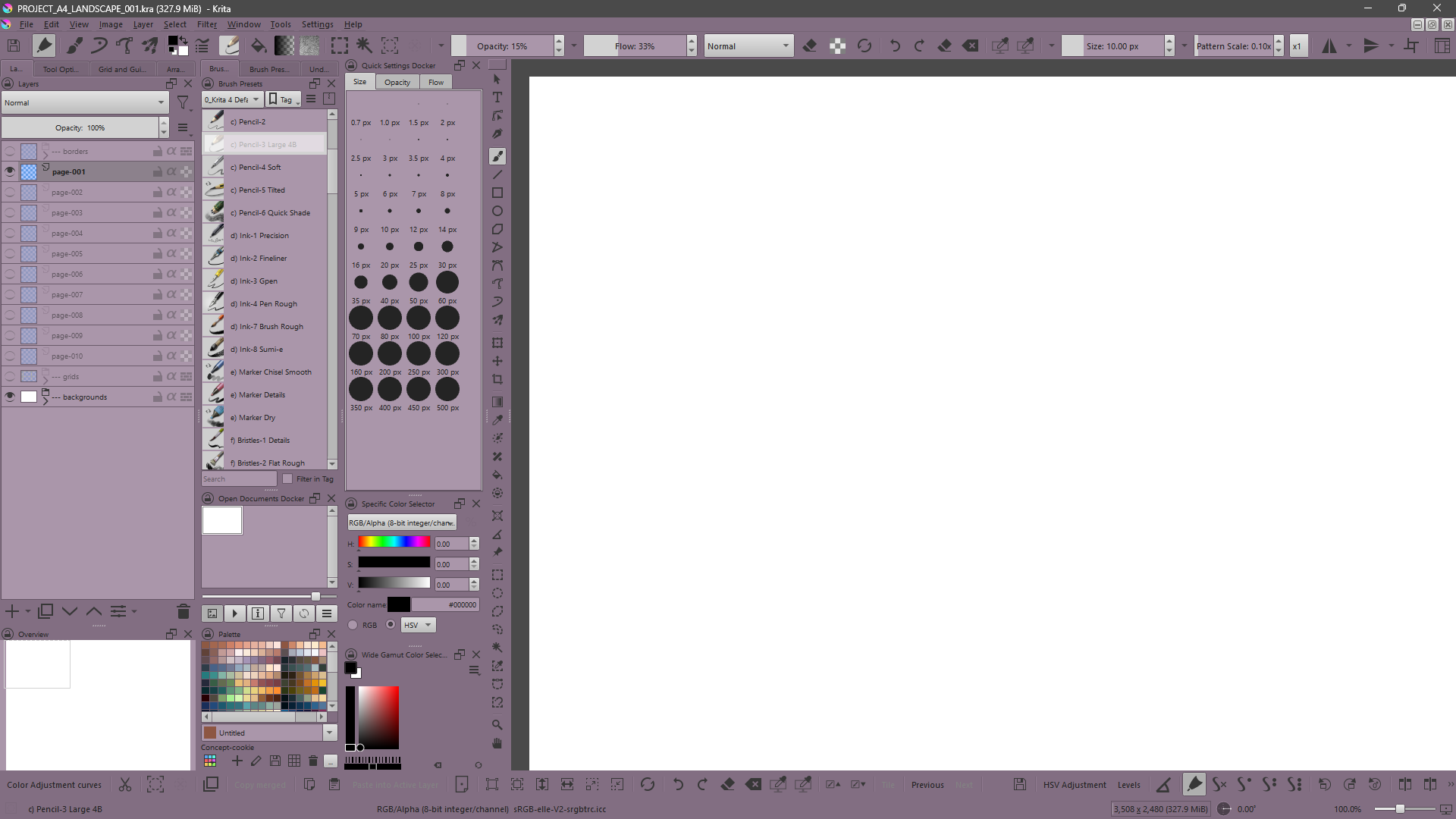
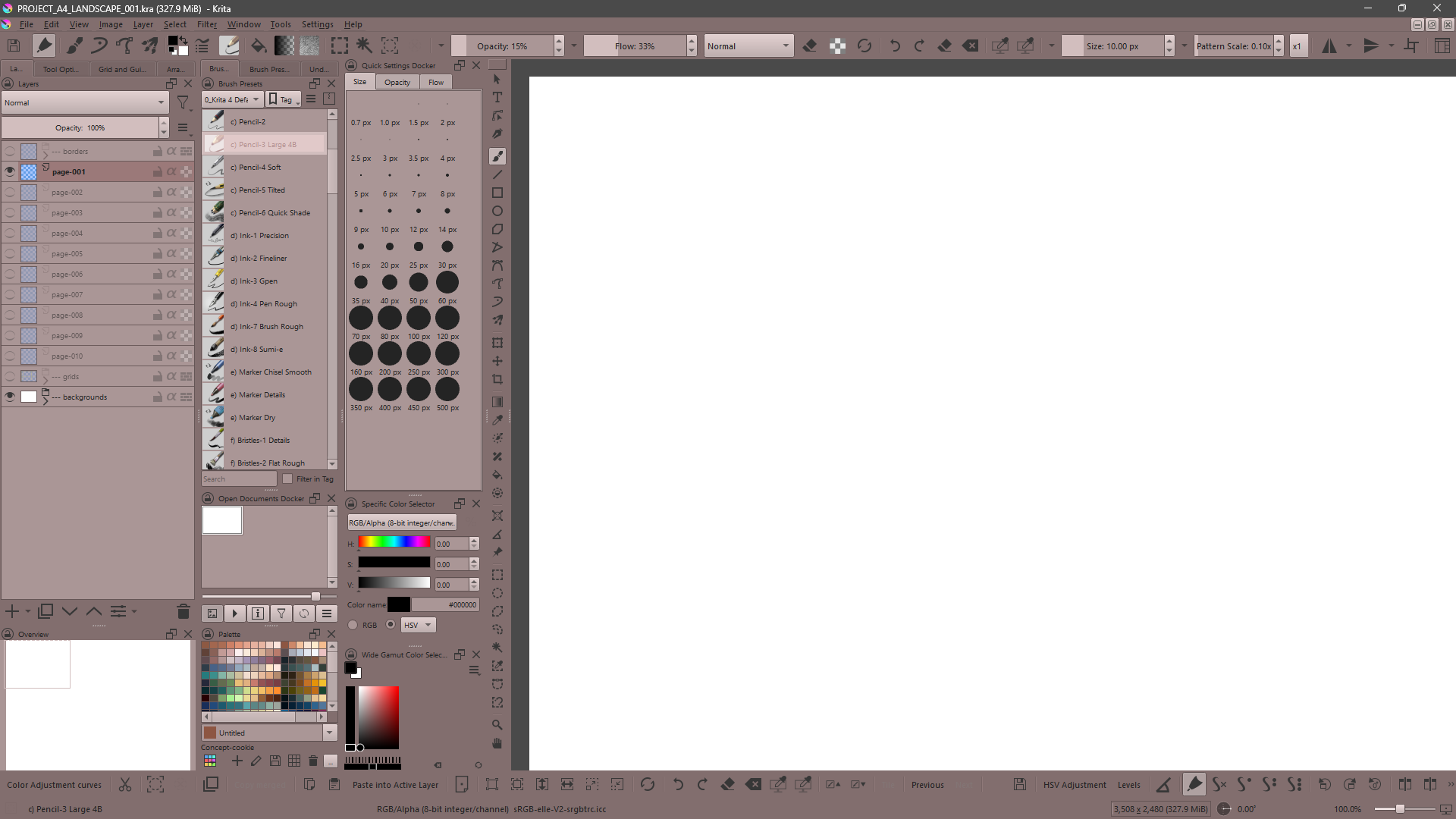


 (im on a tablet)