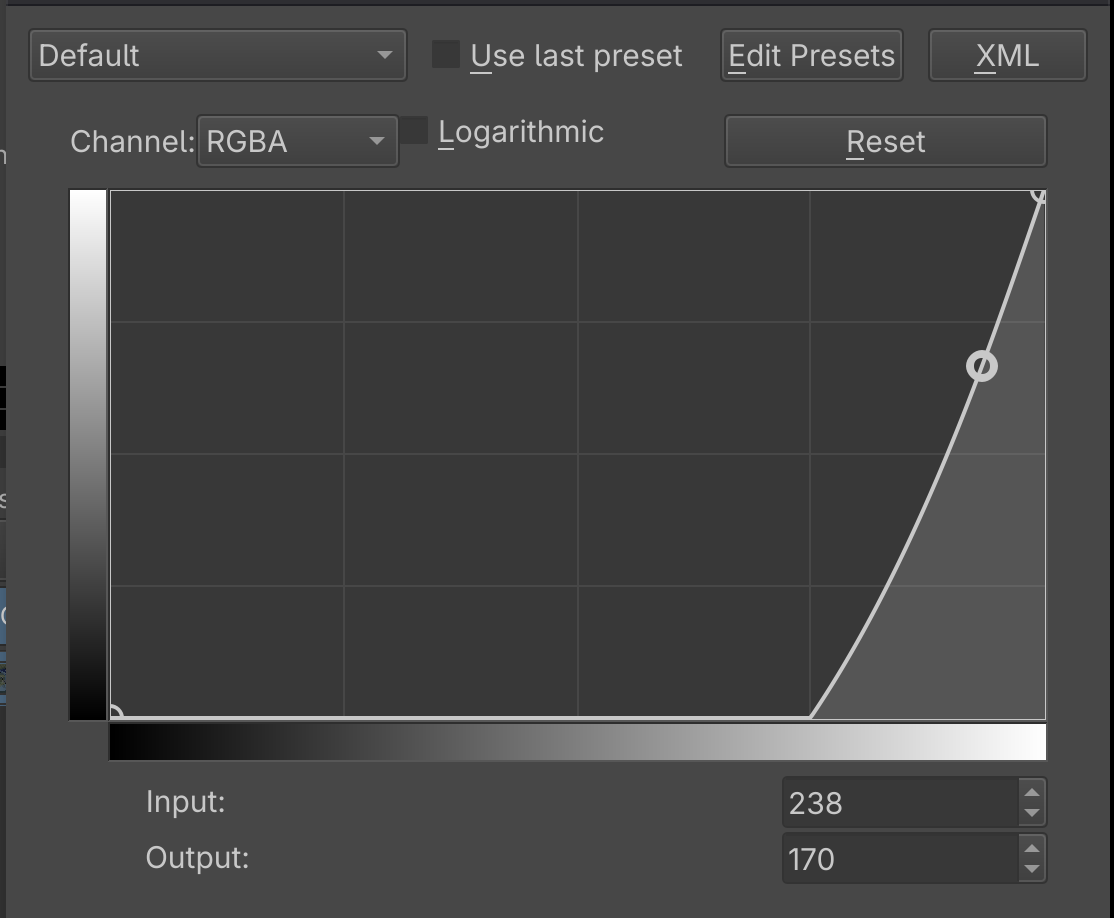
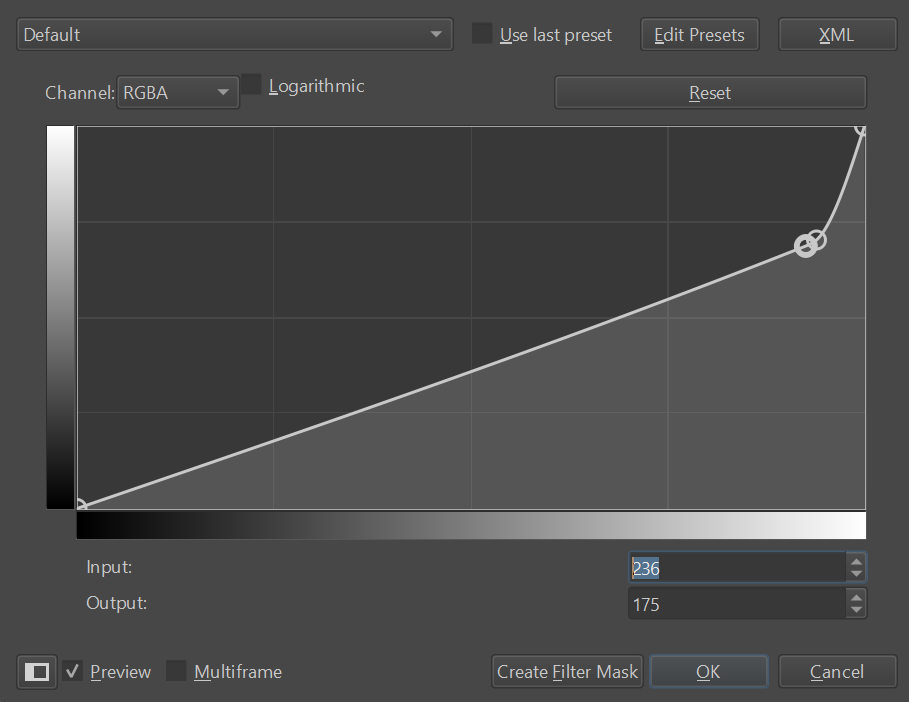
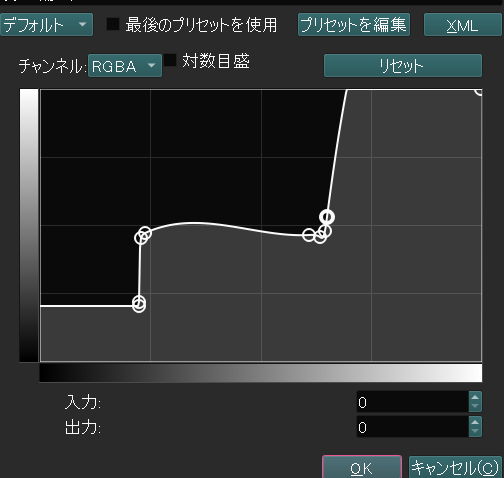
I always want to do channel adjustment curves or some such on images I download, and it’s a pain because with only one (mostly reasonable) added point in the curve you can make 70% of the pixels pure black. and there’s no good way to correct it. you gotta add a whole bunch more points and it’s a pain and it curves a ton of areas you don’t want. let me do adjustment curves with straight lines so I can add a point and end up with two separate lines that each make sense.
You only need one additional point, and you can use the Input/Output values to adjust its position as it’s pretty coarse. You can disable the preview until the lines are straight to make the adjustment faster.
I believe there are no straight lines to avoid a discontinuity in the adjustment, but there’s probably no technical limitation in allowing straight lines. I’m just not sure how useful it would be.
When we want to achieve a gradual change, the current specs make it quite difficult. I am in favor of that feature.
Don’t forget to vote for your own proposal if voting is possible.
I think that this has been discussed here: Straight steps in Brush sensors' curves
and it was implemented in a test build noted here: Straight steps in Brush sensors' curves - #9 by Deif_Lou
I recently tried the linked appimage and it works nicely as I noted in my later testing statement.
I’ve no idea why it hasn’t been incorporated into formal releases.
You might want to try that appimage or the link for the Windows portable .zip package.
I asked Deif_Lou about that but he may be busy so I’ll ask @freyalupen who seems to know about these things and also @raghukamath who previously stated that the facility has been merged and was in the Nightly builds in August 2024.
Please consider if this feature request is already covered by the earlier one and advise moderator staff if it can be merged with the earlier one.
Hello everyone,
My request is to add ‘‘stepping’’ to the brush sensors’ curve adjustment.
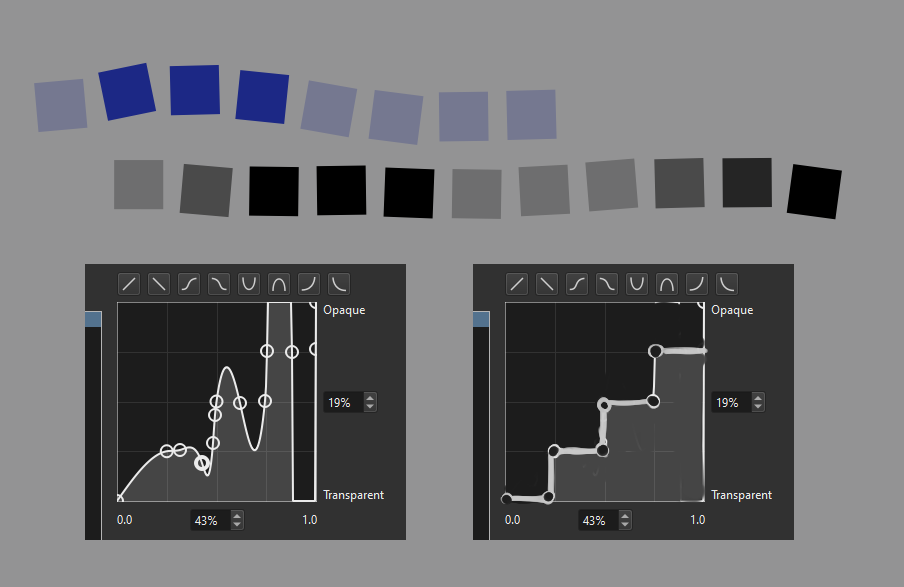
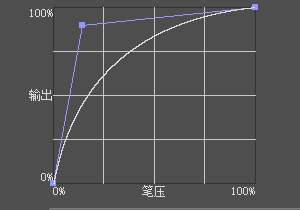
I attempted to create a brush that would change opacity according to pressure, the important thing is that the opacity could also be done in steps and not only smoothly.
The only work around i found is to create an animated mask and set the selection mode as ‘‘pressure’’, but this has a lot of issues since its impossible to adjust the sensitivity at all.
in the image below you can see the brush and an example of how these steps
would look like.
I suggest adding the ability of marking each node as corner, as photoshop does in the layer effects. That makes the curve sharp at that node, instead of smooth. This way we retain ps compatibility in case the layer effects get completed.
I have this task on my TODO list, but don’t have too much time lately. In fact I already have a working prototype implemented on a standalone app, so if anyone wants to tackle it, here is the code:
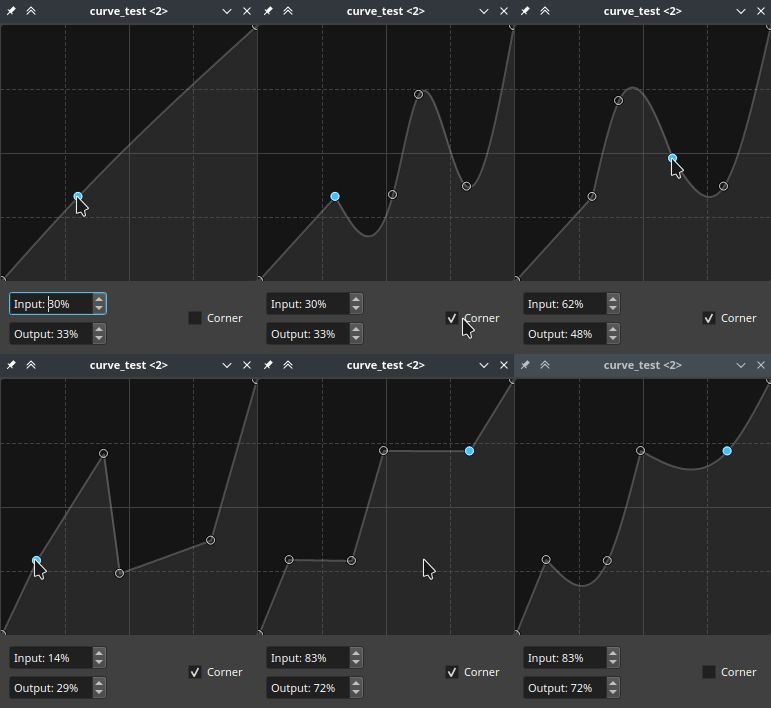
Yes, right now you can toggle the points by selecting them and pressing “a” or by pressing ctrl and clicking. It is the most basic input possible. I want people to use it before coming up with additional ways of doing it. I also thought of adding buttons to toggle, but this would have to be custom for every place where the curve widget is used, unless the buttons are incorporated in the widget itself.
The curve adjustment method of Clip Studio Paint seems to be good, and sometimes it seems easier to adjust compared to Krita’s existing curve adjustments.
The problem with that method or other is it requires a complete rewrite, whereas the ps method is just an extension of the current one in krita (minimum changes and compatibility guaranteed, not only with ps but with krita itself).
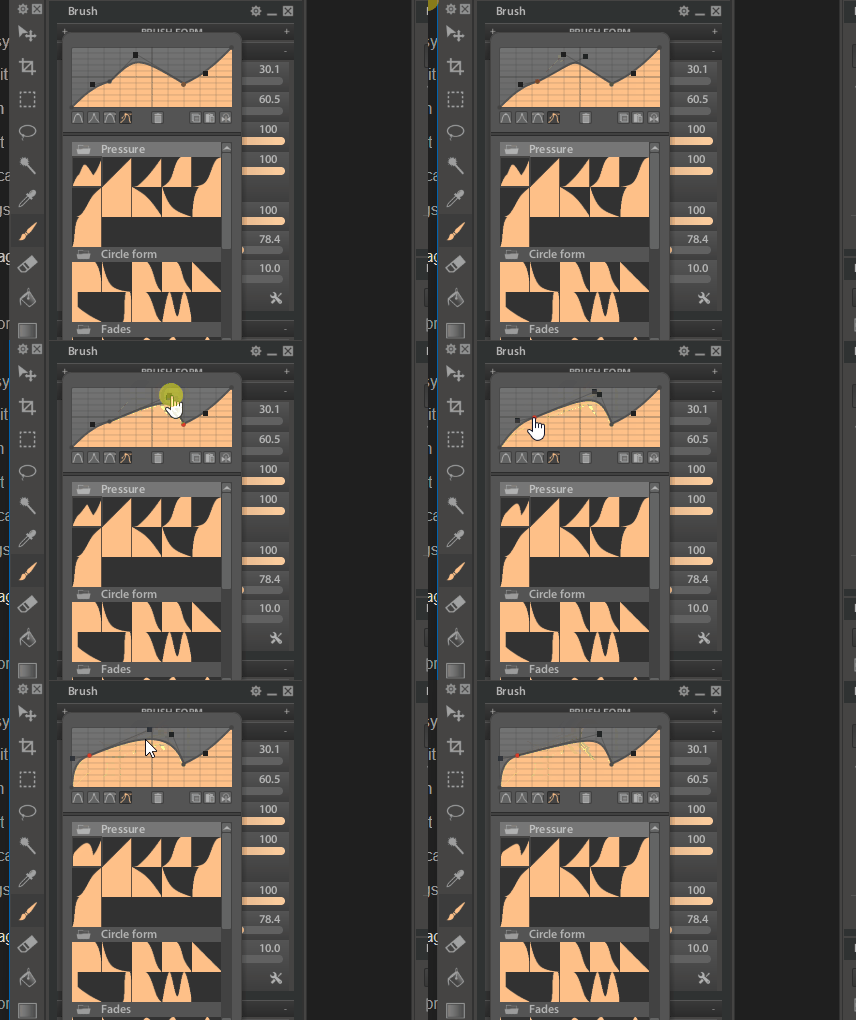
It looks like this is a quadratic Bessel curve. Not quite the same logic as krita (based on “points”)
The result of paintstorm should be similar and more free.
I forgot to share the test packages.
To whoever wants to test, just try the curve widget on any part of krita and see if it behaves ok. To toggle the point between corner/smooth, select a point and press ‘s’ or just click the point while pressing ‘ctrl’ key. And don’t forget backing up the settings before trying:
@Deif_Lou I’ve tried the appimage with some Brush Editor transfer curves, the Global Pressure curve and the Cross-Channel Adjustment Curves filter.
They all work ok. Ctrl and ‘s’ keys work as you describe.
Thank you for an interesting and useful addition/modification
Hi!
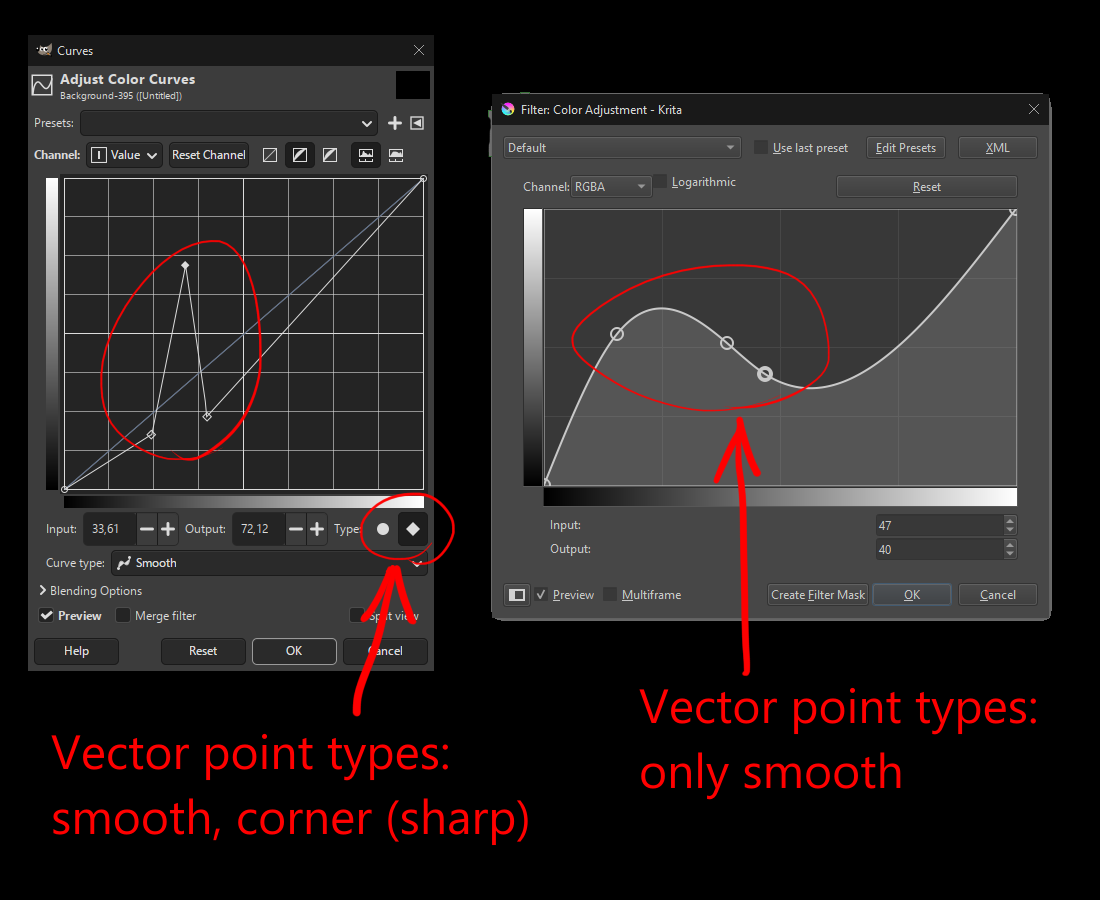
I would like to suggest adding more types for vector points on curve in Color Adjustment, such as Corner type. Currently it’s impossible to precisely manipulate narrow color ranges, because the only available point type is smooth.
The picture below is a comparison between GIMP’s curve points. There are 2 types available, smooth and corner. Right now, if I need to precisely tweak curves, I have to save image, open it in GIMP, configure curves, save and re-open in Krita. Please, consider adding such feature.