when I transform any picture with a rectangular selection it loses quality dramatically , i can’t work like this,seems like major bug!
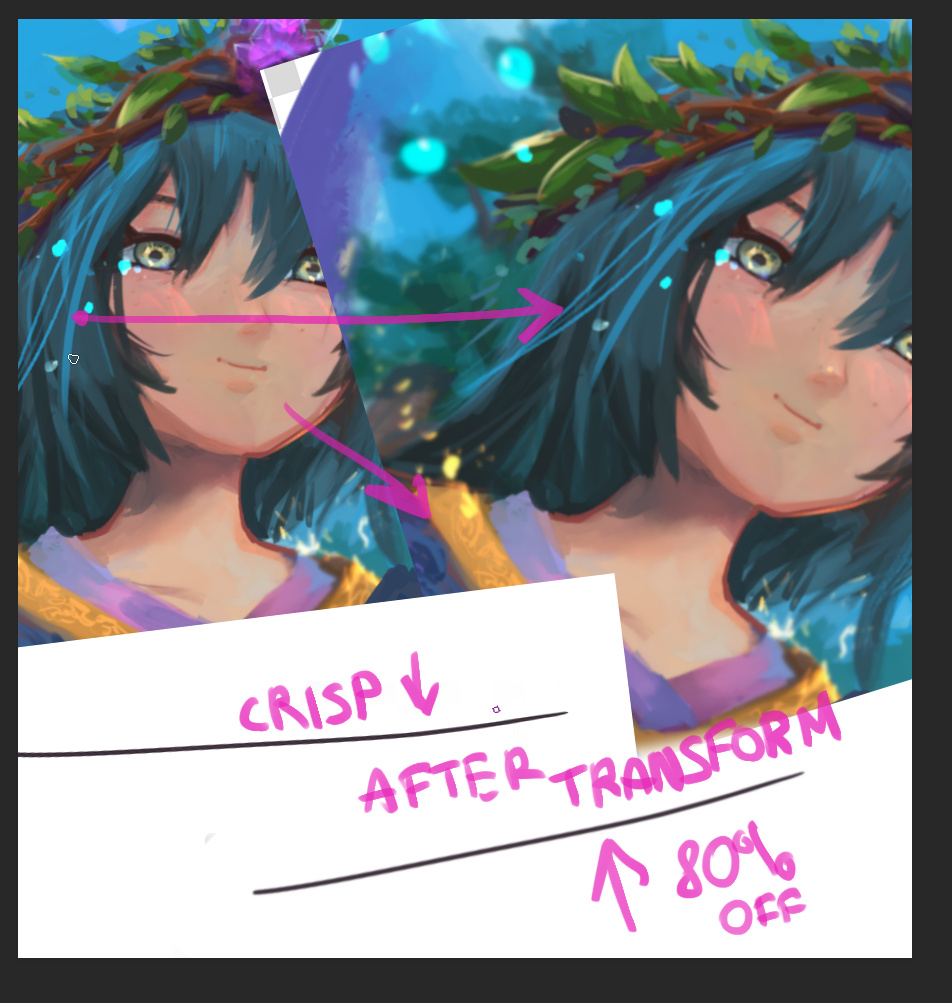
when i didn’t notice it was ok but when i’ve noticed it ruined my day, i was so exhausted i was pissed of…
when I transform any picture with a rectangular selection it loses quality dramatically , i can’t work like this,seems like major bug!
when i didn’t notice it was ok but when i’ve noticed it ruined my day, i was so exhausted i was pissed of…
Hi
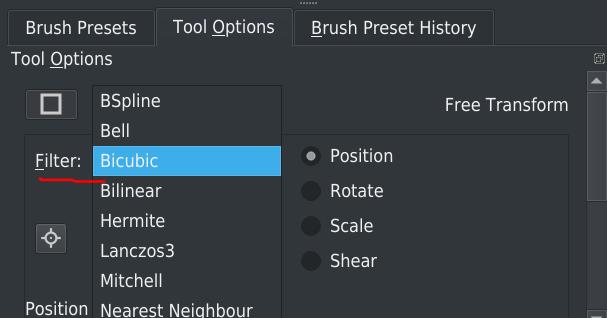
Maybe you can try another filter option method when using rotating tools
According to method, it will be more or less blurry/sharp…
Grum999
<3 Thank you it works!


Note that rotation will always lose some quality because of the pure fact that the pixels are organized differently to show the same image. But depending on which filter you choose, they might have better or worse results. Remember to not rotate things multiple times if you don’t have to. (You can adjust, but only as long as you’re staying in the Transform Tool, otherwise it will rotate it again and lose more and more quality with every rotation)
Also, using transformation mask instead of applying transformation directly to layer will allow to apply (multiple) correction after transformation (and especially change filter method if needed) without loosing quality.
It also allows to modify original layer without having to redo all transformations.
Grum999
That’s sad, or this is true to all image editors? How come that photoshop and clip studio paint be able to maintain same level of detail everytime?
They don’t, it’s just that you had a different transformation filter selected in those programs that happens to work well for your art. Most of these are in krita as well, so you can just check which ones you were using and use the same one in krita.
Hi
Problem is the same for ALL image editors.
After, according to transformation algorithm applied, the result will be more or less blur/sharp.
Here Transform filters, what are the differences? - #2 by Grum999 I’ve provided some technical reference about transformation filters, most of them are very technical and needs some skills in algorithm and/or mathematics…
Links are related for scaling image, but rotation is the same as scaling/moving/shearing…
To simplify, they all use transformation matrix to process pixels associated with filtering to ‘smooth’ the result (or apply an anti aliasing if you prefer).
And all image editors use the same technical method to process pixels transformations.
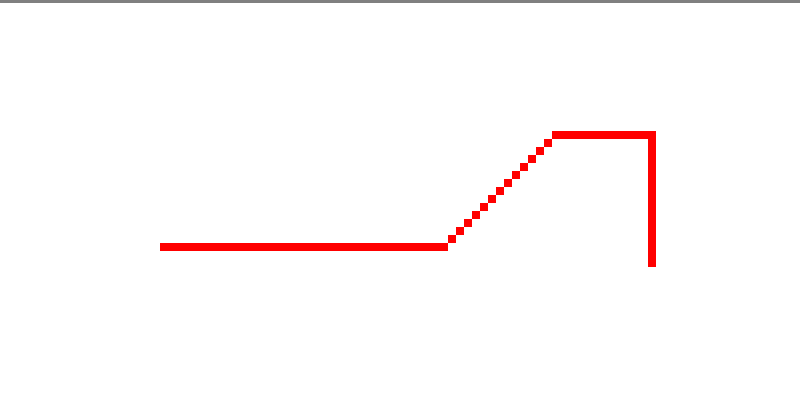
Example, this simple image made without any anti aliasing (100% size and 800% zoomed version too see pixels  )
)

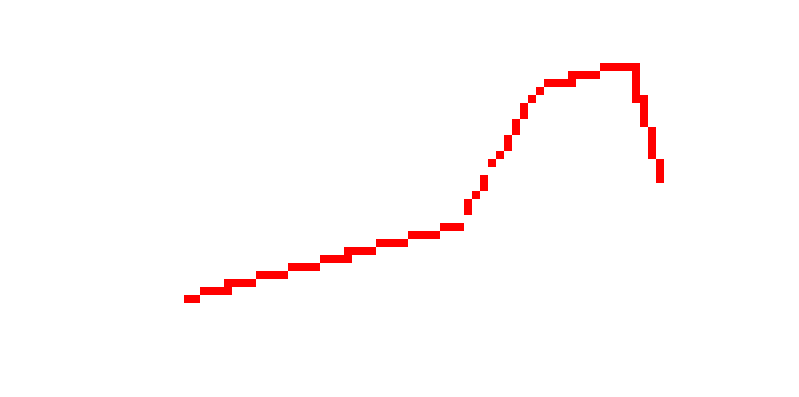
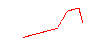
If you apply a rotation of 15°, without any filter, result will look like this:
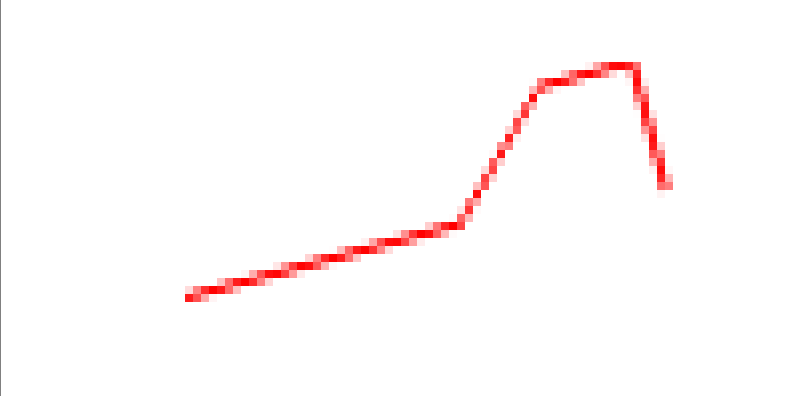
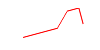
If you apply a rotation of 15°, with a bicubic filter, result will look like this:
So, Krita provides 8 different algorithms: according to the original image (a drawing with clean lines, a painting, a picture, …) you need to determinate which one will provides the best result for your case.
The bicubic filter is the most common filter I think and is applied by default in Krita.
Maybe photoshop use another algorithm than the 8 provided by Krita, and for which results are better than Krita’s filter(s), I don’t know, last time I used this software it was in 1998… 
If you take this picture and made a rotation of 15% with photoshop, I’m curious to see the final result to compare, but there won’t be any magical in the result: you’ll get something blurry
Grum999
A solution to reduce the blurry effect is to work with bigger image: bigger the original image is, lower the blurry effect result will be 
Grum99
I recommend the Lanczos3 algorithm for most things. It might create ring artifacts in the image, but tends to create crisper results after rotation.