My stylus's side button is not recognised by Krita

Type of device* : Android tablet & Active Bluetooth stylus
Brand and version of the device: OnePlus Pad 2 Pro (or OnePlus Pad 3, they are the same) with OnePlus Stylo
System** : ColorOS 16 based on Android 16.0

* graphics tablet/display tablet/2-in-1 laptop/Android tablet
** Windows/Linux/Mac/Android, + version (you’ll find it in Help -> Show system information for bug reports)


Description of the issue (you can include screenshots):

I bought this OnePlus tablet several days ago. The side button is not working for Krita.

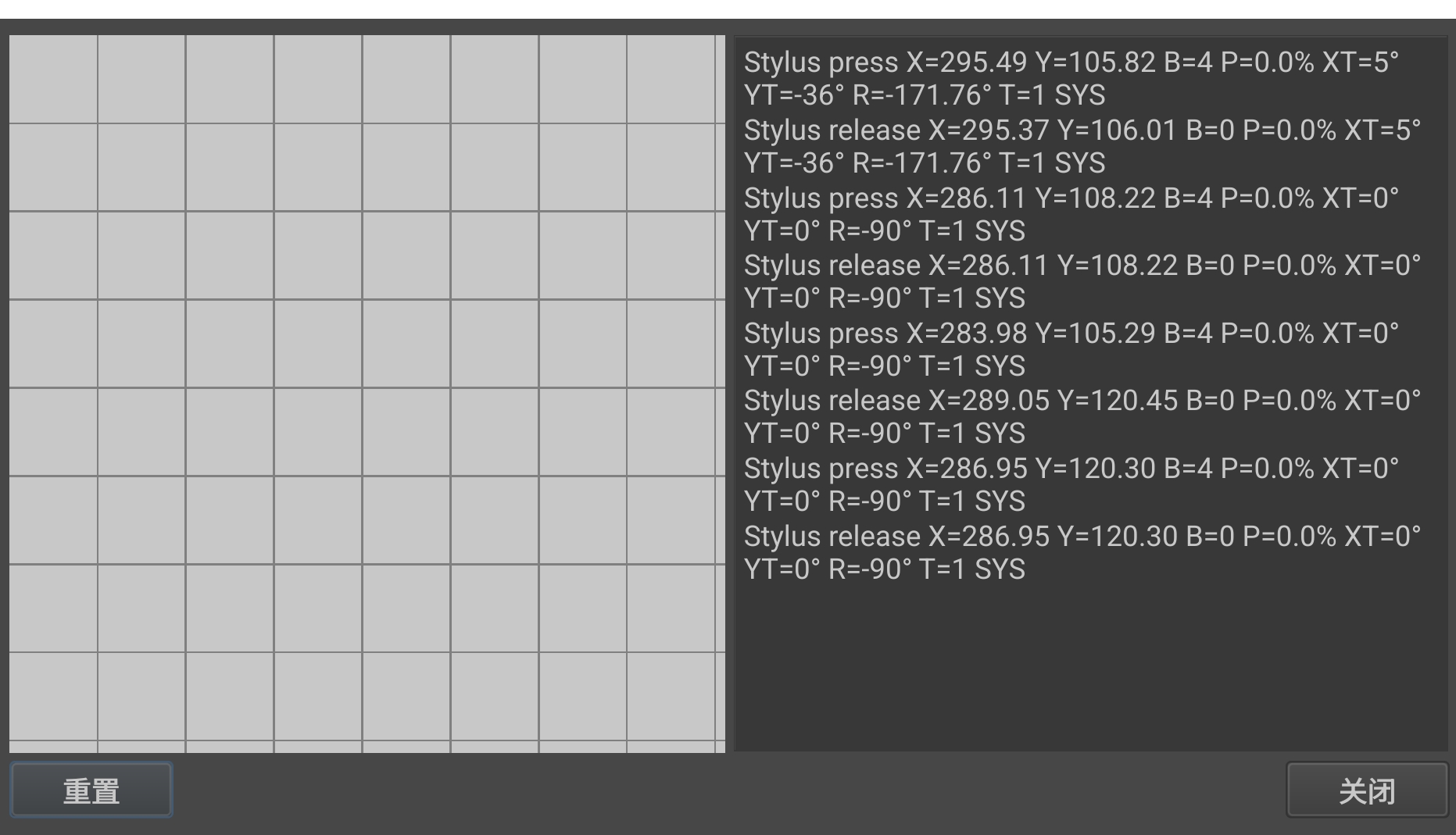
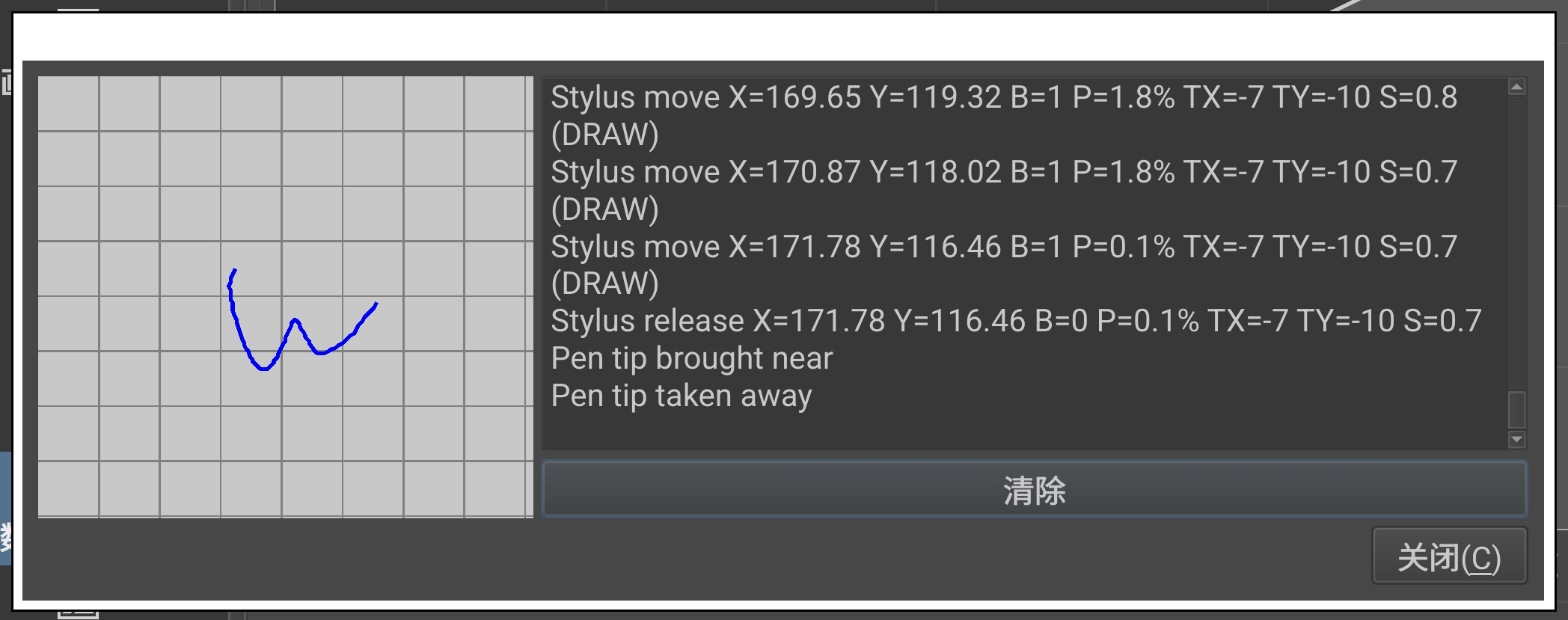
I don’t know about how to test the actual mapping for the button, but I can confirm that the button is not recognised in the tablet testing tool.
The only place I know on Android which shows the keycode is the “Switch Control” ability in the Android Accessibility Suite.
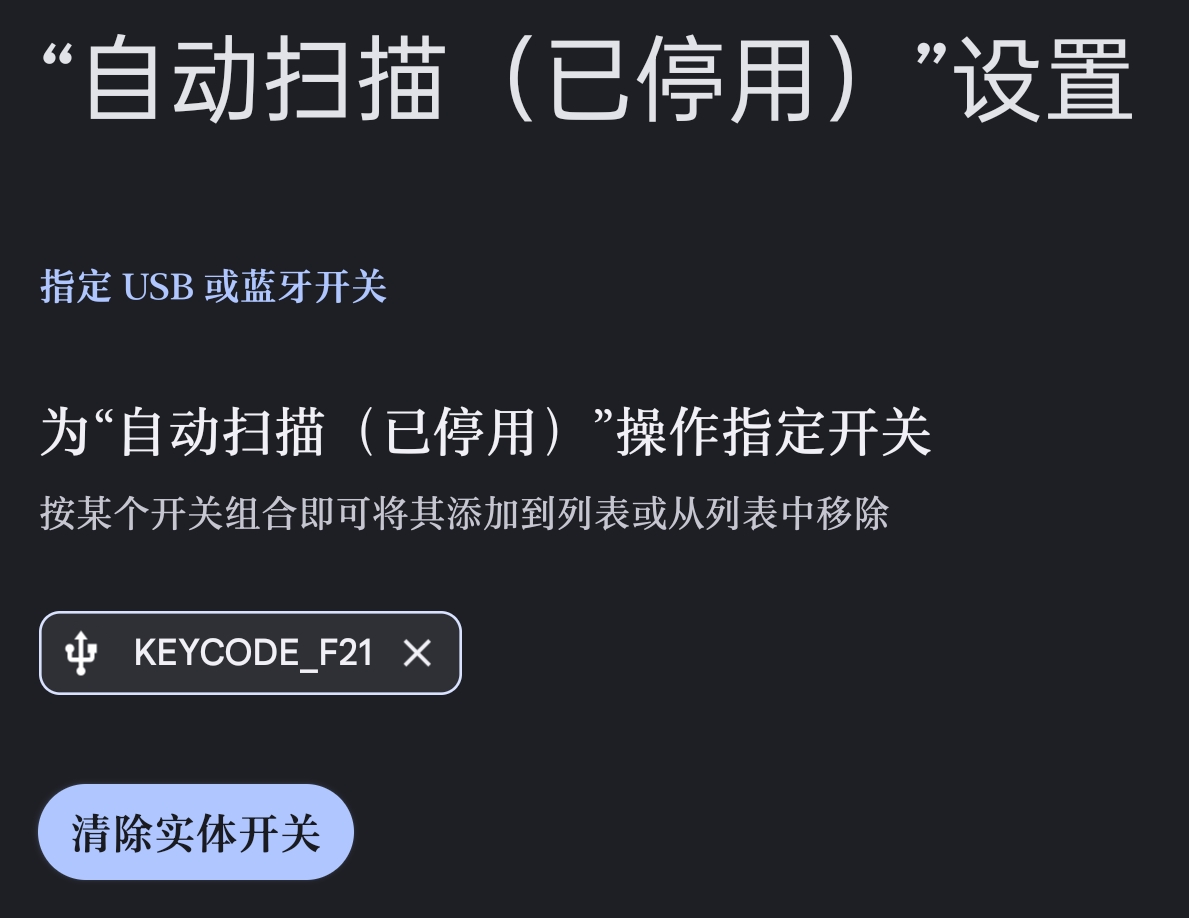
It says the button is KEYCODE_F21. But it is not possible to assign this key in Krita. I tested in the Canvas Shortcuts tab:
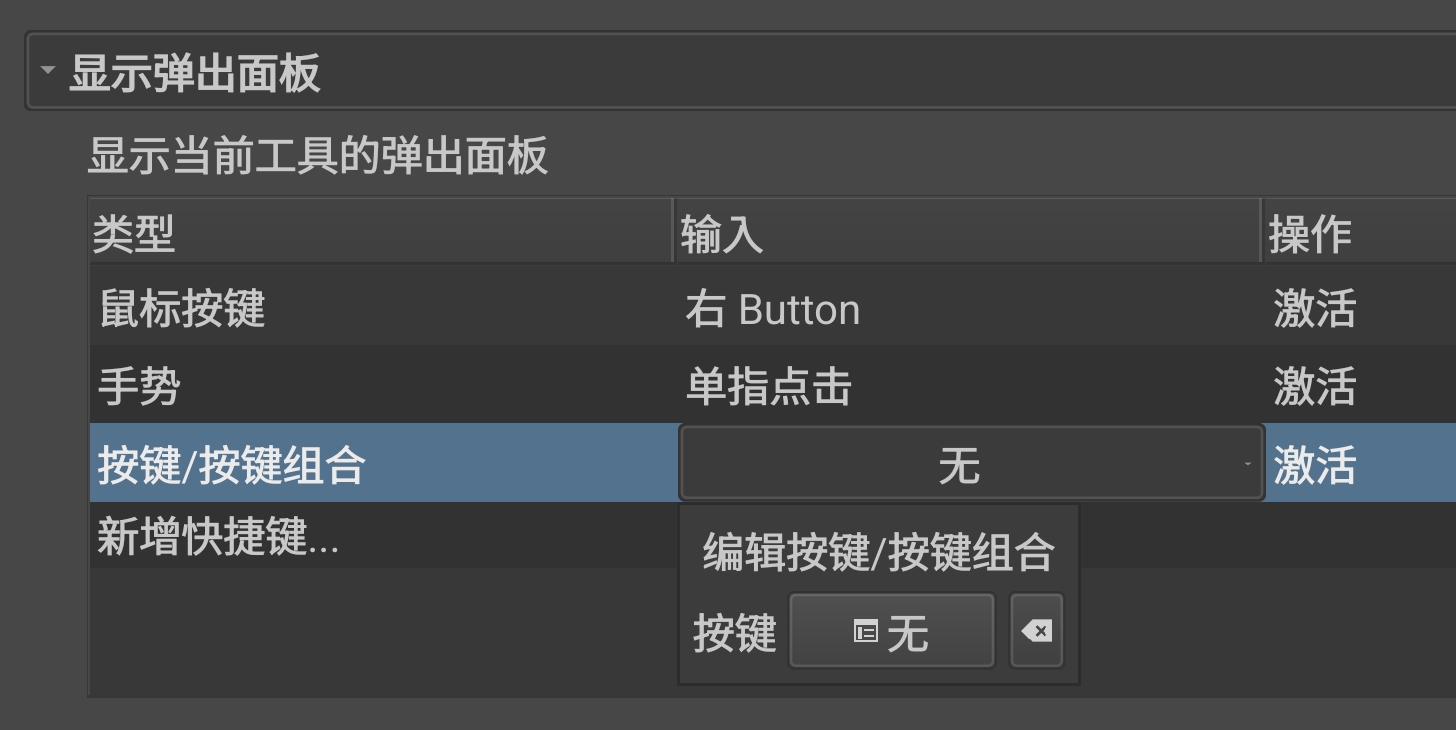
I can only press the button, instead of selecting from a list of keys. However, Krita don’t recognise this key and still shows ‘None’.

I connected the tablet to a keyboard. If I use Ctrl + <The stylus button>, Krita recognises the combination:

Ctrl + [empty], yes it really works if I press Ctrl + <The stylus button>. Therefore Krita recognises the key but refuses to accept the single key? Since I do not have a keyboard with an actual F21 key, I cannot test further.

And, neither Ctrl + <The stylus button> nor <The stylus button> are accepted in the “Keyboard Shortcuts” tab.

What’s more, it is not helpful to use the S Pen specific settings.

Thanks for any help!

:slight_smile: Hello @Clover_Yan, and welcome to the forum!

The only thing I can imagine that may help here is an application that is able to remap keys from diverse input devices like gamepads, midi-keyboards, etc., but if that will work with the button of your stylus I can not say.

But because I’m not an Android specialist, I’m pinging our developer for Android, in the hope that he will be able to say more on your issue and give definitive answers. @Drawpile, do you have any ideas on this?

I wish you much luck with your button.

Michelist

Krita doesn’t talk directly to any tablet. It gets its signal from the operating system.

The stylus button should correspond to a mouse button. The tip of the stylus is left mouse, and if there is only one stylus button, from what I’ve seen this is usually right mouse button.

When you click the stylus button, does the popup palette appear? If not, what does happen in Krita when you click that button?

Whatever you want that button to perform needs to be changed in Krita’s Canvas Inputs (inside Configure Krita).

The color palette won’t appear when I press the stylus button. Of course I will not be posting here if it works properly. Nothing happens when I press the button in Krita.

I know usual stylus will trigger middle click or right click when you press the only button, but that is not how OnePlus tablets work.

And yes, I am adjusting the settings in the Canvas Input tab in the Krita Configurations. I think I have told about that. It is where the F21 key is not recognized.

Sorry, I don’t seem to be able to help you. Perhaps you can use the search function on this site to find out if anyone else here is using a OnePlus.

Hi! Am not personally familiar with OnePlus but from what I saw it is somewhat similar to other tablets/pads and this type of tablets/pads requires updating drivers and configuring profiles for apps like Krita. Did you check all that? From what quick search gave me these are similar to Huion and others, you create profiles for applications. Another quick search on what is OnePlus’s stylus (these things are very different, I myself chose a non-native stylus for Samsung because of some issues and I hate it that they cant make all styluses the same way because the technology behind them is already the same) gave me an impression that OnePlus stylus can often glitch and not connect with different software, lots of similar troubles. So, just in case it is OnePlus specific problem, maybe updating the drivers can fix it? And you didnt mention the configuration of the profile for Krita, did you create and configure it already? Also consider checking for Windows Ink, if it is deactivated in one place - must be deactivated in another as well.

1 Like

The F13 to F24 keys aren’t handled by the underlying Qt framework, so this is something that needs to be fixed in Krita. And I guess we also should add a workaround to translate this key press to a mouse button, like we do on Xiaomi tablets. I have a fix ready here: https://invent.kde.org/szaman/qtbase/-/merge_requests/14

@Clover_Yan could you please test whether this works? I don’t have a device like this to do it myself. I also I can’t update Krita quickly, that will take at least until next week, but it can be tested with Drawpile because it uses the same Qt framework version.

You can download the test build here, scroll down to where it says “Assets” and download the “Android APK 64 Bit”: https://github.com/drawpile/Drawpile/releases/tag/continuous

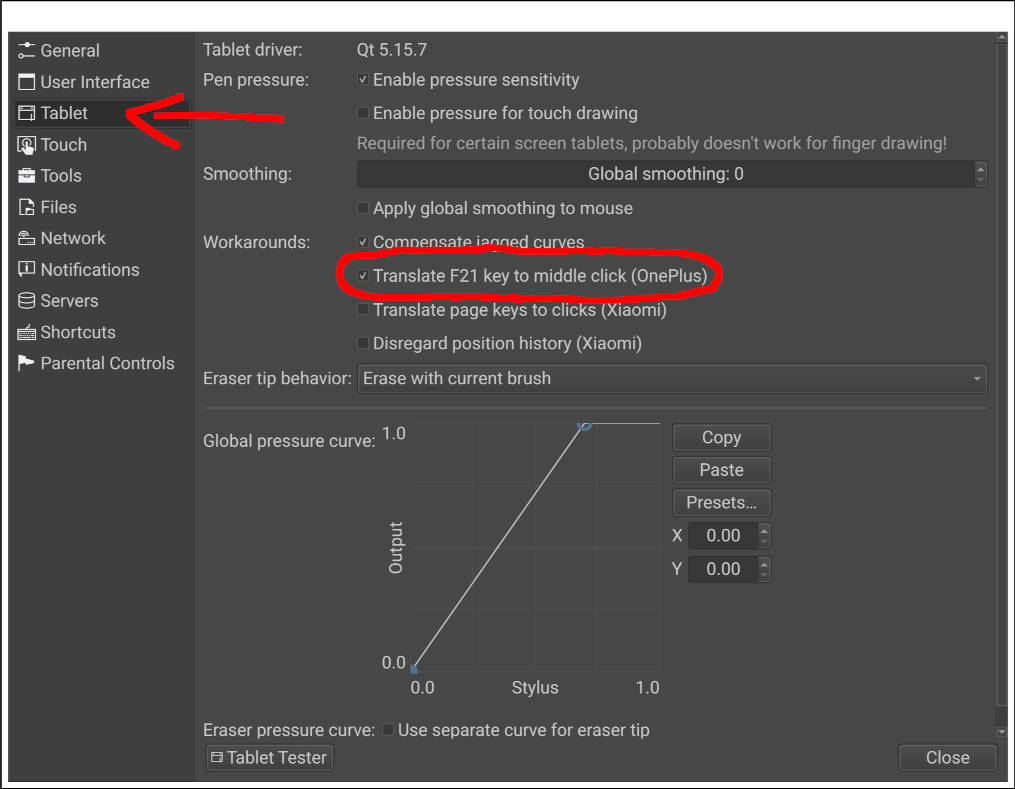
Your stylus button should be recognized as a middle click by default, which should pan the canvas. You can toggle the stylus button translation under Edit → Preferences → Tablet → Translate F21 to middle click (OnePlus). After disabling it, it should act as an actual F21 press in the shortcuts.

Please check and report how both of the options behave. Ideally, answer the following questions:

  1. Does pressing the stylus button behave as a middle click by default?
  2. When you disable the workaround setting, does it press F21 instead?
  3. When you press and hold the button, does it also press and hold the key or does it instantly release? Xiaomi devices work this way, which means it would make more sense to bind it to right-click instead of middle-click.

Thank you for reaching out!

It does, but not in a way that I expected: If I hold the button and use the stylus to drag on the canvas, it draws, and the canvas doesn’t pan. If I hold the button and use an actual mouse to move the cursor, it pans. So, the middle click translation may be working but not in a proper way.

Yes, F21. I can see it when configuring in the shortcut settings.

It holds.

Does the button on this device only work when you hold the side button and press the stylus down? “Normal” styluses work by pressing the button and moving the stylus in the air, if you press it down then that will cancel out the middle click. In which case this would need additional workarounds.

Also, what does the tablet tester show when pressing the button in the air and when putting it down? It’s under Help → Tablet Tester. And you need to have the middle-click workaround enabled for it to show anything, since it doesn’t report keyboard inputs.

No. In OnePlus Notes the button is designed to switch to eraser / open color palette, so it should work in the air, and it does

But if I hold the button and move my stylus over the screen, the cursor only changes to palm for less than 1 second when the button was pressed, and the canvas doesn’t pan.

Maybe I’ve found the issue. The button release event is instantly sent when I bring near the pen tip, and the button will be immediately forced released after you press it down if the pen tip is brought near. :confused:


Update: I tested the button in the Switch Access settings again. It doesn’t matter if the tip is brought near. Only when I actually release the button will make F21 released

Update: When I disable the OnePlus compatibility option, the shortcut settings tab can recognise F21 correctly. maybe there’s something wrong in the mapping process.

Yes, I think you’re right. On Xiaomi tablets, you can’t hold these buttons down, so the code didn’t consider this properly. As soon as you moved the stylus, it would see that no buttons are held down and end up releasing instantly.

I tried to fix this and updated the Drawpile build, how does this behave now? Same link as before: https://github.com/drawpile/Drawpile/releases/tag/continuous

1 Like

Thanks! I think everything is working fine now.

Thanks for testing it! Then hopefully we can get this into Krita soon as well. Not sure if it will be in the next version already since there’s currently a larger problem on Windows to deal with, but it hopefully won’t take too long.

2 Likes

This topic was automatically closed 4 days after the last reply. New replies are no longer allowed.