Posted a request for this a few days ago, and then realised that, it’s not a good idea to modify selection mask. I make this plugin to use a paint layer for selection. It works (though not perfectly).
I still want krita implement this as a default tool.
Caution
This plugin run slowly and would crash krita when paint with big canvas(like 4000x4000 at 300ppi). Don’t press too quickly with big canvas.
Usage
Default shortcut is ‘A’.
Press shortcut, a temporary layer is added, do normal paintings on it, press again, change paintings to selection.
The paint selection layer is a normal paint layer, you can do any thing with it.
Settings is under Tools > Scripts > Paint selection settings.
To change shortcut, open config window, find ‘paint selection’.
Demo
Download download page
I don’t use git now, it is a web storage page. Use menu > Tools > Scripts > import plugin from file, choose file downloaded, then restart.
Since the original download is no longer available, you can get it from now on from my cloud:
Around the beginning of July 2026 this upload expires and if ufile.io asks you to pay for it then drop me a line, and I’ll renew the upload, so you don’t need to pay for a free resource.
Michelist
Added a link to this folder @MEGA since ufile.io got unreliable.
How did you try to install the plugin?
I just checked it on my side, and it works without issues.
Which version of Krita do you use?
From where did you get your copy of Krita?
Which operating system do you use?
How did you try to install the plugin?
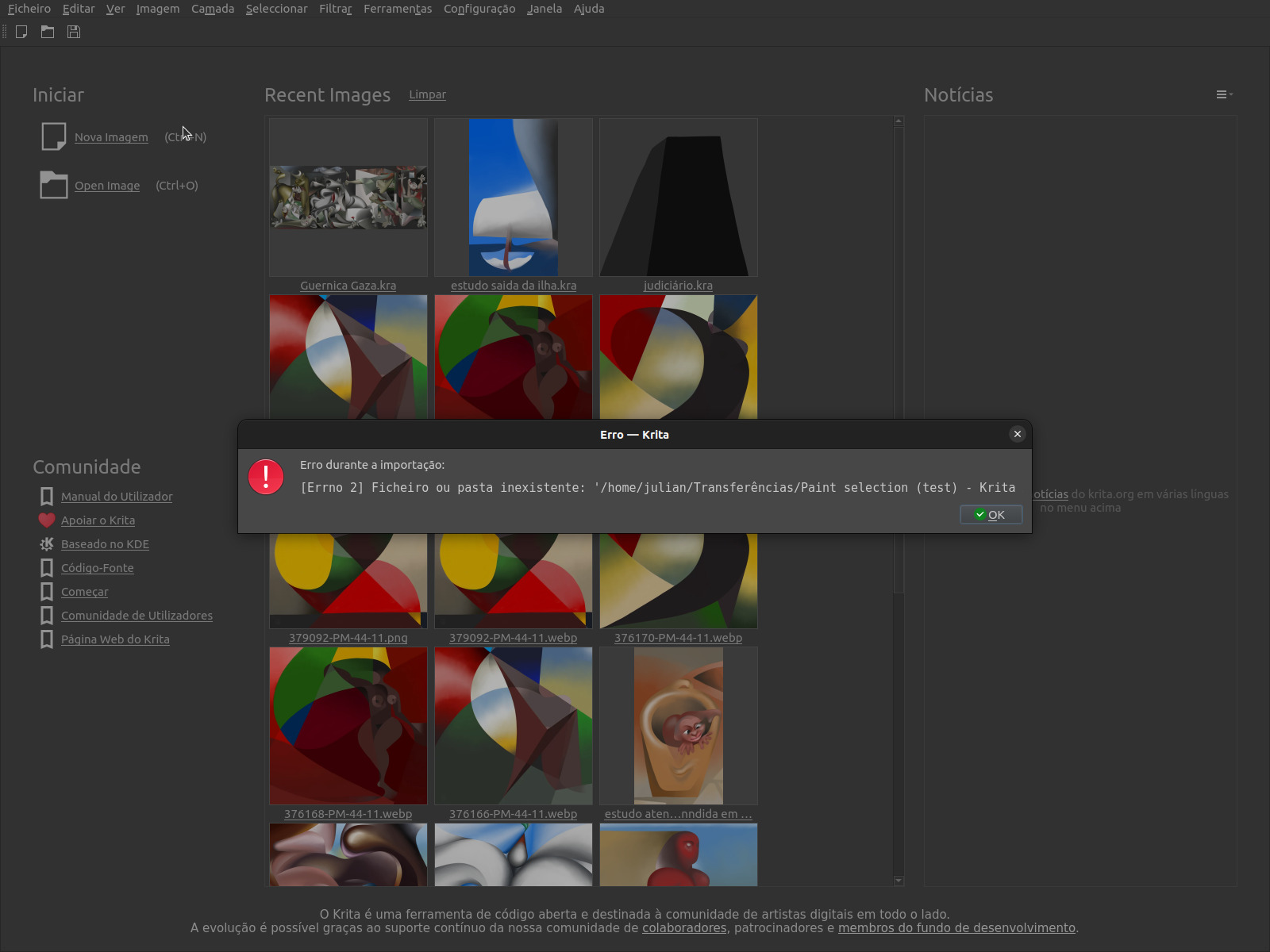
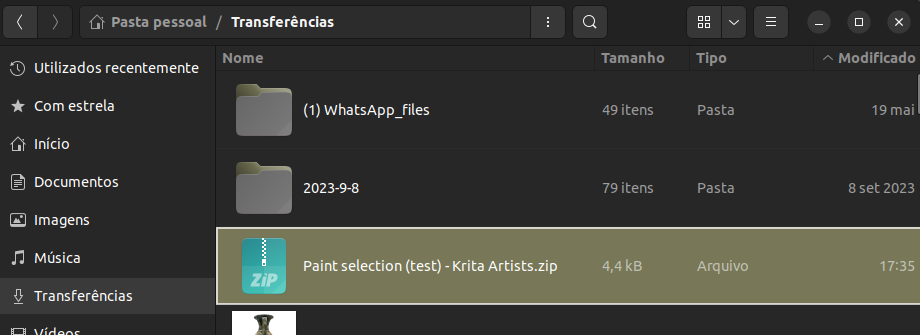
download to the downloads folder.
Which version of Krita do you use?
5.2.3
From where did you get your copy of Krita?
Ubuntu repository
Which operating system do. you use?
Ubuntu 22.04.4
I’m not sure what you mean with downloaded to the download folder.
You install plugins in Krita by clicking on “Tools” >> “Scripts” >> “Import Plugin from File” and in the dialog that opens, select the file you just downloaded, confirm the selection, then confirm Krita’s message that the plugin is installed and restart Krita.
Because this plugin has no docker, you can check if it is successfully installed doing this:
If you can’t find it in keyboard shortcuts under “Paint to Selection” to assign a different shortcut than the original shortcut, then you may have to search in Krita under ‘‘Settings’’ >> ‘‘Configure Krita’’ >> ‘‘Python Plugin Manager’’ for the plugin you just installed and activate it by checking the box in front of it. Then confirm with “OK” and restart Krita to be able to use the plugin. After that, you can use it with pressing the original shortcut or any shortcut you may have assigned.
By the way, if your repository version of Krita works, then you don’t necessarily need to action, but if it has issues, you should consider using the one and only official version from Kritas homepage, the AppImage.