You can try the dev version from github
Direct zip link: https://github.com/Yuntokon/BlenderLayer/archive/refs/heads/dev.zip
Install and connect as usual, select Projection painting from the mode spinner and paint on the ‘Projection’ layer. You’ll have to setup texture painting in Blender as well, i.e. go to the Texture Paint tab and add a texture to the model.
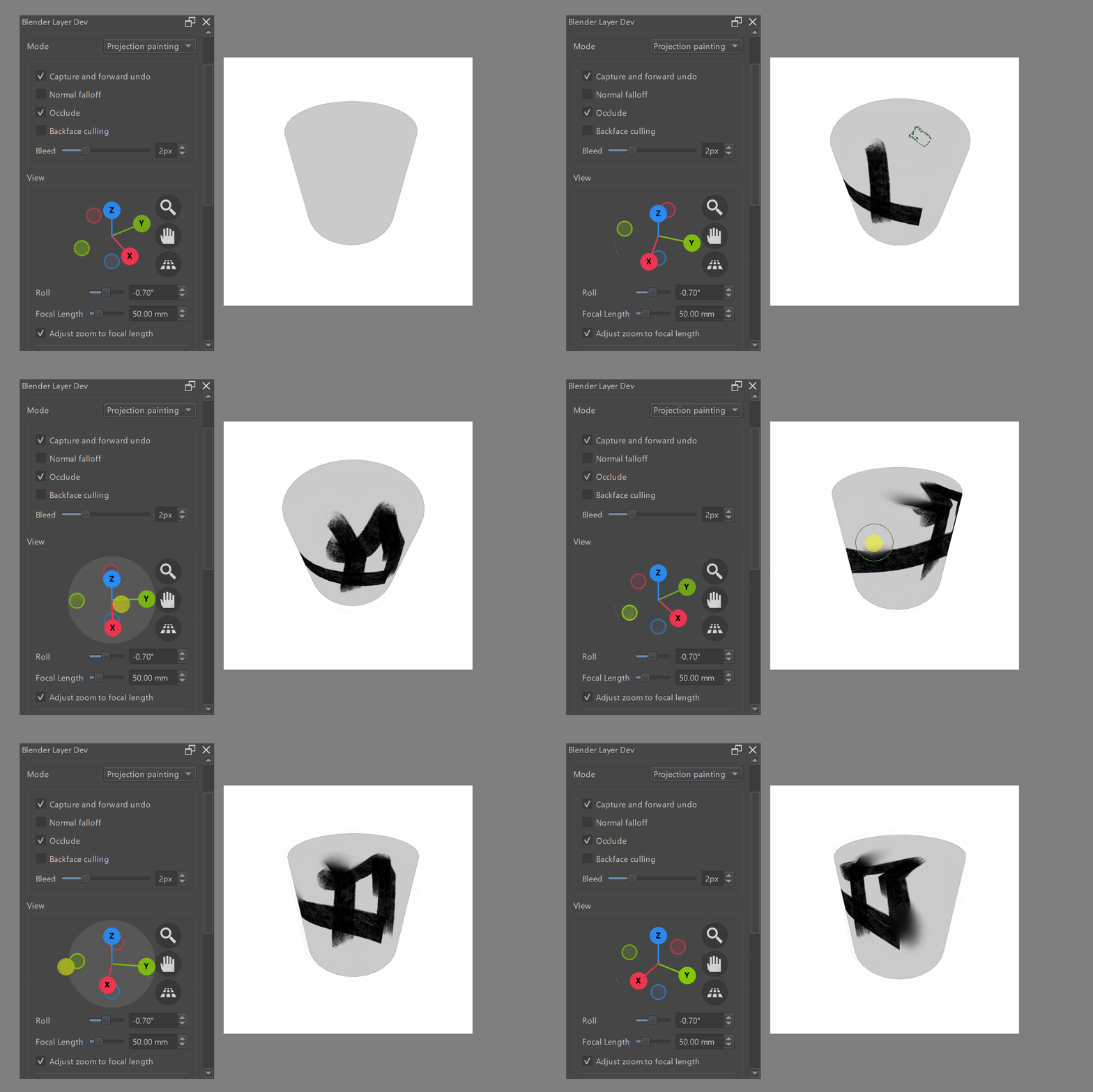
Additional caveats:
- Make sure shared memory buffer is enabled (default)
- Brushstrokes sometimes have artifacts around the edges, creating your textures as ‘32-bit Float’ in Blender seems to fix this, but results in transparency being handled a bit differently so you get some visual popping when doing translucent strokes
- As brush strokes are projected after they are drawn on kritas canvas, the final quality depends both on the canvas size in krita and the texture size in blender
- Anything more fancy than a simple brush (e.g… smudging, filters) is a bit difficult, you can get it to work to a certain degree if a) you select ‘Flat Texture’ as viewport shading, so colors appear in krita as they are on the texture and b) you enable overlay mode on your brushes, however quality will degrade quickly as this reprojects all pixels in that area
- No blending modes
- Parts of the UI might not be implemented yet
The texture painting features are still quite unstable in general and I’m also not really working on that stuff at the moment, so don’t blame me when Krita freezes randomly  .
.
If you’re looking for live uv painting you might also want to check out some other plugins: