I’m not sure how this happened but my recent images are now shown vertical instead of horizontal. All I did myself is boot up my pc. How do I fix this?
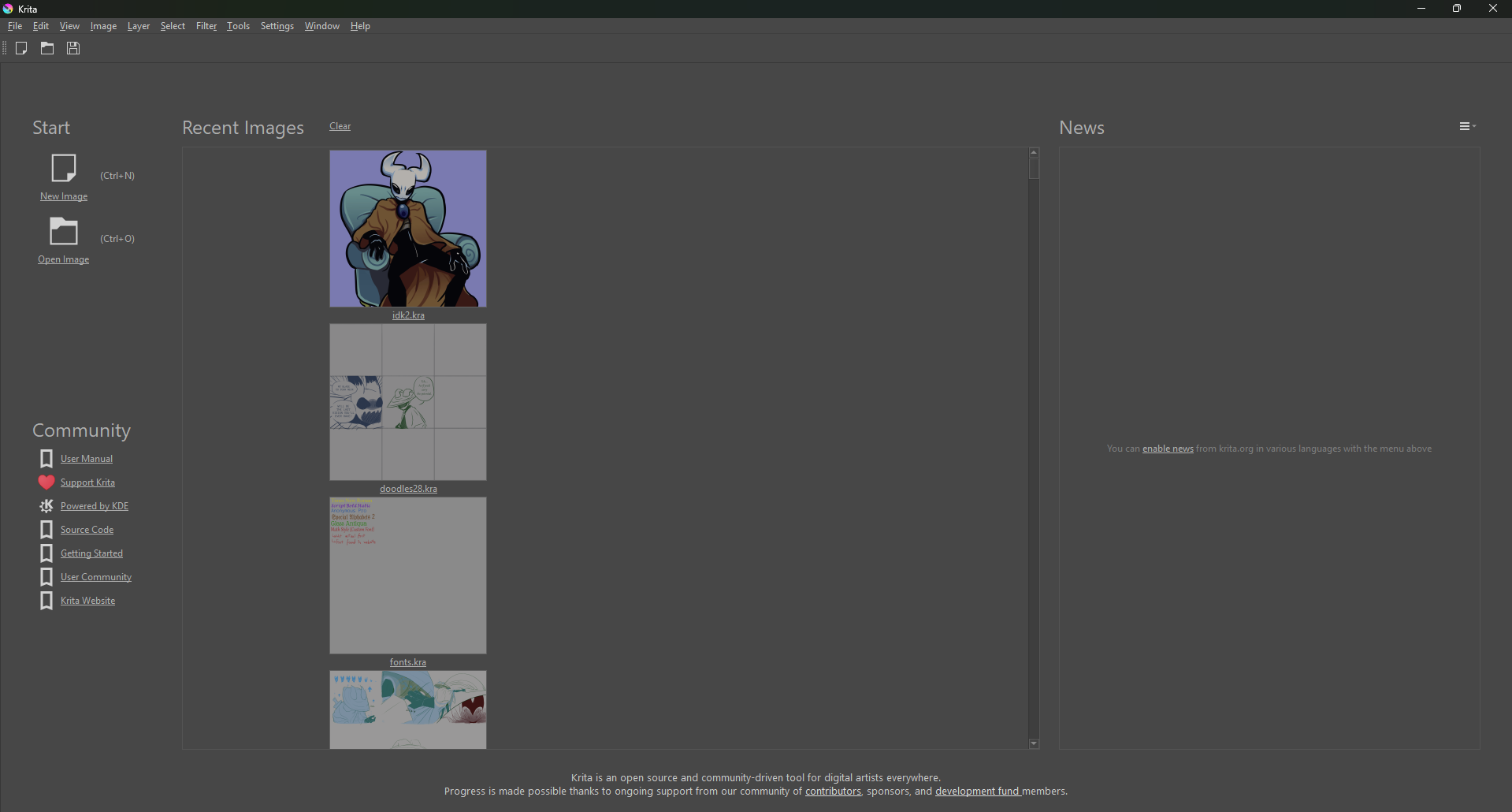
Windows 11, Krita 5.2.2
Try updating to 5.2.9, if it does not help you could try to reset Krita via ‘‘Settings’’ >> ‘‘Reset All Settings’’.
Michelist
I’m kind of afraid of updating. I have a lot of canvases including the previews and custom brushes I don’t wanna lose.
As for resetting all settings, wouldn’t that make me lose things I don’t wanna lose either? I have a custom Krita setup.
Whether the brushes nor the canvases are stored in Krita, they lie on your hard disk, no reset or update can delete them. The previews in Krita may be lost, but you just need to open a canvas again in Krita and Krita will create a new preview for it on Krita’s welcome screen.
What will be lost with a reset are customizations you made on Krita’s UI, you should make screenshots from it before a reset, so you can recreate your UI relatively easy afterward using the screenshots as template.
Depending on the number of canvases and the performance of your computer, you may drop them all at once on Krita to let Krita open them one by one. But this may be a bad idea if you have a weak computer with not so much RAM it may make crashing it, so it will be better to drop only batches from up to 10 canvases onto the welcome screen, and when Krita opened them all, you can close that batch, and after you closed the first batch go on with the next and so forth.
In case of further questions, feel free to ask.
Michelist
Thanks for the clarification! I reset the settings, but I’m having trouble finding what actually changed because my UI is the same, so are the previews and the vertical preview issue itself.
You did recommend updating Krita to a higher version but I’m not sure how to do that. Could you tell me step by step?
Did you restart Krita after resetting it? Because that is needed to apply the reset to Krita.
If you did, and it did not change the vertical display of your previews, then the next step would be a “very harsh cut”, but you should try first if updating Krita resets the behavior to normal, although it seems unlikely. On the other hand, it is always a good idea to have your software updated to the most recent release versions, since these updates fix existing bugs and bring new features.
For the updating, you will have these options:
You can download the Krita installer from Krita’s homepage Download | Krita and simply install it over your current installation, at least given that you didn’t install Krita via Steam or via the Epic Store respectively the Microsoft Store.
The Steam version should keep itself updated automatically if you did not explicitly deactivate it, how this works with the Store versions I can’t tell, because I don’t use them. But, I guess, you can update them out of the Stores, and they also will simply overwrite the prior installation.
Alternatively to an update through overwriting your current installation, you can go for the portable version of Krita, which
will work with every version you use, Krita’s native installer, Steam, Epic, Microsoft, and
will then use the settings of your current version, what, by the way, an update through overwriting also does. It has the advantage that you can use as many portable versions as you want side by side to your installed version - and they all use the same settings. But you can always run only one version at a time.
The portable versions must be unzipped after download to a folder where you have full read and write permissions, among others Desktop and Downloads are such folders and are usually used for this. Then you can start Krita through double-clicking the link-file krita.lnk in the root of the unzipped archive the portables are shipped with. Alternatively, you can enter the folder bin, in the root of the unzipped archive and set a link to the file krita.exe in the directory bin to your desktop from where you then can start that portable version.
The portable Krita will then show you if the update would fix your issue. If it does, you can use it further or decide to then install the installer-version. If it does not fix your issue, you have to report back, and I’ll guide you through the “very harsh cut” I mentioned in the beginning. Which will be to delete the kritarc manually and also the krita5.xmlgui, which will then bring back your known display of the previews.
Michelist
I’m gonna be honest I was lost after the sentence “you can go for the portable version of Krita”, thankfully updating to 5.2.9 worked! The previews are back to normal though I did lose a few very old canvases. I do still have them saved inside a folder so it’s no biggie.
Thank you!
That may be through the standard restriction to 100 previews, but you can set this limit higher if you want, it is found in your kritarc, if you don’t want to edit it yourself, then you can upload it to a cloud space of yours, or you can use SwissTransfer, a service where you don’t need an account to send a file to someone, and then send the link to your kritarc to me via PM, and I’ll modify it for you to hold more previews. But there may be a limit, let’s call it a hard cap, that can’t be passed.
Michelist
Yes I counted the number of previews I have and it’s exactly 100. I would like to try and modify the cap myself. Where can I find the kritarc file?
Also, what’s the number of the hard cap you mentioned?
The kritarc is in %LOCALAPPDATA% and before you begin to edit it, make at least one backup of that file.
Because you are on Windows 11, you MUST enable the view of file name extensions! If you don’t do that, then Windows will revert your saving decisions, and because the kritarc has no file name extension Windows will add .txt to it if you don’t enable the view of file name extensions beforehand. And Krita does not know a file named kritarc.txt … To enable the view of hidden files and folders, you can follow point 2 of this tutorial - but please don’t reset your Krita. 
Look for maxRecentFileItems=100 this is the value to edit.
Save your kritarc and start Krita.
Perhaps be happy?
Michelist
I followed your guide exactly, made it so i can see file name extentions, edited that kritarc setting to 200! And it did in fact not save as a .txt file. You’re golden man. Thank you so much!