Hey all, before I start any amount of complaining I just want to congratulate you guys on the work you’ve done on this program. When I get free time I definitely want to contribute to the project, namely in usability and UI
I’m having an issue with Krita though- I have a Cintiq Pro 24, which is 4K. But more importantly, it’s my third monitor. And it’s comfortable as that, but at 150% scaling, which is lower than the recommended 200%. So Krita is uncomfortably dense. So okay, I start browsing for DPI settings and it’s slim pickings.
Some internet searching only returns the answer to use QT_SCALE_FACTOR. But using it as a shortcut argument (which I could never get working anyways) means only that shortcut will launch at my preferred scale, not Krita as a whole. If I double click a .kra file, it’ll… not do that? And setting it as an environment variable was causing issues in many other apps I have.
Krita definitely needs scaling options in app. Tablets come in too different of ranges to rely on the two settings that exist, neither of which give you any control over density.
Any thoughts?
EDIT: Changed the title to represent that I meant scaling, not DPI scaling. DPI is fine, everything is crisp and clean and all well and good… but it’s too small
You can start Krita using QT_SCALE_FACTOR via a batch.
For instance, my setting:
set QT_SCALE_FACTOR=0.75
start /Realtime “crome” “c:\Program Files\Krita (x64)\bin\krita.exe”
This batch is started via a simple Windows-Link, I have simply exchanged c:\Program Files\Krita (x64)\bin\krita.exe in the original link for starting Krita with the path to that batch.
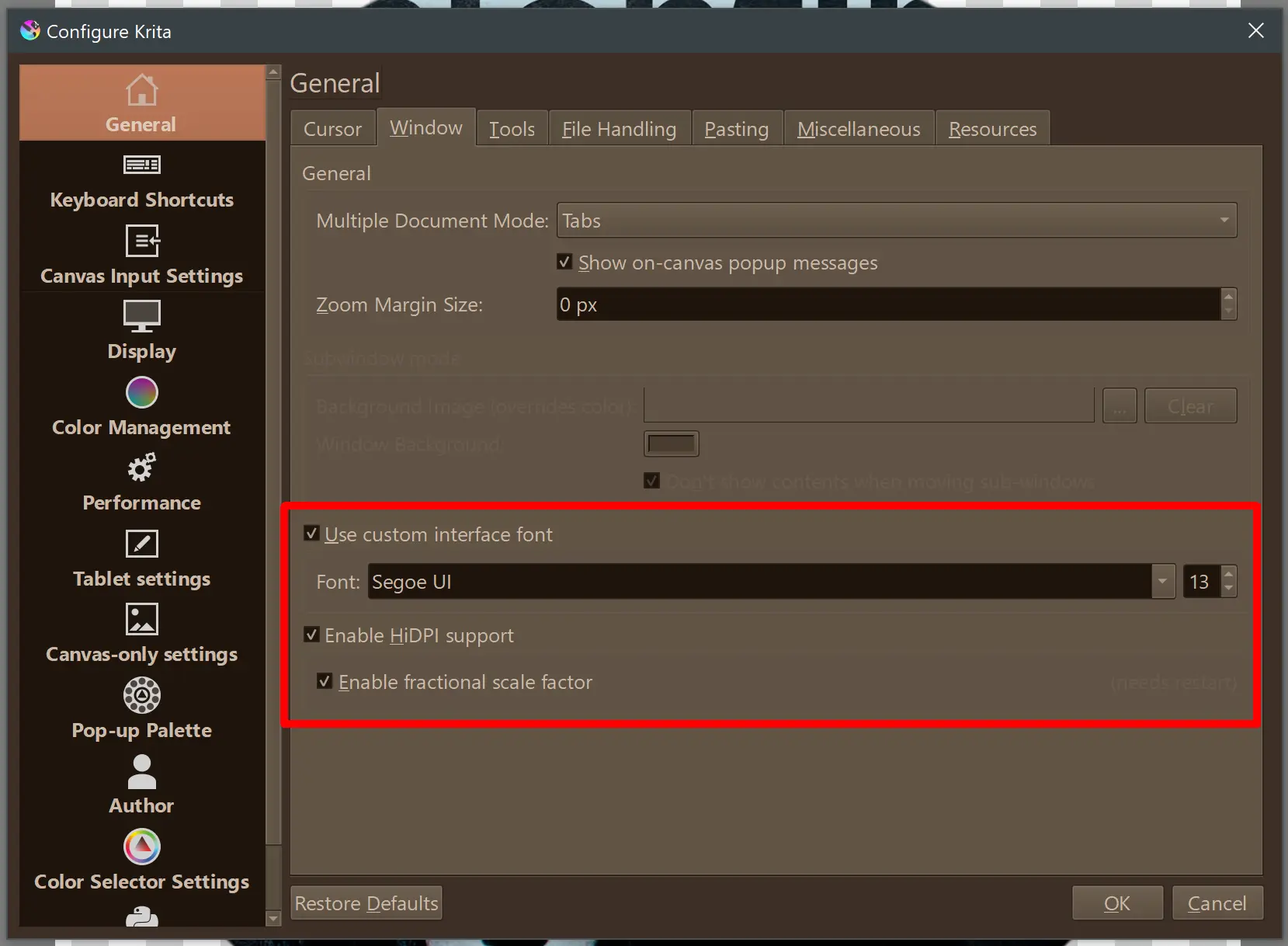
You can also use Krita’s own means to influence your Krita’s scaling:
It is found in Krita via ‘‘Settings’’ → ‘‘Configure Krita’’ → ‘‘General’’ in the tab ‘‘Window’’
This setting is used in a different Krita installation without using the before mentioned batch, here it scaled enough using a bigger and setting both hooks in the highlighted area. Both installations/settings are for a 32’’ 4k-display, and I’m happy with the results.
I think I’m gonna have to push back here if you don’t mind; So, I tried the batch file thing, and not only is it generally cumbersome, but it’s not a valid replacement for a built-in scaling option. I can’t even get it to work with opening .kra files from explorer, and my entire thing here is that getting a batch file to work isn’t at all convenient- even if it did work, there are plenty of artists who will never know how to find this information, let alone how to apply it.
Learning Krita has been wonderfully easy and straight-forward- which is rare for a program this robust. But by far the most amount of time I’ve spent re-adjusting to this has been just trying to get scaling working. Maybe 2 hours of frustration.
I also did try to set the custom interface font size, but changing the size isn’t really “working”. It’s not just the text, it’s every element on the screen. Sad to say, but those three settings, of which I’ve already tried many combinations of, didn’t help much
Out of curiosity, what’s the difficulty in simply having an input field under HiDPI settings that’s simply a scaling factor to be applied on launch?
I could argue HiDPI doesn’t work well on Linux, but on Windows it’s actually working as expected. I have a 4K screen at 150% and it looks fine (to me). However, it’s 28 inch.
I suppose the problem is that at 150% it’s still too small for you, yes? I don’t think it’s a DPI problem at this point, because that works correctly in line with the OS. Rather, it’s the problem that Krita doesn’t have a built-in UI scaling feature, apart from the customizable font. Overriding the DPI scaling could be treated as a hack, I suppose.
I can confirm QT_SCALE_FACTOR is working as well. If you want it enabled globally, you can add it to your default user settings, although it could affect other QT apps (but maybe it’s not a problem for your use case).
Run sysdm.cpl ,3
Click “Environment Variables”
Add a new user variable here, e.g. QT_SCALE_FACTOR with value 1.5 or similar
Yeah sorry it’s too small. Otherwise no issue. Yeah it’s not a DPI setting, that’s just me being too colloquial with the wording- it’s scaling
QT_SCALE_FACTOR as an environment did work, but Telegram, Nextcloud, and way more things that I didn’t expect to be QT were uncomfortably large. That’s what led me to want to make a post about it.
Looks like changing the OS display scaling to 200% is the only easy workaround. Other apps shouldn’t be that much larger if you are changing from 150%.
I don’t want to be too hard on anyone contributing to an open source project, but making my third monitor inconvenient isn’t an acceptable option. I don’t think we should accept a bad option (or options, as presented) in lieu of actually doing something.
For what it’s worth, I’m a money-where-my-mouth-is kinda person and if someone gives me a cursory paragraph on what to expect, I do not mind getting my hands dirty and contributing the change myself if needed. It’s just worth noting I am new to contributing, but not to programming as a whole
(I meant this btw- when it’s ported over to QT6 I plan on looking into contributing a much stronger UI/UX. It’ll be my final middle finger to CLIP Studio lol)
Sure, it’s always great if you can go look for yourself. I just feel this may be very challenging to do, especially with Krita being cross platform and HiDPI not even working well e.g. on Linux. Due to how the UI is implemented, probably the only bet is using Qt’s built-in scaling feature, i.e. this DPI handling (unless there’s something better in Qt6).
To me this is both difficult and there’s a decent workaround, so I doubt anyone else will try to work on it before you do. There’s a lot of other things that seem more important.
I think using the env variable is a good solution, with the only downside that maybe you can’t open kra files easily (although it’s probably doable with some tinkering based on Michelist’s suggestion).
Other way around; environment variables work with .kra files, but change the scaling of more programs than I expected. The batch file is the one that doesn’t work with opening .kra files.
I’m assuming that if you wanted the QT_SCALE_FACTOR to take affect, it would have to happen early in the application launch? I don’t know, I guess I’ll look into it. QTs built in scaling worked well it’s just that getting it to apply to just Krita, but always Krita is frustratingly roundabout/not even possible on Windows.
My whole thing here is I have to choose between two different sucks: just don’t use .kra files, or just let everything be huge in other apps. No solution solves both of these. (For the record I did try to ignore everything being huge but it was extremely annoying.)
That is your good right, no one is forced here to do anything to their installation they don’t want.
That is true. But I never claimed that.
I’m working around this simply by starting Krita via that batch when I start my PC, from then on I can start every file assigned to Krita via my file manager, because Krita already runs the file opens up in Krita. And I terminate Krita only directly before I shut down my PC.
That is your opinion on this.
That does not mean it couldn’t be easier, but it is a one time effort I have to invest my time in to set it up, and then I profit from it.
But to ring out a setting via trial and error once, enables me to use this software in the future with the scaling I like. If you found your scaling factor, you can start Krita via this batch and it will show up properly scaled.
Possibly could! I spent hours over about two three days faffing on it and I sadly just don’t have the time to get that working well. Let me know what you find, I think it would work as at least a good stop-gap
At the end of the day, I’m genuinely (whether believed or not) not out for myself here. My boyfriend told me how he tried Krita a while ago and he (who I would think better represents the basic user) couldn’t use it. I may be the only one who complains about this, but I’m not the only person who’s tried Krita who’ve run into this scenario.
I think it needs to be natively and easily supported, full stop. As I said above I’m willing to use a batch file as a stop-gap, but not as a solution. (I’m also just straight up not willing to have Krita run on start-up, to get base functionality scaling.)
Keep in mind, I’m not just mindlessly complaining, I’m opening a discussion and offering to fix this myself. Point me to the resources and I’ll make it happen.
Does anyone know of any Qt apps that actually have a UI scaling option? It seems designed to use the display scale from the system without providing a way to modify that other than the env var. So the only way I can think of is to try and modify the env var during startup before creation of the QApplication.
Telegram! Although I think it’s worth mentioning that there was a stark difference between the result of setting the Windows env variable (causing a pixelated mess) and the setting it in the Telegram settings (perfect scaling). So I don’t think it’s an apples to apples comparison.
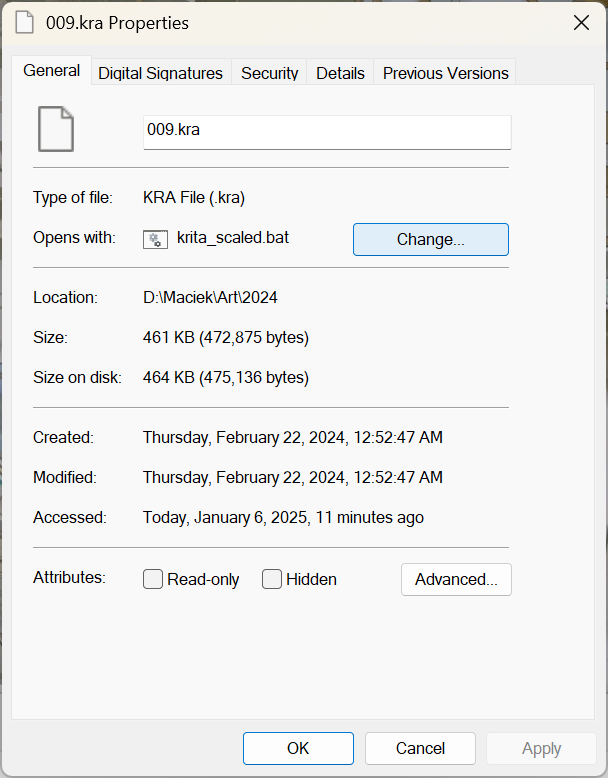
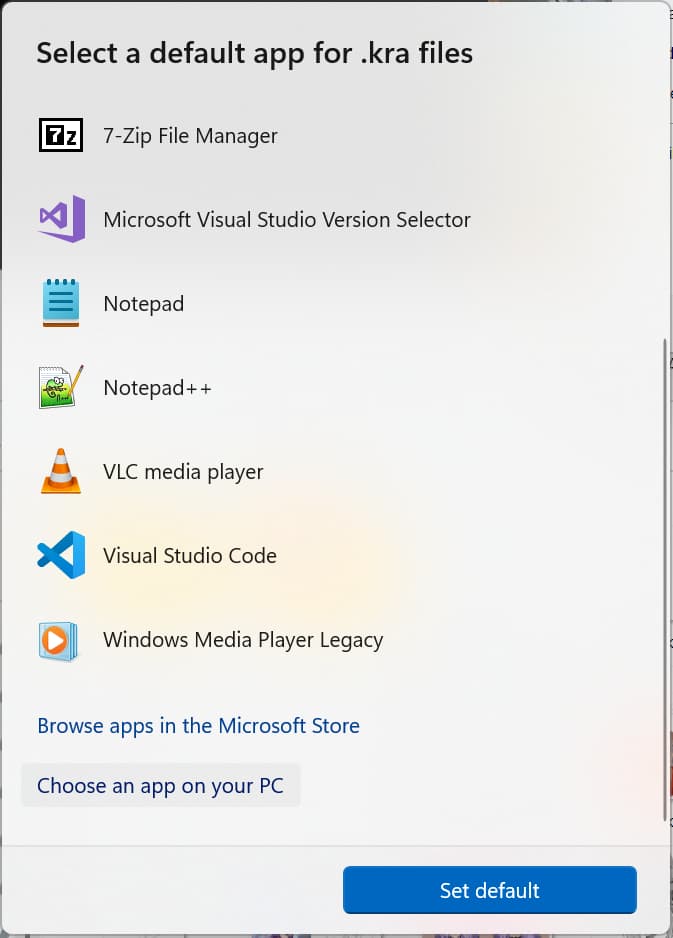
If everything worked correctly, your BAT file will be visible in “Opens with” like in my screenshots.
Pinning the shortcut to Start
A bat file can’t be pinned to Start… You can create a shortcut to cmd and pin that instead.
Find your bat file, hold down ALT and drag the icon to the side. This will create a new link to the bat file.
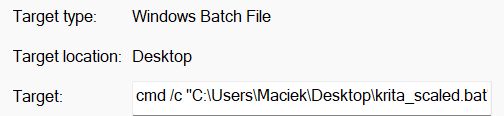
Open shortcut’s properties and modify the “Target” filed. Add at the beginning: cmd /c
It should look like this (will point to your own Documents folder, etc.):
Right-click on the shortcut and select “Pin to Start”.
If you are bothered by the icon, you can use “Change Icon…” in the shortcut’s properties, then navigate to the krita.exe location and select that file. The icon will be inside.
Pinning the shortcut to the Task Bar
Now that you have the shortcut ready, simply drag it to the task bar. It will use the icon from the shortcut, at the time of pinning it.
The best thing about computers is looking at something for actually years and only realizing it’s even an option when someone points it out. Thanks for pointing that out