I’m trying to use separate brush and eraser tools in Krita, each with their own distinct properties (size, opacity, etc.), using the B (brush) and E (eraser) shortcuts.
The separatebrusheraser.py script seems to be designed for this purpose, but I’m surprised there isn’t a native option in Krita for this—it seems like a natural feature for a digital painting tool ? If there is a built-in way to achieve this, please let me know!
Problem: When I switch from a large brush to a small eraser (using the E key) and then back to the brush, the brush size changes unexpectedly. It doesn’t adopt the eraser’s size, but rather some other incorrect value, even though I haven’t manually adjusted the brush size while using it. This is quite frustrating, as I constantly need to reset the brush size to continue working.
Expected Behavior:
Brush and eraser should maintain independent sizes and opacity (e.g., brush=50px, eraser=10px).
Switching between them (via E or the script’s actions) should preserve their individual settings.
Question: Has anyone else encountered this issue with the separatebrusheraser.py script? Are there alternative scripts or fixes to maintain stable, independent tool sizes when toggling between brush and eraser?
If there’s a native way to achieve this in Krita, I’d love to know how!
I’m new to krita (trying to find my way out of photoshop, and the scripting part led me to chose Krita over CSP - but a lot of small things are a little bit frustrating to me so far haha)
Thanks in advance for your help, & have a nice day
In Krita erasers are just brush presets like any other. The “E” key (in vanilla Krita without any plugins) will set a brush into “eraser mode” which lets you basically “unpaint”. This has the advantage of having the same dynamics and textures, making erasing seamless.
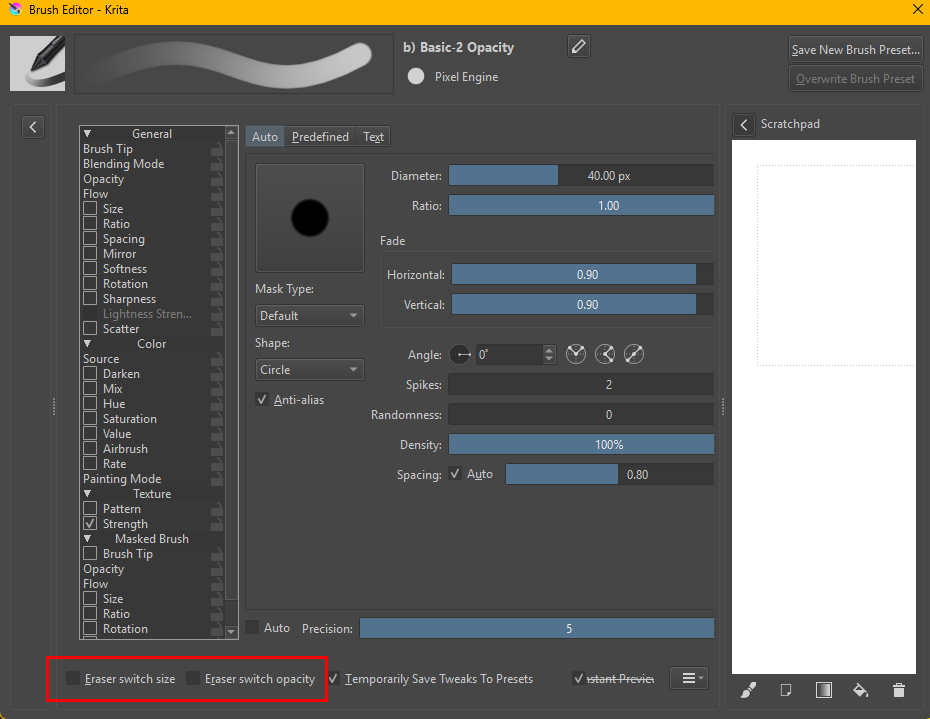
Brush presets have a setting that allows them to have separate opacity and size when in “eraser mode”
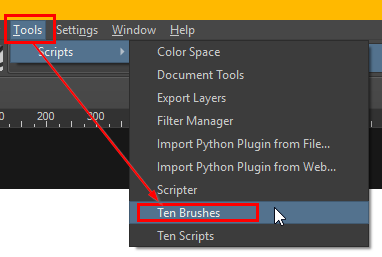
For changing to another brush preset completely Krita has several methods. Since Krita doesn’t treat eraser presets like they’re special, you can either use the eraser end of your stylus to select an eraser brush preset for it (my preferred method because its easy). That way you can change to your favorite eraser by simply flipping the pen. Or you can put an eraser (or any brush preset you want) on a shortcut using Ten Brushes
First of all, thanks so much for taking the time to help me out—I really appreciate it! It’s amazing how much faster and more helpful opensource communities can be, compared to proprietary software forums.
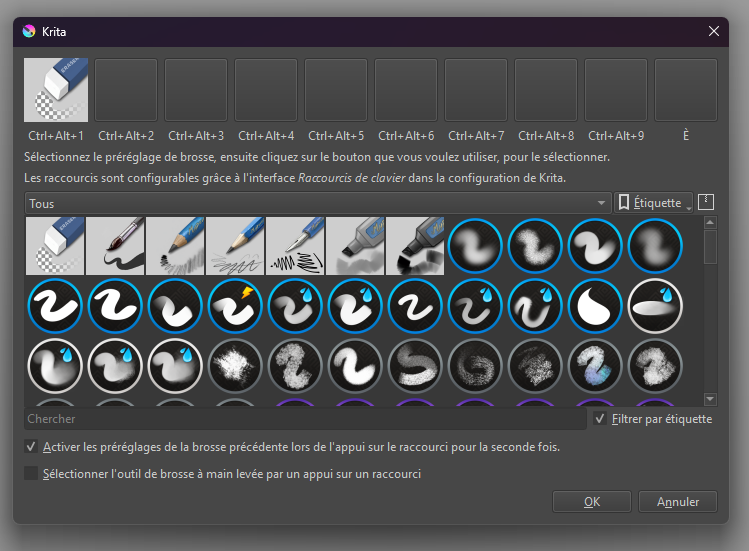
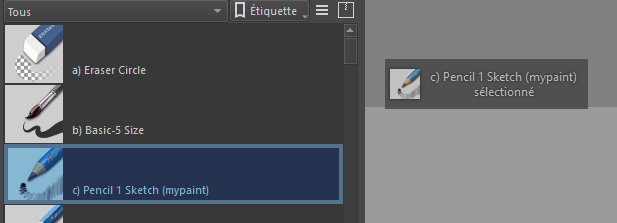
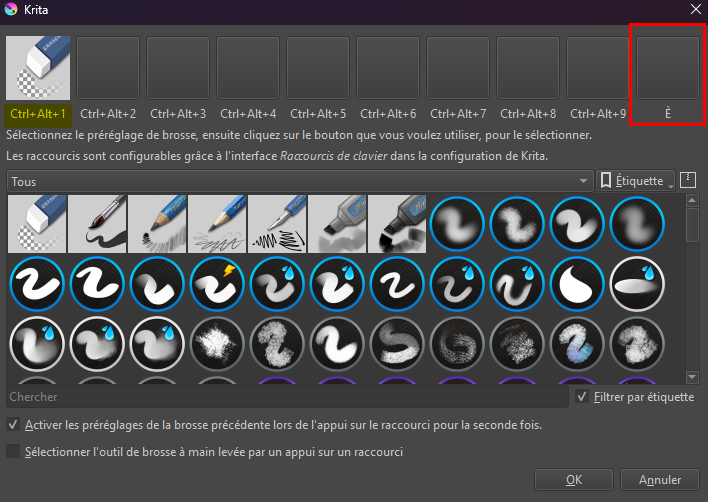
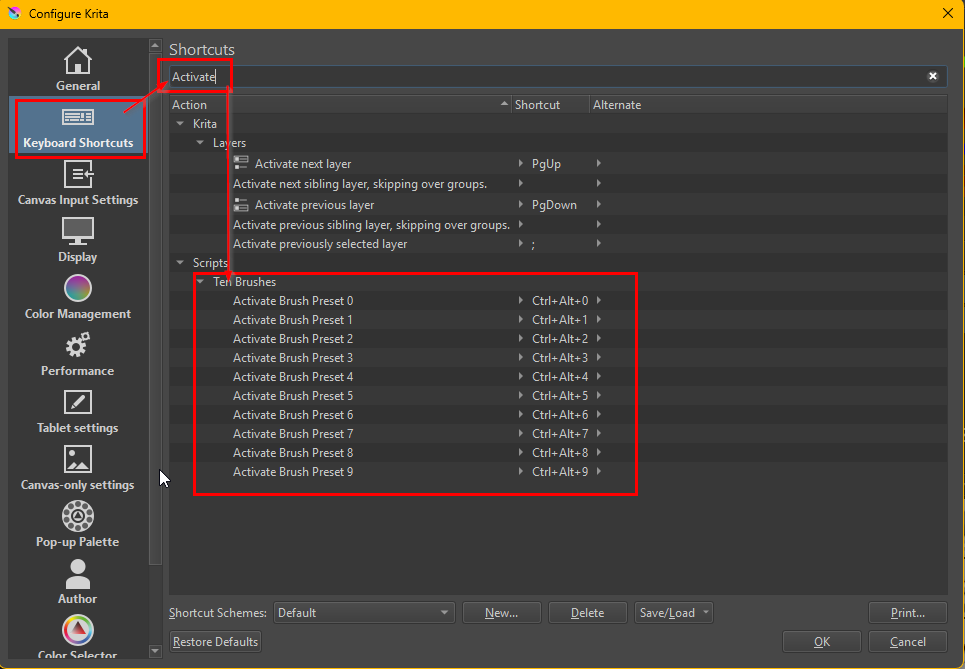
Takiro: I gave the 10 brushes script a try, setting the first brush as an eraser and assigning the shortcut to “E.” As far as I can tell, there’s no conflict with other hotkeys. However, when I’m drawing with a brush and press “E,” a small popup appears next to the toolbox, simply showing that I’ve selected my current brush (and not the eras).
I initially thought the “separate eraser/brush” script might be causing this, but it’s no longer installed. The issue persists, and I noticed that the script’s shortcuts are still listed in the settings—though no hotkeys are assigned to them. How can I fully remove these leftover shortcuts now that the script is already uninstalled ? They don’t seem to be causing conflicts, but I feel like it’s always better to clean up residues like this. :v
I’m not a huge fan of using the other end of the pen for erasing—it’s just slower for me than pressing a key, especially in the long run. Plus, the display tablet I sometimes steal to my SO (besides my Intuos) simply doesn’t have an eraser tip haha
Michelist: Thanks for the suggestions! The first plugin you mentioned is actually the one I was using—I’ll report the issue to the developer.
The second one, though, seems to be exactly what I was looking for!! I’ve installed it, and so far, it’s working perfectly. Hopefully it’ll stays that way
Oh, okay, my bad, I get it, it was actually set on Ctrl+Alt+0, the first to show up in the hotkey settings, and I thought it would correspond to the first preset on the list
To fully remove it from Krita, you need to open your resource folder:
You can find your resource folder via the menu Settings > Manage Resources... where you have to click on the button Open Resource Folder, which will take you directly into your resource folder.
For an alternative way to get there see footnote ¹
In your resource folder enter the folder pykrita and delete the folder separatebrusheraser and the file separatebrusheraser.desktop from it. Now leave that folder and take a look into the folder actions for a file named separatebrusheraser.action, a file that can but must not necessarily exist, and if it exists delete that too. Restart Krita two times, and all remains of this plugin should be fully removed from Krita’s resource database.
Michelist
¹ Alternatively, you can browse with your file manager to the folder that is shown to you in the tab Resources that you will find via the menu Settings > Configure Krita > General, it is the tab at the right end.
 Hello
Hello  ).
).