This point is there to make sure even people with a mouse could use it with a nice result
3 Likes
yeah hello, for some reasons the files can’t be added to Krita. It says that Krita doesn’t support this files format. Is there anything I could do
How are you trying to import the files?
Well I downloaded as zip
 Hello
Hello Well I downloaded them as zip
That does not answer my question. What have you done with that ZIP file? The thing is that you have to unzip it to get its content, and in there will be a file with the file name extension bundle, that is the file to install in Krita via ‘‘Settings’’ >> ‘‘Manage Resource Libraries…’’ >> ‘’+ Import’'.
Michelist
2 Likes
Export the zip. Open krita, resource manager and import the .bundle file.
?
It has to be unpacked, not exported.
Michelist
1 Like
After unpacking it you will have three files:
Sketch V2_USER GUIDE.pdf
Sketch_V2_with_TILT.bundle for tablets where the stylus supports tilt function
Sketch_V2.bundle for tablets whose stylus doesn’t support tilt
You should select the one of these bundles that corresponds best to your tablet’s specifications, nowadays, it will most likely be with tilt, but there are older tablets or cheap/no name brand models without tilt out there.
Michelist
1 Like
I opened the zip, found the one I need and there it is saved as Krita file. And everytime I press on it, it refuses to open in krita.
I wrote to you how you have to install a bundle, why do you refuse to read my instructions carefully and do not follow them?
In Krita, you have to open the menu
‘‘Settings’’
there you select
‘‘Manage Resource Libraries…’’
where you have to click on the button
‘’+ Import’’
that will open a little dialog window which allows you to browse to the unpacked files, select the file you want to import, so either the
Sketch_V2_with_TILT.bundle
or the
Sketch_V2.bundle
After you have selected the file you want to import, the selection you made has to be confirmed with a click on the OK-Button of that dialog (and the OK-Button can have a different name than OK if you use your computer in a different language than English),
after you clicked that OK-Button Krita will import the file you selected before. Now you have installed that bundle into Krita and can use it.
Michelist
2 Likes
could you give us an screenshot of the issue? please.
1 Like

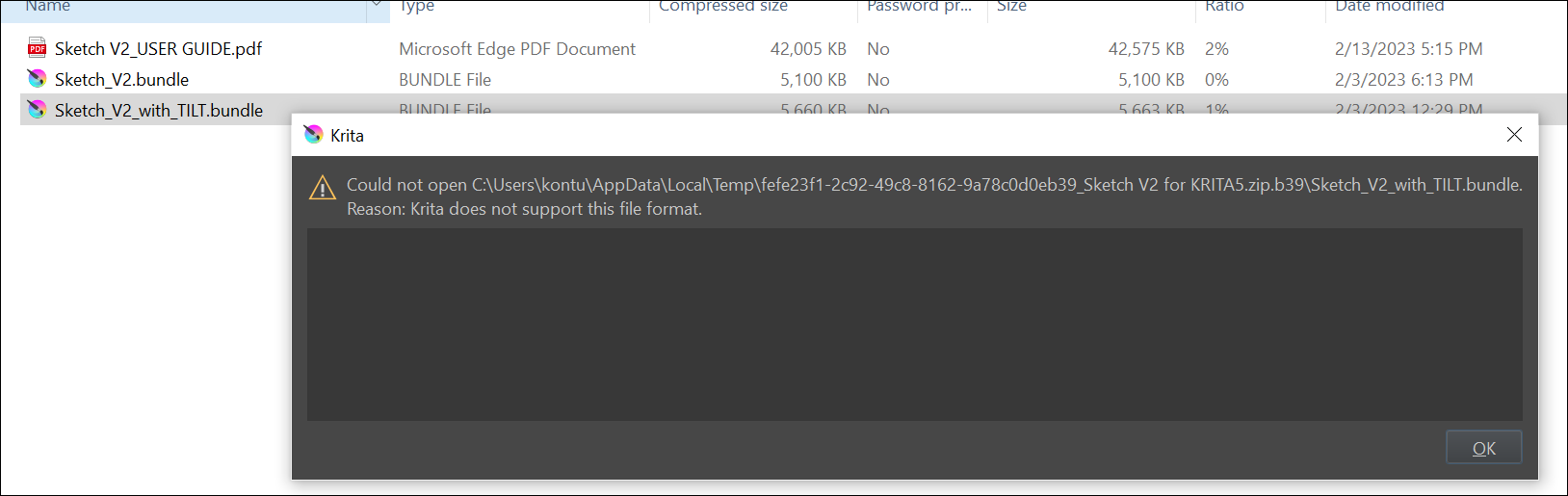
Oh yeah, I was about to watch a show when I wrote the post and I didn’t realize what I was writing. Because I wasn’t paying attention. Sorry 
1 Like
When I go to import the file, it shows that the files do not exist.
Even though I have them, he can not identify them.
You have not unpacked the files out of the ZIP-File containing them. A ZIP-File is a container, in these containers you can conveniently put a (lot of) file(s) and additionally you can reduce their size using compression algorithms.
The important thing for you, is, in order to install one of the bundles contained in that ZIP-File, that you unpack them from that ZIP-File, as I asked you to do before.
When there are things that you do not understand, then you should ask how something is meant, or how you have to do this or that.
Since you are a Windows user, open Windows Explorer and browse to the downloaded ZIP-File Sketch V2 for KRITA5.zip and do a double click on that file to enter it, once in your container click and hold down the mouse button on the file Sketch_V2_with_TILT.bundle and drag it out of that container onto your desktop and over your desktop you can drop the file Sketch_V2_with_TILT.bundle by releasing the mouse button.
Now you have unpacked the bundle you want to install into Krita!
The next steps are those I described above. So:
In Krita, you have to open the menu
‘‘Settings’’
there you select
‘‘Manage Resource Libraries…’’
where you have to click on the button
‘’+ Import’’
That will open a little dialog window which allows you to browse to the unpacked file
So browse to your desktop and select the file you just dropped onto your desktop: Sketch_V2_with_TILT.bundle
After you have selected the file Sketch_V2_with_TILT.bundle you have to confirm the selection you made with a click on the OK-Button of that dialog.
Now you have to click on that OK-Button and Krita will import the file you selected before.
Now you have installed that bundle into Krita and can use it.
Michelist
4 Likes