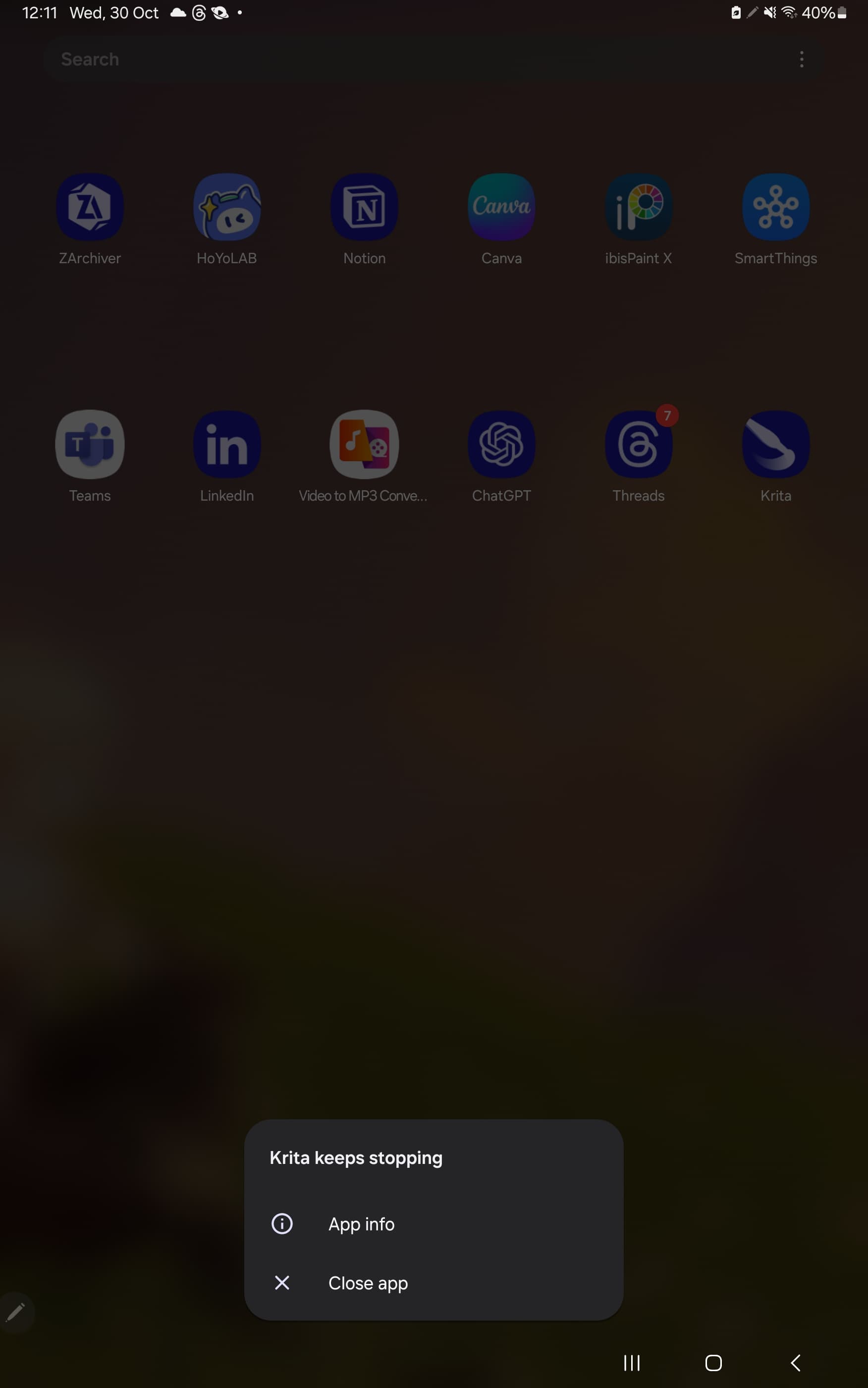
Yes, regardless of the version, you can open your files.
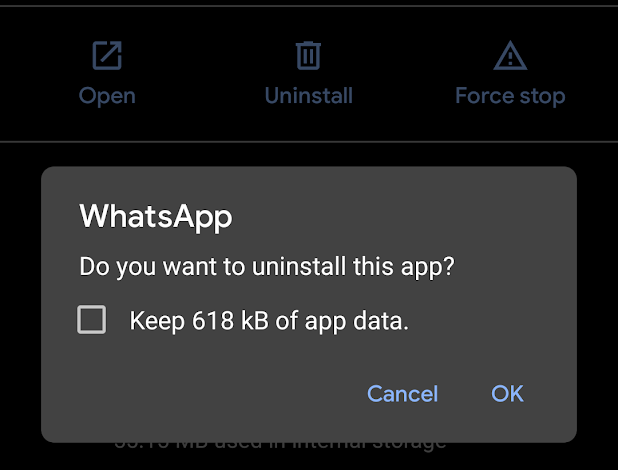
When uninstalling, remember to check the checkbox to not delete the app data and when reinstalling you will have everything as it was.
The app does not crash in previous versions. It could happen sporadically, like any program that has existed and will exist, but I don’t remember it ever happen to me.
As far as I can tell, the configuration and brushes are stored in different folders for Krita Plus and the released Krita. That might be a problem.
Today or tomorrow we will also make a temporary release of Krita Stable, but outside the Store, which will share the settings with the Store version.
About the presenvation of the documents I’m not sure… Theoretically, the documents should be stored in the user folder, outside the app settings folder, but it might depend on the manufacturer of the tablet…
@dkazakov Thank you beloved leader! You are our salvation
@Erwan I can confirm that on Samsung, when uninstalling the app by long pressing on its icon, I was given the option to save all data. While on Oneplus, that option was not present, instead a warning message appeared saying “If you uninstall the app, all data will be lost.”
There’s no problem if you leave beta testing. The latest stable version will simply be installed. In this case, 5.2.3 instead of 5.2.6.
Thank you very much, it successfully worked. In my case, I installed the 5.2.2 version in the link you sent above but I guess there is not much difference
Hii, Since like from 2 days now ive been trying to open the krita app and it keeps saying its not responding.There is no problem in form of avaliable space in my tablet (Galazy tab S9+),Ive tried uninstalling and reinstalling and even deleting some of the none important art work but kept some good art work and a few animation projects saved in my device.
Please suggest me ideas i could try to fix this issue ,
I want to continue my animations .
Thankyou
I closed your thread to move your post into the existing one where everyone else is sharing solutions to the problem that occurred with the last Android update. Read the thread for the solution(s).
If you got the app from the google play store, are you in the beta testing group? If you are, delete the app, find the google play listing for Krita and leave the beta testing program (it can take many minutes to fully remove you). And when you reinstall it, it should come good again.
I had this issue as well, and I had to clear my data (my pallets/workspace and such, but not my .kra files (you should consider backing them up to another folder, it’s a good rule of thumb - just incase)) when I uninstalled it, or it wouldn’t run.
That seems to be the case but make sure you install a the correct version which is advised in the many details in previous replies.
(I don’t use Android myself so you may want to wait to get confirmation.)
I can confirm that Krita is working again on my Galaxy tab S8, after I left the beta testing group and reinstalled through the google play store. (I did lose my settings though, but if that doesn’t matter to you, then it’s fine.)
Im on Samsung tab s8 ultra and im experiencing this same problem as yours. Ive been using Krita the same day as i got this tablet, and this is the only device I mainly do digital work in.
Tried clearing cache, deleting old files, tablet reset, all the works but Krita won’t open. Hoping this issue is fixed becuase Krita is the only way i can create my portfolio
Are you signed up to the beta program on the google play store?
If you go to the settings app → Apps → Krita, and scroll to the bottom of the page does it say version 5.2.3? If it does, then idk what the problem is. But if it says version 5.2.6, then the beta program (or if you’ve installed that specfic .apk file) is the issue.
@Kronkrito and @KrissieDeathy The problem is solved by leaving the Beta program in Google Play, uninstalling and reinstalling the application. On samsung it should say “Keep data of the app” or something similar. Check that before uninstalling or you will lose all your configuration data, you will not lose your drawings.
If you are unable to download the app again from the Google Play Store, you can download it from the following official link, choosing the version appropriate for your tablet’s processor.
@sooz@AhabGreybeard
Can you please edit the topic title to say “Solved” at the end?
It would also be nice if the first post included a link to any other posts explaining the solution. If necessary, I can prepare a post with all the detailed information with screenshots.
I think an existing convention is to put [Solved] at the beginning of the title so I’ve done that.
Thank you for offering to do that.
I think all that is needed is a reply from you containing suitable text with links to the appropriate replies in the topic.
If you want to do screenshots then go ahead.
Edit:Add: Quick thought: Instead of screenshots, you could use the standard Quote facility, as I did above for what you said in your post.
*I don’t want to take credit for this, as it’s all thanks to the Krita community. I want to thank everyone who has contributed to it. @Jjjjdoodles@jaoqe@dkazakov *
Uninstall the app. If your device has this option, you will see a message warning you that you can keep the app data so that when you reinstall, everything will be in place. Warning: This data is from the app settings, your drawings will remain intact even if you delete the app data. The message is similar to this:
Enter google play store and leave the beta program of Krita if you joined it. You should have something similar to this (sorry, is on spanish, is the language of my tablet) This button circled in red should say “join”. This is how you’ll know you’re out of the beta program:
Wait a few minutes and re-open the Google Play Store to be able to reinstall. If it takes too long, you can install the app from a Google Play session of the same google account on a PC, choosing the tablet as the target device to install it.
If you are unable to install it this way, you can try downloading the apk from the official Krita releases website. Choose the version that suits your device’s processor. Here are some of the links that users have confirmed to work:

 .
.