Some layers in animation get automatically cropped/trimmed. Is there a way to disable this?

Hi, recently I’ve been experimenting with making animations in Krita and I’ve encountered a bit of a problem.

I often use moving/rotating layers for special effects (mostly moving simplex noise for flames, smoke, etc.). The moving layer will often have sections which continually move outside and back inside the canvas.

The problem: sometimes parts of the moving layer which are outside the canvas get cropped/trimmed. Usually this happens when pasting in an animation copied from a different .kra file (layers in the pasted animation get cropped), sometimes it happens when switching to a different frame in the timeline, and sometimes it seems to happen randomly, for no apparent reason. Sometimes the moving layer survives unscathed, but a filter layer on top gets automatically cropped with similar results.

The results usually range from small but noticeable artifacts to massive artifacts which completely ruin the animation or even large sections of the animation getting completely deleted.

Not sure if it’s a bug or if there is a setting somewhere that needs to be turned off and I just didn’t find it yet.

My question: Is there a way to disable ALL automatic cropping/trimming of layers?

I don’t want any layer to ever automatically crop itself without my explicit approval. I’ve already disabled “Trim files before saving” and “Trim frames when importing animations”, but it didn’t help. I’m also pretty sure I’m not accidentally cropping the layers myself (sometimes a layer gets automatically cropped when I’m not even touching the mouse/drawing tablet/keyboard).

Hardware/software/etc:

Krita version: 5.2.2, problem occurs both in the package manager version and in the AppImage

OS: Linux 6.8.1-arch (EndeavourOS)

Other relevant software: KDE Plasma 6.0.2, KDE Frameworks 6.0.0, Qt 6.6.2

An example of my problem:

A single frame exported from an animation - I used a moving simplex noise layer to deform the text. The frame has visible artifacts:
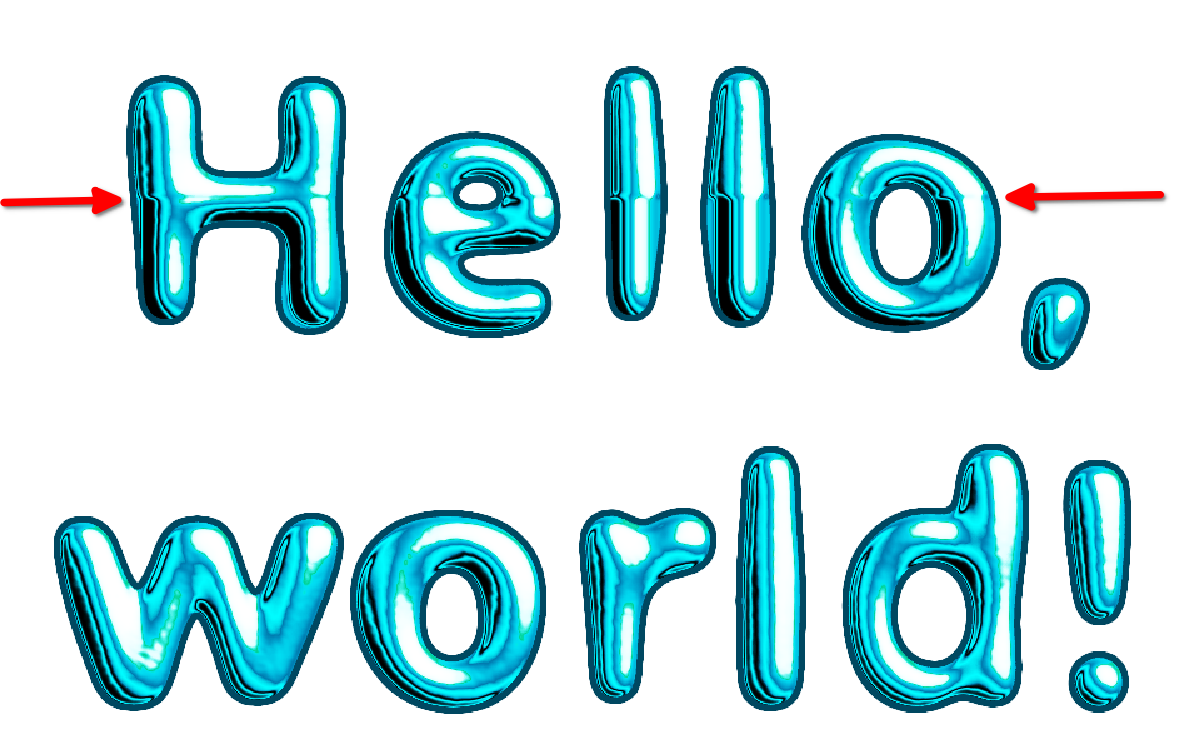
The artifacts are caused by a moving layer getting cropped. The top part of the frame contains a moving fill layer with simplex noise. The bottom part contains a clone of the moving layer with a transform mask translating it downwards. Both layers should be touching, but the top part of the clone layer gets automatically trimmed, hence artifacts:


1 Like

Does your recent animation here: Moving liquid metal effect
mean that you’ve fixed/solved this problem or got an understanding of it and a workaround?

No, I have not resolved the problem.

With this animation I was lucky and the artifacts only happened when previewing and exporting individual frames (bulk export of all frames was fine).

However, I had other animations in the past where the issue was much worse and also persisted in the rendered GIF. The text animation was the most recent case where the problem occurred (although not in the final render), that’s why I posted it.

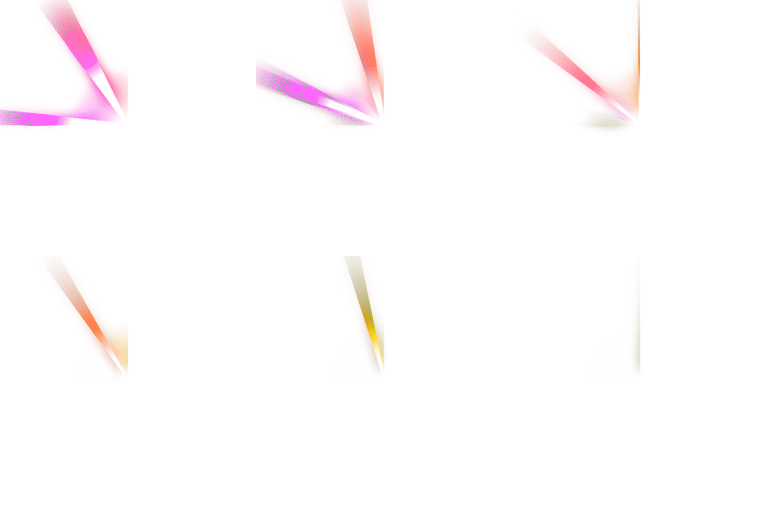
Here is an example where the cropping persists in the rendered GIF:

I have a finished animation with rotating rainbow light rays (1024 x 1024px) which doesn’t experience the problem:
2024-03-25-godrays-256p

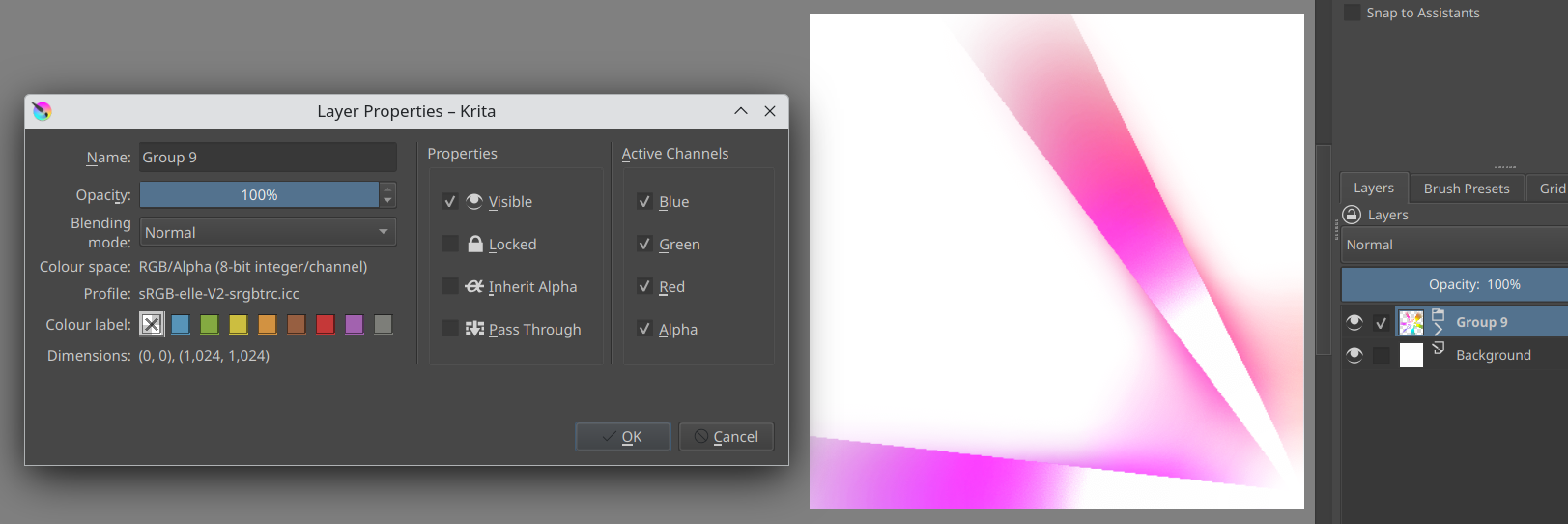
Now I want to reuse the same effect in a new animation. For various reasons the new animation has a lower resolution (512 x 512px). I copy the group containing the rotating light rays from original animation and paste it into the new animation:

The pasted animation doesn’t fit in the canvas, so I’m going to resize it using a transform mask:

After pressing the play button, the animation immediately crops itself. The issue persists in the rendered GIF:
2024-03-29-paste-crop-bug

Unfortunately in this case I can’t figure out what exactly gets cropped. There is a filter layer in the pasted group which appears to be incorrectly cropped when looking at the thumbnail and another internal group underneath which appears to not be cropped (again, looking at the thumbnail), but if I disable the filter and leave just the (seemingly) uncropped internal group the result still appears cropped.

Can you make a copy of the 1024 x 1024 .kra file containing the animation and then strip out everything except the group containing the rotating light rays?
Then make that stripped down .kra file available via a file sharing service/website.
I (and possibly others) could then try the process of copy/pasting it into a new animation of 512 x 512 then doing the scale down by transform mask, in order to try figuring out what may be going on.

If you scale down the original 1024 x 1024 .kra file to 512 x 512, does that work?
Can you then do the copy of 512 x 512 over to the new 512 x 512 animation document?

Hi, I’ve done a bit more testing and now I’m pretty sure this is a bug.

Here is a (AFAIK) minimal .kra file which reproduces the problem when pasted into a new file with a smaller canvas:

https://drive.google.com/drive/folders/1auwqPrxDqhTsZcbDJrBF1fecYOOpf5Zf?usp=sharing

It seems something is going wrong with the filter layer. Disabling the filter layer or moving it outside of the group containing the transform mask stops the problem from occurring. The type of filter doesn’t seem to matter (I’ve tested Color Adjustment Curves and HSV Adjustment).

Unfortunately scaling the original animation down to 512x512 doesn’t work, looks like resizing the .kra file completely breaks transform mask animations (I’ve included an example in the linked Google Drive folder):
2024-03-25-godrays-glitched-resize

What’s happening in the copied over 1024 x 1024 group is that the centre of rotation is no longer in the centre of the image.
If you play the animation then it looks as if the expected off-canvas content has gone but if you use the Move tool on the Rays layer then you can move it back onto canvas to see it.

Scaling the image and Resizing the canvas has generally bad effects on the coordinates for the centre of rotation and possibly the Postion transform values.

One ‘trick’ I used to use was to make a canvas that was bigger than the final intended size so that it included all off-canvas content. Then I did any animating work on that.
Then Rendered to image sequence, brought the sequence into a new document as frames, then Cropped the entire animation down to the intended final size/position.

That is a crude and horrible method and it is tedious but it’s easy and it does work.

This entire area needs to be looked at and investigated with appropriate bug reports made.

1 Like

This topic was automatically closed 30 days after the last reply. New replies are no longer allowed.