I don’t remember exactly what I clicked on, All I thought was that i was just configuring the toolboxes. And then I believe I clicked ‘Cockpit (Laptop)‘. And my Krita lost every tools! All I see is my drawings and canvas but no tools whatsoever. Please I need help!
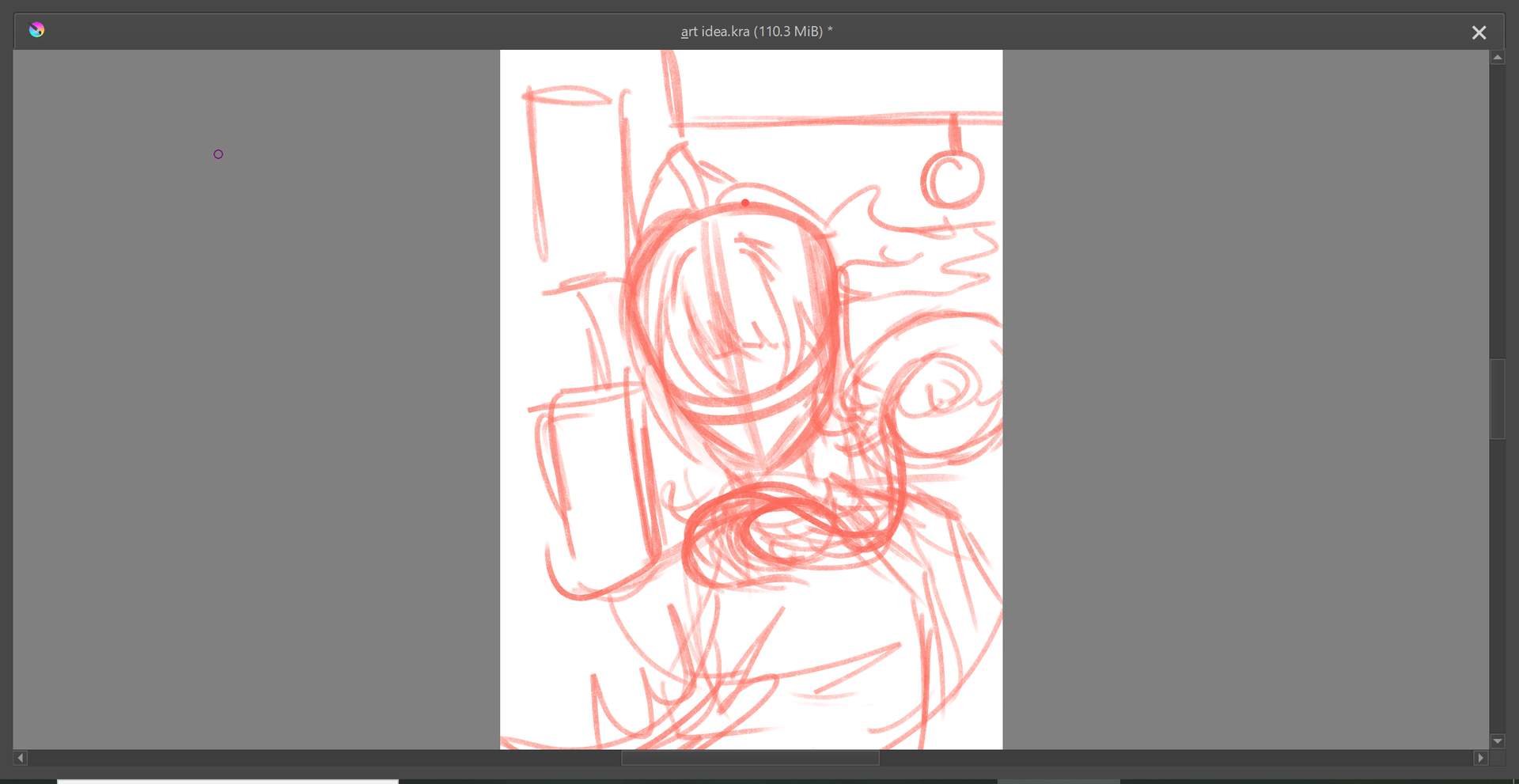
Sir, I believe that you pressed Tab
I clicked tab multiple time but the result still remained the same  , I have tried pressing tab to find the setting but I couldn’t
Weird, maybe “detach canvas” then? You can try checking by pressing Ctrl + Enter, I’m quite certain you can find the option there
Edit: hold, is the window title bar appearing? cuz if not, it’s possible to be on fullscreen mode (although that it wouldn’t explain the dockers disappearing)

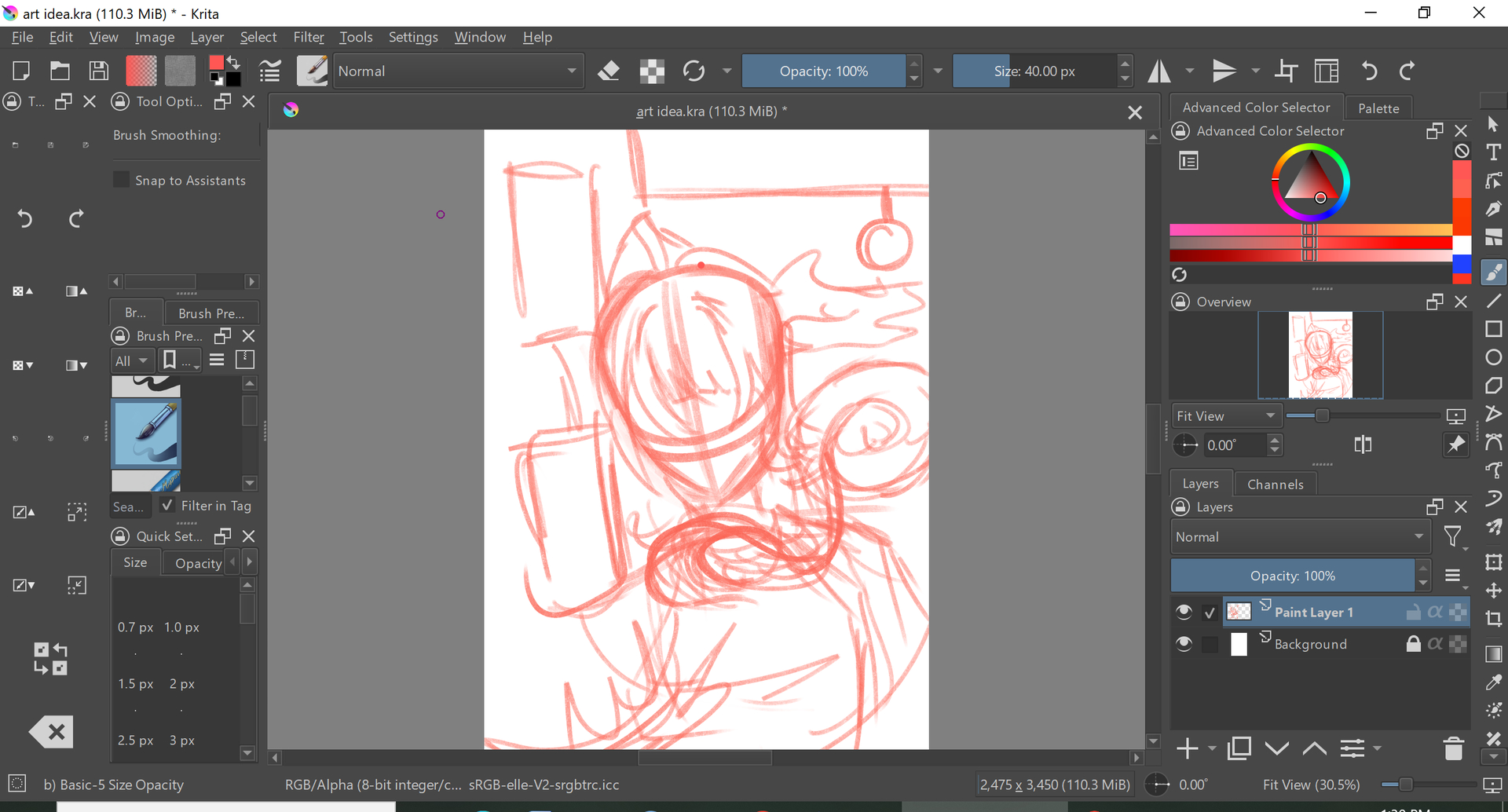
That looks like Cockpit (Laptop Mode), from the Workspaces → Window Layout settings.
This is an area I’ve never understood so I stay away from it.
Try selecting the other layout from the available Window Layout options.
Also, select the Default Workspace if that doesn’t work.
Thank you! Now I know I should avoid it, I Honestly thought that I was configuring the tool bars with it 
Windows Layouts is useful if you have more than one monitor and want to have different multi-monitor UI layouts for different purposes. I have two monitors and I don’t understand Windows Layouts so I stay away from using them.
Workspaces, above the Windows Layouts area are very useful and are the saved different arrangements of dockers that you might want to try. A variety of different workspaces are provided when you first install krita, with names like Default, Big Paint etc.
Many people make their own named workspaces as can be seen here:
Share your painting Setup!
Workspaces will store the docker arrangement of a two monitor setup because the position of floating dockers is stored as well, not just the ones that are ‘docked’ in the main window as you can see from my reply in that topic.
For Toolbars, you can arrange their icons with Settings → Configure Toolbars.
The Toolbar can only be docked at the edge of the main window and the top or bottom edge is best. Left/right edge docking looks bad because of the wide items on the toolbar.
If you try it then you’ll understand what I mean.
The toolbar internal layout can not be saved as a named arrangement. If you want it different then you have to use Settings → Configure Toolbars.