I still have the same problem as this person Blending brushes arent blending properly
I changed the color space and tried different ones but it still won’t blend.
I still have the same problem as this person Blending brushes arent blending properly
I changed the color space and tried different ones but it still won’t blend.
The person in the post you linked created their blending problem by using a different colour space. Is that what you’re doing?
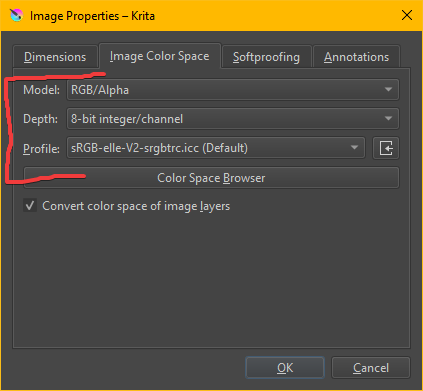
Are you still using the default colour space (RGB/Alpha 8-bit)? That’s what you need if you want the blenders to behave properly.
I’ve tried all the color spaces and modes and different combos. I also went back to default and tried reinstalling Krita. 8bit is what I had originally when I had the problem.
What we would need to properly help you is a video or a screenshot showing the entire workspace, including the bottom status line and the layers docker. Video would be best, if you can do it. Also let us know which operating system you’re using (Windows, Linux, Android, etc.).
2022-10-23 13-12-40_Trim (my video)
Video (2) (Another person’s vid)
I have Windows 11 and the latest version of Krtia
Tablet: XP Pen Deco 01 V2
The other person’s video is cut off so I can’t see the parts I need to help with that one but your video clearly shows what I mentioned earlier. You’re not using the standard RGB 8-bit colour space. Read the status line at the bottom of your screen; it shows you’re on 32-bit.
Go back to the standard settings and the blenders will work beautifully.
RGB/Alpha (8-bit integer/channel) sRGB-elle-V2-srgbtrc.icc
You can do this by opening the Image menu and clicking Properties, then go to the Image Color Space tab:
You may also have to set this the next time you create a new file as Krita remembers what you used most recently but I don’t think it will pick up on changes made inside a single document.
Like I said previously (8-bit integer/channel) sRGB-elle-V2-srgbtrc.icc is what I originally had when I had the problem and even then I have tried multiple times to change to it to see if there were any changes but it’s still the same problem.
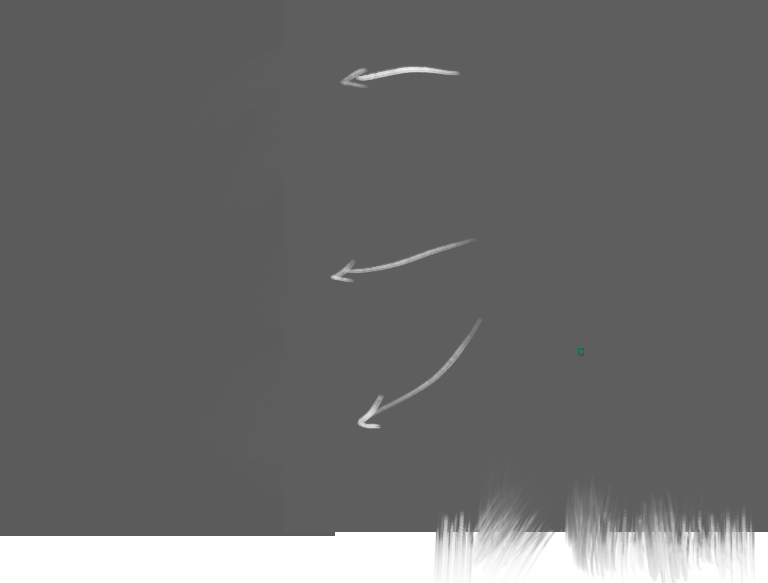
I demonstrate it here. Program Files 2022.10.23 - 18.52.06.02_Trim
I appreciate the help tho
Hi, in your last video you are trying to blend an RGB(91,91,91) to an RGB(94,94,94). It leaves only 3 steps on the 255 possible gray (8bit) to do a blending between the two.
The only solution would be to use a blender preset that produces some dithering pattern, the pattern would help to visually blend one color into another. (you can assign a pattern with the brush editor to the preset you use to test). A common trick is to use also a more chaotic brush-tip and not a rounded tip.
Human eyes are good at differentiating large area of flat colors, even with very close hue. Zoom in: the larger the flat area gets, the easier it is to differentiate both of them. Zoom back; they might almost merge visually. That’s why it’s interesting to work with painterly strokes or texture.
If you don’t calibrate your monitor, you might get weird gamma curves that make two digital neighbors’ color address feels more different than what they really are. I also would advice painting on a wider range of tones and contrast to avoid banding issues.
16 or 32 bit depth might have thousands more steps between the grays, but I assume your monitor is 8bit so you can’t preview it (even if the blender does a good job under the hood).
I see. Thank you guys for your help, I really appreciate it!
This topic was automatically closed 15 days after the last reply. New replies are no longer allowed.