Nothing we human make is original. Or to put it another way: There’s nothing new under the Sun. All the ideas that you have came from somewhere or influenced by something outside of yourself. That creature concept you came up with that you think doesn’t exist in real life actually came from real life, no matter how distorted and out of this world it looks. You were influenced by many things to come up with that concept. Beginners often think that if they just close their eyes and think hard enough, then great ideas will come. Or that to be original and creative, they must not copy or imitate. The truth is that the more we see, hear and read the easier it will be to create and improvise as an artist. If A.I. requires a massive amount of data taken from other artists, how much more it is with us. A lot can be said on the usage and gathering of references, a topic for another time, but here in this quick walkthrough I want to share my workflow involving photo references.
I have searched high and low and never thought that XnViewMP would be the right one for Krita artists: Powerful Image Viewer· XnView MP | XnView.com . It’s free and cross-platform. In this post I will convince you why XnViewMP is the better choice. I have installed and deleted XnViewMP many times in the past because its interface isn’t that appealing at first, and thought that digiKam (also free and cross-platform) was better, and it looks better too. But digiKam is a bit bloated and has too many features that most artists don’t really need. If you’re someone who works mostly with photos and have a massive collection in the 100,000+ (family, vacation etc…), then digiKam is the heavy weight of them all. I would recommend digiKam. But if you’re an artist like myself, then I highly recommend XnViewMP and you’ll understand why in a moment.

^ Here is an image of XnViewMP sitting on top of Krita. XnViewMP does not look like that when you first start. You will have to change the theme to dark and know the shortcuts (it’s all customizable), and turn off things you don’t need to get that minimalism look. I like to color-code my folders so I know where things are located and whether the photos can be used commercially or not. In XnViewMP, the first image (in alphabetical order) can be used as the folder’s thumbnail. I create a thumbnail at 512x512 and name it something like this: $cover.jpg. The dollar sign takes precedent over 0 (zero) and “a”. It would be better if the developer make it so you can hide the folder’s cover image but as of this writing you can’t.
Since I’m into concept art or at least, that’s my main focus, I like to group folders related to concept art (red). Human, Creature, Mech, Costume, Weapon, World (Environment). Whenever I need references I can quickly pick an appropriate folder. This is just an example, you’re free to be creative in how you code yours. You can also use multiple color-coding. We’ll explore that later if that’s something you’re into.

This is how XnViewMP looks like once you hide all the stuff you don’t need. You can fullscreen the app and just browse through your collections.

^ I’m running at 1920x1200 with only one monitor. So space is limited. Initially I was planning to setup mine like that, taking up the first third and leave the rest to Krita. That way I can enter viewing mode and use the reference.
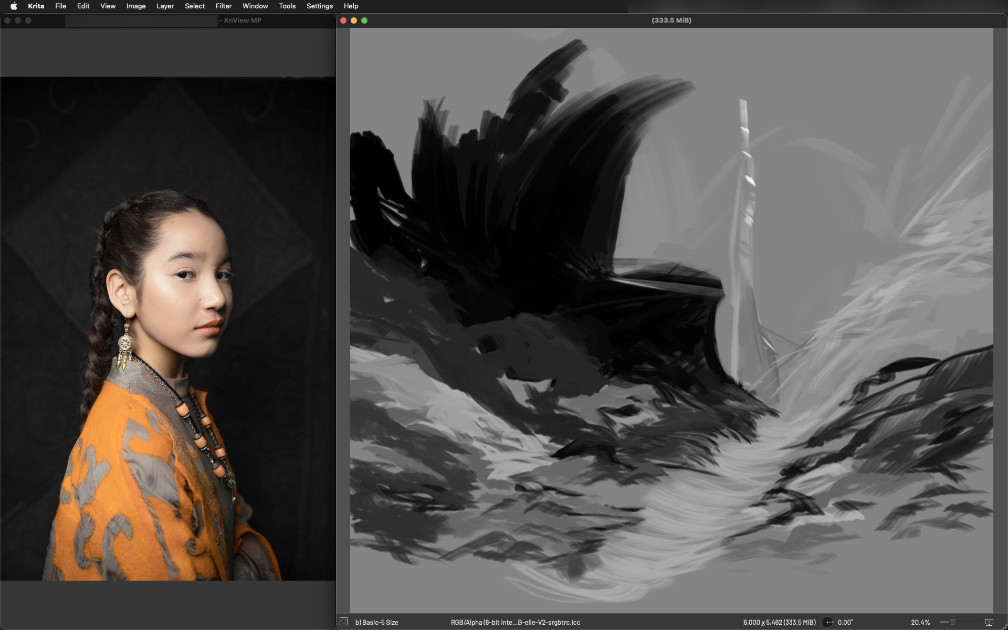
^ This would be the ideal setup for those with one monitor. You don’t need any external apps, not even PureRef. And since the photo sits inside XnViewMP, you can do a lot of things to the photo via filters etc…

^ And if you need a bit of assistance you can turn the grid on. That’s the advantage of having the photo sits inside XnViewMP, but it takes up that extra space. Not a big deal if you have big monitor/resolution but if space is limited, and mine is, then the setup below would be the best.

^ You can have it on the Left, Right, Top or even Bottom. You can’t do this with digiKam as of this writing. This is why XnViewMP is the better choice. This kind of setup allows you to just leave XnViewMP sitting there, and you can quickly browse and pick any ref and drop it inside Krita!

^ The top setup is good if you’re doing landscape painting. Having it on the Left or Right is ideal for portrait and character design. There’s a purpose for every setup so pick one accordingly. There are two more features that if the developer implement them it would make XnViewMP even better. 1) Hide the titlebar, and 2) display the image on mouseover. This way artists can get a preview of the thumbnail their mouse is on at a decent size.
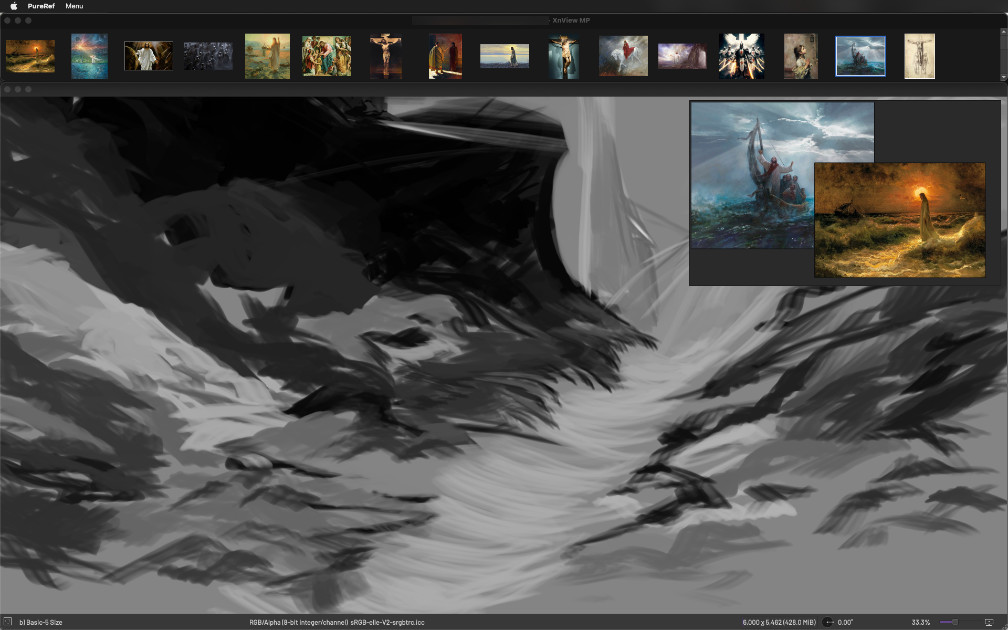
^ With this setup: Left, Right, Bottom or Top, you’re forced to drag the image out of XnViewMP since there isn’t any space left inside XnViewMP to view the photo. And this is where PureRef (or the opensource BeeRef) and the Imagine Board plugin for Krita comes in. You can even drag a folder from XnViewMP and drop it onto PureRef and start browsing with PureRef. If you’re going to drop it inside Imagine Board, make sure it’s in Reference mode. And if you prefer, you can just drag and drop it inside Krita as well.
Having read all that, I’m sure you’re eager to try out XnViewMP.