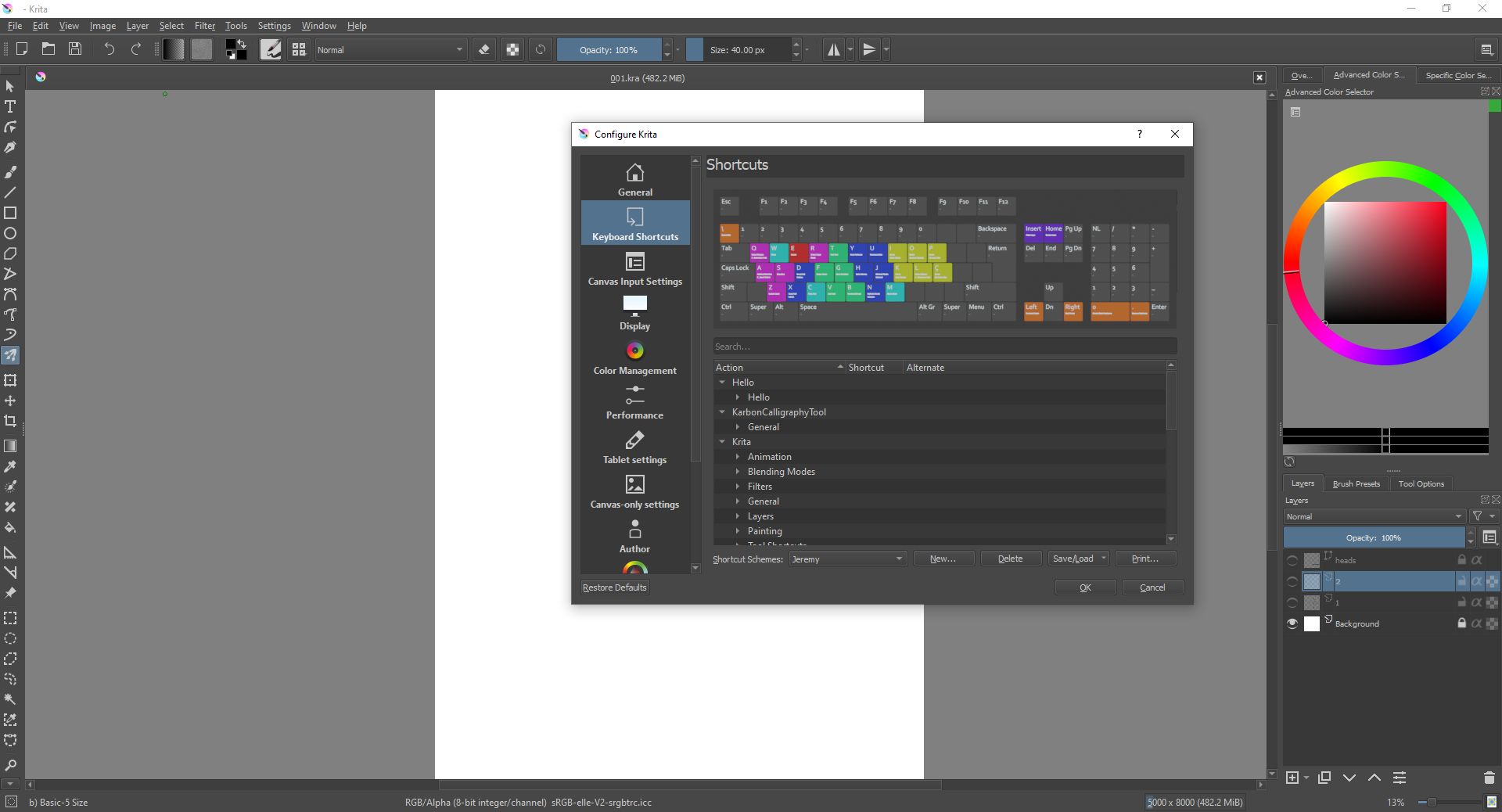
Hii guys,
I’m actually new to Krita and digital painting itself…
I already have 7 shortcuts on my tablet buttons (Brush/eraser, brush resizing, pan tool, colour picker, undo, zoom-in, zoom-out etc.) 8 buttons in total, haven’t yet programmed the last button.
I’d be glad if someone would recommend me some useful and easy-access ‘Custom keyboard shortcuts’.
The most important for me are actually the modifier keys shift and ctrl in combination with the pen buttons (right, left and middle click) because it lets you: continuously zoom, rotate, pan and increase/decrease brush size also color pick from the canvas. With R and left click you can select the layer the opaque pixel under the cursor is on. Increase/decrease value are also important for me and my workflow. And of course undo and redo. Additionally the shortcuts for brush, line and multibrush tool.
I have set Q for hue saturation and S for repeating last filter. So while colouring comics I just select portion of colours with magic wand which I have mapped to W key and do hue saturation and then select other part and repeat the hue saturation quickly with S.
I have also mapped the show colour selector to Z key
@Hell_uzer The keyboard shortcuts are in Settings → Configure Krita → Keyboard Shortcuts. They are searchable and user configurable.
Things like Zoom and Rotate are in Settings → Configure Krita → Canvas Input Settings and are user configurable.
There must not be a clash between keyboard shortcuts and canvas input settings because you don’t get a warning about that and the result is unpredicatable.
The Ten Brushes Script is really nice to use if you have a select set of brushes that you use consistently. I can’t remember off the top of my head exactly where it was, but it is an interesting feature you should look into.
My binds: (maybe useful for someone)
3,4,5 - rotate 15 left / reset / 15 right
2 - zoom fit
1 - zoom 1:1
q - show color selector (I prefer fullscreen, so most time I’m not see color picker or layers)
t - zoom in
w - zoom out
ctrl+q - mirror view
ctrl+w - toggle layer visibility
ctrl+r - toggle inherit alpha
i - invert selection
Tools keys are same to photoshop:
v - move
l - lasso
x - swap colors (I use this not so often)
b - brush
n - line
Hello! I’m also a beginner😅 and I’m wondering how I copy colors? I wanna edit a picture and I need the exact color of the picture. Anyone know how? pls help. Thx😄
Hi @celia_tabe - Welcome to the forum. Here is one way:
Open the picture that has the colours you want. Add the docker called Advanced Color Selector (go to Settings - Dockers - Advanced Color Selector). On the docker you will see small icon to the left. Click it to reveal the docker’s options. Find the tab called Colors From Image. Add a checkmark to the box called Show Colors from the Image. This will give you samples of the image’s colours. Then just tap them with your stylus to use each colour.
BTW, your question really should be in a new post as the OP is asking questions about binding shortcuts. I see you’re new so I added my response to your question in this thread so you would see it easier.
@celia_tabe As well as the answer from @sooz, there is another way to pick a particular colour from an image.
(There are usually at least three different ways of doing something.)
If you press and hold the Ctrl key, the cursor will change to an ‘eyedropper’ icon, this is the colour picker/selector.
With this icon active (because you’re holding the Ctrl key down), you can click on any part of the image with your mouse, or touch it with your stylus, and the colour there will be selected for painting with.
You’ll carry on painting when you let go of the Ctrl key.
Thanks. It was made initially to be part of a proposal that got refused. but I kept the maps and is a good cheat sheet when I have to place my keys again.
I looked into it…it’s in the tools > scripts > ten brushes scripts
I think it’s quite an efficient way of accessing brushes… but I’m really confused between pop-up palette & 10 brushes script…which one do you think would be better?