Hello! I’m not sure where this particular topic should go, Basics or Input Devices but here it is.
How do you reassign what the eraser from Windows Ink does in Krita?
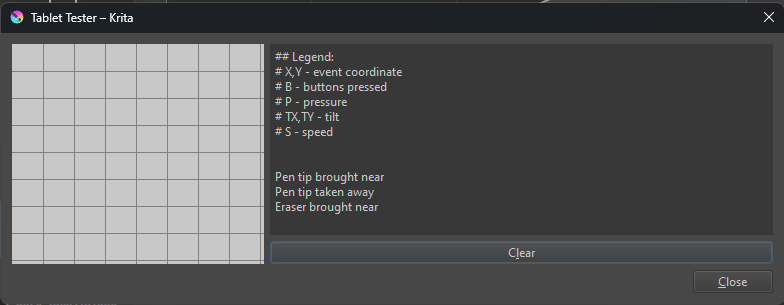
Krita is set to use Windows Ink as input here.
Specifically, I would like to reasssign it to move the canvas rather than erase (Due to my unique setup). I can see that Krita is receiving something over the Windows Ink API identifying as an eraser, but I don’t know if that’s internally being interpreted as the shortcut E or something or even if this setting is exposed.
Anywho, I have been scouring the internet trying to find out how to reassign Windows pen buttons in Krita for this. Windows itself does not offer much options, just different options for interacting with Microsoft specific applications.
Which version number of krita are you using and where did you get it from?
Which version of Windows are you using?
Which graphics tablet are you using?
When a stylus identifies itself as an ‘eraser’, krita treats it as a separate and independent painting stylus that can be used to select any brush preset and that selected preset will be remembered for use with the ‘eraser’ stylus.
If you select an erasing brush preset with the ‘eraser’ stylus then that will be remembered through the session and also for the next session.
Similarly for whatever you select with it.
To move the canvas with that button, you’d need to set it to generate the Space key (for moving with touch-drag) or the middle-mouse button (for moving with no touching needed.
It may be that you are using some kind of touch screen Windows pen from what you say in your final paragraph.
Windows does not have many options for making adjustments there and I don’t think there is much if any flexibility based on what I’ve read previously.
For Windows pen devices, that is your only option because they only offer a Windows Ink interface, as might be expected.
I’m using Krita 5.2.3, on Windows 11. The tablet is a Turcom TS-6580 and I’m using OpenTabletDriver to translate it’s inputs into Windows Ink. This is not a touchscreen pen.
I do already use OTD to set the second button to space, but this causes some glitchyness I’m hoping to avoid.
I know Krita is getting an “eraser” in from Windows Ink, but I’m wondering if there’s a way to change what Krita does with that input.
Is this something that just happened? Most Windows users set Krita to WinTab and turn off Windows Ink in their tablet interface. I didn’t know that WinTab doesn’t work any longer (I’m still on Windows 10 - so maybe this is a Windows 11 thing?).
Is there a more… options menu kind of way to set this?
I was going to reply how I wasn’t ever able to get this feature to work but then it worked once and not again after, I think the fact I have to hold the button THEN press with the pen to erase is messing with things a little. I will keep trying with the above method in the meantime.
OK I wasn’t exactly… clear in the first place so lemme clarify: WinTab is the old method of tablet input for windows. It placed the burden of writing the interface on the manufacturer of the tablets, themselves providing individualized versions of WinTab32.dll. Sometime around windows 8/windows 10 Microsoft announced that WinTab is being pushed to Legacy (no longer being actively developed or maintained) and that instead Windows Ink is to replace it. Ink being the replacement for the API side of wintab32.
Now… i’m not saying wintab32 is bad. It’s actually, in many ways, better than Windows Ink. But, unfortunately Microsoft has their attention on Windows Ink and Manu’s are going in that direction because it’s simpler than writing a whole wintab yourself.
There isn’t. This is how krita works and it’s the stylus/tablet that actively identifies itself as a pen tip or an eraser tip. Krita just listens and behaves accordingly, treating those two as separate and independent painting tips.
If I remember correctly, that ‘eraser mapped’ button on the stylus has to be pressed and held continuously for the stylus/tablet to provide the ‘eraser tip in use’ signal.
Then when you release the button, it starts to identify itself as a ‘pen tip in use’.
Ah. That would be a cool lil thing to have in the tablets option, just an advanced segment or something then some overrides for the pen and eraser inputs.
Hey, i got it to work more stable by changing the button from “hold” to “toggle”. I think because I have such a crappy tablet, sometimes it will “release” the button for a split second when the pen tip is being pressed AND the button is being held.
Thanks for the help!
Editing to add: The “pan” tool is absolutely assignable to the eraser. It still requires the pen to be pressed down to move but it’s miles better than pen streaks across my canvas.