Type of device* : Graphics Tablet / Display Tablet
Brand and version of the device: XPPen Artist 10 2nd
System** : Windows 10 Home
* graphics tablet/display tablet/2-in-1 laptop/Android tablet
** Windows/Linux/Mac/Android, + version (you’ll find it in Help -> Show system information for bug reports)
Description of the issue (you can include screenshots):
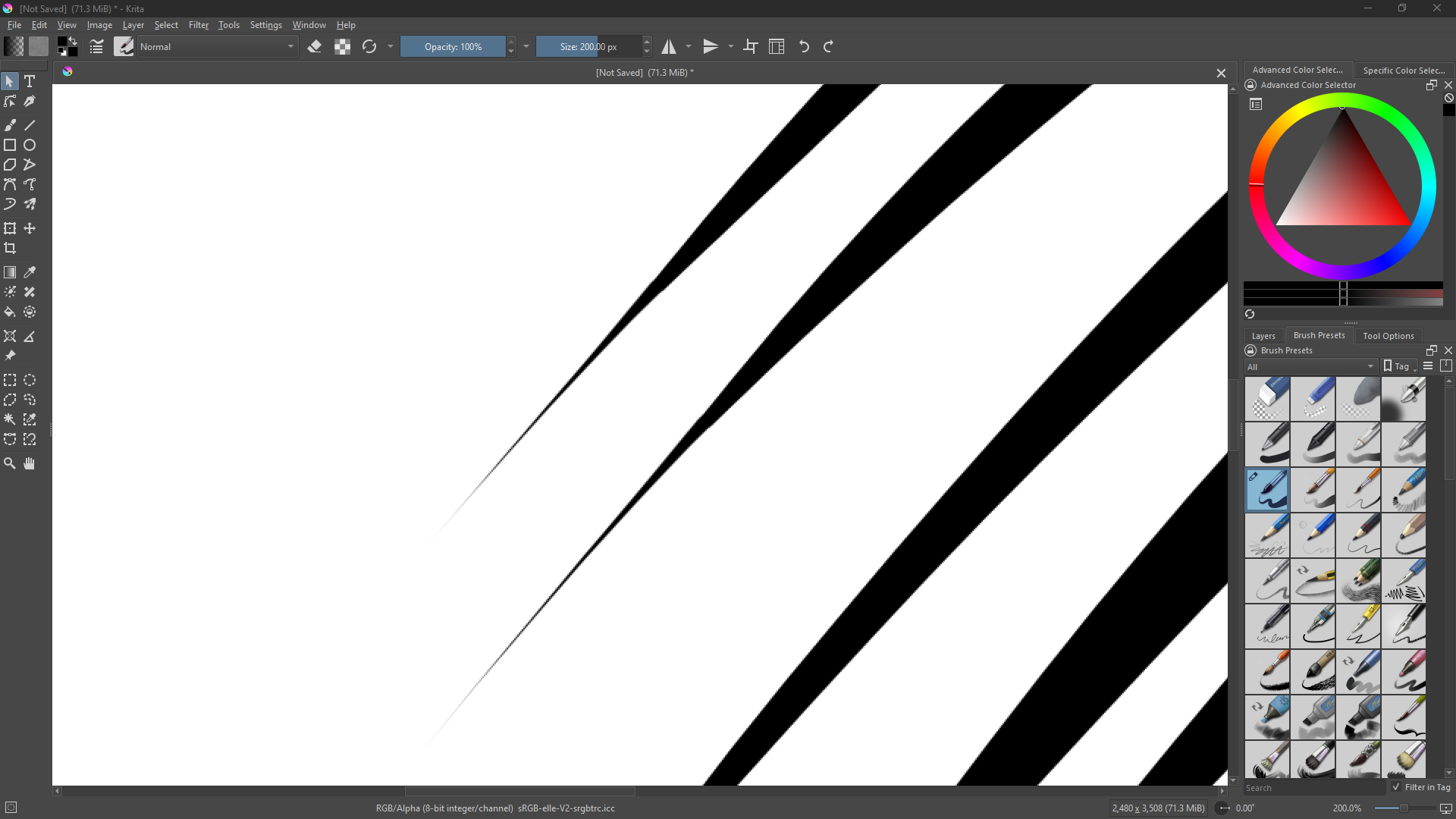
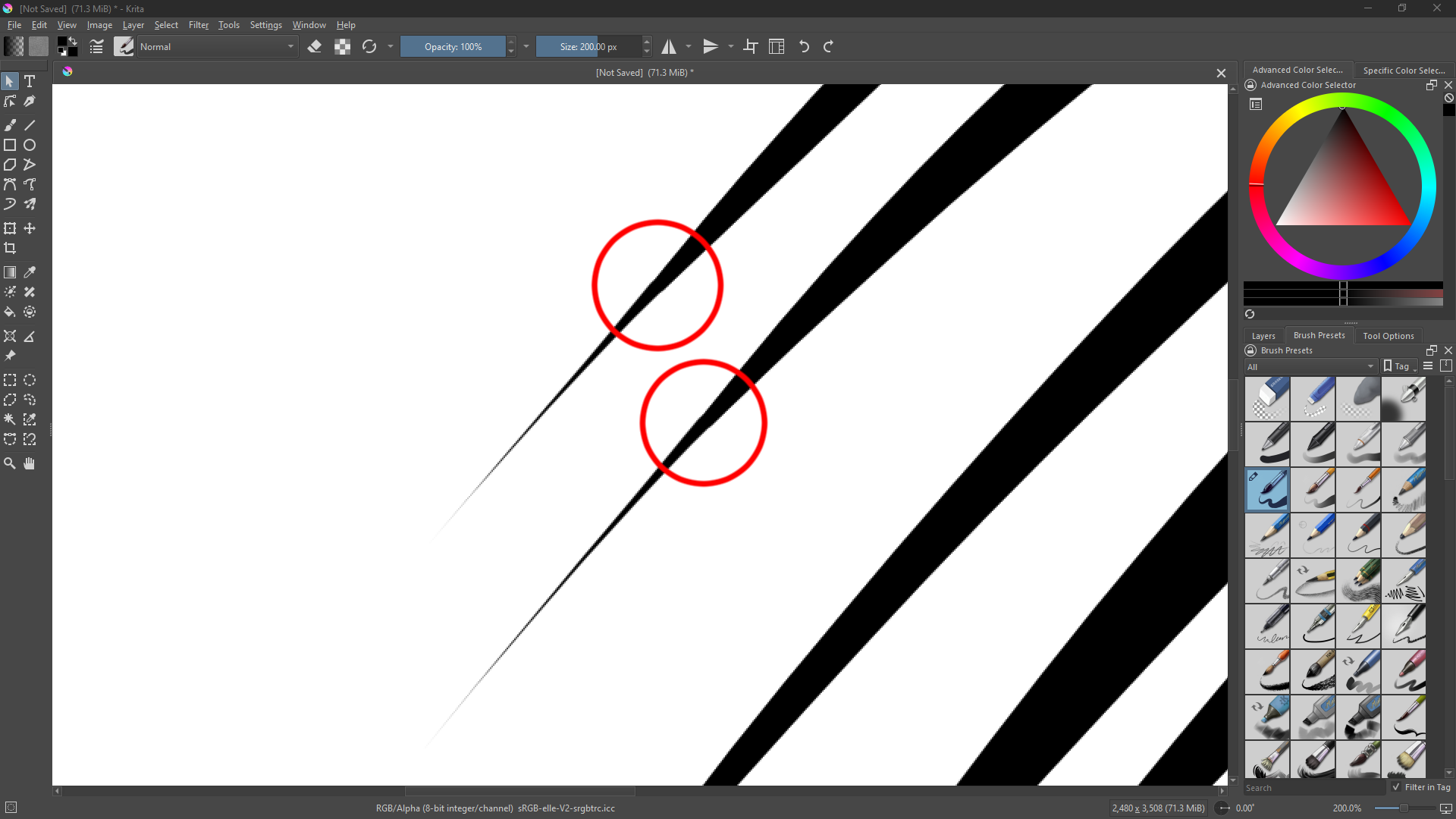
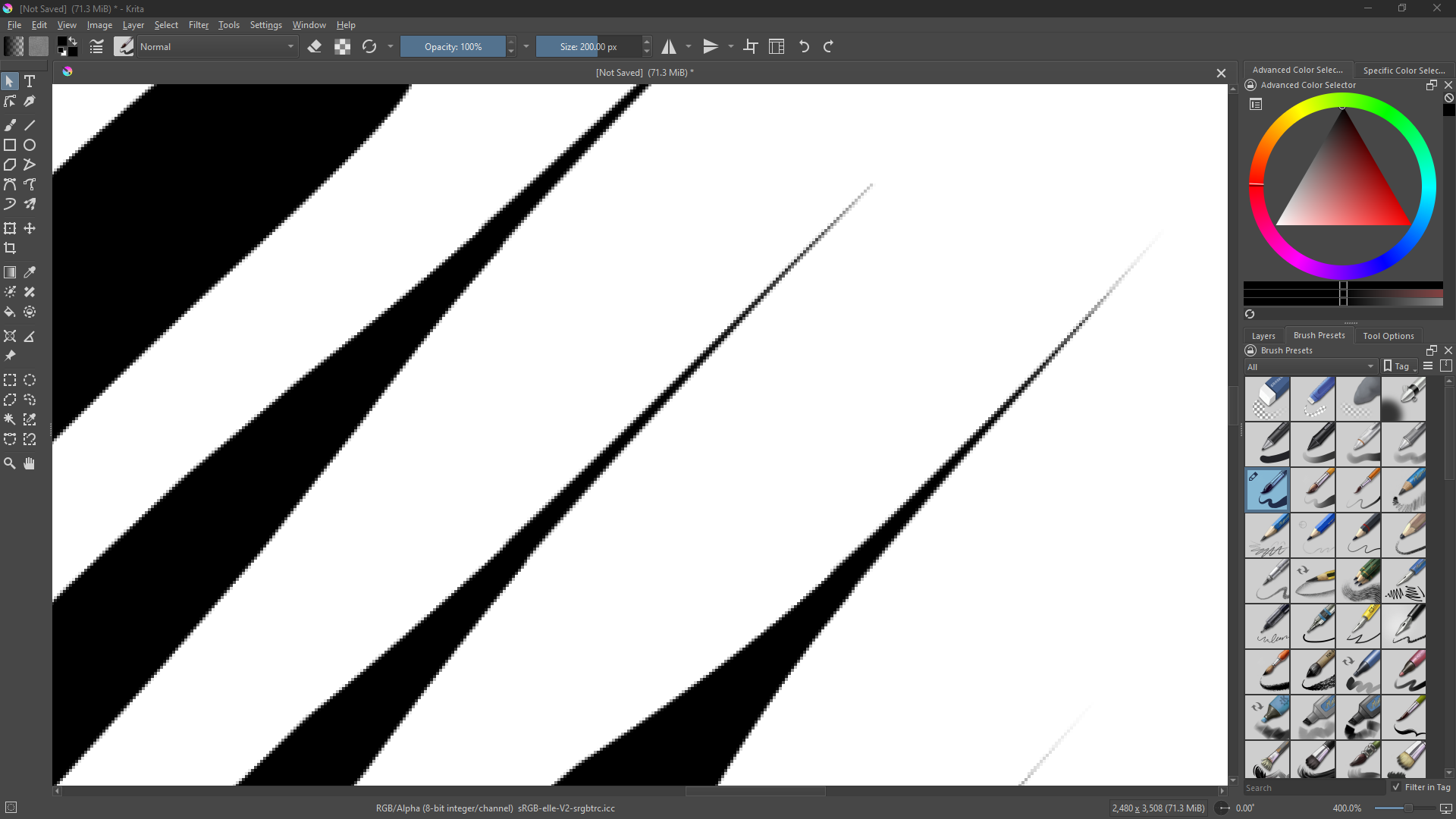
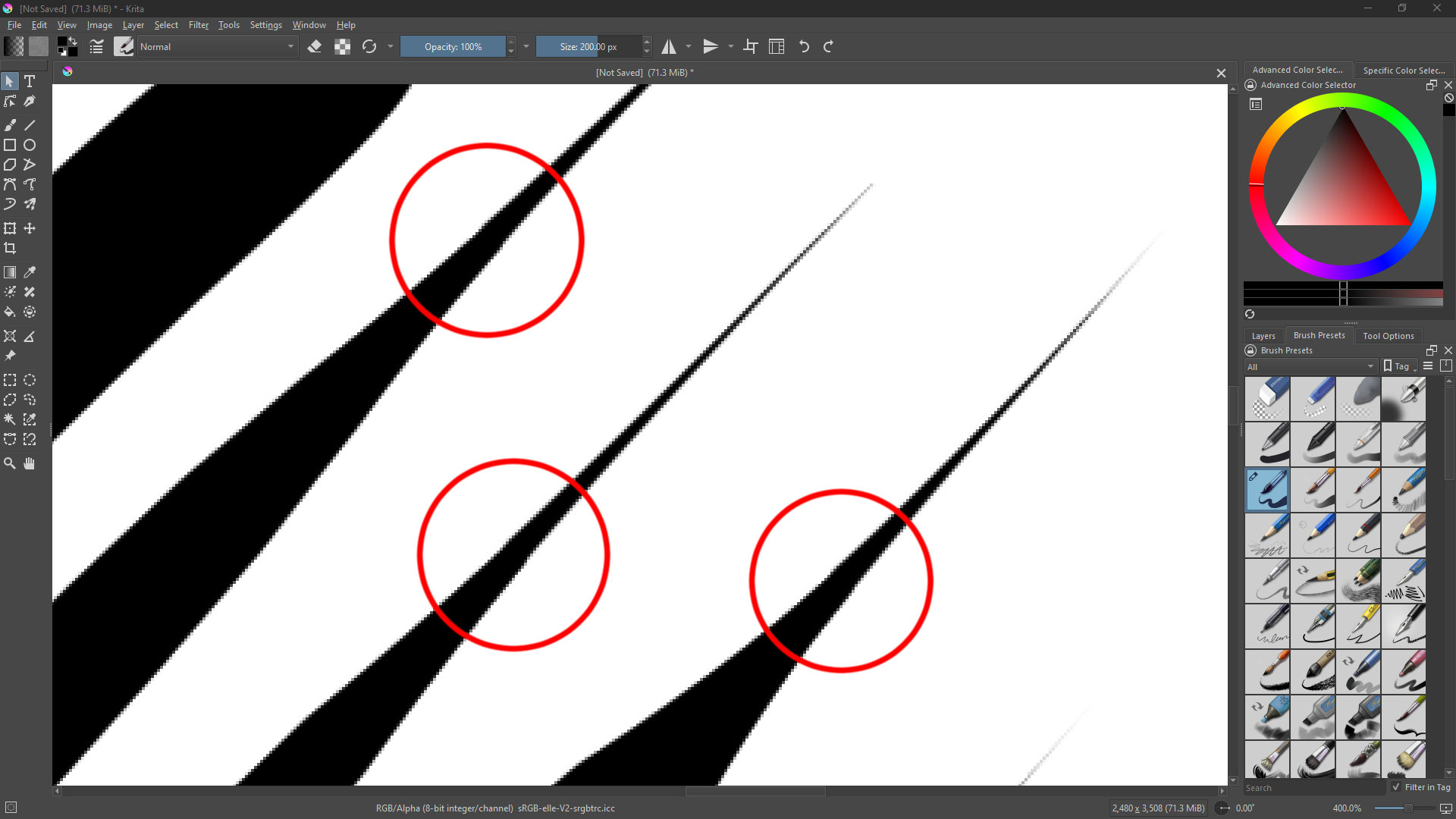
Okay… So here’s the issue that I having; while performing any type of brush stroke that involves any sort of fairly drastic change in the size of the brush I get this weird, uh… Sidestepping in the stroke? The variation only seems to be a pixel or two at the most, but it’s glaringly obvious with bold crisp line-art. Has anyone else had this issue? I mostly see beginners confusing anti-aliasing settings with glitches, with that flooding most of the reported Krita issues I couldn’t come up with anything that comes close to my problem. I see that allot of artists that use XPPen devices seem to be having allot of problems, could there be a compatibility issue? I’ll include a few screenshots of my problem, with some edits of the affected areas circled in red.
Don’t give up just yet. I changed your post title to the tablet info you provided. That may attract people with the same device to add their comments or ideas.
Thanks! That just might help, allot of XPPen users seem to be having issues with Krita for some reason.
I’ll keep digging to see what I can find out. I’ve checked out the tablet tester and I might have found the issue. When I do a quick straight line the two overlapping lines don’t meet up perfectly like I’m assuming they should.
Do you have Windows Ink turn off inside Krita and in your tablet interface? Most Windows users find it works better that way. A few find they need WI on. Either way, both interfaces have to match in their Windows Ink On/Off selection.
It is a question of practice and the settings of the pressure curve of your graphics tablet (or better, the curve in Krita in the tablet settings).
In CSP it is “so simple” to achieve these stroke endings because CSP uses post-processing for its strokes, which is not available in Krita. With Krita you have to be able to use your stylus, so you have to practice, which may sound boring at first, but once you get the hang of it, you should be able to draw such strokes in any software and without any of the technical tricks that CSP uses. I can only recommend you look at the topic linked below, and the other topic linked in this thread. There you will see that this is possible in Krita and you will also find hints, but we can’t do the practicing for you.
Your question is one of those that is relatively often asked here, so if you use the forum search, that is the magnifying-glass in the top right of every Krita-Artists-Forum page, you’ll probably find more topics like yours, key-words like tapering or shoelace are good search-terms, but I guess you’ll find more in the topics you discover.
I wish I could say that it’s just a skill issue on my part, but it’s not. I have the post processing options turned off on my CLIP tools, I find the results of the post processing function to be more of a hindrance than anything else. Unfortunately my problem is definitely software or hardware related. I’ve been looking into backup digital art drawing software with the numerous bad choices CLIP’s company has been making lately. So recently I’ve tried a few other programs, one of which was specifically MediBang Pro. I’m happy or maybe I should say I’m not so happy to say that I didn’t experience the glitch that I described and have shown in the original post.
Now that I’ve put my glasses on and looked at your screenshots again at a much higher magnification than before, I think I see what you really meant, because I initially thought your problem was the taper, but there seems to be a very tiny offset/skew that I hadn’t noticed before. If this is your problem then I’m at a loss and can’t offer a solution because I can’t think of one at the moment, sorry.
Hey you’re fine man! The glitch, offset, stutter, etc… Whatever you might want to call it can be easily missed at a quick glance. I appreciate the help anyway! My model of tablet display / drawing tablet isn’t a super popular model so I’m sure there’s a chance that there’s something in Krita’s code and the device programming that’s not meshing too well. I only seem to be having the issue on straight lines from what I can see. I’ll do some more testing if I can get my hands on another tablet or two. Thanks for the help!
Oh! Michelist I just had a thought, in the post that you had linked me to when you thought that you might have known what was wrong you posted an example image of some of your own strokes. I looked up the tablet that you listed in that chat and it appears to be a screen-less tablet! I managed to test another screen based tablet, I had the exact same issue that I’m having with my XPPen Artist 10 2nd and the other tablet that I tested was a Huion! I think the issue might be some sort of glitch with screen based tablets! By any chance do you have a tablet with a screen that you could possible do a few quick swipes on?
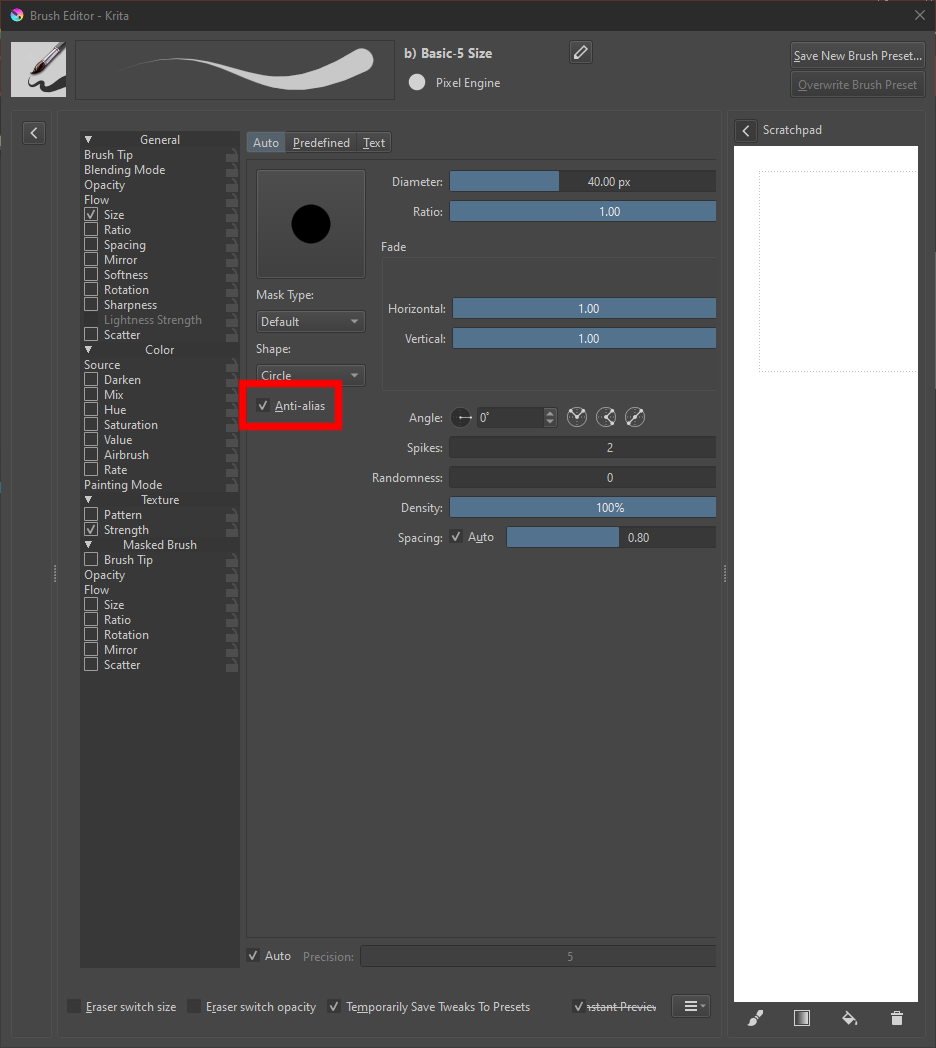
It took a few days of searching and testing, but I’ve found out what was causing the deviations in my brush strokes! It’s the “Anti-aliasing” setting! I unchecked that little box on a whim and now all of my strokes look perfectly normal! I’ll be including a screenshot of the mentioned setting! The setting will be boxed in a red border.
Ah shoot when I you don’t reply immediately you forget about it…
I think I know the cause, there is a bug in super sampling (which activates when the effective brush size is below 10px and when precision setting is max) that effectively shifts the brush tip 0.5px to the left and up.
I’ve even proposed to fix it when the super sampling was increased a bit ago, but I failed to convice the reviewers that there’s something wrong.
Guess I should make a new MR and link to this thread…
Well daaamn, I don’t think that’s the glitch that I was experiencing. Turning off the anti-aliasing setting with the check-mark seemed to have fixed my specific issue. I’ll definitely keep an eye out for the glitch you described though!