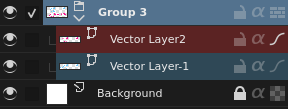
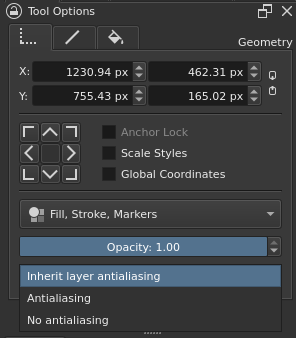
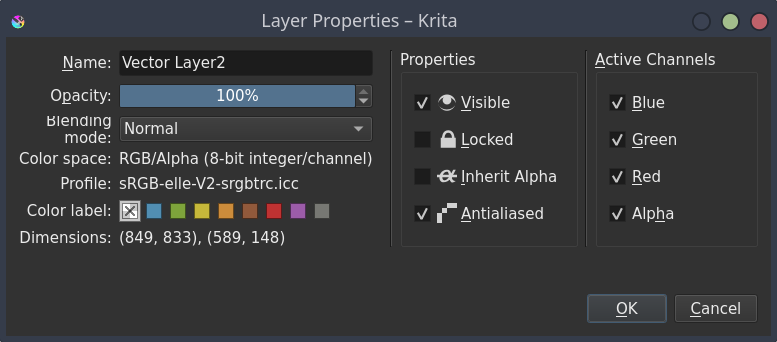
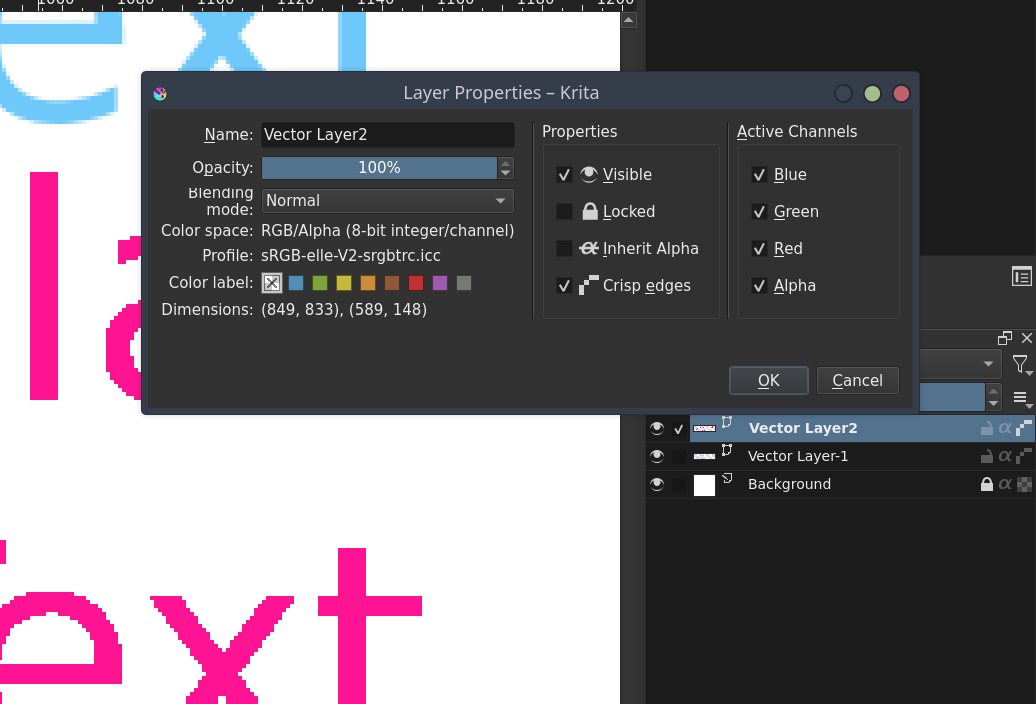
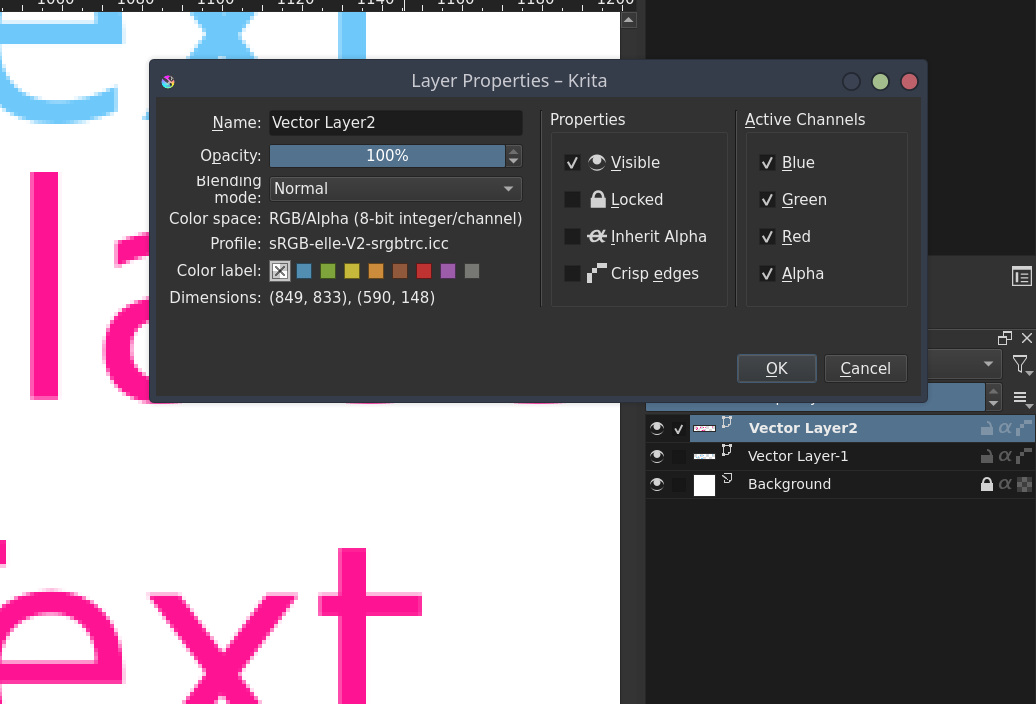
The anti-aliasing is activated/deactivated to entire layer.
It’s implemented on latest Krita’s master commits, then it works with text implementation made by @wolthera (even if only a peer review made on MR will confirm I didn’t miss anything or made sh*t )
It’s not pushed to my repository yet (so MR not created yet) because I need to do some additional tests before.
Concerning the icon used for anti-aliased status, I’ve currently used the existing curve-preset-s icon
(check available icons here: Krita Scripting School)
Does anyone have a better idea?
Is it Ok or do I have to create a dedicated icon for anti-aliasing?
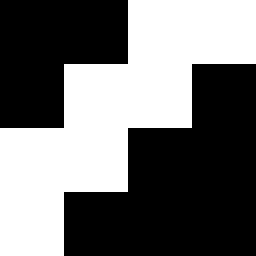
For the icon maybe some blocky shape.
Also I have the feeling that some people would ask for per-shape antialias. Any reason you made it per layer? (i’m neutral to that, just curious)
Yes, I’m pretty some users will complain about that because Photoshop or whatever other software work like this and blah-and-blah
Technically, it shouldn’t be so hard to manage per shape:
Store information in KoShape
And then just need enabled/disabled QPainter antialiasing before each shape to render according to shape option
The problem for me is more related to UI:
If you have one or two shapes, it could be done from a right click on shape or tool option docker
If you have a lot of shapes, it will start to be boring to manage it:
– Need to select all shapes, and change option
– Risk to not select shapes and don’t see you’ve missed some
And from here I’m sure some users will complain that it would be easier to manage option at layer level
A solution could be to provide a UI to list shapes and their antialias status, but it starts to be complicated for something that may not be used too often..
After, it’s still possible to have both implementation:
Antialiasing managed at layer level: quick way to manage option on all shapes
Antialiasing managed at shape level: a finest way to manage option
With the following rules:
Antialiased Shape
Antialiased Layer
Result
Yes
Yes
Antialiased
Yes
No
Aliased
No
Yes
Aliased
No
No
Aliased
But I’m afraid to have some user’s complains there’s too much options to check here and there for a simple thing
A solution would be to have an option per shape with “inherit”, “aa” and “no-aa”, being inherit the default which would take the value of the option in the layer. But i think that can be tackled on a future mr if needed, since both methods don’t clash.
Yes, I prefer to implement this in a second time, having this implemented later won’t interfere with current solution.
I just started to dig Krita’s code and implement some stuff last sunday.
I’ll wait all my current merge requests are reviewed as there’s probably many things that are not valid before starting to do MR too complex
Anyway , thanks for the suggestion!
I keep it in my hands, will be a good exercise to continue to understand how Krita’s work
This is awesome! One thing I am thinking about, which I don’t know whether it is better or worse: What about having the anti-alias as a Layer Style?
That way it can be used for pixel layers as well, and also as an easy place to have anti-alias settings.
I am thinking it still could have that button in the Layers docker as in the video you posted if people like it there.
If a Layer Style is applied, then where would the FX button go?
My thoughts and suggestion is that anti-aliasing can be by default on (just like it is now), but as a Layer Effect. This means that clicking the Fx button will disable it just like in the video
I am looking forward to see the development of this, fantastic work so far!
I’m not sure the FX Layer is the best place for that.
I didn’t took a look into code, but:
FX Layer use ASL format for storage (an Adobe proprietary format) so I’m not comfy to enter into this
FX Layer is (probably) applied once layer content is generated, like a kind of filter: it’s a slow method which implies to render antialiased content and then try to fix it, exactly like this: You want Krita's text to be crispy, pixel and not Anti-Aliased? Try this tutorial!
It’s not a native anti-aliasing render and also it will be too complex for me to implement
I have no idea about how anti aliasing can be applied on a paint layer
A paint layer is a raster layer (pixels) so it’s normally the brush that will define what to draw on layer…
Using the method evoked above will probably generate weird and unexpected results on a “painted” layer
Here the implementation I’ve made on a vector layer it’s quite simple:
Krita use simple drawing instruction (line, circle, paths, …) that are already able to natively render with or without anti-aliasing
When a vector object is rendered as pixels in layer, it use these drawing instructions
What I did here is just to remove the “hard-coded” anti-aliasing flag to activate/deactivate it dynamically according to the layer setting: it’s fast to render, it’s simple to implement and to maintain
I guess so, but I want the luminosity to be consistent with the other icons in context of states. Like, other ones are brighter as that makes it clear their state has switched.
However, not really a big deal.
EDIT: A compromise would be having a thinner circle line (just as the selection tool, but less thick) and keeping it bright, and the other as blocky, but just as bright.
I mean the reverse in terms of brightness as no-antialiasing isn’t really standard. Or maybe configurable to each users, but that’s out of scope for this patch.
Many users are already lost to provide pertinent information when they ask for help, ifthry can start to tune icons and how they act, it will be really difficult to help them
Also from a technical point of view, putting one option to let user decide if term he want in UI is “antialiasing” or “no antialiasing” will add complexity and be just source of potential bugs.
If I understand, you want something like this? Option A)
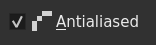
I think the checkbox and the text “anti-aliased” are working in the properties dialog. I understand that if I uncheck it anti-aliasing will be off and If I check it it will be on.
I think the option A is better because it shows the state clearly via the icon. In the option B it is not that clear in my opinion. it is similar to the two state pass through icon
I like option A that is
Also I think anti-alisaing is more clear word and most of the people know what it is

 )
)