Hi, does Krita have “brush density” setting in its brush engine? This feature exists in Clip Studio and I was wondering how can I achieve a similar or the same effect in Krita because I was recently exporting my brushes from CSP to Krita. I couldn’t find a similar effect in Krita’s pixel brush engine. Does anyone know if there is a similar thing?
If you could upload example images of the effect of varying the ‘brush density’ setting in CSP, for different brushes, then that would be useful information to help people advise you about this.
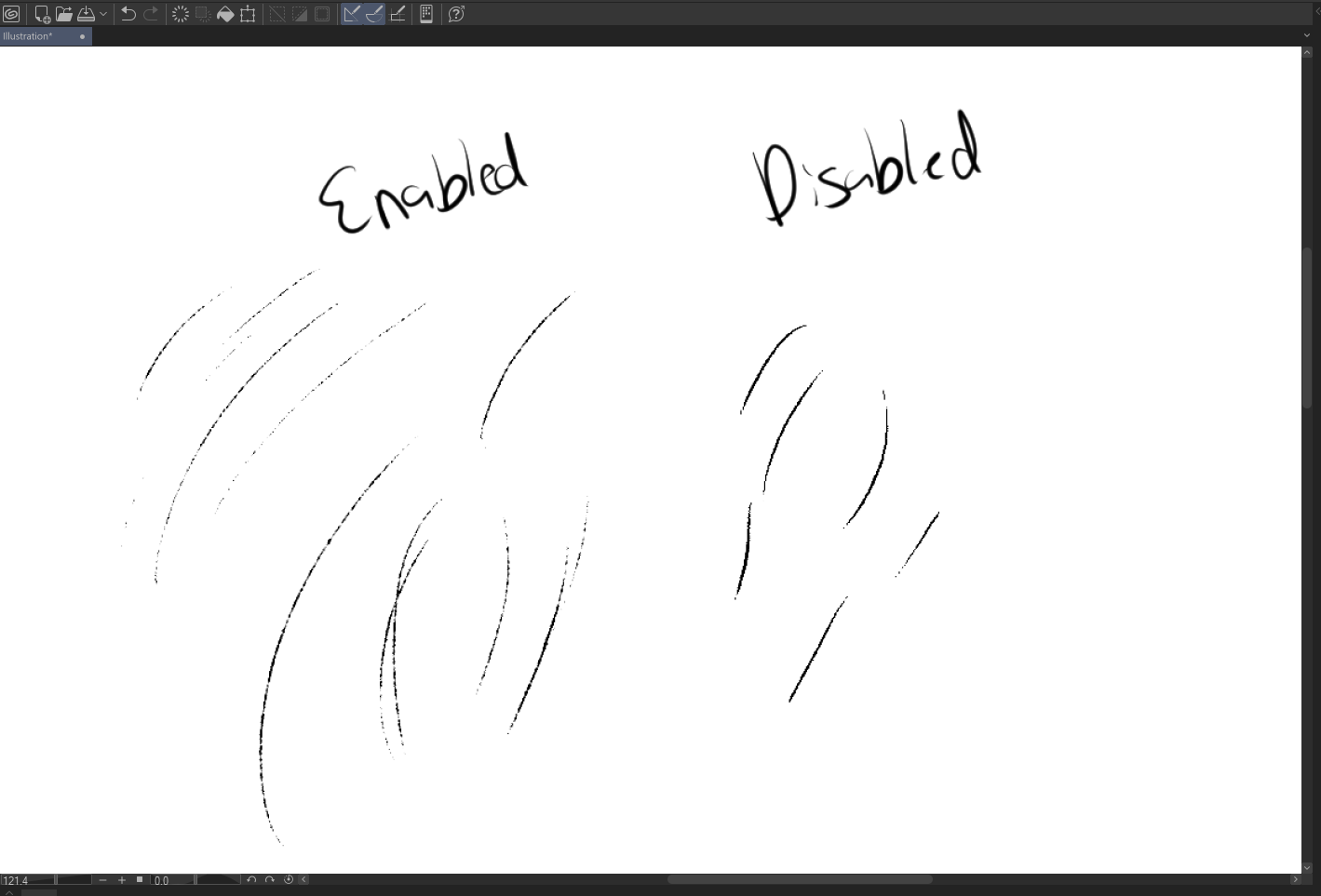
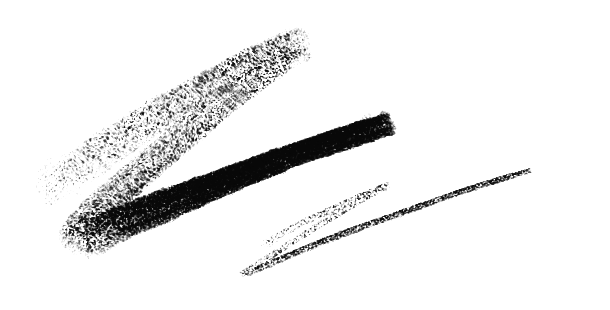
I have just uploaded a quick example. I do not have any technical knowledge on how “brush density” actually works, but if I had to tell from my experience it determines how much paint the brush reflects to the layer, not opacity but it acts like an alpha channel where it hides parts of the brush if the density is less. I have tried this with opacity setting but the result is different. I feel like (and not 100% sure) this setting hides parts of the brush stroke depending on how intense you have set it but it doesn’t change the opacity it changes the parts that are visible on the brush stroke.
I hope the explanation and the image give some idea.
I do not have too many brushes with brush density, I only use a couple of them and I didn’t want to spend too much time replying to the response. This brush seemed to demonstrate the feature the most, so I hope it was clear to anyone.
I think you could do this with a masked brush. Adding that parameter to a brush cuts into the stroke without reducing opacity. Does that sound right?
Any of the Krita brushes that use the Pixel Engine will have this feature available.
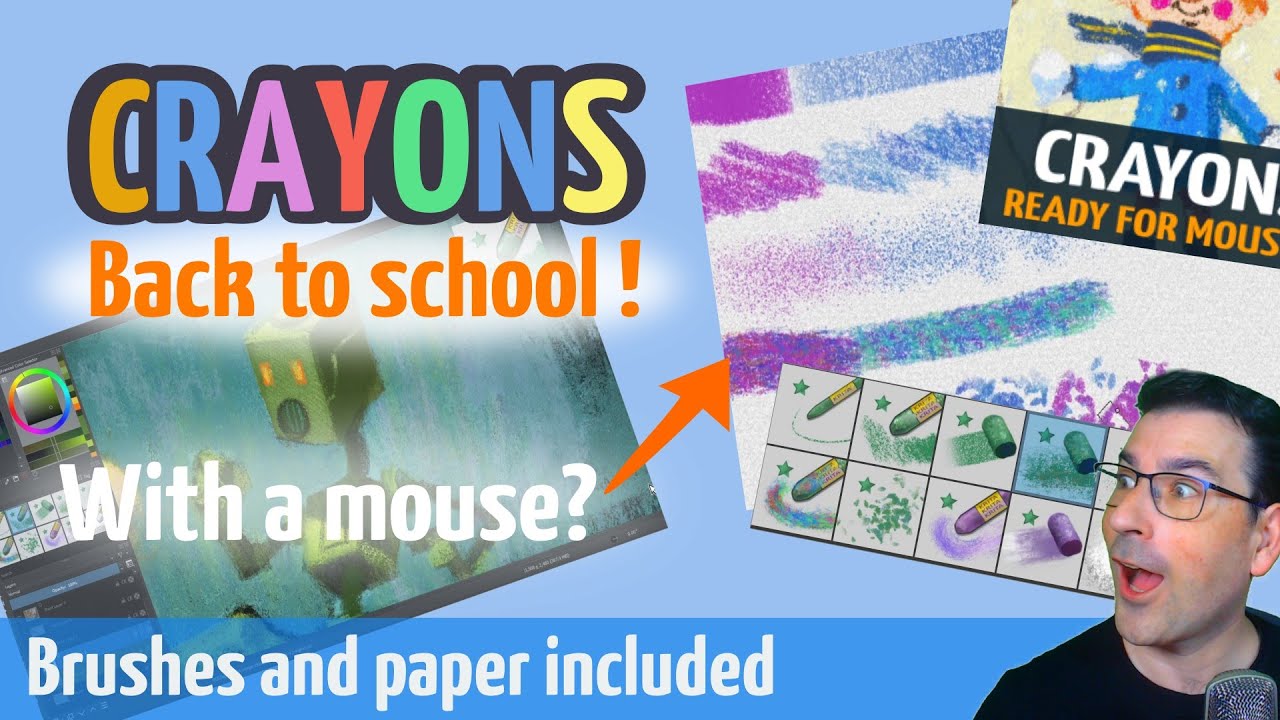
An easier way to getting this might by to try a the Krita crayon or chalk brushpacks. You won’t have to interrupt your painting time to learn how to edit brushes right away and it would help you stop thinking about the CSP way to do things and learn how Krita works.
Crayon brushes
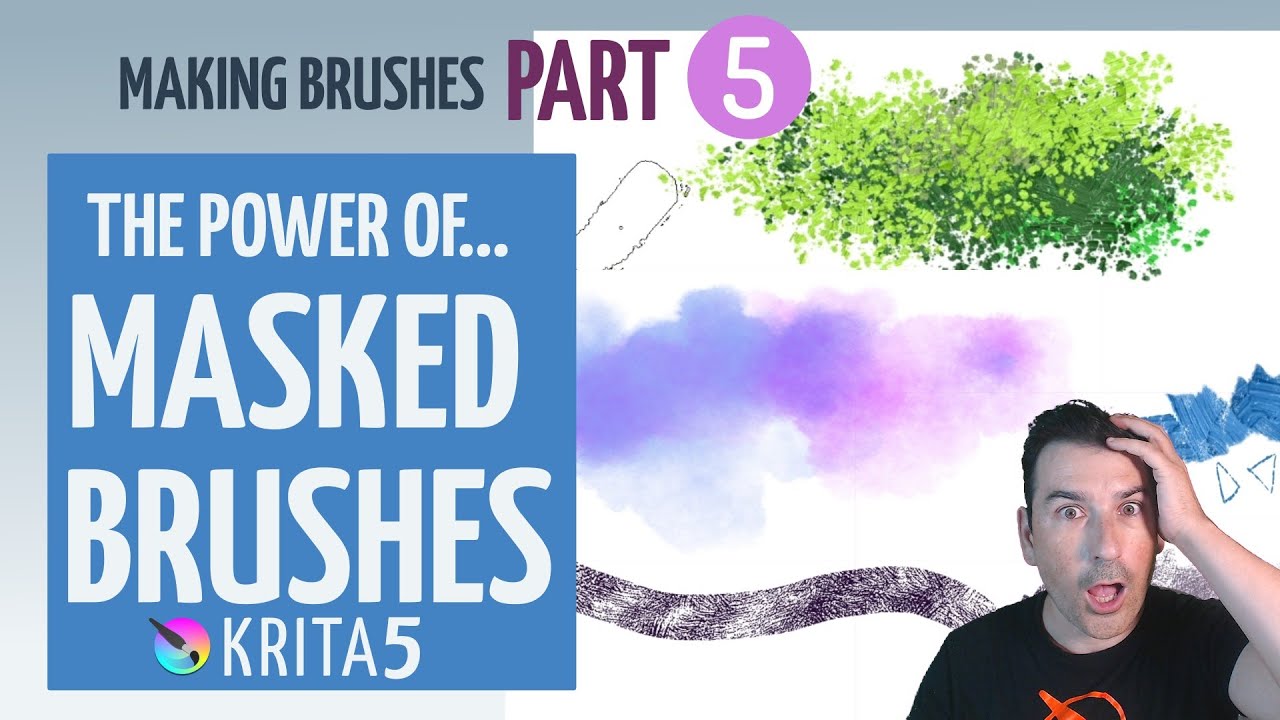
Masked brushes (in case you’d like to understand how masked brushes actually work - it’s pretty fascinating)
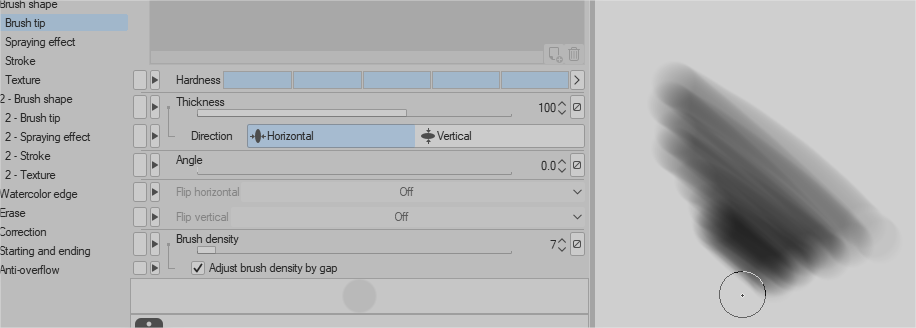
Thanks for the answer! This seems to be somewhat close to brush density. Although I haven’t watched the full video because I would be really late to reply. I will just ask here to not take your time. In CSP you can change the brush density via speed, pen pressure, or just random value, How can I change it in Krita? I was able to get a similar effect in Krita but it still affects the opacity as can be seen in the image. How can I make it only affect the transparency of the brush? Also, I disabled the texture to see if it was changing the opacity but it seems to have no effect on opacity. I also tried with predefined brush tips but no lock. So the opacity is disabled via masked brush settings?
Edit:
Changing the spacing seems to get ride of opacity problem somewhat but now it doesn’t have the “brush density” effect like in CSP where it removes some part of the brush stroke.

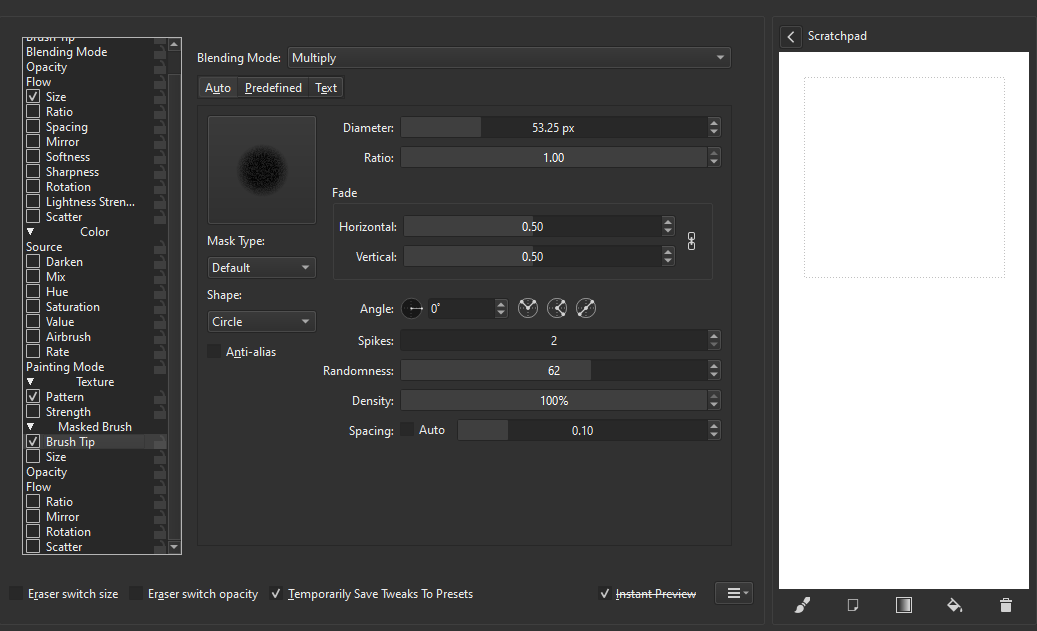
You haven’t shown the full screenshot so nobody knows which brush preset you’re using to do your experiments.
In krita, speed, pressure, random value, and other input controls can be used to vary the properties of a brush preset.
Enabling brush masking adds a further level of complexity and control.
In the brush editor above, you’re looking at the settings for the brushtip.
Click on the other properties on the left to see their control inputs and control methods.
Also, instead of using one of the Auto tips, you might want to try one of the many Predefined brushtips.
I cannot upload the last “size” option because the forum doesn’t allow. But it simply depends on pressure. I uploaded the brush to drive so you can understand the problem. It doesn’t have to be a specific brush preset I just created and played with the masked brush option. It isn’t some special brush or anything like that. https://drive.google.com/file/d/1NMVyvuq00E_RLc3fpdb2gx-pTJSCC-ZO/view?usp=sharing
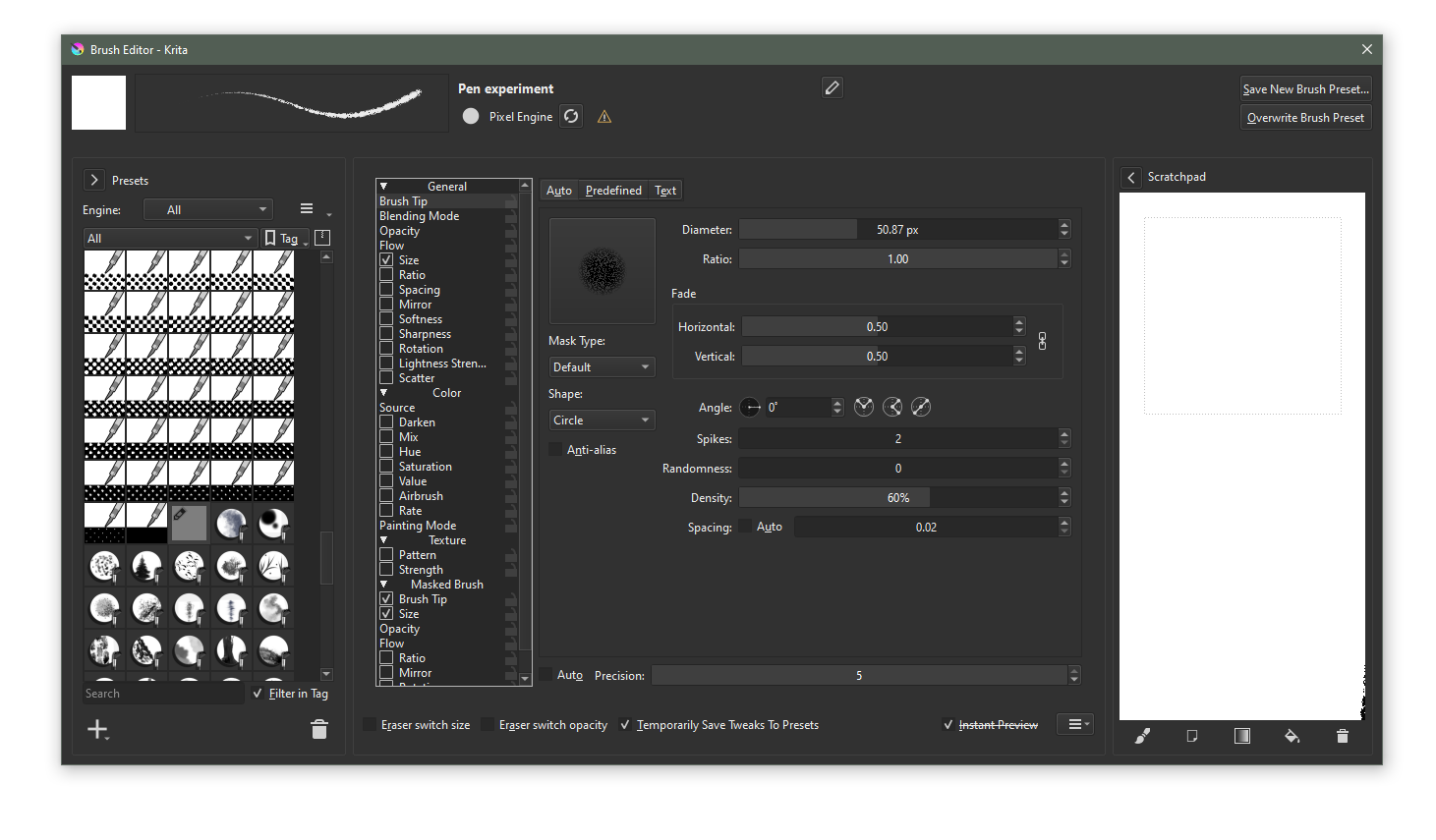
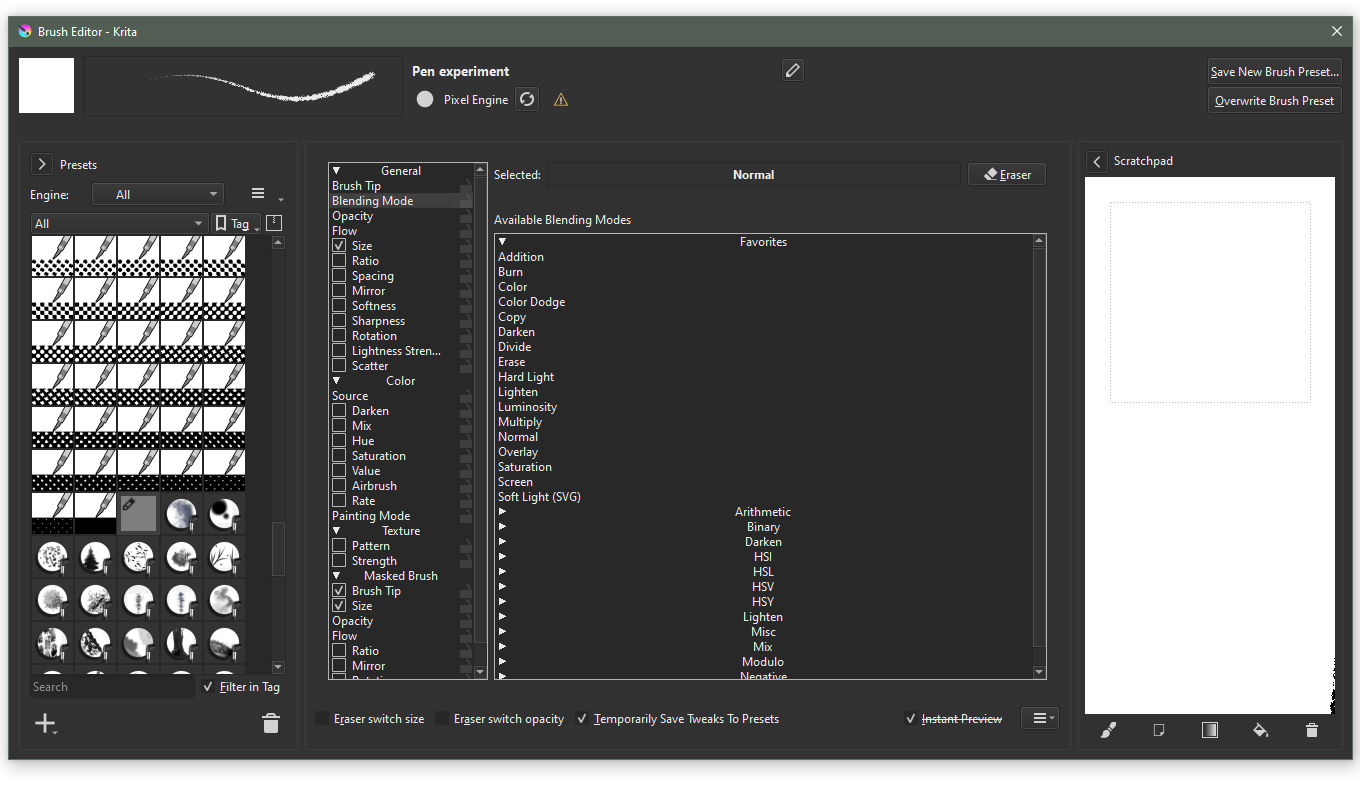
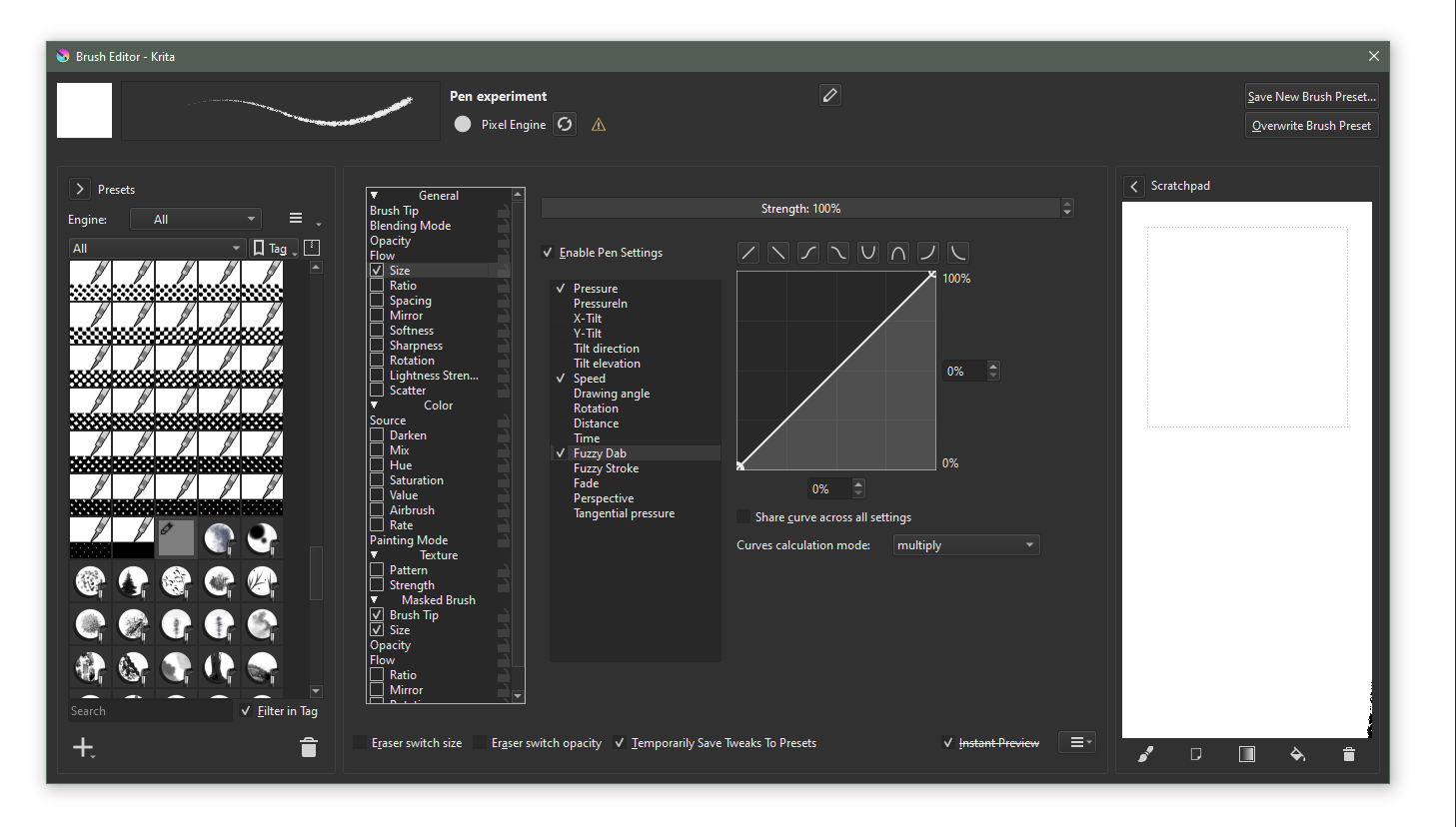
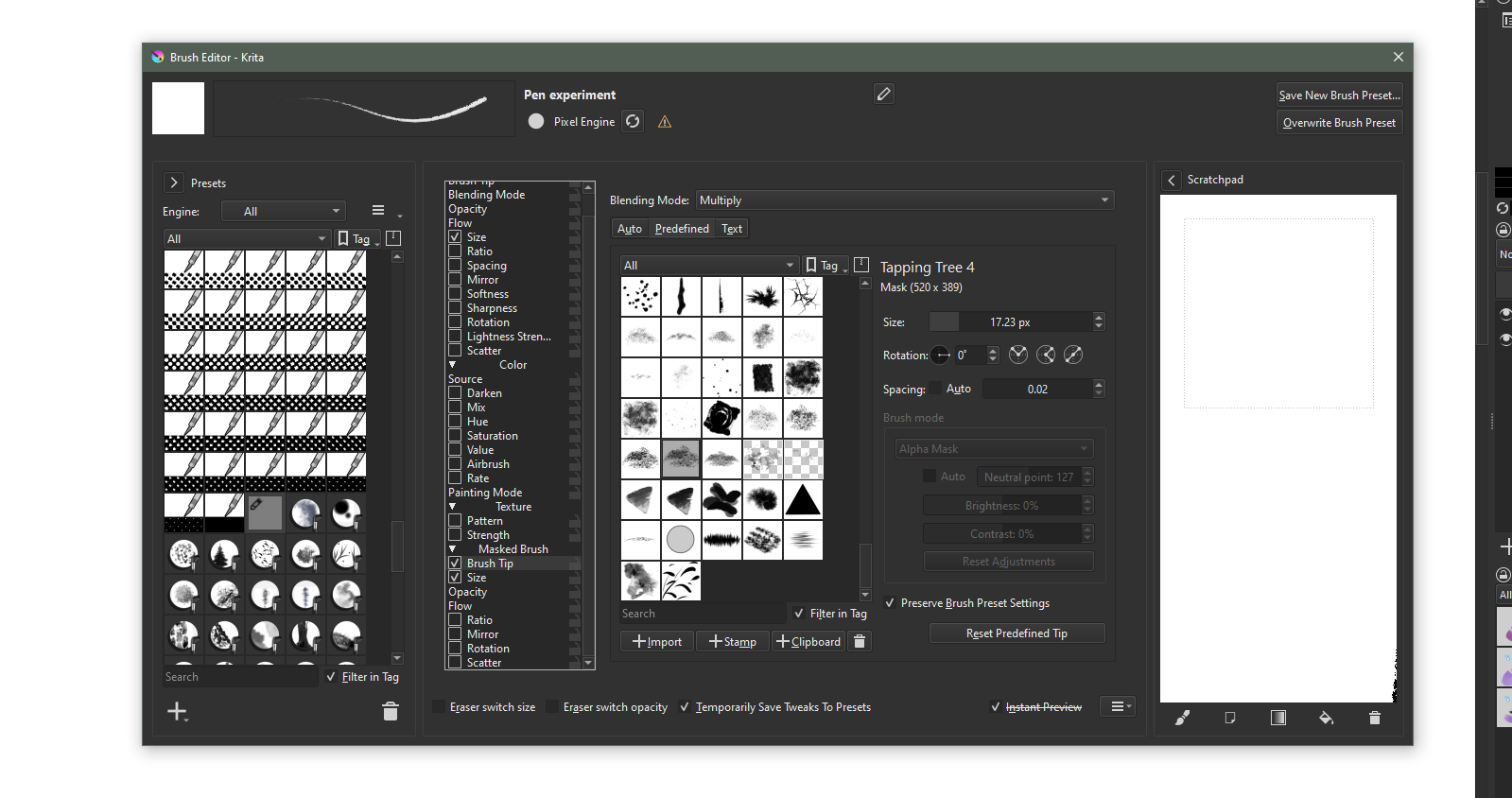
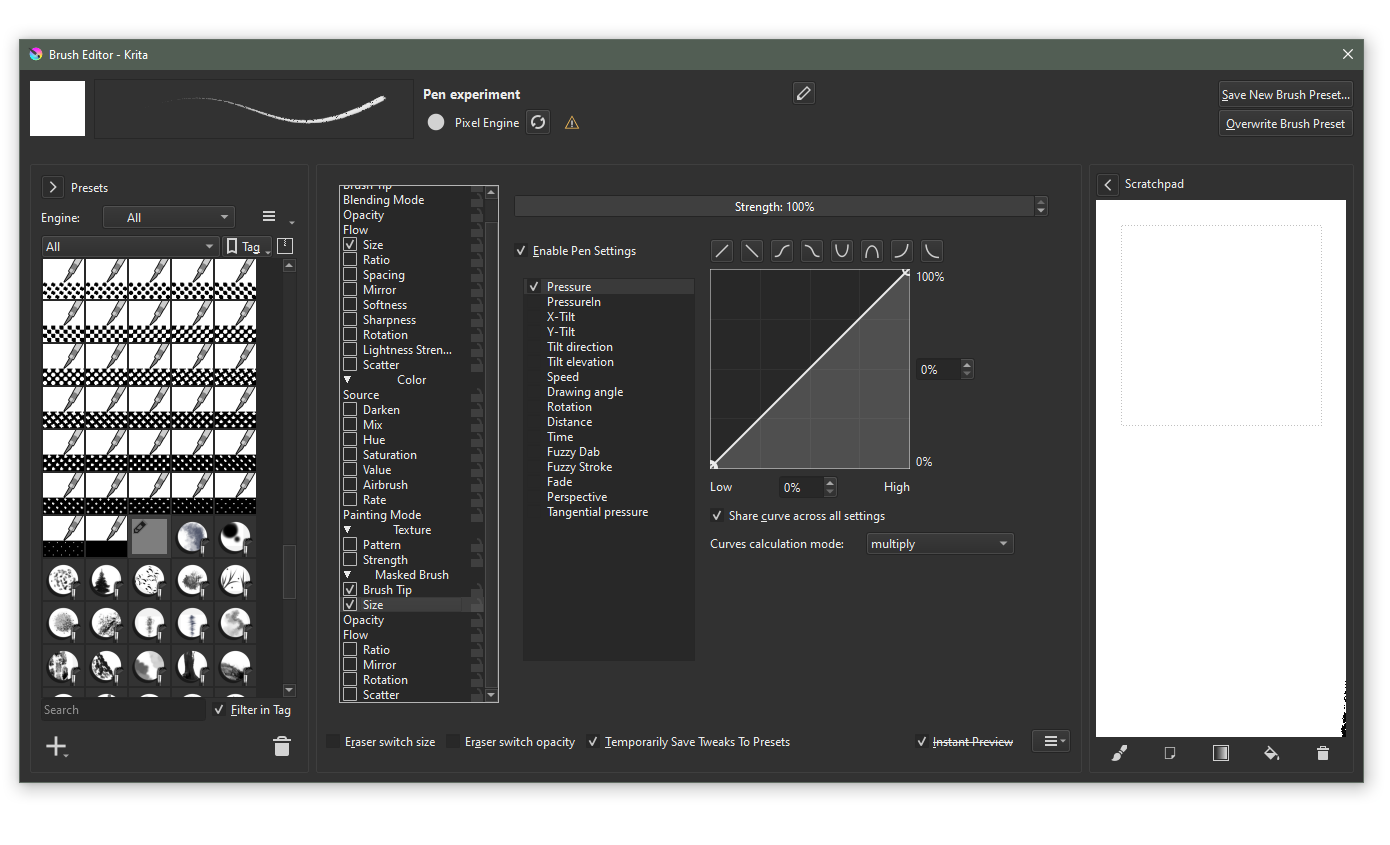
Also the brush tip is just random. It may be a part of some pack so I will delete the drive link later to not have any issues with the owner of the brush tip. The density option exists if I select the auto brush tip, but from what I know I cannot change that parameter via a sensor. Also there is no such option for predefined brush tip, nor can change it via sensors.
Making ‘artistic’ brushes is not my skillset so I can’t really advise.
There are many people on the forum who have lots of knowledge and experience in this massive subject area.
They may come along to help and advise later, or during the week.
Krita and CSP are not powered by the same brush engines so trying to get one program to work exactly like the other can become a long and frustrating journey. I really recommend those videos. They will introduce Krita’s brush engines and parameters and get you painting.
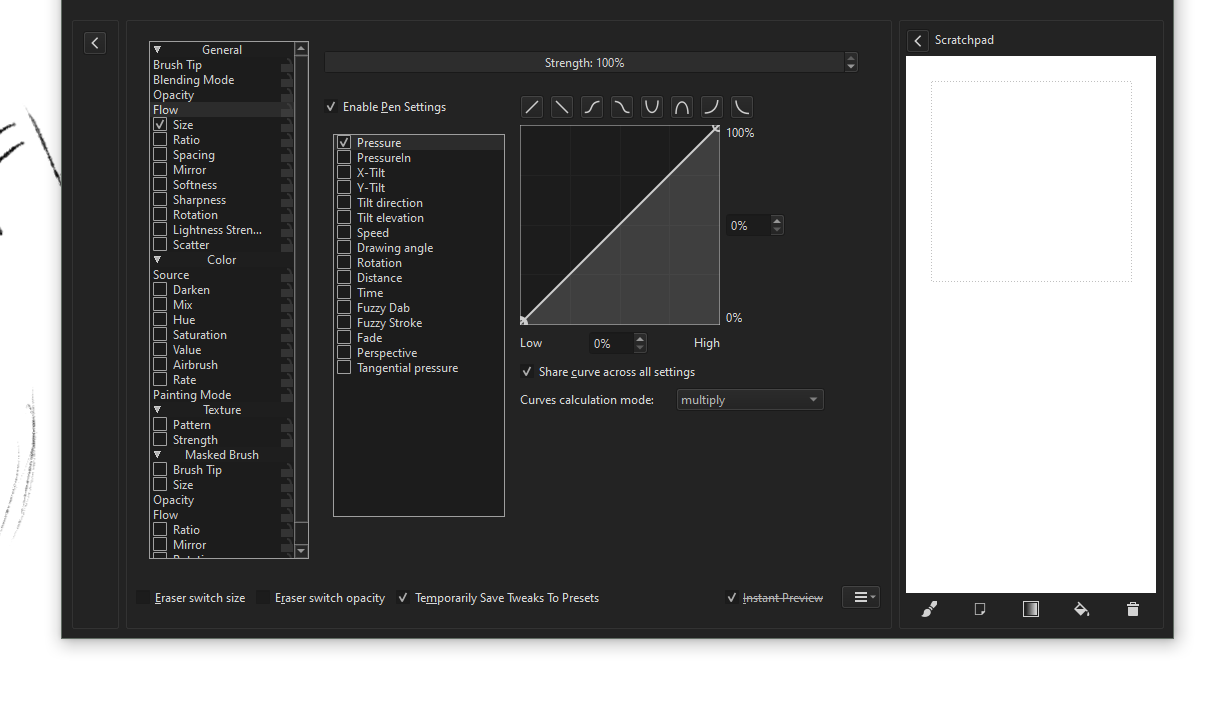
This is the result I get with height map with strength set to pressure on settings:
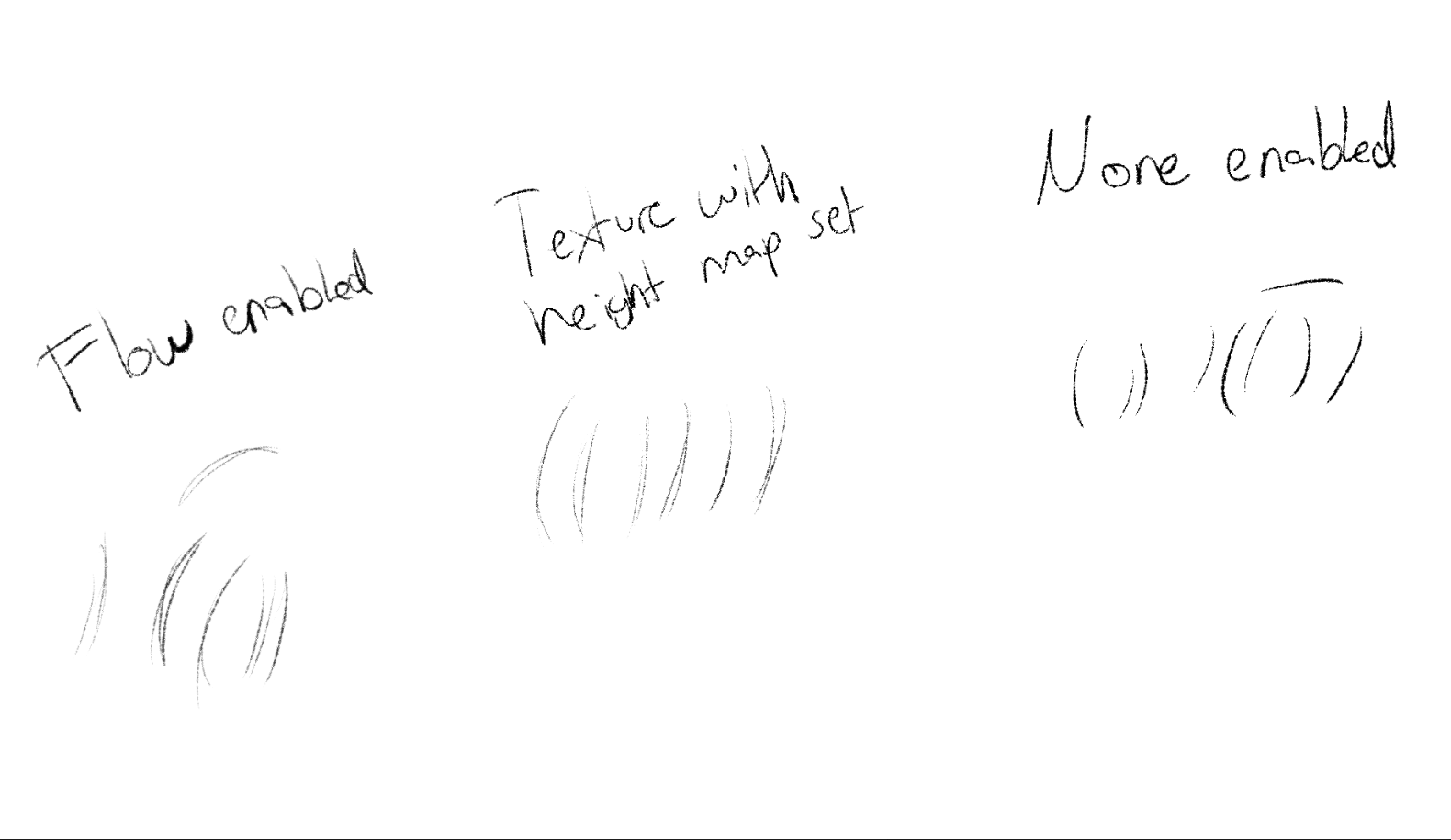
These are the settings for flow:
And these are for texture:
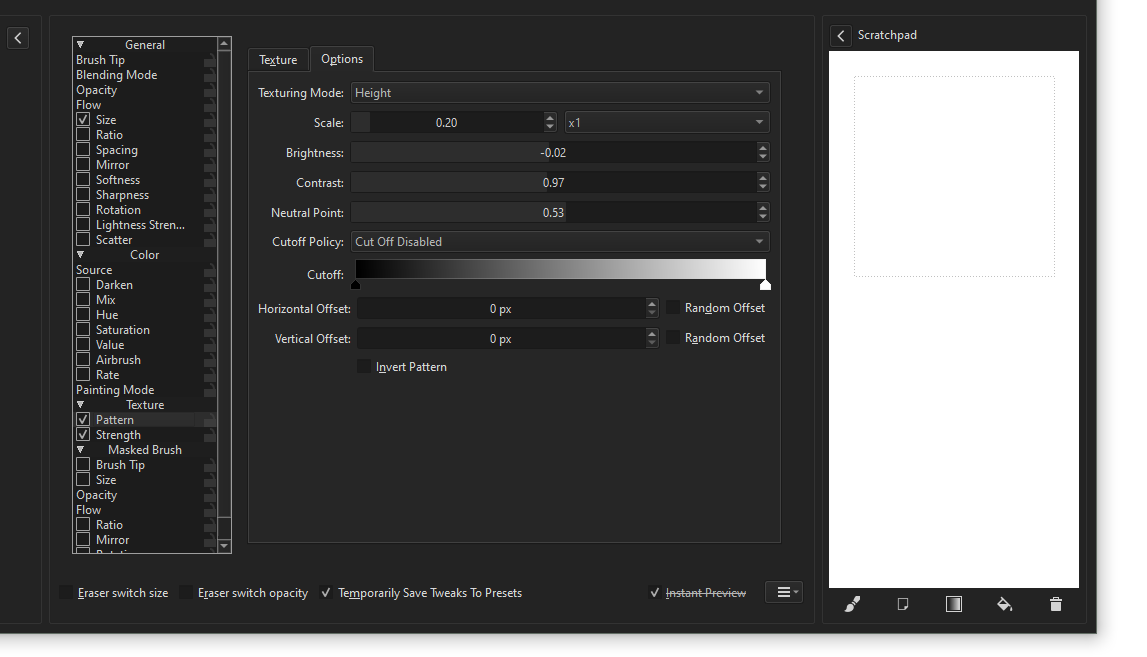
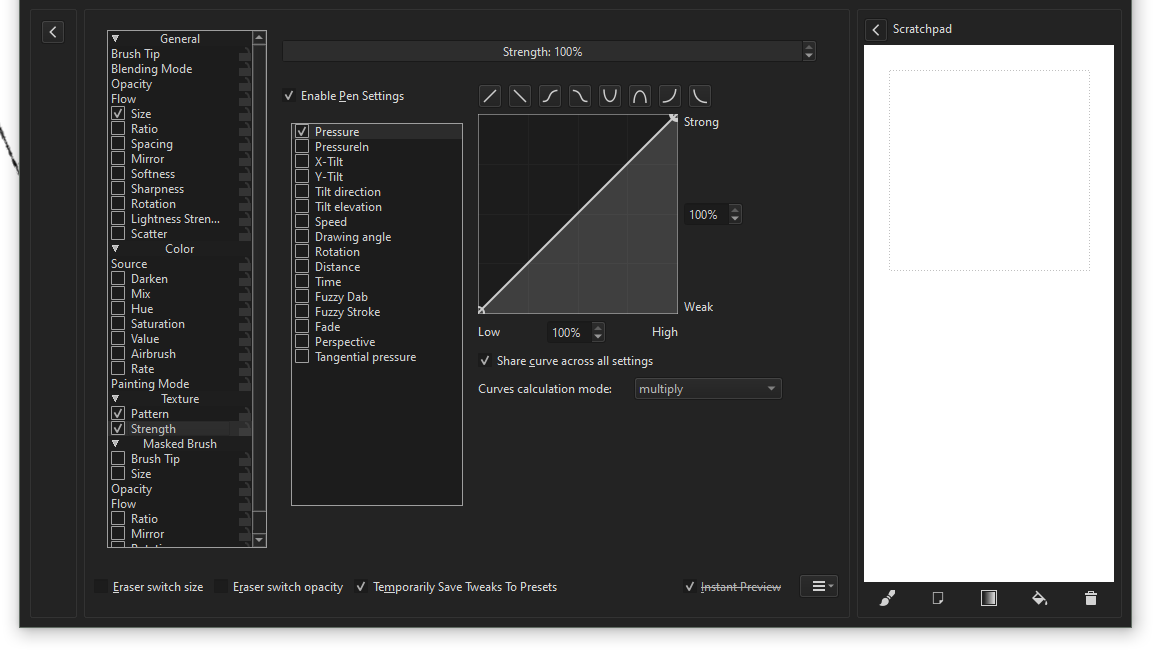
As you can see both of them turn the brush into gray when pressing very slightly. I want to change the density of the brush, instead of turning it into gray like opacity option does. https://drive.google.com/file/d/1pUQu3BqFc13kePRONtvACqKh1FUrDkf3/view?usp=sharing
This is the brush I experimented with if anyone is wondering.
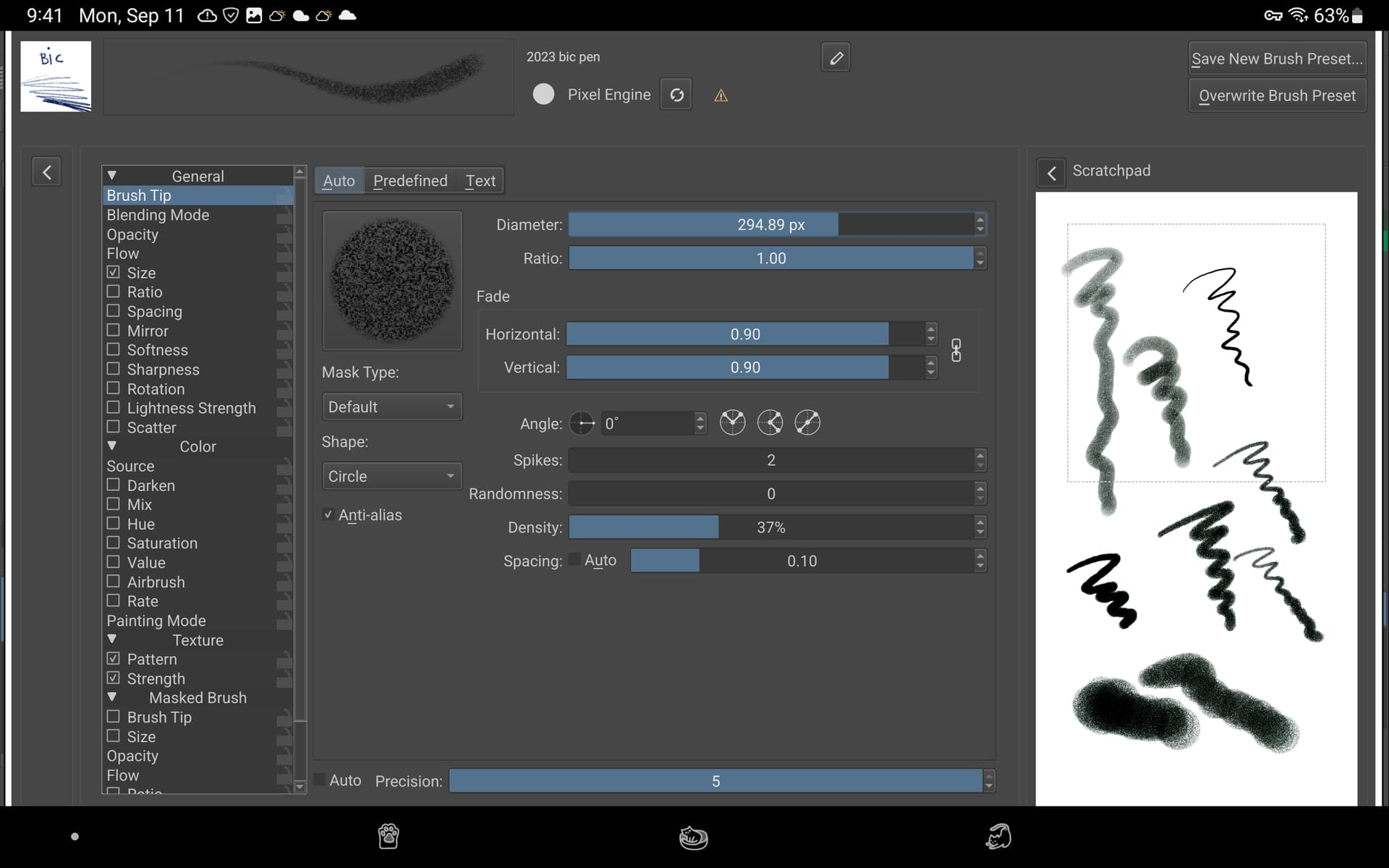
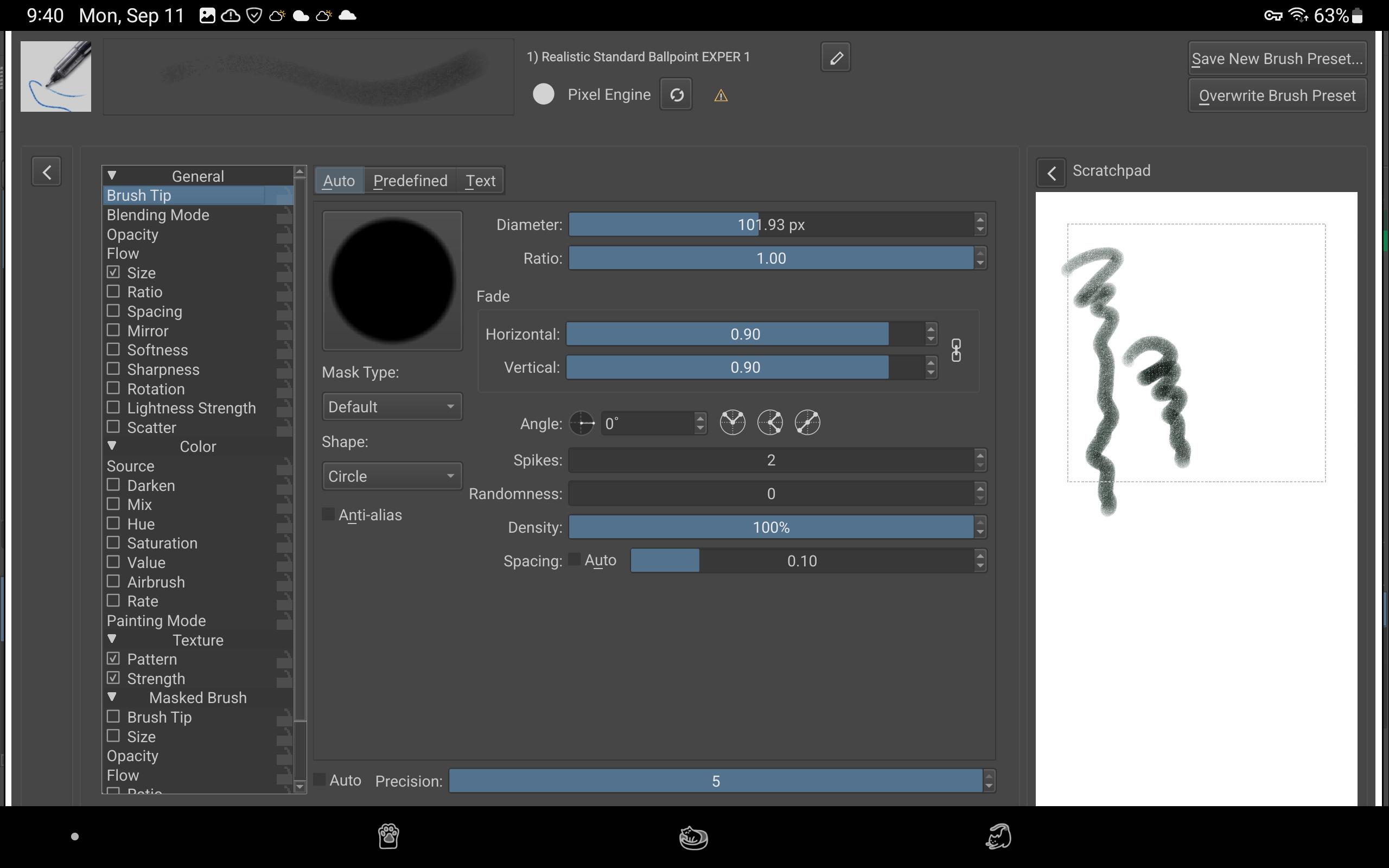
Sadly I tried almost all the inking brushes on the resources tab but haven’t been able to find similar ones to the ones I was using on CSP. I am going to play with the settings a little more maybe I can fake the effect.
But, do you have those brush bundles?  Yes, play around with the settings. Don’t forget that there’s a “reset” button if you mess them up.
Corrected screenshot, thanks to @Solution-Beast 
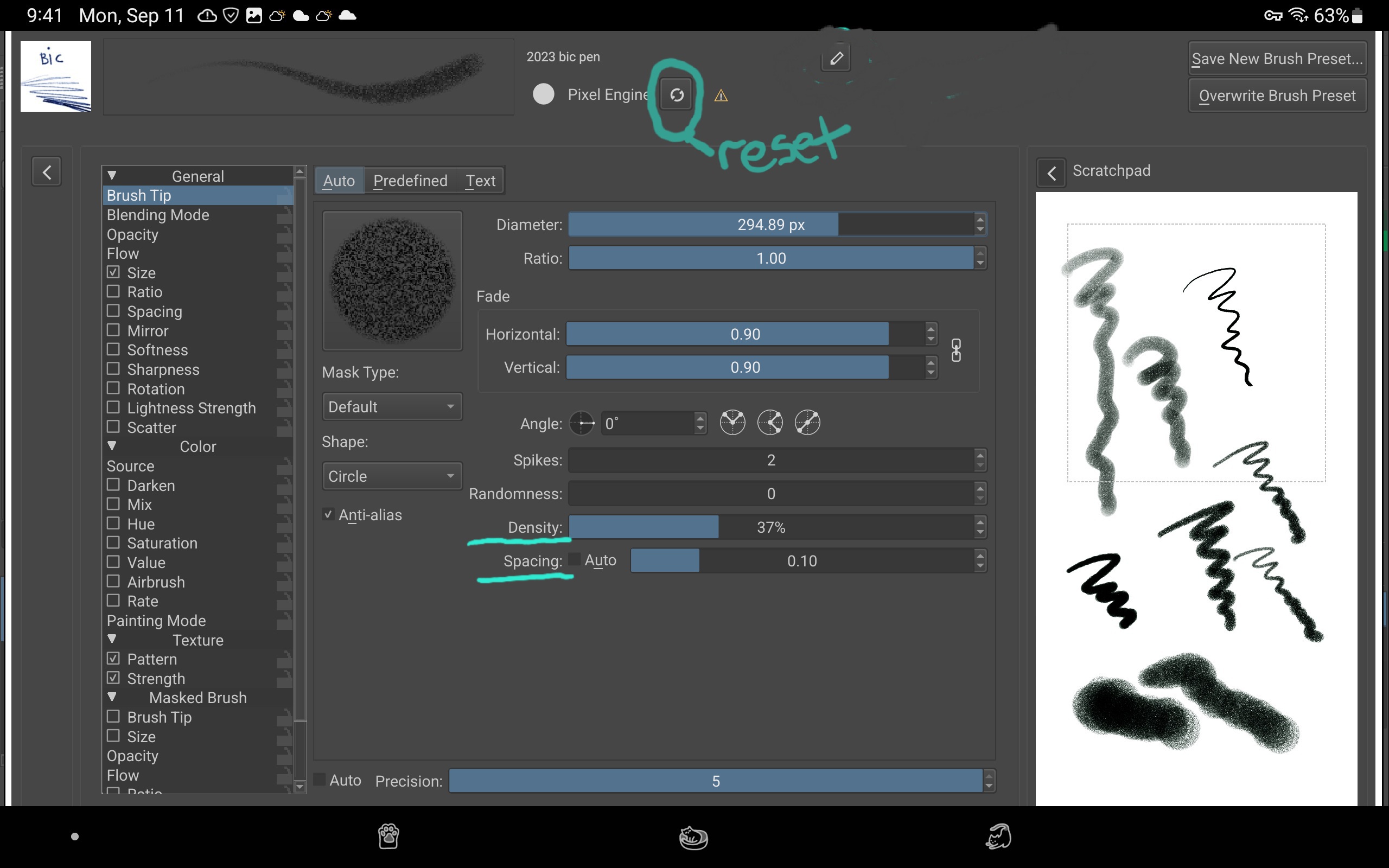
Thanks for having my back!! I missed that!
I don’t know if you know Rudluff’s Inking bundle, from @fizzyflower’s gigantic MyPaint mega bundle pack, which in my eyes is a fantastic bundle, not much comes close when it comes to ink and line art. You can either try to find it in fizzyflower’s post where it’s in one of the archives held there, or take the shortcut and download it here directly.
Furthermore, many are convinced by Jarry H.'s Line Brush Set. Already the number of those who found and downloaded it via the post hidden in the depths of the forum is impressive, because nowhere is it advertised, I guess most found it via Google. But these brushes are also more than worth a look, even if you’re looking for something else.
Whether you’ll find what you’re looking for in the aforementioned bundles, I can’t say, but you’ll definitely find some very good brushes among them.
I’ll keep my fingers crossed for you in your search. Good luck and success!
Michelist
Have you tried turning off pressure controls for flow as well as opacity, and only using pressure to drive texture strength? That and setting texture mode to height is about as close as I think you can get with Krita.