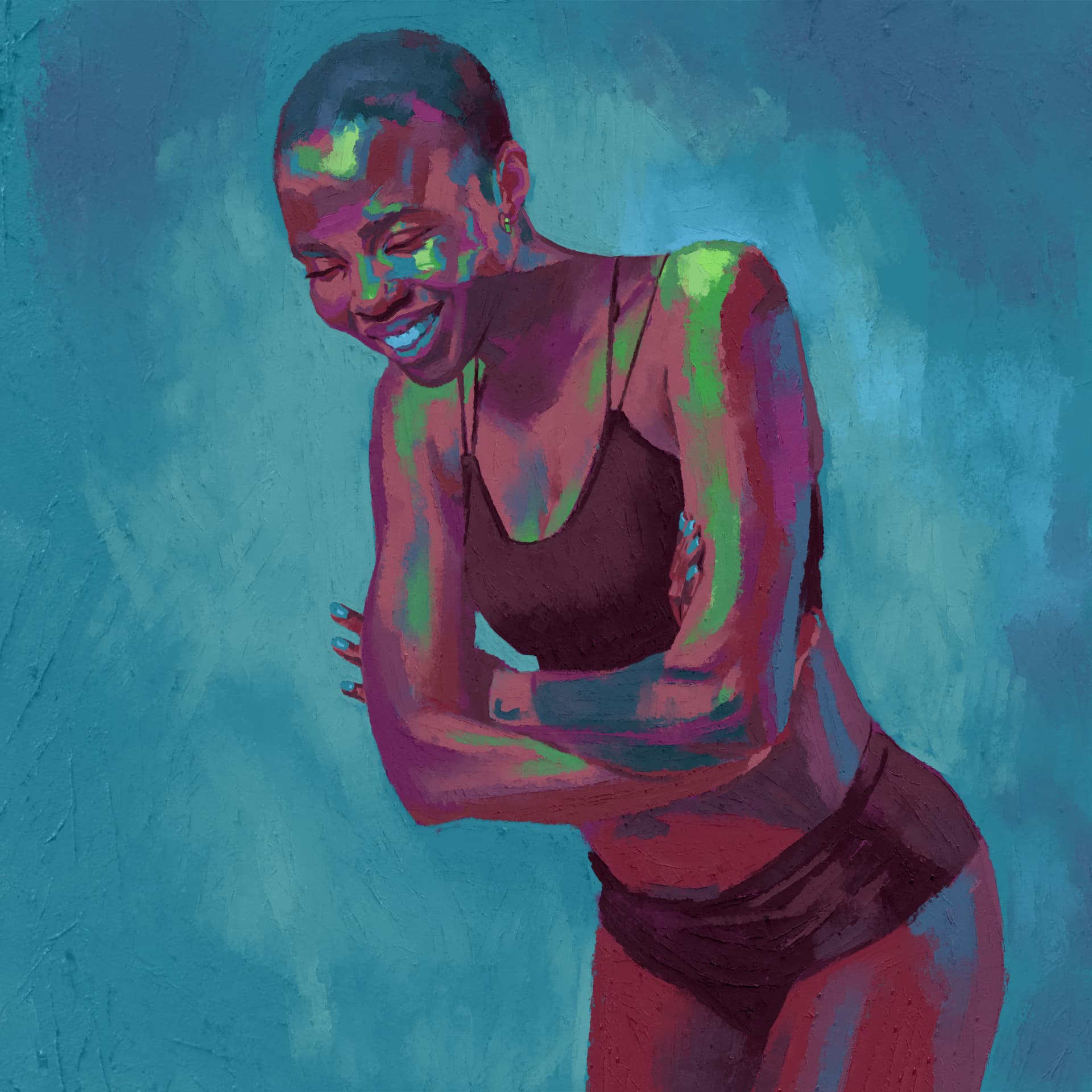
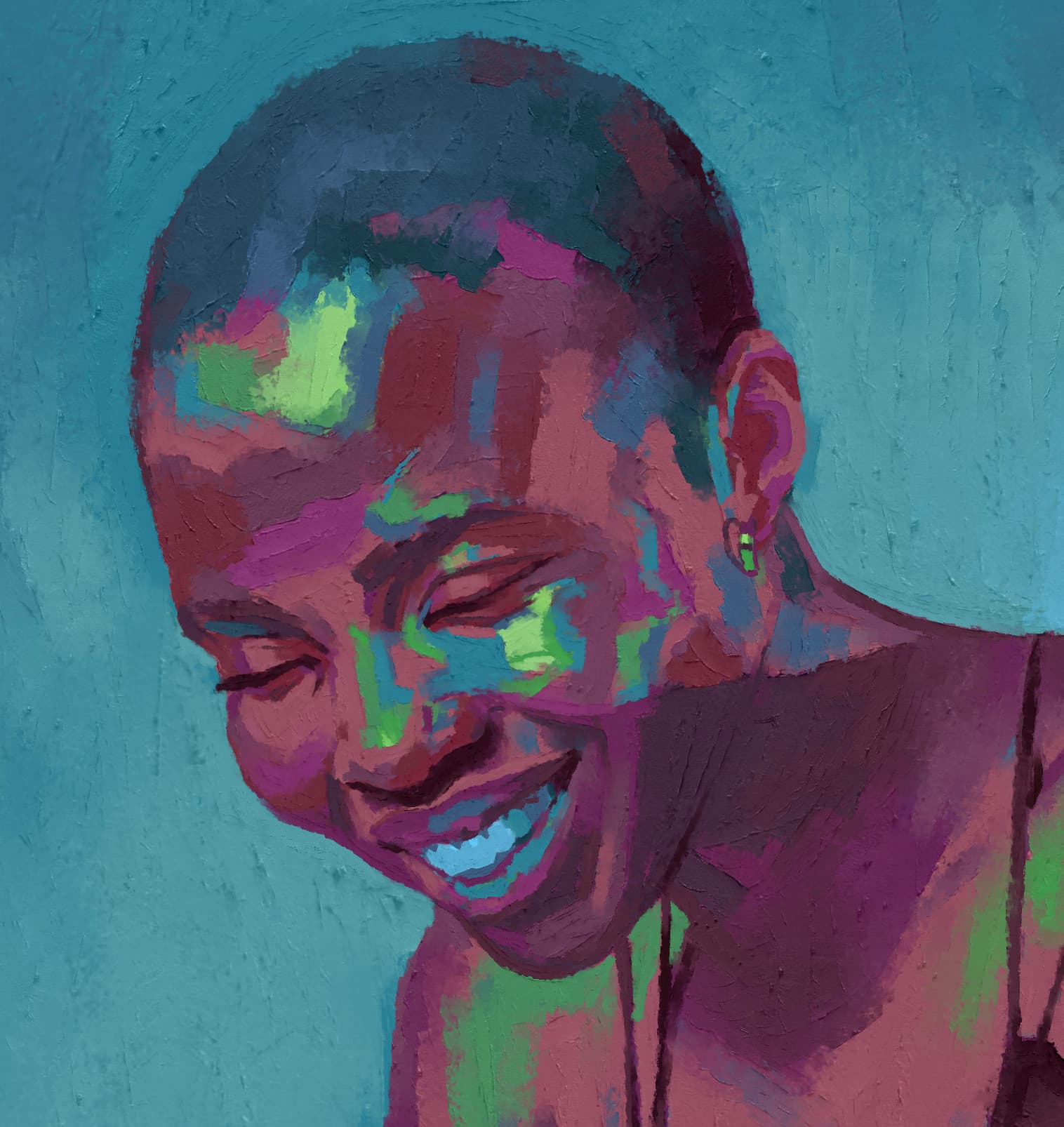
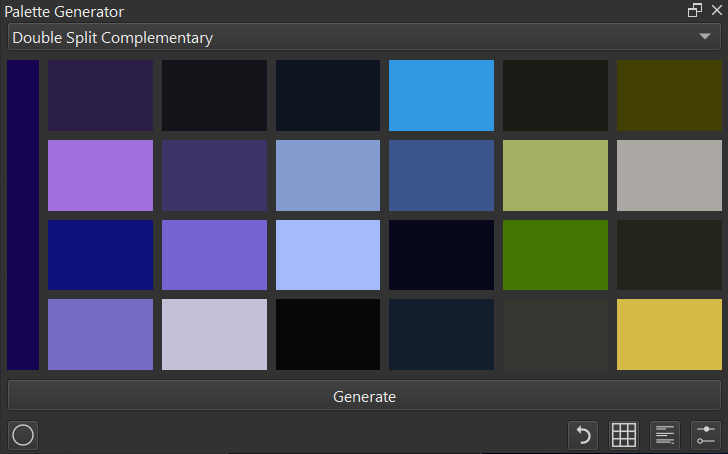
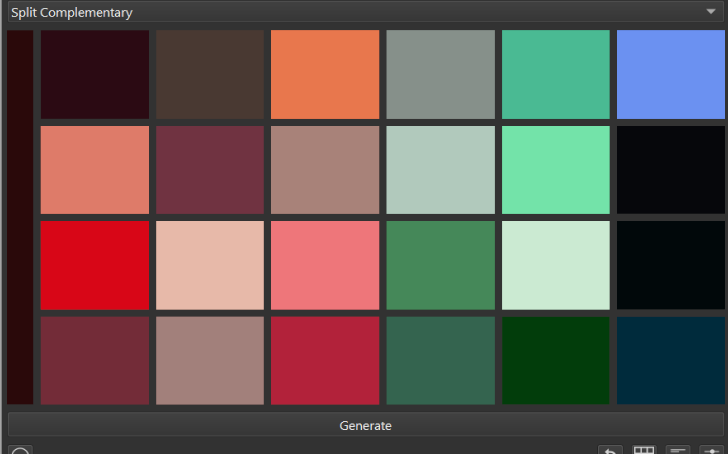
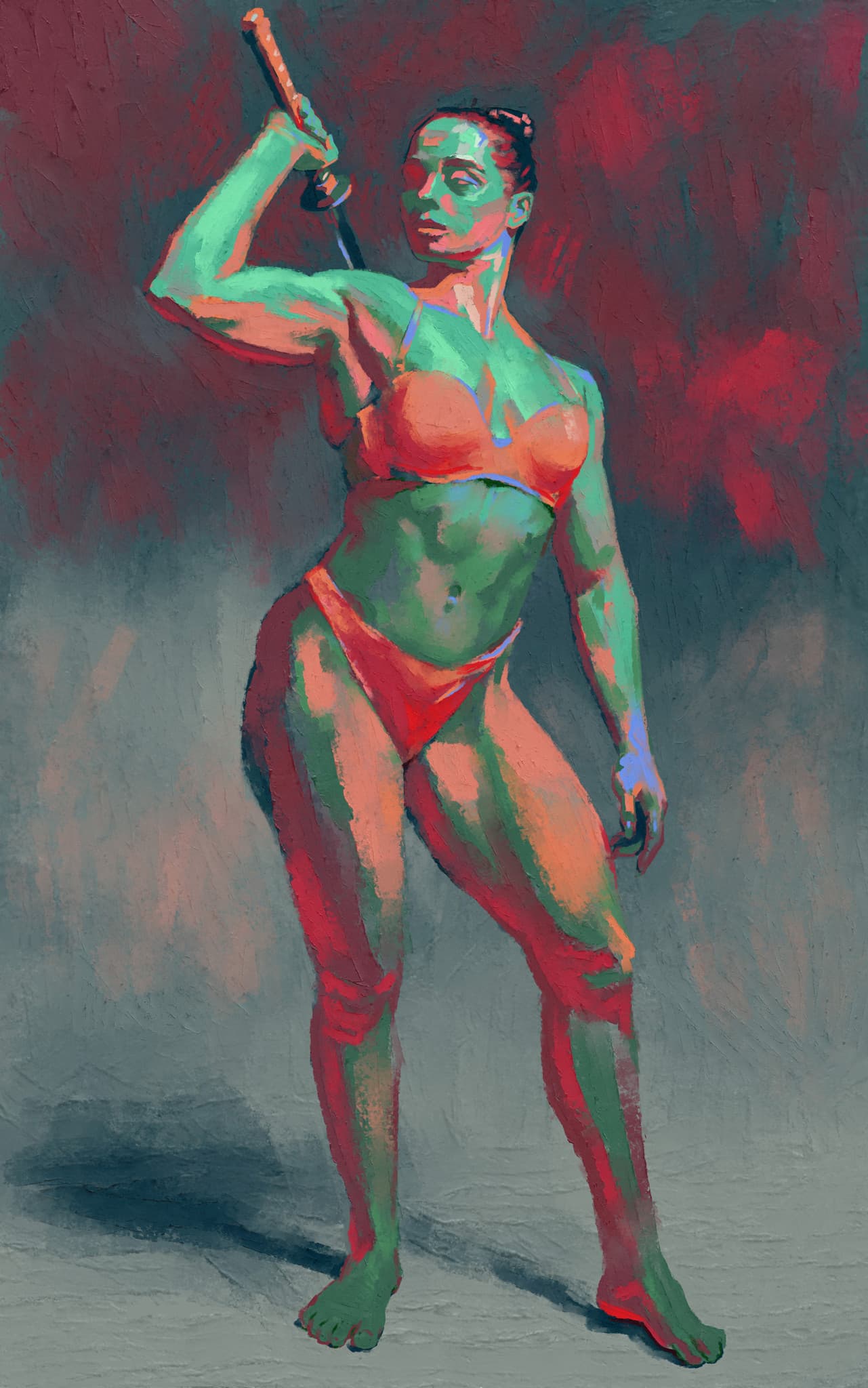
Here are a few figure studies created with @emilm 's Rotating Light Brushtips and @kaichi1342 's Palette Generator
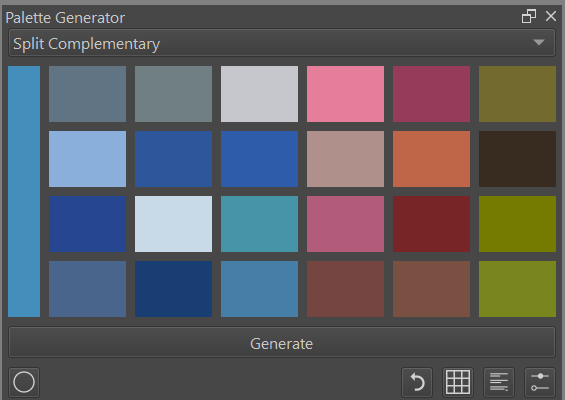
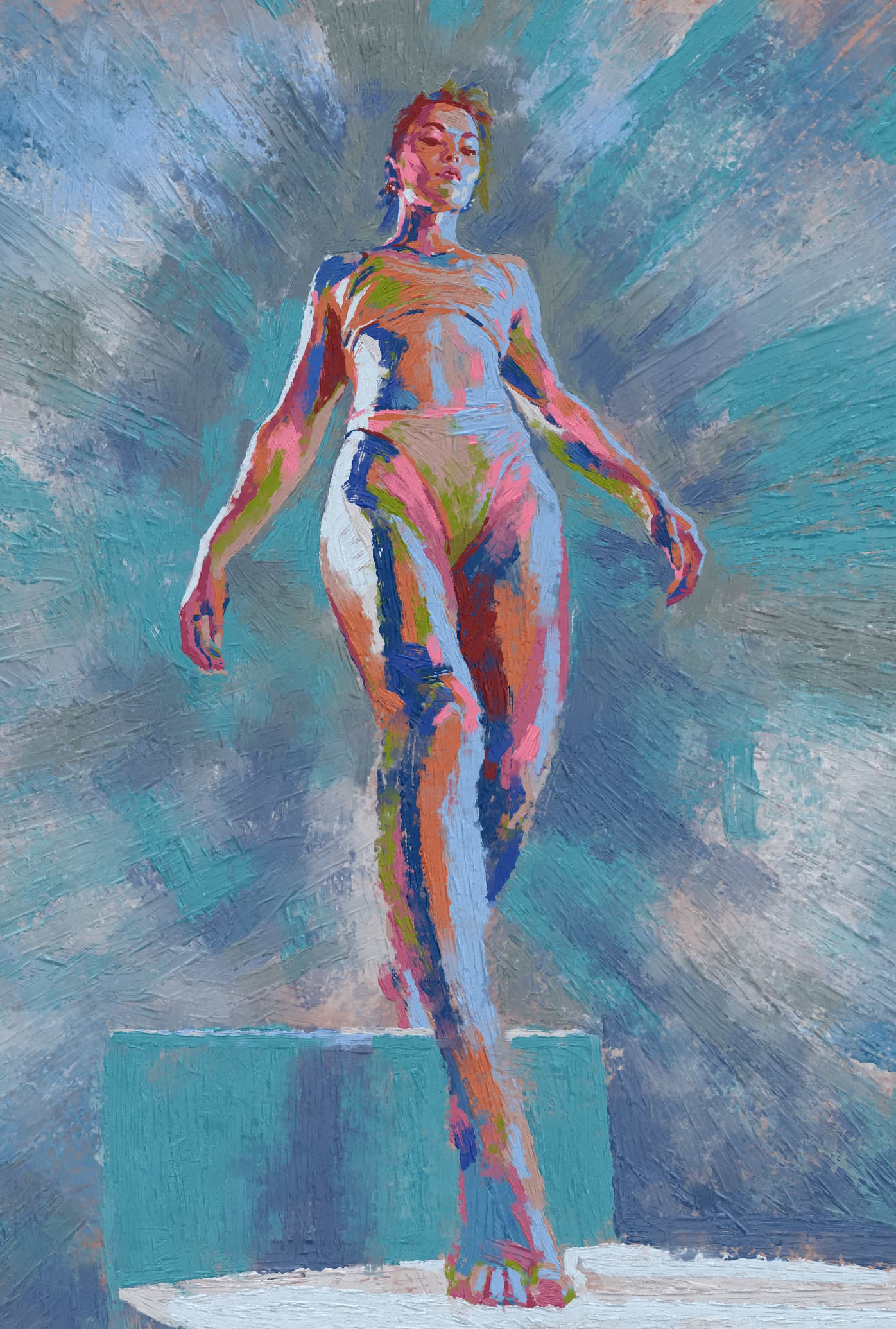
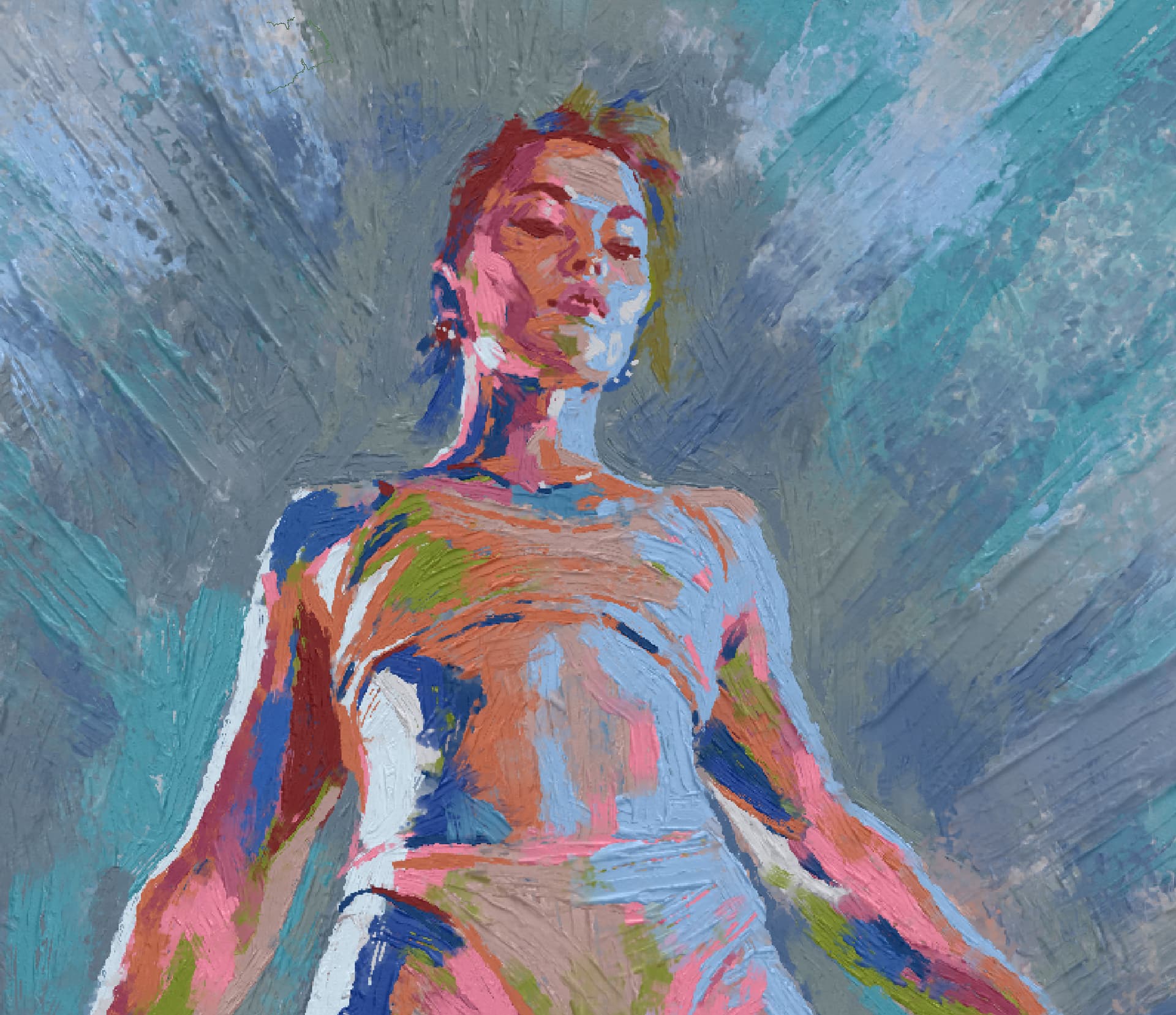
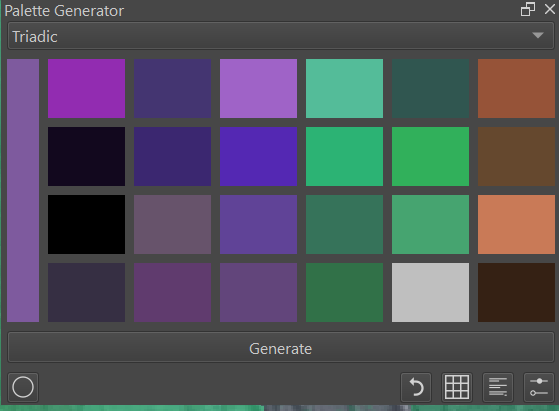
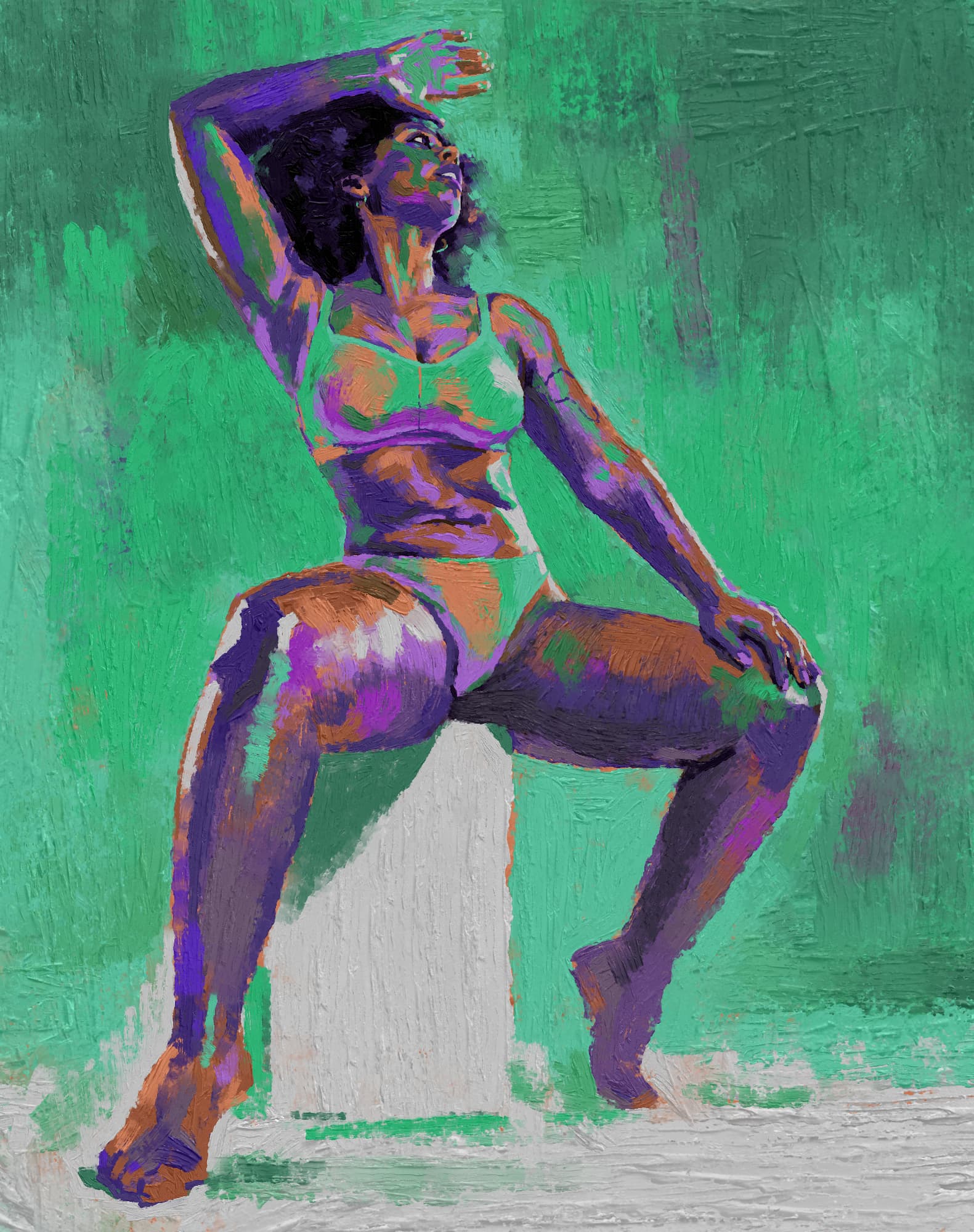
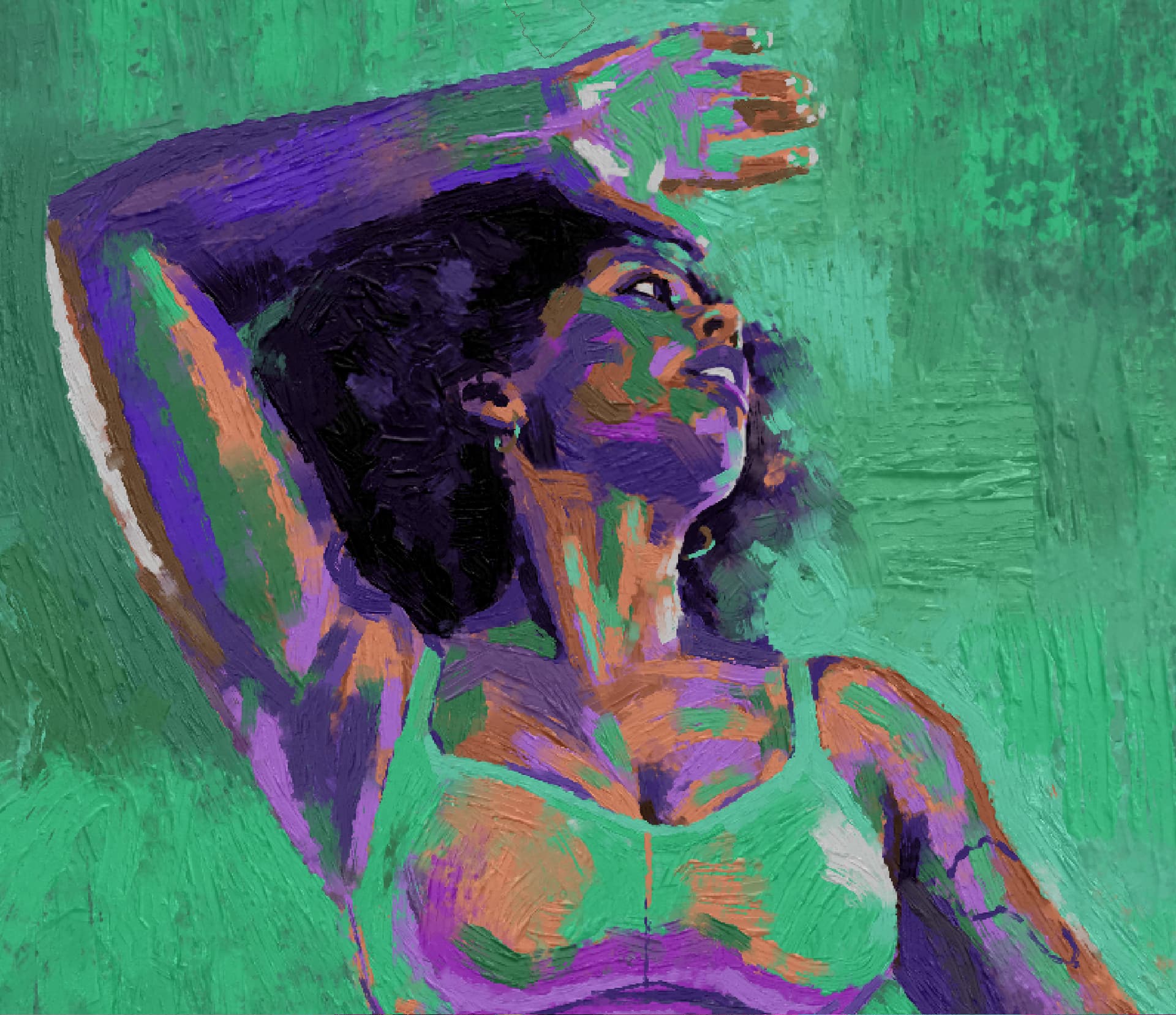

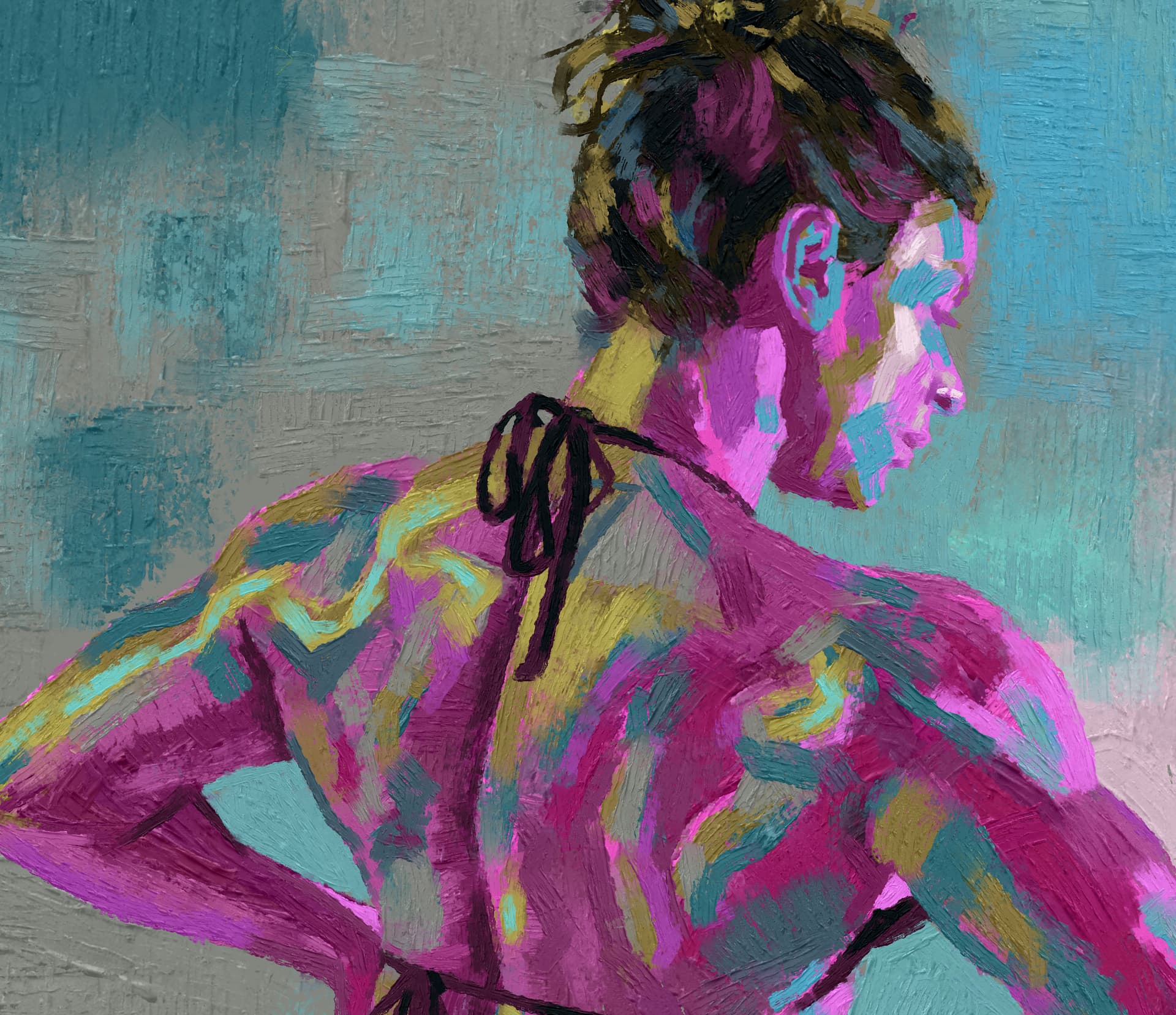
These were done primarily with the memileo 360light Knife PHOTO-C Performance brush, which is very juicy and good.
Here are a few figure studies created with @emilm 's Rotating Light Brushtips and @kaichi1342 's Palette Generator
These were done primarily with the memileo 360light Knife PHOTO-C Performance brush, which is very juicy and good.
These are wonderful pictures and colors!
I just don’t understand why you uploaded them to Imgur instead of using the forum? That’s the best way to get to broken links in the long run.
Michelist
Thank you!
It’s a habit from other forums.
I’ve edited the post and uploaded the images on here.
Beautiful work. Thank you for sharing the brushes and plugin you used. It’s always interesting to know about the artist’s tools.
Oh these are so nice! I especially love the first one. The foreshortening paired with the heavy strokes you used for the background makes it look so dynamic despite the relatively static pose. Awesome work.
Well done!
Nice ones! they would fit perfectly in a serie to be exposed in a gallery, with much more content. around.
Thanks, folks! I appreciate the comments!
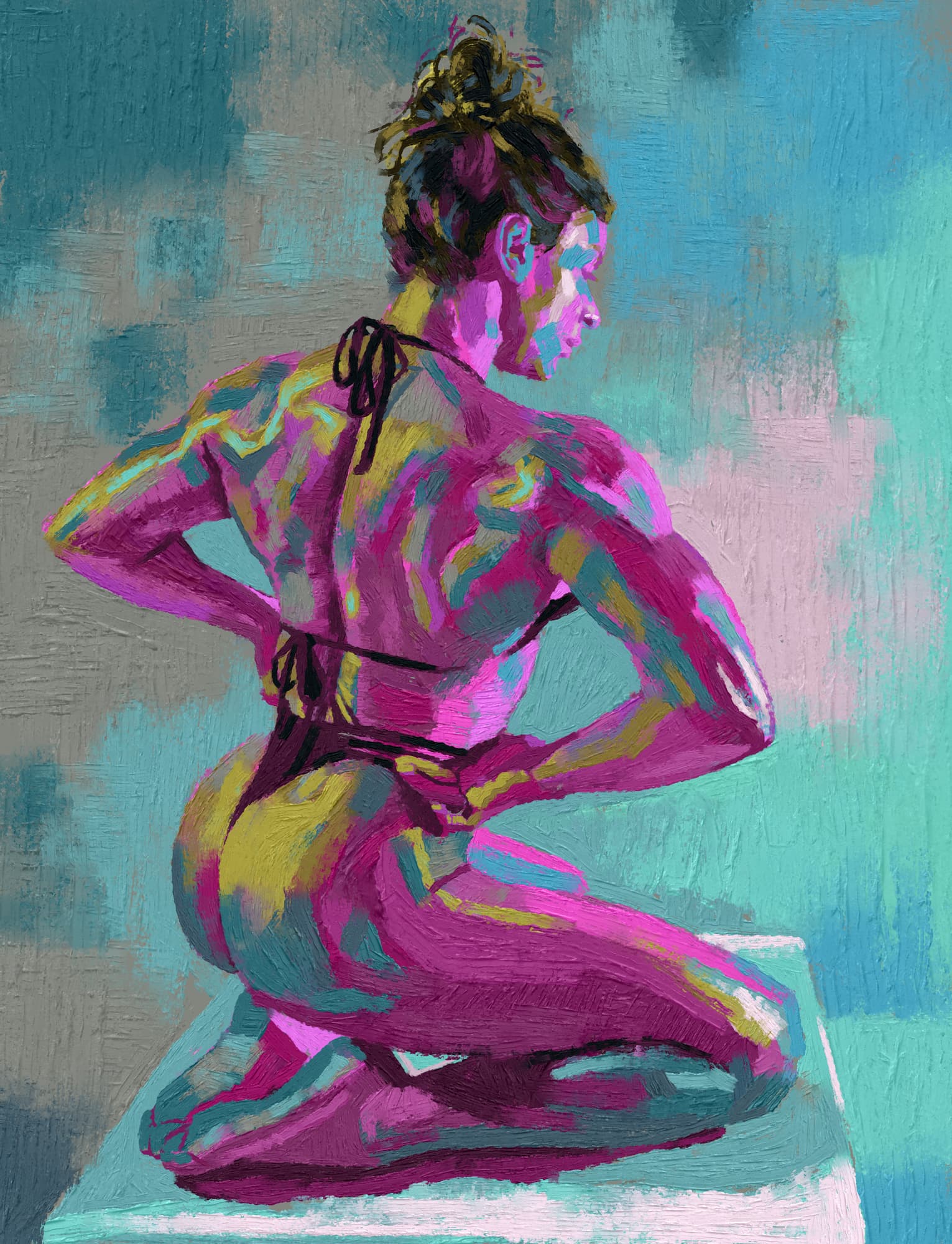
Another study here:
In this case I used memileo 360light Knife PHOTO-B Performance, which is kind of buttery and very pleasant.
This also used the palette generator, but I forgot to screenshot it or export/save it.
I really struggle with colours. Your art is eye-opening. I’ve not considered using a palette of apparently random selection of colours, and “making do” with just that. Beautiful! (-:
wow! i love all of these
Wonderful painting and colours.
Regarding colour, the most important facet for me is usually the value range. With these random palettes the first thing I’m looking for when I hit the Generate button is whether or not it has a good range of values for the study I’m working on.
Whether a palette is random or not, I’ve found that I can get away with a lot of nonsense as long as the values more or less read correctly.
A quick way you can check the values in your image is to create a New Layer, set its Blending Mode to Color and then fill that layer with White. This will let you see the image in greyscale and you can just toggle it on and off as you work.