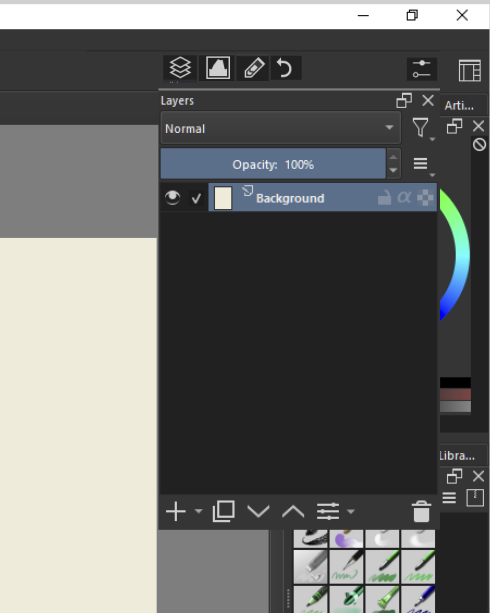
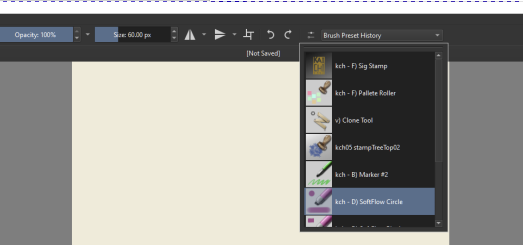
the far left button will function similar to docker under palette one,
basically setting to define which docker is in there and unlike docker under palette which one of our concern is space.
I dont think docker on toolbar / dockerbar (lol) will have the same issue. So number of icons will be dependent on size.
Option maybe either icon or text.
Anyway Im also fine with the current design by Freyalupen. Since that already work on Docker Under Palette and just basically an extension of it.
@abhifx I think that button in @freyalupens design - can be place to far right beside the layout manager via toolbar settings, i think you just need to insert it after the expanded spacer and before layout manager.
Further, when i meant button on the left, i want the button in place of toolbox docker.
I am also thinking out loud, could this whole feature can become a docker? In that way we can place this like any another docker and its tool option would allow enabling and disabling any docker which would create icons just like the mockup
I am actually hoping if something like this can be done. This project is actually very close to what i was thinking with dual hand navigation. right hand to draw, left to invoke dockers
Dear @AkiR, Tried this on desktop and this works fantastically. How would i add layers to it?
@freyalupen, The script from Akir is kind of hits bullseye, Icons for each docker, dockers can be invoked with floating effect, can be placed anywhere in the UI. there are some querkiness which can be looked at but requesting if this can be looked into and baked in krita.
I haven’t meant to ignore this thread, just been having trouble gathering my thoughts on it. (And, I haven’t made any progress in my implementation.) But here are some thoughts.
Different icons for every docker:
It did come to mind, but it seems like a large design task given the number of them, and that’s without even considering plugins (though they can have a fallback). That doesn’t mean it’s impossible, though.
Implementing AkiR’s dockers toolbar script natively:
Porting it from Python to C++ should be mostly straightforward in this case, the hard part is the design. So I would first work on polishing it as a plugin, one that adds actions for Krita’s existing toolbars, as it’s more flexible to develop a plugin.
Adding dockers to the script:
You just need to add it to the “docker_icons” list. You have to know the docker’s internal name, which can be gotten for any docker like this:
from krita import *

dockerName = "Layers" # or whichever
qdock = next((w for w in Krita.instance().dockers() if w.windowTitle() == dockerName), None)
print(qdock.objectName())
For Layers it would be like 'KisLayerBox': Application.icon('merge-layer-below'),
(there is probably a better icon than that somewhere).
I’m not familiar with PS or CSP, what does that look like?
I dont know which direction the design will go. My vote is on DockerBar. Im fine which ever was chosen.
I went ahead and start designing icons for the docker that has no suitable icon yet.
I think [layer, histogram, onionskin? and a couple of other main dockers can use already existing icons]
First of all, that is something that would need a new docking system, but maybe it can give some ideas.
In ps you have “sidebars” that are attached to some edge of the main window. Each sidebar can have multiple “docker groups”. For example, on a left sidebar you have the groups distributed from top to bottom. Each docker group has 1 or more dockers in a tabbed view, so only 1 docker is visible at a time. You can detach a whole sidebar and making it floating by click and dragging an area on the top, above the tabs. Or you can detach a single docker and make it floating by click and dragging a tab (this actually creates a floating sidebar, with a docker group that has that docker). You can organize the dockers in the sidebars in the same way, regardles they are floating or attached to an edge. Not sure right now if you can also detach a whole docker group at once. All of this is similar to any docking system.
Where the novelty resides is in that the sidebars can be collapsed/expanded to/from a kind of toolbar. This toolbar shows icons for the dockers and those icons are grouped visually if they belong to the same docker group, so the docker grouping is preserved. It is like a collapsed version of the docker group. Then if you click one of those icons the docker appears as a floatting window and stays open until you press its icon again. Iirc those icon groups can also be detached to a floating toolbar.
Overall it allows easy access to dockers without having them take too much space. For example you can have the most used dockers on a expanded sidebar, and secondary dockers that you use less frequently, but frequently enough so that you want to have them at hand, on a collapsed sidebar, and show them temporarilly by clicking the icon.
The layer worked. There are some querkyness, like the docker pops always on left side and visible dockers behave weirdly.
I am still stumped how this can be implemented with current design. But i hope we all can pitch in. Should the buttons will always be visible and retain existing design? Where will the configuration of buttons go?
I will be home this weekend, i might try a mockup
Edit : Looks like i got some idea instead of sleeping.
Dockers button should be listed on right. Where pressing a button would enable docker and highlight the same with pressed button representation. Thus by default, regular interface will be available with pressed buttons. This can now be enabled or disabled with press og a button.
More dockers icon can be enabled or disbaled just like existing system is there. Which instead of just enabling whole visible docker will just enable icon
I tried it and it definitely makes a better workflow in full screen mode (canvas only).
By just enabling toolbar in canvas mode, brush is already available, colour is already available, brush size and opacity is there, now with this docker i can get tool box or layer easily accessible.
If just the toolbar could be moved to the left and rotated sigh! I can call this the tablet UI happily.
@freyalupen, i enabled it on secondary toolbar and enabled two buttons, and it didnt have icon. but the main toolbar shows the icon correctly. Not sure why this is. I will try to test the plugin later.
Also tested the plugin and IMHO this is something what @raghukamath was implying in inkscape.
More people may chip in. i think we have much flexibility if all three options are here with docker in toolbar, in pop up and this plugin if it can be made native
I have now tested the new build where of docker box is not enabled in toolbar, it can be assigned to a shortcut and it will invoke where the cursor is. very cool