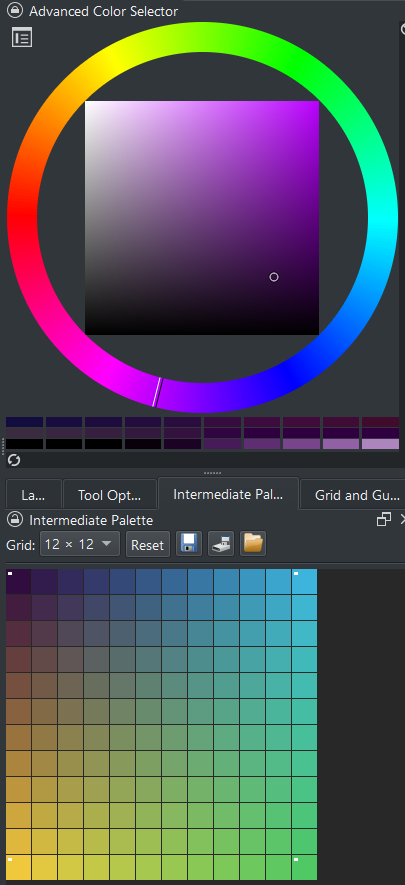
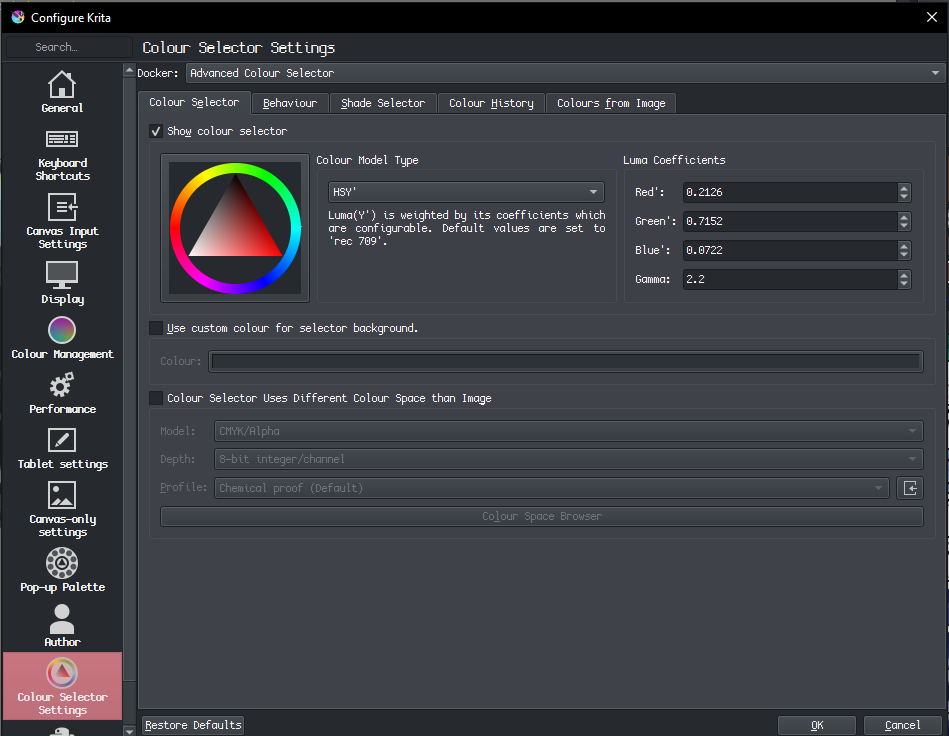
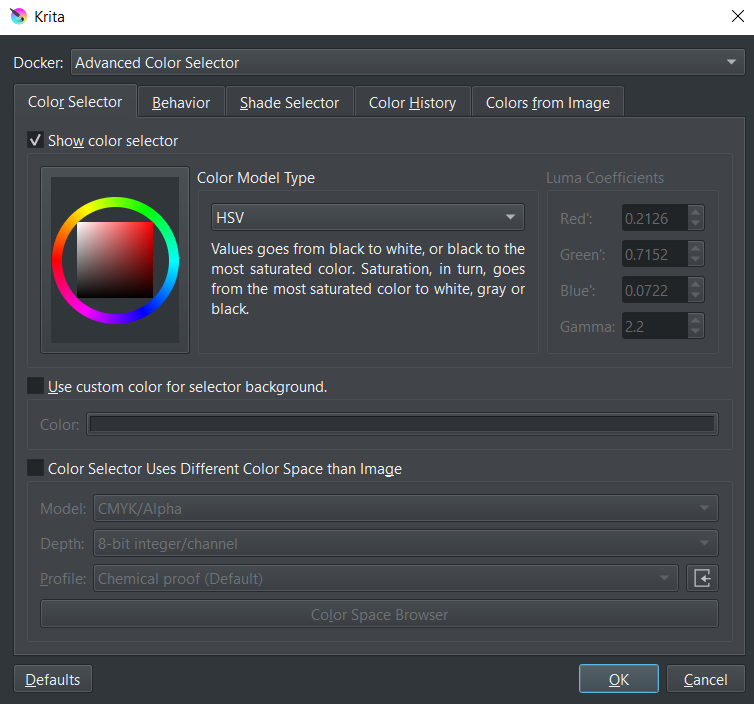
As I liked the idea stated in this Development thread by @Reitei17 ( Intermediate palette for krita ) about an Intermediate Palette similar to the one included with Clip Studio, so I decided to develop a proper docker for it.
So, here you are: Intermediate Palette for Krita by Tayete.
It is a ZIP file for a docker, which can be installed as usual by “Tools>Scripts>Import Python Plugin from File…” and needs to be activated by restart, and opened as always via, “Settings>Dockers>Intermediate Palette”.
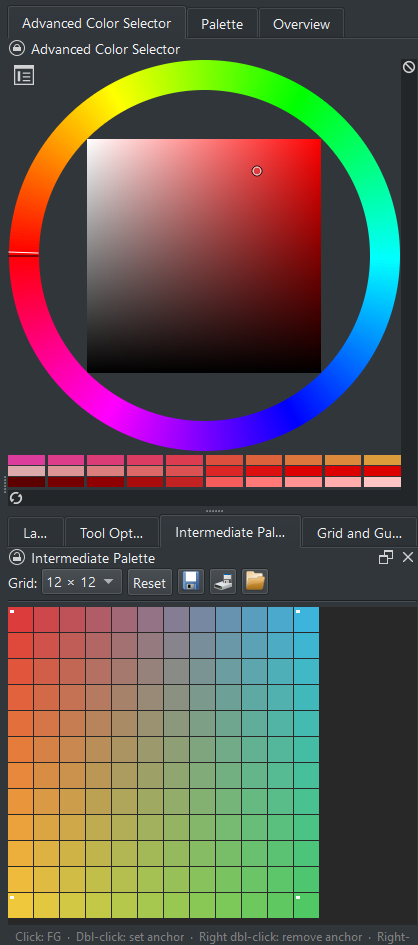
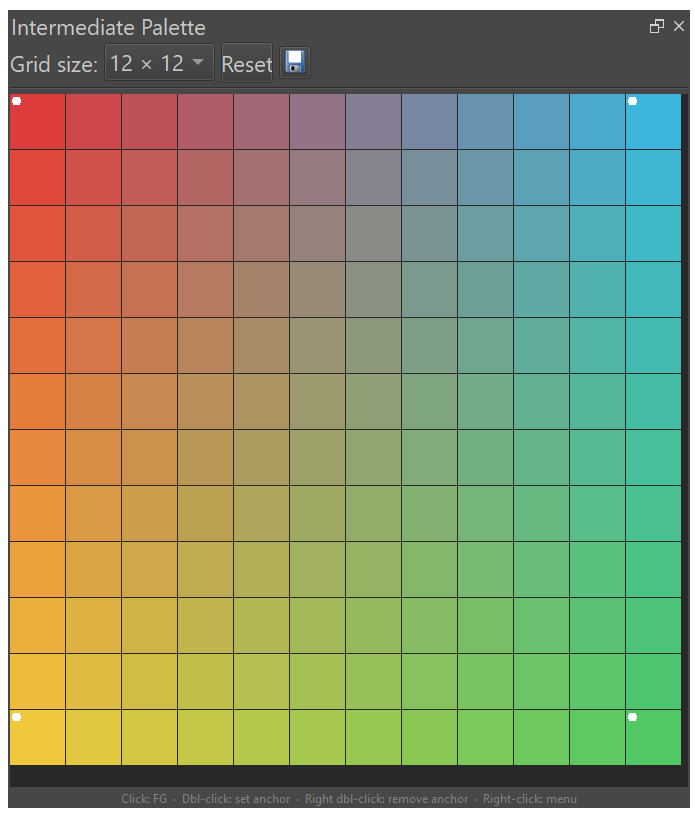
It is a square grid of colors that creates gradients of clickable swatches making a gradient between them.
By default it shows 4 different colors in the corners (dotted with a white point) and the gradients for those colors. Any color used as input will show a white dot to identify it.
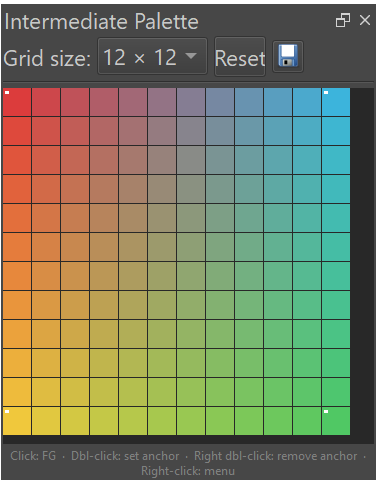
By default it is a 12x12 square . You can choose different sizes via the top down menu, with 5 different types of grids. The chosen colors will be kept and the gradients will be adjusted for the new number of swatches between them. If you choose a bigger grid, each swatch will have a subtler difference of color with the previous one. If you choose a littler grid, the differences will be higher.
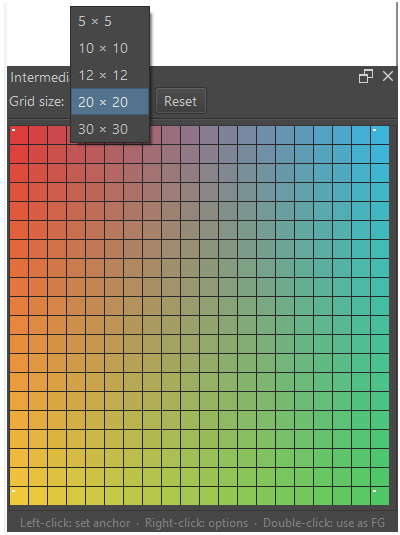
When the docker is resized, the grid swatches will adjust their size accordingly (bigger or smaller squares):
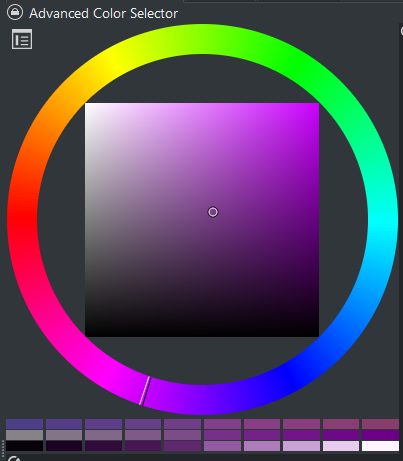
The usage is simple: you choose a color in Krita and double click on a square in the grid to make it an anchor color. You may also right click on the grid and a menu will allow you to set it as anchor color. The gradients will be adjusted when the new color is added.
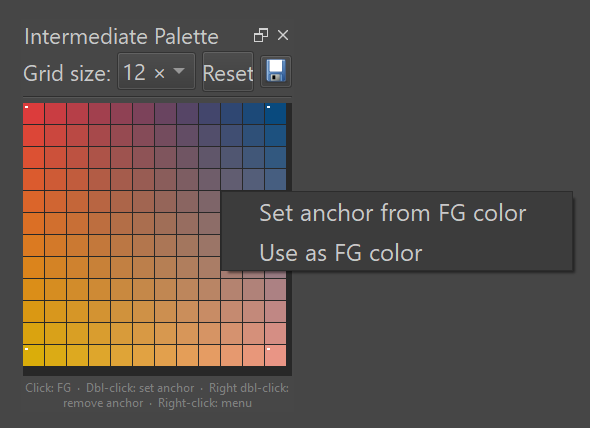
You may also click in any border swatch and it will adjust the colors properly (here I added a yellow swatch at the top row):
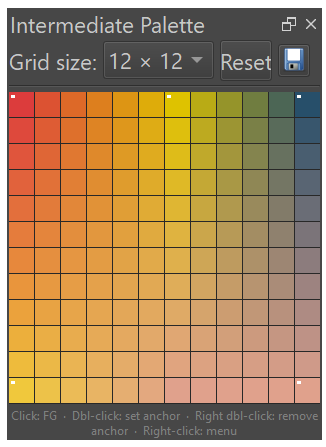
Or even click in a swatch anywhere (here I clicked the centre to make a radial palette from a central blue color to the corner ones):
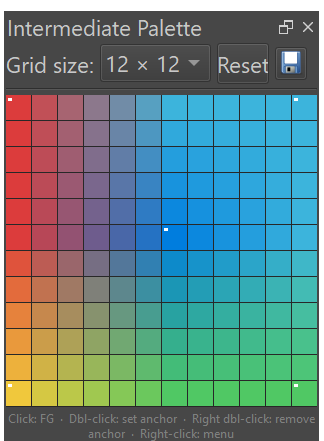
If instead of a double click (it assigns the current active color to the swatch), you click on any swatch, that color becomes the active Foreground in Krita. You can also do that via the right click menu on any swatch (“Use as FG color”).
Doing double right click on any anchor color (the squares with a white dot), will delete that anchor color. If you wish to only have a two color palette, you can delete the anchor colors in the bottom corners, double clicking them (they will get their color from their upper corner). The upper corners will always have an anchor color.
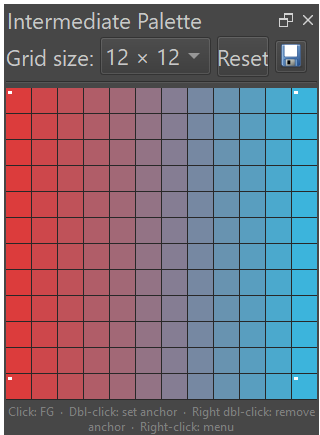
The “Reset” button will bring back the default colors.
The “SAVE ICON” will save a .kpl file (Krita’s palette files) with all the colors in the grid, so you can import it into your Palette docker if you wish.
The other “Save” and “Load” icons are used to store and restores current anchor colors. The plugin also loads the latest anchors used in the previous session. If no session is available, the default colors are used.
I hope you find it useful. Any suggestions or bugs I will be happy to read them.