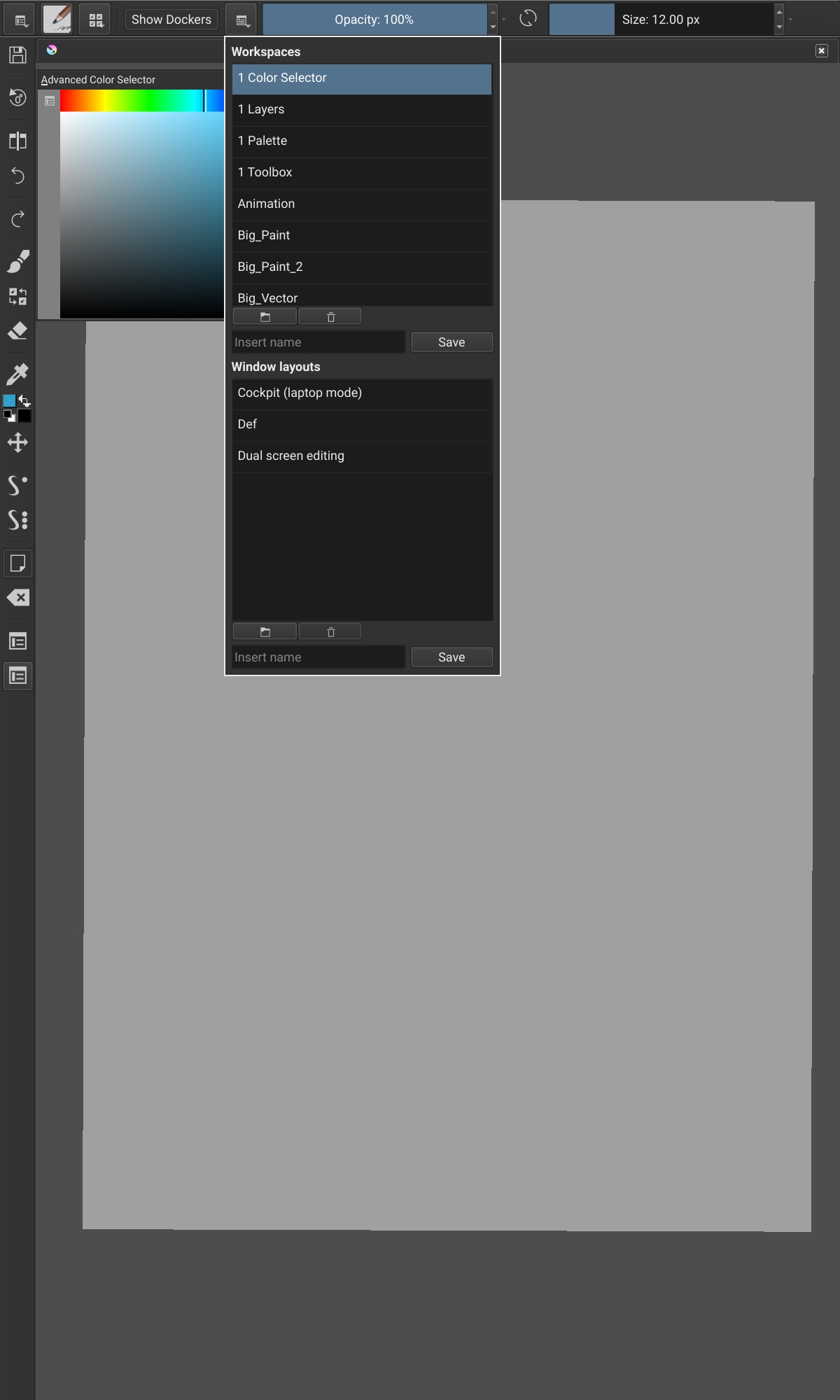
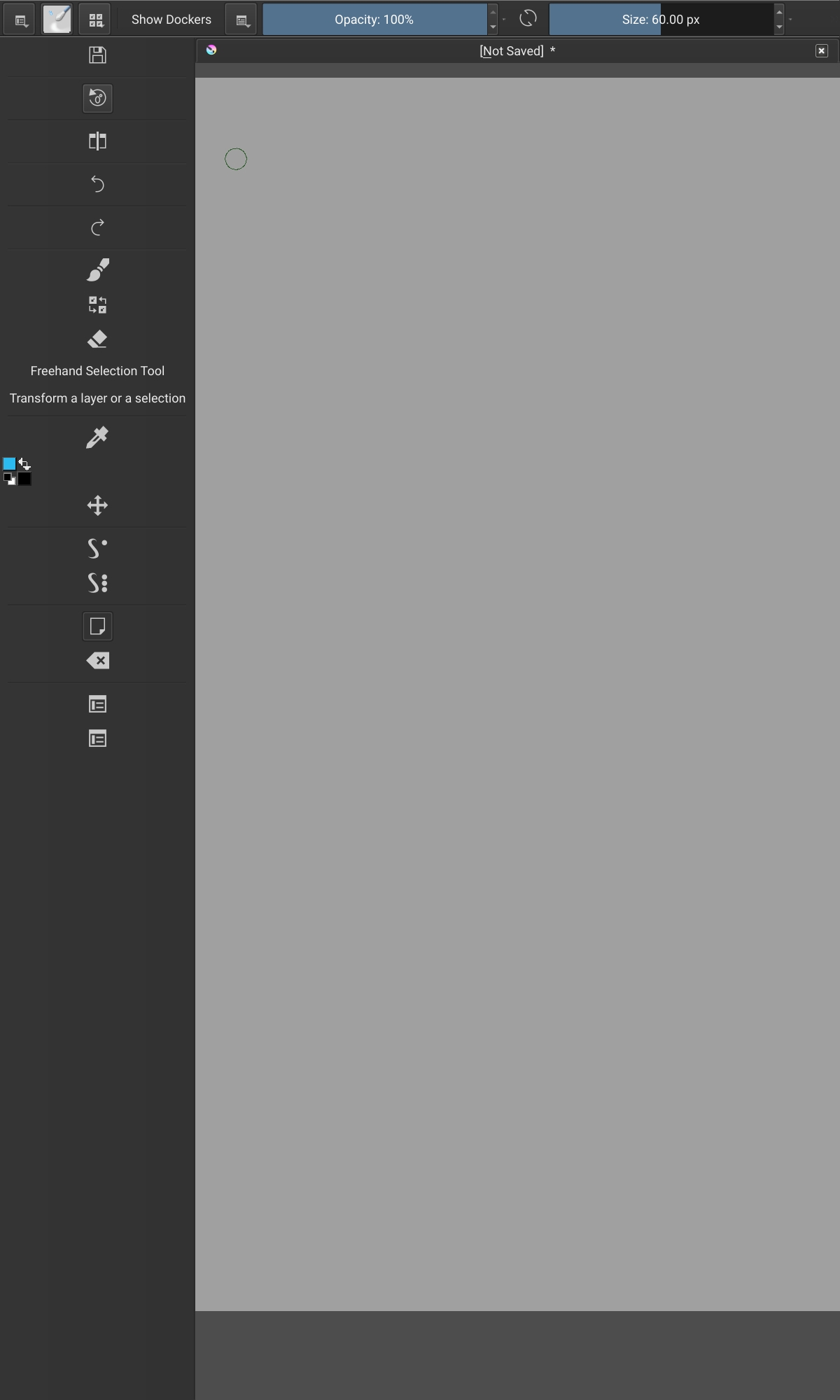
I made a little video showing how I set up Krita on Samsung Galaxy Tab S6. I hope some of the tips in this video might be helpful to anyone using an android tablet since this is the primary device I currently paint on.
The purpose of this video is to show how you can maximise your canvas space, workspace setup, toolbar setup such that you can rely less on opening the big menu bar, reduce brush lag, s pen setup and more.
If you have any questions or recommendation or think there’s something missing, please share.
I am trying to follow your steps configuring my tablet. I was able to disable the middle button In the canvas input. Moving onto the next step of adding a button, I was able to add the button, but I only have a choice of right and left, not middle. Any advise? Thanks so much. And great videos!!!
You have to make sure the s pen tip/nib is not touching the screen.
Just hover your s pen over the screen without touching the screen enough for you to see the pointer (The tiny dot), then click the button on your s pen. It will register as middle button.
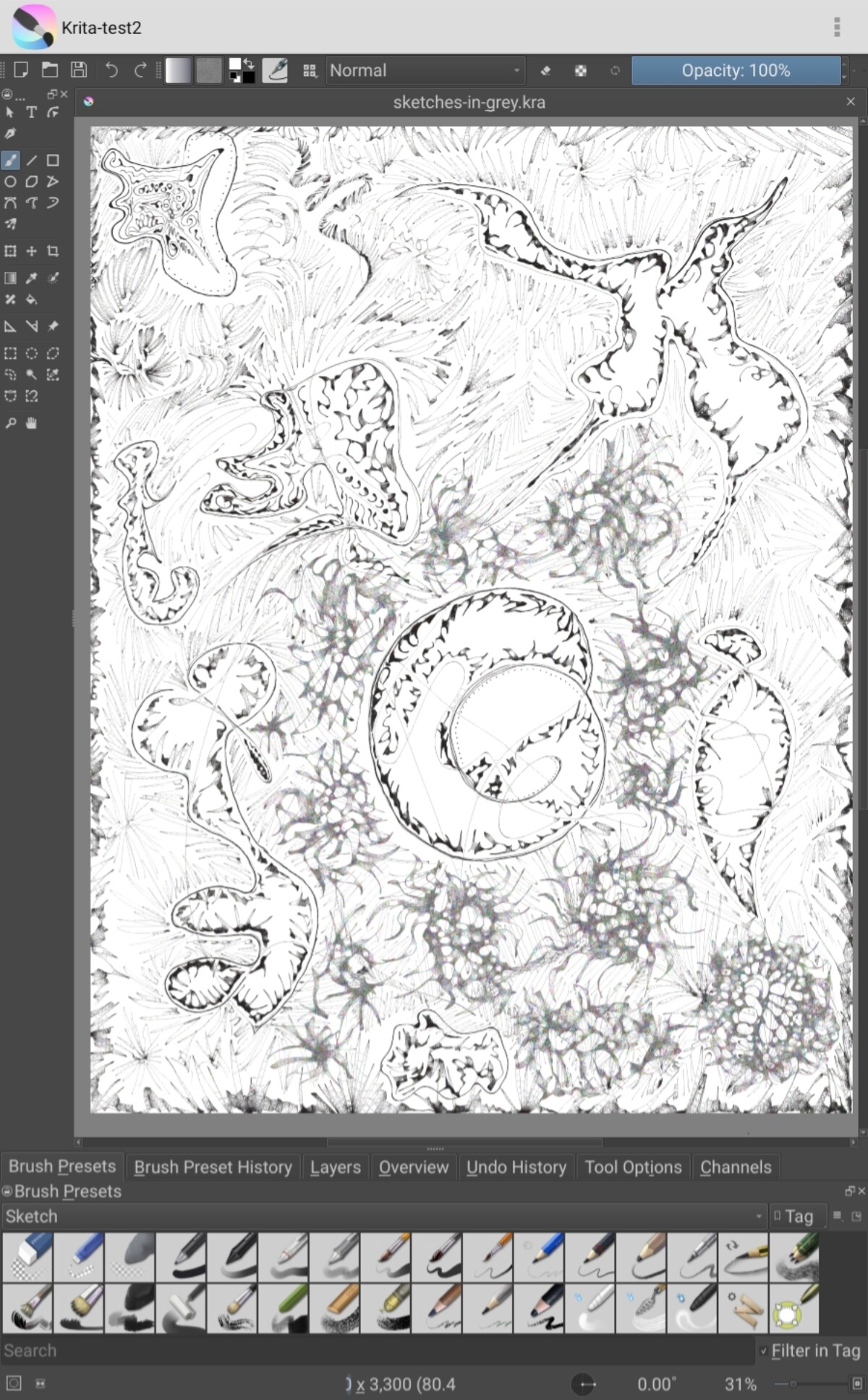
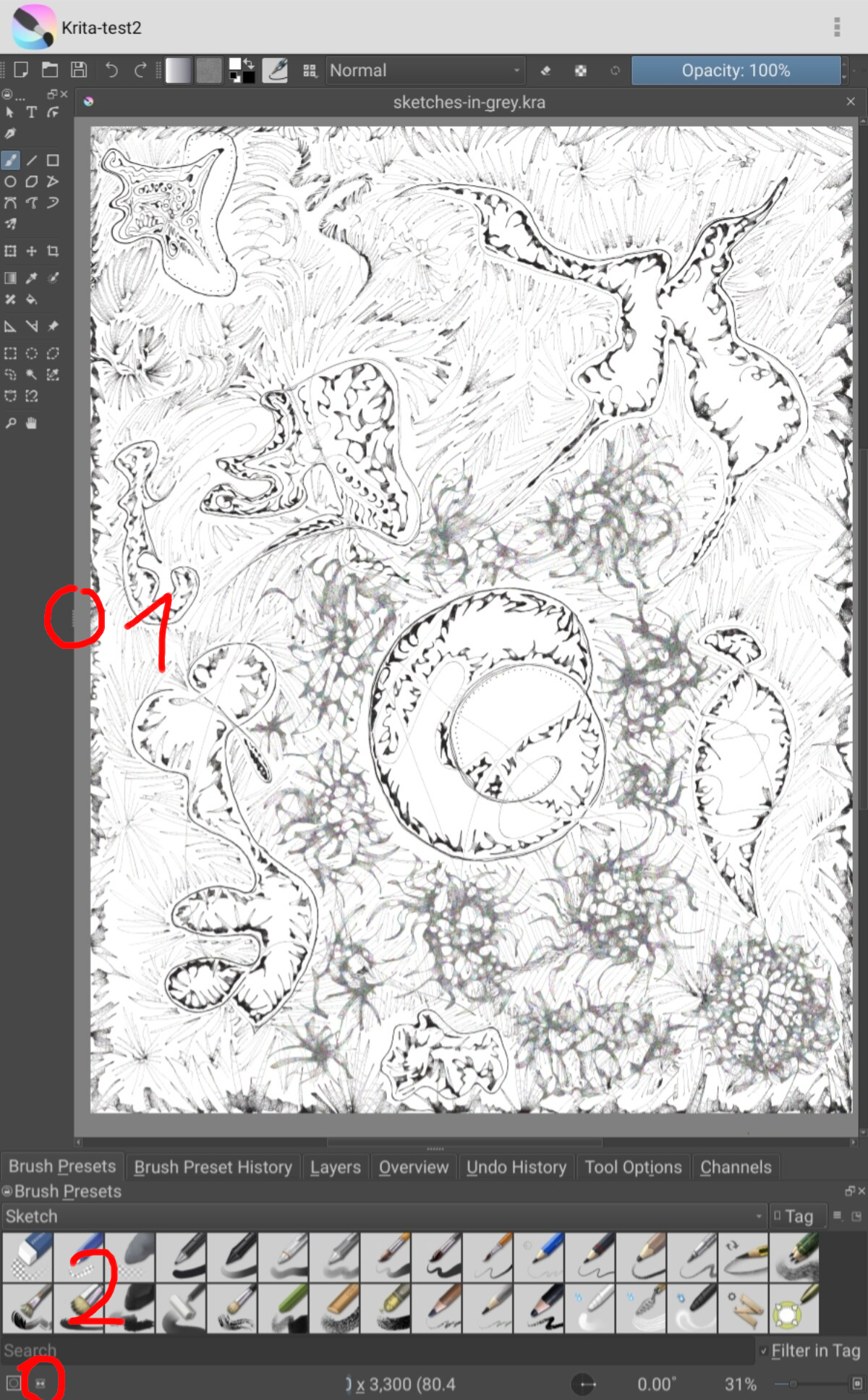
Here’s my preferred layout so far on S6-Lite tablet. I haven’t been able to get the pop up palette do work with the S-Pen, maybe studying the video will help me sort that out.
You can use dots (1) to collapse toolbox more, and use icon (2) to hide topbar.
When Krita asks for input tapping once is “left mouse button”, tap and hold is “right mouse button”, hovering that cursor shows and clicking button on pen is “middle mouse button”.
Thank you so much! I now have the pop-up palette working. The key piece of info was to turn off “Pan with middle mouse button”, and to ignore the whole S-Pen configure section. Also thanks for annotating my screenshot.
Thanks for the detailed setup process and this has definitely helped me to setup Krita on S7+ with my way of working, but layer selection and grouping the same has been a nightmare. Any idea how you are circumventing the same? I am not sure if your video covers it.