Layer Kit - Organize your layers faster

Layer Kit - v1.1.7

A kit of tools to make navigating and organizing your layers faster.

What is Layer Kit?

Layer kit is a Krita Python plugin that adds several convenient features to the existing Layers Docker. The plugin adds…


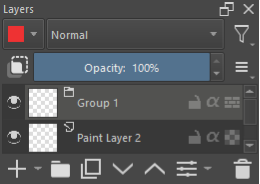
A clipping mask button
Layer Kit
When pressed, it executes 4 actions to replicate the clipping mask feature from Photoshop and Clip Studio Paint.


Visible groups and add group button
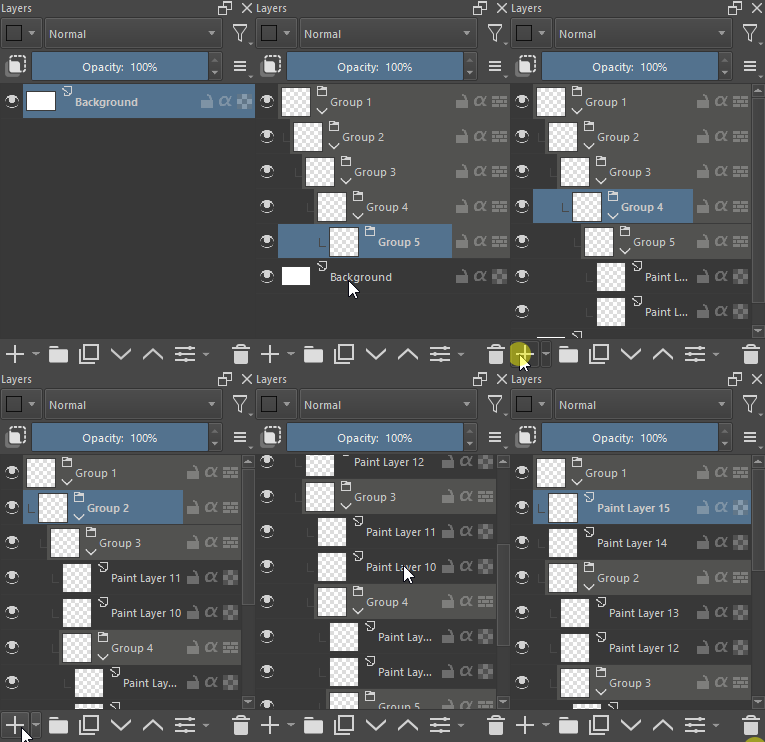
Groups and groups

Layer Kit automatically darkens all your groups to make them easier to spot, useful when using many layers. Adding an empty group in Krita now only needs 1 click instead of 2.


Move layers to top or bottom
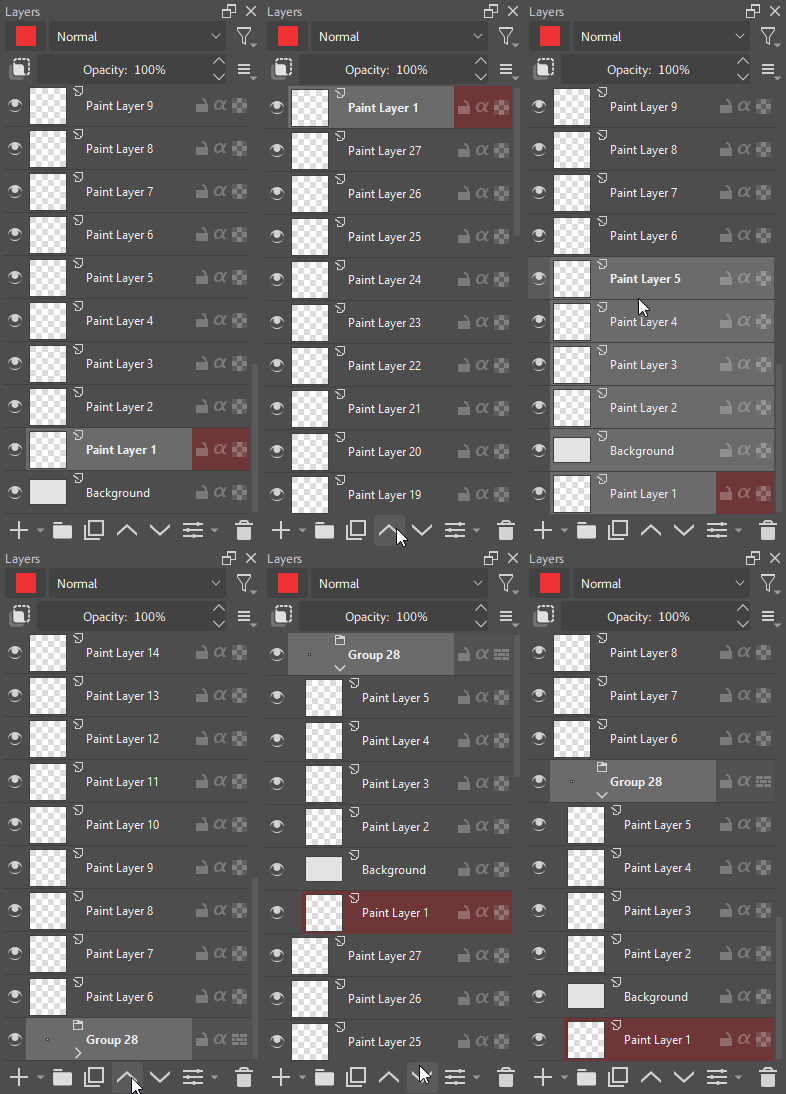
Move up top or bottom

Layer kit allows you to right-click the arrow buttons to move layers/groups all the way to the top or bottom of the layers docker.


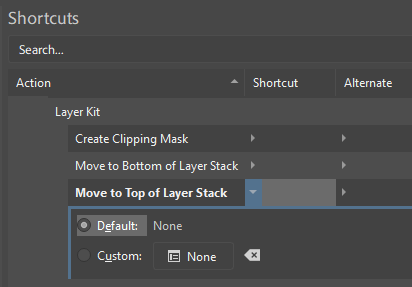
Shortcuts for Layer Kit’s actions

Label Box plugin
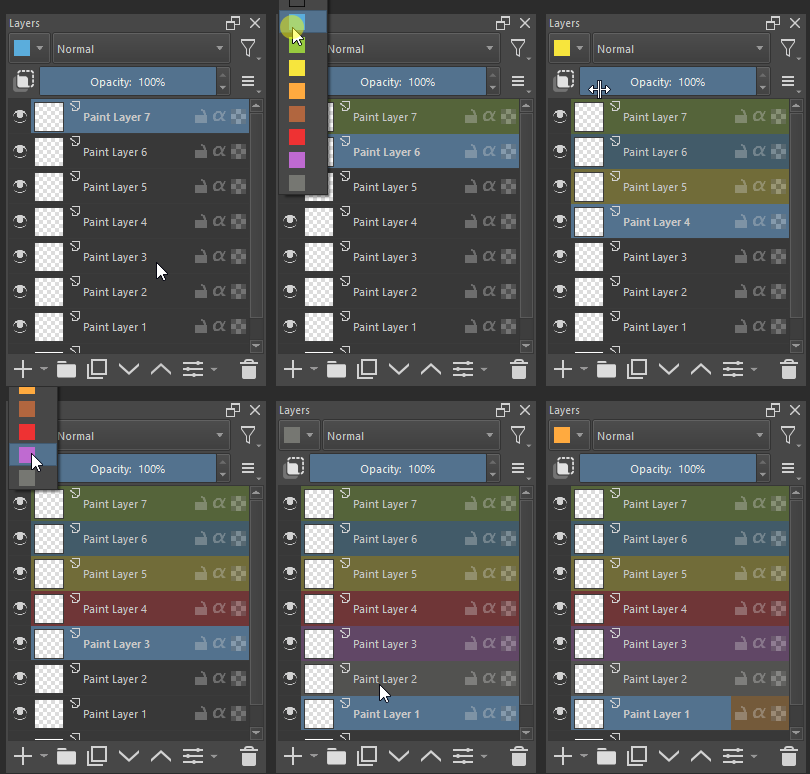
Label-box

@LunarKreaturesLabel Box plugin is the fastest way to color label your layers and is also tablet/touch friendly by only requiring left-clicks. I decided to bundle this plugin with Layer Kit for those who don’t have it already since it’s a must have in my opinion.

The included Label Box plugin now reacts to your current layer for visibility and consistency
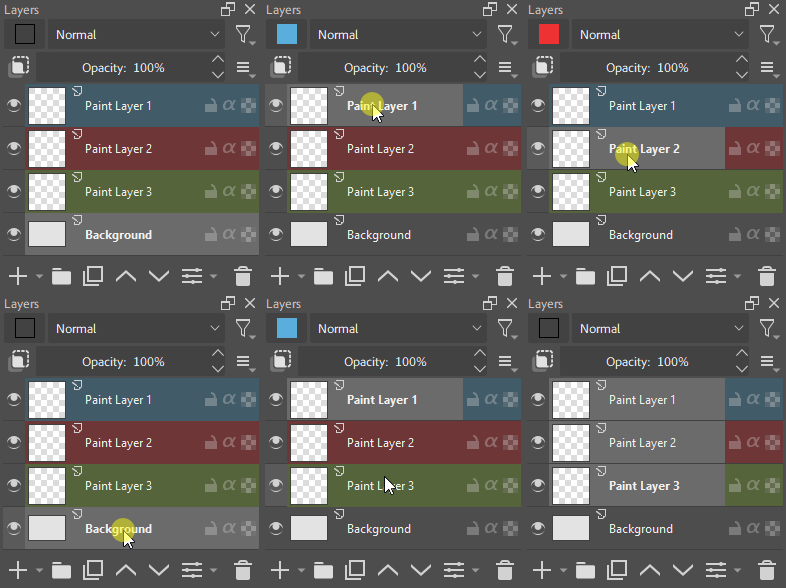
Reactive label box


What is a Clipping Mask?

A clipping mask is a common feature in digital painting programs in which your current active layer can be clipped to the layer directly below it. If no layer/group exists below the active layer, then it’s not an available option as the feature requires a parent layer in which the active layer can be limited by.

Why does Krita need it?

The clipping mask feature assumes you want your mask to apply to only the layer directly below the active layer. To make a clipping mask apply to multiple layers below the active mask layer, you’re required to clip it to a group directly beneath it instead.
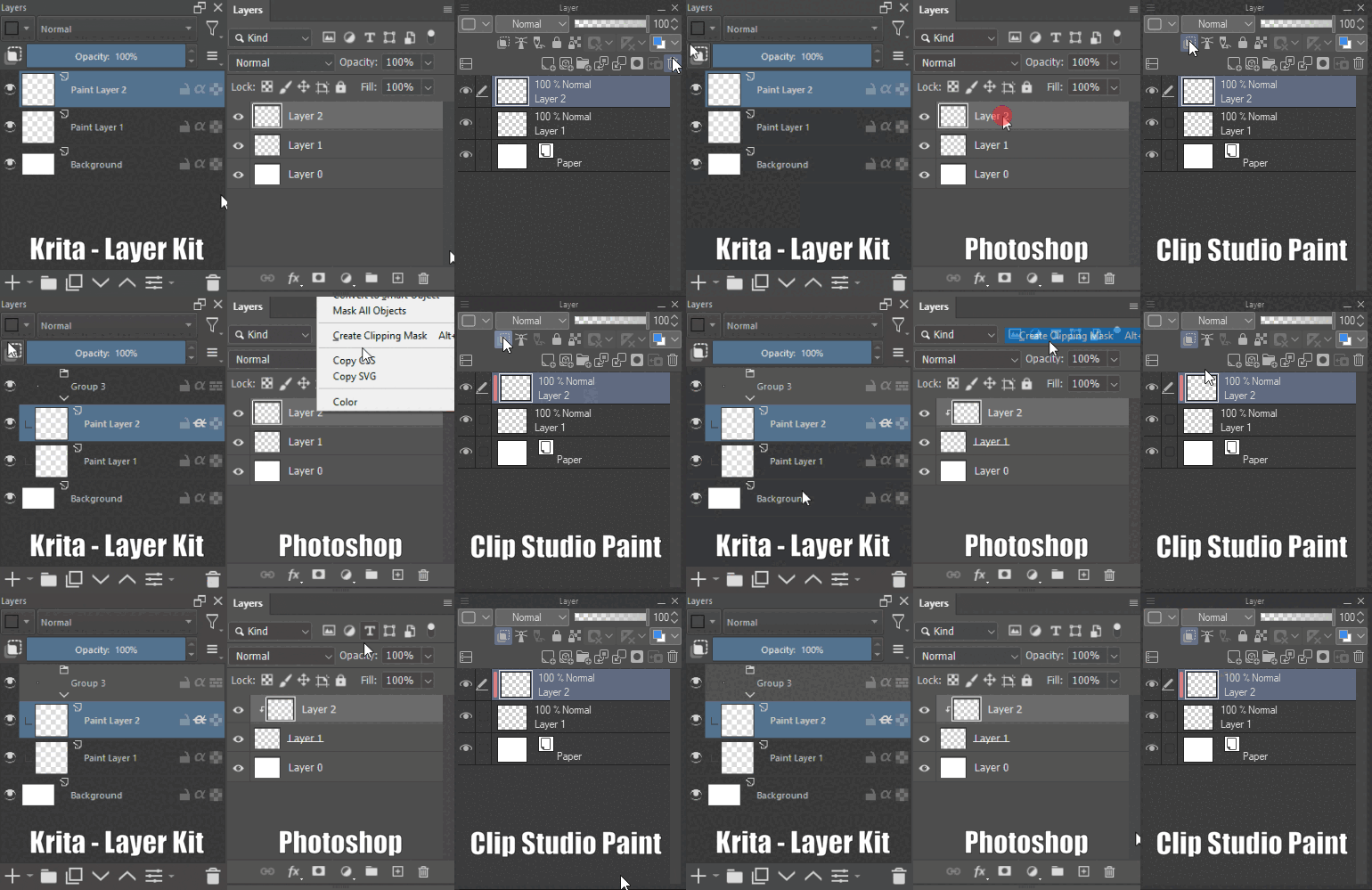
On the other hand, Krita’s alpha inheritance has the opposite assumption by making your mask apply to all layers below your current layer so when you turn it on it looks something like this:
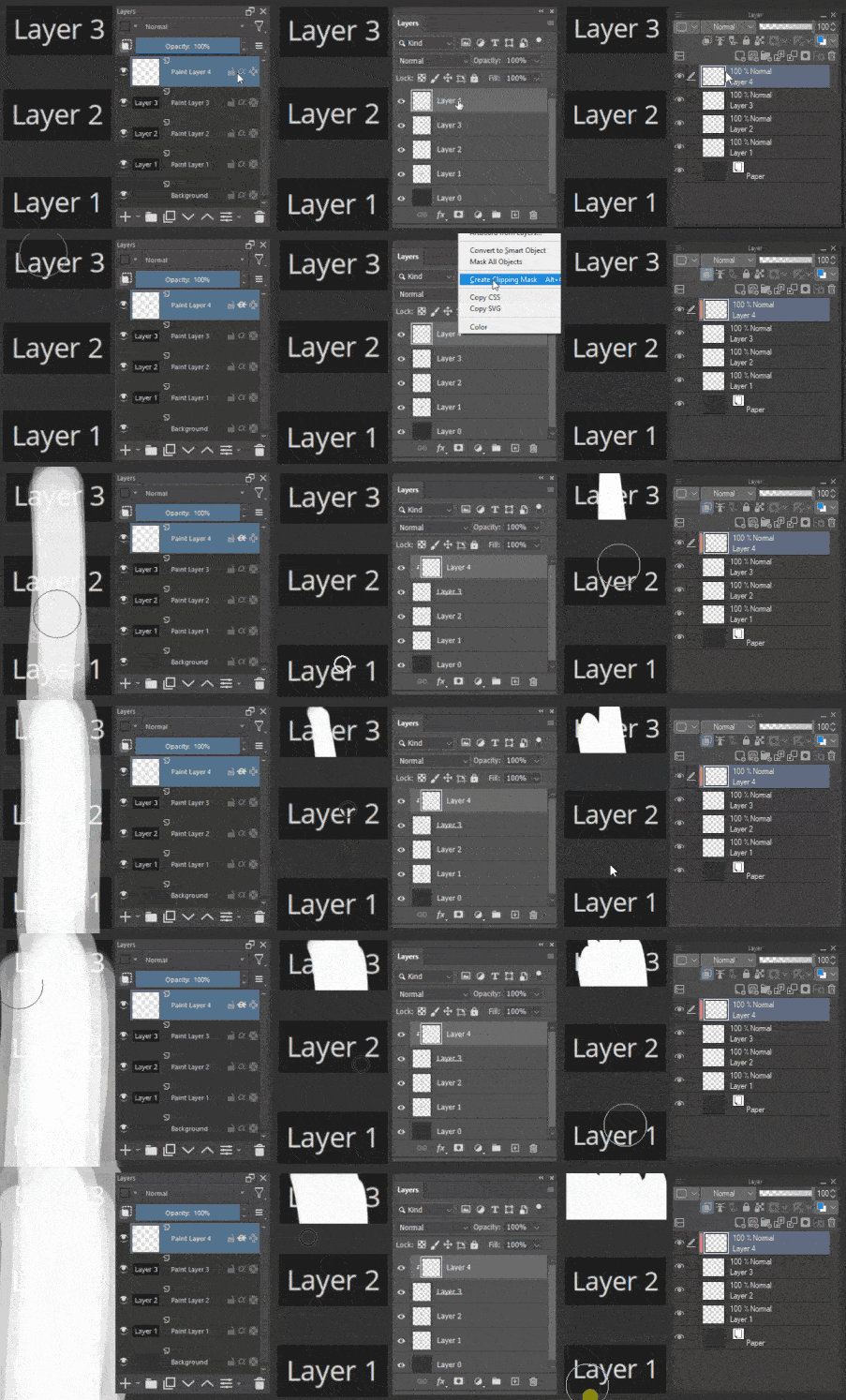
allcombined_f

Krita (left), Photoshop (middle), Clip Studio Paint (right)

If you’re familiar with alpha inheritance you already know that to make it apply to only one or several layers, you have to use groups. I think that the process required to do this has more steps than necessary (who needs to have alpha inheritance apply to all layers below by default?) and the lack of a clipping mask shortcut alienates those coming from standard painting programs like Photoshop, Clip Studio Paint, Procreate, Sai, etc.

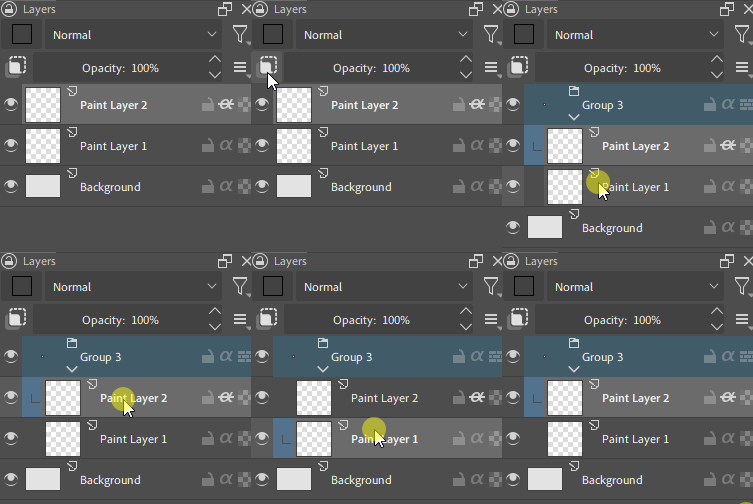
Krita’s steps to make Alpha Inheritance apply to one layer below:

  1. Enable alpha inheritance for your layer
  2. Ctrl + left-click your second layer to select it
  3. Ctrl + G to group both of them together
  4. Click on your first layer again so both aren’t selected
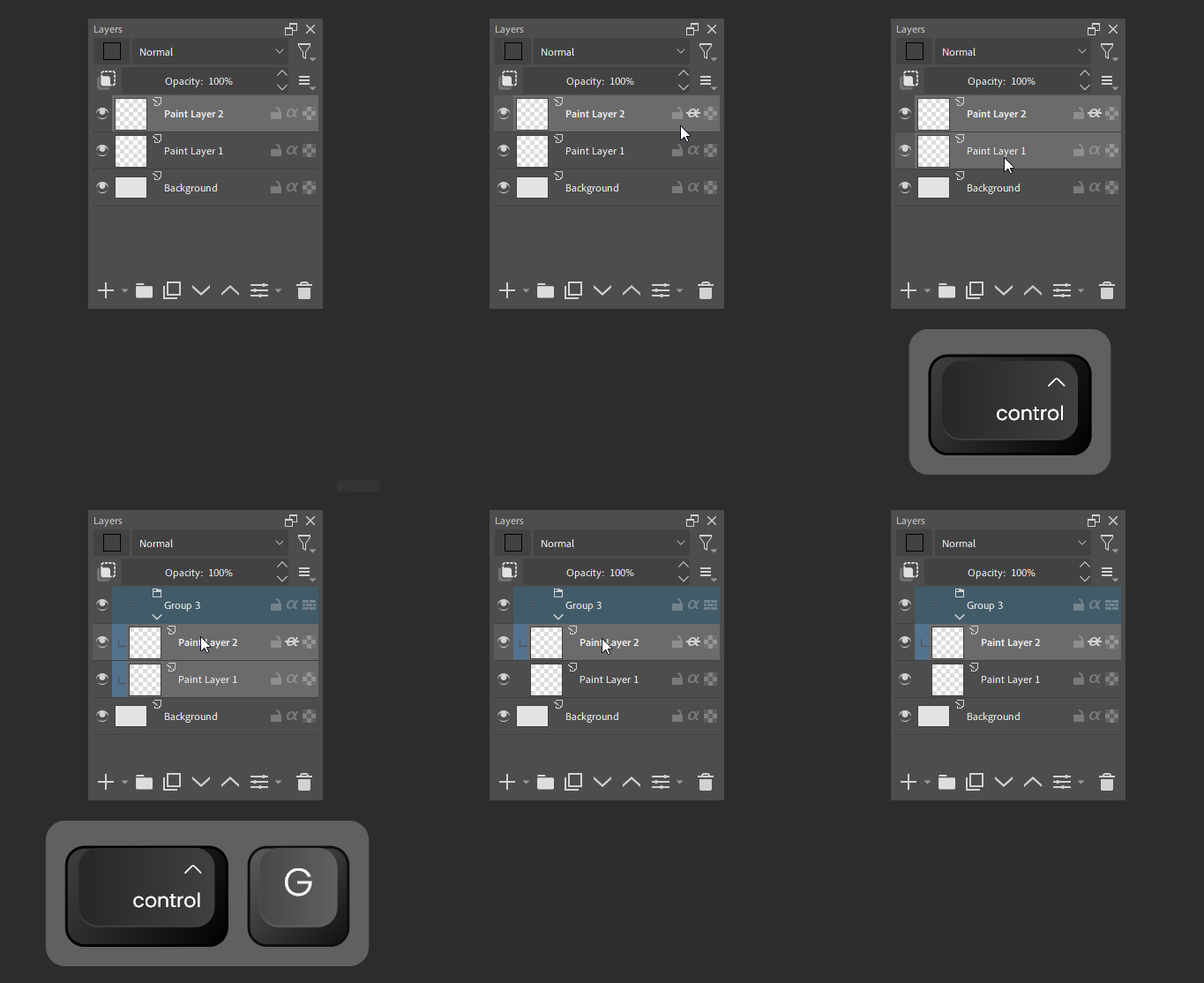
4-action-process

Layer Kit’s step to do the same thing:

  1. Press the clipping mask button

Allclips_labeled_ff

Layer Kit’s clipping mask button executes the previous 4 actions in one click, essentially a macro.

Doesn’t Krita already have this shortcut?

No, Krita has a shortcut called “Quick Clipping Group” which may seem identical at first, but has a distinctly different purpose. The shortcut always adds a new layer mask instead of masking your current layer to the one below it (the more familiar action by PS and CSP users).

Krita’s “Quick Clipping Group” shortcut:
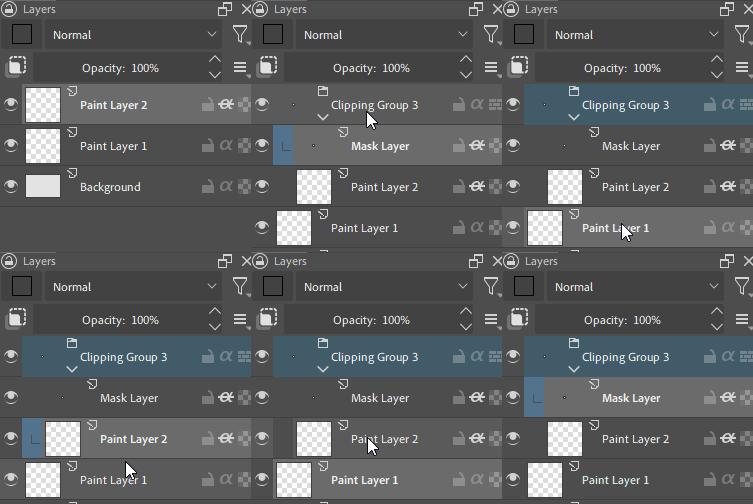
krita clipping group shortcut

Layer Kit’s Clipping Mask button:
layer kit clipping mask

This plugin can save time for Krita users who repeat this sequence of steps in their workflows and can make layer management more accessible to PS and CSP users.
I hope this plugin helps any Krita users and newcomers to Krita, thanks for reading.


Installation

  1. Download the plugin:

    Get the latest version v1.1.7 here or visit the plugin’s github repo

  2. Open Krita and in the top bar click:

    Tools > Scripts > Import Python Plugin From File > select the zip file

  3. Restart Krita


“Can I turn off/change the automatic group color label?”

Yes, just follow these steps:

  1. Go to:

    Windows: %userprofile%\AppData\Roaming\Krita\pykrita\layer_kit
    Linux: ~/.local/share/krita/pykrita/layer_kit

  2. Open layer_kit.py

  3. Scroll down to GROUP_LABEL_COLOR

  4. Change to desired color or turn off labeling by inputting zero

  5. Save and close


Layer Kit Plugin for Krita – Organize your layers faster

39 Likes

Thank you for investing your time and skills to make Krita better.

2 Likes

This looks like itll be a must have plugin a long with shortcut composer and the likes of docker under cursor.

3 Likes

THAAANK YOUUU
qwq

1 Like

There is a shortcut called “Quick Clipping Group”. The same thing, but even faster, because you don’t have to use the stylus to click into the interface.

1 Like

That’s pretty convenient, I wasn’t aware of that. Some people may prefer using a stylus to do this and feel it’s faster because it’s standard in CSP. This plugin gives those people that option. While keyboard shortcuts may be faster for you, it may not be faster for everyone else

For most users of graphical tablets with a screen, it is more convenient to use a stylus to do everything. Especially for those who have little space on the table for a keyboard. I keep forgetting about it. So you’re doing great anyway.

1 Like

Thank you, and thank you for mentioning the Quick Clipping Shortcut. The code for my plugin could probably be a bit shorter now since it’s currently doing an unnecessary workaround haha

Actually there seems to be an important distinction between my plugin’s “Clipping Mask” shortcut vs Krita’s “Quick Clipping Group” shortcut.

Krita’s shortcut always adds a new layer mask, Layer Kit masks your current layer to the one below it and if the plugin doesn’t detect a layer below the current one, it doesn’t do anything which is a familiar PS and CSP behavior.
Here is Krita’s shortcut and Layer Kit’s shortcut respectively:

krita clipping group shortcut
layer kit clipping mask

Edit: I’ve updated the post to include this distinction

1 Like

Thanks for the plugin! it makes the layer manager much more powerful.

I’d like to ask a question, would it be possible to do something like this with some kind of plugin?:

(A ​​few years ago) "I suggested a shortcut (a button) that would send the selected layer to the top of the layers”

ps (the idea was to take advantage of the existing buttons in the layer manager, but with a second function when pressing a keyboard shortcut)

2 Likes

If you make a selection of layers and hit ctrl+g wont it do the exact same thing ?

It’s the same end result yes but the process is slower. It takes 4 steps to group and select them yourself vs 1 step to press the clipping mask button.

4-action-process

Layer Kit

1 Like

Hi @mmiller yes that feature is possible. You can now right-click the existing buttons in v1.1.0 to move them, scroll up and see it in action!

3 Likes

I’m simply speechless, you did it :star_struck:

Thank you so much!

(I had suggested to the developers using Ctrl+Click on the same buttons, but your version is more practical and dynamic)

1 Like

Thanks for this amazing plugin, it’s something I often dream about ! One thing I miss from photoshop is the ability to disable layers thumbnails in krita, as it probably ( as photoshop ) consumes a little bit of ressources, yet most people I know of don’t even bother looking at the layer thumbnails ( especially when animating ) , so the ability to disable it would be top notch !

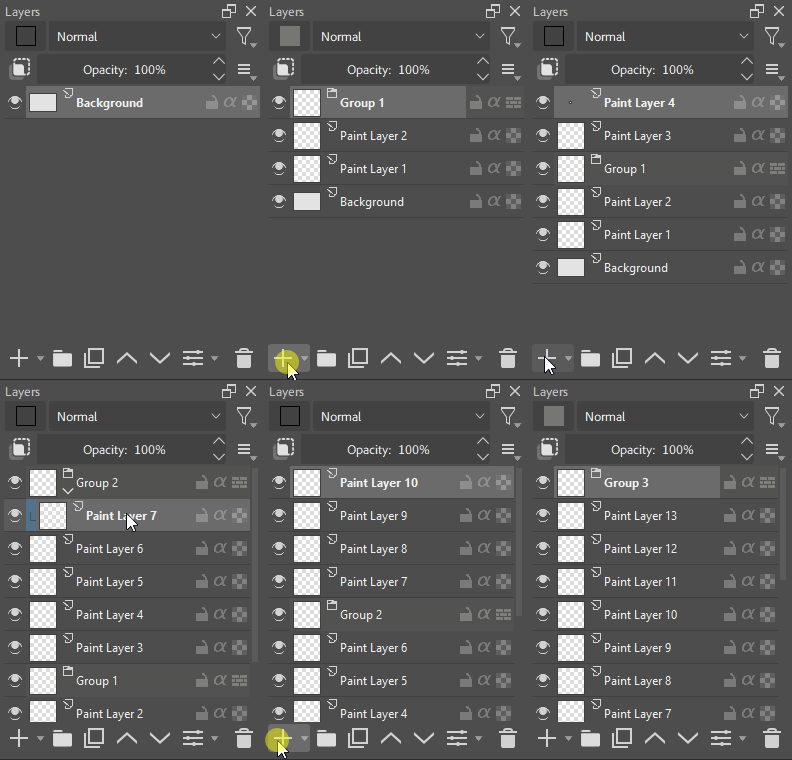
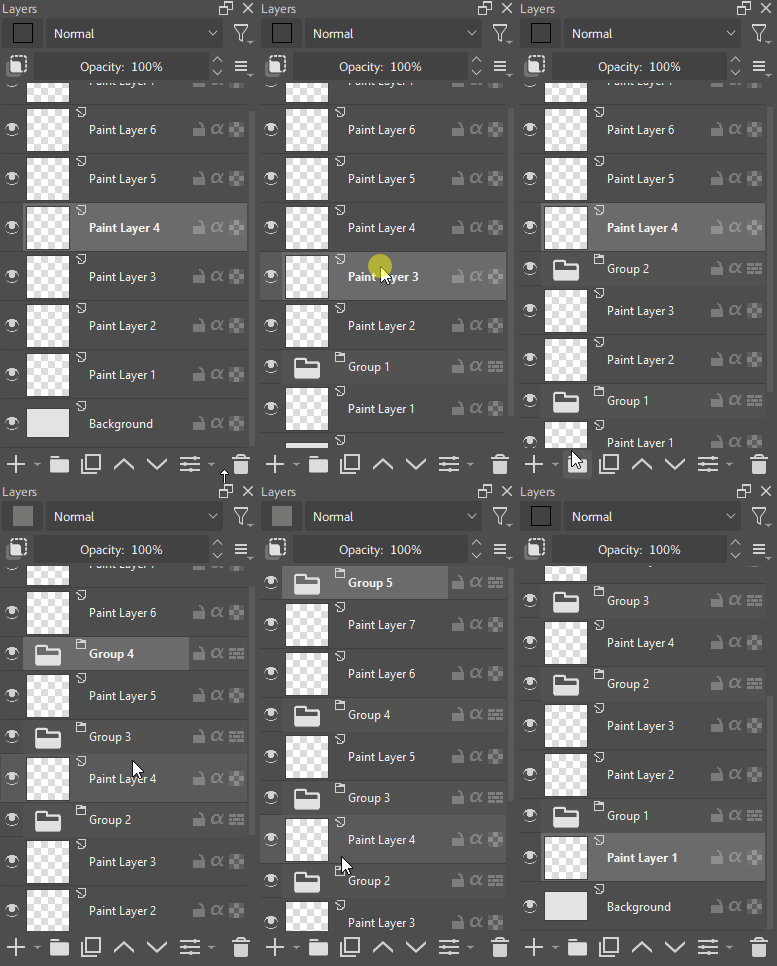
There is also something I don’t really understand about krita’s way to name layers and groups ! It goes like :

Paint layer 1 →Paint layer 2 →Group 3 →Paint layer 4 →Group 5 →etc

when it should probably be

Paint layer 1 →Paint layer 2 →Group 1 →Paint layer 3 →Group 2 → etc

I don’t even know if it’s inherently tied to krita’s core functions or if it can be improved ?

But again, big fan of your plugins in general and following you on github to see what you’re cooking there !

1 Like

Glad to hear you enjoy my plugins!
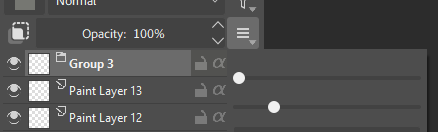
I don’t think there’s a workaround for hiding layer thumbnails, you will most likely need to request it as a feature or stick to making your layers thinner so the thumbnails are not as distracting. This is the setting in the layers docker just in case you haven’t seen it yet:

For the naming of layers and groups there’s an easy workaround luckily where the plugin detects your groups and renames them for you in the logical order of how many groups exists rather than layers.
I’ve just made a pre-release version of the plugin that has this feature which you can download. I haven’t fully released it in case it causes performance issues so any feedback would be appreciated.

v1.1.5 Accurate group names

3 Likes

Thanks for the fast reply and the feature integration ! I just tested the pre-release, and it’s working fine, just a slight delay between group creation and renaming but it’s nothing, and totally working as expected, btw i’m under linux ( opensuse slowroll kde ) and using the 5.2.14 appimage in case it helps, but so far so good ! Keep going with your great work !

1 Like

Thanks for release that useful plugin.
Both plugins are almost works.
But an error happend when load a .kra file created by another version (no plugin installed ) Krita.
The original .kra file was created by the Krita 5.2.9 that plug-ins are not installed.
And this time, I using the Krita v5.3.0 that LayerKit and LabelBox were installed.

Error log is here(Error dialog opend when the file loaded)

AttributeError
Python 3.10.7: /Applications/krita530n.app/Contents/MacOS/krita
Fri Jan  9 12:33:41 2026

A problem occurred in a Python script.  Here is the sequence of
function calls leading up to the error, in the order they occurred.

 /Users/mac/Library/Application Support/krita/pykrita/label-box/labelBox.py in addElement(self=<label-box.labelBox.LabelBox object>)
   91         # Connect to existing documents
   92         for doc in Krita.instance().documents():
   93             self.connectDocumentSignals(doc)
   94 
   95         # Use a timer to poll for selection changes since Krita lacks a direct selection signal
self = <label-box.labelBox.LabelBox object>
self.connectDocumentSignals = <bound method LabelBox.connectDocumentSignals of <label-box.labelBox.LabelBox object>>
doc = <PyKrita.krita.Document object>

 /Users/mac/Library/Application Support/krita/pykrita/label-box/labelBox.py in connectDocumentSignals(self=<label-box.labelBox.LabelBox object>, doc=<PyKrita.krita.Document object>)
  108         """Connect signals for a document."""
  109         if doc:
  110             doc.nodeInserted.connect(self.onSelectionChanged)
  111             doc.nodeRemoved.connect(self.onSelectionChanged)
  112 
doc = <PyKrita.krita.Document object>
doc.nodeInserted undefined
self = <label-box.labelBox.LabelBox object>
self.onSelectionChanged = <bound method LabelBox.onSelectionChanged of <label-box.labelBox.LabelBox object>>
AttributeError: 'Document' object has no attribute 'nodeInserted'
    __cause__ = None
    __class__ = <class 'AttributeError'>
    __context__ = None
    __delattr__ = <method-wrapper '__delattr__' of AttributeError object>
    __dict__ = {}
    __dir__ = <built-in method __dir__ of AttributeError object>
    __doc__ = 'Attribute not found.'
    __eq__ = <method-wrapper '__eq__' of AttributeError object>
    __format__ = <built-in method __format__ of AttributeError object>
    __ge__ = <method-wrapper '__ge__' of AttributeError object>
    __getattribute__ = <method-wrapper '__getattribute__' of AttributeError object>
    __gt__ = <method-wrapper '__gt__' of AttributeError object>
    __hash__ = <method-wrapper '__hash__' of AttributeError object>
    __init__ = <method-wrapper '__init__' of AttributeError object>
    __init_subclass__ = <built-in method __init_subclass__ of type object>
    __le__ = <method-wrapper '__le__' of AttributeError object>
    __lt__ = <method-wrapper '__lt__' of AttributeError object>
    __ne__ = <method-wrapper '__ne__' of AttributeError object>
    __new__ = <built-in method __new__ of type object>
    __reduce__ = <built-in method __reduce__ of AttributeError object>
    __reduce_ex__ = <built-in method __reduce_ex__ of AttributeError object>
    __repr__ = <method-wrapper '__repr__' of AttributeError object>
    __setattr__ = <method-wrapper '__setattr__' of AttributeError object>
    __setstate__ = <built-in method __setstate__ of AttributeError object>
    __sizeof__ = <built-in method __sizeof__ of AttributeError object>
    __str__ = <method-wrapper '__str__' of AttributeError object>
    __subclasshook__ = <built-in method __subclasshook__ of type object>
    __suppress_context__ = False
    __traceback__ = <traceback object>
    args = ("'Document' object has no attribute 'nodeInserted'",)
    name = 'nodeInserted'
    obj = <PyKrita.krita.Document object>
    with_traceback = <built-in method with_traceback of AttributeError object>

The above is a description of an error in a Python program.  Here is
the original traceback:

Traceback (most recent call last):
  File "/Users/mac/Library/Application Support/krita/pykrita/label-box/labelBox.py", line 93, in addElement
    self.connectDocumentSignals(doc)
  File "/Users/mac/Library/Application Support/krita/pykrita/label-box/labelBox.py", line 110, in connectDocumentSignals
    doc.nodeInserted.connect(self.onSelectionChanged)
AttributeError: 'Document' object has no attribute 'nodeInserted'

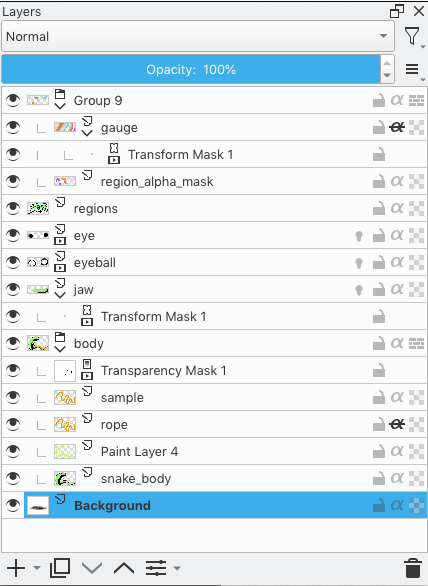
A following image is the layer structure.

Glad you find it useful and thanks for the info and error log. I’ve implemented a fix in the pre-release version1.1.5
Do let me know if this works for you, thanks

1 Like

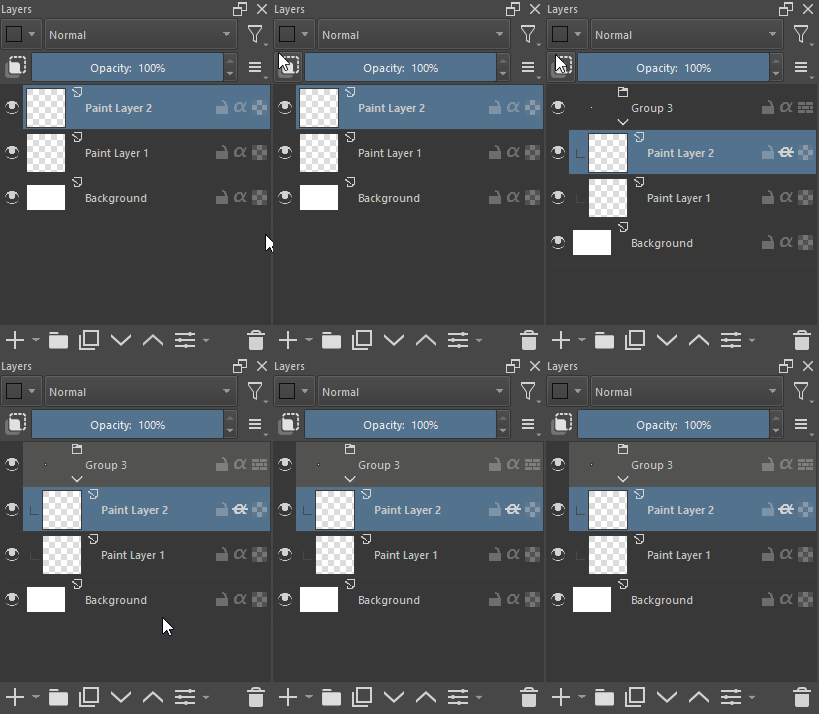
Hi @w4ldurr I just updated the plugin to v1.1.6 so it instantly renames your groups with no delay while making the plugin more efficient behind the scene. Feel free to try it and let me know if it also looks like this for you:

Instantaneous

Note: the folder icon for groups is not the plugin, I’m on a custom Krita build
1 Like