Hey, eishiya (and any other user affected by this), I found a way. But only works in MS Windows, sadly (I use mainly Windows). Not in Linux, and neither in Mac, unless there is a similar free or commercial external tool which does this same thing in these operating systems (maybe Autohotkey?).
If the tablet you use is not a Wacom, it might not work. But it will if your tablet brand’s driver panel can have a pen (or tablet) button assigned to the 4th or 5th mouse button which you -hopefully- don’t use.
This mouse button does not have to exist, physically. Mine has only 2 buttons.
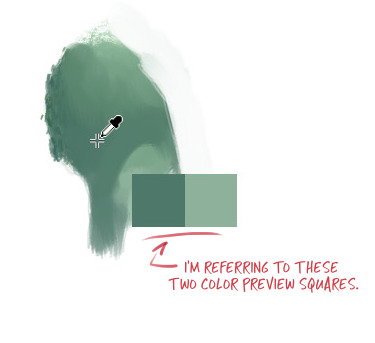
As there is no option to disable this in all the Krita’s preferences… I gave it a deep thought for a long time… and realized it has a very, very, very slight delay to show up, probably the reason why when while painting picking colors very fast, sometimes the two rectangles of color don’t show up. That gave me the clue.
Well, I am using that minimal delay to disable the visual effect totally, with the use of an external tool which allows me to “replace” an action of any program. Like… a button or pen click can be substituted by a combo of keys and mouse actions.
I always had it this way in Krita (the trick is in a changed setting that I configured today). It would be needed to leave this configured so, and the utility always on the tray 
(Please, click on the images to see then bigger, the explanations in them can be also very helpful)
- First, you would need to download and install the free Windows utility. It is safe, I have been years using it. I don’t remember now if I use their portable version or the installer one. What I know is that this is only comfortable if stays on tray (does not really consume resources) and starts always with Windows automatically.
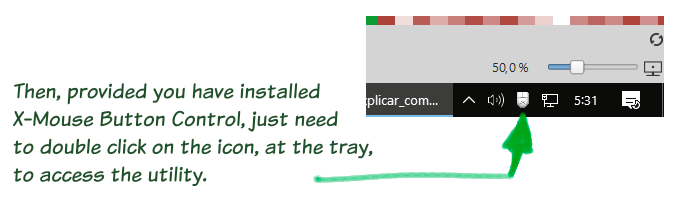
You should now see an icon like of a tiny mouse on the tray, besides the Windows clock.
Then run Krita. As both the Wacom utility and X-Mouse Button Control have to “detect it”, to be able to create a profile for it.
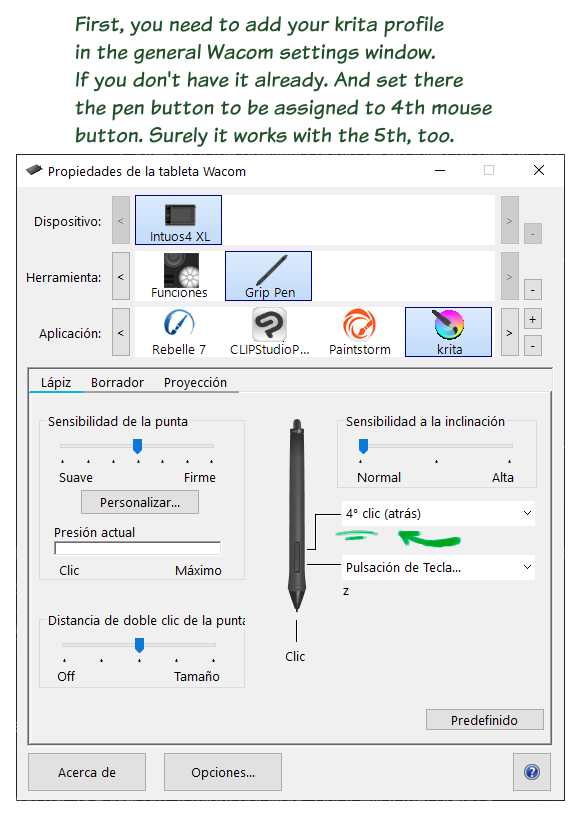
- Then, in the Wacom driver’s panel, I have my profile added for “Krita”. In it, I configure one of the 2 pen side buttons to trigger the “4th mouse button”. (I usually set the other for Undo). That pen side button is the one that I set for picking colors for all painting apps.
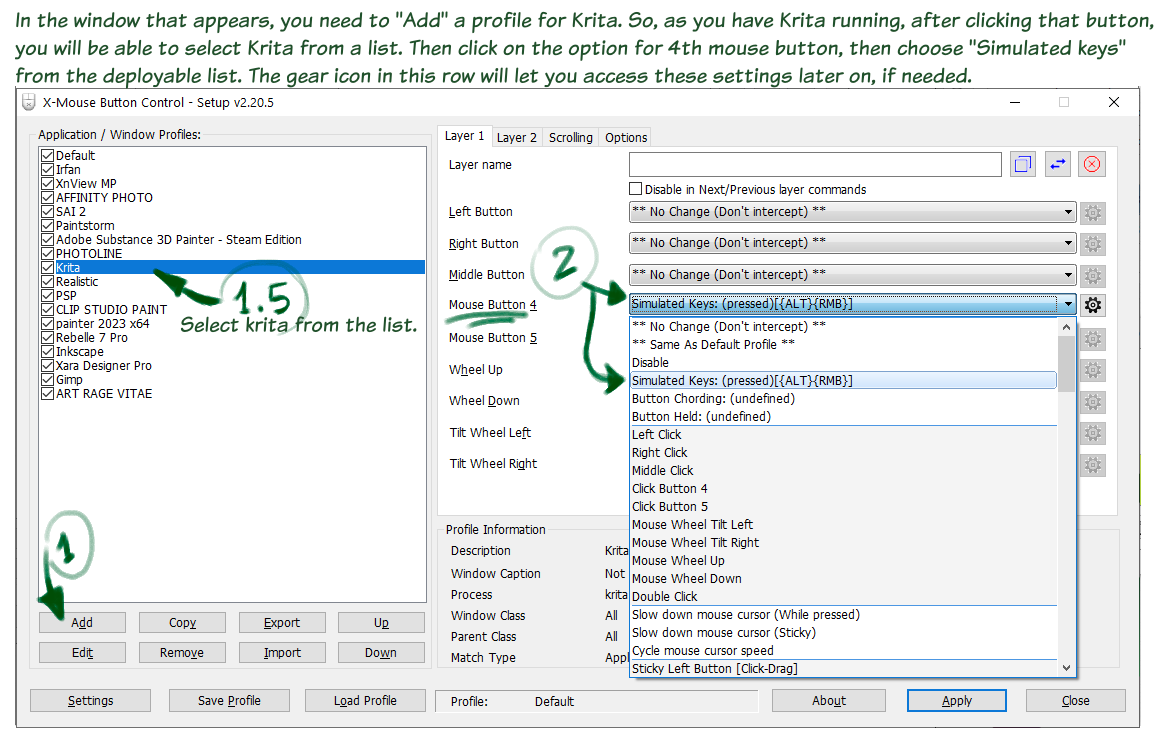
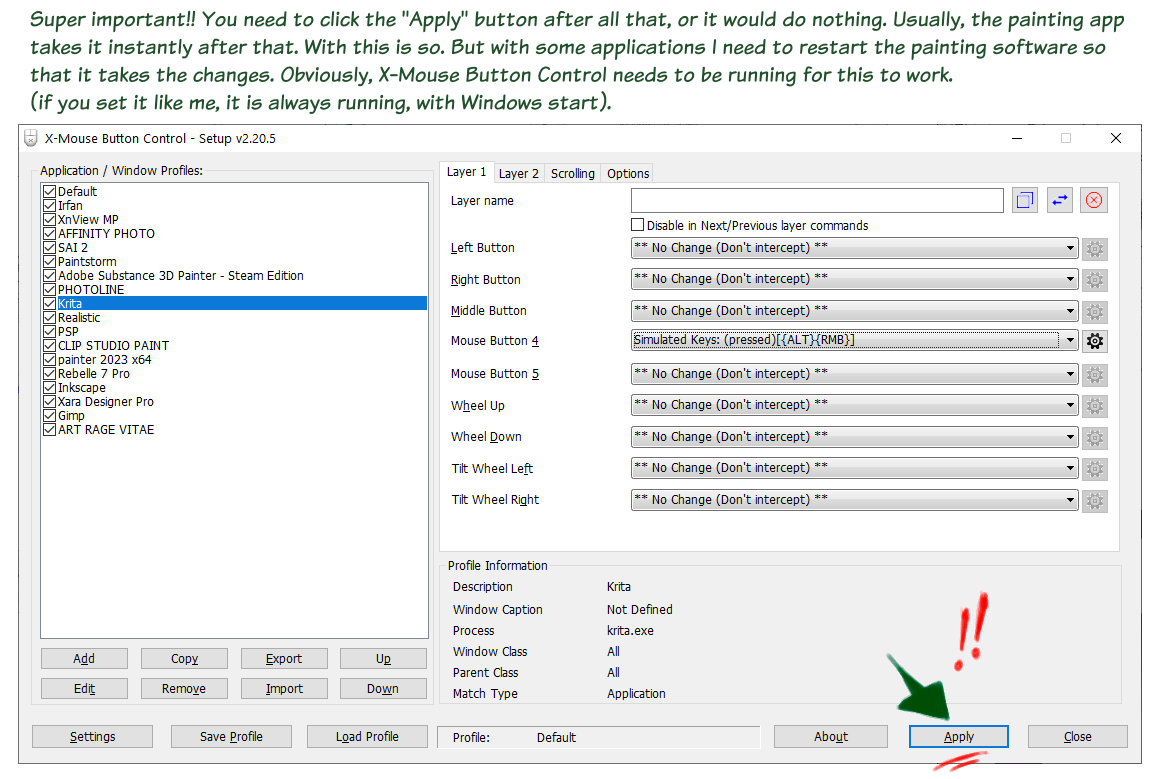
- I use the mentioned free tool (for MS Windows only; I’m using Windows 10) called X-Mouse Button Control. I just have it installed and is always on my Windows tray besides the clock, as I use it to configure every software to my best preference in keys and mouse actions. So I add in it as well a profile for Krita.
-
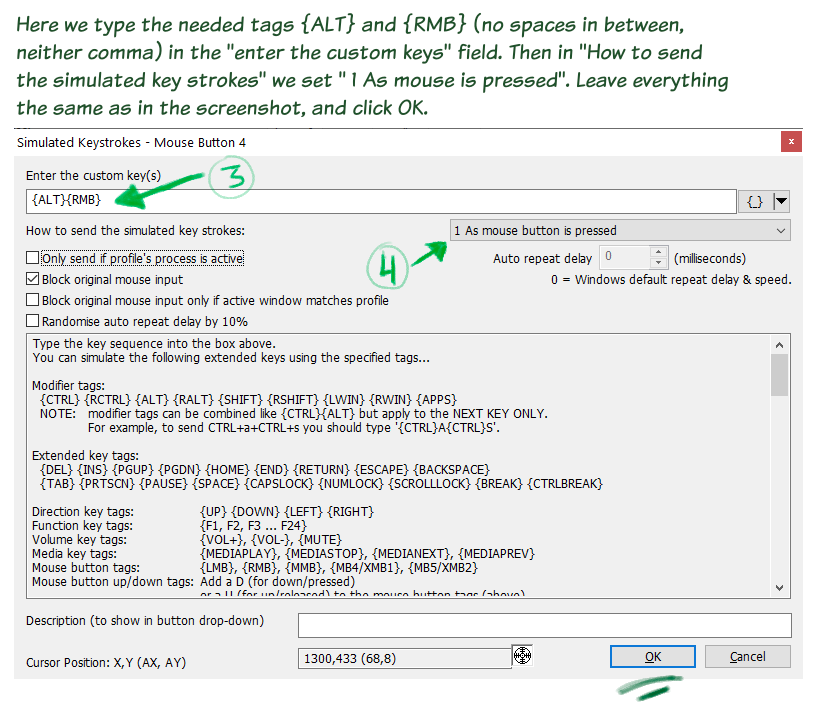
In it I just configure the entry for “Mouse Button 4” (my mouse is a cheapo one with 2 buttons, only), setting it to use “Simulated keys”, as seen in the above screenshot. It then pops (you can access this again later on, clicking the gear icon in the row of this option) a window where you will configure how this all will work.
-
Now you will see a reference sheet with all the tags that you can use. But you only really need:
{ALT}{RMB}
( btw, for this to work you will have needed to set in Krita’s preferences to use ALT instead of CTRL for color picking. I can tell you where, later, if any of you don’t find it. CTRL gives me problems with these configurations and other things).
Till here this is just how I always had it.
But to get rid of the 2 rectangles, the key is we will force it to just an initial " hit ", so the 2 rectangles do not have time to show up.
So, instead of the usual option at the right of “How to set the simulated key strokes” with the option " 3 press on down, release on up " , we set the option:
" 1 As mouse button is pressed "
Do not forget to hit the “APPLY” button, or it does nothing at all !
This seems to force it to only catch the very first hit or instant, which is what I wanted.
It solves it.
So much so, that as this works great with the current (at the time and day of this post) Krita stable 5.2.9, if something they change in the code ends up affecting it somehow, and then this would not work anymore, I would keep for ever using 5.2.9  .
.
Anyway, I actually had to swap to other painting apps long ago (commercial apps). But I always really wanted to also use Krita, as I like many aspects of it, and I like to use many applications. I Often change of app for a particular project, etc.
I hope this helps someone. I know this has been reported in other sites by people who uses both pen tablets (my case, an intuos Pro XL) but also pen displays, specially people who prefer to see nothing but what they are painting. Very distracting when one is picking colors constantly (to build subtle shades, etc).
Anyone needing further explanations, let me know, I don’t tend to visit these forums anymore (since I kindda stopped using the app, but I might use it more from now on), but I will visit from time to time, and might catch some questions.
If you don’t use the side pen button to pick colors, but a tablet button instead, the workflow is very similar, just setting it in the Wacom’s or other brands’ tablet utility for configuration, assigning one tablet button there to the 4th mouse button.
If you just want to use the ALT key directly on the keyboard, it would be a different procedure, I guess, but probably possible (I would have to think on changes here for that to work  ).
).
Lastly, I wanted to show a tiny video (below) of how cleanly this works… Sadly, my video capture tool is not great (I should install OBS …ASAP) so it is not seen as smooth as I see it while painting, and some of the image quality is lost also due to video compression. But I think you will get perfectly the idea.