@fizzyflower
what do you mean with just once click? like when you click on the square to apply the color? I did that because it is really easy to miss click and apply that color inside it. you can press with Shift and it will just use one click. Double Click is to use it without keyboard.
1 Like
Holding shift to single click it works! Thank you!
1 Like
Ok I enabled it. But how do I find it? Sorry this is my first time using a plugin
Nevermind I restarted Krita
No worries, glad you found it. Sadly during a install you have to restart a bunch of times because it does the changes during boot time.
Why is saturation and value slider in HSV ends with 255 instead of 100 like it is in Photoshop and Aseprite? Can I change it? You’ll have to explain it real good 'cause I really don’t know the first thing about programming
Also, what does ON/OFF/P>K switch mean and what is it supposed to do?
The manual answers all this questions with examples included. Please read that then.
Can’t find it
Go to the python plugin activation section and highlight a plugin on the upper window. The lower window will display the manual of the highlighted plugin. Once your there you will see the pigmento logo. Then just go to the FAQ section by scrolling.
Based on what I’ve read, it’s just gonna be stuck as (360/255/255) then?
And what does “Agnostic” mean?
Am I still allowed to ask questions
Seriously your asking me too google ENGLISH questions for you?..
No your not stuck, read how to change it.
But if your too lazy to change one variable and save, yes you will be stuck on my choice. It is the better choice.

You’re rude.
Asking people to modify variables in script is a thing, but being aggressive…
You should consider that there’s some basics things for you on a computer that are not simple for many people.
And there’s often people (and young people) here for which using a computer is not something easy.
Not sure you’ll will appreciate if when you ask help that seems simple for me, rather than helping you and providing explanations with examples, I just tell you answer to read the Qt doc… 
And concerning “agnostic” term, my youngest sister is not able to use a dictionary or an encyclopedia, even in its own language 
I often need to gave her explanation of a terms, or when I’m lazy, I give her a link to wikipedia or another online dictionary
Looking definition you provided, the first definition is “agnostic” as a noun.
a person who holds the view that any ultimate reality (such as God) is unknown and probably unknowable
Yep the correlation between god and colors might be difficult to understand…

@zeckwang for what I understood the “agnostic” terms here means that pigment.o plugin don’t care about minimum/maximum values of a color space.
You define minimum and maximum a you need.
You can put 100, 255, 1000, 65536 if you want, the plugin will internally convert within a 8bit value range (from 0 to 255)
If I understood 
Grum999
1 Like
I mean agnostic in this context. I already know what the word means.Thank you Grumm999 for making it clear
Considering all the questions asked on this thread I made the FAQ section in the manual and I spent a really long time to make it as comprehensible and easy to read so people can read it even if something happens to me.
It is curated to the best of my ability and I will not be able to give a better answer than I gave there. if anything what I will say is a quick summary of it because I am not gonna retype it at most I would copy paste it but it is already in everyone’s hands that use it.
Manual explains:
- What the Agnostic is for Pigmento, I don’t explain the English word Agnostic
- Odd behavior that comes from any chosen color range.
- Why 255 is the best solution.
- Why you don’t need to change to 100% at any point in time as it display percentage all the time
- Bad color range choices you should not use and why I can’t stop it
- How to change color space range
- What not to change in the code related to Color Ranges and consequences but if you understand you still can
The Manual:
Why does Pigment.O change Color values right after I choose one?
This behaviour is certainly odd but ensures stability within Pigment.O’s cyle, since it operates in multiple color spaces at the same time.
I will explain 2 cases where this happens in 8 bit depth scenario where it happens often.
Imagine your in RGB and you set the value 120.50 in the Red channel. This value does not really exist persay but exists within, since RGB works in integer values so what you acctually apply is the value 120 since that color ranges from 120.00 up too 120.99. After the color you choose is placed in Krita, Pigment.O checks the color that is currently active in Krita with it’s periodical check and it reads 120, since 120.00 is different than 120.50 it adjusts itself to the current color changing the selected value.
The other case is when your working in another color space like HSV or HSL. What happens is similar but with a extra step. Imagine you set the HSV Color of (120,120,120), that is immediatley converted into RGB and applied to Krita, most conversions if not all will output a float value so what is applied is the integer value that contains it. For that reason after the check the RGB channels will round out all decimal values to zero and your HSV color will be set to corresponding color of (120,123.25,120).
Thus concluding that even though the value changes, it changes to the correct values of the color you choose in its containing color space and for the case of HSV and HSL they are containned by RGB.
It may feel weird but knowing why it does it, should improve confidence on it’s behaviour.Why are there checkers just above the Sliders?
These squares are visual indicators of 10% increments.
While editing any value the percentage of that Slider will be displayed over the checkers.
Pressing Ctrl while editing the Slider will pin the cursor to these increments and the only noticiable exception is the HUE slide that instead goes in 60º increments.Why can’t I work with percentual values? <--------------------------------------------------------------
Well you acctually can, Pigment.O is acctually Agnostic over color scaling.What is that talk about Pigment.O being Agnostic? <-------------------------------------------------
Pigment.O is independant of any color scale on all color spaces.
Noticiable cases of need:
- Wanting to work in percentual values, from 0 to 100.
- HSV and HSL is a case where the color scale is wrong but works better as it is given. Normaly HSV/HSL is (360,100,100) unlike what is used (360,255,255) but the fact is that you loose more colors during conversions if you use the Standard.
- 16 bit integer color depth is a case where color ranges from 0 to 65535. Pigment.O is by default set to work on 8 bit so you need to change it if you want to work on higher bit depths.
- 16 and 32 bit float color depth is a case where it ranges from 0 to 1. This range is how Pigment.O works internally and then it is scalled up, but this range should not be used due to some widgets behaviour that mess up decimal values by rounding them out and so a 0 to 100 range should be used instead.
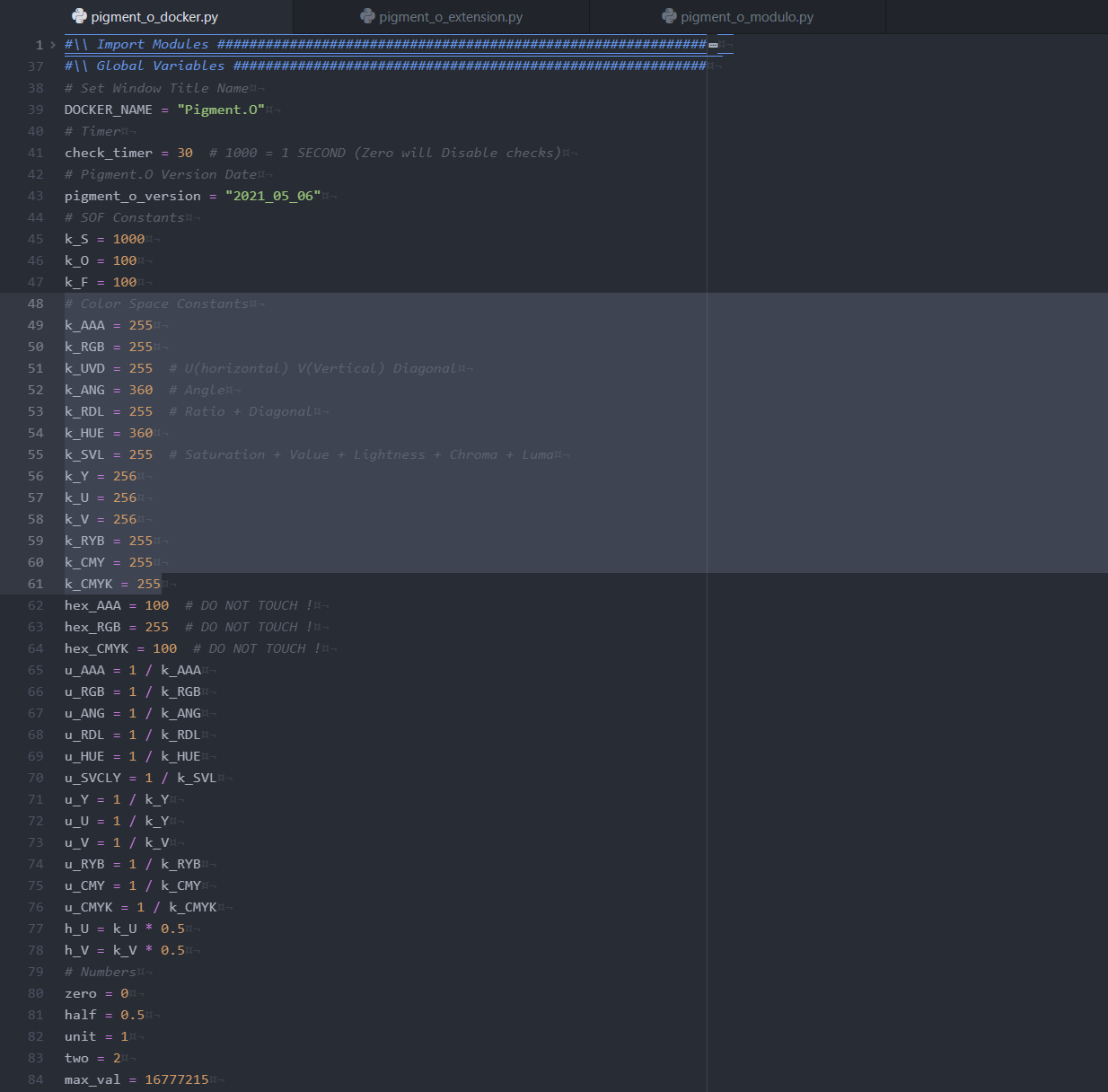
To use this hidden feature go to the code and you can change the variables k_AAA, k_RGB, k_HUE, k_SVL, k_CMYK and others as needed.
This however will not affect the HEX color conversion unless explicity said by changing the variables hexAAA, hexRGB, hexCMYK however this is not recommended and is marked as such with the comment “# DO NOT TOUCH !”.
@Grum999 I am not being rude. if I was being rude you would notice it, everyone would. I am a very tame around these parts. However the manual exists to respond to all these questions if the answer is confusing then you should ask more after reading it not make me copy paste what you don’t want to read on your computer it is just lame. I think the manual responds to all pertinent questions however it is not a English class. This makes working on the manual useless and I spend so much time on it 
1 Like
Hi there,
I was wondering …is it possible to have Pigment.O synch with the canvas colorspace profile.
At the moment I get difference between colors shown in Pigment.O and Krita’s canvas.
Both colors are the same hex color…one is after I placed it on the canvas the other is how I saw it in Pigment.O
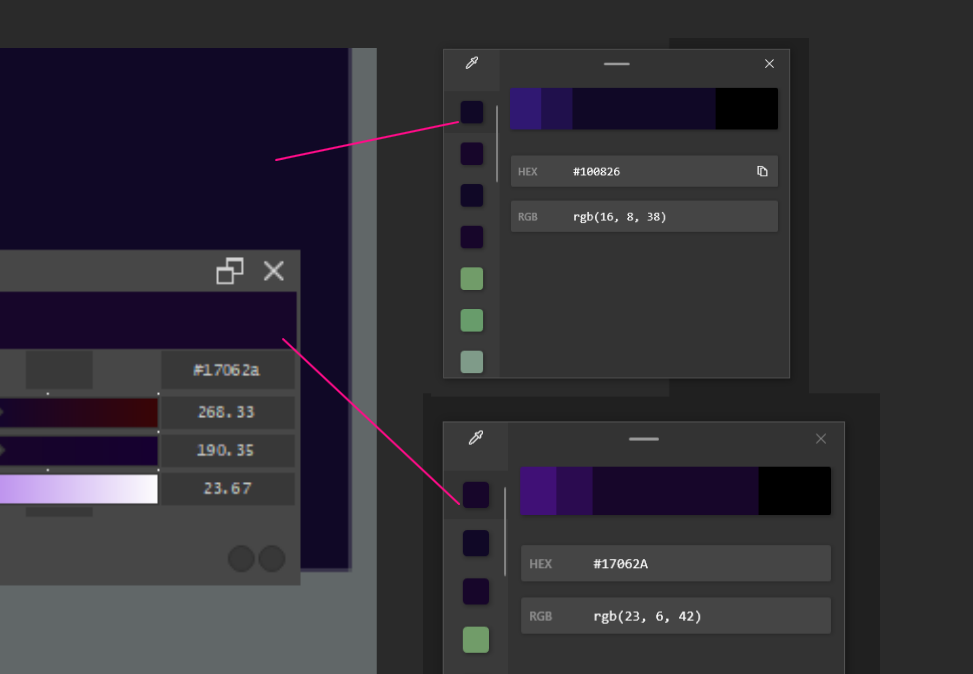
In the image above the difference is really small, but on other colors/hues the difference is much bigger. I assume that the difference is mainly in the colorspace Pigment.O uses and the one I have setup in krita.
1 Like
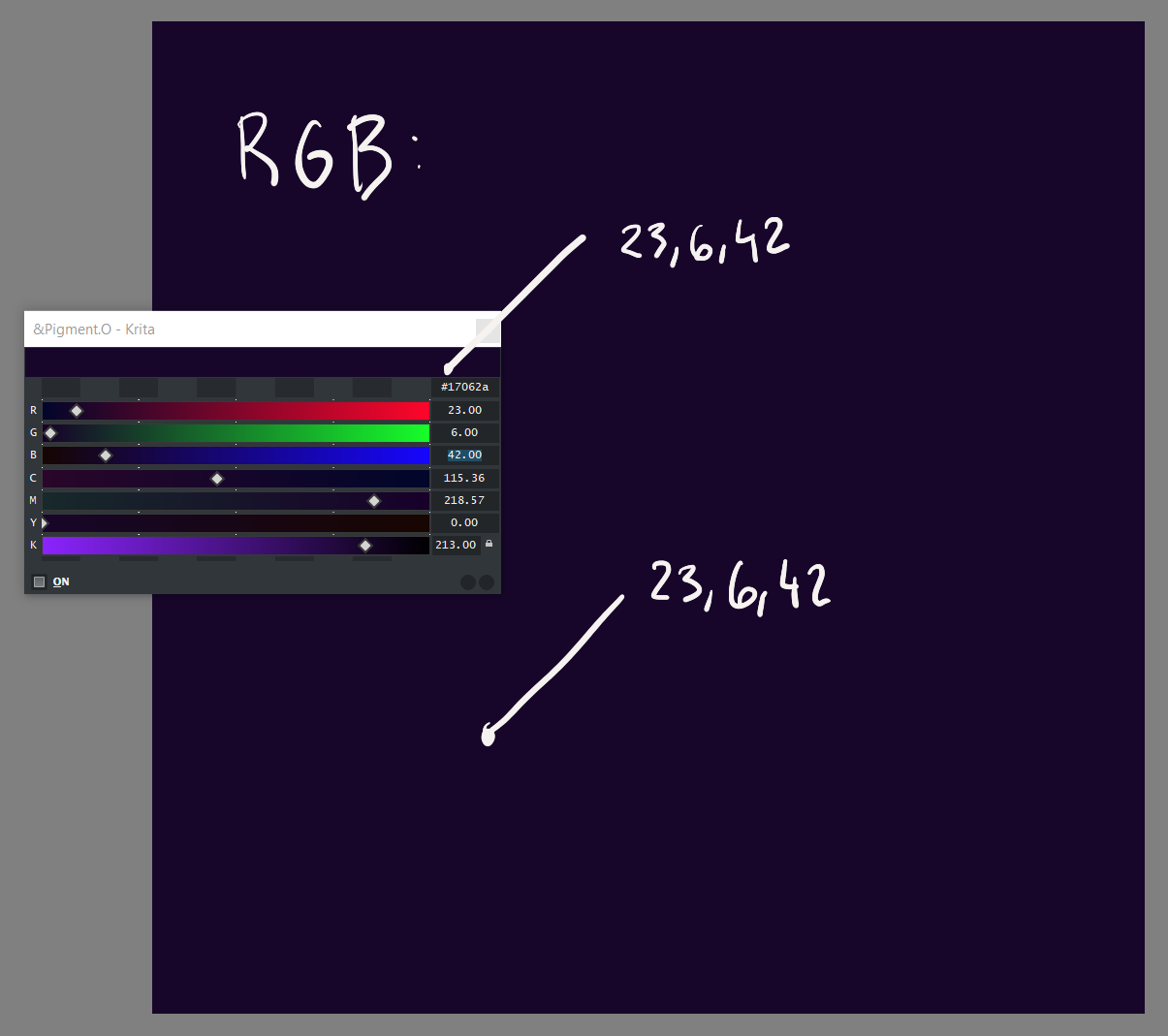
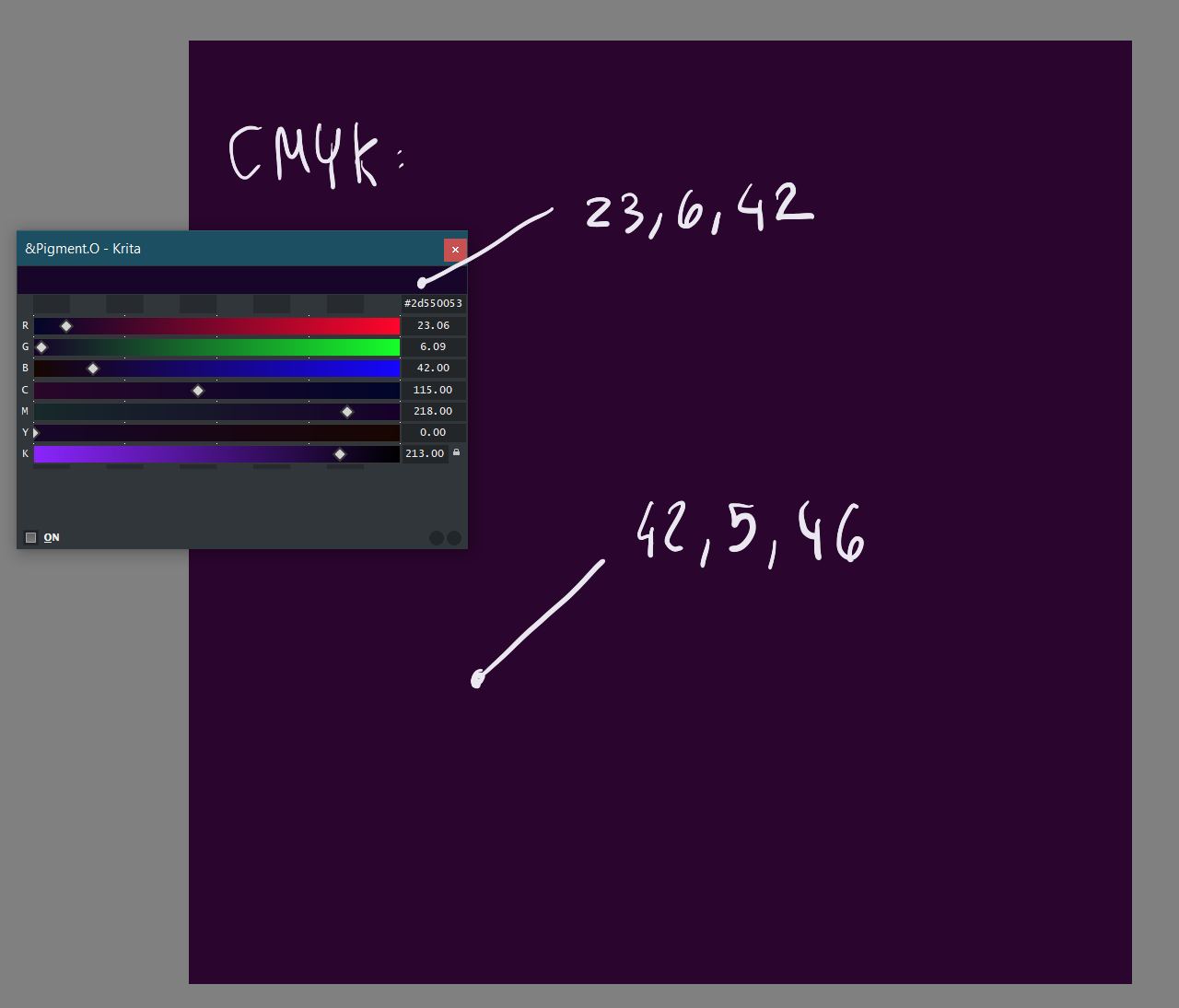
Did some checks:
- New implementation with QColor and paintEvent display gives same results as CSS with color-background(current version).
- RGB and CMYK conversions are successful when compared with other color transform sites.
- The color displayed is in the correct scale when given to the widget so no Agnostic issues.
Paint samples:
CSS samples:
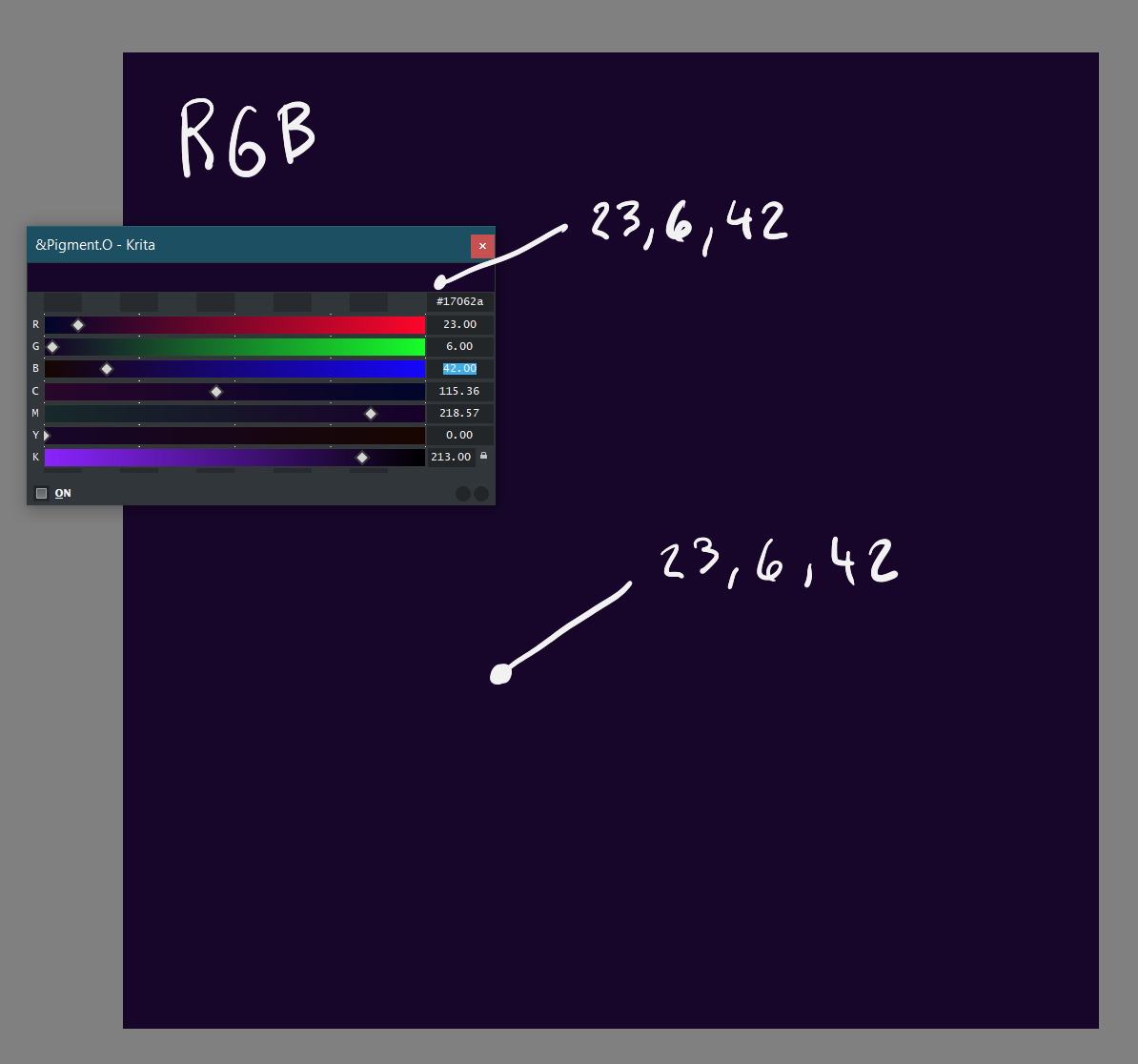
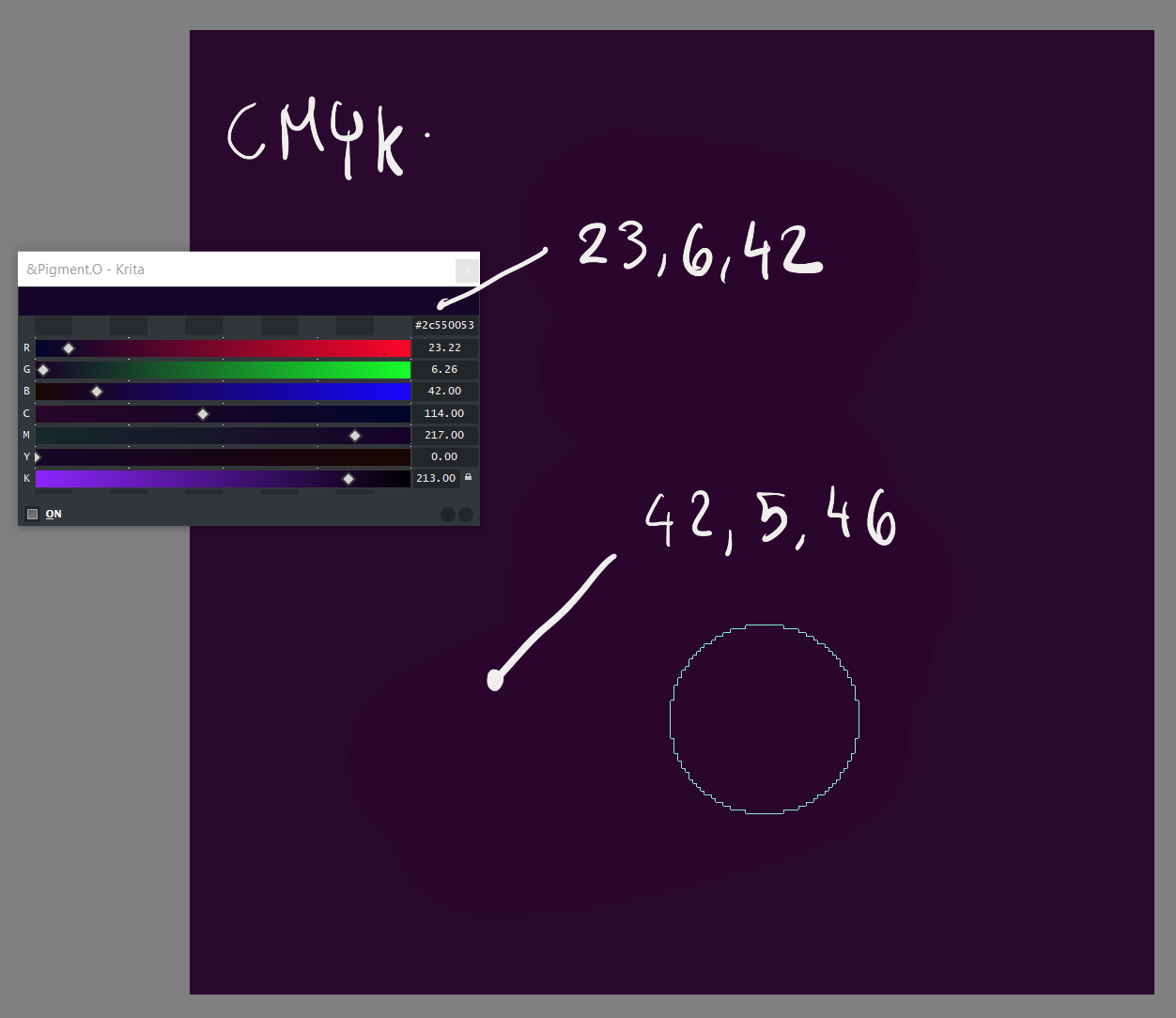
I think this is more a issue with the render difference of Krita’s Canvas and UI, when the Canvas is in another color space.
Truth be told I have no hand in the way how things are rendered I just give the value for it to render and the values in both cases match. So much so that despite the color space change and Pigmento doing the double check Pigmento then renders the same color and stabilizes. You can see that by checking where the round numbers of Pigmento are, in the RGB case the rgb values are rounded up, and in the CMYK case the cmyk values are rounded up. So the color on the Canvas is the same color on Pigmento.
Yes I assume that the issue is because the UI/the addon uses the RGB color space, and the difference is because the color space I use is a custom one that the calibrator spews out for my monitor.
But my question was …is it possible to have the addon lookup the colorspace that I have set in settings and eventually skew the color in the preview. So visually there won’t be any difference?
The color I have given are really not that big of a difference, but some warms are really off.
If that’s not possible then I guess I have to live with the difference. 
From a plugin perspective I think I am not able to fix it to match Krita without changing Krita in some way before that.
what about looking up the color space in the settings from the API? and the looking it up in window’s folder for color spaces, opening it up…parsing it and using the data to skew the color?