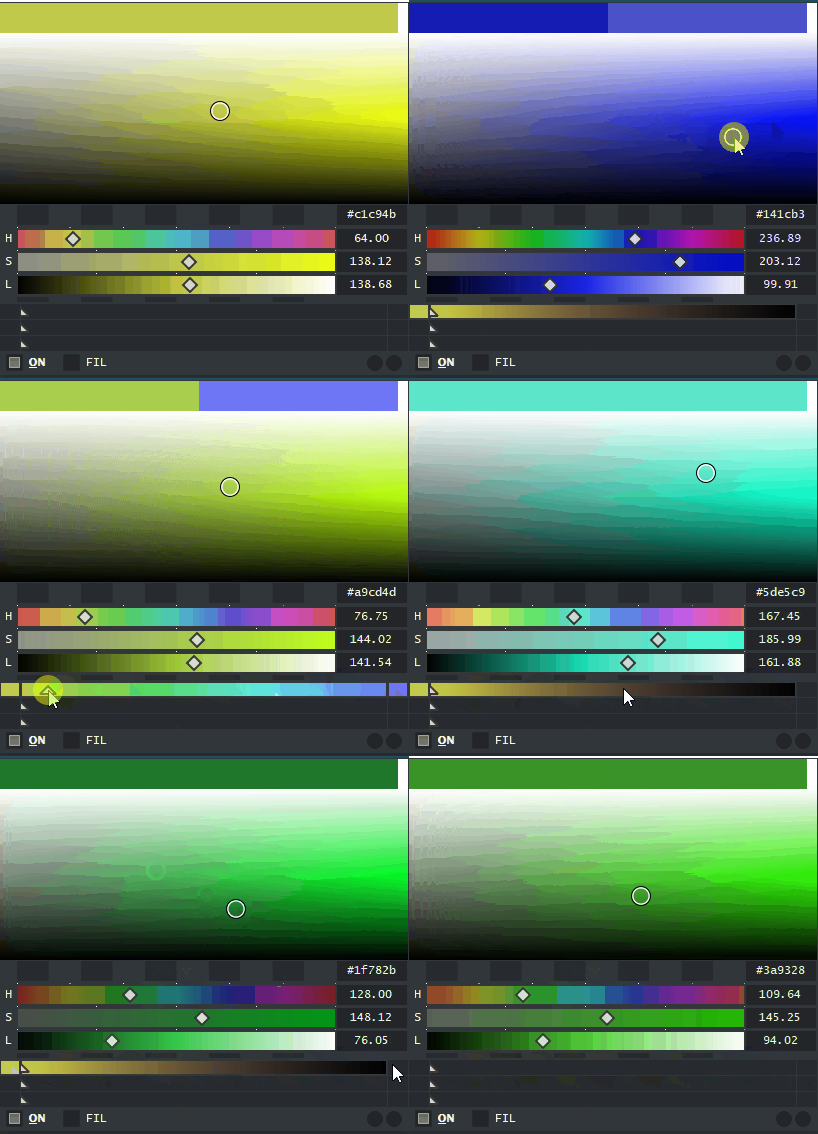
That idea sounds bound for failure. Too much work and with very little returns. OS x Color Space x Monitors = way to much things to match.
Changing the UI display render mode would solve it by brute force but is bad solution.
It would be alot easier to ask Krita what color it was using for display as Krita is already doing that. But to ask that there needs to be a change in Krita too. Not to mention I have to match Krita and not Guess where it is after doing all those changes.
Keyboard shortcuts
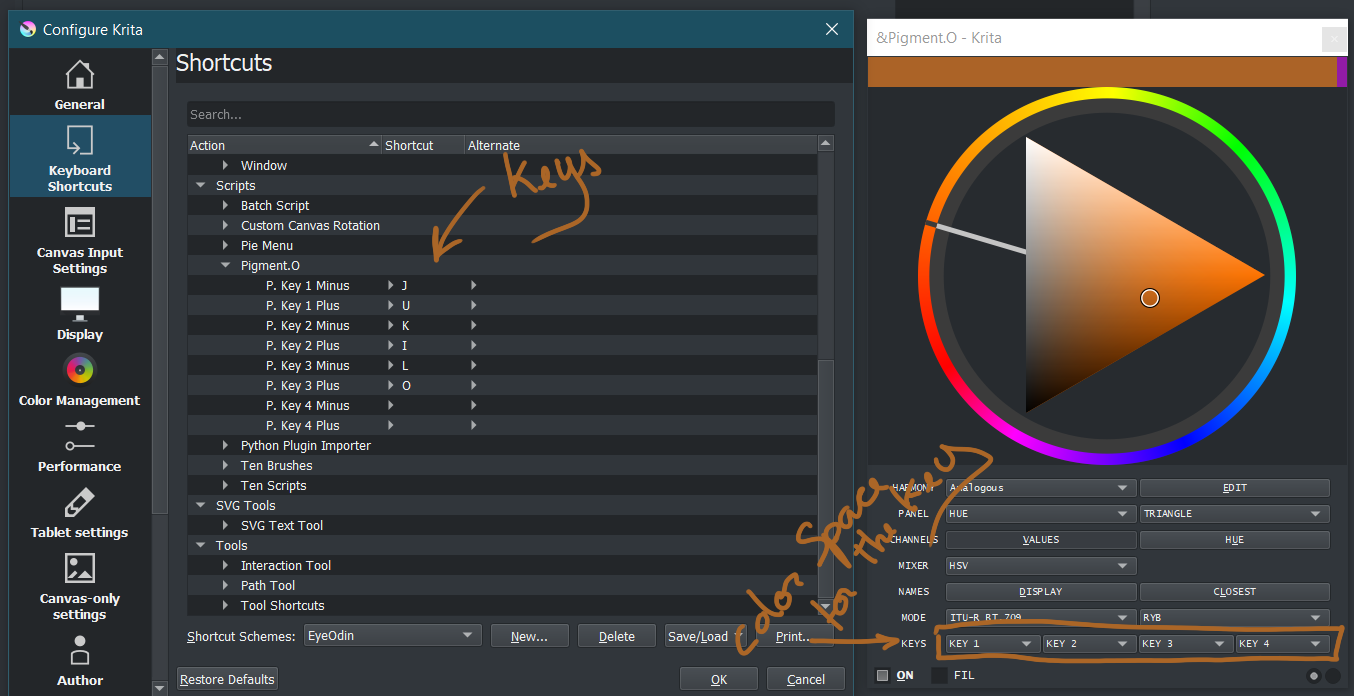
I has lost count of how many times I tried to make this happen all of them with some intrinsic weird behavior to them that would stop the correct behavior of some widget or calculation. I think this time it is there, the resurrection of the Pigmento Extension. I did not notice any issue with it up until now but if anyone notices something please do tell me please. Disclaimer, as before considering various keyboard layouts and Krita’s overpopulated keyboard default settings my keyboard shortcuts are not active by default so you will have to select the keys on Configure Krita to make it work as it should and then go to the Keys slots and select from the drop down list the color space you want for that key. it harder to set up out of the box but it does not cause you a UI nightmare with all the variations on your face when you open the Scripts window.
Size, Opacity, Flow and Eraser (SOF)
Considering they were implemented into the Tela plugin with success they have been deleted from Pigmento. This implementation brought some better UI modularity for coding it despite the hassle it was.
Background Color
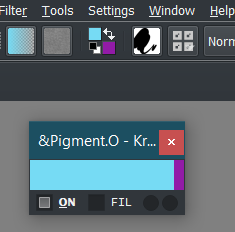
So I was getting a bit stressed when handling gradients with Pigmento and I implemented Background colors (I had the code for it but it really did not seem necessary at the time) so this time it is around and active. pressing the tiny slot on the right with swap your colors. Careful not to press the main Foreground Color that activates the Luminosity Lock, but I think it is still good for it.
Fill
For this one please be CAREFUL the first time you use it SAVE before you do.
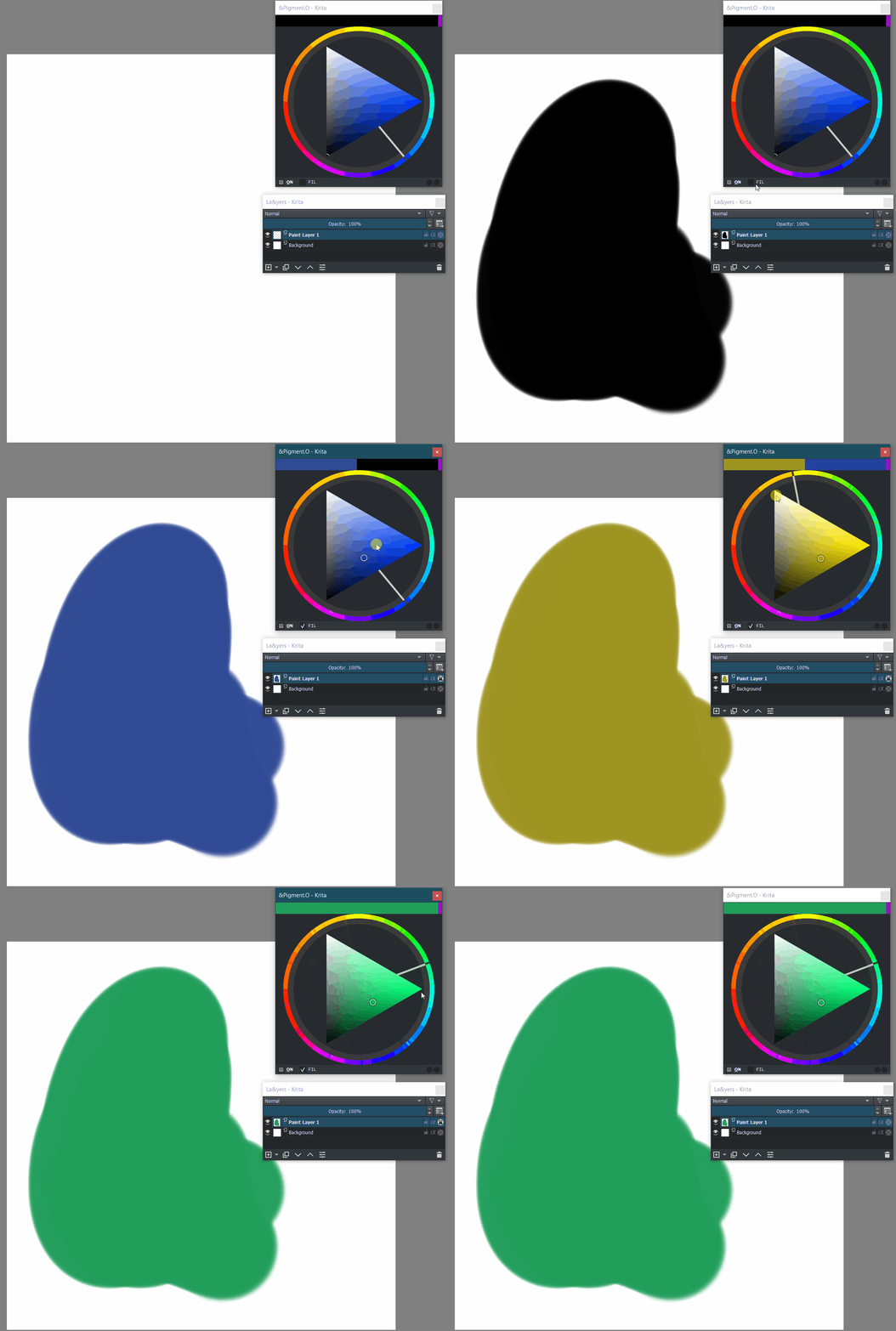
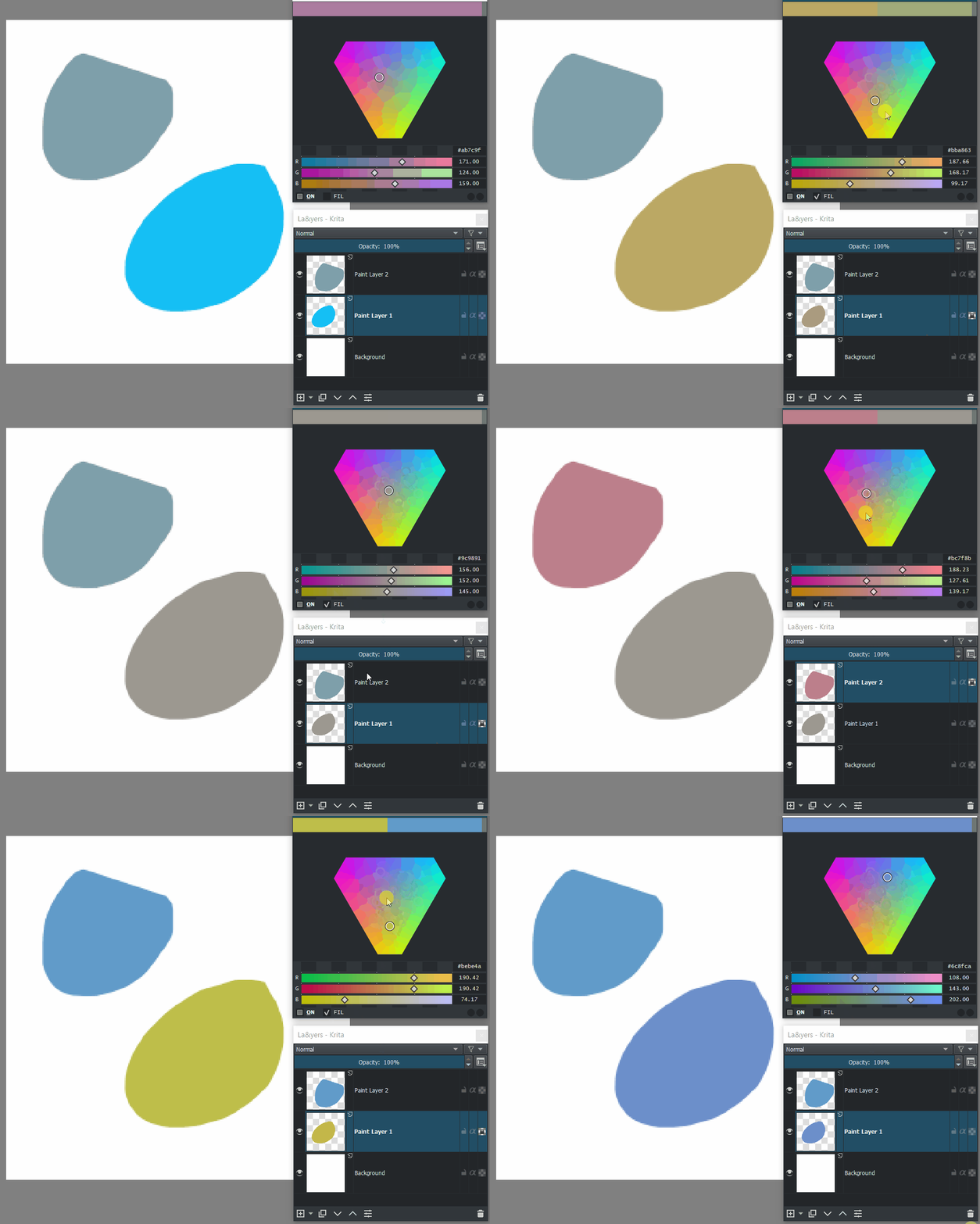
it is the checkbox near the ON/OFF switch called “Fil”. Checking it will alpha lock your currently active layer and then when you change the color in Pigmento it will auto fill the entire layer with that new color. Unchecking the Fill switch will unlock alpha of that layer. This is good to test colors within a composition if you have them in a different layer. It will feel a bit slow as it goes through all the colors your using, kinda like a spam fill so it will void any undo you want to do after as it will go over the limit.
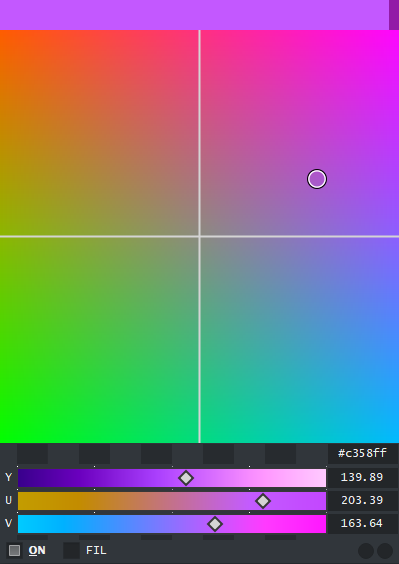
YUV gui display.
With help I finally managed to get this up and running properly. So most colorful GUI ever is around. it is not as good as LAB but it does has it’s charm with the same philosophy.
I must say that making the Extension work properly has given me some joy as to finish the main features for Pigmento that it is lacking to make face against other professional color pickers in the market. now the only thing that is lacks is the on canvas hud display with a key press. Rendering on screen has been hard to figure out but this makes the connection I so desperately needed to even make it possible.
Hi @EyeOdin you made huge work on this plugin, much appreciated!
I just have one question: how to fast reset Pigment.O plugin so that it can be set with
initial settings ? Recently I played around with it but cannot bring it to normal, I guess.
Maybe adding a shortcut named “reset to default settings” could be useful?
@Drayldan
I am not quite sure there are enough combinations to need a reset. The way I designed it is just to remember what you last used so you can keep using it I never thought in forcing a certain mode to people as the correct mode. I choose hsv as the default as a nod to people that miss the hsv docker.
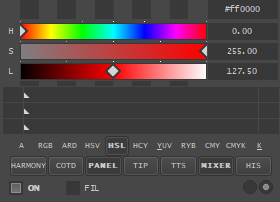
On the lower right you have the menu options. One of them turns widgets on and off for view purposes and the other has lists of options for them. you just select the mode you prefer. But you can also show what’s the matter and I can try to help you out. The manual explains what is each entry of the options in case your searching for something in particular.
As of now to do a reset you have 3 options, neither of them easy to do or quick:
uninstall pigmento, reset krita and reinstall it again.
close krita, go to the kritarc file and delete all pigmento entries in there and start krita again.
close krita, go to the pigment_o_docker.py file and change the version number date and start krita again.
I woke up today and thought I had a bug and I found it, my apologies.
So I did a minor update to the Fill function with a new counter measure for miss handling it.
So what happens now is once you active Fill it only remains active while that same layer it did the alpha lock is still select or else it will unlock the alpha of that layer and deactivate itself. So you will have to click Fill for each layer you want to apply it too.
This should make it much more easy to use and safe against wrong order of operations to make it work. Here is an example:
I’ve tried out the new background color and fill feature.
With pigment.o sync switch on, I cannot swap the background color using the regular way in krita. It instead makes both colors the background color.
Fill is way too slow on linux. After I tried it out on a new layer, I proceeded to delete the layer and was met with a script error that kept popping up when closed, leaving me the only option of closing krita entirely.
AttributeError
Python 3.8.1: /usr/bin/python3
Fri Jun 11 13:26:52 2021

A problem occurred in a Python script.  Here is the sequence of
function calls leading up to the error, in the order they occurred.

 /home/lucifer/.local/share/krita/pykrita/pigment_o/pigment_o_docker.py in Krita_2_Pigment(self=<pigment_o.pigment_o_docker.PigmentODocker object>)
 5822             node = str(Krita.instance().activeDocument().activeNode().name())
 5823             if (self.node != node and self.node != None):
 5824                 Krita.instance().activeDocument().nodeByName(self.node).setAlphaLocked(False)
 5825                 self.node = node
 5826                 self.layout.fil.setChecked(False)
global Krita = <class 'PyKrita.krita.Krita'>
Krita.instance = <built-in function instance>
).activeDocument undefined
self = <pigment_o.pigment_o_docker.PigmentODocker object>
self.node = 'Paint Layer 10'
).setAlphaLocked undefined
AttributeError: 'NoneType' object has no attribute 'setAlphaLocked'
    __cause__ = None
    __class__ = <class 'AttributeError'>
    __context__ = None
    __delattr__ = <method-wrapper '__delattr__' of AttributeError object>
    __dict__ = {}
    __dir__ = <built-in method __dir__ of AttributeError object>
    __doc__ = 'Attribute not found.'
    __eq__ = <method-wrapper '__eq__' of AttributeError object>
    __format__ = <built-in method __format__ of AttributeError object>
    __ge__ = <method-wrapper '__ge__' of AttributeError object>
    __getattribute__ = <method-wrapper '__getattribute__' of AttributeError object>
    __gt__ = <method-wrapper '__gt__' of AttributeError object>
    __hash__ = <method-wrapper '__hash__' of AttributeError object>
    __init__ = <method-wrapper '__init__' of AttributeError object>
    __init_subclass__ = <built-in method __init_subclass__ of type object>
    __le__ = <method-wrapper '__le__' of AttributeError object>
    __lt__ = <method-wrapper '__lt__' of AttributeError object>
    __ne__ = <method-wrapper '__ne__' of AttributeError object>
    __new__ = <built-in method __new__ of type object>
    __reduce__ = <built-in method __reduce__ of AttributeError object>
    __reduce_ex__ = <built-in method __reduce_ex__ of AttributeError object>
    __repr__ = <method-wrapper '__repr__' of AttributeError object>
    __setattr__ = <method-wrapper '__setattr__' of AttributeError object>
    __setstate__ = <built-in method __setstate__ of AttributeError object>
    __sizeof__ = <built-in method __sizeof__ of AttributeError object>
    __str__ = <method-wrapper '__str__' of AttributeError object>
    __subclasshook__ = <built-in method __subclasshook__ of type object>
    __suppress_context__ = False
    __traceback__ = <traceback object>
    args = ("'NoneType' object has no attribute 'setAlphaLocked'",)
    with_traceback = <built-in method with_traceback of AttributeError object>

The above is a description of an error in a Python program.  Here is
the original traceback:

Traceback (most recent call last):
  File "/home/lucifer/.local/share/krita/pykrita/pigment_o/pigment_o_docker.py", line 5824, in Krita_2_Pigment
    Krita.instance().activeDocument().nodeByName(self.node).setAlphaLocked(False)
AttributeError: 'NoneType' object has no attribute 'setAlphaLocked'
Thank you I am happy it worked. in theory it works for any color space. but only the header the rest I need to think how to do it because it is a big side step and can affect everything.
At least I know how to do it now. but i noticed some minor instability while updating but I don’t know where it is comming from yet. I need to make it work better now.
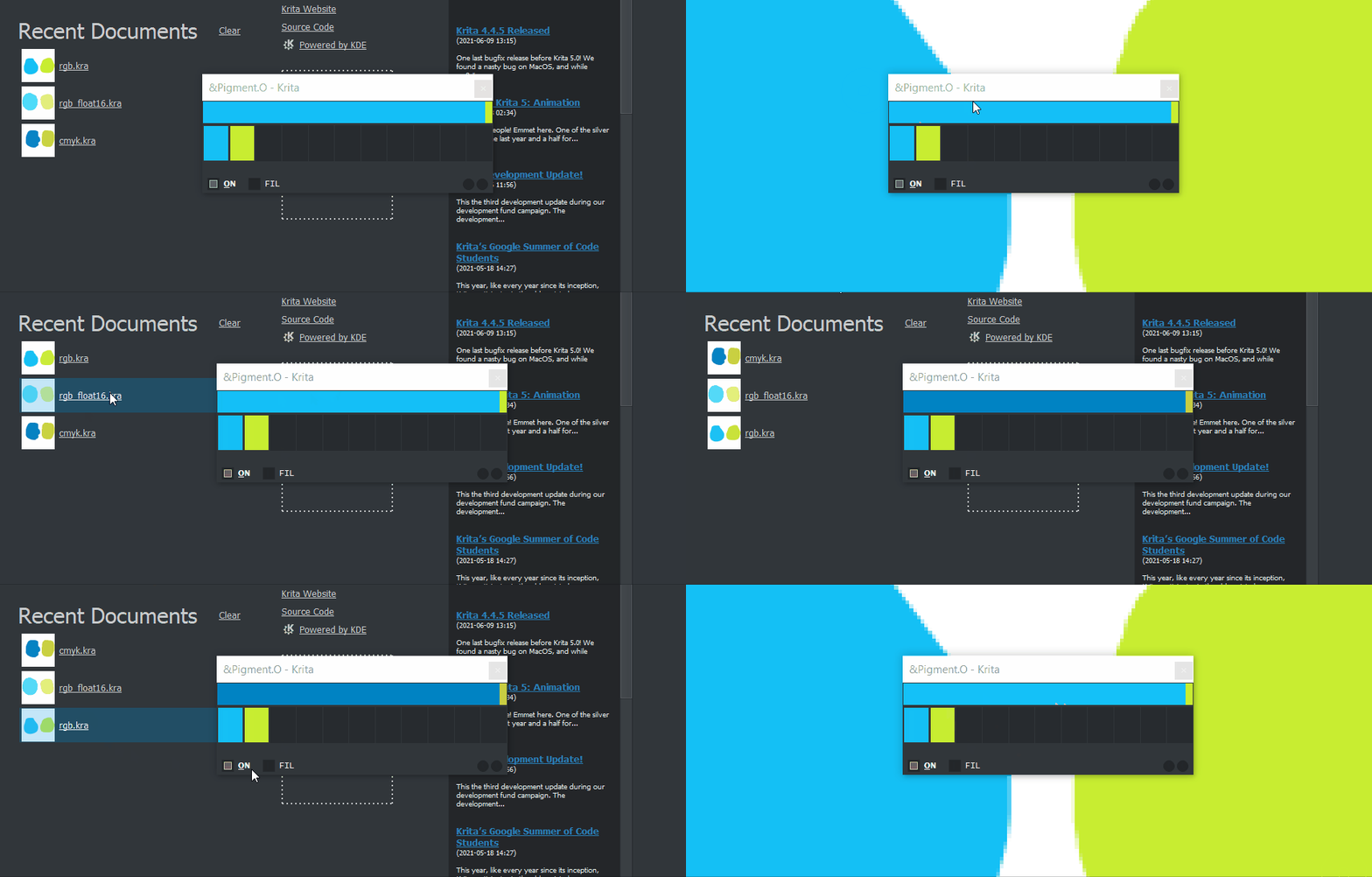
Squashed an illusive bug because of the change into displaying documents color spaces. when a new document loads up there seems to be a difference in timing between the color that gets loaded up and the active document. I think when the document loads it still does not believe itself to be loaded up while the color when it loads it then believes it is loaded up instantly. So I needed to check the color depth of the color instead of the document so it would update properly. It is odd to think there is a disparity in the timing when documents load up but since pigmento only deals with color might as well do that way either-way. So now having a color selected and loading a document with a different color space will not mess up color you have inside it by applying the same color code to the previous color space used.
Changing the display method really open a flood of new situations suddenly and I have been fixing the bugs that I have been detecting. as before now the color change display on the header automatically and also swapping between panels in the settings will not cause a shift in the hue. Something else might be unstable but I haven’t found more issues just yet.
Rambelling:
However I was thinking on how to implement something I have been wanting too for a while that I thought impossible but with this display it should be. Up until now XYZ and LAB are absent in Pigmento because I had no way to represent those colors on the docker. but I think I now can with this. But it also has another issue in the mix “Imaginary colors”. XYZ goes far beyond human vision and RGB space, and we see it with I think a lookup table or something similar for an “approximation”.
So if I go:
RGB into XYZ I can make a good conversion.
XYZ into RGB I cant always do it because there will be colors that don’t exist.
so I had 2 ideas to solve this:
make the make the XYZ into RGB conversion the displayed equivalent.
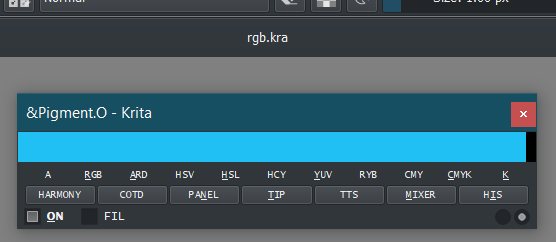
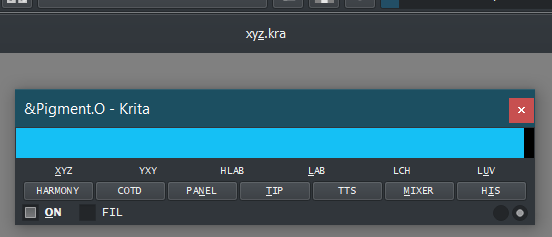
create 2 modes. The RGB mode for (grayscale, alpha, rgb and cmyk) and a XYZ mode for (xyz and lab)
In this new version I just updated I made the menus sensitive to the type of document just to get a feel of it. The new menus don’t do anything now and might change alot but this would be my initial thoughts going down the 2) path that is the one I more inclined to do even though it would require exclusive panels for itself. Any thoughts?
I have been using your plugin for a bit, and first, I love your work! It is easy to customize and extremely beautiful when painting with it.
I only have a few questions about it, for example, when I use the mixer, set to RGB, I only get black and I have not been able to figure out how to get other colors.
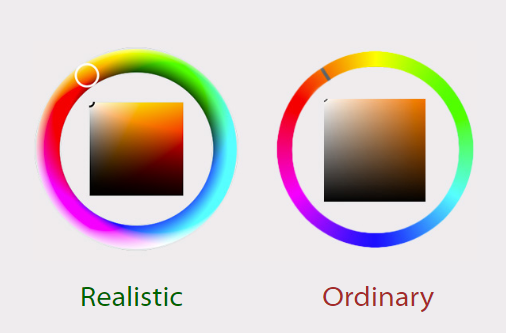
On the color wheel, I was curious if the color could be more similar to the way Realistic Paint Studio advertises their color wheel.
Click Controls
Neutral + x2Click to Apply current settings.
Shift + x1Click to Apply current settings.
Ctrl + x1Click to Save current settings.
Alt + x1Click to Clean settings.
That depends on the document you would have open.
The images would be the channels options for each mode.