Pigment.O plugin

No, it is the most versatile color-selector for Krita, and it offers more than only color selection.
But instead of taking a screenshot and posting it here, and providing a more detailed description of what you’ve done so far and where you’re stuck, all we get are meaningless posts that make your displeasure clear, but don’t help solve the problem.
We’re not sitting next to you, we can’t read minds, and the last magic crystal ball is under repair, so how can anyone help you without knowing what your problem is?
Standard information such as operating system, and version of Krita in use would also be helpful. Also, did you install Pigment.O for the first time or is it an update?

Michelist

1 Like

I must say that now the complement works very well, I only have a problem with 2 panels.

This may be Fedora’s problem, I will try Kubuntu.

Update:

  • Bug fixes

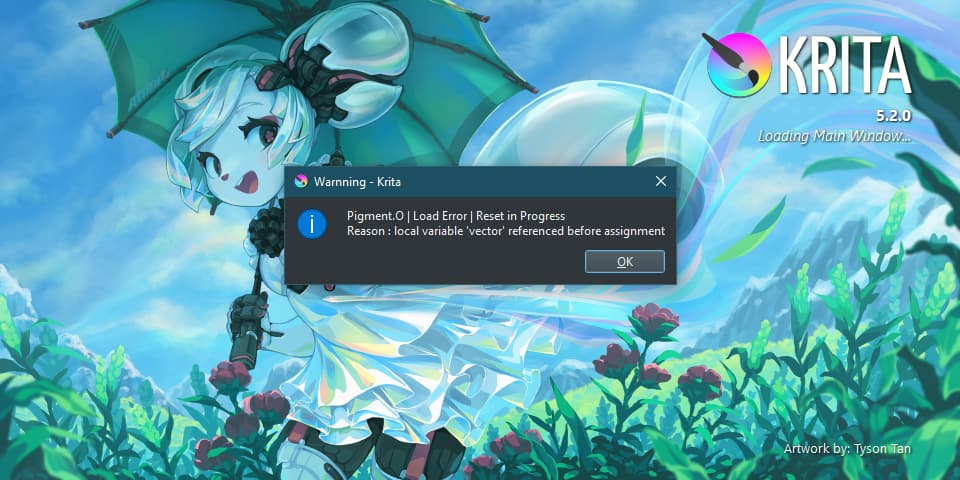
Was working mostly on the kritarc bug today since this seems to be a bigger problem than I ever expected it to be. And of course I had to change how harmony works internally because reasons. So now in “theory” this has 2 phases to detect bad kritarc values being feed into it. One evaluates if the variable is of the type it is expecting and clean individually if not and the other is while placing stuff around if it fails it just resets everything and tries it again. if this happens you will be greeted with the following message with the normal error message maybe. So the plugin will try to clean everything after and this should only happen once. if it happens more than one you really need to clean manually as it is not perfect. This message only appears if the error is big.

Gamut panel bug should be fixed.

4 Likes

when things are not resizing immediatly for some reason try to resize the widget to see if it wakes up. Also fractional scalling messes my plugins whole so might want to check that. Panels scale to the size of docker so that is probably what it is detecting. I cant to anything if it does not believe what it is.

that much I understood but I need to know how you got there or else it is just useless information. Because in response to such vague bug report I can say it works on my end, which is also useless information.

1 Like

No need to be angry about it, I am just trying to express an issue. Here is a video that has Krita picker and pigment next to each other, as you see picking any kind of color from the pigment panel is not actually setting color for Krita. I am trying bunch of options in the panel.

1 Like

To solve that there you just need to press on one of the Harmony swatches so it knows which one to edit.
But that was one of the issues I was fixing today

so you can download the new version and it should not lock you like that anymore.

2 Likes

I already changed the size but the problem persists, also the fractional scale is deactivated, I tried in Kubuntu and there is also the same problem so it is not a fedora thing.

try resetting the color palette because those are not one of the default colors if that does not work I would need to see the edit values.

2 Likes

Btw I just saw that enabling this plugin increases Krita’s GPU use quite a bit, even when not in use. Krita’s idle GPU use is under %1 when this plugin is not enabled. Krita’s idle (ie I am not doing anything with Krita)GPU use goes up to %10-%40 GPU non stop which is a lot. I have a 3080 here. I am on Windows 11 x64

It did not work :pensive:

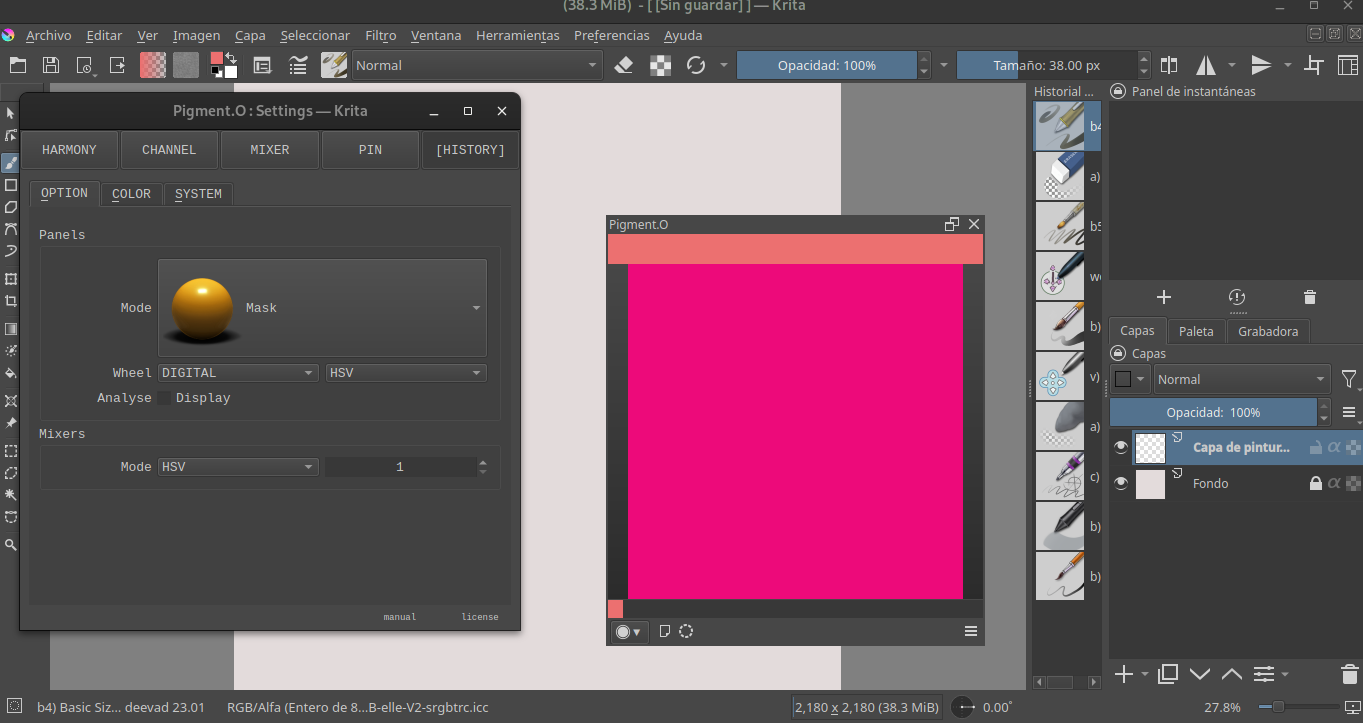
@EyeOdin Could you please post a how to use video on YT? I even couldn’t change the color of that sphere? (in the mask mode, how can I change the main color of the ball? Is the ball supoosed to be only yellow?) And when I click on color selection, the circle icon with intermittent lines, Krita crashes on me for a while. And the dot mode doesn’t update the color tones in the middle when I choose a new color?
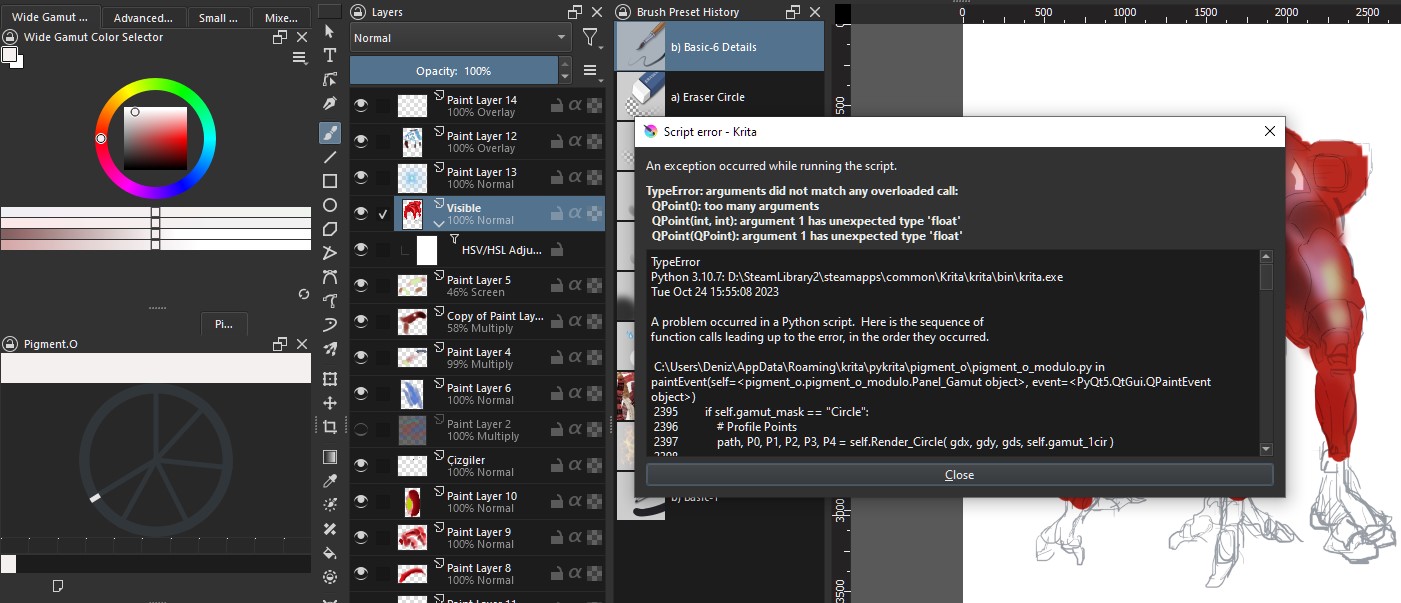
And it gives a script error when choosing some gamuts in the gamut mode. And selection boxes disappeared then. I added the pic. Needs more testing. And eventhough I tried to uninstall and reinstall the plug-in, the problem persists.

Here is the message:
TypeError
Python 3.10.7: D:\SteamLibrary2\steamapps\common\Krita\krita\bin\krita.exe
Tue Oct 24 13:47:12 2023

A problem occurred in a Python script. Here is the sequence of
function calls leading up to the error, in the order they occurred.

C:\Users\Deniz\AppData\Roaming\krita\pykrita\pigment_o\pigment_o_modulo.py in paintEvent(self=<pigment_o.pigment_o_modulo.Panel_Gamut object>, event=<PyQt5.QtGui.QPaintEvent object>)
2395 if self.gamut_mask == “Circle”:
2396 # Profile Points
2397 path, P0, P1, P2, P3, P4 = self.Render_Circle( gdx, gdy, gds, self.gamut_1cir )
2398
2399 # Polygon
path undefined
P0 undefined
P1 undefined
P2 undefined
P3 undefined
P4 undefined
self = <pigment_o.pigment_o_modulo.Panel_Gamut object>
self.Render_Circle = <bound method Panel_Gamut.Render_Circle of <pigment_o.pigment_o_modulo.Panel_Gamut object>>
gdx = 68.168
gdy = 13.668000000000001
gds = 173.664
self.gamut_1cir = [(0.5, 0.5), (0.5, 0.1), (0.9, 0.5), (0.5, 0.9), (0.1, 0.5)]

C:\Users\Deniz\AppData\Roaming\krita\pykrita\pigment_o\pigment_o_modulo.py in Render_Circle(self=<pigment_o.pigment_o_modulo.Panel_Gamut object>, px=68.168, py=13.668000000000001, side=173.664, points=[(0.5, 0.5), (0.5, 0.1), (0.9, 0.5), (0.5, 0.9), (0.1, 0.5)])
2606 path.moveTo( A1[0], A1[1] )
2607 path.cubicTo(
2608 QPoint( self.geometry.Lerp_1D( a, A1[0], P12[0] ), self.geometry.Lerp_1D( a, A1[1], P12[1] ) ),
2609 QPoint( self.geometry.Lerp_1D( b, P12[0], A2[0] ), self.geometry.Lerp_1D( b, P12[1], A2[1] ) ),
2610 QPoint( A2[0], A2[1] ) )
global QPoint = <class ‘PyQt5.QtCore.QPoint’>
self = <pigment_o.pigment_o_modulo.Panel_Gamut object>
self.geometry = <pigment_o.pigment_o_calculations.Geometry object>
self.geometry.Lerp_1D = <bound method Geometry.Lerp_1D of <pigment_o.pigment_o_calculations.Geometry object>>
a = 0.551915024494
A1 = [85.5344, 100.5]
P12 = [85.5344, 31.034400000000005]
TypeError: arguments did not match any overloaded call:
QPoint(): too many arguments
QPoint(int, int): argument 1 has unexpected type ‘float’
QPoint(QPoint): argument 1 has unexpected type ‘float’
cause = None
class = <class ‘TypeError’>
context = None
delattr = <method-wrapper ‘delattr’ of TypeError object>
dict = {}
dir =
doc = ‘Inappropriate argument type.’
eq = <method-wrapper ‘eq’ of TypeError object>
format =
ge = <method-wrapper ‘ge’ of TypeError object>
getattribute = <method-wrapper ‘getattribute’ of TypeError object>
gt = <method-wrapper ‘gt’ of TypeError object>
hash = <method-wrapper ‘hash’ of TypeError object>
init = <method-wrapper ‘init’ of TypeError object>
init_subclass =
le = <method-wrapper ‘le’ of TypeError object>
lt = <method-wrapper ‘lt’ of TypeError object>
ne = <method-wrapper ‘ne’ of TypeError object>
new =
reduce =
reduce_ex =
repr = <method-wrapper ‘repr’ of TypeError object>
setattr = <method-wrapper ‘setattr’ of TypeError object>
setstate =
sizeof =
str = <method-wrapper ‘str’ of TypeError object>
subclasshook =
suppress_context = False
traceback =
args = (“arguments did not match any overloaded call:\n Q…t(QPoint): argument 1 has unexpected type ‘float’”,)
with_traceback =

The above is a description of an error in a Python program. Here is
the original traceback:

Traceback (most recent call last):
File “C:\Users\Deniz\AppData\Roaming\krita\pykrita\pigment_o\pigment_o_modulo.py”, line 2397, in paintEvent
path, P0, P1, P2, P3, P4 = self.Render_Circle( gdx, gdy, gds, self.gamut_1cir )
File “C:\Users\Deniz\AppData\Roaming\krita\pykrita\pigment_o\pigment_o_modulo.py”, line 2608, in Render_Circle
QPoint( self.geometry.Lerp_1D( a, A1[0], P12[0] ), self.geometry.Lerp_1D( a, A1[1], P12[1] ) ),
TypeError: arguments did not match any overloaded call:
QPoint(): too many arguments
QPoint(int, int): argument 1 has unexpected type ‘float’
QPoint(QPoint): argument 1 has unexpected type ‘float’

Update:

  • Bug Fixes

I fixed some lost paths for Linux and also made the panel a tiny bit lighter to composite the image for display.
It should be working now.

Now to respond to the very vague complaints.

@karemuvar ( limitation )
There is no Signal on the “ManagedColor” module to detect when a color has been changed nor for anything else there, so I am forced to work with the tools I have available to make sure that everything is up to date. if you don’t like how much it consumes I would advise you to change mode because the option is there for it. Change to Write mode and your consumption will be nullified. There are also performance options you can use. But will it be synced? No. Why? because there is no signal to react to and it can’t react to things that don’t exist. This is a limitation that exists from day one and there is no way around it and if you know a way around this issue please do say.


@1983mg ( information )
If you want to know about Pins check the unpolished wiki page as it has all information about it that a user needs to know. if you want to know something beyond it make an actual question, because complaining that you don’t know I will just say I don’t what you want to know either.


@terbas ( information + update )
First of all when sending a error message to the forum please be sure to preformat the text.

Dot and Mask do not change color by just clicking on it. Please read the wiki for the basic information.

This code does not match what I have on my side.
Please update the plugin. I have been bug fixing according to reports. Check if it persists after.

4 Likes

Ok, but… For practicality (ease of use), simple clicks should yield results. Plug-ins should be as easy to be solved after an hour of tinkering. I think the UI must be easier to use. Just a thought.
This plug-in is so promising but surely not so practical to use.

In the manual, it says “LMB hold + drag up”…
Hold and drag up when clicking what on the plug-in? The pins?
What are the pins on the screen? (Are they the set of colors below? If so, nothing happens when I hold click one of them and drag up?
But if they are the eleven empty squares below, how will I fill them with colors (pin them?) Maybe right clicking on the color panel should have pinned it?
Alt+LMB is supposed to select pin, where to click with LMB while pressing ALT? If I do it on the color panel, nothing happens.
I mean a more “visual” tutorial is needed. Like a video. Don’t get me wrong, this is great script writing but things are just not so clear.

Your reading but your ignoring all the context given.

RMB for context menu > Edit to open mixing colours > PIN for the mask panel that you can edit with click drag or even use live

Using the edit option to edit the panel your right clicking on seems pretty straightforward to me.

And all pins work the same way even though these have a extra value for alpha.

YouTube videos I can’t update if something changes.

1 Like

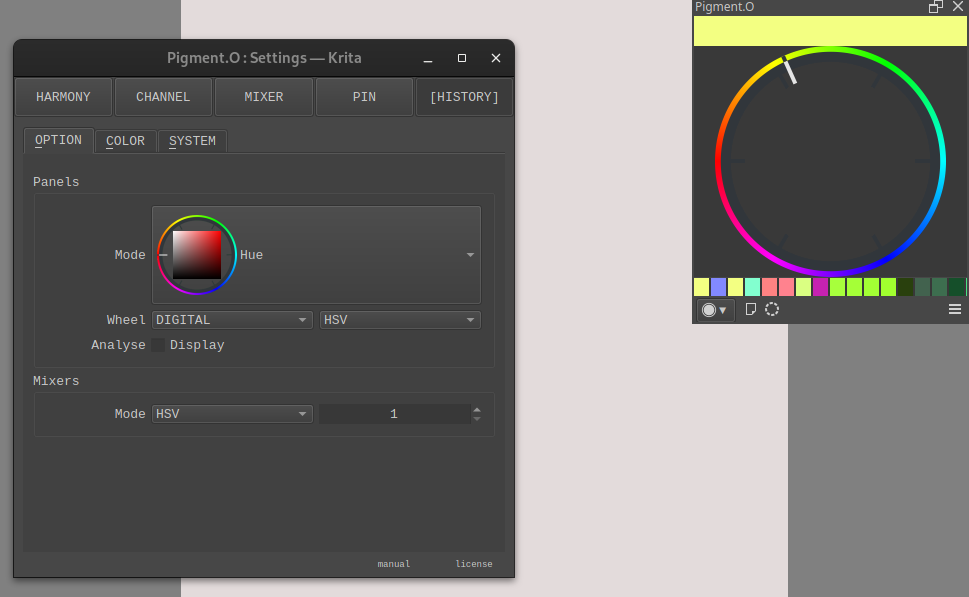
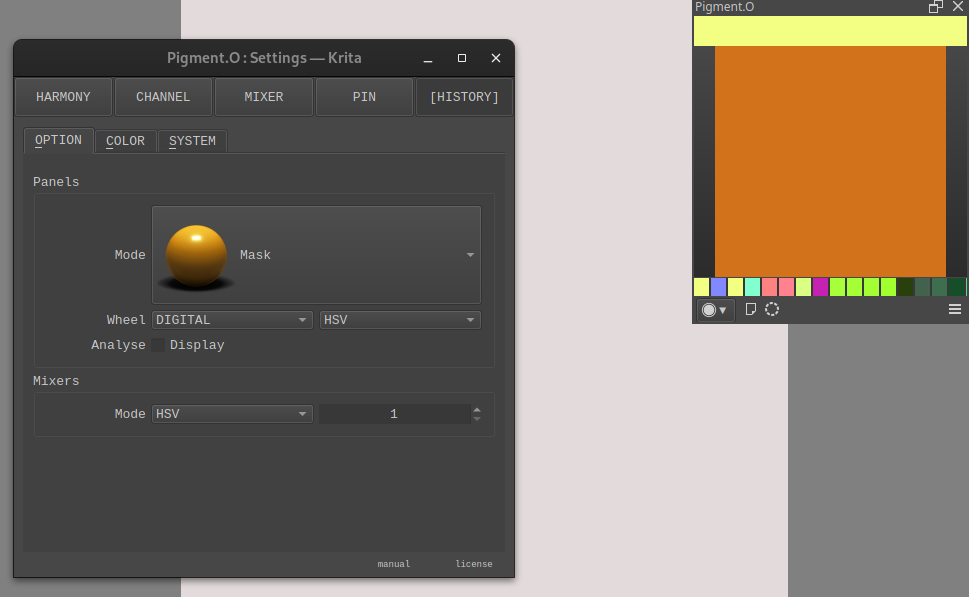
Let me ask with a pic.


These should be related to pins since if PIN is turned on in the settings, these boxes appear.
In the Luma panel alt+LMB is supposed to select pin:

  • LMB : Select color
  • Shift + LMB : Zoom color
  • Pen Pressure : Zoom color
  • Ctrl + LMB : Change the third axis ( Luma )
  • Alt + LMB : Select pin (HERE)
  • Alt + RMB : Edit pin
    But nothing happens when I do it on the panel.

In the second picture, mixer sliders are activated. But I don’t know how to choose the two colors to be mixed?

Yes those are pins even though it is not what you were asking before.

I mean come on? I’ve been asking about how to pin colors right from the start. And still do. The first post was about the sphere thingy. The later ones were all about pins. And how the related LMB+ALT combo was ineffective for me.
AND…
I finally found that RMB on the box(es)…
I believe this was enough to write in the manual. (RMB on the given box).

LMB hold + Drag up applies and drag down saves. You read it.

LMB + Alt is a panel shortcut and not related with the pins as it only selects. If you want to edit you do RMB + Alt and drag.

Yes, this is one of the thinggs I ask. Between which points should those actions (like from panel to box?) be done? Those two are unresponsive for me. (I can’t drag anything to anywhere!)
Finally, on the box! LMB drag up/down “when on the box”. (I mean that definition alone could go a long way in the manual, like "hover on the boxes below and LMB hold+Drag down to save and LMB+drag up to apply.)