One final question for today 
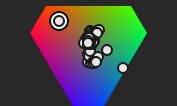
How will these dots be erased?
You have a screenshot right at the start showing were the menu spawns from at the very start. On all wiki entries that speak about something with a context menu. Where to click is not a problem. I show with and without colour too so you can see the difference too. And when I have a pin in that section I repeated the interaction commands so you don’t have to search for inherentance commands.
The pins are small squares, click with the mouse and just move your mouse vertically and not to anywhere. Just up or down. The plugin will show information on what your doing. Once released it will act. The text is on the base.
I got the last one by myself already. But just think about it, "wouldn’t “hover on the box and do it” be clearer in the manual?
And how to clear the dots on the panel?
Dots from analyse are just a representation and last a session and you can toggle them on or off.
Pins are deleted how I say on the wiki.
1 Like
Thanks. Now everything is clearer. But it really took time for me to find out that drag thing should have been done over a box and ALT+LMB should be done on the panel, it selects the pin directly). So if these can be added to the manual, it will clarify so many things for others like me.
And just a thought… If drag and drop was used (take color and drag and drop it to the pin slots or the mixer slots etc., that could be more intuitive for the user but still this is a great Plug-in and thanks for writing it).
Yes, just download the zip. Then go to Tools, scripts, Import Phython plug-in from file and find the downloaded zip file. Then restart Krita. Go to settings, Dockers and tick Pigmento there to add it to your layout.
2 Likes
If you successfully added the plug-in, now you must add its docker. Did you select Pigmento in the Dockers drop down menu (in Settings)?
1 Like
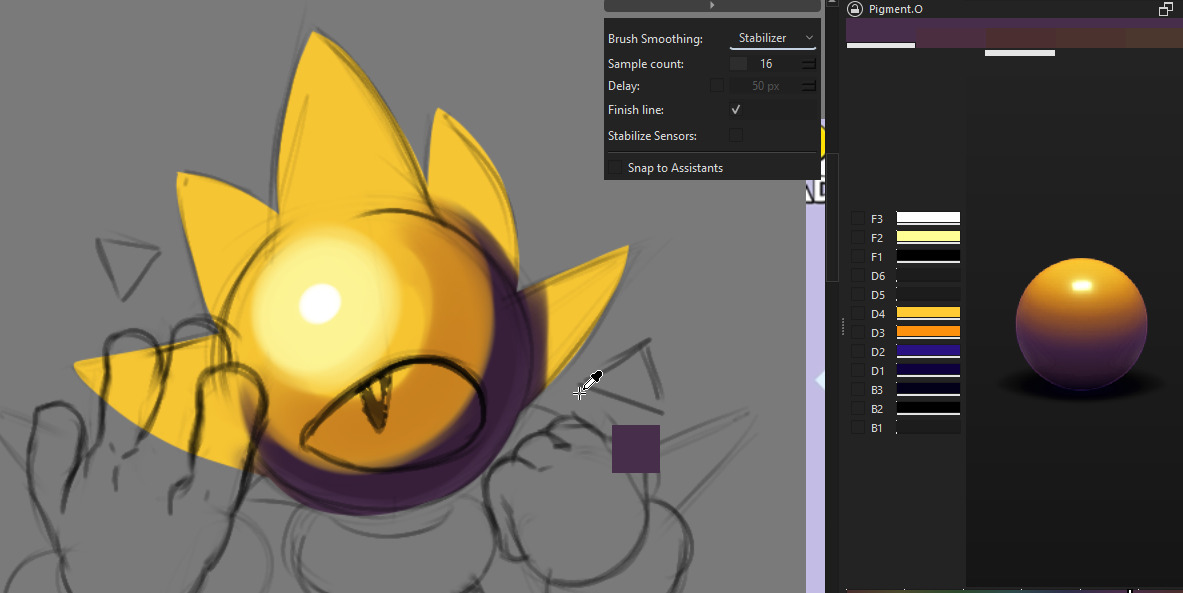
Yes, it is the best.
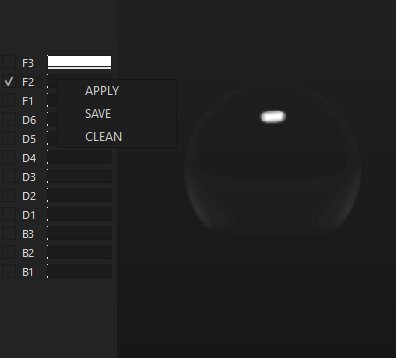
btw is this a bug? so i used CLEAN to clear the other colors from the sphere preview but it seems i cant add them back
Right click in the panel and choose reset…
1 Like
yeah i saw but like i didn’t want to reset it, just add back the colors manually
You must right click on each box and choose save there to apply your chosen foreground color.
1 Like
@Axis_Arts
When you CLEAN you are making the color black and invisible.
You can bring colors back individually by just making them visible again with ALT+LMB drag ( left or right ). This will shift the small bar under the pin.
2 Likes
@EyeOdin Hi (again). I opened up the Pigment S docker today. How is it used? (Is there a manual? And is it updated lately?
It is useful for users who need to know the TIC (Total Ink Coverage) of a picture that’s going to be printed. For more in depth answers, you have to wait for @EyeOdin or anyone who has a better insight and knowledge about the printing-stage in general and the plugin in particular.
Michelist
1 Like
Update:
- Bug fixes
I received a bug report through discord strangely enough and it was quite a dreadful bug at that. A combination of using harmony, wheel space equal to HSY or ARD and then selecting the color white. it would cause the hue wheel to cycle to infinity. This is really really BAD and I am sorry for the situation.
I took a bit to correct this but I think I took out most of the instability and I did it by taking out my experimental HSY and reverting it back to the original HCY that yet again proves to be far more stable. Values still move a bit when your pushing maximum saturation but I think it is more manageable. Regardless HCY is back.
Panel wise for the rendering I perserved the HSY panels so it case I do something with it they are still there.
The other thing I noticed is that I had locked Luma harmonies for some odd reason. So I redesigned quite a few models to make harmony work on it and I must say that I was not satisfied with no version for various reasons. the one I disliked the least was this one. it shifts using HCY so it maintains Luma, but there is a big catch because it is Harmonies that need to work in RGB. It does not overshoot in YUV space so it adjusts the Luma to allow you remain in a valid RGB. pay a bit attention to it and just push it back with the sliders so you will be able to see the limits of the RGB on the Luma panel as it is highly unregular. As expected it never exceeds the hexagon so that is nice to verify.
6 Likes
@terbas
Press the generate button…
It will generate maps like a channels docker will do but independent of document space and then you can send those maps into Krita as a channels docker should be able to do. Currently it sends it in as a selection map.
If you dont know about TIC you don’t even need to know but if you do you just adjust the amount of it and it is another map added to the lot you generate. This map should help you color correct several images that need to conform to a given value and they you can reuse ( in theory ) the same correction filter ( settings ) to different images as the mask will adjust itself to which pixels need it with how much. Also the red marks over the image tell you were it affecting and the red background tells you that it was affected or not. All of this will need someone to really test it out to see if it works as expected, for now it is just an idea that you can play with. Also TIC might give better results in a CMYK document that is equal to the printer space.
2 Likes
I thought it was your Easter-Egg. 
Michelist
2 Likes