SZK Pixel Art Suite

logo-animated-512px

Manual :orange_book::blue_book:

Manual en Español :spain: :mexico: :argentina:

This is a collection of tools for making Pixel Art that I personally missed in Krita.

Installation

  1. Download the .zip.

  2. In Krita, go to Tools ‣ Scripts ‣ Import Python Plugin…, find the .zip file and press OK.

  3. Restart Krita.

  4. Go to Settings :right_arrow: Dockers :right_arrow: SZK Pixel Art Suite

A new docker with the plugin will appear:
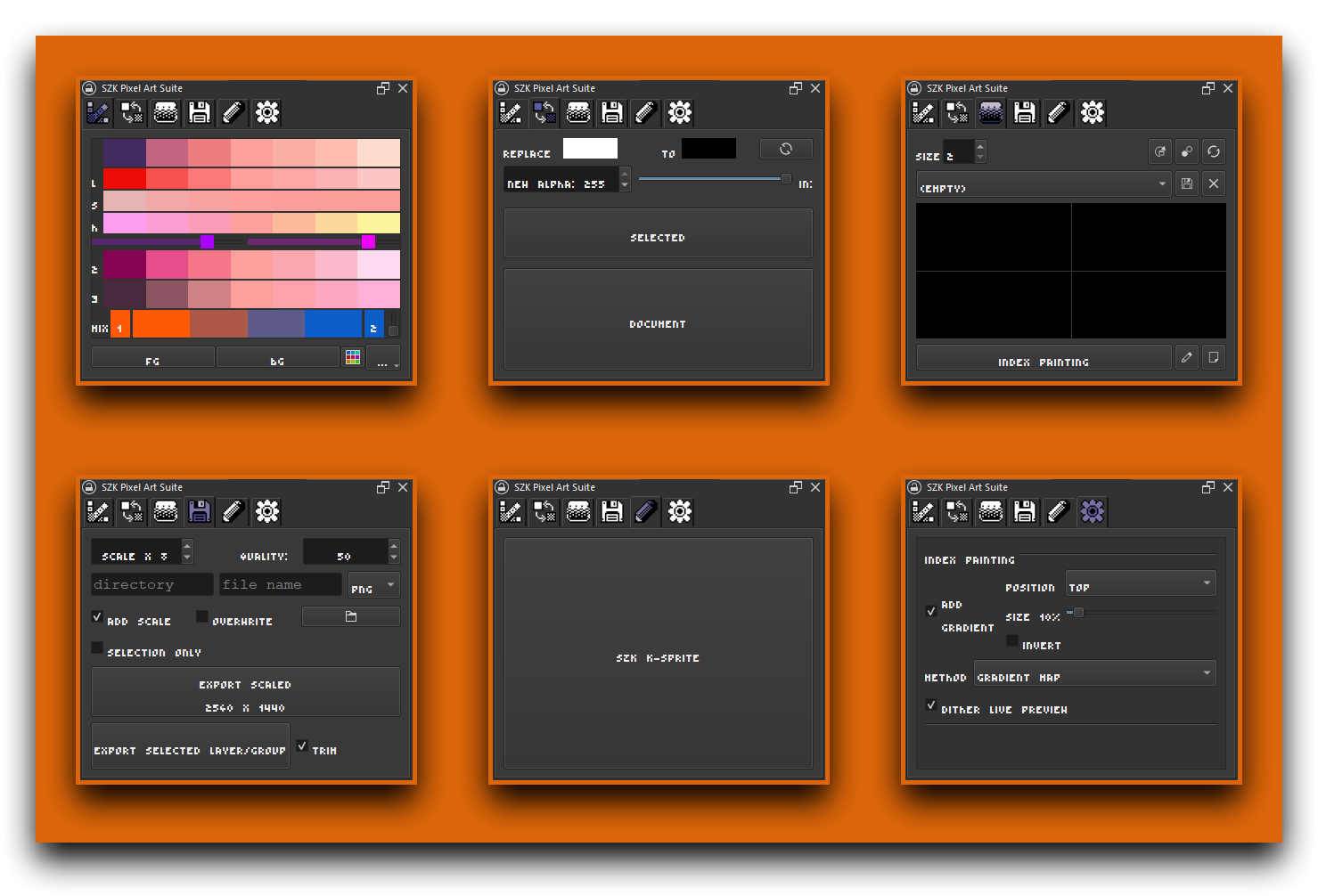
:light_bulb: TIP: Everything is documented. Simply hover your mouse over any element to reveal its tooltip, learn how it works, discover shortcuts, and get helpful tips.

Tools

Pixel Shading Tab :artist_palette:

This is inspired by the color shading panel from Pyxel Edit, which provided interesting color shadings very easily. It brings its original functionality to Krita and expands on it by adding a few more options.
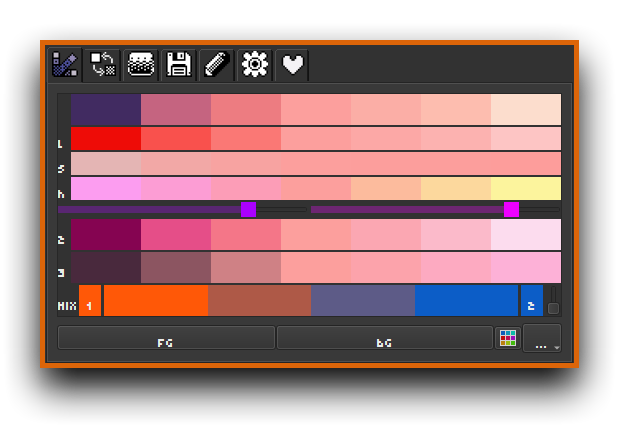
It also includes actions for adding and sorting colors in Krita’s default Palette docker by different criteria (hue, value, saturation, perceived lightness, color similarity, etc.), similar to other software like Aseprite, which I personally find very useful when working with limited color palettes.
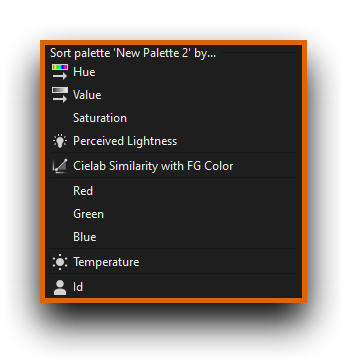
:light_bulb: TIP: When choosing a color from a palette, you can use shortcuts to quickly select darker or lighter variations within the palette.

Color Replace

Allows to precisely replace an specific color in the selected layers/groups or in the entire document.
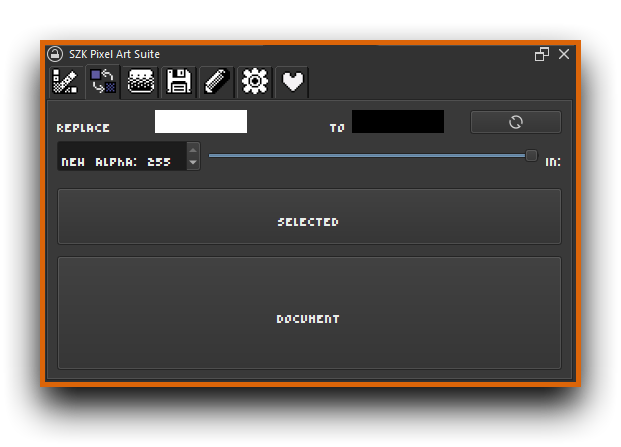
This is useful when you want to change a palette or a certain color of an entire document or layer.

Note: At the moment undo/redo is not supported natively in Krita’ scripts, so if you want to undo changes you can swap the colors (with the swap button) and re-execute the color replace.

Index Painting

Sets up an index painting group for a layer (or group) with a single click.

ip-anim-resized

The Index Painting is a technique that automatically dithers and reduce colors on a non-pixel art artwork. This means that you can use non-pixel art brushes, gradients, etc. for painting and still obtaining a Pixel Art aesthetic.
Learn more about it here.

It comes with a pattern editor that allows to create, save and load different patterns-pressets for the dithering effect.

index_painting_tab

This is mostly to play, experiment and discover new and cool pixel gradient effects.

:light_bulb: TIP: Hover a cell to see more matrix drawing options.

Export Tab :floppy_disk:

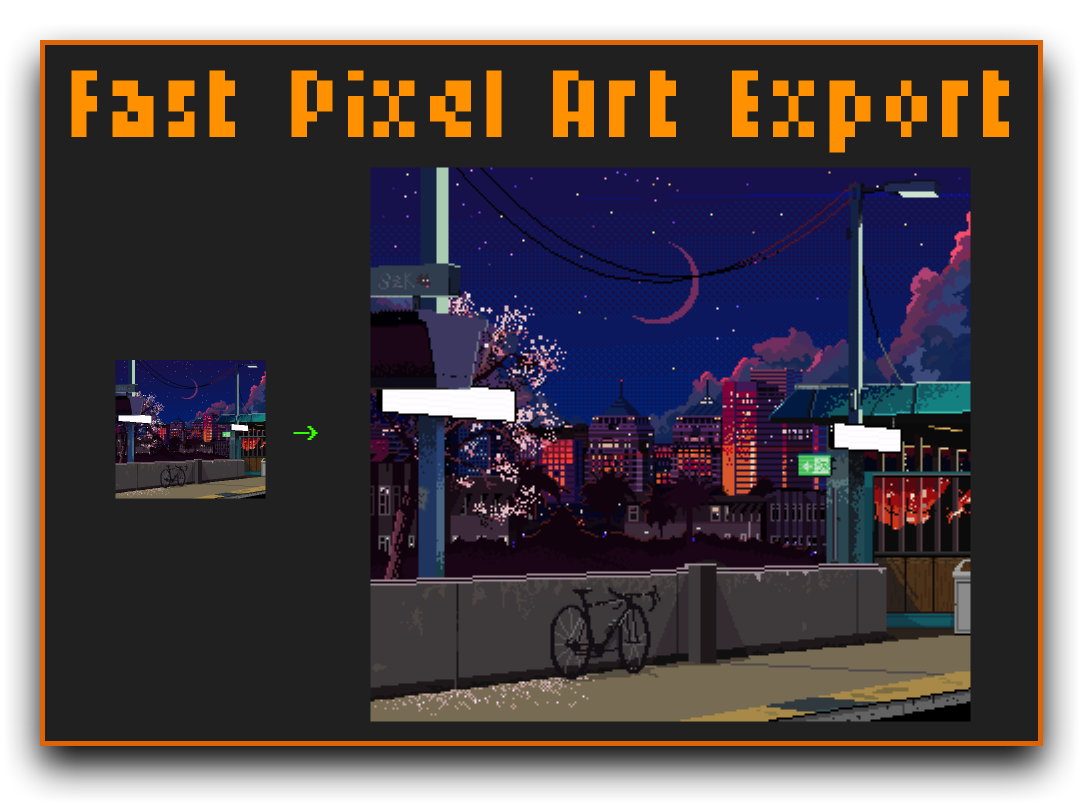
Allows exporting the document (or any selected layer(s)!) scaled by a factor very easily and fast.

Useful when you want a higher resolution image of your Pixel Art drawing.

SZK K-Sprite :pencil:

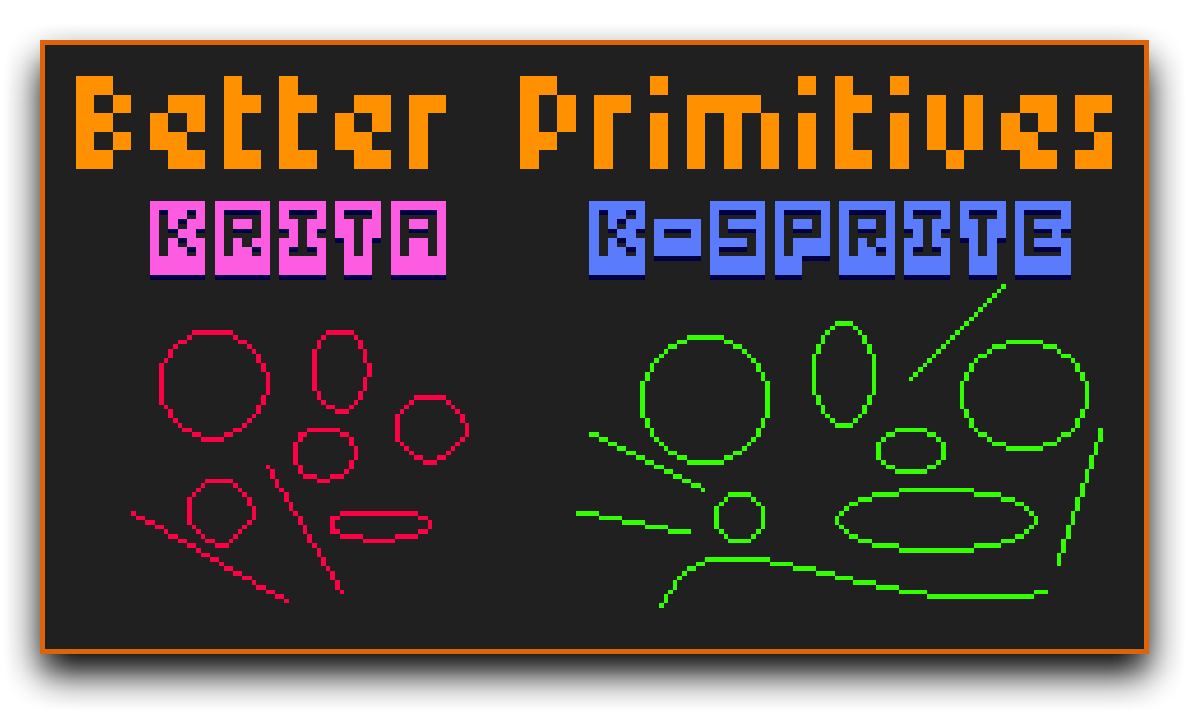
Pixel art editor inside Krita that is meant to add some pixel art features that are missing in Krita. Like a pixel perfect brush, or tools for propper ellipses/circles, bezier lines, etc.

Is not meant to replace the process of drawing Pixel Art in Krita (because Krita is still a great tool for making pixel art!). Is meant to add those tools when you need them.

Tutorial

To execute K-Sprite, go to the Pencil Tab ✏️ in the docker, or press the shortcut for Open SZK K Pixel Art Editor (SZK Pixel Art Suite) (Default Alt+F3).


A new window will appear on top of Krita (1), and will grab the active layer (2):

1 - The window will render on top always so you can still use other krita dockers/plugins while drawing in K-Sprite

2 - The active layer will be temporarily hidden in Krita’s UI. This is due K-Sprite renders the document, and having it visible will make it impossible to see changes in case you erase parts of the active layer inside K-Sprite
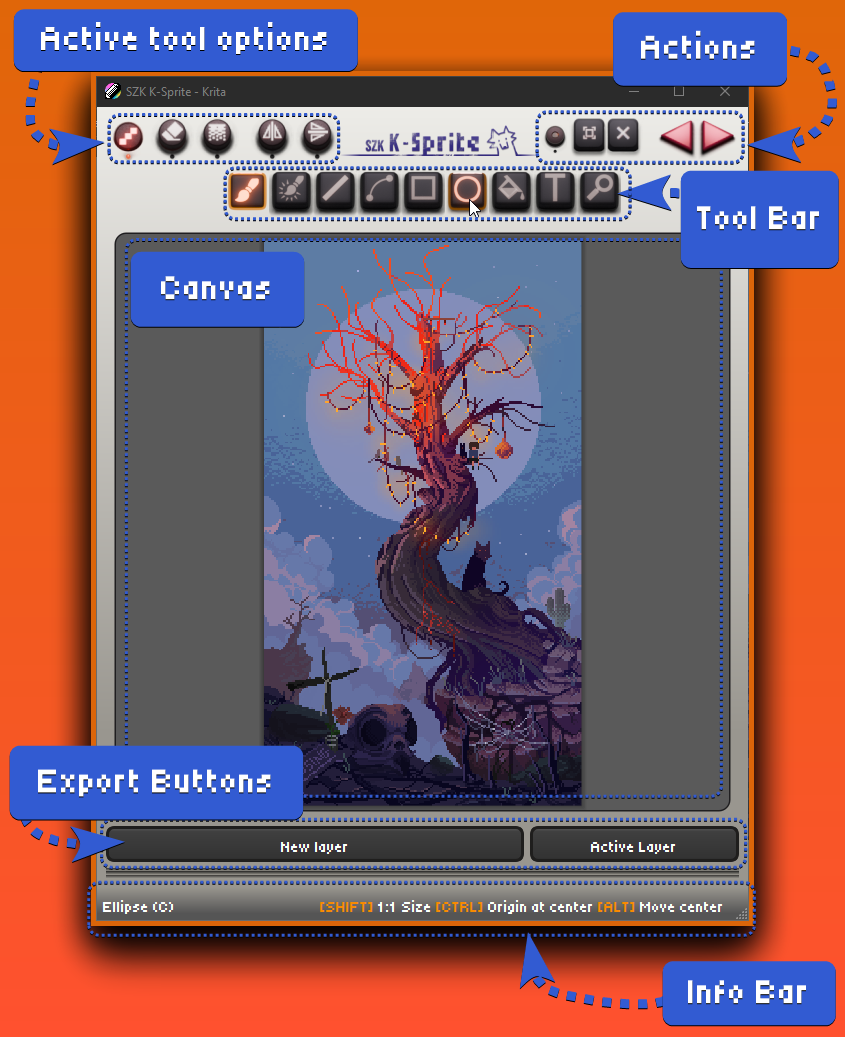
  • Active tool options: Options related the selected tool
  • Actions: Diferent actions, like undo/redo, solo mode, etc.
  • Tool Bar: Contains all the drawing tools.
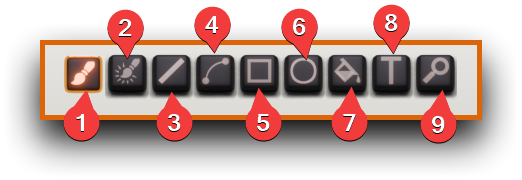
  1. Brush: 1px brush with pixel perfect option.

  2. Antialiasing brush: Automatically calculates the color of a pixel by their neighbour pixels.

antialiasing_tool_mix

  1. Line
  2. Bezier
  3. Square
  4. Circle: Improved circles

  1. Fill: :backhand_index_pointing_right: For big areas, reaches a python recursion limit set by krita, so is only suitable for not so big regions.

  2. Text: Tool to render correctly pixelated fonts

  3. Zoom: For zooming specific areas easily.
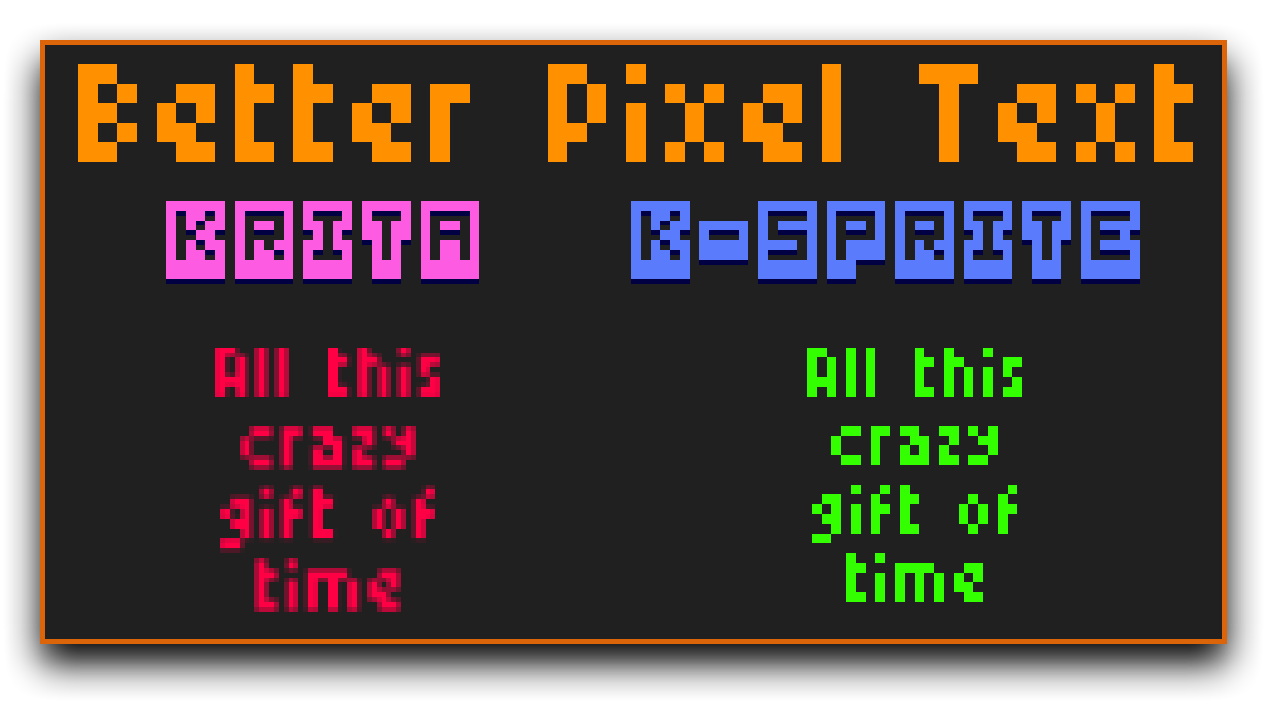
:light_bulb: You can check each tool shortcut by hovering any tool button and seeing the Info Bar.

  • Canvas:

    • Controls
      • Left MB - Paint with Foreground Color
      • Right MB - Paint with Background Color
      • Middle MB - Pan
      • CTRL + Middle MB + Drag - Zoom in/out
      • CTRL + Left/Right MB - Sample Foreground/Background color
      • X - Switch Colors

        :light_bulb: TIP: You can mask regions for painting by making a selection in Krita:
        Selection sync
        This way, you will only be able to draw within the selection.

  • Export Buttons: Export the drawing to a New Layer or to the Active Layer

    • New layer will export the drawing to a new layer above the selected layer
    • Active layer will export the drawing to the layer that was active (:red_exclamation_mark:) when executing the editor.

      :backhand_index_pointing_right: These buttons may show or not depending on the active layer when launching the editor.

      • Launching it with an empty layer will make not show the New Layer button (to avoid cluttering).
      • Launching it with a hidden layer selected will make not show the Active Layer button (to avoid committing changes to an invisible layer by mistake).
  • Info Bar: Displays information, shortcuts, etc. when hovering a button/tool.

Options :gear:

Index Painting Options

  • Add gradient: Adds a gradient to preview the dither and to sample colors.

    • Position: Changes the position of the gradient.
    • Size: The size of the gradient as a percentage of the document’s size.
    • Invert: Inverts the gradient.
  • Method

    • Index colors: Uses an index color filter
    • Gradient map: Uses a gradient map filter. You can configure its dither pattern in its properties.
  • Dither live preview: When selecting a new pattern preset or editing it (rotate, invert, etc), if a “Dither” layer is selected or is a sibling of the selected layer, it will be updated automatically.

Shortcuts

Shortcuts provided by the plugin:

Palette

  • When selecting a color from a palette in the Shading tab, you can move backward/forward the active palette color with the shortcuts:

    • Previous Palette Color (SZK Pixel Art Suite) - Default: Alt+1
    • Next Palette Color (SZK Pixel Art Suite) - Default: Alt+2

K-Sprite

  • You can execute the editor with the shortcut:
    • Open SZK K Pixel Art Editor (SZK Pixel Art Suite) - Default: Alt+F3

Export Pixel Art

  • You can bind to a shortcut the action to export your pixel art with your current settings with:
    • Export Scaled Pixel Art (Full Document) (SZK Pixel Art Suite)
    • Export Scaled Pixel Art (Selected Layers) (SZK Pixel Art Suite)

Credits

Fonts used:

Support :orange_heart:

This took a lot of work and thought. If you find it useful, value the work and want to contribute to future updates, any amount you find fair is appreciated. Thank you so much :four_leaf_clover:.

Other tools I’ve made in Gumroad

Contact :envelope:

Mail: suzukakadev@gmail.com

Twitter: @SuzukaKDev

Download:

90 Likes

Wow, just the documentation alone must have taken many hours to put together. Thank you for sharing this with us.

2 Likes

Indeed, just the documentation (and pasting it here! D:) took a lot of time! In fact it took so much that I’m happy you noticed it haha.


Also, this is my first Krita plugin, and I wanted to thank here all the users that kindly helped me with my initial doubts in my newbie topic.

Specially @KnowZero for his awesome dev plugin which made the things much easier, and @AkiR which had a lot of patience with me and answered lots of questions I had (I also found answers to other questions by googling and seeing their responses to other users).

The cool pixel art font of the docker is in fact thanks to him :sunglasses:. (Thank you so much!)

8 Likes

Wow, that’s awe-inspiring!
Thank you so much!
:bowing_man:
Michelist

1 Like

This is really amazing. I’ll give it a try after work tomorrow.

1 Like

This is so cool! Looks incredible.

1 Like

WOWIE this is so impressive!! What an amazing toolset, thank you for developing this!
With all these tools, maybe one day :tm: I’ll actually touch pixel art

1 Like

Is there an easy way to change the interface font to something that is more readable?

3 Likes

The interface of the plugin seems too large, is there a way to shrink it down?

2 Likes

Hello, I’ve never painted pixel art much but I wanted to say the amount of effort put into both the documentation and features, looks INSANE(╯✧▽✧)╯I even spotted a few features that are exciting for everyone (the palette stuff specifically).

I’m honestly so impressed, you made an entire mini software for pixel art within Krita xD not to mention the dithering, pattern editor, anti-aliasing brush - like this is genius. Thank you so so much for sharing :purple_heart:

7 Likes

if you are having font issues, just install the 2 fonts listed! worked for me :]

1 Like

@Michelist @KingCarnival @Kremer @jastx Thank you so much for the kind words friends, I hope you find it useful and helps you to make awesome art! :four_leaf_clover:

@Draneria Thank you so much for the awesome words. I liked your message so much that I even screenshoted it :four_leaf_clover:

@Takiro I’ll add the idea to add an option in the options tab to choose a custom font.

Even though at the moment I will only focus on sugestions/ideas from the (very few) ones who supported the plugin.

I have tons of ideas to add, since having full control of my own editor adds lots of potential to do literally whatever I want.

I thought about adding a better rotation tool for selection, an automatic shading option like Aseprite, some cool ideas I have for different tools, etc.

But at the same time I think I already worked on this project a lot. Depending on the interest/support around the plugin, I would decide if continuing working on it adding new features or not.

If not, I also considered making a different version for the ones who support it (and those who already supported it), simply for making working on it a more sustainable thing for keeping me mentally sane.

5 Likes

This seems wildly good, so thoughtful.

I’ve only experimented with pixel art minimally however the options put together here look great, I’m looking forward to trying it out.

Thanks for making this available for others here

It’s a nice plug-in.
And the documentation introducing the features is also easy to understand.
I interested in replace color and mask feature.

Then,I tryout the plugin with MacOS 10.14,Krita 5.2.9
But SzkPixelArtSuite is grayout with Python plugin lists in Krita Preferences.
Not appear in the docker menu.
So I check and found error in a log when Krita app starting.

The log is here

Resource paths cleared
krita.scripting: "Traceback (most recent call last):"
krita.scripting: "  File \"/Users/neko/Library/Application Support/krita/pykrita/szk_pixel_art_suite/__init__.py\", line 1, in <module>"
krita.scripting: "    from .szk_pixel_art_suite import *"
krita.scripting: "  File \"/Users/neko/Library/Application Support/krita/pykrita/szk_pixel_art_suite/szk_pixel_art_suite.py\", line 30, in <module>"
krita.scripting: "    from . import export_scaled"
krita.scripting: "  File \"/Users/neko/Library/Application Support/krita/pykrita/szk_pixel_art_suite/export_scaled.py\", line 10, in <module>"
krita.scripting: "    from os import makedirs, startfile"
krita.scripting: "ImportError: cannot import name 'startfile' from 'os' (/Applications/krita529.app/Contents/Frameworks/Python.framework/Versions/3.10/lib/python3.10/os.py)"
krita.scripting: "Could not import szk_pixel_art_suite"
krita.scripting: Error loading plugin "szk_pixel_art_suite"
profileForCsIdWithFallbackImpl couldn't fetch a fallback profile for  
2025-02-05 17:22:41.303 krita[1096:35546] NSWindow does not support utility styleMask 0x10

I hope it works on Mac too :).

1 Like

It would be nice if it simply uses the same font that Krita is using, by default.

1 Like

This is so amazing, so well done and explained… that now I want to do pixel art.
Thanks,

1 Like

Thanks for the report and for providing the log!

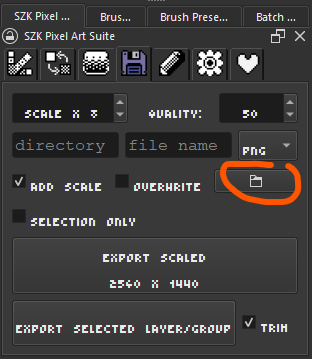
I fixed it (I hope so. If you want to test its a thing related the open folder button):

I hope is fixed. If not (or if there is any other error) feel free to tell me :slight_smile:

Version 1.0.1

@mmiller Thanks mate :four_leaf_clover:

3 Likes

Is it possible to have the pixel perfect brush be used as a preset outside of the mini window, and also have the ability to provide size in pen pressure?

The way a Pixel Perfect brush works is by “”“remembering”“” the pixel positions and adjusting them on the fly when it “notices” that there are more than 2 pixels are being drawn in a closer space.

Thats why you can notice some pixels being adjusted as you paint.

Krita directly paints on a texture/bitmap, mostly because is better and faster for “normal” art.

That kind of pixel perfect brush is a very specific thing for pixel art, and would not be something trivial to add to Krita since it would mean to modify from the root how Krita handles drawing. That, or creating a whole ““module”” specifically for that kind of brush, which is also not trivial.

TLDT; No, because is not a Krita’s presset.

Also, having having a “pixel perfect” with different size of 1 pixel directly makes no sense (and Krita already have by default a brush that works like that).

i just need to say ¡guau man! excelent work.
i´ll try this later, but it looks a cool addon

1 Like