Depends…
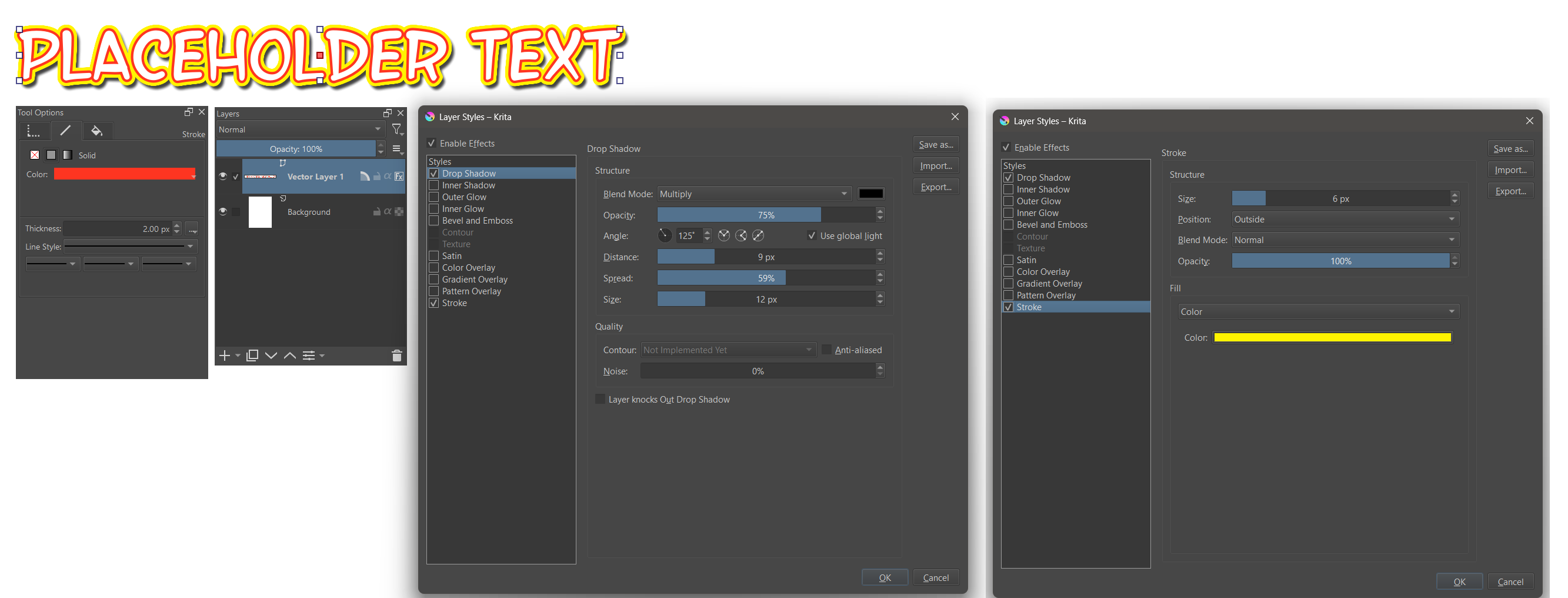
Text in Krita is handled via the vector layers, so you can add an outline to it, just by selecting the text with the Select Shapes tool, then going to the Tool Options Docker and, on the line tab there, setting the lines to use “Solid Color Fill” or “Gradient Fill” (click the button with three dots to change how the corners of the outline are handled).
However, this can be done another way, along with other things like drop shadows, via the Layer Styles, where you can add an outline (“stroke”), drop shadow, inner or outer glow, etc.
But, you can also handle the effects manually, using masks and whatnot. How you approach it, really depends on your end goal. For example, on the example I posted for someone here: Sharp Outline Example I outlined my text with the vector feature I mentioned (thin black line) but created a sharp drop shadow by duplicating the layer and shifting it down and to the right (which also was given a sharp red outline, for flare. Whereas in the example below, the white text was given a red vector line on (inner red line), then an additional outline using a Stroke layer style, and then a shadow using a Drop Shadow Layer style.