Affinity recently added support for variable fonts too, from the discussion over there, Roboto Flex is only supposed to have 5 user manipulable axes, the rest is supposed to change based on these 5 parameters automatically, meaning, they shouldn’t all be exposed to the end-user.
Yes, that’s been something that’s at the back of my mind, but I haven’t figured out yet how to do it properly (one concern is that it should also try to find the localized name, and there’s also some issues with how that would interact with input methods).
Ah, then that’s a bug I need to fix. Come to think of it, I need to provide a name for “opsz” too then. Regarding the other sliders automatically changing, that’d mean it is an avar2 font, I’m surprised those already exist, the tooling is very new.
But regardless, the main point still stands: if the designer doesn’t provide a suitable name, I won’t be able to do much about the name missing…
Yeah indeed, that’s their fault 
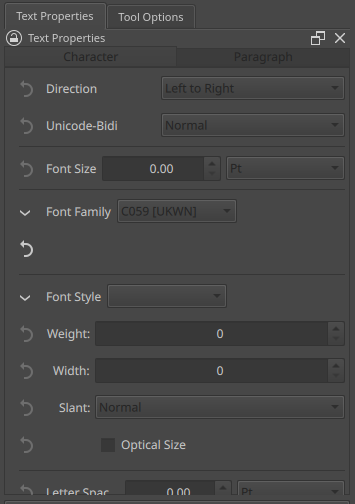
Yeah, known problem. It’s a QML styling issue and I’m still trying to track down how to fix it.
EDIT: You’ll notice it only happens with things that are ‘buttons’, like the dropdowns, the tab buttons, etc.
What about using backspace or double click or simply right click to reset a field?
@wolthera
I look forward to the new text tool  With the new text tool will you be able to add transform masks? In Krita currently you can add them but they are quite bugged.
Also is vertical text an option? Specifically useful for Japanese text.
As noted in the top level post, vertical text is indeed supported. Making transform masks work on the text is not part of this project, nor is warping text.
The topic of warping text is… very difficult, to the point I don’t even feel comfortable putting it on the roadmap.
Without reading any of this thread, or knowing anything about this tool or how it worked beforehand, these are my thoughts on the text tool as it is in tonight’s build (cc4a0) which is the first build I’m using that has the new tool. I’m typing these thoughts as I run into them, and I’m not implying anything needs to be changed but I’m walking through my thought process and you can take it as you will.
-
I fired up the new version and added text. The text was too small so I went to ‘text size’ and changed it. It did not change the text. I realized after some messing around that the ‘tool properties’ box is no longer what’s actually used for the text. I don’t know if that’s temporary for testing but if it confused me then it’s probably going to confuse others.
-
The text was still too small so I clicked on the ‘text size’ in the new docker. For a second I thought it was broke because every other program I’ve ever used had a dropdown for text size and nothing popped up here.
I quickly realized it was a number box instead. I do think a hybrid box of some sort that has the ‘default’ dropdown sizes easily available with mouse or pen only would be great, as I don’t have my keyboard near me when drawing and typing the number each time would be a pain.
If the choice is ‘dropdown’ or ‘number box’ with no middle ground, I’d go with the number box for granularity. But I think a way to do both would be really nice for people who work on a tablet. -
I scrolled up on the text box to get a higher number and increase size, but it wasn’t doing anything. Then I realized I forgot to select the text first. Should these properties be editable if they inherently won’t make changes? I’d imagine they’d be greyed out.
-
I selected the text and scrolled up on the text box for size. The text became unselected randomly after a second or two and the size stopped changing. The recorder was on, turning it off stops this from happening.
- Edit: Snapshots for recording pretty much make all text editing unusable, as it seems every snapshot deselects any text selected and even prevents typing. I can’t type a full sentence when recorder is active.
-
I went to switch fonts. The font dropdown was too small to read the entirety of most font’s name.
-
I couldn’t find the font color property, then realized that changing the active color changes the selected font. I like that
Unfortunately, randomly when dragging around the color I’ll get these errors:- SAFE ASSERT (krita): “!m_sanityIsStarting” in file /builds/graphics/krita/libs/ * global/kis_signal_compressor.cpp, line 210
- SAFE ASSERT (krita): “m_timer->isActive()” in file /builds/graphics/krita/libs/global/kis_signal_compressor.cpp, line 148
-
I think a lot of the dropdowns like Direction, Text align, and Align anchor should have icons instead. But I assume that’s because it’s functionality for now and aesthetic comes later.
-
It’d be a fun idea, albeit probably controversial, to tie any shortcuts for ‘brush size’ to the text size when the text tool is active and text is selected. I only have so many macro keys available to me when on the tablet, and two of them are bound to ‘brush size up’ and ‘brush size down’ which I don’t need when editing text. It’d be fast and cool to be able to just select text and swipe my wheel to size it up or down.
-
No matter what I did I couldn’t seem to get the options to ‘split word’ when a word is too long for a line. Options like ‘split word’, ‘split all’ etc for line endings would be cool. Basically these 4 options in CSS.
-
Thank you for adding ‘justified’ alignment mode. If I recall correctly the old editor didn’t have that.
Anyway that’s all I have for today, all I did was open a couple images and add a word or two to them, nothing too fancy. I’ll post again if I find anything else when doing more complicated things like comics. I’m definitely liking how it’s coming along though!
Hi!
Today, I can get download Krita next 5.3.0 nightly. (on MacOS big sur )
And tried it a little
Unexpectedly,I felt that reset button is conveniently.
But there were some unsatisfactions.
At first:
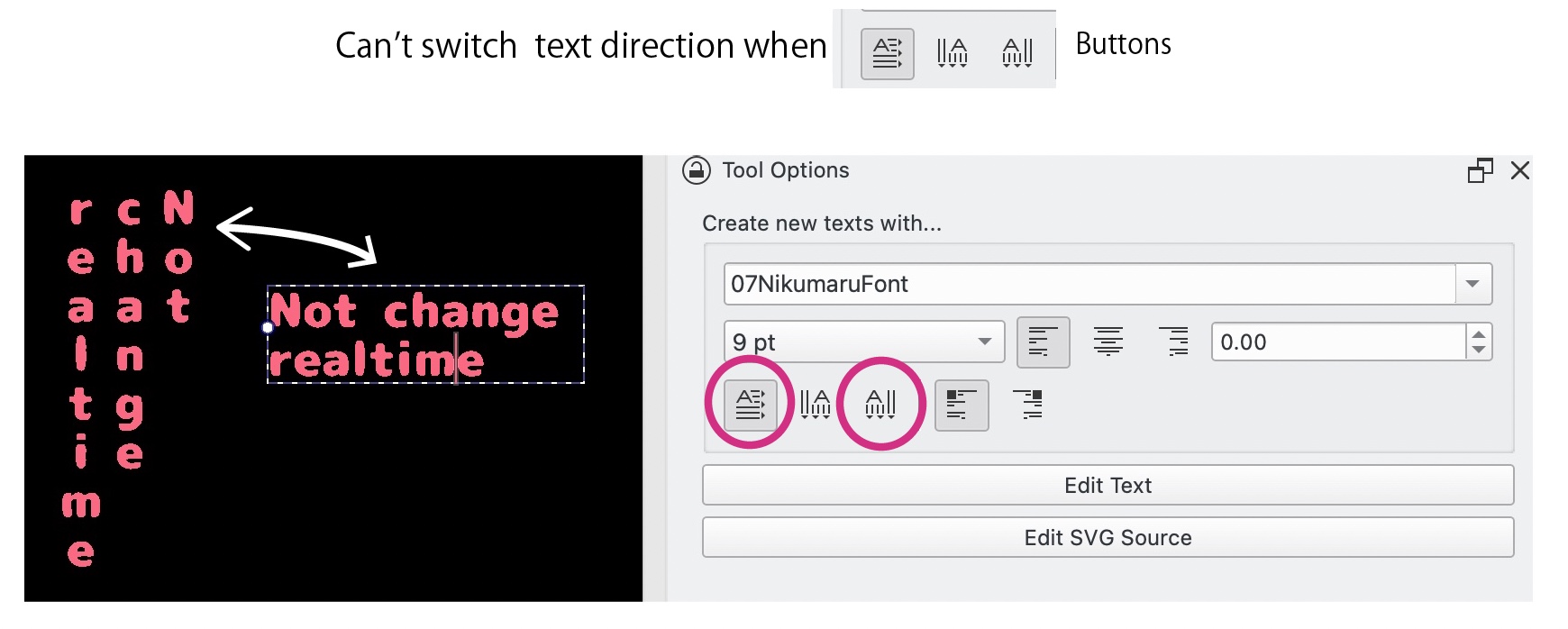
- Create a text object and enter some text.
- Tool otion Docker has a button to change the text direction.
- I expected that pressing it would switch between vertical and horizontal text.
- But that didn’t happen.
Second:
Using renewed text ui,I wanted to change the color partway through a sentence, but it didn’t work.
Also,I thought that the text color selector was necessary in the Tool option Docker.
Third:
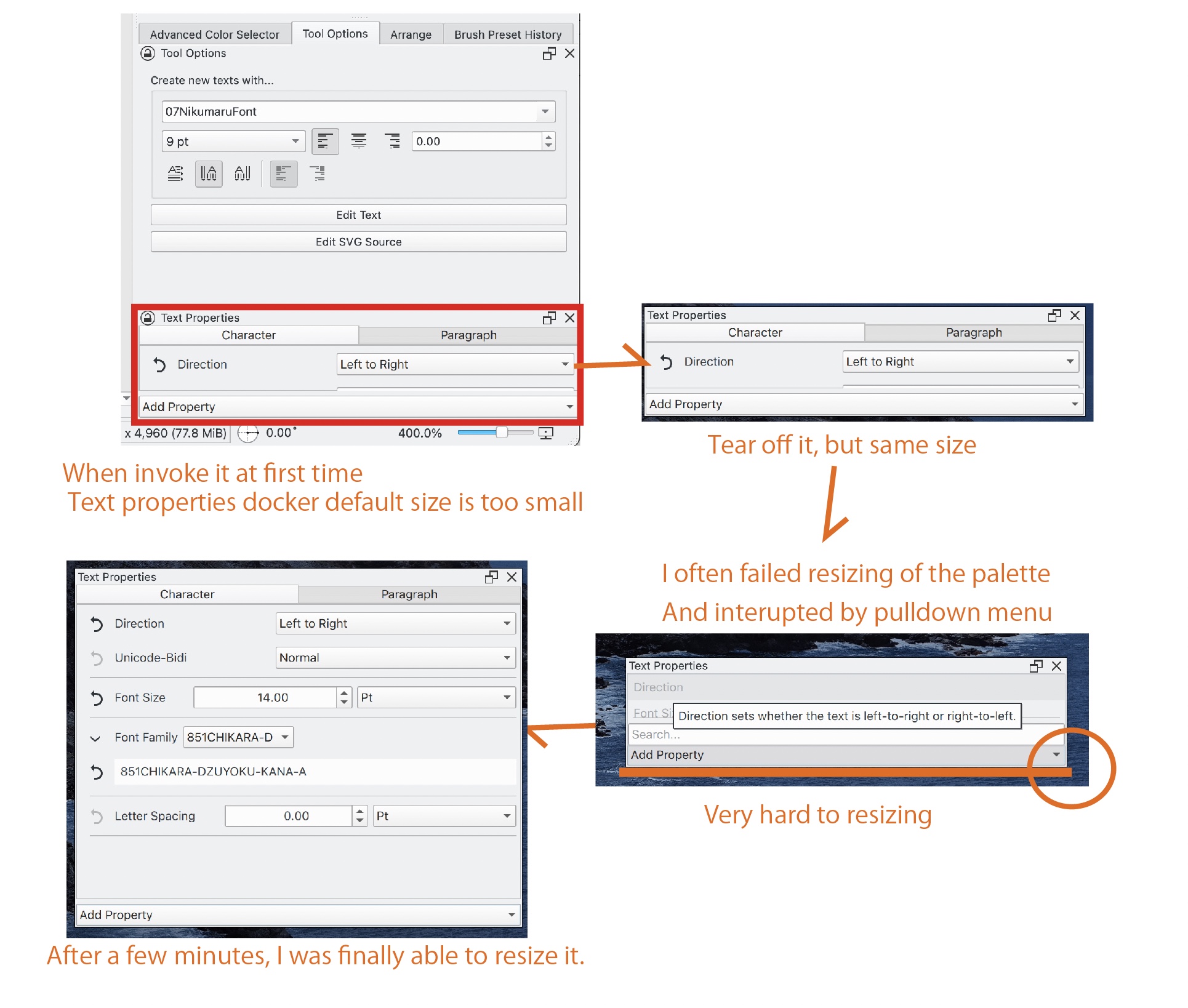
I found that Text property docker for more text setting,but it has no window padding,so
I often failed to make the window larger, accidentally accessing the Add Property menu.
This issue is probably in MacOS specific, it was very frustrating.
The UI still needs to be refined, so I looking forward to future update.
Cheers!
I’m running Krita 5.2.3
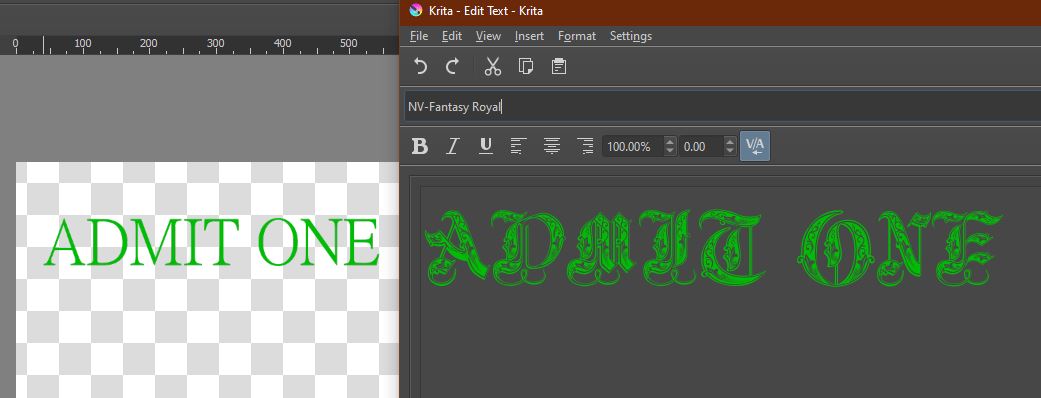
This issue with the fonts. I have a large variety of these that render just fine in software like inkscape or even in libreoffice where I use them regularly for writing. But for some reason when I need to use them in Krita, they don’t render property? This is just one example, but it’s one of the most dramatic to show how inaccurate Krita is.
I’ve seen other posts from years ago but none seem to actually have an answer or solution to them? There was one from 2023 that said use semicondensed in the SVG, which I tried, but that doesn’t correct the font, it just makes it narrower.
I really never used the text tool in Krita. 
So It’s typically tough to me to answer better.
But still I tried exploring some resources on it. And here are some few thing you may benefited with,
-
Krita’s Font Handling: Unlike software like Inkscape and LibreOffice, Krita is primarily a raster-based drawing program. This means text rendering, especially for complex decorative fonts, can sometimes be affected when trying to mimic what you’d expect from vector-based or layout-focused programs. Raster programs are more sensitive to pixel-based measurements, so certain fonts may not scale or render well, especially with complex glyphs and fine details.
-
Font Rendering Engine: Krita uses the Qt framework for its user interface, and its font rendering is based on this. Some font features (especially those relying on intricate OpenType features or SVG-based fonts) may not be fully supported or rendered accurately within Krita. This is more evident in stylized or decorative fonts like the one in your example.
-
Possible Solutions:(not sure)
- Workaround for Accurate Font Representation: One method to work around this limitation is to first design the text in a vector-based program like Inkscape or LibreOffice where the font renders correctly. You can then export the text as an SVG or high-resolution PNG and import it into Krita for further editing.
- Checking OpenType Features: Some fonts come with special OpenType features that might be causing rendering issues. While Krita doesn’t have an advanced OpenType feature management system, checking if disabling certain font features in other programs before importing might help.
- Increase Font Resolution: Try increasing the font size significantly and scaling it down afterward. Sometimes rasterizing the font at a larger size can help capture more detail and make it look more accurate when scaled down.
- Use SVG Fonts (Experimental): You mentioned that using “semicondensed” doesn’t solve the problem entirely. Another approach is to convert the text to vector shapes (SVG) using Inkscape and importing the path into Krita. This might give you better control over the final rendering.
- Canvas Graphics Acceleration: If you have issues with rendering in general, tweaking the settings under Settings > Configure Krita > Display > Canvas Graphics Acceleration might help, though this is more relevant to overall performance and display rendering.
If you’re looking for a more permanent solution, this may involve Krita development catching up with the capabilities of more text-focused applications in future releases. However, for now, the best workaround might be using an external vector program for text creation.
K.A.B.H.
I think we should summon @wolthera here, because she is the one who programs the “new” text tool for Krita, and theoretically she should have the best oversight and deepest knowledge on this.
@AhabGreybeard, @raghukamath, @sooz, do you think this topic should be merged with @wolthera’s Text Tool Thread? I’m a bit undecided on that.
Michelist
Hi @spookygryph
Your question and its responses have been moved into the thread where we are collecting comments about the text tool. If you have a few minutes to read, you’ll see a huge amount of work has been done on the text tool. The developer who is working on this keeps this thread updated so user know which parts have been completed and areas where they need more input from Krita artists.
Hi,
Likely, the main problem is that we currently have two separate text layouts, and Krita’s font selection uses a different font selection from the other layout (Qt’s). I’m currently trying to fix that in the fonts MR. It will be fixed in the Krita 5.3 release, until then, use Krita 5.1.
It’s also why I haven’t updated much last month, because I’m just literally trying to get that code finished. There’s basically been no news beyond that.
Another observation from using the text tool. I might have missed something so please correct me if I used it wrong.
- There is no hint that you can create paragraph texts for new users. Old timers can drag a box and create a paragraph text but this is not clear at the beginning.
- The above issue leads to an issue where if user clicks on canvas and pastes a paragraph, long text block will be created which runs off canvas, which can lead to some issue of getting the canvas back to view and getting the text wrapped.
I think there needs to be a mechanism to either hint that you can create paragraph texts or have a way to wrap and resize the single line text block by way ot the bounding box handles.
Krita ver. 5.2.3
Win 10.
CPU: R5 2600
GPU: GTX 1060 6 gb.
RAM: 8GB
Storage: NVME
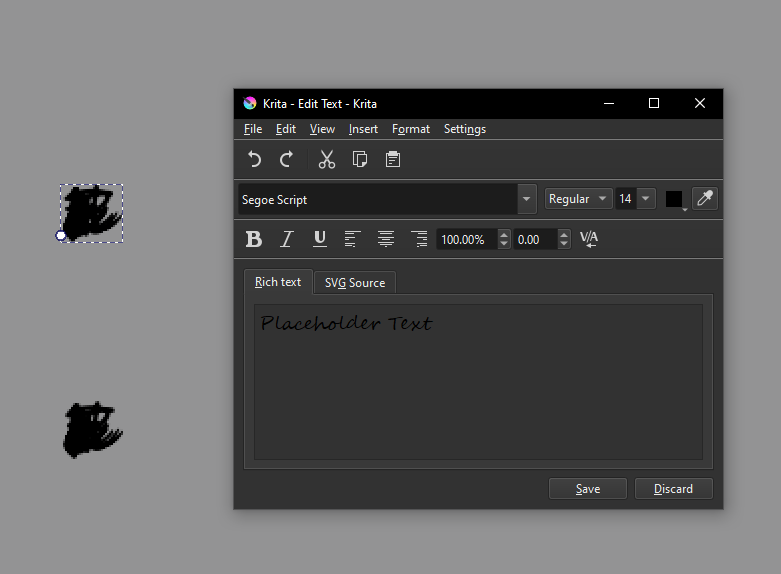
As seen in the image, when i try to use the text tool it works except for:
-All the letters pile on the same spot.
-Its impossible to change the size of the text, unless you use the transform tool.
This bug happens ONLY on newly/recently created documents, i opened an old .kra document from a few months ago and the text tool works perfectly.
This was an issue that happened before, i assumed it would have been fixed on new versions, i didnt use the text tool since a few versions ago and now i needed to use it and it doesnt work.
Additionally, this error might have happened after installing new fonts on the PC.
It happened as follows:
-Install new fonts.
-Restart Krita.
-Bug happens: letters pile up.
-Restart the whole computer.
-Bug still happens.
-Unistall the font by hand from Windows configuration.
-Bug still happens.
I have reinstalled Krita 5.2.3, bug persists.
Hi @Jarro1 - Your post is now part of the text tool thread where all text tool performance comments and problems are being collected. There is some really good info here you might enjoy reading about when it comes to the current work being done on this tool.
Can you show a screencap of the text options on the working Krita document, like the one you have in your post?
Does changing the number to the right of the “100%” do anything?
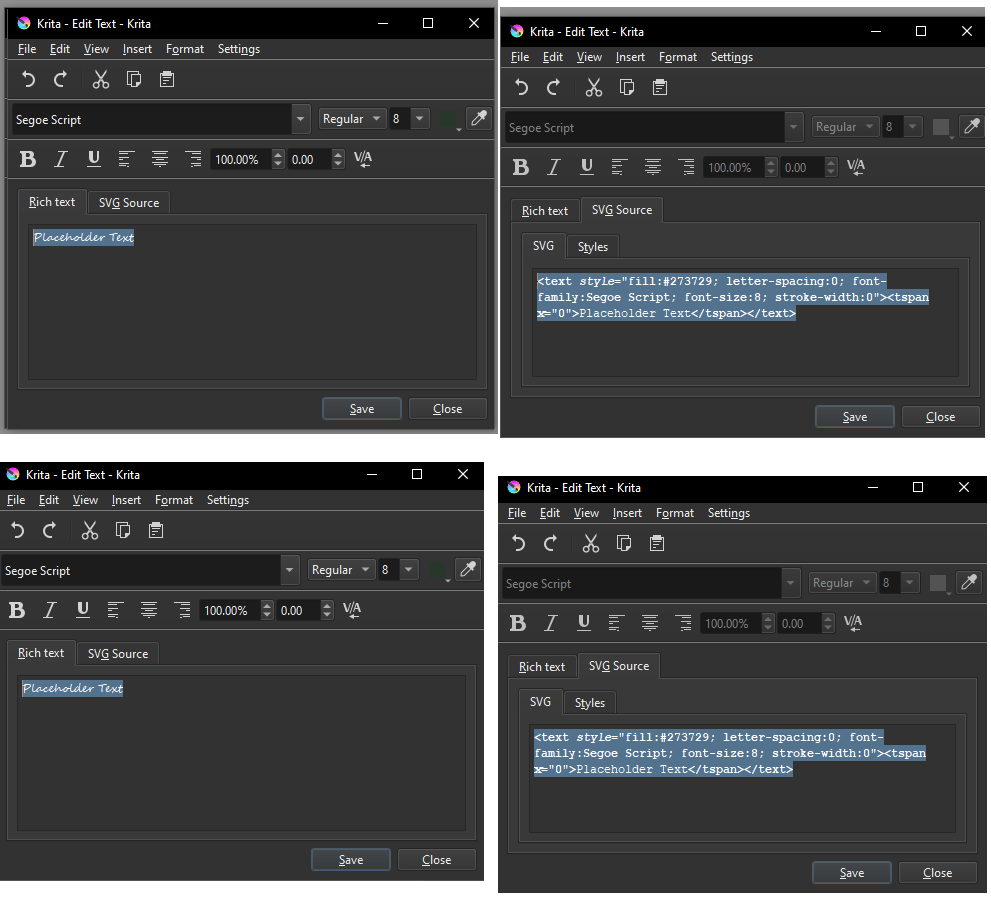
On top: A new document with the text tool broken.
Below: a week old document with a perfectly working text tool.
No matter what configuration i use, the text tool remains bugged.
changing either the ‘‘100%’’ and/or the spacing number right next to it wont fix it.
changing the spacing will very very slightly show change but the text remains impossible to read, as shown in the following image.
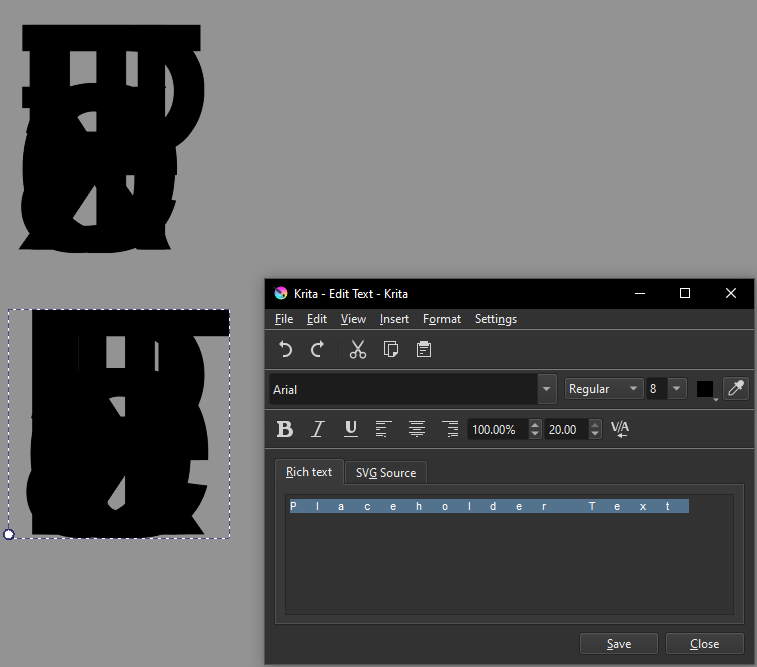
the top text is with 0 spacing, the bottom text is with 20 spacing.
I found some bug-like behavior in the text properties. I am using the function assuming vertical writing of Japanese.
If I select “Vertical Right To Leftl” for WritingMode in “Paragraph” and enter a number for Line Height in “Character”, the lines are reversed.
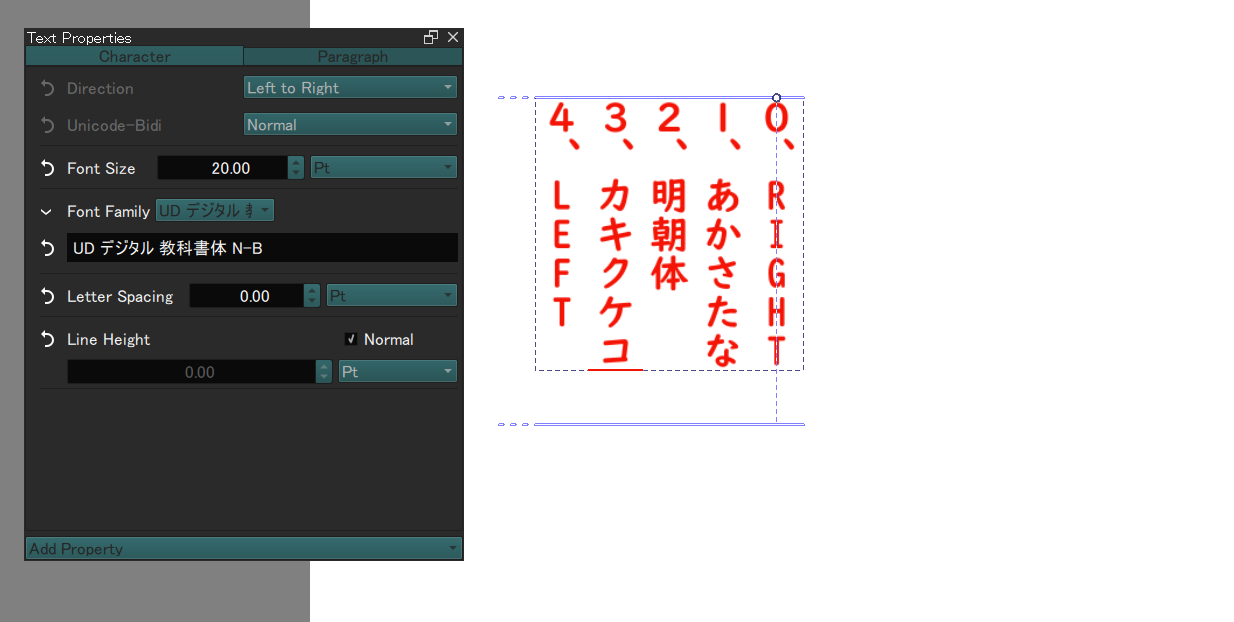
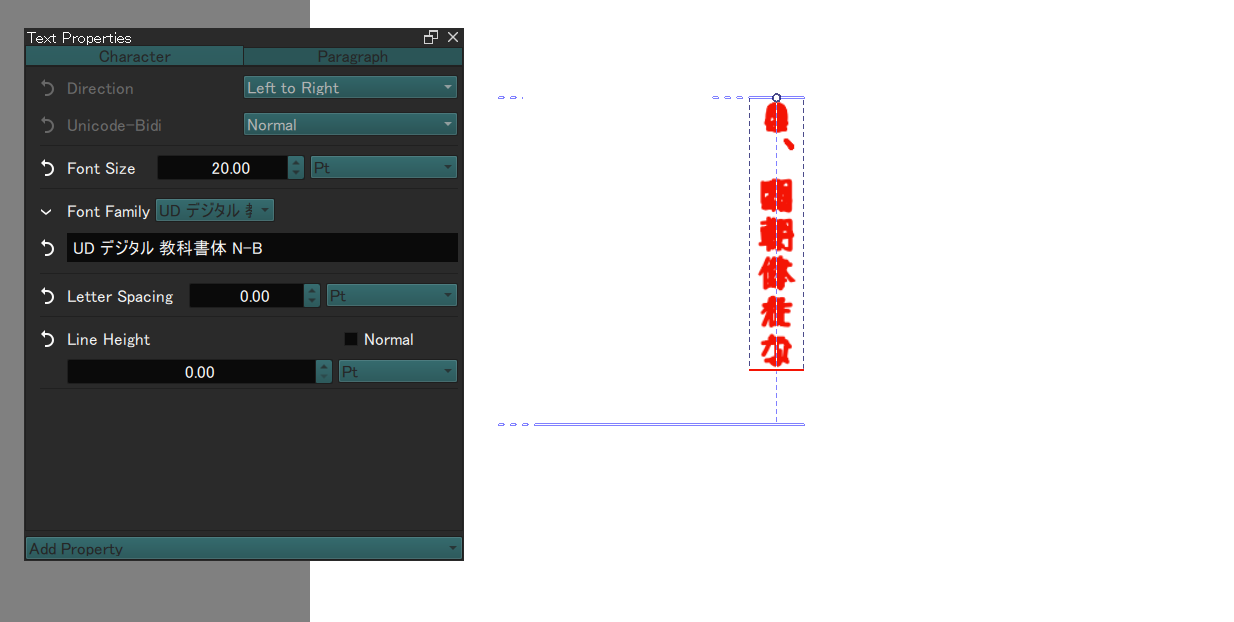
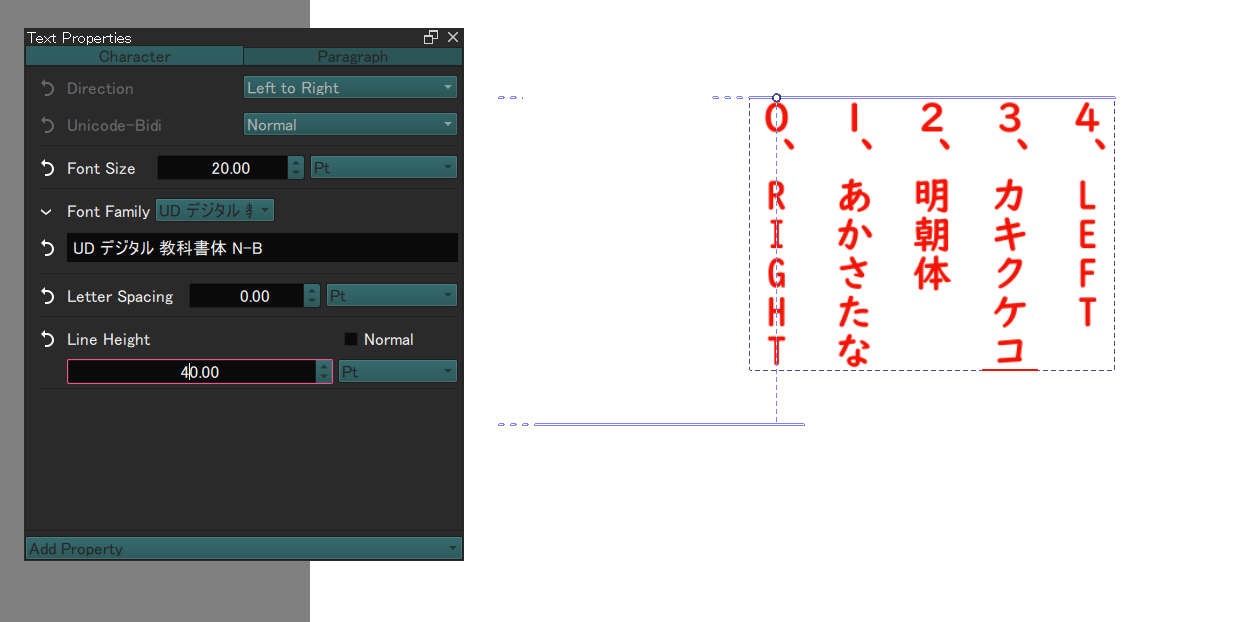
(In the image, the Direction in “Character” is set to “Left to Right,” but if this is set to “Right to Left,” the vertical writing proceeds from bottom to top, so this has nothing to do with this case.)
(“Line Spacing” seems to be a more appropriate name than “Line Height” when vertical writing is included.)
I wanted to always add Line Height to the text properties, but every time I create a new text, Line Height and other settings are hidden.
Also, I thought it would be easier to use something like a slider to set the thickness of the brush, since it is hard to raise or lower the value if the input box has a decimal point to the nth place.
And it would be more convenient if we could have multiple presets that would remember the values and property settings that we have entered and recall them. Because it is hard to input fonts and values over and over again.