Hello just like the title says I would appreciate if you can help me to answer a few questions. As many of you might know Clip studio wont be a one time purchase anymore but depending on how affordable is the price and the new features they add, I might pay for it, but just in case I decided to give Krita a change once again.
The brush engine is amazing for a free app, definitely better than Clip studio which is a little bit frustrating not gonna lie haha, but there are a few things that are missing in my workflow and I don´t know if they are there in Krita but I can´t find them or maybe they’re not possible yet.
1- Zoom tool: I know I can use Ctrl+Space+drag click to zoom in and out but I wonder if there’s a way to zoom like that only using the zoom tool, without the long key combination.
2- Turning settings on and off: Can I use a hot key to turn on and off some settings like pen pressure for opacity, size, smudge?
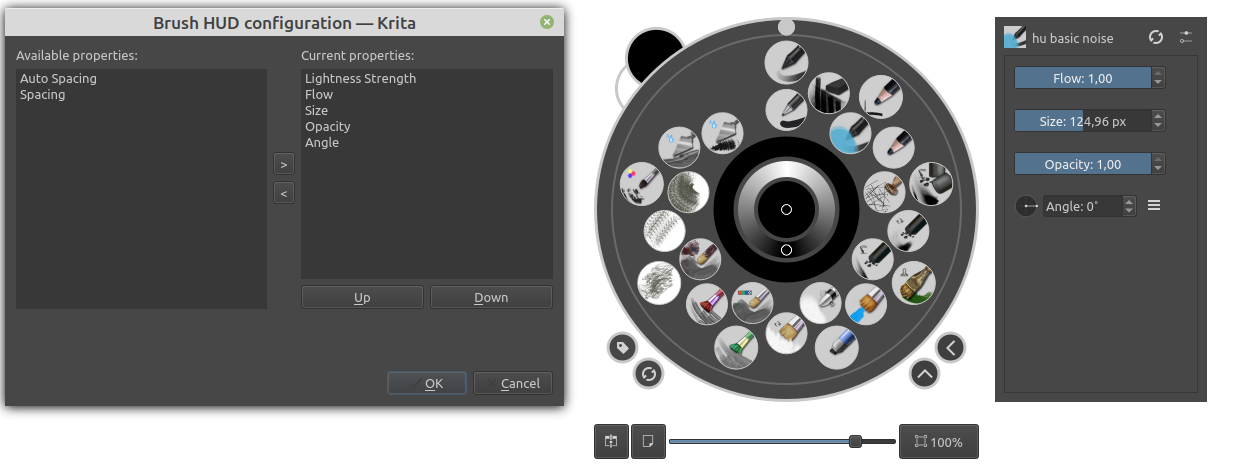
3- Brush settings docker: Can I have a docker to change brush settings instead of using f5?
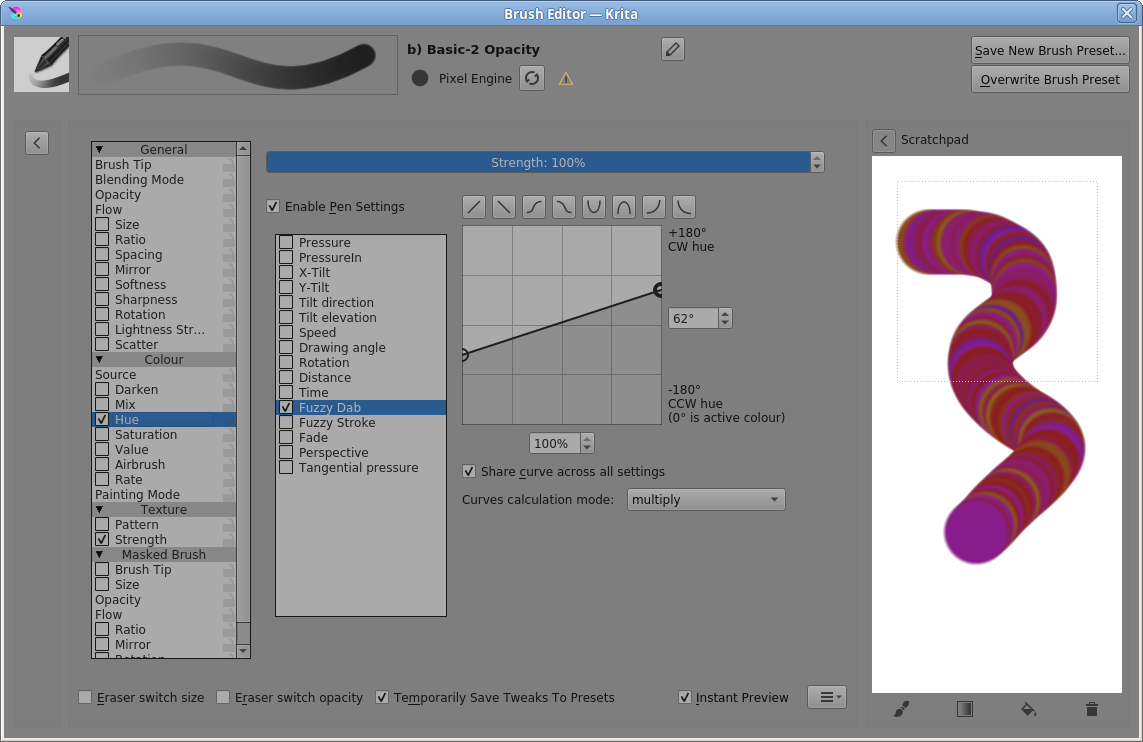
4- Color jitter: Can I change the color of the brush at random?
5- Smudge brushes: Can I turn any brush into a smudge painterly brush?
These are my questions at the moment, thanks in advance for your comments, bye.
The Zoom Tool itself (on the Toolbox docker) can be used to drag out a rectangular area to zoom in to.
If you press and hold the Ctrl key it will change into a zoom-out tool, which I’ve never found useful.
The various zoom actions are set in Settings → Configure Krita as shown here:
You can totally disable pen pressure with a toggle action ‘Use Pen Pressure’ keyboard shortcut, that is not assigned by default so you’d have to set up a keyboard shortcut for it.
A better way is to add the icon for it onto the Toolbar with Settings → Configure Toolbars where you’ll find it and can add it there.
I think there are some plugins, written by various people, that can change some brush properties but I don’t get involved in that area.
FURTHER ADVICE NEEDED.
Yes but it might not look good depending how you do it.
1: I don’t think you can drag-zoom with the zoom tool itself. I recommend mapping one of your stylus buttons to Middle Mouse Button. Then you can pan the canvas just by pressing that button, and ctrl+MMB is drag-zoom.
5: no, the “smudge” and “Pixel” engines are separate and brushes can’t be directly transferred between them. You’d need to go through all the settings of a “pixel” brush and manually set the smudge brush to the same, to the extent possible. Seems like there is someroom for improvement here in Krita.
3: The quick settings pop-up that should come up when you right-click on the canvas with the brush tool active provides access to some, but not all, brush settings:
If I understood your request correctly, as for point 3, the “Compact Brush Toggler” plugin, by @kaichi1342, might be what you were looking for. It won’t cover everything, but could be helpful, I think.
Thank you very much to everyone who answered, I didn’t expect so many replies so soon, I can see the Krita community has some passionate members. I’ll try the plugin toggler, that’s one of the things I’ve been missing so much in the software and now I see the color jitter random was there the whole time, fuzzy dab is not exactly an intuitive name. Thanks again and I hope I can contribute to this project in the future as well.