Huion Kamvas Pro 24 (4K) – sharing my experience

After using an XP-Pen Innovator 16 for years I finally decided to go with something bigger and got the Kamvas Pro 24 (4K). Here’s my first impressions after using it for a few days. We also have a Cintiq pro 24 here in the studio, so I can directly compare it.

Let’s start with the bad news.

First of all, if you decided to get this pen display, do not buy the ST410 arm Huion sells on their site. It’s way too weak for the weight and size of the Kamvas Pro 24, making it very wobbly and unstable, and it’s basically impossible to adjust in height (you have remove the display from the arm, and only then you can move the arm up and down).

The second thing I noticed is, that the colours are way off. They are extremely saturated and blue-ish. I’ve done a few calibration attempts (with an X-Rite Color Munki, admittedly not the most accurate device) but so far i can’t really get the colours to be evenly calibrated. I get some weird tinted bands in the lighter parts of the spectrum. Basically when drawing a gradient I get purple-ish and blue-ish bands.

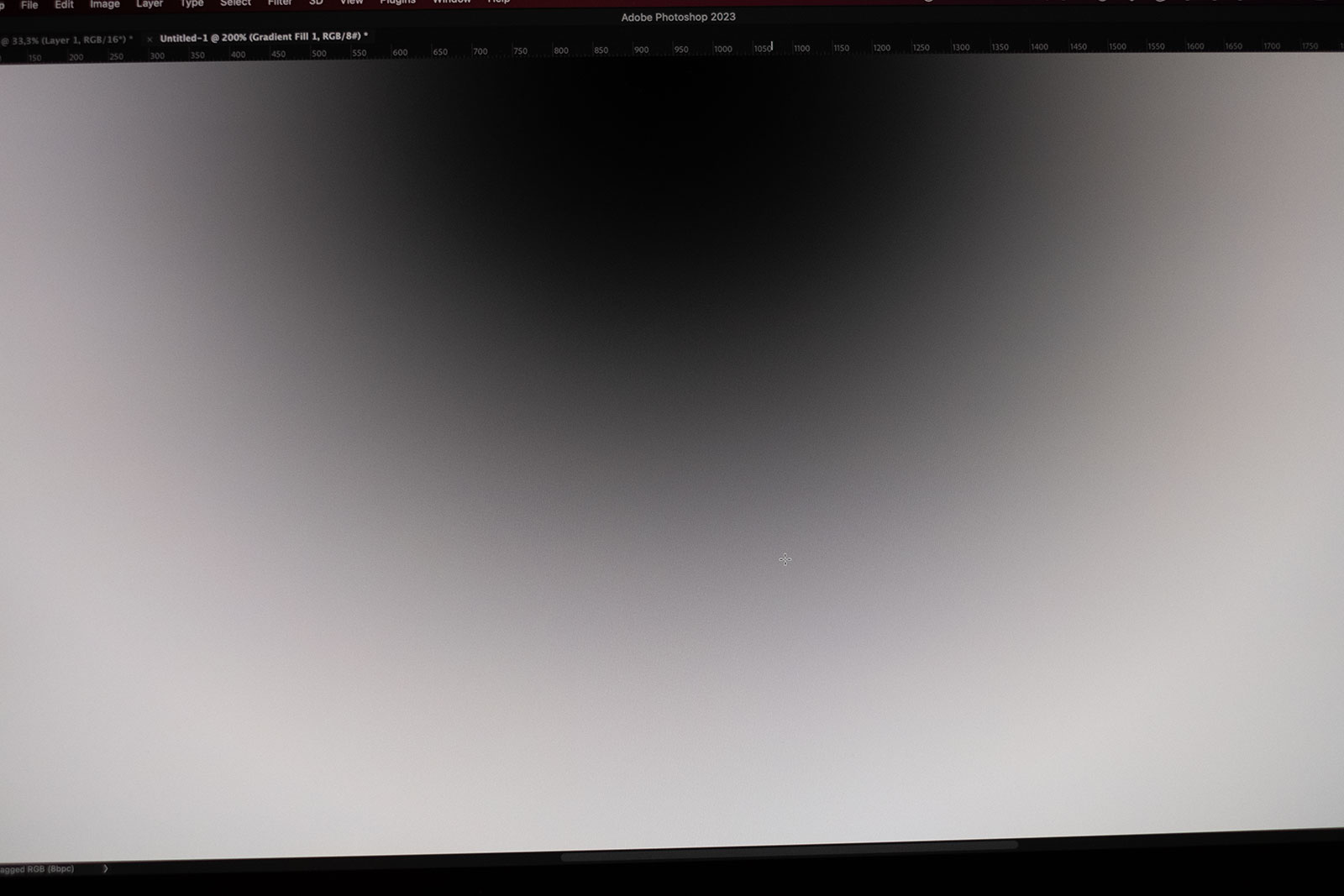
Also the monitor is really not even. There’s a measurable brightness falloff from top to the bottom and the colours go from a more blueish tint on the left to a more pinkish one on the right. It’s subtle, but it’s there.

While they sell it as a 24" display, it seems to be a bit smaller than other 24" screens I have here. Running it at 1920x1080 seems like everything is too big, when going 2560 x 1440 text size is a bit on the limit.

The on-screen OSD can be a bit confusing at first. You have to set the mode to “native” to be able to adjust things like RGB levels, contrast, etc. On the bright side: it does let you adjust all those things.

The good stuff

The good news is that apart from that it’s pretty great. You get a 4K pen display for basically half the price of a Cintiq pro 24.
Build quality seems good. It’s got a laminated display so the parallax is minimal and no plastic screen-protector nonesense, it’s got an etched glass! I’ll see how that does over the next months though.
The response seems good, but I have to use it some more to be able to really give an opinion on it. My computer (2018 Mac Mini), or better it’s crappy Intel GPU, barely manages to deal with the 4K resolution, I tried to run it together with a secondary monitor and the pen started to lag like hell. But if I just use the Kamvas alone it works fine.
The pen feels pretty great, actually I like it better than others I’ve used (including the various Wacoms I had and the XP-Pen one). For the first time I have a pen with very minimal nib wobble! It seems to sit pretty firmly in place.
Software and drivers and also seem to be pretty decent. No issues there so far.

One weird issue I had, but I don’t think it’s really related to the Kamvas is that the display wouldn’t wake from sleep. I had the device plugged in directly to the HDMI port on the Mac. Then at one point the HDMI port on the Mac died altogether (tested it with other displays and it does not give me any signal anymore). I’ve now got it hooked up through a thunderbolt adapter and that seems to have also solved the waking from sleep issues.

Mini Keydial

I got their Mini Keydial (or is it the other way around? Their product naming is confusing) with it (included in the price) and that was a big positive surprise! It’s the first time that some device like this actually works for me (in comparison, I found the Wacom one totally unusable). Here’s a few things that stand out to me:

  • The dial is a stepped one! Which is great since what it does is just press a “virtual button” while you move it. This way you actually know when the virtual button is being clicked. Works great for zooming and rotating the canvas.
  • The buttons have a satisfying clickyness to them and have just the right size so you don’t miss them but also don’t have to move your hand too much to find them. There’s also just the right amount of buttons for what I need.
  • If you don’t like cables, it also works with bluetooth.

It can be nitpicky I would add that:

  • the feel is a little bit plastic-y
  • two dials would have been even better

Krita specific things

Not much to report here so far, except that everything works as expected!
9 Likes

I have this tablet and I don’t have the color problems, light falloff or the blue and pink problems you describe, are you sure you didn’t get a defective tablet? Are you able to take a picture of this problem? I would probably ask huion support about that. I am staring right now at my tablet and I am not seeing them.

For the colors adobe rgb mode looks ok though sliiightly more saturated than my other screen, the hdr with a 1.4 display port cable seem the most correct, native is terrible and I couldn’t get the screen to display good colors so far either.

For a stand I use an amazon basics arm, it is not wobbly while I draw, it is wobbly when I move the tablet or really push it tho. Maybe you can look into it?

4 Likes

It’s possible yes, although the tinting is quite subtle, and seems more like something you often see on cheap panels. In fact many monitors using cheap panels have some automatic compensation of these chromatic aberrations which is based on a factory check of the panel.

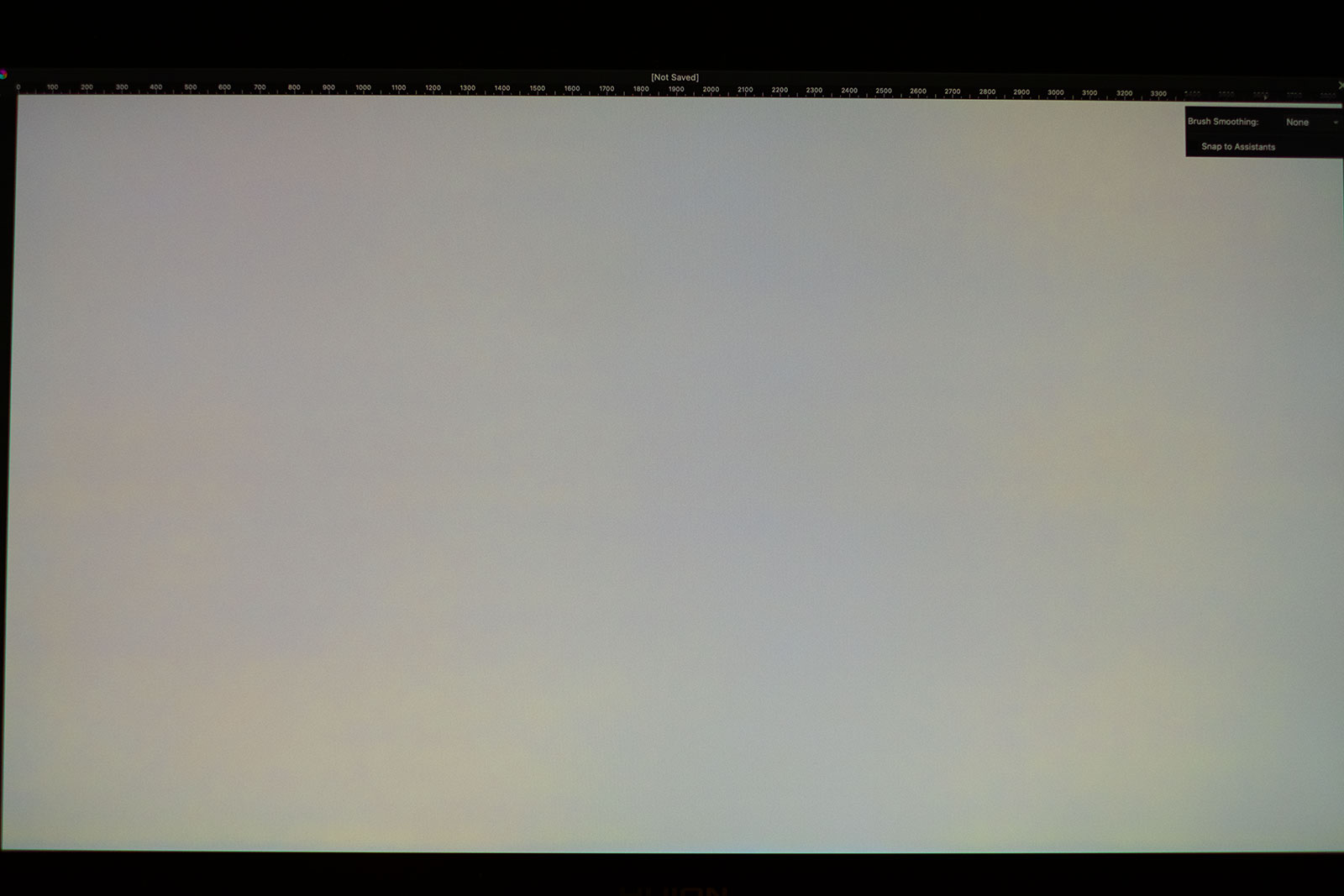
Anyway, for the sake of completeness I’ve tried to take some photos. It’s pretty hard, since the camera will not capture all the nuances. I did use a Fuji X camera to take these, which is much better than a phone cam, but still not really a pro-grade camera.
Anyway here they are:

A completely white image:

To make the tinting more obvious I have cranked up the saturation here. This is not how it looks in real life of course, but shows where the colouring happens.

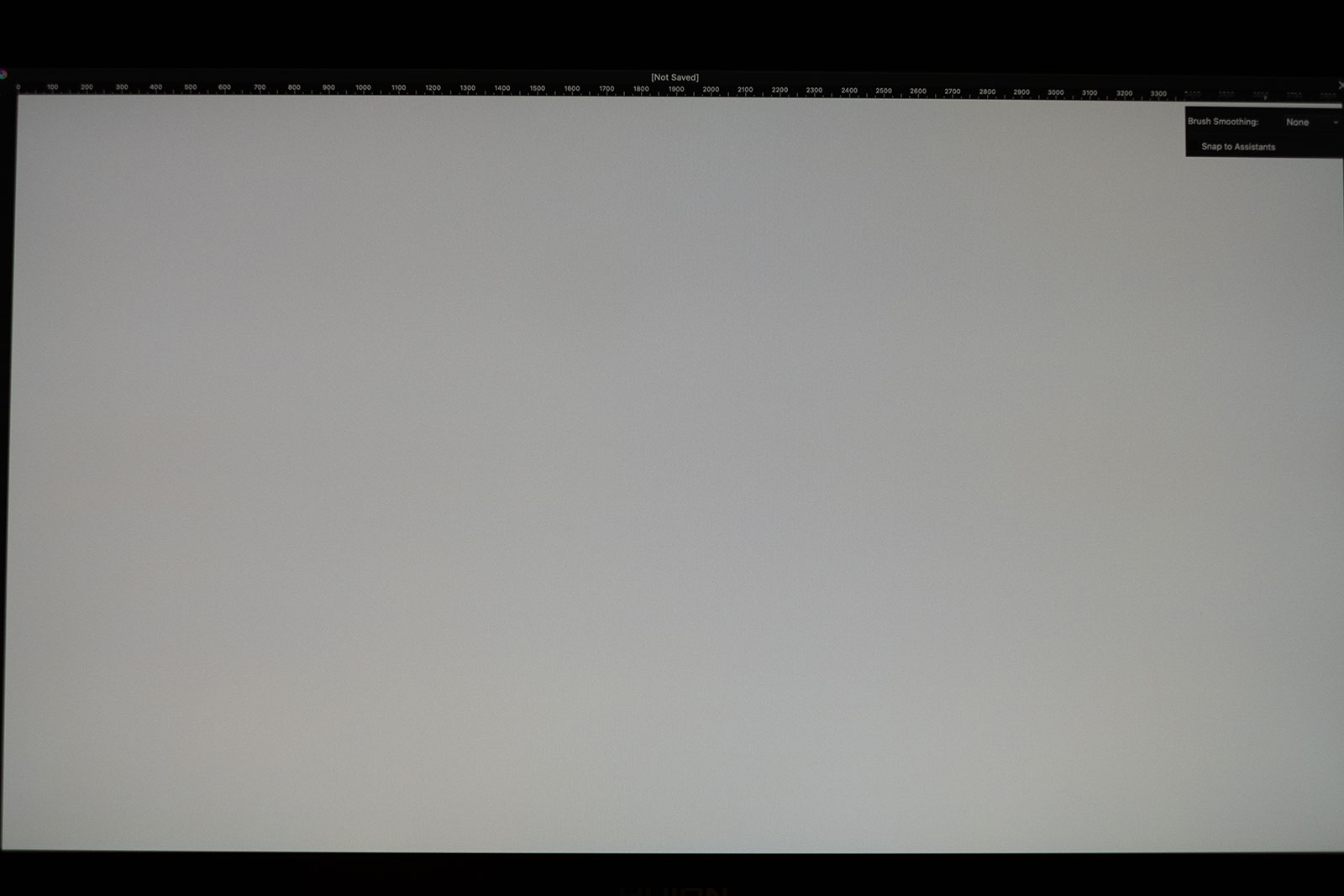
The other thing is the tinting in the light grey areas after calibration.

Here’s a neutral photo:

and here’s one with the saturation cranked up

Thanks for the suggestion. I’ve already ordered one of these:

Which I’ve read good things about.

2 Likes

Hmmmmm I just tried with the white canvas and black gradient, both brush and gradient tool. I am not getting a blue band nor the pinkish grey, I’ve tried staring at them but I really can’t see either. In your first neutral pic the blue band is very visible already and it looks pretty bad even if the camera can’t capture it accurately tbh.

You really might want to ask huion to be sure

1 Like

Thanks a lot for checking this! I’ll definitely get in touch with support!

It is good to hear people’s experience with other hardware like this.

On my mind I think all arms are wobbly and if not will be in the future. That is why on Wacom I got the ergonotron that is essentially a slab of metal there is no wobble with a thing like that and I recommend if there is a similar solution on huion.

I can recommend Amazon Basics arm. It’s sturdy and gets the job done. I’m using it with a 28 inch PC monitor. Ergotron is probably a bit higher-end and may work better if you need to adjust a lot. I just use the arm to have an empty space directly under the screen, which is nice to put away the keyboard and so on.

I also have a Huion Keydial and I can say the biggest shortcoming of this device is the lack of multi-press ability (as in SHIFT+something). It can register only one key at the time, which is a big letdown for me. I can confirm it does feel plastic-y :slight_smile:

Well we have the official Wacom arm for the Cintiq pro 24 here and it’s really nice and sturdy. And we’ve been using it for over a year now. It might become wobbly at one point, but so far it’s holing up well.

Which ones do you mean?

That’s it. I do adjust it quite a lot. Because I’m not just drawing on the computer, I also do more regular design stuff, and for that I prefer to use a mouse and keep the display a bit further away. That Amazon thing does not really look very sturdy indeed.
To be fair, if I were just using it as a more flexible monitor stand, the Huion arm would be perfectly fine. It’s just not good if you want to draw on it. Right now I have to put a wooden box under it to be able to actuall draw without the thing going around all the time.

Anyway, the Ergotron arm is on its way. I’ll post an update when it arrives!

Maybe more than that having more than one page? But then I do also like that it’s very “one button per function”, without extra modality. I still keep the keyboard below the display for when I need to access the rest of the stuff. Can’t really work without the keyboard anyway, I still need to name layers and files and stuff like that.

Yeah they name ergotron more than one thing sorry. It is this one I was referring and it is the one I got. Not very moveable but super stable.

Ah yes, if you have the keyboard then it is fine as it is. When I bought it, I was considering it as a replacement for a keyboard with Kamvas 16, and it was just not enough buttons for what I’m accustomed to.

Ah yes that one! That was our alternative choice when we were looking for a Cintiq stand. I would have preferred this one actually. But my wife preferred the arm because you can also move it up quite a bit and you can draw standing.

Could find anything like that for the Kamvas pro 24 unfortunately.

I guess I just gave up on something that would replace my keyboard. I also use Blender… and well, the only way to replace a keyboard for Blender, is getting another Keyboard hahaha :rofl:

1 Like

Btw. @YRH some people really seem to like this one: TourBox - An Innovative Controller for Digital Creators
Has even less buttons though :grinning:

Thanks, yeah, I saw this device a bunch of times.

Currently, I moved on from display tablets and I just use a keyboard comfortably with a pen tablet lying flat on the desk.

1 Like

Oh yeah keyboards let’s GOOooooooo

From what I gather tourbox doesn’t support linux. but I think there are third party apps to make it work. I remember seeing one by @bloodywing

I am not a fan of the mini keydial, I program short cuts to it but some do not work.
ctrl shift Z for one, Num + and Num - do not work either. The dial would be nice but it seems like it takes 3 clicks to get any effect, I adjusted the sensitivity but that did not seem to have an effect.

That’s weird. I know there’s 2 different versions of this device, one with bluetooth and one without. Which one do you have? They are confusingly named like one is called Mini Keydial and the other is called Keydial Mini (go figure).

or maybe it’s a driver problem? OS problem?

Anyway, I’ll have some updated on the whole Kamvas Pro 24 (4K) matter soon. I’ve been having a lot of back&forth with the customer services on the colour uniformity issue and have just sent the thing off to have it replaced.
But yes, expect a longer report on how this went, and I also found a few more issues with this device worth mentioning. But I first want to see how the replacement one works.

If you want to know, how it went further with @kradoow’s issue, you can read it up in this topic:

And. I’m curiously awaiting your next report on how the experience with the replaced device is and how you see the customer service of Huion in general.
I, myself, have made very extremely different experiences with them in between, reaching from fantastically competent and helpful to completely incompetent customer service executives. People who apparently have no computer knowledge beyond booting the computer and starting the helpdesk software and enter the customer’s data into it.

Michelist

Add/Edit: grammar

1 Like

Yes, my experience so far has also been a mixed bag, with them not really wanting to acknowledge the problem and making me do lots of tests, which I’m not sure added much to what I had already sent them.
Especially for the monitor arm, they just said that it’s normal that it wobbles like hell and didn’t really follow up on it further.
Fortunately I found a good use for the arm (it’s not a bad arm for a normal monitor).

Anyway, more details coming soon!

2 Likes

I got my replacement screen back.

Two months of back and forth later and I’m basically back to where I’ve started. the replacement does not seem to be much different from the one I originally got back in December. So I guess my unit was not defective, but the panel they use just has bad colour uniformity.

To recap up what my issues are: colour is uneven (more red/yellowish in some areas, blue-ish in others) and hard to calibrate. Out of the box the display is super saturated and greenish. This problem is pretty consistent across the two I had so far. I’m coming from a 27" Dell display (UP2716D) which isn’t perfect either, but was definitely a lot better – even out of the box – than the Huion. We also have a Cintiq Pro here, and that one also has much better colours. As a reference, the Dell does cost about 800€ IIRC and of course the Cintiq Pro costs double the Huion. I guess they had to cut some corners to be able to offer the Kamvas pro for the price it has.

My experience with the customer support has been a bit of a mixed bag, but I would say more good than bad. The person who assisted me was generally kind and tried her best to help, but didn’t appear to be very prepared on the technical side of things.

There’s a few more details I’ve noticed in these 2 months of use:

  • It has 2 USB ports, but these are only USB 2.0 and there are some power issues with them. Most hard drives I have tried to attach would spin down shortly after connecting.
  • The OSD menu is pretty limited, but does allow to adjust basic things like brightness, contras saturation, and RGB. I found the AdobeRGB and sRGB presets pretty pointless, since they look too greenish.
  • With MacOS I’m experiencing issues waking the display from sleep. It’s a common issue with some monitors on MacOS it seems. Sometimes it takes a really long time for the monitor to come back alive, other times it doesn’t come back at all, and I have turn it off and on again. When used together with another display, everything starts to flicker like hell when coming back from sleep, making a dual display configuration not very usable. I had issues with the XPpen Innovator 16 as well, when used together with the Dell display. Haven’t tried this on Windows yet.
    UPDATE: I just found out that when switching the resolution to a 1.5x scaling factor the standby issues go away. MacOS is weird…

So my final verdict here is that the pen display is not suitable if you need colour accuracy. Expect noticeably uneven colours and hard to colour-calibrate display.

Other than that it’s not a bad device, it’s a 4K 24" (well more 23" I’d say) pen display, for half the price of a Cintiq pro, which has a lot of similar specs.
The pen seems to be good, has a laminated etched glass with minimal parallax, the viewing angle is pretty great and overall it feels like a good pen display.
Can’t comment on the tracking speed of the sensor, because my computer is a bit old. I get some lag (not a lot to be honest) but I think that’s mostly my computer not dealing well with the 4K resolution. It does get very laggy when I switch to a scaling other than the 2x one (scaled resolution of 1920x1080), and it also gets worse when using two displays.

3 Likes