Looks good.
Looking great.
Keep us informed when it’s finalized.
Greetings sir @Deif_Lou.
I was wondering also whether you could add a noise generator for toning.
It’s pretty much computer generated value noise, with a scale or noise size, noise factor, dot position(x, y), and angle as options. I mean, what are your thoughts on this ?
Hi. With “noise generator” do you mean a new independent generator that could be used with the halftone filter?, or something integrated in the screentone generator?
Also, in the properties, what would changing dot position achieve?
Are you thinking in something like perlin or simplex noise? or something more like what is used in dithering (bayer, blue noise, etc?).
By the way, forget about the noise factor as it’s equivalent to shearing applied to the noise.
So, I mean integrated to the halftone filter mostly(although it’d be cool to have that option as default
in case conversion of a layer color depth to bitmap is executed, but Krita doesn’t support 1 bit color depth as of now, does it ?)
Think of dot position as position all simply. All it does is move the generated dots/pixels of the noise by an estimated integer length depending on the x and y values. Just like the way it affects screentones. I guess the use of this is to create/avoid overlaps, say, to intentionally produce or avoid a moiré effect for instance.
Screen cap examples below.
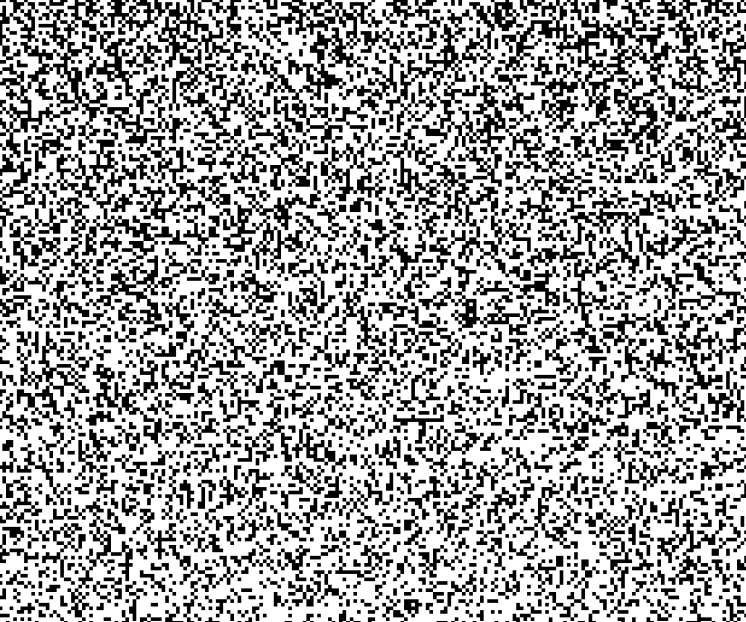
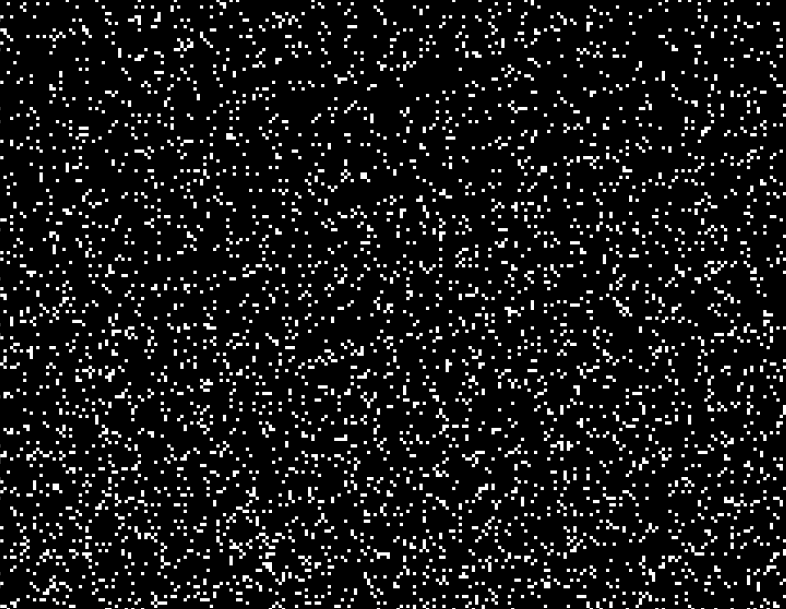
Noise with gradient in values:

Closer look(lighter part) :
Closer look(darker part) :
Me, after I etch my head with the noise tone :
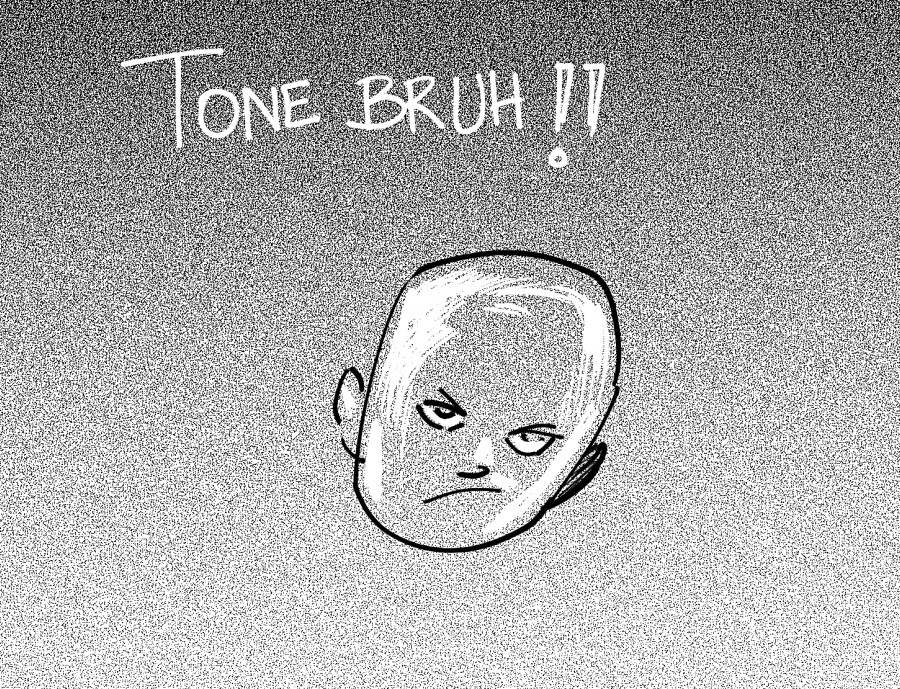
This kind of “effect” should be implemented as a generator, that way it could be used by the halftone filter but also standalone to produce other kind of effects, like paper grain.
You can try the simplex noise generator with a high frequency for now. But it would be great to have a more general noise generator, with different types of noise.
Note that @amyspark I believe was working on dithered gradients, they use blue noise, it looks kinda similar. Maybe the code can be reused. But for now, @novames00 in Krita 5 you should be able to just make a lightgrey-to-darkgrey gradient, use Levels on it and get to a similar result.
Ok, I finished the improvements to the screentone generator and made a merge request: Draft: Screentone generator improvements (!1010) · Merge requests · Graphics / Krita · GitLab
I think all points mentioned on this thread were addressed. Let’s see if Dmitry is so kind of making some packages next week for testing.
God bless you ! AMEN !
Ok, Dmitry made some packages to test the changes:
- linux: krita-5.0.0-prealpha-0be02c8-x86_64.appimage — Яндекс.Диск
- windows: krita-5.1.0-prealpha-screentone-dk1.zip — Яндекс.Диск
Let me know if something is wrong with the changes.
Just tested it and so far, and it’s just PERFECT ! YASSS!
Now Krita can generate the most beautiful screentones ever.
Thank you so much.
Aye, now maybe, the only two to three things missing are :
- The pattern option (with alignment to pixels ? Not sure)
- The noise generator(working with a quality on par with CSP, as shown in this thread, can be for a future version)
- A new option : Conversion/Reflection of opacity for the screentones( will convert alpha pixels to matching grey value and thus force display black/white instead of transparent pixels, useful if you don’t want to always paint full opacity pixels first before applying the screentones; OK, maybe that can be for a future version too)
I’m glad you like it.
As you know, the halftone filter is made to work with generators and it is independent of them. That way every new generator that is coded to use as a fill layer will automatically usable as a pattern generator for the halftone filter and viceversa. This only improves the screentone generator, so points 1 and 2 will need separate feature requests. For point 2 I think it’s better to make a new, more complete and versatile (and faster?) , noise generator.
Regarding point 3. Can you explain better how it would behave? I guess it would be a feature for the halftone filter. But in what mode should it work? “Intensity” and “Independent Channels” I guess. Please, explain it better and with images or mockups of the ui if possible.
Some notes:
It might be wise to include tooltips for the different equalization modes including a small non-technical summary of how they work/differ and their usecase. “Template Based Equalization” alone for example might sound a bit opaque to the average artist.
Small typo: “Pilxel-based” size mode.
Would it be possible for the Resolution to automatically default to the DPI from the current image rather than having to manually click “Get From Image”?
Also, regarding something said earlier:
It’s not exactly a matter of what looks better or not. I’m not sure if it’s still true, but at least for a long time, big manga publishers in Japan strongly preferred monotone submissions for cheaper physical production. So, properly supported monotone screentones can be very helpful for professionals.
Any suggestions? The term equalization alone is very technical. The only useful thing I can think of is to put in the tooltip some text suggesting when to use each, but even then it’s relative, it depends highly on the use case. Something longer will have to go in the documentation. Or maybe there is another way of naming the modes I can’t think of right now.
There is a way of doing that only through the widget in the layer properties. But the filter itself (the piece of code that actually generates the image) has no access to that. So even if the resolution of the image is taken automatically when the properties dialog opens, when the user changes the resolution, the layer will be rendered with the old resolution until the properties dialog is open again. So I think it’s better to wait until the filter class has access to that kind of information.
Greetings @Deif_Lou
Taking notes.
So regarding Point 3. Here are some examples of pixels painted with a soft brush :
Fig a) :
At the left, the opacity is reflected.
At the right, it is not.
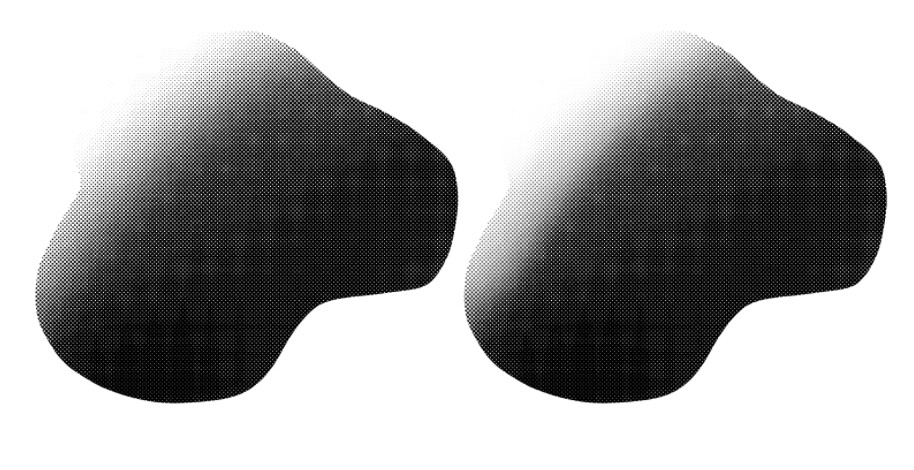
Fig b) Left tone, closer view at the outer edges :
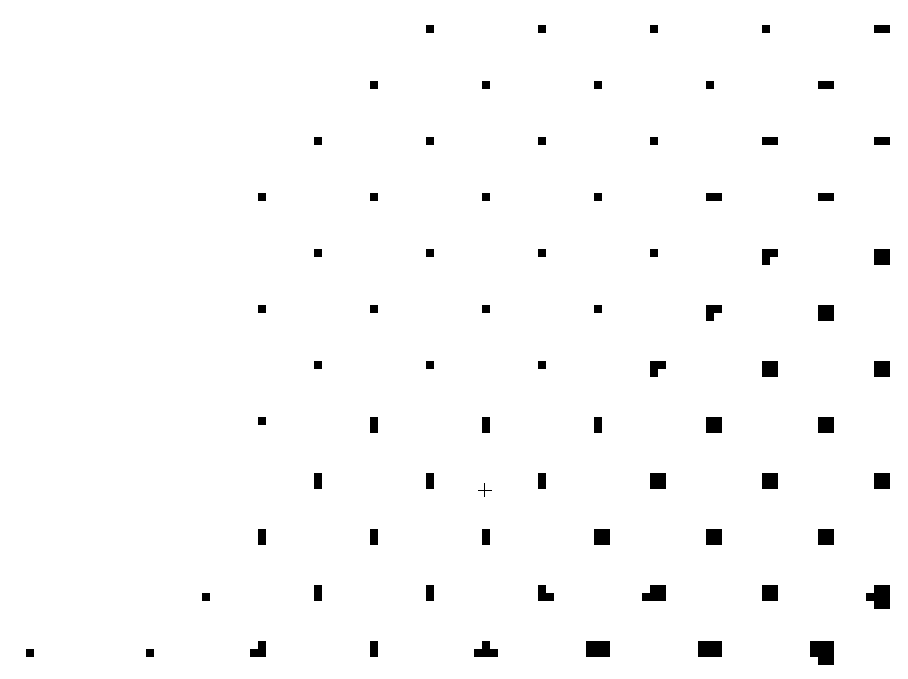
As you can see, the tone pixels are completely black. Using a soft brush, supposing that the usual painting principles applies, the alpha should still allow a dark gray to white dotted colors to be visible in theory. But because the opacity is reflected in the application of the tone :
- opacity is automatically changed to maximum;
- the absolute color rather than the perceptual one is displayed(For all grayish values, reflecting the opacity to the tone, will shift them to pure black, think of 1 bit image generation : either white, or black)
- the value representation is expressed only in terms of “pure black dots and their size” vs “pure white”.
Fig c) Right tone, closer view at outer edges :
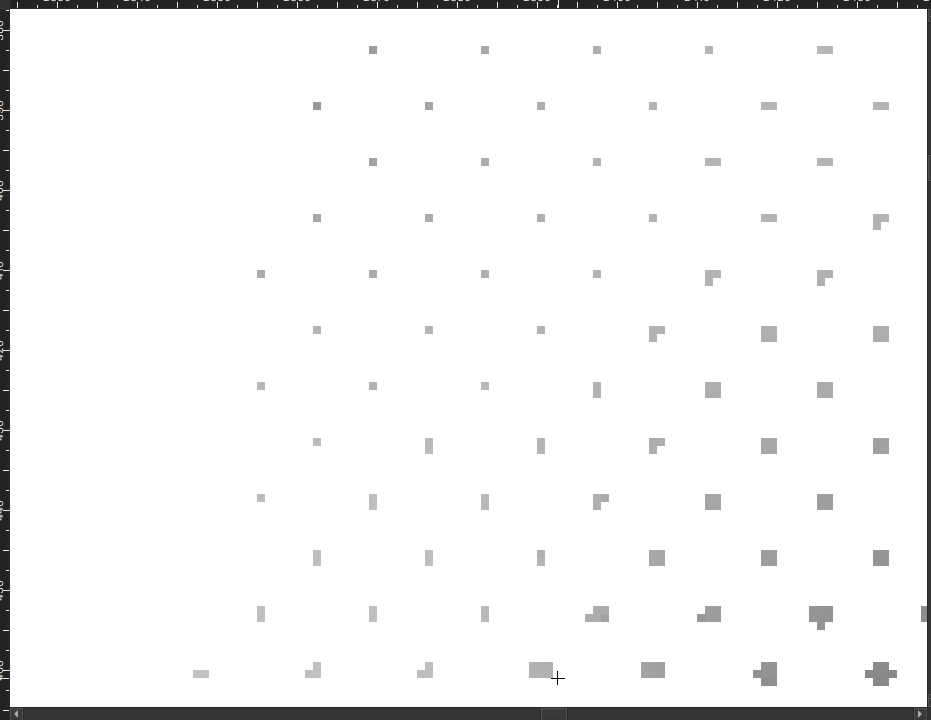
As you can see, the part where transparency is painted, well… leaves the transparency in the tone. So the tone itself is transparent as well, and as a result, the tone is partly gray instead of black.
So to avoid such transparent tone, it’d be preferable to “reflect the opacity”. Right now, we have to paint fully opaque pixels first in an area, and then paint over it using transparent color ontop of fully opaque colors. Which still results in fully opaque colors. The problem if there should be one, is that we can’t use an eraser on the painted area at all. Or else, the tone will be partly transparent. Which we want to avoid in this case. And that “opacity reflection” intervenes in such case.
The “reflect opacity” option can be a checkbox. If it’s active, the result will look like in fig b) even if we use a soft eraser or soft brush. (all appearing tone dots show pure black color and have full opacity).
I think it can be relevant to add this to the “Intensity” mode only.
Not needed for “Independent Channels” or “Alpha” modes.
So it is as if you first composed the semi-transparent layer over a fully opaque white background and then apply the halftone to that?
If that’s correct, then a switch as you suggest can be added but also a color button to specify the color of that background, maybe defaulting to white.
This may be related to what @acc4 suggested back in the day. @acc4 can you comment on this?
Anyway, this should go in another mr. Let’s see if we can finetune the feature.
By the way. Why are plugins disabled/unavailable at all in the packages from the links forwarded by Dmitry ?
I don’t know. Maybe they are compiled without python. Dmitry has to compile a lot of things every day so maybe he just doesn’t compile things that are not relevant. But I’m not sure.
@novames00 I think I know what you meant with the “reflect” thing now. You want something similar to the “reflect” option in CSP, isn’t it? I leave here a video made by using 2 halftone filter masks to achieve the effect. If that is correct, it should be easy to include the option directly in the halftone filter:
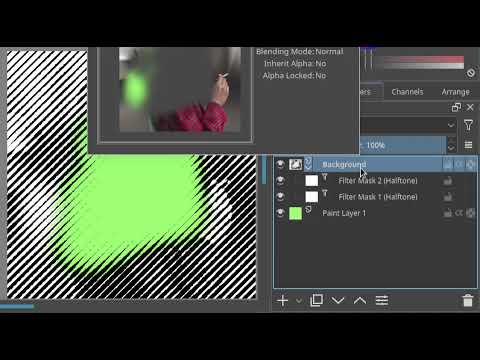
That’s correct I think.
I remember using gorup layers to achieve the effect. If you want to experiment by yourself :
(Group Layer (Mode : Multiply, Pass Though : Off)
└ Filter Layer (Halftone(Intensity))
└ Paint Layer (Where we paint values)
└ Paint Layer (White background))
But the way you presented in the video looks more simple. And I’ll be happy as well if the option is implemented. 
That’s it. I’m surprised that this workaround exists though. Interesting.
Never thought of something like that before.