I have encountered a small problem, which is that when I use the default UI of Krita, if I open multiple documents, I cannot find the current document I am using in a timely manner (with only a slightly brighter color). Is there a better solution?
Is there any plugin that can solve this problem

Script below make document tabs more visible.
just copy & paste to Krita’s: Tools → scripts → scripter and press play.
(script will only color tabs on windows that exists when play is pressed, and colors will reset each time Krita started)
from krita import Krita
from PyQt5.QtGui import QPalette, QColor, QBrush
from PyQt5.QtWidgets import QTabBar, QMdiArea


def highlight_tabs():
    app = Krita.instance()
    for win in app.windows():
        qwin = win.qwindow()
        mdi_area = qwin.centralWidget().findChild(QMdiArea)
        if not mdi_area:
            return
        for child in mdi_area.children():
            if not isinstance(child, QTabBar):
                continue  # skip
            child.setShape(QTabBar.TriangularNorth)
            palette = child.palette()
            palette.setColor(QPalette.WindowText, QColor(255, 255, 255))
            palette.setColor(QPalette.Base, QColor(128, 128, 255))
            child.setPalette(palette)
            break

highlight_tabs()
Thank you
After executing the script, it was indeed done
But after restarting krita, it still remains the same, and I don’t know where the mistake lies. How to make it automatically execute after starting
@AkiR Would it be a good idea to make a Feature Request topic to have a script (or set of scripts) run automatically when krita starts?
Ok, script needs to be converted to Krita Extension.
- Go to Krita’s menu
Settings ->
    Configure Krita
        select Python Plugin Manager (bottom left in dialog, slide down)
            Make sure that following plugin is enabled

            [x] Krita Script Starter

            (Note: krita must be resterted when plugin(s) are enabled/disabled)
- After Krita has restarted Go to Krita’s menu
Tools ->
    Scripts ->
        Krita Script Starter
-
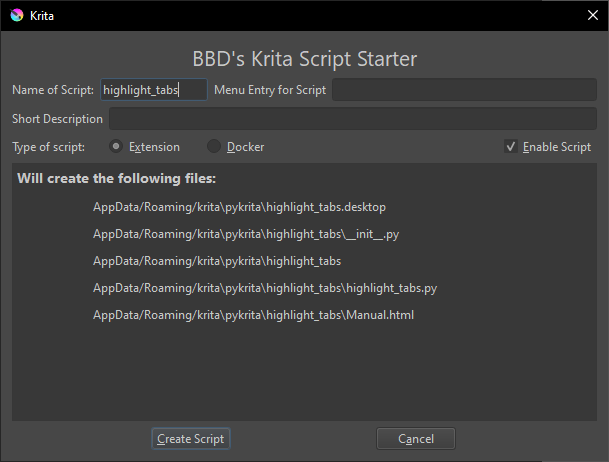
input name of extension
highlight_tabsand pressCreate Script
- there should be info dialog, informing about location of new extension locations are needed on next step (maybe take screen shot of info dialog?)
-
Go to Krita’s menu
Tools ->
    Scripts ->
        Scripter
            Go to Scripter's menu:
                File -> Open

            Windows:
            %APPDATA%\krita\pykrita\highlight_tabs

            Linux:
            ~/.local/share/krita/pykrita/highlight_tabs

            macOS:
            ~/Library/Application Support/Krita/pykrita/highlight_tabs

            Select and open file:
            highlight_tabs.py
- Replace dummy script text with following
# BBD's Krita Script Starter Feb 2018

from krita import Krita, Extension
from PyQt5.QtGui import QPalette, QColor, QBrush
from PyQt5.QtWidgets import QTabBar, QMdiArea


class Highlight_tabs(Extension):
    def __init__(self, parent):
        # This is initialising the parent, always important when subclassing.
        super().__init__(parent)

    def setup(self):
        pass

    def createActions(self, window):
        qwin = window.qwindow()
        mdi_area = qwin.centralWidget().findChild(QMdiArea)
        if not mdi_area:
            return
        for child in mdi_area.children():
            if not isinstance(child, QTabBar):
                continue  # skip
            child.setShape(QTabBar.TriangularNorth)
            palette = child.palette()
            palette.setColor(QPalette.WindowText, QColor(255, 255, 255))
            palette.setColor(QPalette.Base, QColor(128, 128, 255))
            child.setPalette(palette)
            break
save and restart Krita
- New
highlight_tabsextension should now be enabled and working.- extension can be enabled/disabled from Settings → Configure Krita → Python Plugin Manager
/AkiR
Hmm, or it would be nice if Krita Script Starter would be merged to to Scripter, so that new extensions / dockers could be created and new template script would open up in Scripter ready to be edited.
/AkiR
It has taken effect, thank you very much,
However, for a designer who doesn’t understand programming, it can be a bit troublesome.
To make the inactive tabs better distinguishable from the active tab, you can use color schemes. If you go and use color-schemes already made and available for download or create your own ones is up to you. Here’s a collage showing a few made by @MOONRISE-OS and others:

Here, in this gallery, you can watch all of them in full-size instead of this collage, or download the pictures so you can see how they’ll look maximized on your screen:
This plugin allows to easily create such color-schemes yourself:
Plugin: Theme Creator Extension
If you want to mod your Krita even “harder”, you may like this plugin:
Plugin: Style Sheet Loader Extension
Here are themes created using both plugins that may be very interesting for your concern:
Krita Emphasised tab and theme collection
And here you can download these color-schemes, most pictures from my screenshots above are made with themes from the first six topics:
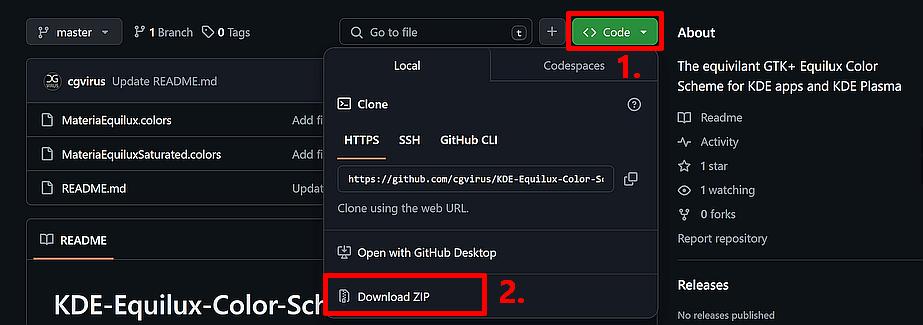
To download this last color-scheme, follow the link to GitHub and click on the green button and select the bottom option:
And if the schemes above are not enough for you, to find a plethora of color-schemes, I can’t present here because of their huge number, visit the so called Pling-Store:
These schemes were initially made for the Plasma desktop, but they are also working in Krita, because they use the same format Krita uses (an advantage of the huge KDE software ecosystem), and ah, okay, it is the other way around, Krita uses the KDE Plasma-Format.
Michelist
Add/Edit: I forgot to mention that they sometimes offer complete themes at Pling.com, that means packages including icons, wallpapers, new buttons, sometimes also system-sounds, and so on, everything to mod your desktop, and these have to be installed on KDE desktops to change that desktops look and feel completely. These packages can contain color-schemes, but I also found some that don’t, and you have to search through these packages to discover the color-scheme files they use (if they have one).
Add/Edit 2, just for the sake of completeness: A new collection of color schemes has been published in the meantime, they are from @ENJERUNE: